Did you install LineageOS on your Android phone and are now wondering what to do next? LineageOS is more than a clean Android experience. It offers a plethora of customization options and features that can help you get more out of your phone.
If you're new to LineageOS, you might be overwhelmed by the sheer number of customization options. If so, check out these five LineageOS features you should try after flashing it on your Android phone.
System profiles
Let your phone adapt to your routine
If you have used Nokia phones before, you'll be familiar with the concept of profiles. Switching between them changes settings like ringtone volume and vibration mode, without requiring you to adjust each one individually.
LineageOS offers a similar feature, with its own additions that make it even more powerful. You can find System profiles under Settings > System > Advanced. Here, you can create profiles for places or routines and choose which settings they change.
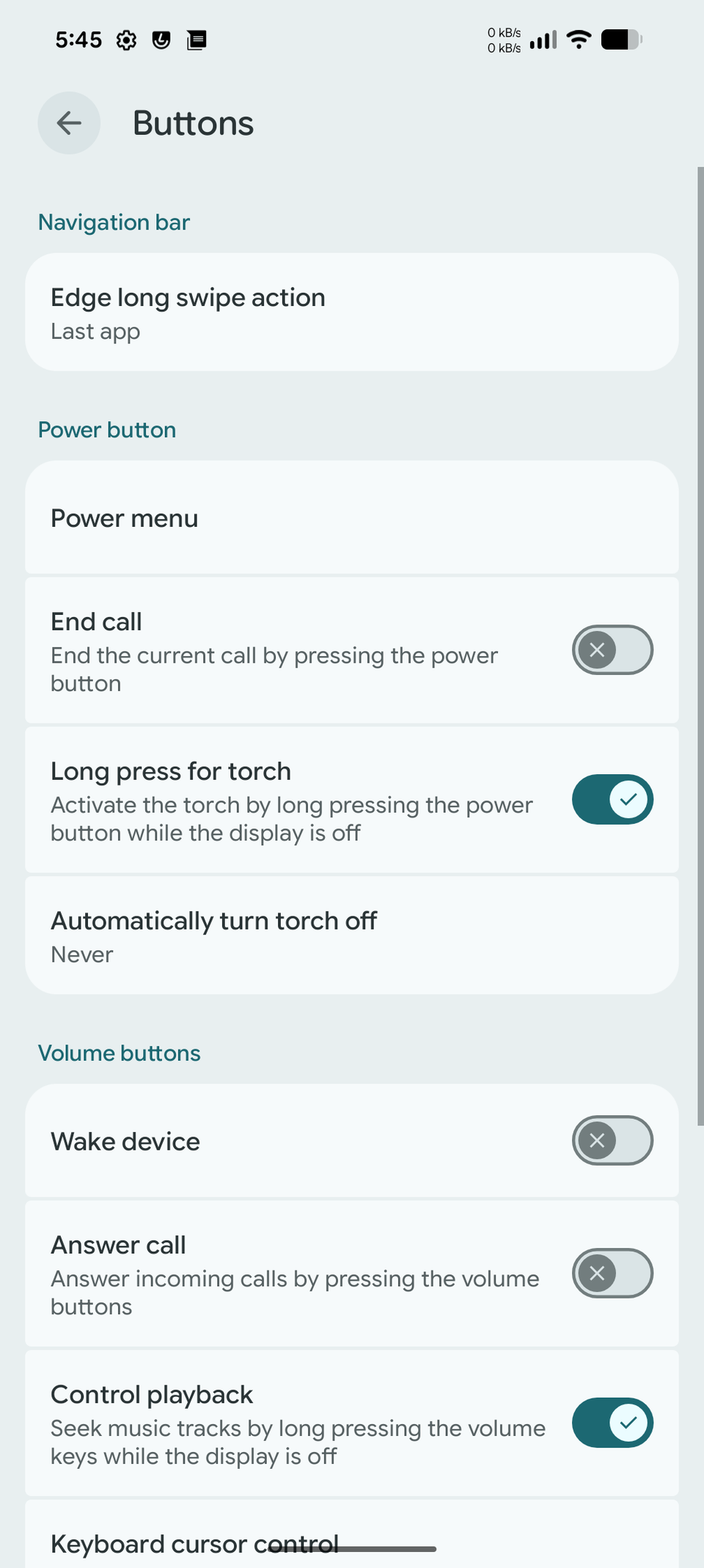
An office profile, for example, can be a great starting point. You can set your phone to vibrate when it connects to your office's Wi-Fi network.
On my , I created a home profile that automatically mutes the media and ringtone volumes and turns off the ambient display to save battery life. This happens automatically when the Pixel connects to my home's Wi-Fi network.
Likewise, I have another profile that automatically activates when the Pixel connects to my car's Bluetooth infotainment system. That profile bumps up the media volume to full while changing the ring mode to vibrate.
System profiles are one of those LineageOS features you may not notice at first glance. But after you set up multiple profiles, there is no going back.
Customize the volume buttons
Go beyond turning the sound up or down
The volume buttons on most Android phones do exactly what their name suggests: control the volume. But with LineageOS, you can customize them to do more.
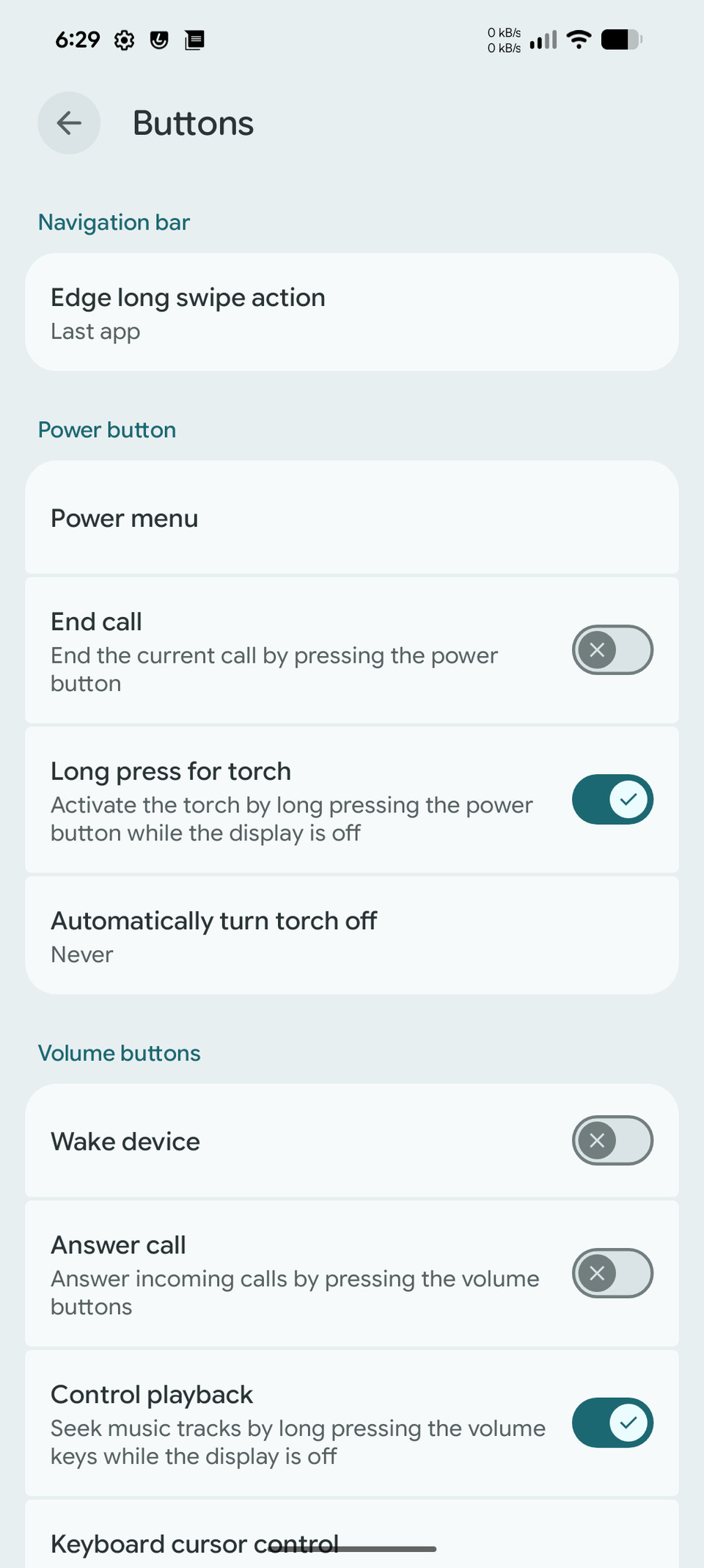
On my Pixel 8 Pro, I've set the volume buttons to wake the device and answer incoming calls. When music is playing and the screen is off, I can also long-press them to skip to the next or previous track.
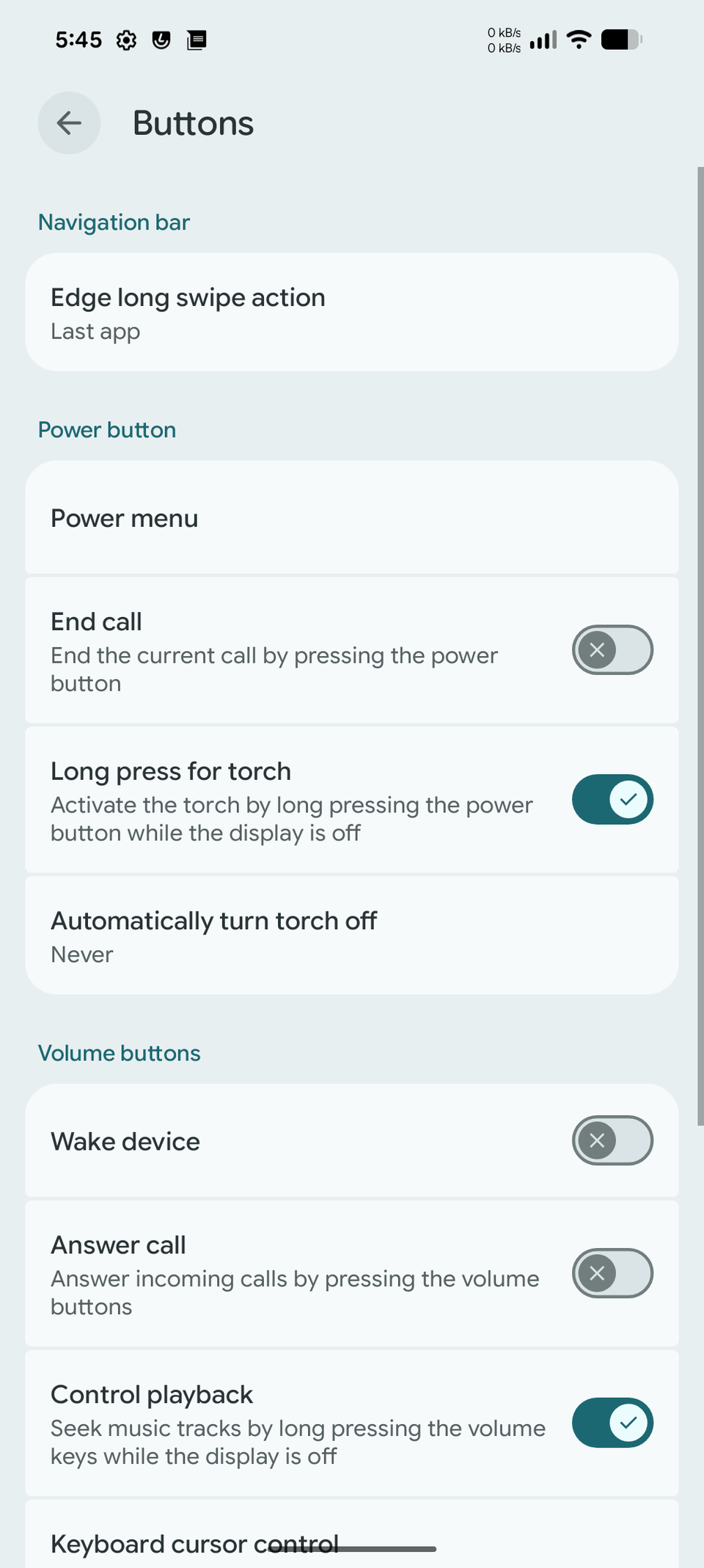
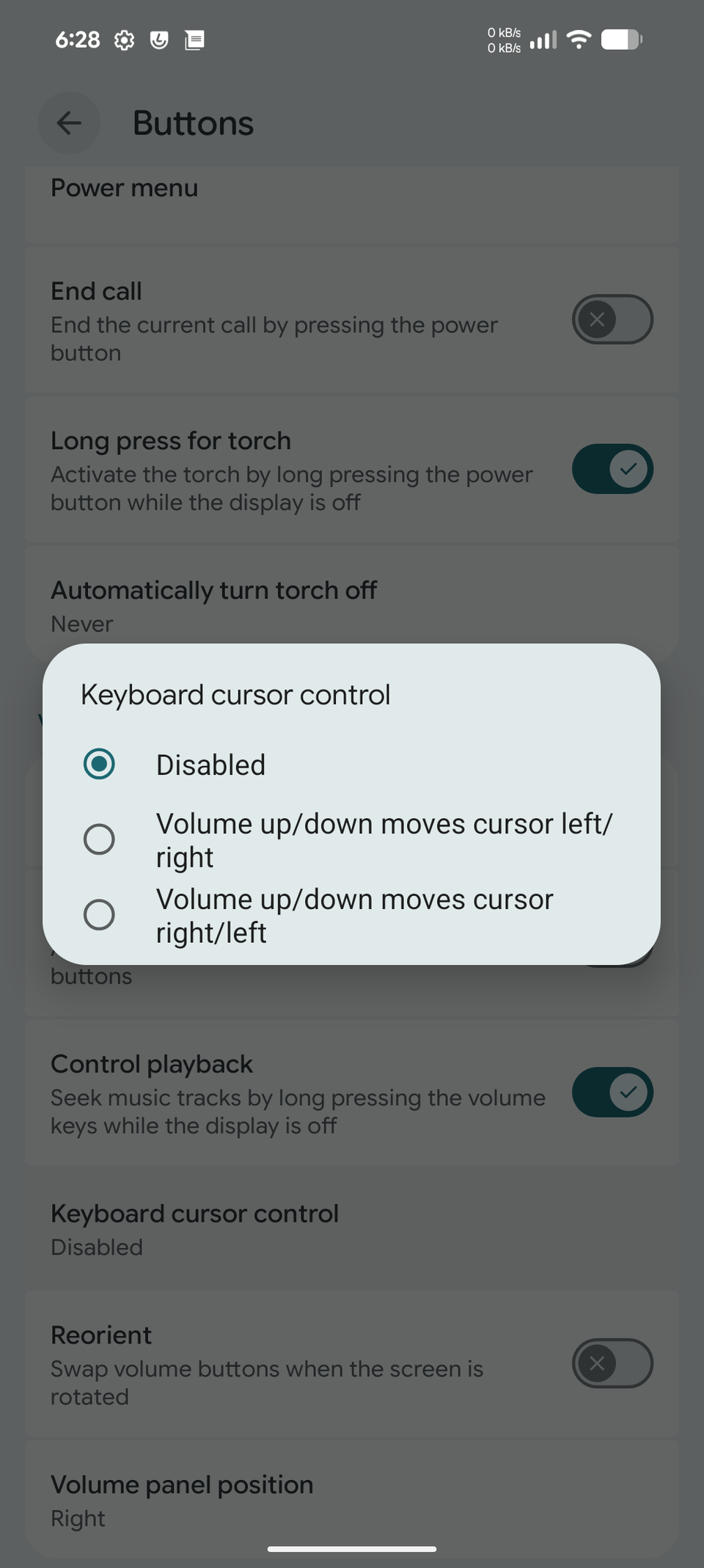
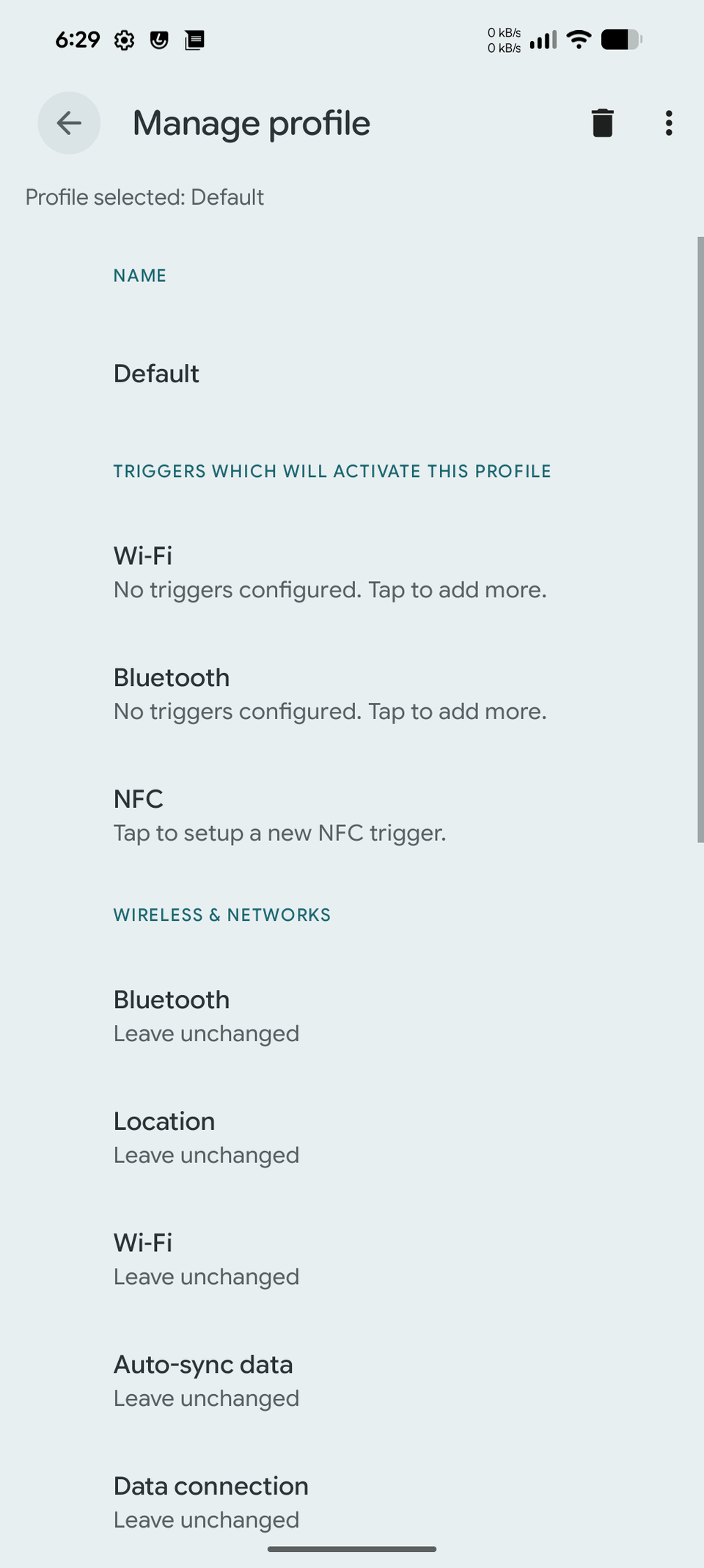
My favorite option is keyboard cursor control, which lets me use the volume buttons to move the cursor left or right while typing. As someone with fat fingers, I find this extremely useful when correcting multiple typos in a long message. It saves me from repeatedly tapping the screen to position the cursor exactly where I need it.
There's also a reorient option that swaps the volume buttons' behavior when you rotate the screen. After you get used to it, you'll wonder why other Android skins don't offer this feature.
Make the status bar more useful
Put every inch at the top to work
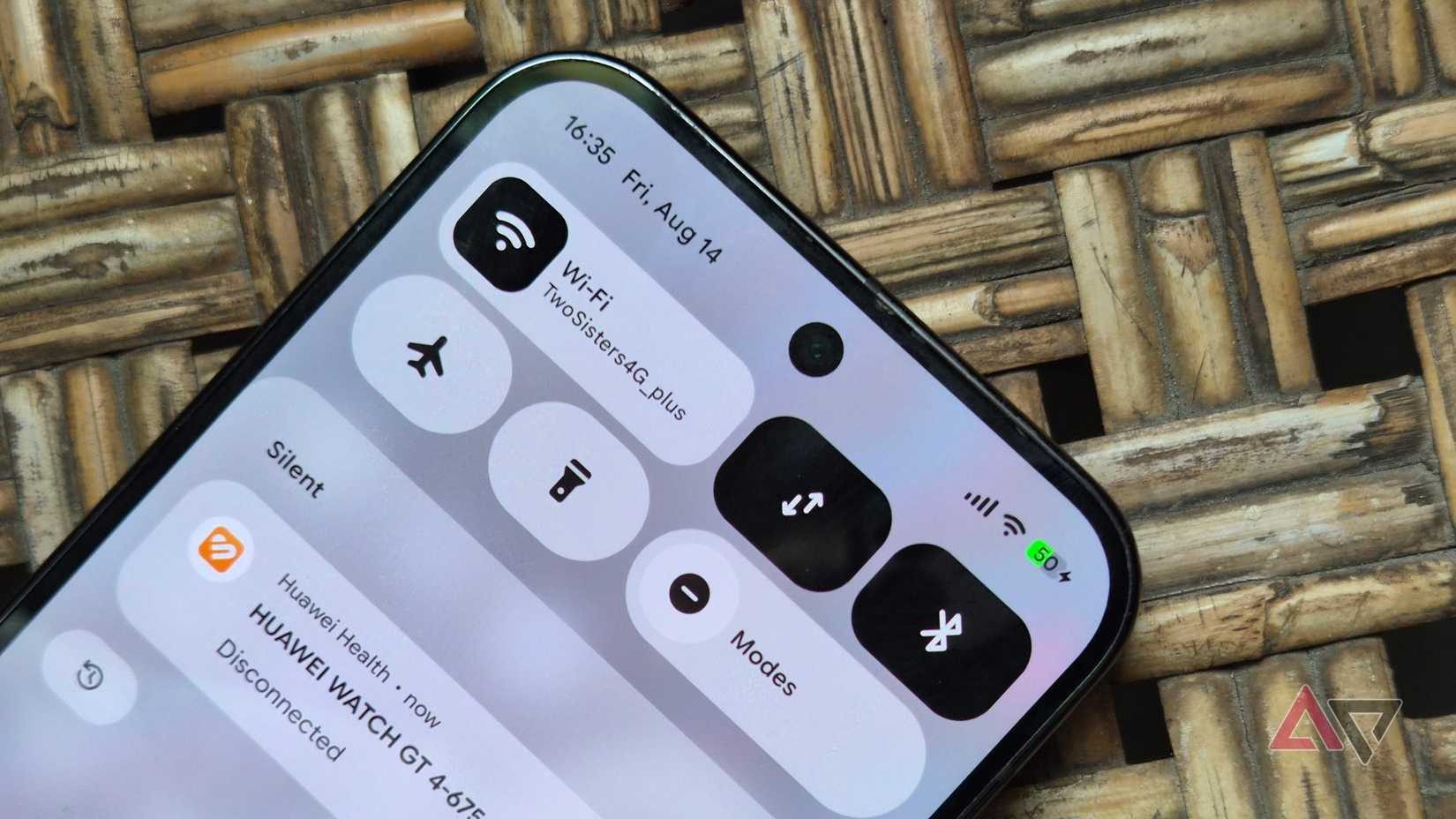
Most Android skins offer some level of status bar customization, but LineageOS gives you more control over what appears there and how it works.
The basic options are there, like changing the battery icon style, choosing where the battery percentage appears, and adjusting the clock's position. You can also show current upload and download speeds in the status bar for a quick sense of your phone's network activity.
While many Chinese Android skins offer a similar feature, LineageOS gives you more control. You can show upload speeds, download speeds, or both, and choose where the network traffic monitor appears. You can also set it to hide automatically when there's no network activity and hide the direction arrows for a cleaner look.
You can even choose the measurement units, including kilobytes or megabytes per second, or let the monitor switch automatically. If you prefer a less cluttered status bar, you can hide the unit label.
The customization extends to how you access Quick Settings. You can configure the quick pull-down gesture to open the full panel when you swipe down from the left or right edge of the status bar. You can also keep the brightness slider visible when the Quick Settings panel is partially open, instead of fully expanded. You can also choose whether it appears at the top or bottom.
The clock also gets extra options. Besides moving it to the right on the status bar, you can have it display seconds or automatically hide when the launcher is visible.
Give the back gesture an extra shortcut
A longer swipe goes a long way
LineageOS is all about customization, and that extends to navigation gestures. A handy Edge long swipe action is buried in >>, where you can assign an extra shortcut to a longer swipe from the edge of the screen.
By default, the action brings up the recent apps switcher. But you can customize it to trigger voice search, turn off the screen, launch the camera app, kill the foreground app, play or pause music, and more.
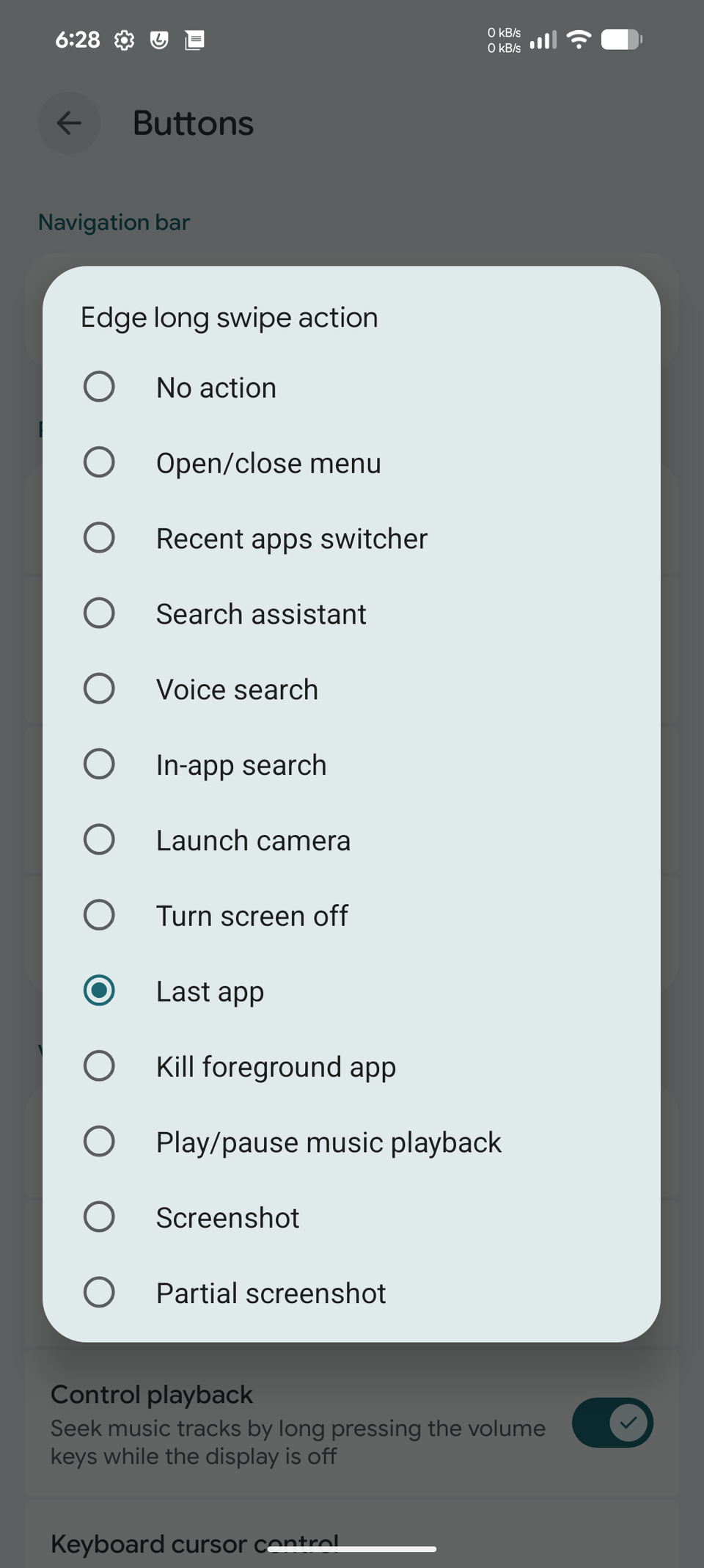
My favorite action is switching to the last-used app, so I can quickly go back to the previous app with a long edge swipe across the screen. A regular edge swipe still takes me back a previous step in the foreground app. I constantly switch between applications, so this edge-swipe shortcut is a big usability improvement.
Partial screenshots
Even after all these years, custom ROMs like LineageOS offer a better screenshot capture experience than most Android phones.
On LineageOS, you can capture only a portion of the display in a screenshot. Google is testing a similar feature on Pixels in QPR3, but it's limited to large-screen devices. But with LineageOS, you can use it on your phone.
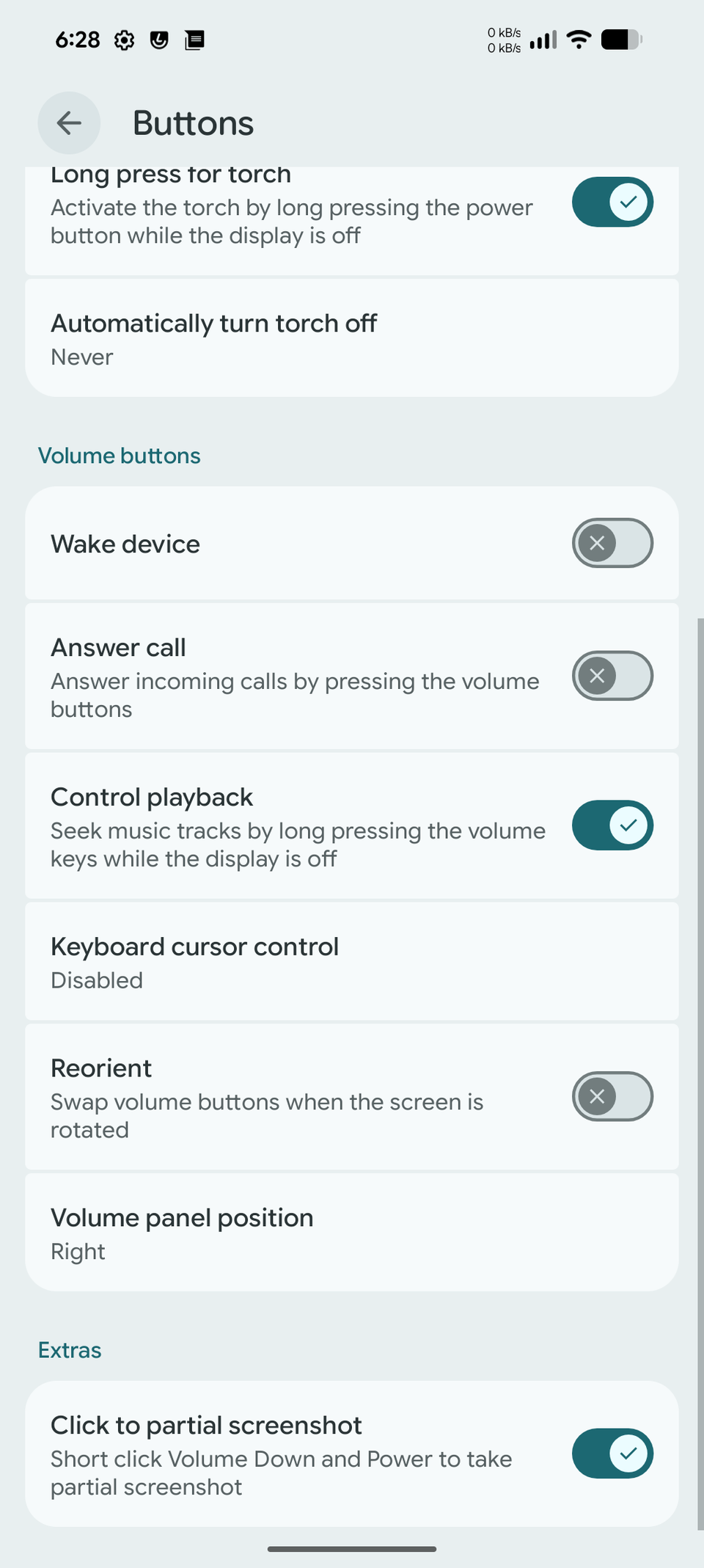
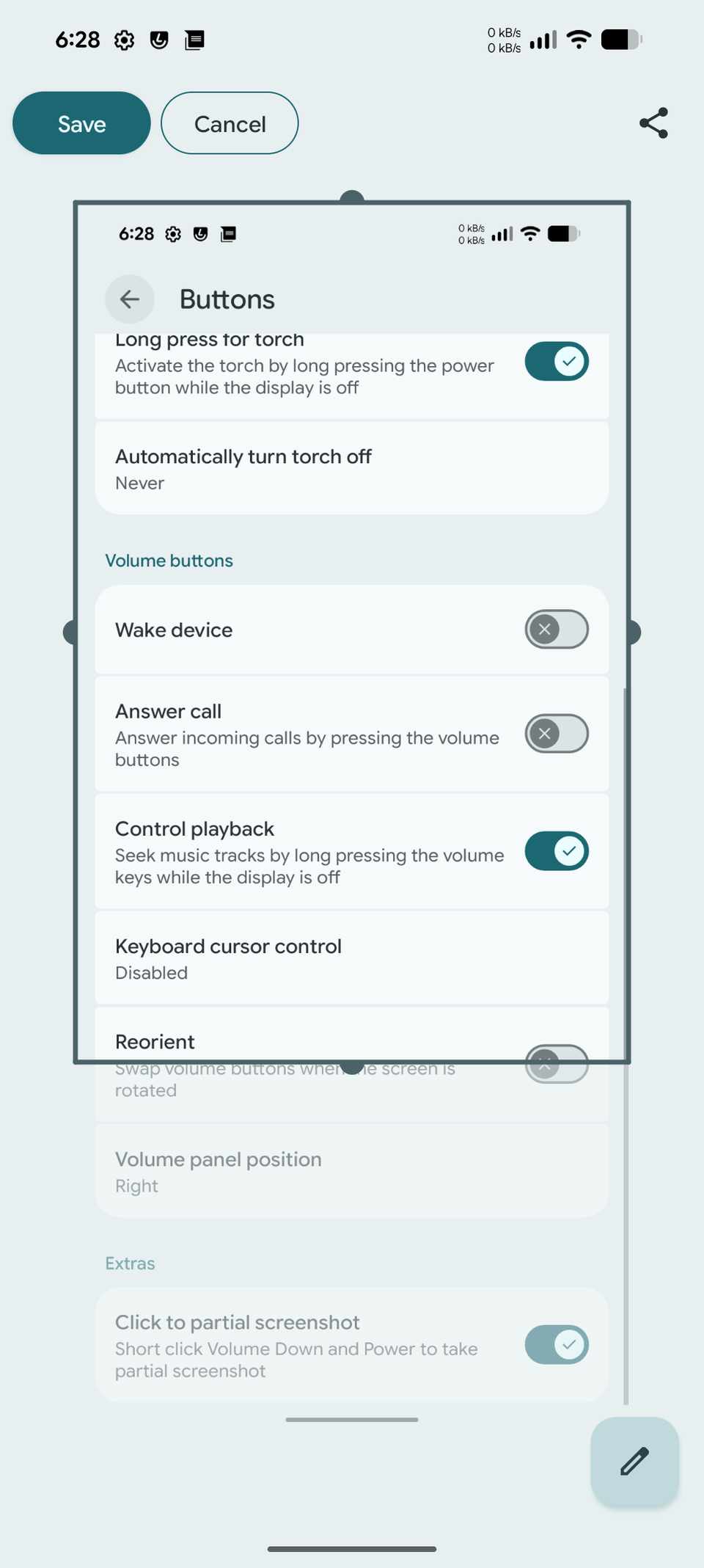
Head to > > and enable Click to partial screenshot. After that, pressing the power and volume-down buttons together lets you select the area you want to capture instead of taking a screenshot of the entire display.
This is a handy feature when you only want to share a portion of an ongoing conversation, email, or web page.
Welcome to the world of LineageOS
Installing LineageOS on your phone is just the beginning. Exploring its customization options is where things get interesting. From automating settings with profiles to giving buttons and gestures extra functionality, these features will improve the everyday experience and make your phone feel new again.