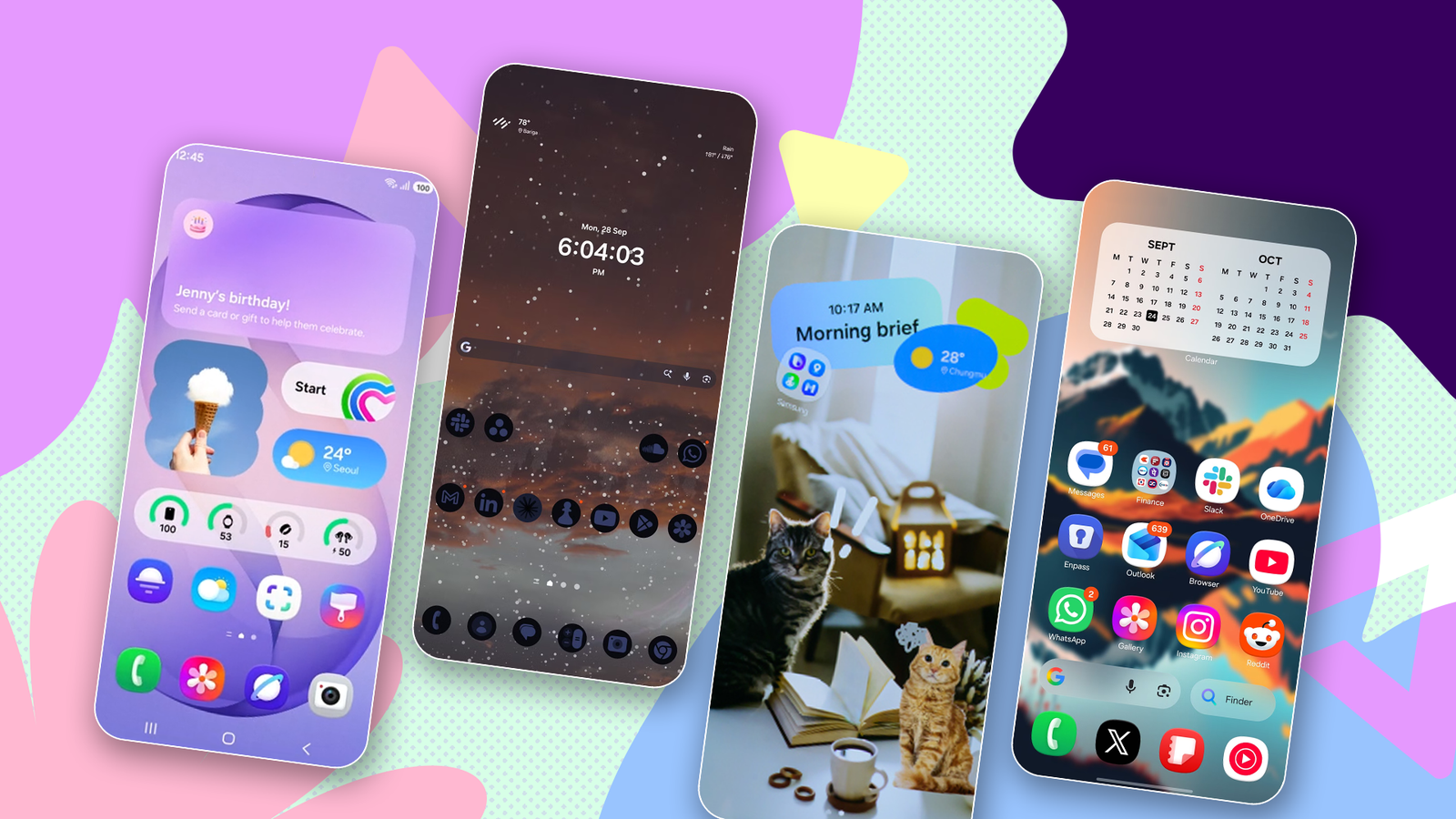
My Samsung Galaxy S24 Ultra has had the same home screen for months: the stock wallpaper I chose when I bought it, the weather and clock widget at the top, the Google search bar in the middle, and two rows of carefully selected apps.
No folders, because I think they're unnecessary. I don't keep any secondary home screen pages: only the main one and the Google Discover page to the left. I like my home screen minimal.
But with no change in months, it's getting boring.
Still, I wasn't in a hurry to do anything until I saw that to use motion photos as home screen and lock screen backgrounds.
Since I'm still on One UI 8.5, I couldn't help but think of what customizations would take my home screen to another level.
So I spent the next few days trying every customization I could find, and I think you'd like these five.
Turn your motion photo into a moving wallpaper
It all starts with your phone's camera
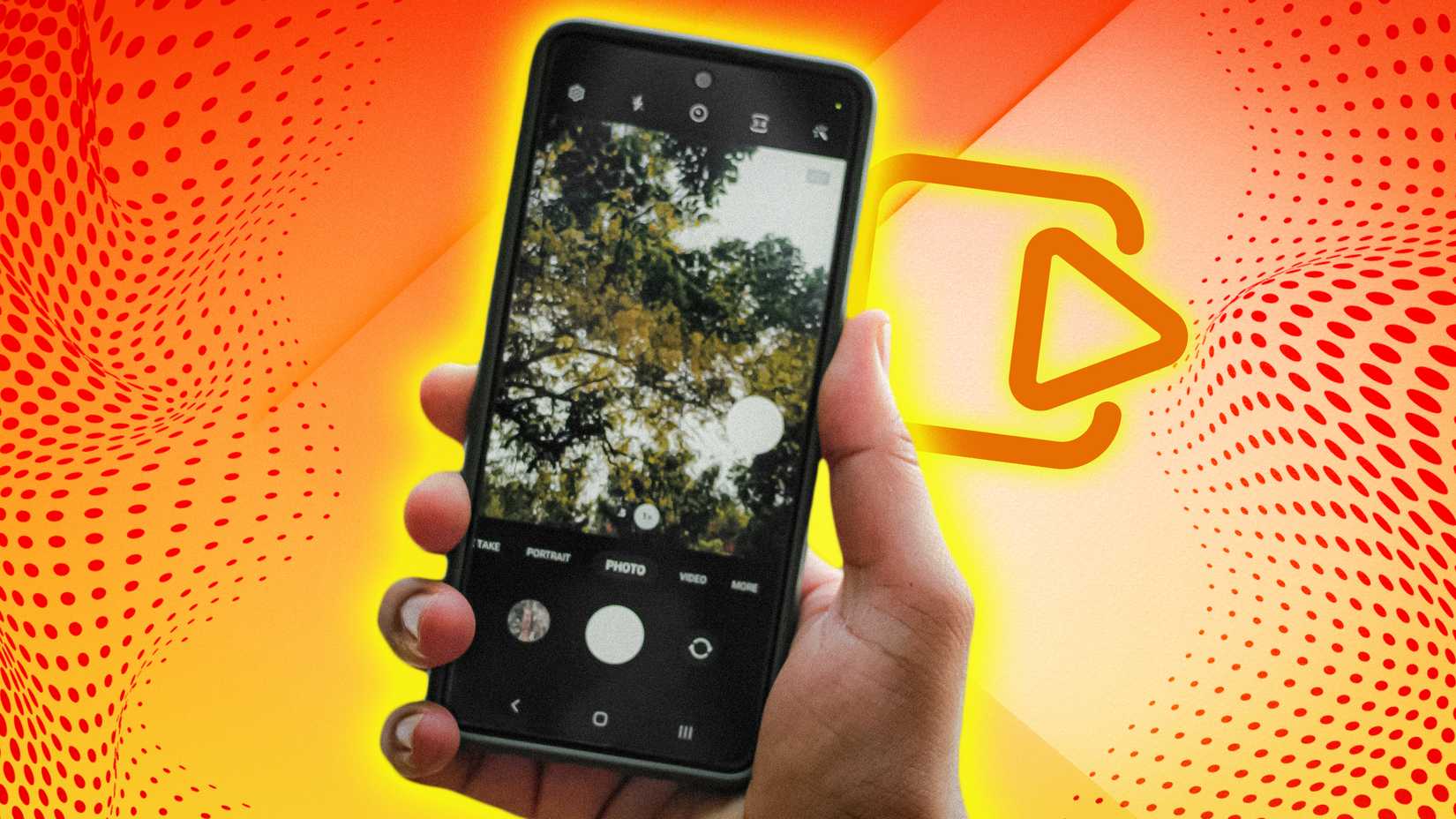
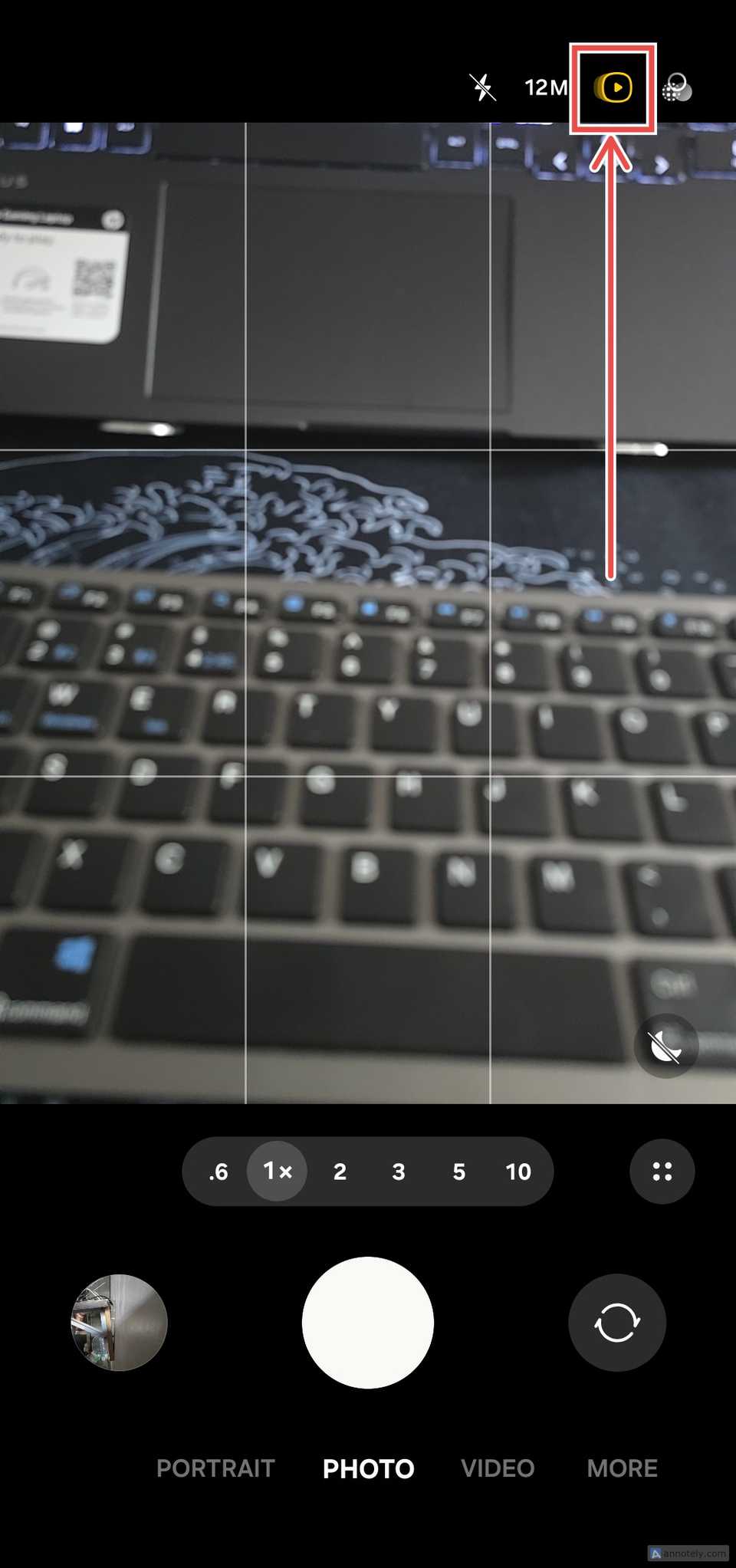
Samsung has had motion photos for the last decade, debuting with the Galaxy S7 and S7 Edge in 2016. When enabled, it automatically captures a few seconds before your image for context.
However, with One UI 9, you can now use those motion photos as wallpapers. This makes it the first time Samsung's software skin lets you set a moving wallpaper behind your app icons by default. Here's how to set it up:
-
Take a picture with enabled.
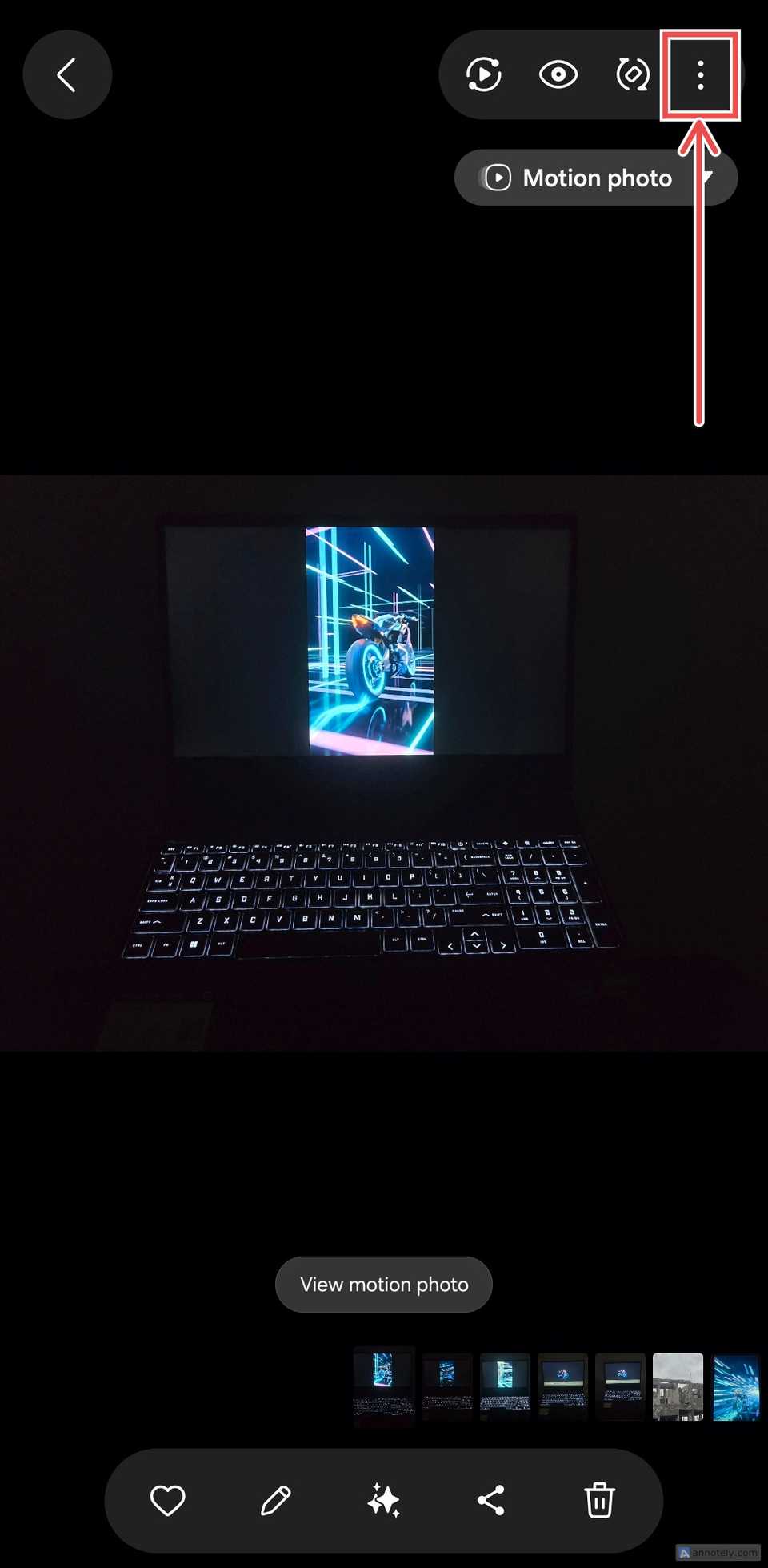
- Open and select a motion photo.
-
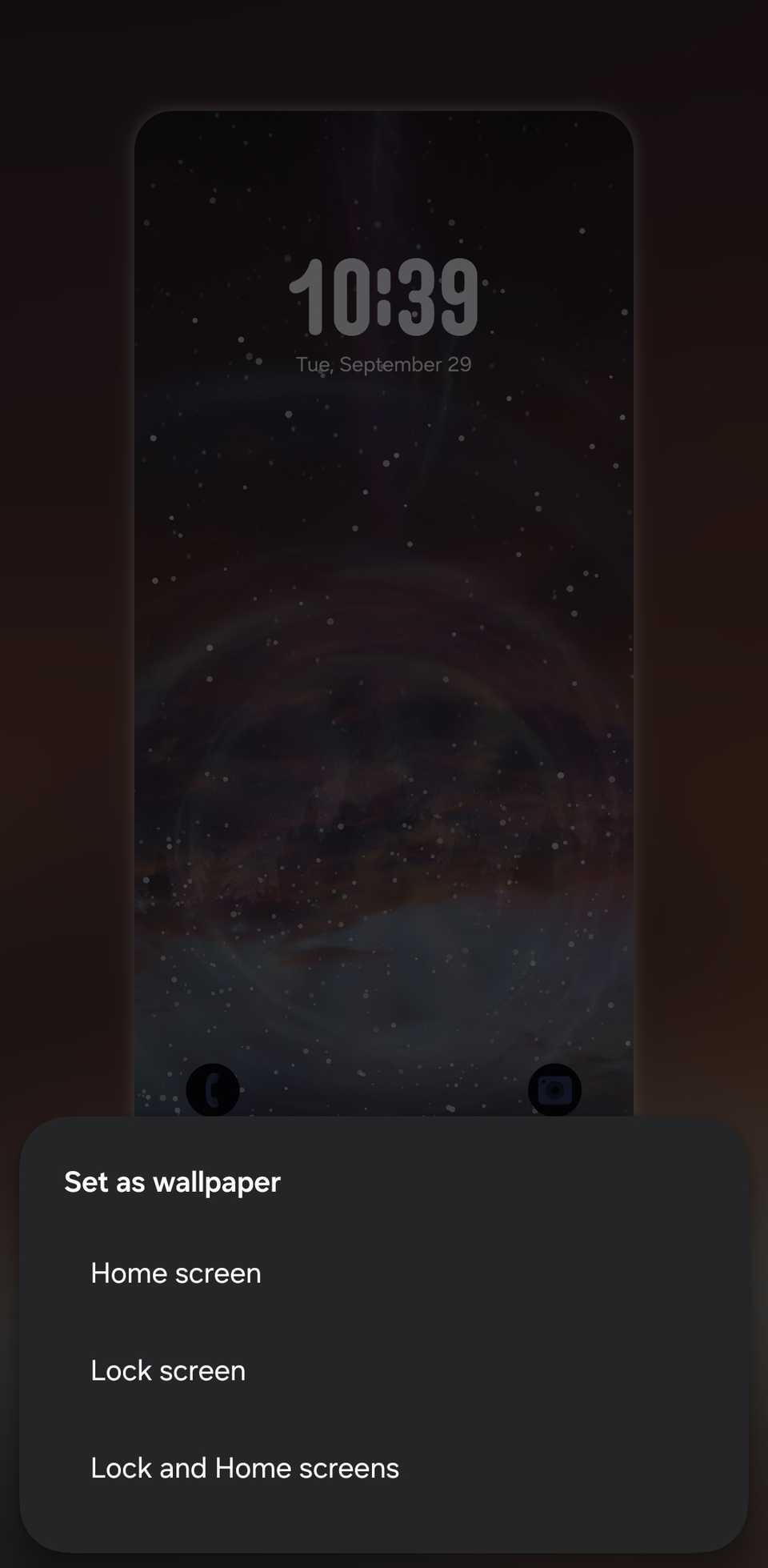
Tap the three-dot menu and select Set as wallpaper.
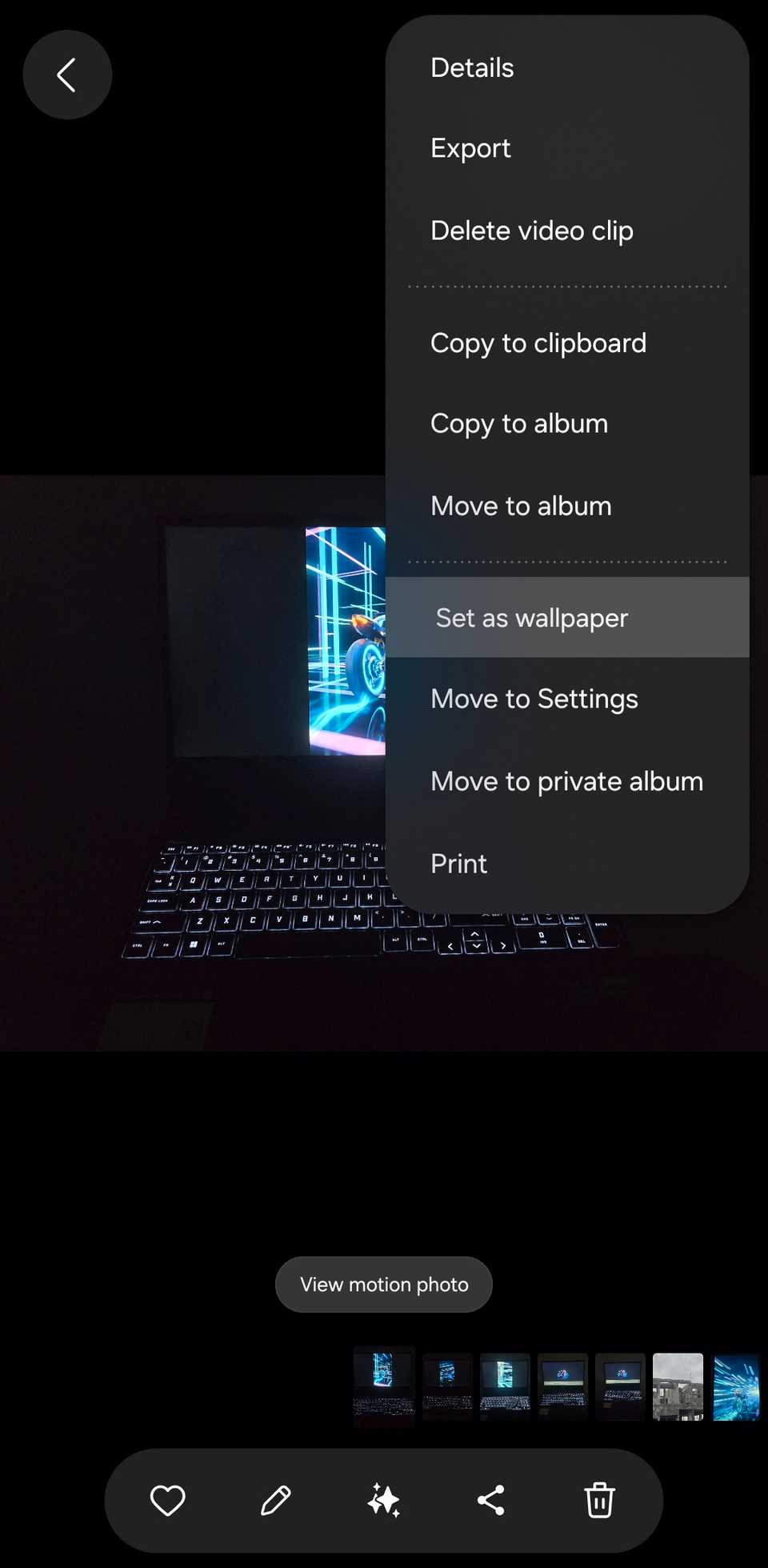
- Home screenLock and Home screens.
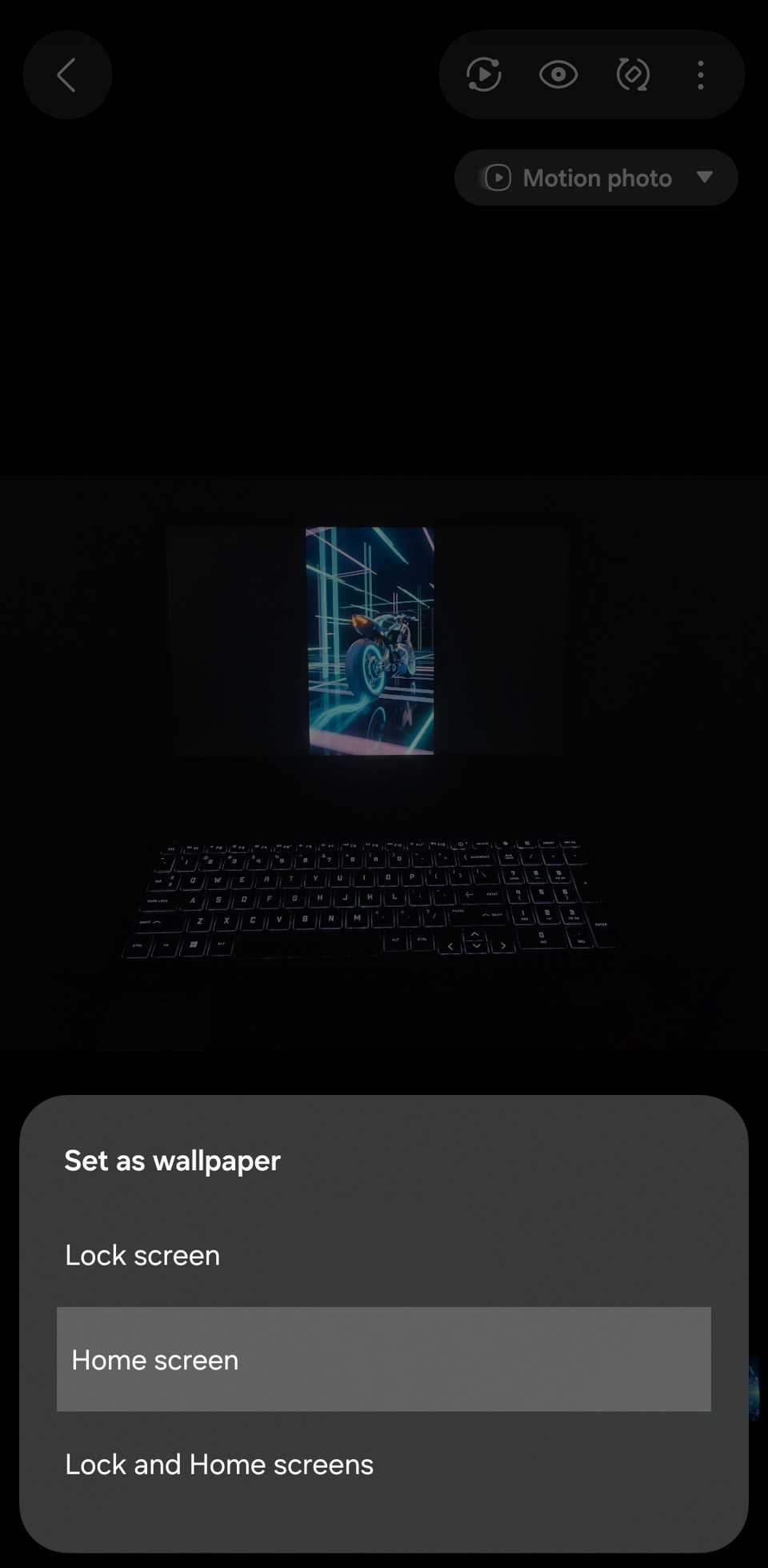
- Turn on the toggle in the preview.
- Tap .
Create live wallpapers with Wonderland
No need to wait for One UI 9
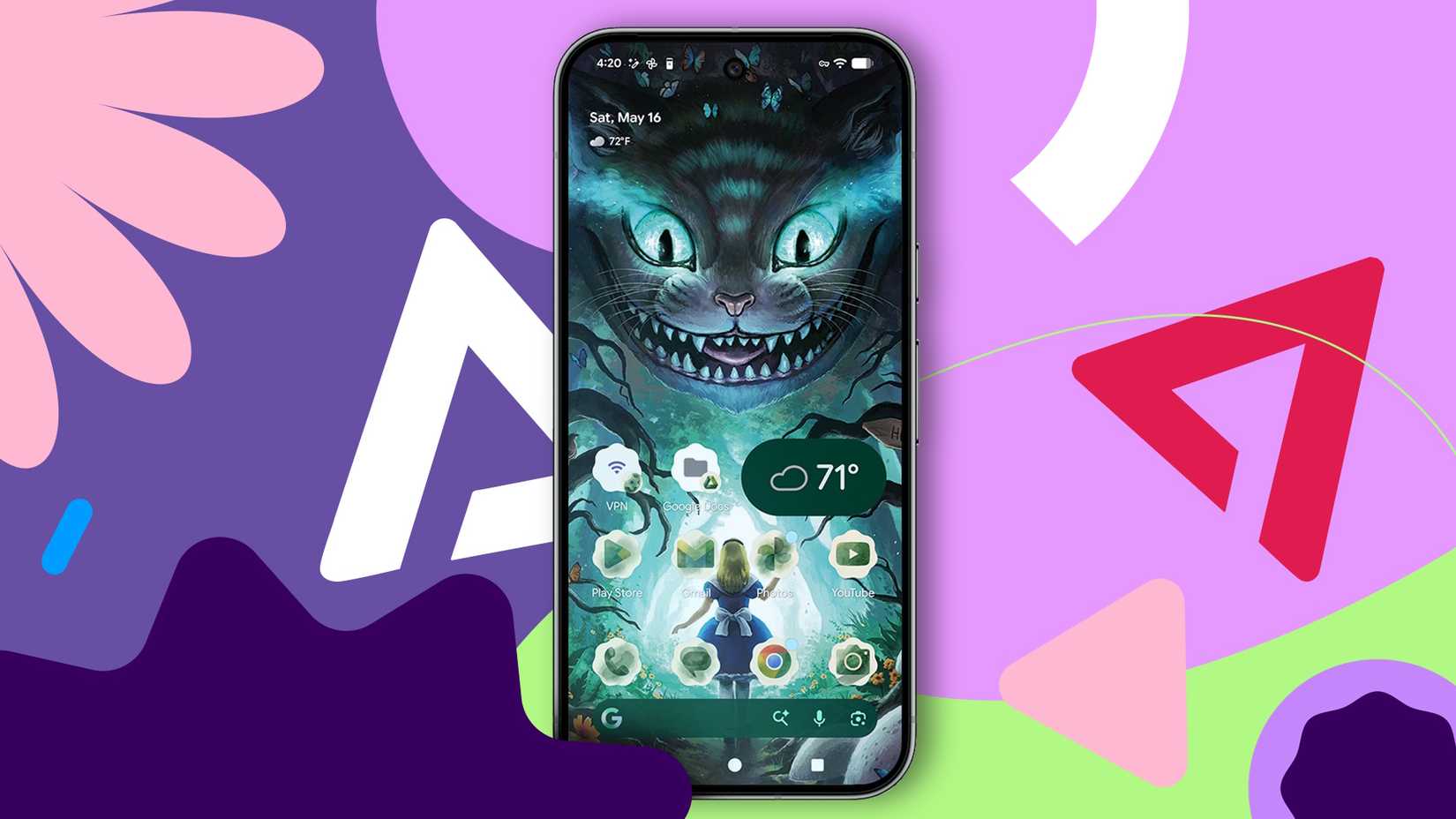
Thanks to Samsung's Good Lock module, Wonderland, you don't need to wait for One UI 9 to use a moving wallpaper. It's more flexible too.
Unlike Motion Photo, which is limited to what you capture, Wonderland lets you add effects to a picture or video you choose.
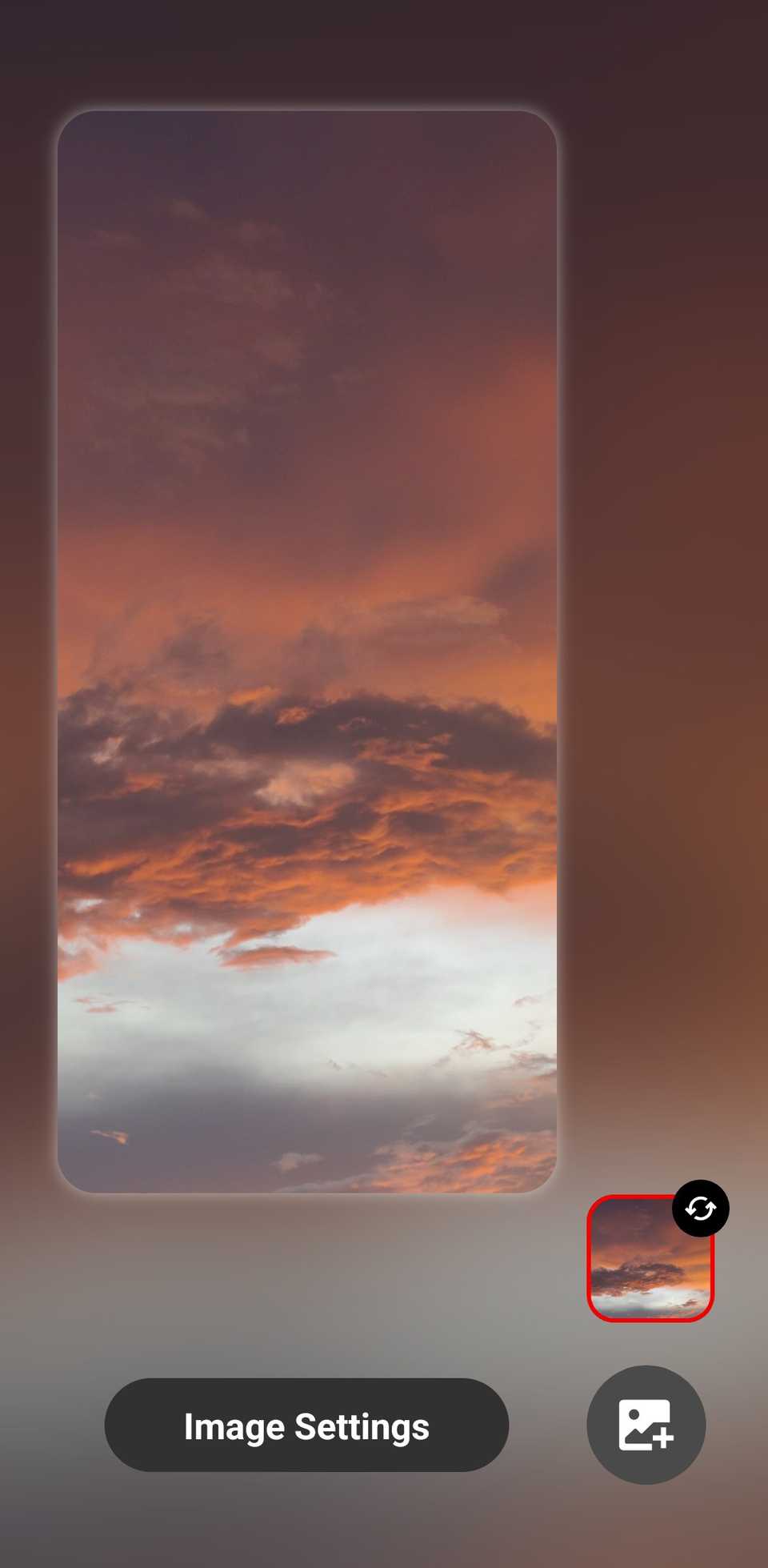
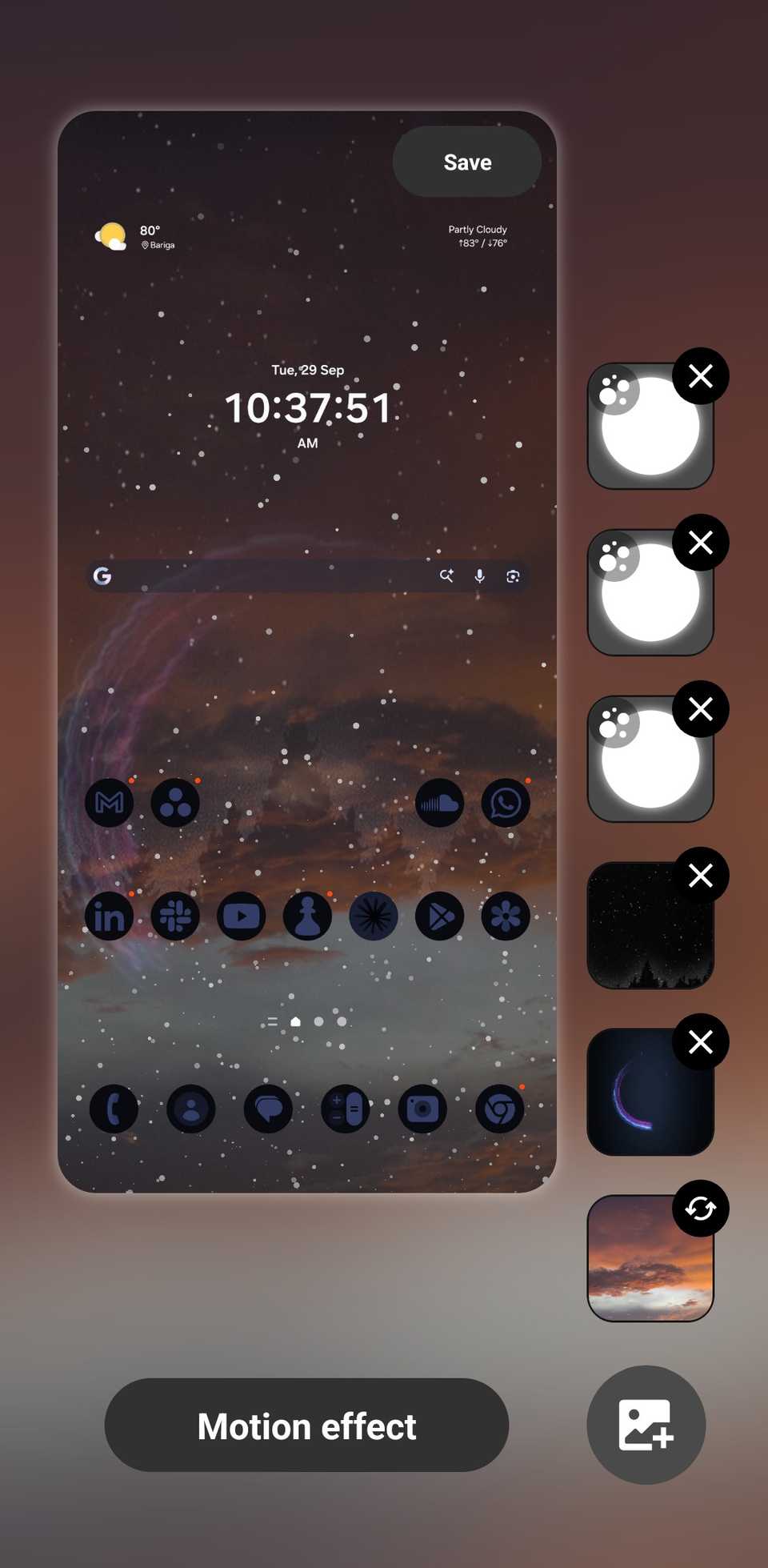
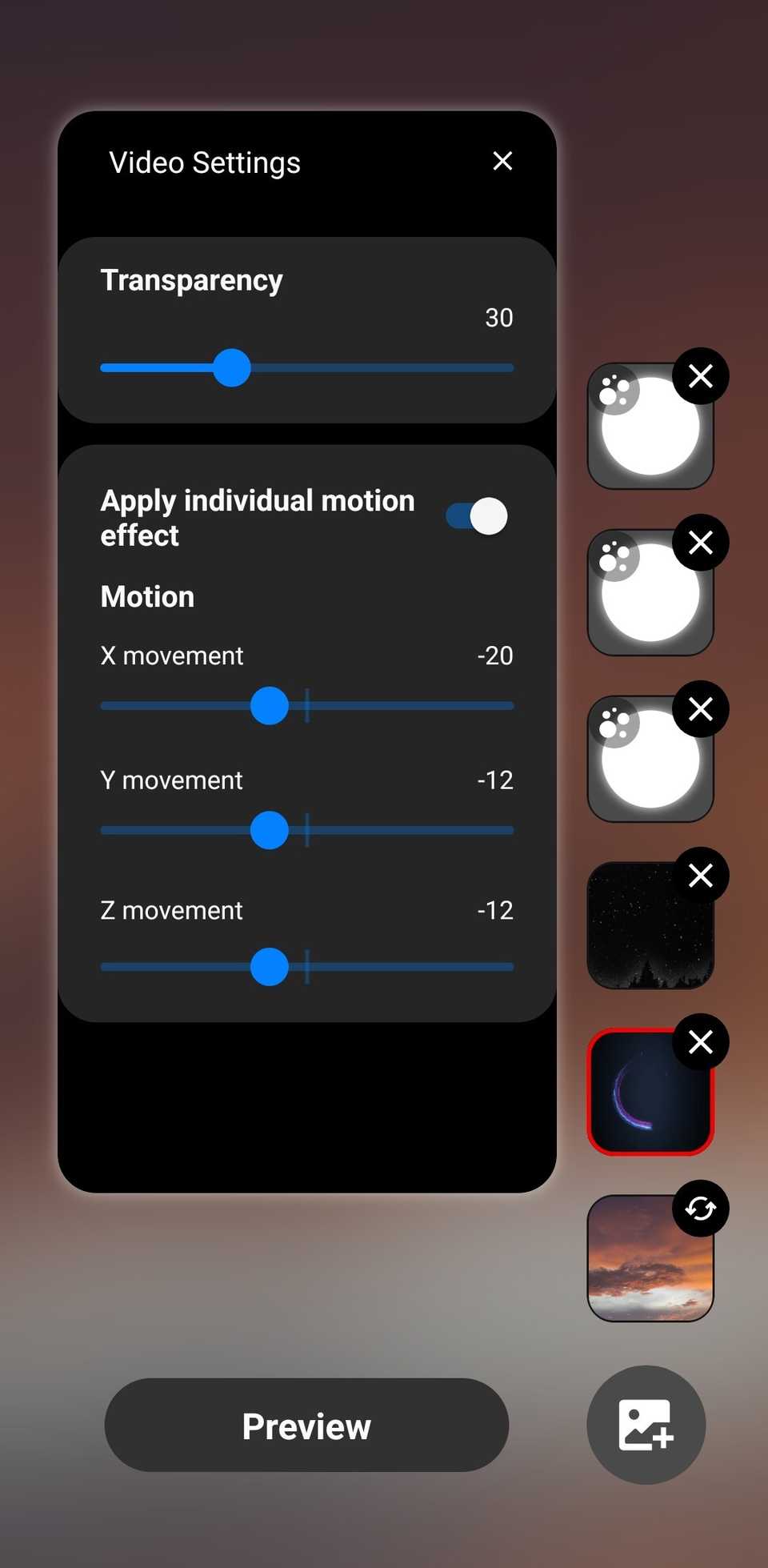
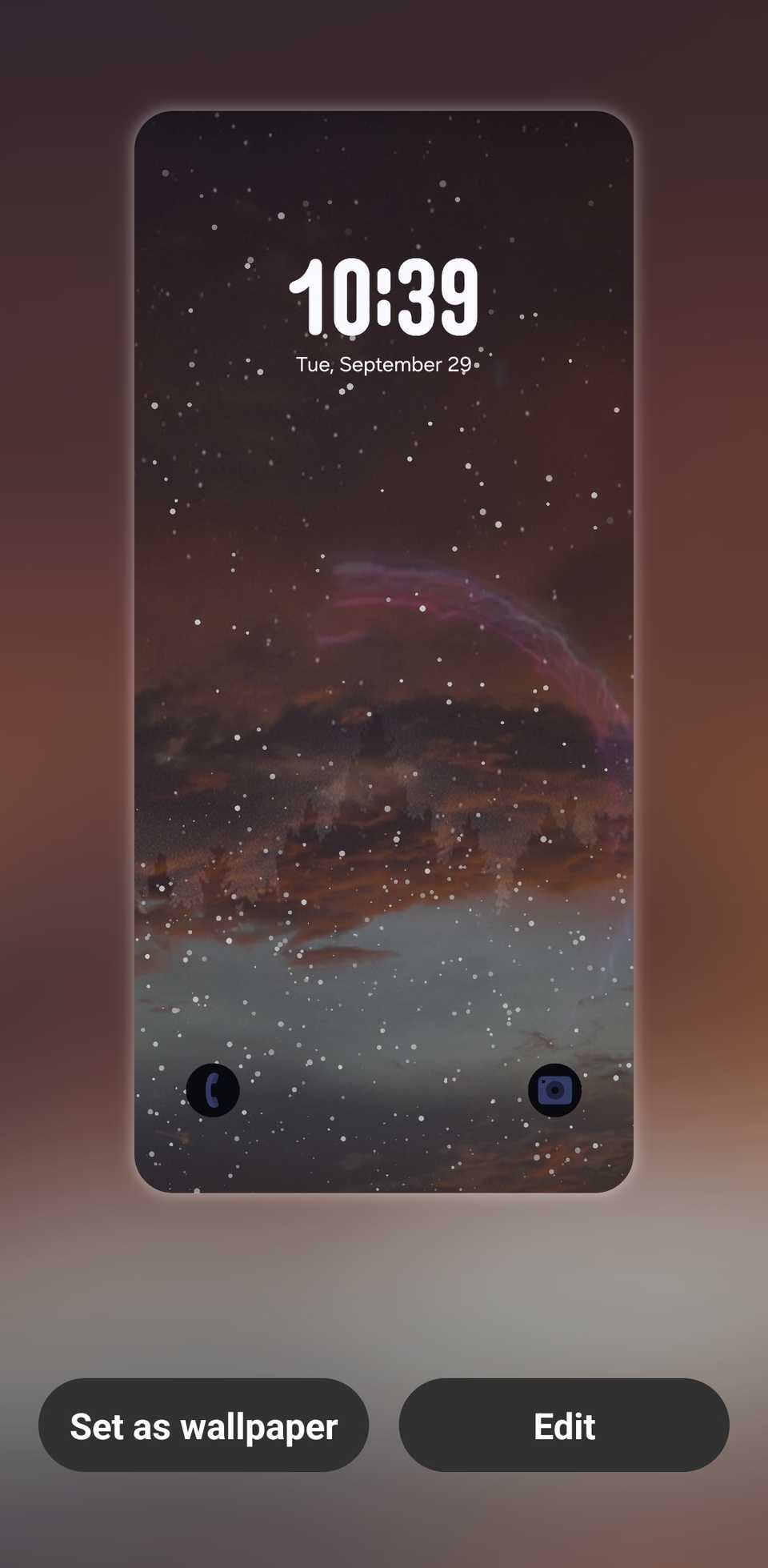
I went for a simple but visually striking setup. I used a sunset picture I took some time ago as the base and layered a short video of a spinning lightning wheel with a windstorm effect over it. Then I added a heavy rain preset on top.
After that, I adjusted the motion sliders for my layered video and the whole image to create all sorts of movements when I tilt my phone in different directions. To try it:
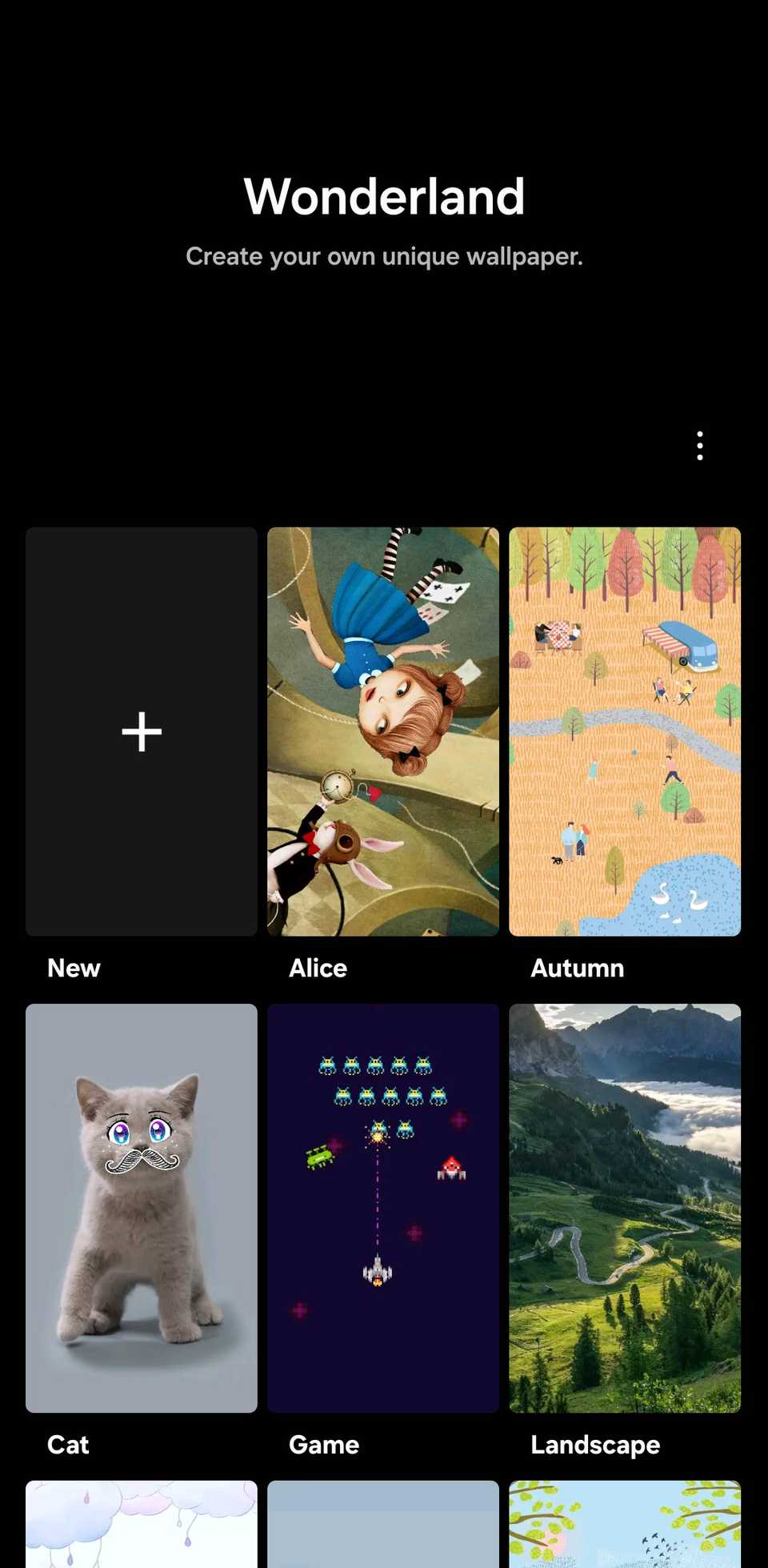
- Open and download . If you don't find it in Good Lock, you may need to download it from the Galaxy Store.
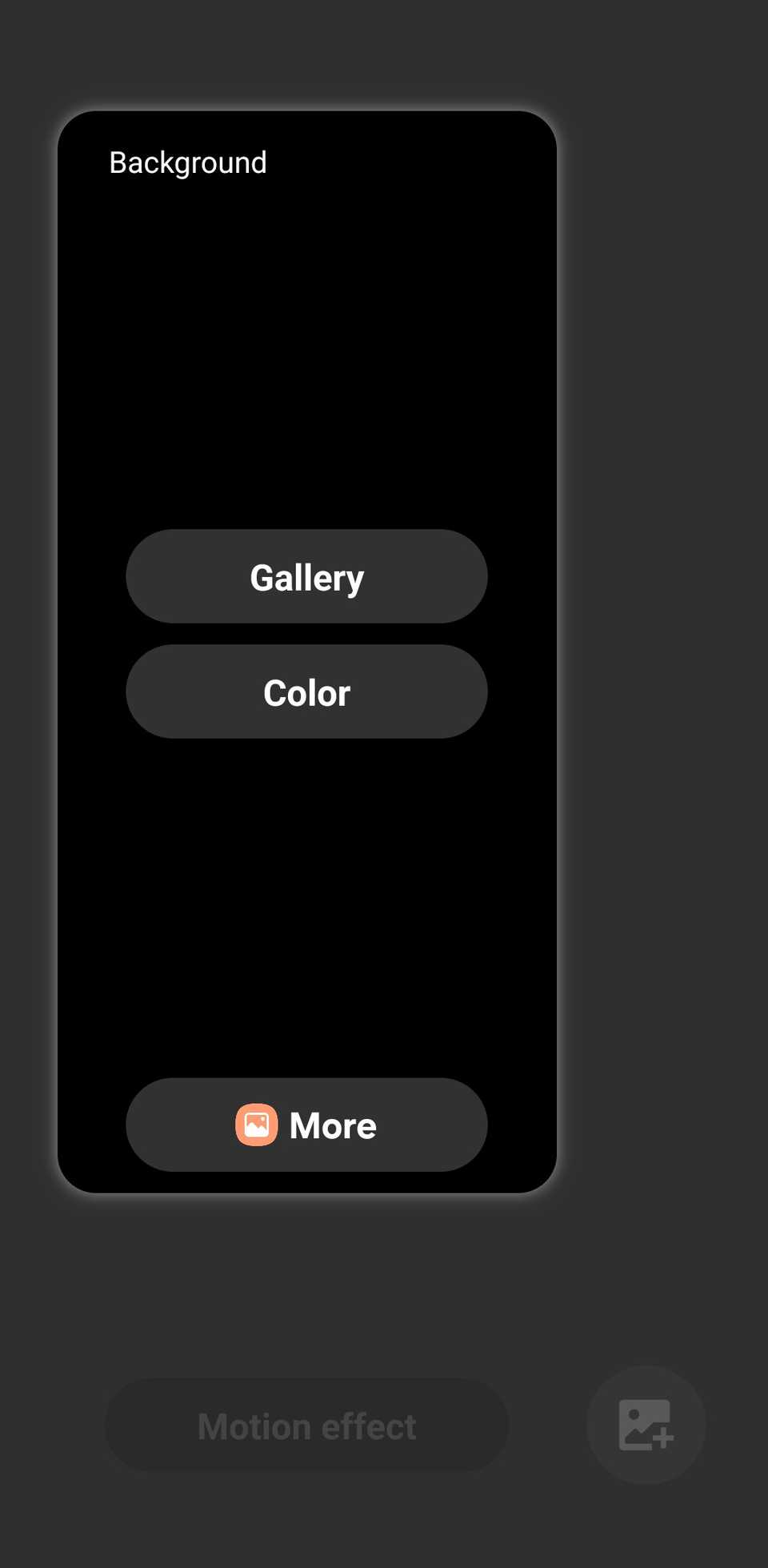
- Create your own moving wallpaper card to create a new wallpaper, then select a background.
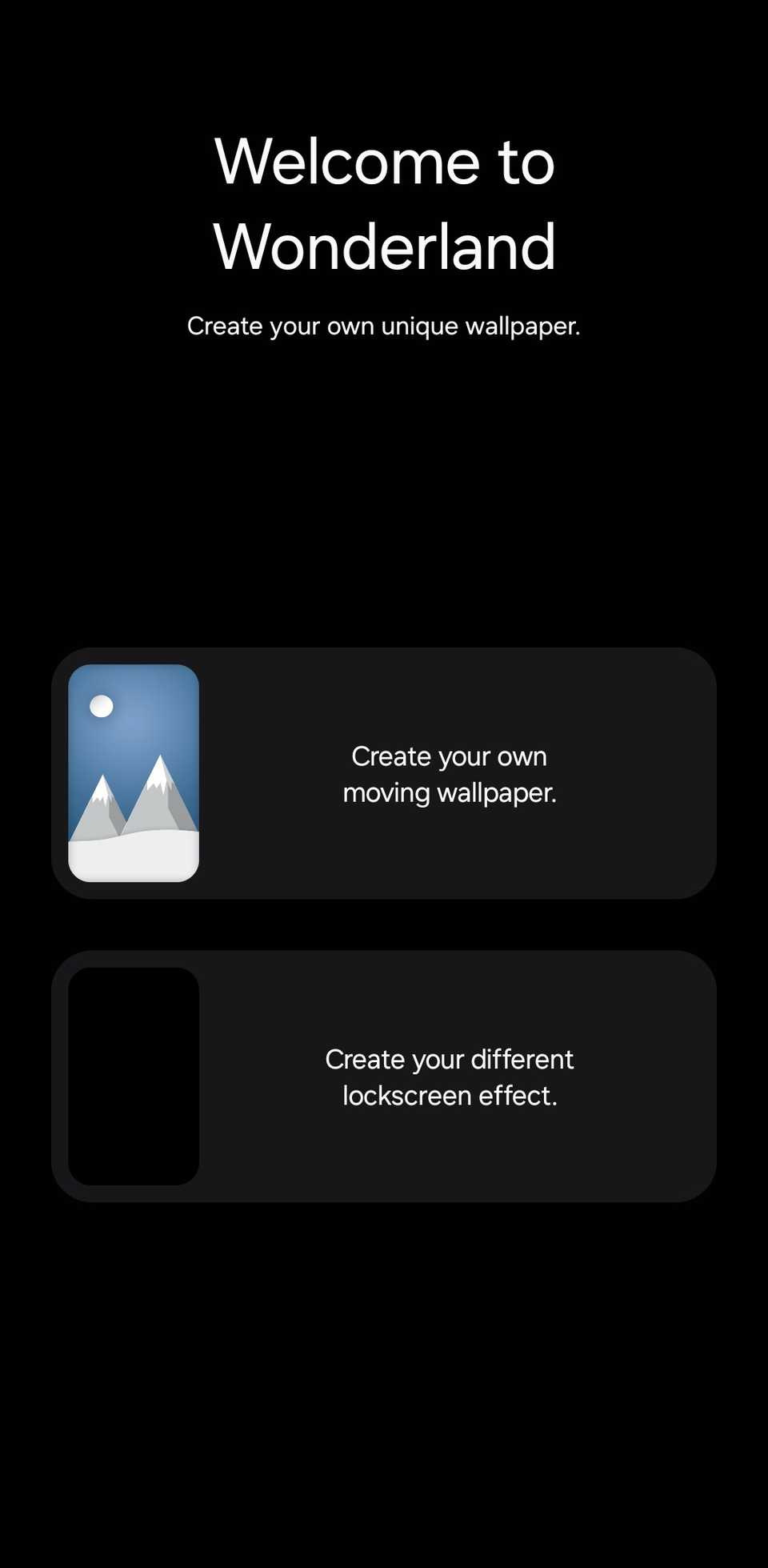
- to use one of your images or to apply a solid color.
-
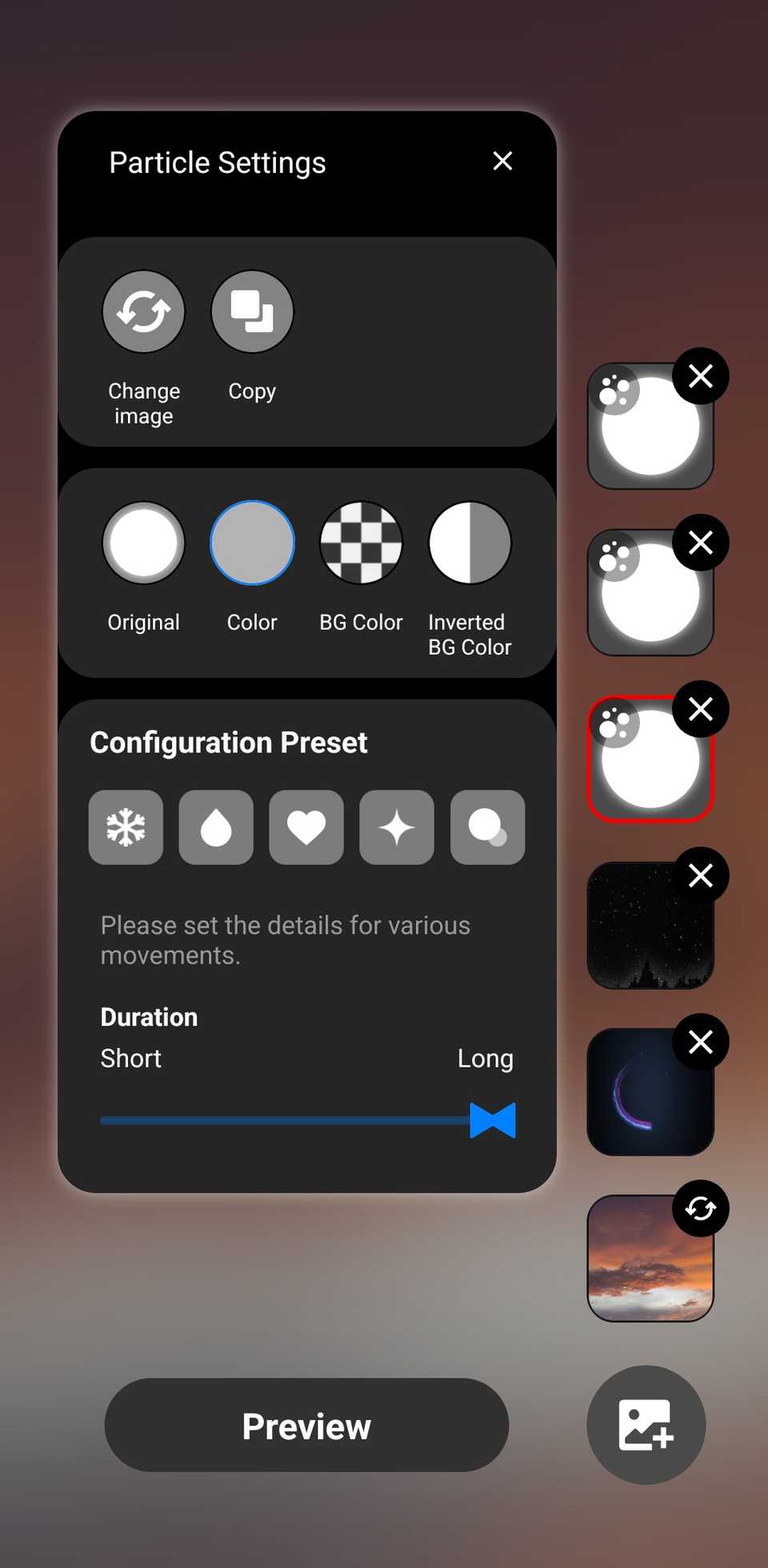
Use the Add to Layer button in the lower-right corner to include more layers. Additional layers could be an image, a video, text, a particle effect, or a preset particle.
-
Select your new layer, then tap the pill at the bottom to adjust transparency and motion effects. Pinch or expand the layer to fill the screen.
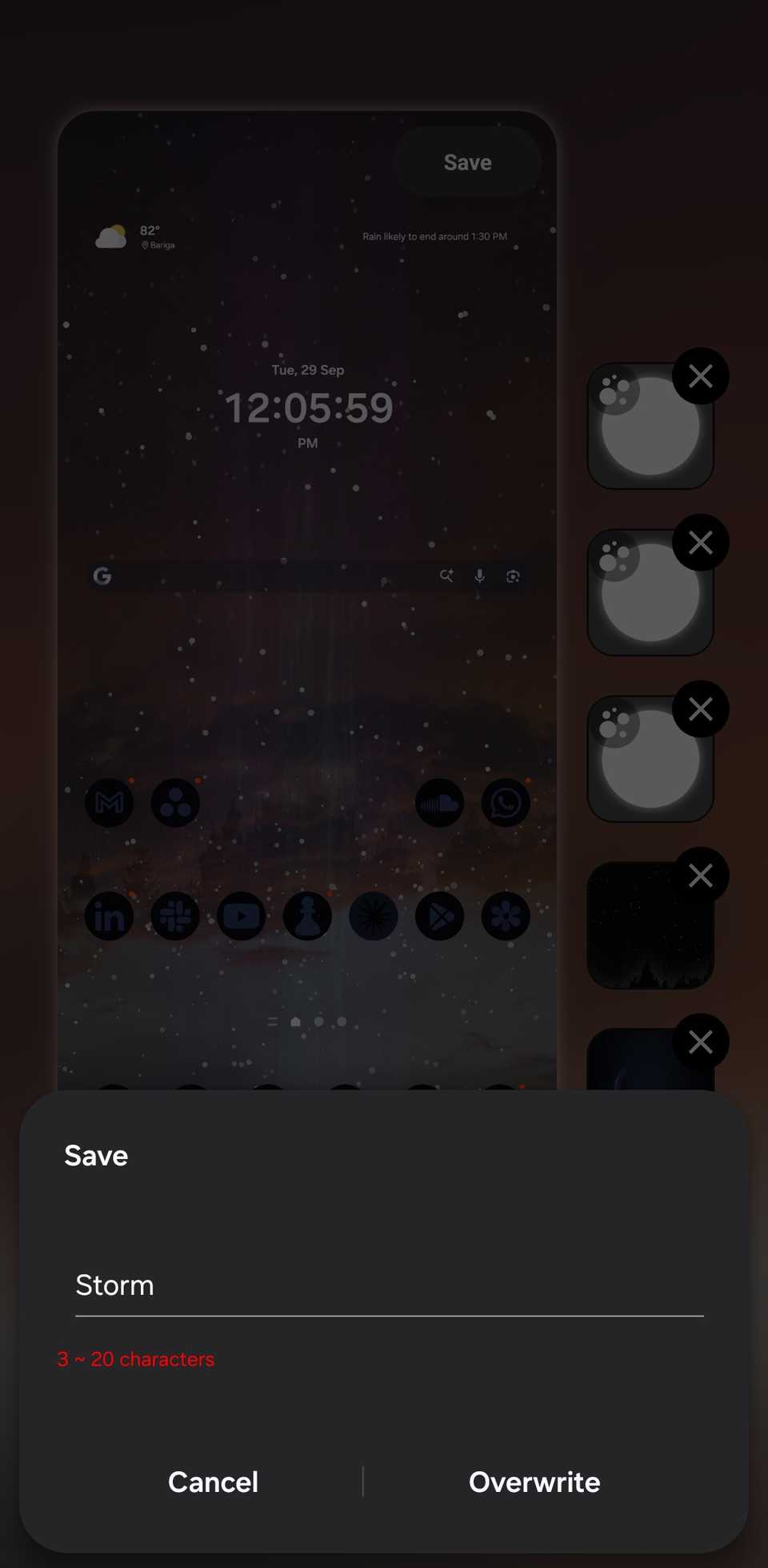
- in the upper-right corner of the preview image, then enter a name and tap in the pop-up box.
- Set as wallpaperHome screenLock and Home screens.
You can add multiple image or text layers, but only one video and one particle layer.
Create one-of-one wallpapers with Creative Studio
You only need one prompt
I know this is the third wallpaper trick. But they make such a big visual difference, and Samsung offers so many ways to imprint your style on your home screen background.
- Open the app.
-
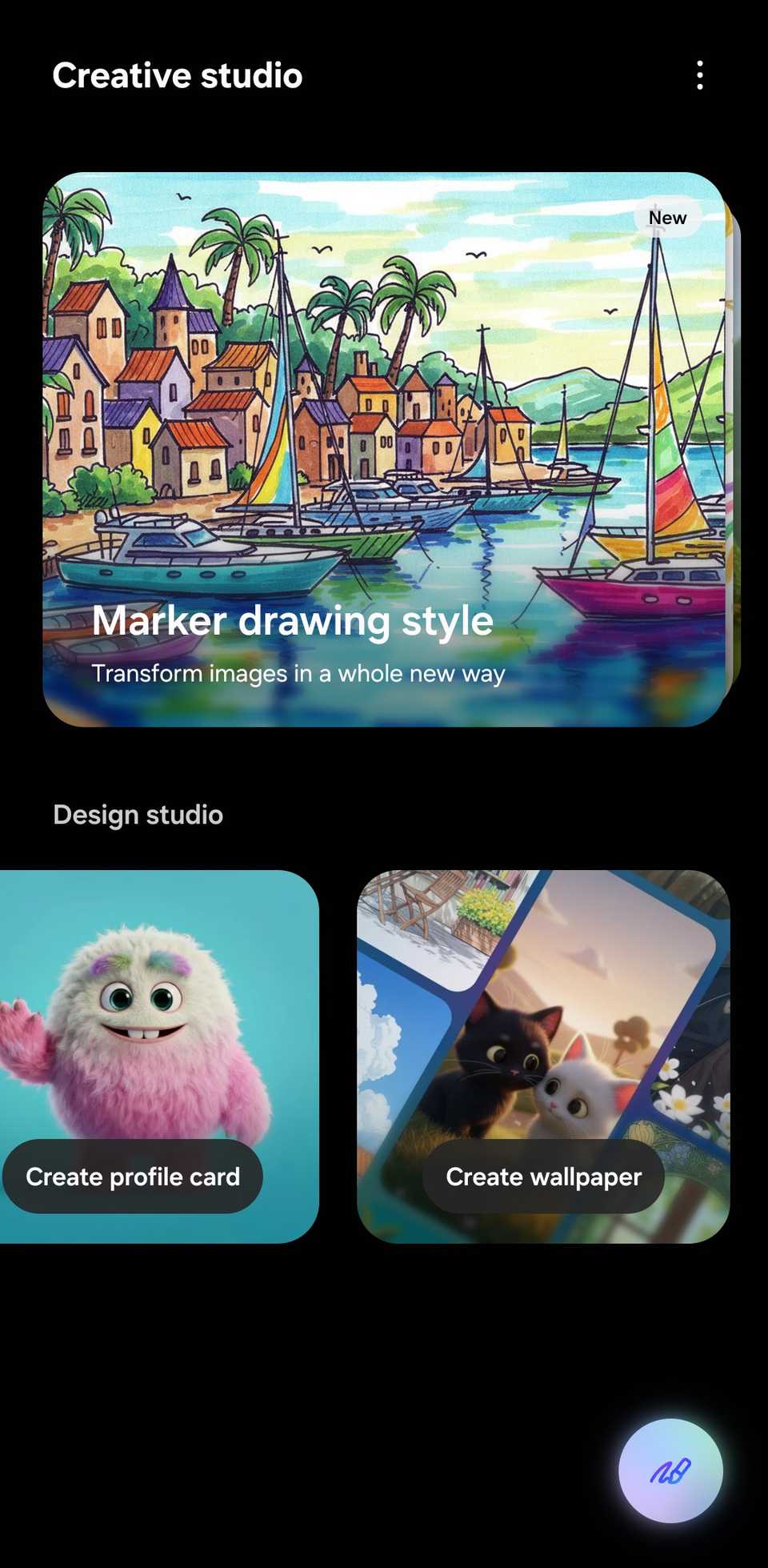
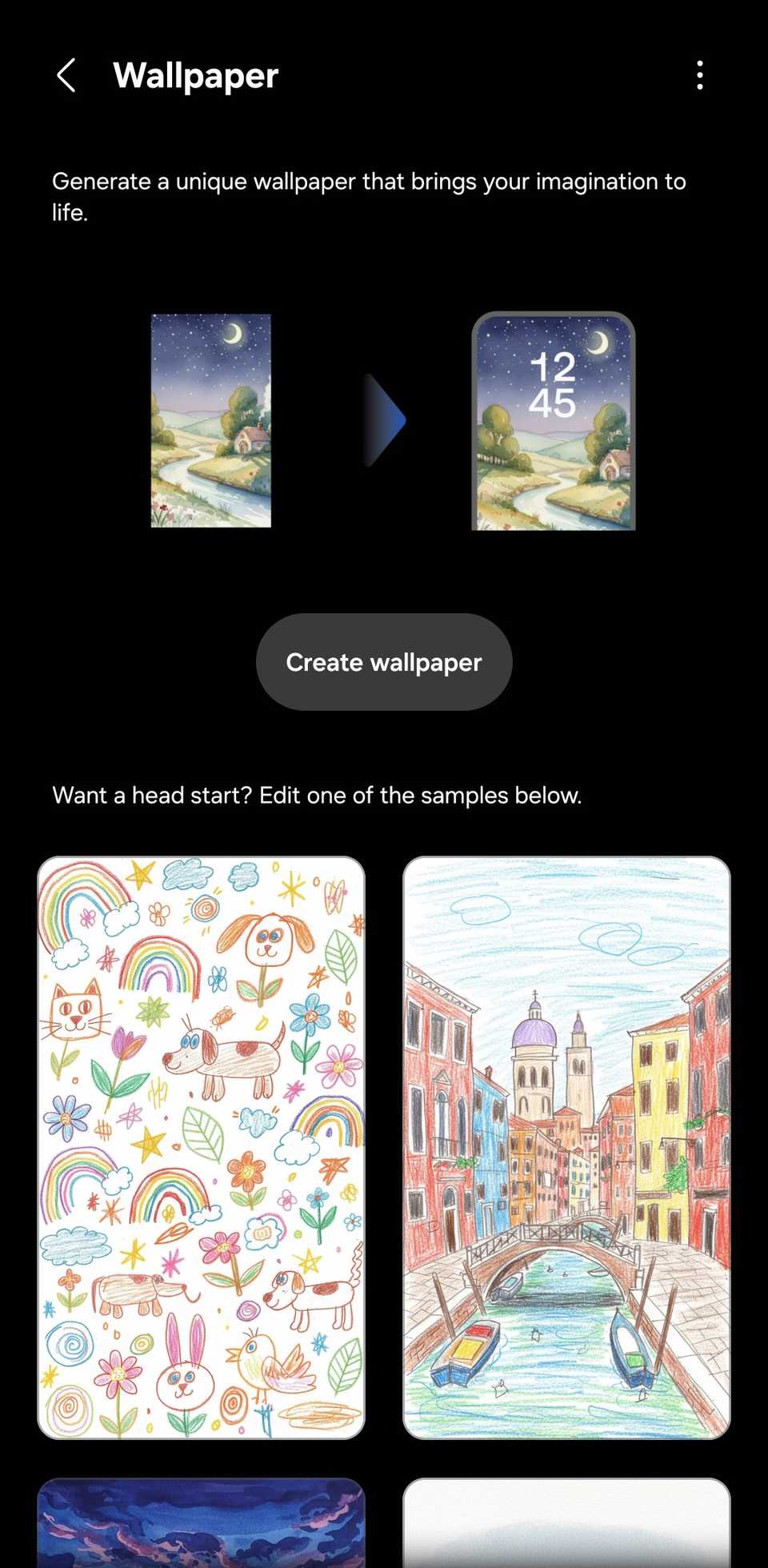
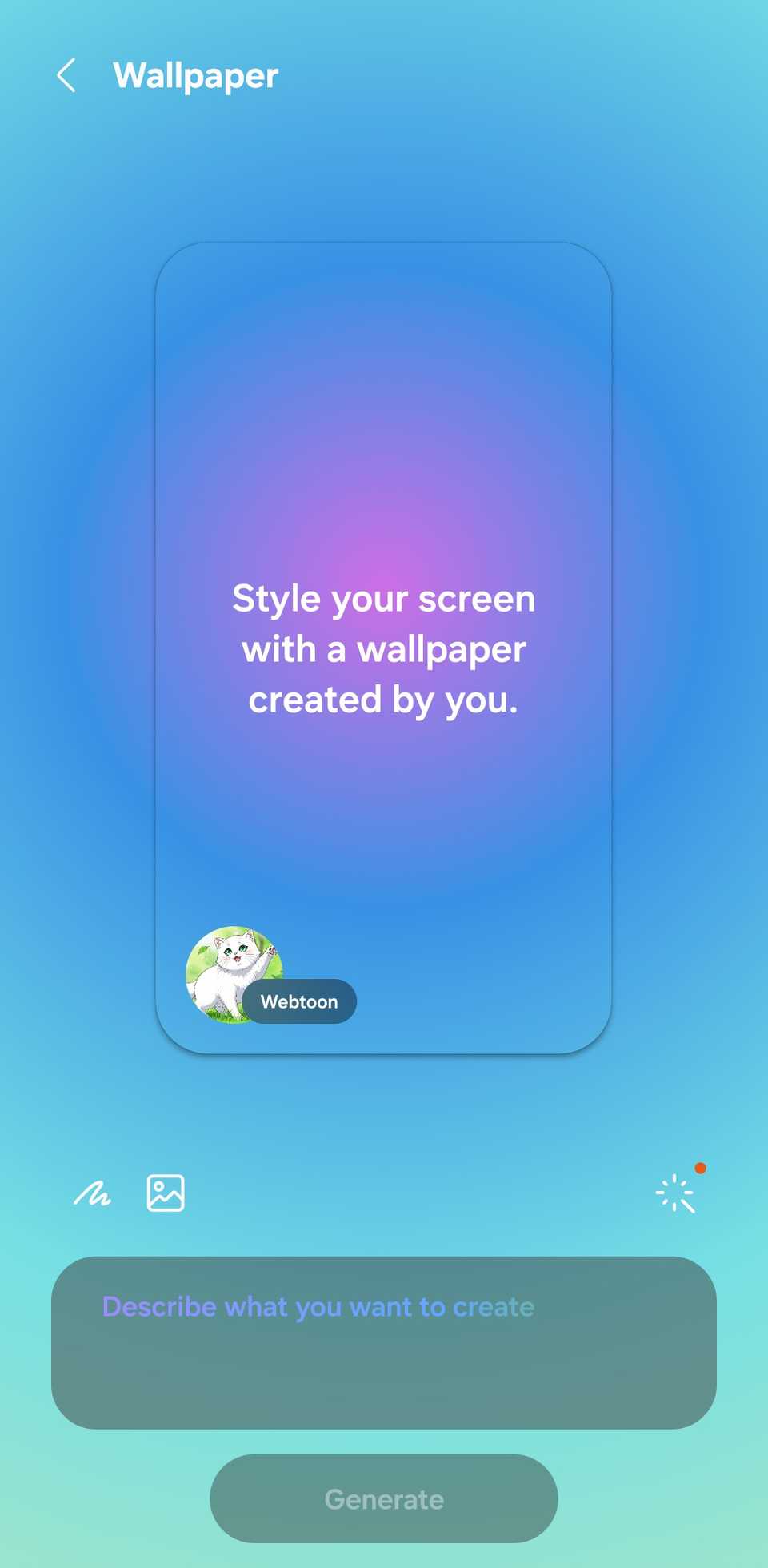
Under the Design studio tab, scroll to the right and tap Create wallpaper. You can also edit an existing wallpaper if you don't want to waste time.
-
Type your prompt and tap . You can add a sketch or picture from your gallery for better accuracy. Use the button on the right to choose an art style.
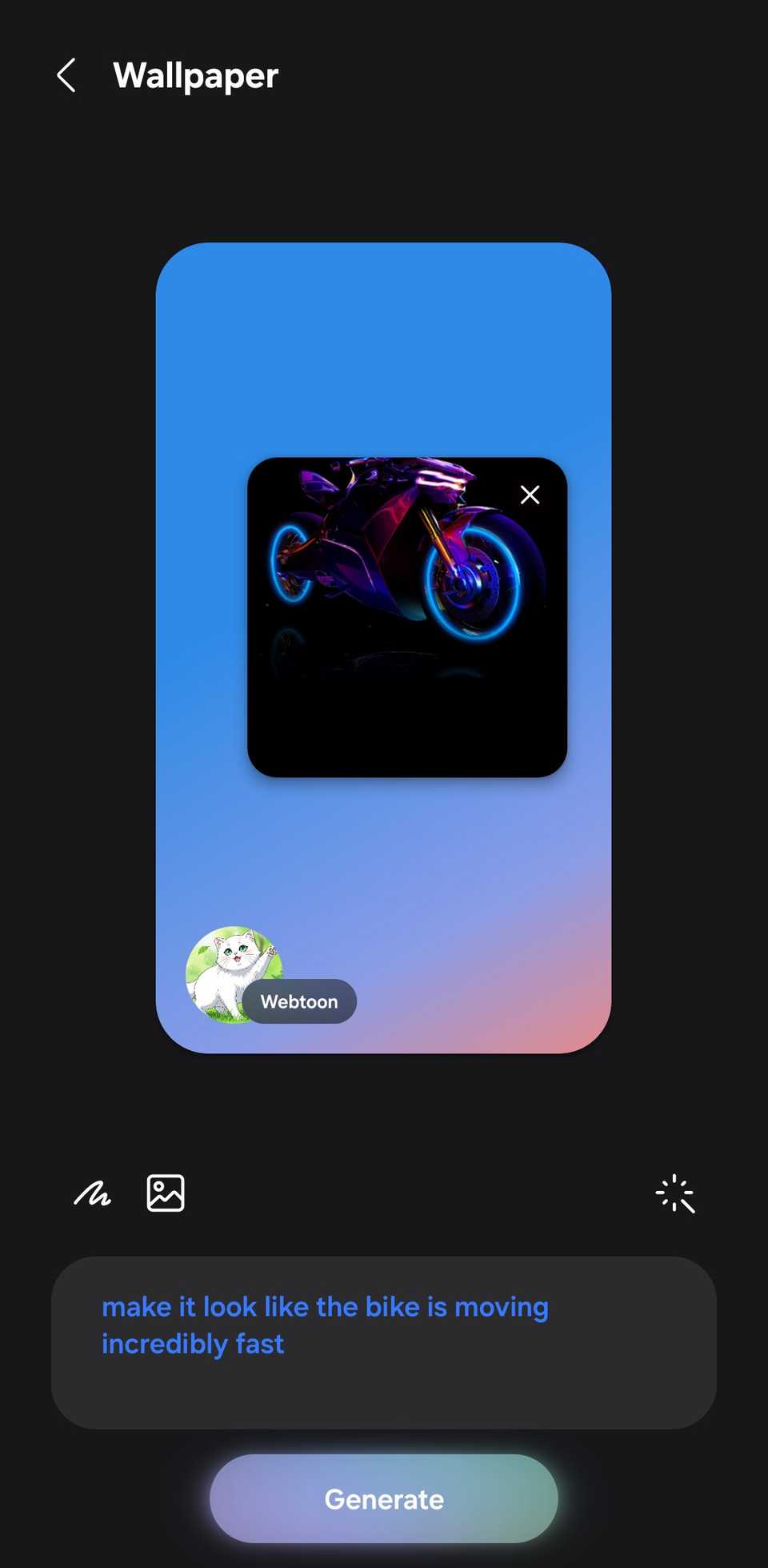
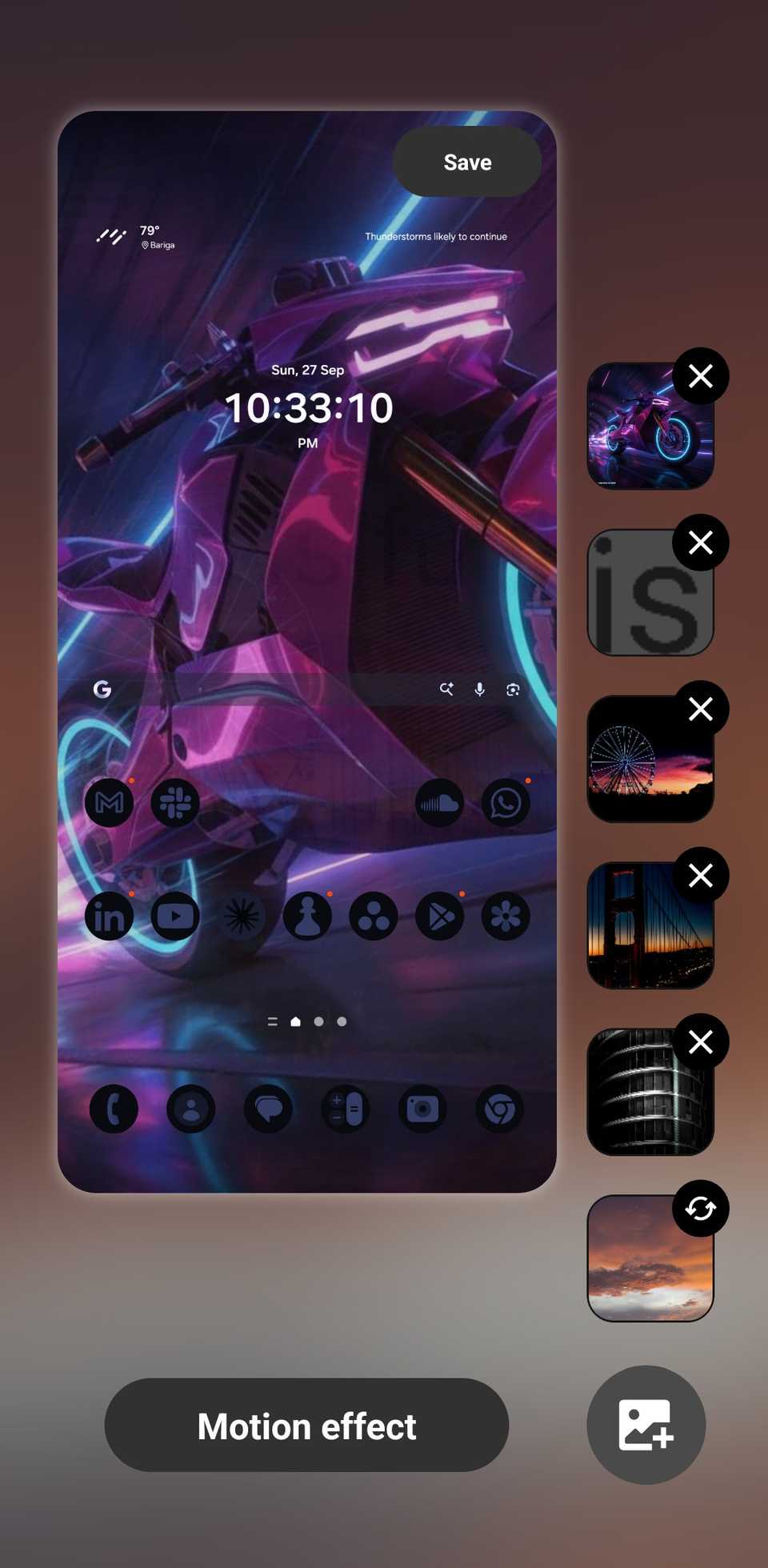
I don't use this because I prefer Wonderland's live wallpapers. You can generate an image in Creative Studio, save it to your gallery, and use it to create a live wallpaper in Wonderland.
Change the look of your icons with Theme Park
Unless you have no apps on your home screen, you'll love how Theme Park makes your icons look.
You can select options like Glass, Gradient, Emboss, and my favorite, Duotone, which uses two accent colors. Whichever you pick applies to all apps, including third-party ones. You can also change the icon shapes.
To start using it:
- Download and open from Good Lock.
- from the bottom panel.
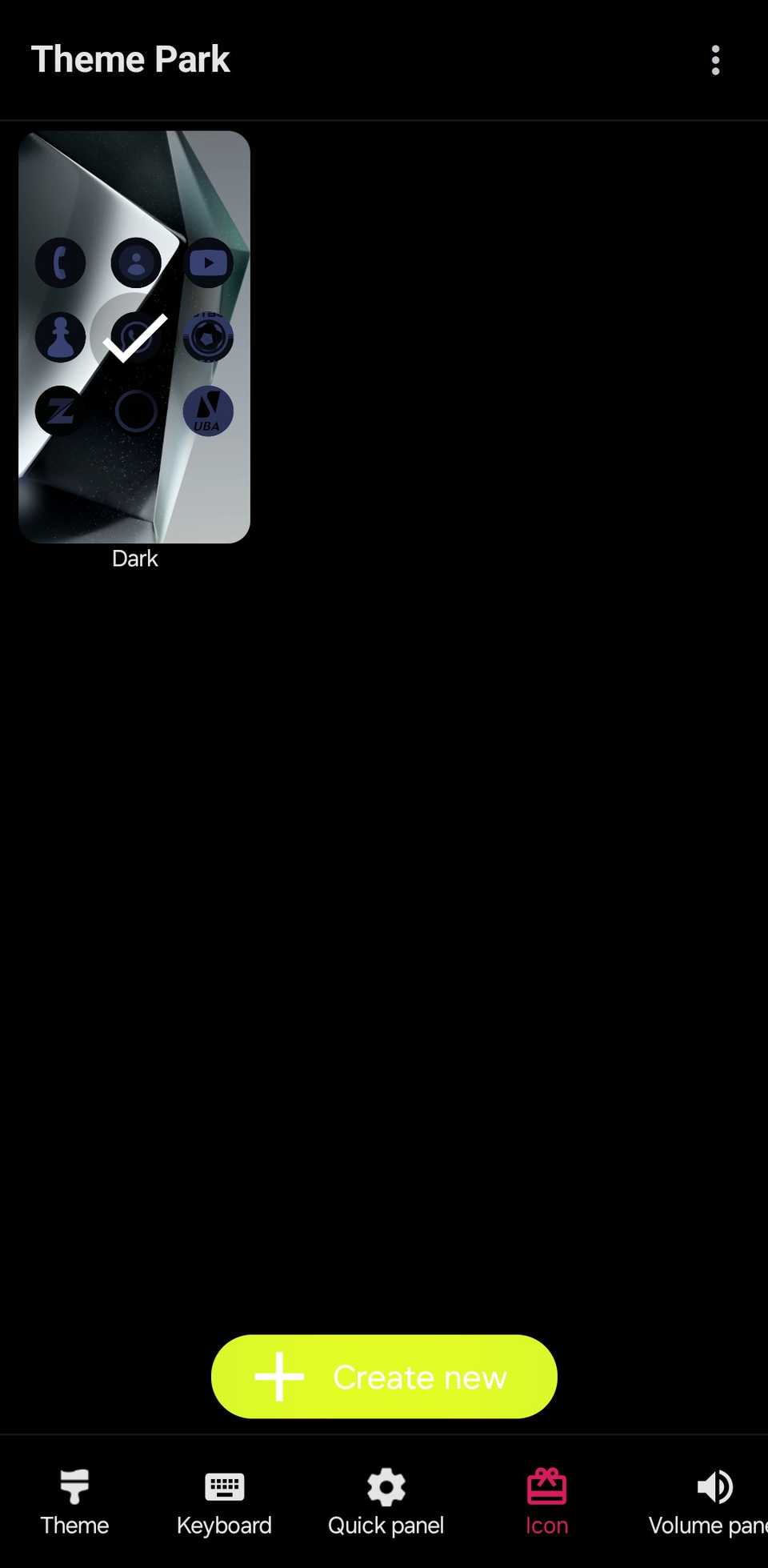
- Create new.
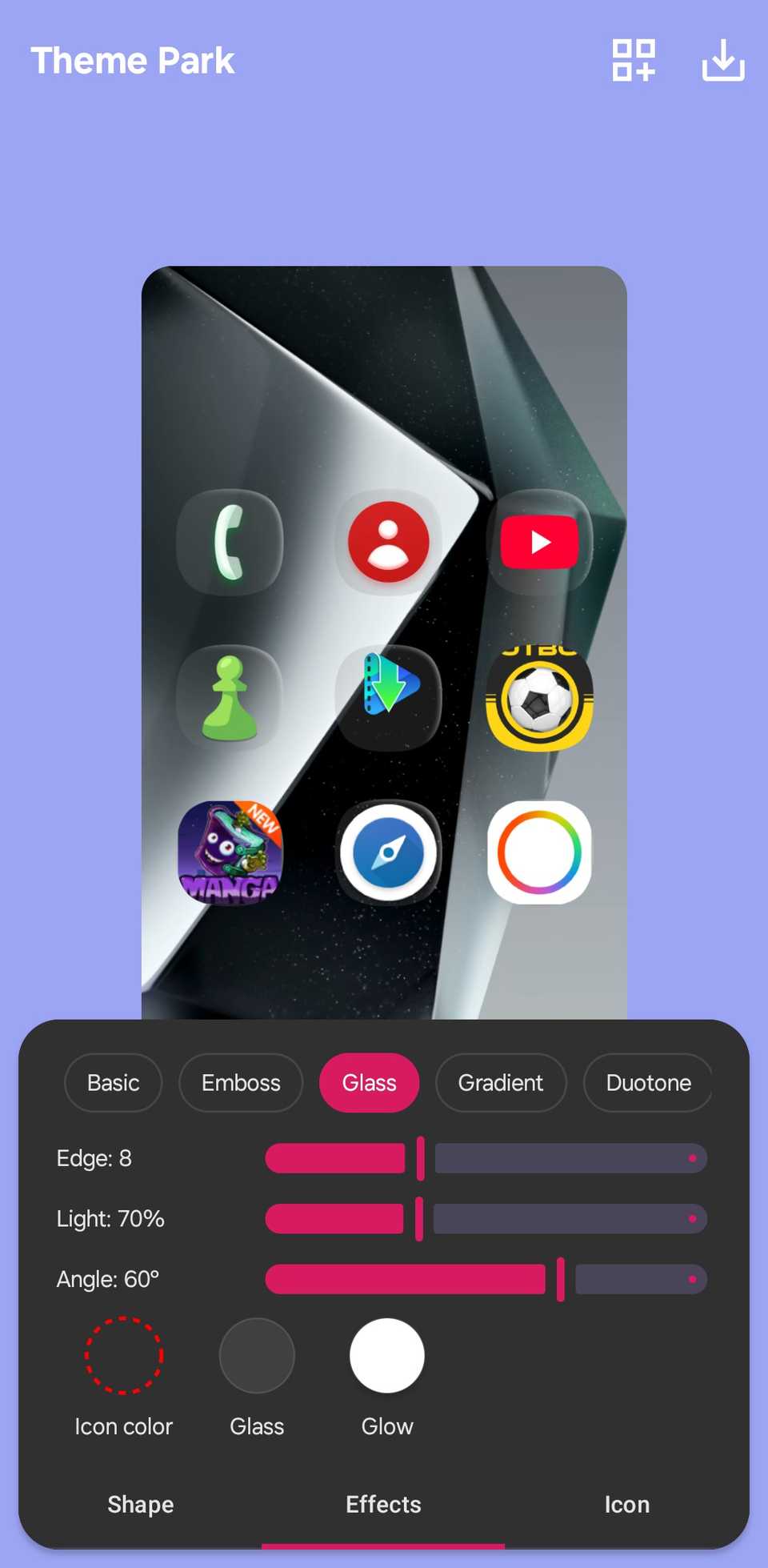
- Pick an effect, customize it, and apply it.
Customize your home screen layout with Home Up
App grids, folders, widgets
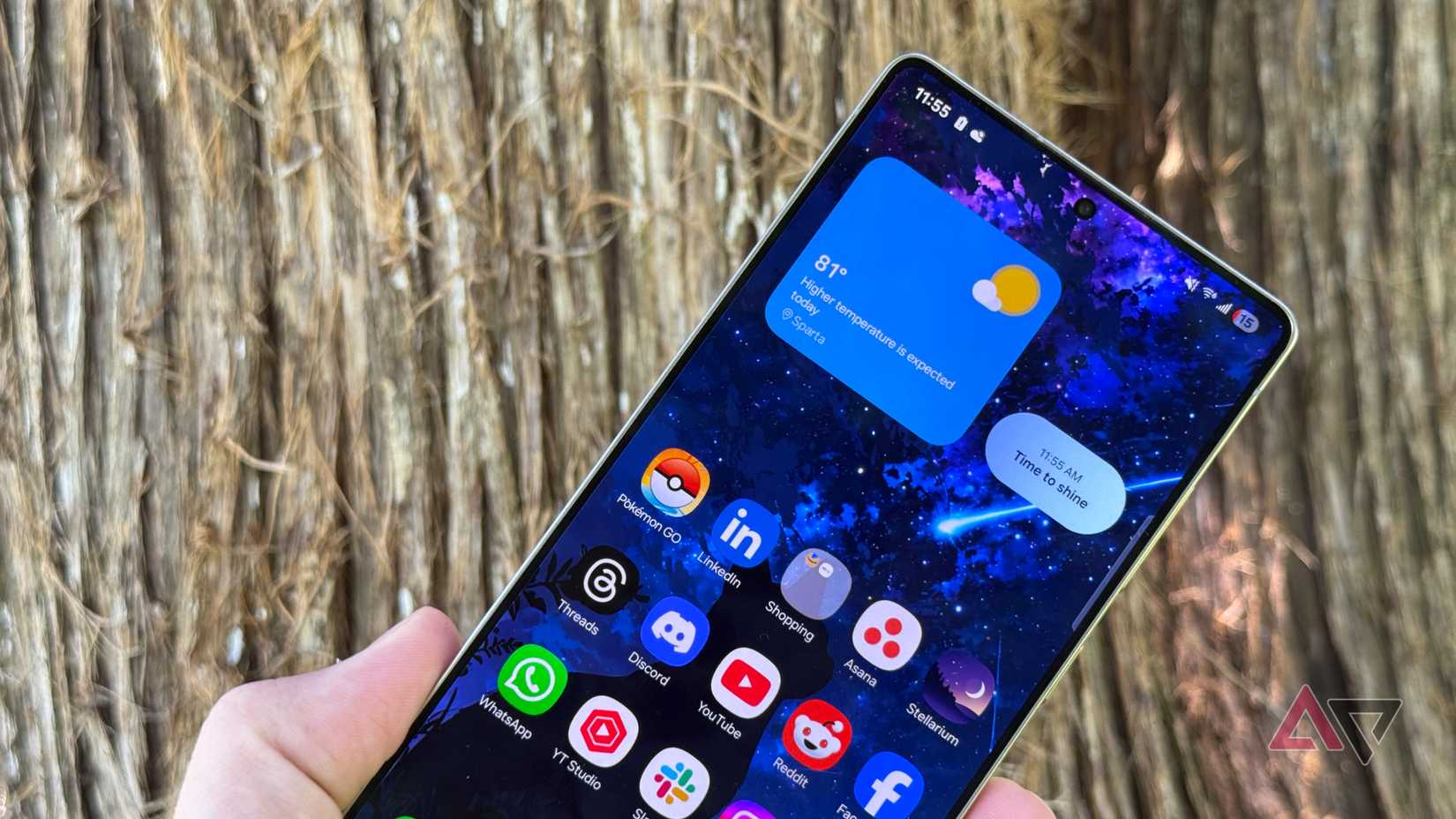
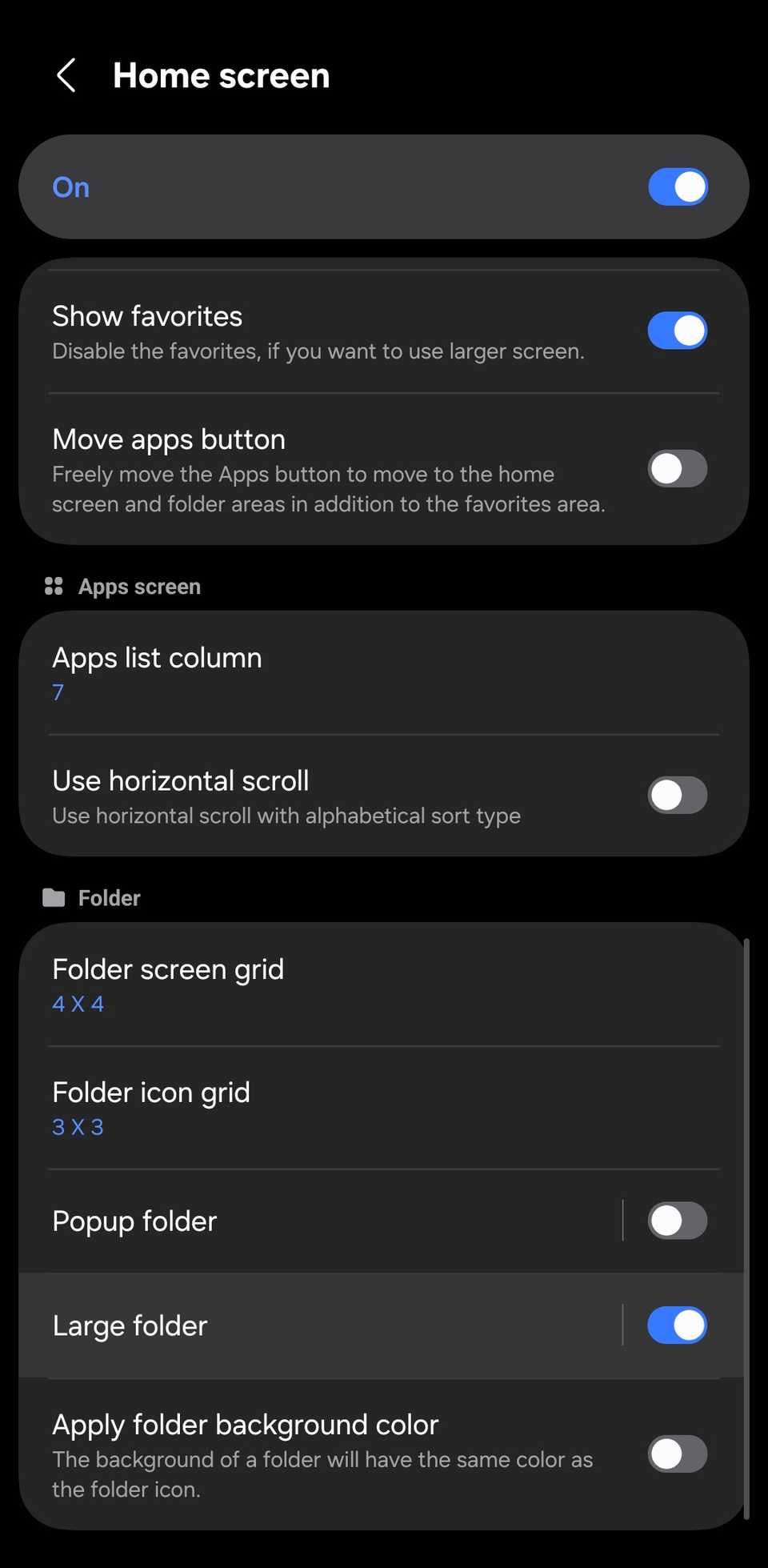
I've been using several Good Lock modules for a while now, and Home Up is one of them. I love that it lets me set my app grid to 7×7 icons.
This time, I began exploring what I could do with widgets and folders. I still keep my main page minimal; I built a second page just for this.
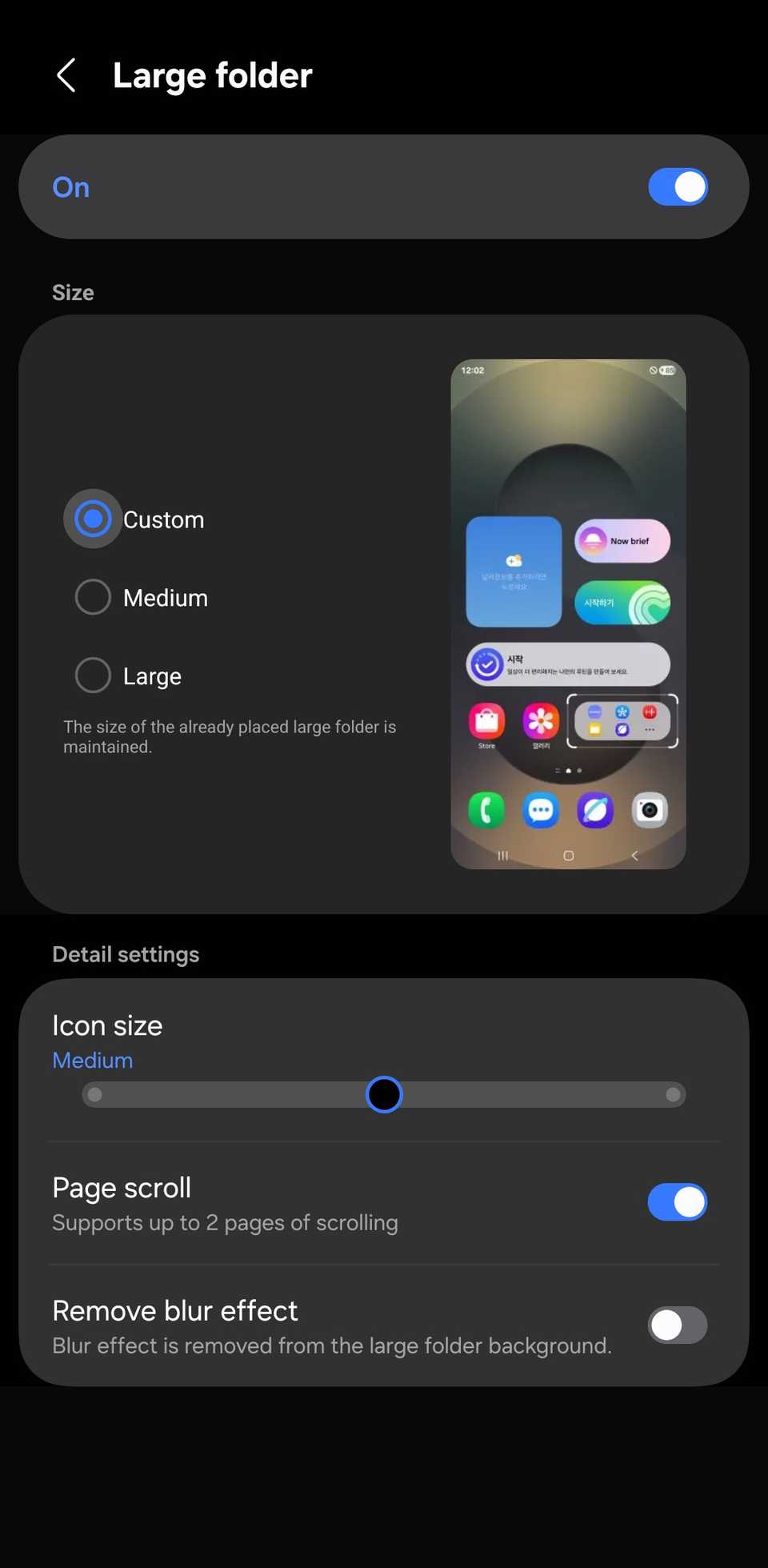
I collected similar apps into folders of different sizes, thanks to Home Up's Large folder feature, which lets you resize folders however you want. I made one for games, one for writing, and another for AI tools. I mixed in a few widgets to make it look more interesting.
To start using Large folder:
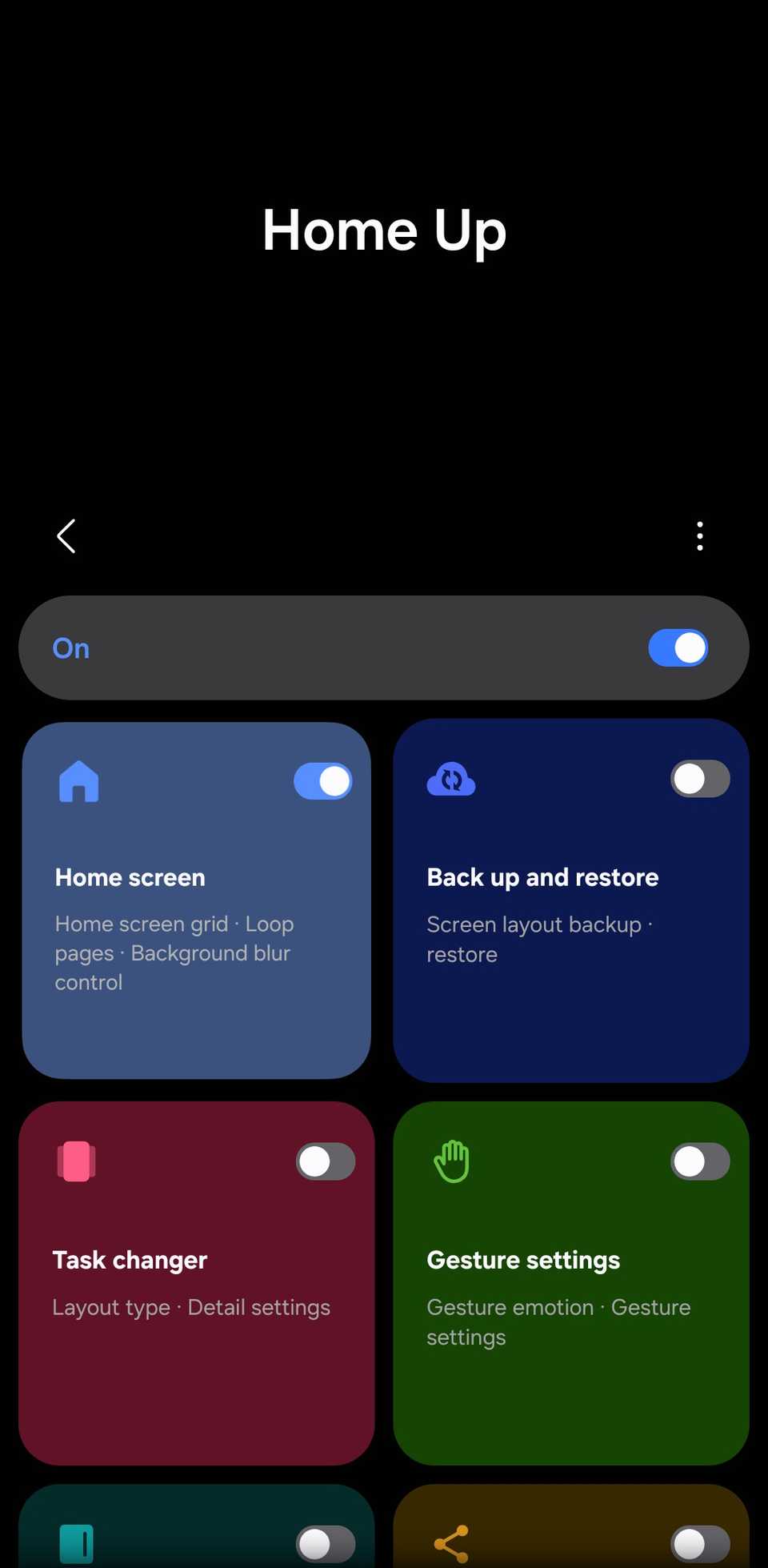
- Open , then download and launch .
- Home screenLarge folder.
-
Toggle it on, then select category. When you long-press a folder, handles appear on the corners so you can resize it.
Your home screen should be different from everyone else's
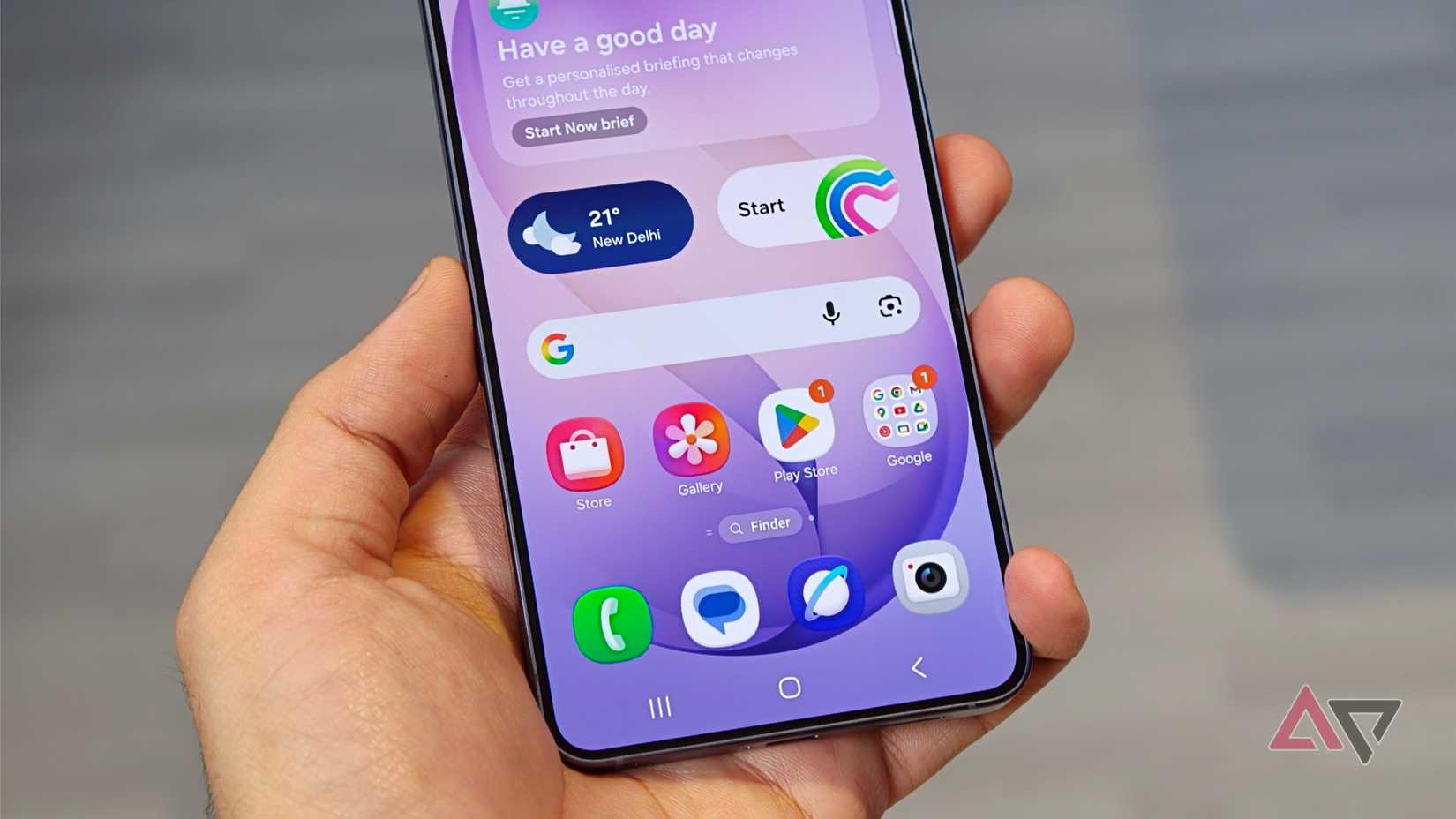
Since I set up my live wallpaper in Wonderland and my Duotone app design in Theme Park, I haven't gone back, and I can't. My phone finally feels like mine, and others can tell when they pick it up.
If you want to push your home screen even further, custom widget apps like KWGT let you design your own widgets from scratch.