Slow iPhone? Don't worry. You can make it run like new again.
An iPhone is built to last, and many people keep using the same phone for years before upgrading. Even so, as the years go by, your iPhone may start to feel slower than usual when the hardware can no longer keep up with the latest software features.
But before you give up on your current iPhone, there are a few tweaks you should try that might make it feel faster. From cleaning up storage to changing a few settings, here's what you can do to make your iPhone run smoothly again and get more life out of it.
Free up some storage
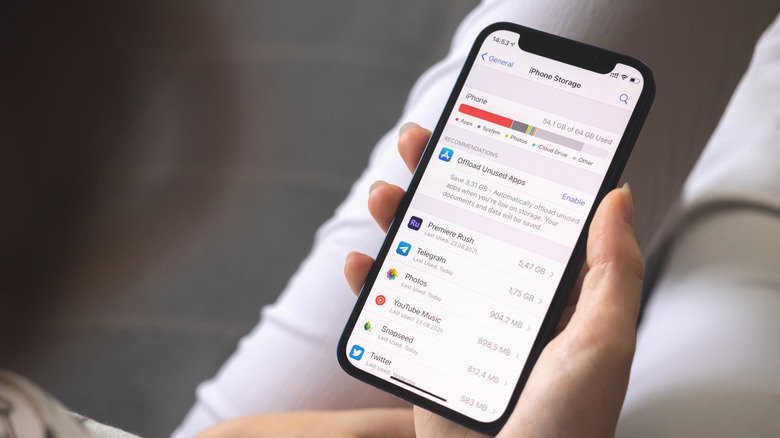
Running out of storage is a common cause of a slow iPhone. iOS needs free space to store cache, temporary files and updates. Even small bits we don't always think about, like text messages, require available internal storage. When your iPhone runs out of space, it can no longer handle all these processes, and everything slows down. Also, flash memory needs free space to access and move data in a process called "wear leveling." Ideally, you should have at least 10 percent of your total storage available to keep your iPhone running smoothly — so about 12.8GB for a 128GB iPhone.
To start, open the app and go to . Here you'll see exactly what's taking up space on your device: photos, videos and messages are often the main culprits. Media apps like Spotify or Netflix can also take up lots of storage from music and videos downloaded for offline playback. Your iPhone may offer you some suggestions for freeing up storage, such as offloading unused apps or reviewing large attachments in your messages. Delete anything you no longer use, or move some older data to a computer or external drive.
If you use iCloud, another good way to free up storage is by enabling optimizing the storage of iCloud Photos on your device. Back on the main screen, tap your name at the top, then go to and tap . Look for the menu and switch to the Optimize iPhone storage option. This will make your iPhone automatically offload old photos and videos, keeping only a low-resolution copy of them. But don't worry, as it downloads the full-resolution version when you need it.
Safari also keeps website data you don't need, which you can erase at Settings > Apps > Safari > Clear History and Website Data. This likely won't be huge, but it's worth removing if it's been a while.
Delete apps you don't use anymore
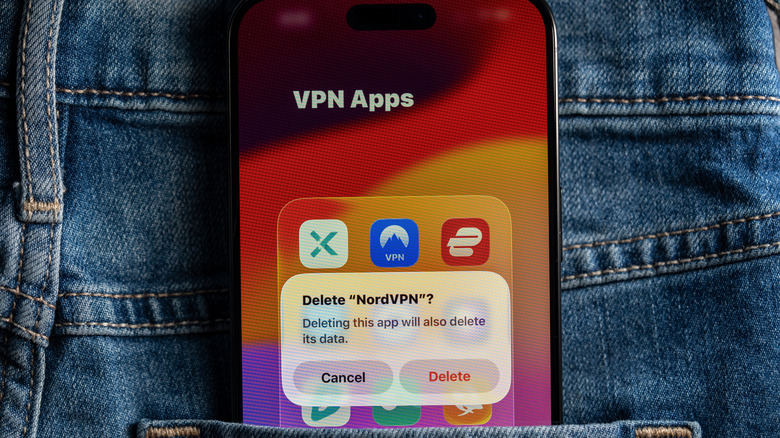
Downloading new apps from the App Store is easy, but many people forget to delete ones they no longer use. Chances are, you probably have at least few apps installed that you haven't opened in over a year. The settings page mentioned above shows the last time you used an app, so it's easier to target ones you don't need.
If you're not ready to give up the data from an app, choose it from this list and tap . Instead of removing everything, this uninstalls the app while keeping its data and settings. If you decide to use it again, just tap its icon on your Home Screen (offloaded apps are marked with a cloud icon) and everything will be ready to go once it downloads again. Your iPhone can also automatically offload apps you haven't used in a while, saving you time. In , go to and turn on the toggle.
Another good idea is disabling Background App Refresh, which allows iPhone apps to silently fetch new content and update their data in the background. While this is convenient, it puts more strain on the hardware and your older iPhone may slow down as a result. You can turn it off entirely or for certain apps by going to > > .
Turn off some of the visual effects in iOS
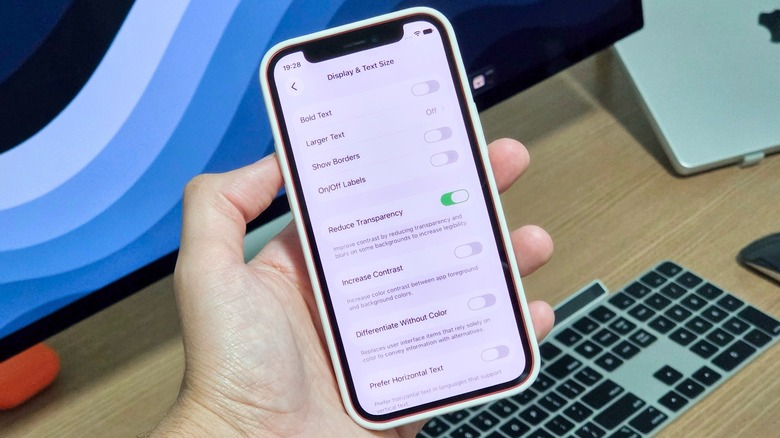
Apple's iOS is full of neat animations rendered in real time — they happen when you press and hold an icon, swipe to open Control Center or even open or close an app. However, these animations place a heavy load on the GPU, and older iPhones may struggle to render some of them. Disabling some of the visual effects in iOS can help your older iPhone run a bit more smoothly.
To change this, open again and enter the section. From there, go to the menu and turn off . This will cut the parallax effect on the Home Screen and apps will now fade onto the screen instead of zooming in when you open them.
Next, try turning off the transparency effects in the interface. To do this, go back to the menu and open . Turn on the toggle — this will make blurred backgrounds, such as those in the Control Center and Dock, appear solid. You'll lose the sleek Liquid Glass effect, but your iPhone will feel much faster and should also run cooler while you're using it. If you don't like the new look, just revert those toggles. It's also possible to adjust how Liquid Glass looks in iOS 27.
Finally, in Accessibility > Touch > Haptic Touch, changing the setting to reduces the delay between long-pressing something and its control appearing. This makes Home Screen app shortcuts or other contextual menus feel smoother.
Replace your iPhone's battery
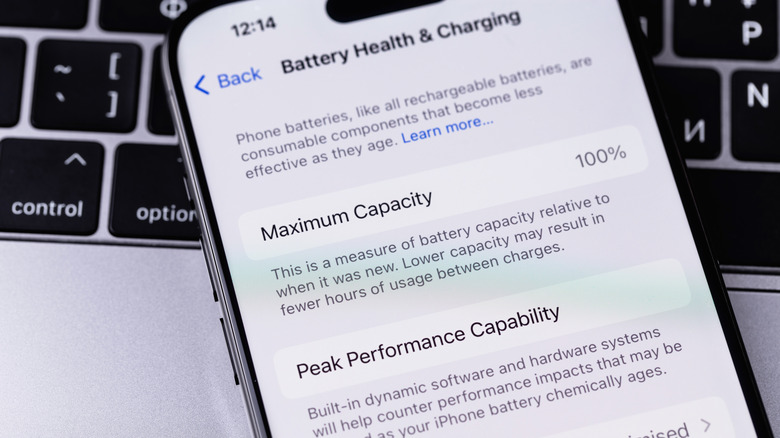
This is one of the points that makes the biggest difference in phones that are a few years old. As lithium-ion batteries degrade, they can no longer deliver the power needed to keep the phone running normally. As a result, iOS has smart features that limit performance to prevent the phone from shutting down unexpectedly when the battery is in poor condition. The battery in the latest iPhones is designed to retain 80 percent of its original capacity after 1,000 charge cycles. Once it reaches that point, you'll start to notice the battery draining faster, and your phone may run slower.
Checking your iPhone's battery health is as easy as opening the app and entering the menu. Scroll down and tap to see if the capacity is below 80 percent. If that's the case, it's time to replace your battery, so you'll likely see a message recommending this. A new battery from Apple costs anywhere from $69 to $129 ($229 for the iPhone Duo), depending on which iPhone you have.
We recommend that you take your iPhone to an Apple Store or an authorized service provider. Replacing a worn-out battery with a new one will make your iPhone run faster and also help it last longer.
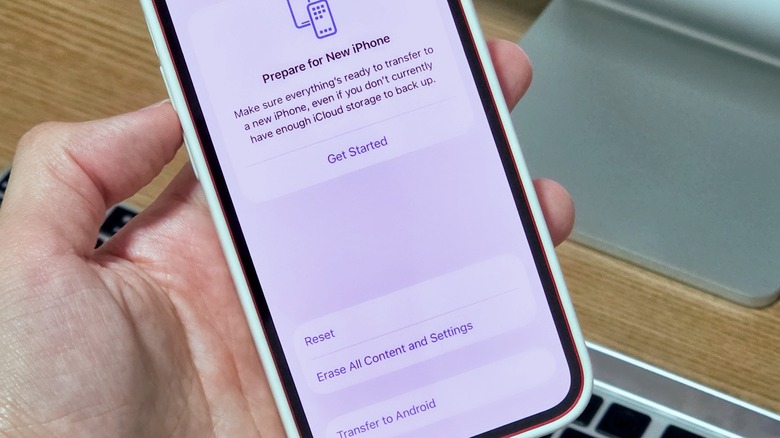
If nothing else has helped, a clean restore may be your last resort before buying a new phone. After using the same device for years, it tends to get cluttered with a lot of temporary files like updates, leftover files and app data. When you have years' worth of these files stored on your device, they can also cause your iPhone to run slower. In that case, restoring your iPhone may breathe new life into it.
First, fully back up your iPhone to iCloud, or to your Mac or PC. Once all your data is safely stored, go to the Settings app, then , and choose Transfer or Reset iPhone. Select the option and walk through to confirm the steps — your phone will restart as if it were brand new. You can restore your backup as part of the setup process to get all your apps and settings back, but setting up the device as new may be more effective in improving performance.