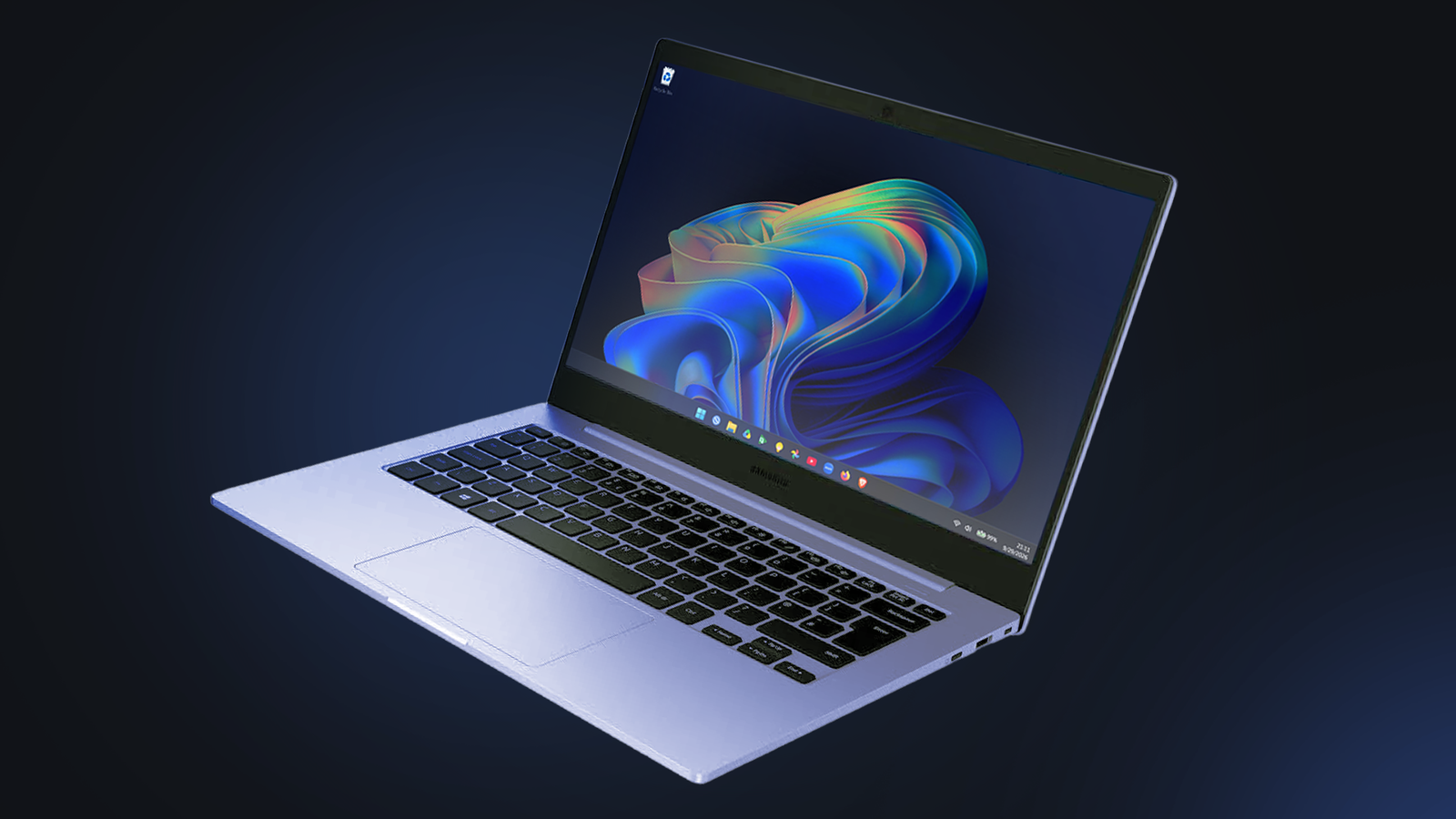
Googlebooks have finally arrived, and they bring something Android users have been seeking for ages: seamless integration with a laptop.
Apple users have enjoyed this feature for years. Even though Apple's iOS and macOS belong to different product segments, they gel together perfectly. The Googlebook promises the same perks, while offering the performance of a .
On the other hand, investing in a first-generation Google product is always a risk, especially one that . Google promises 10 years of software support, but we've seen .
Before taking the plunge, it's worth turning your existing Windows PC into a pseudo-Googlebook first. Windows has some Android integration, so you already have a solid start. Add the necessary apps, and you'll have a Googlebook-like experience.
Wireless transfers between PC and phone
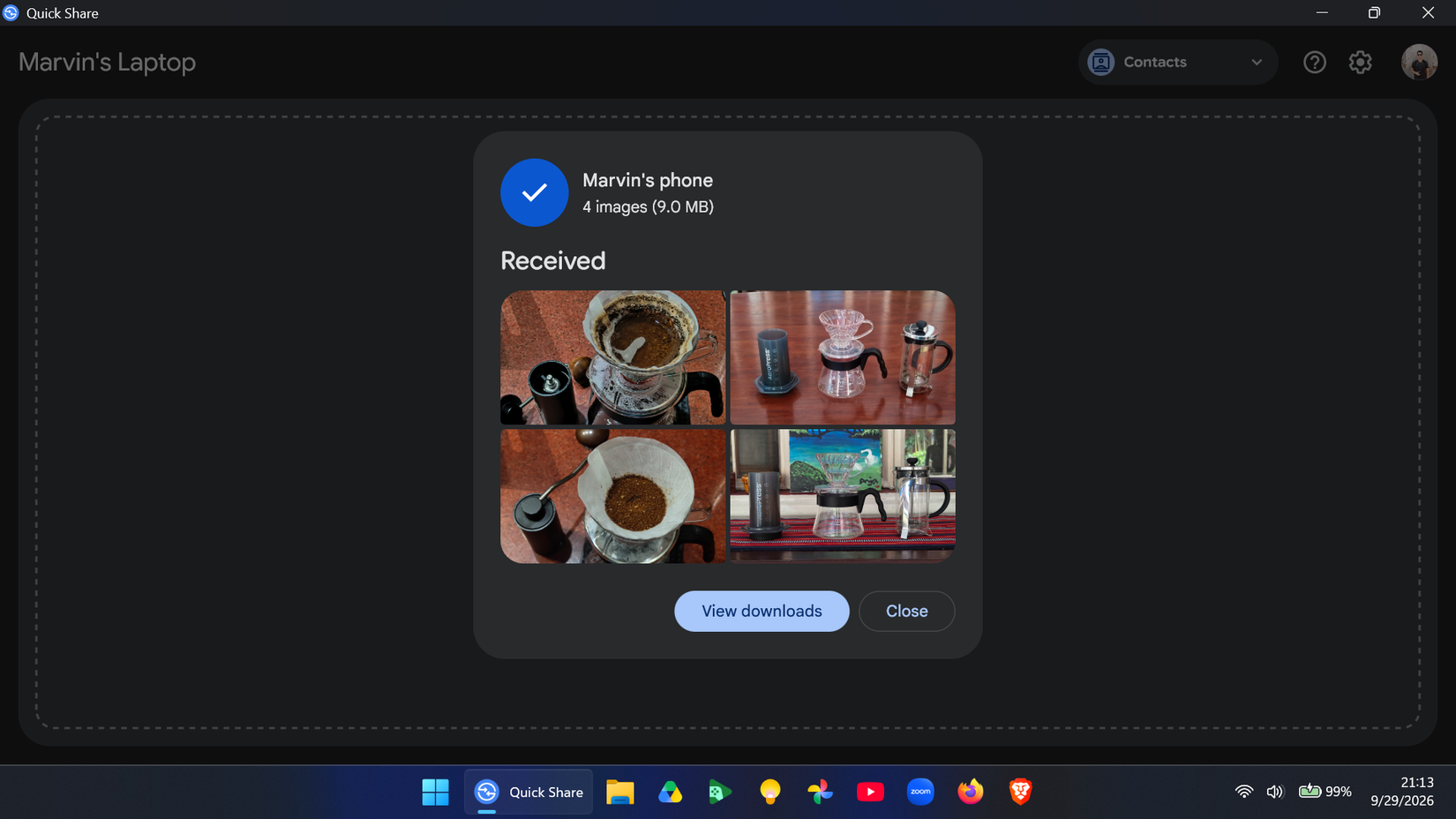
This should be the first app to download. is the closest thing Android-Windows users have to AirDrop.
Quick Share eliminates the need to upload to Drive or email yourself to transfer files from Android to Windows, and vice versa.
You can choose how your Windows PC is seen. If you're sharing between your own devices, keep the visibility set to only . If you share the laptop with others, set it to Contacts.
Quick Share uses Wi-Fi and Bluetooth to communicate between Windows and Android. It can handle large files in the gigabytes and lets you choose where to save the files after transferring.
Use the cloud as your primary storage
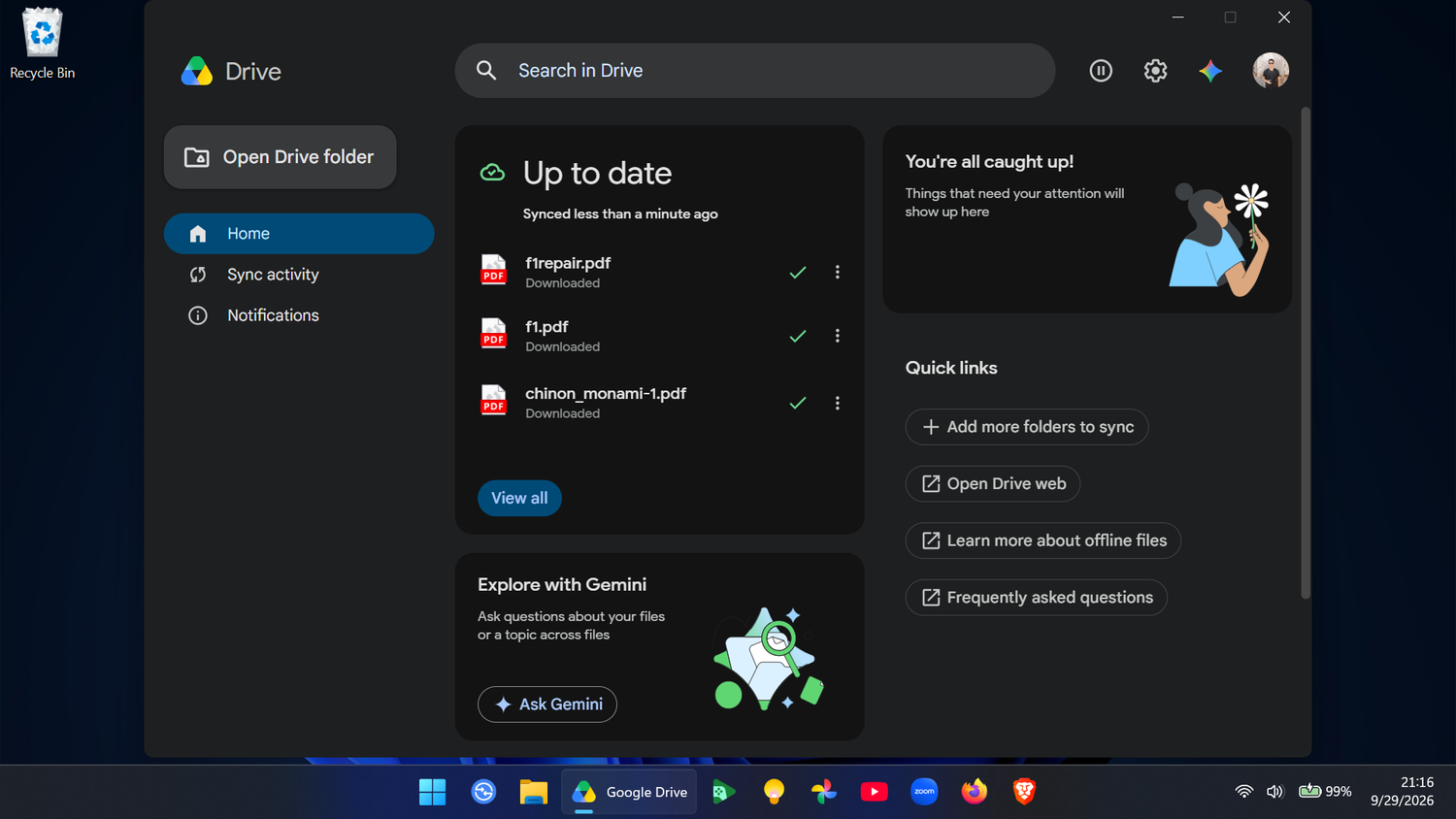
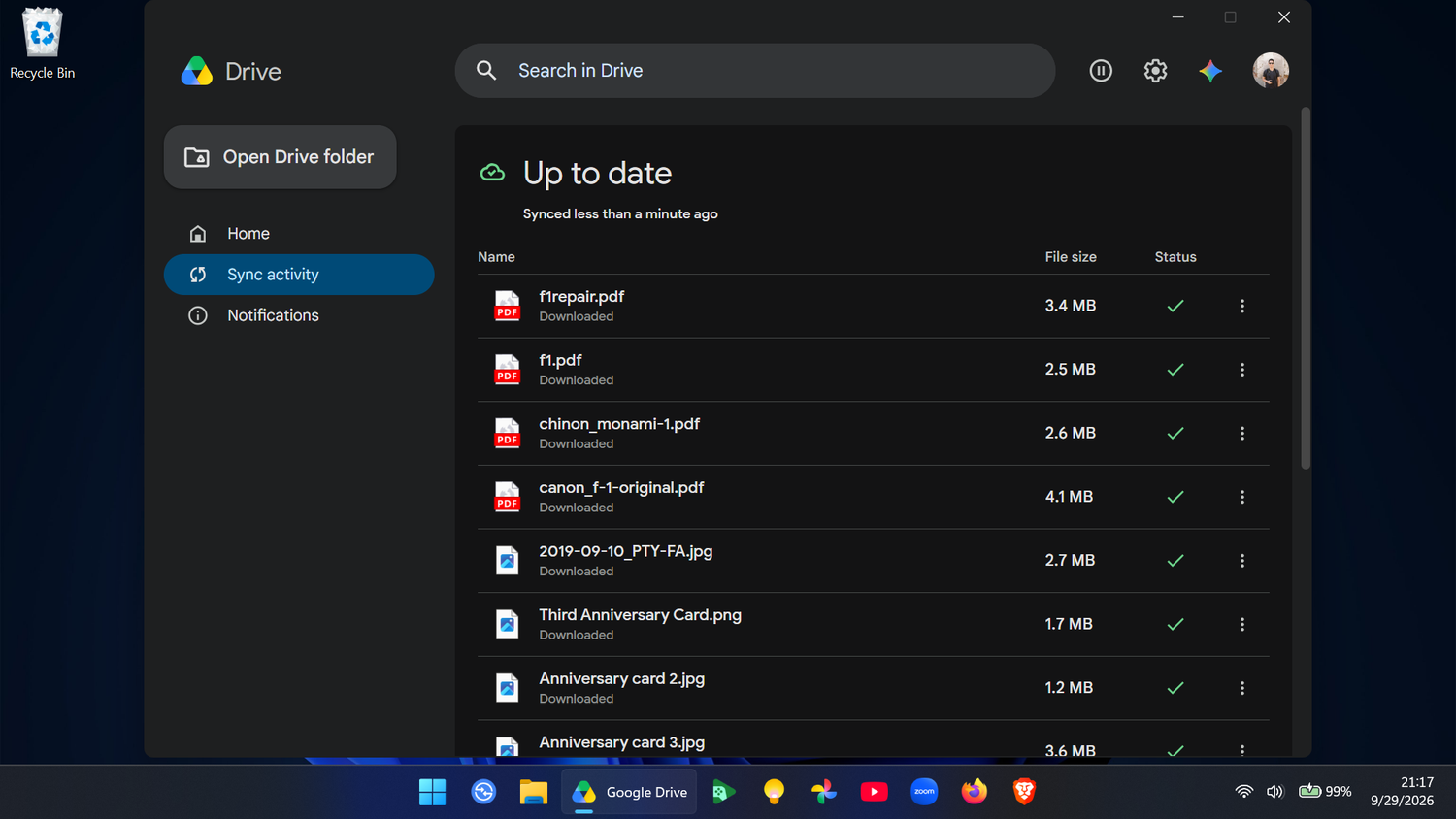
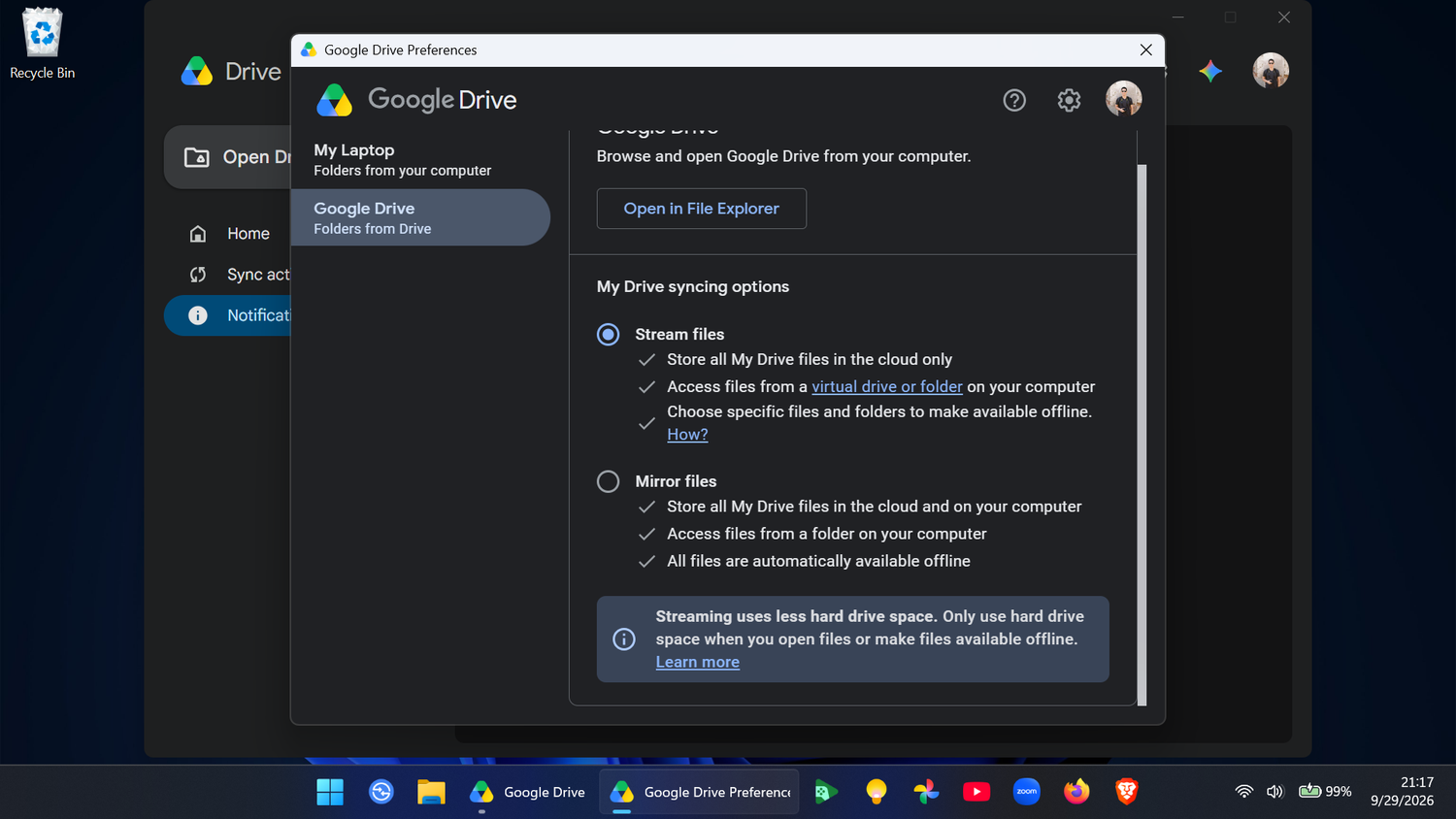
The Googlebook is a cloud-first device. By installing Google Drive on your Windows PC, you can keep your files in the cloud and accessible to your Android at all times.
Set the syncing to to keep all your files on Drive. Setting it to Mirror Files will download everything from Drive to your local storage. You don't want that if you're aiming for a cloud-only approach.
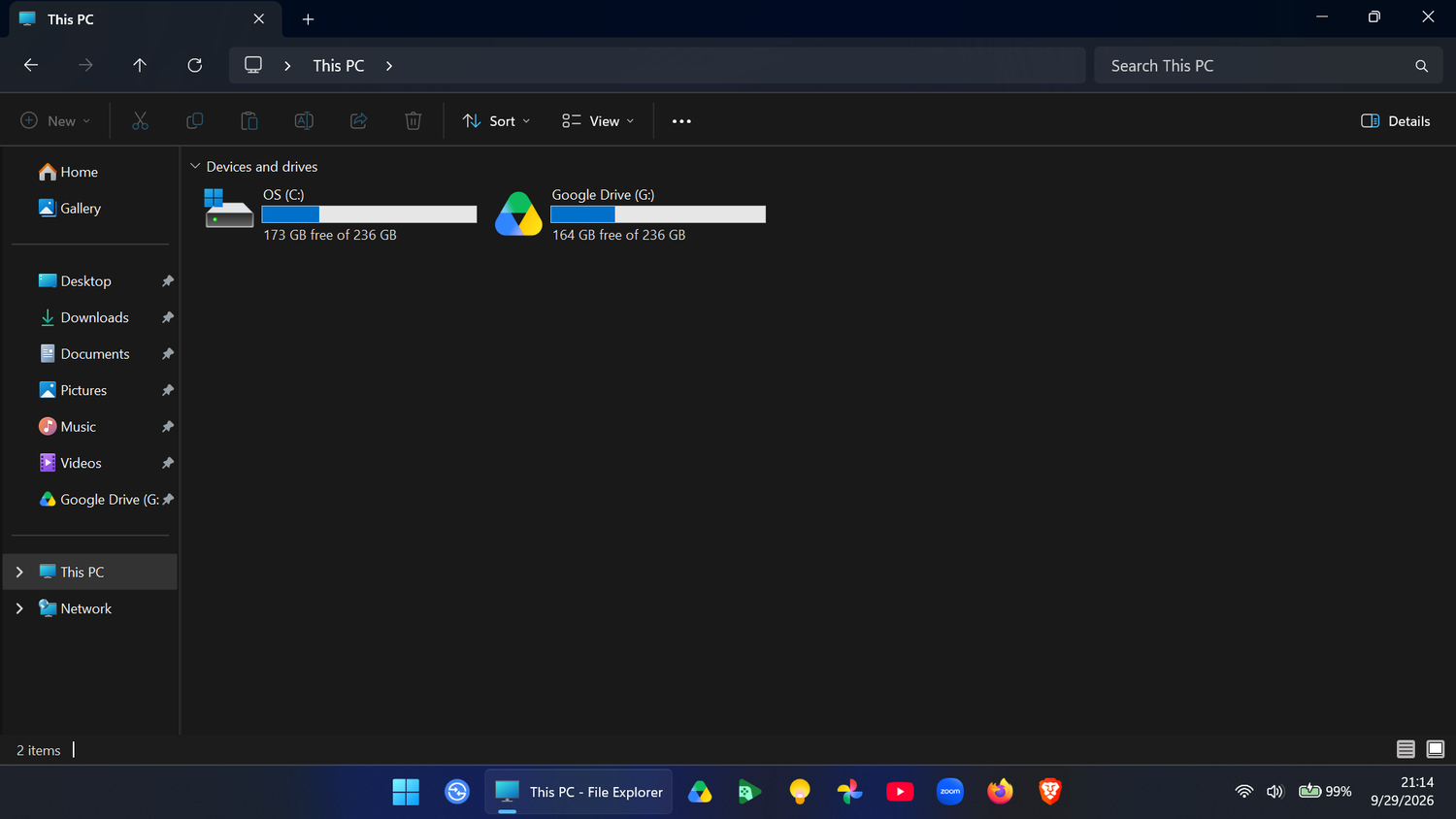
After installing Drive, Windows automatically creates a separate local drive for it. It's a convenient way to prevent your local files from overlapping with your cloud saves.
Instantaneous cross-platform sharing
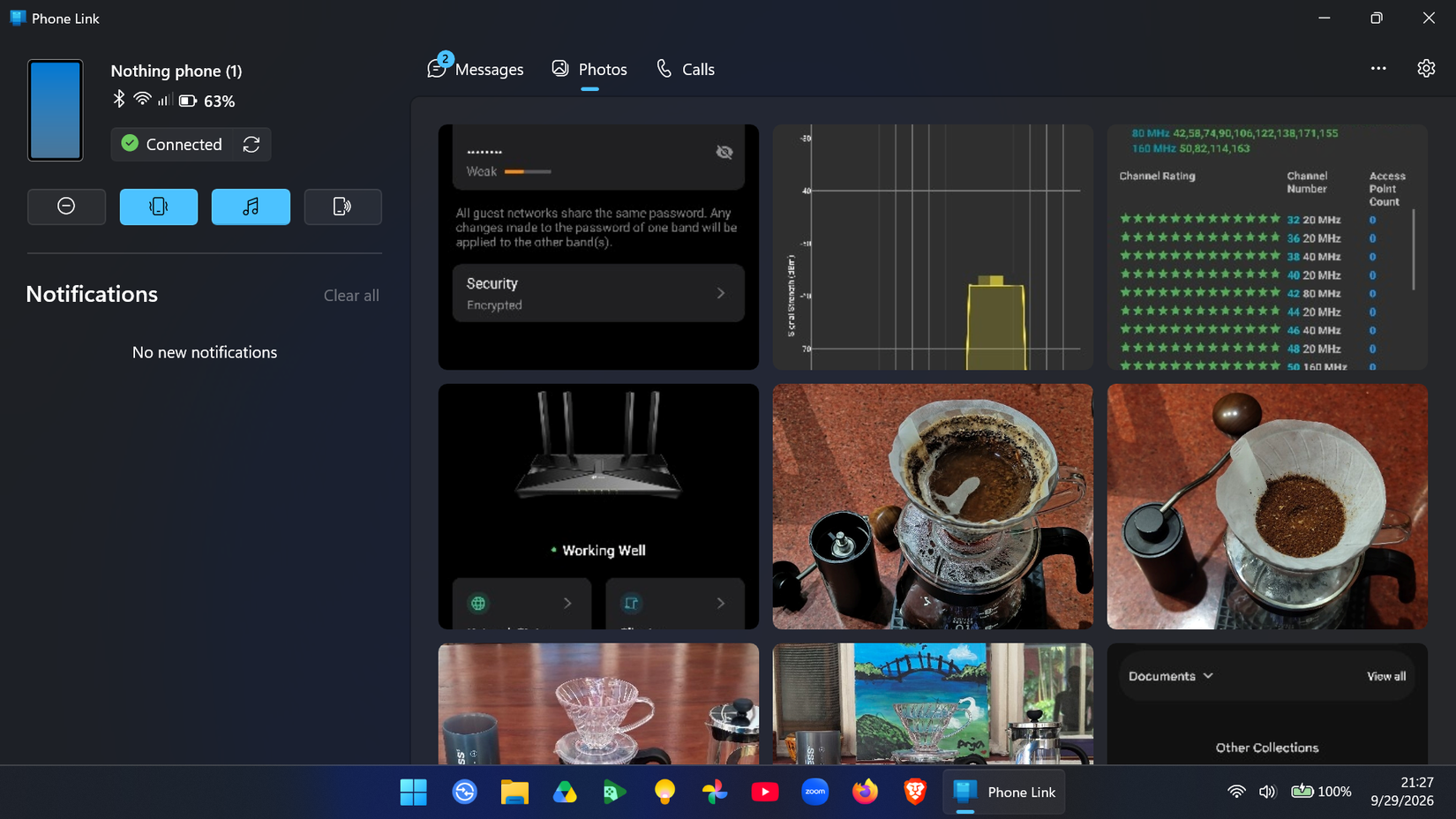
As seamless as Quick Share is, it doesn't meld your Android phone and Windows PC together. That's where Microsoft Phone Link comes in.
Phone Link creates a bridge between your phone and laptop. After pairing the two devices, your Windows device will have instant access to your phone's notifications, SMS messages, and recent photos.
Although Quick Share makes sending files easier, Phone Link is essential for sharing a unified clipboard. Cross-platform copy-and-pasting is an incredible time-saver.
This setup consumes more power on your Android because of the constant connection. However, you'll check your Android less often since you can view essential notifications on your PC.
Google Play Games for PC
Android gaming on Windows
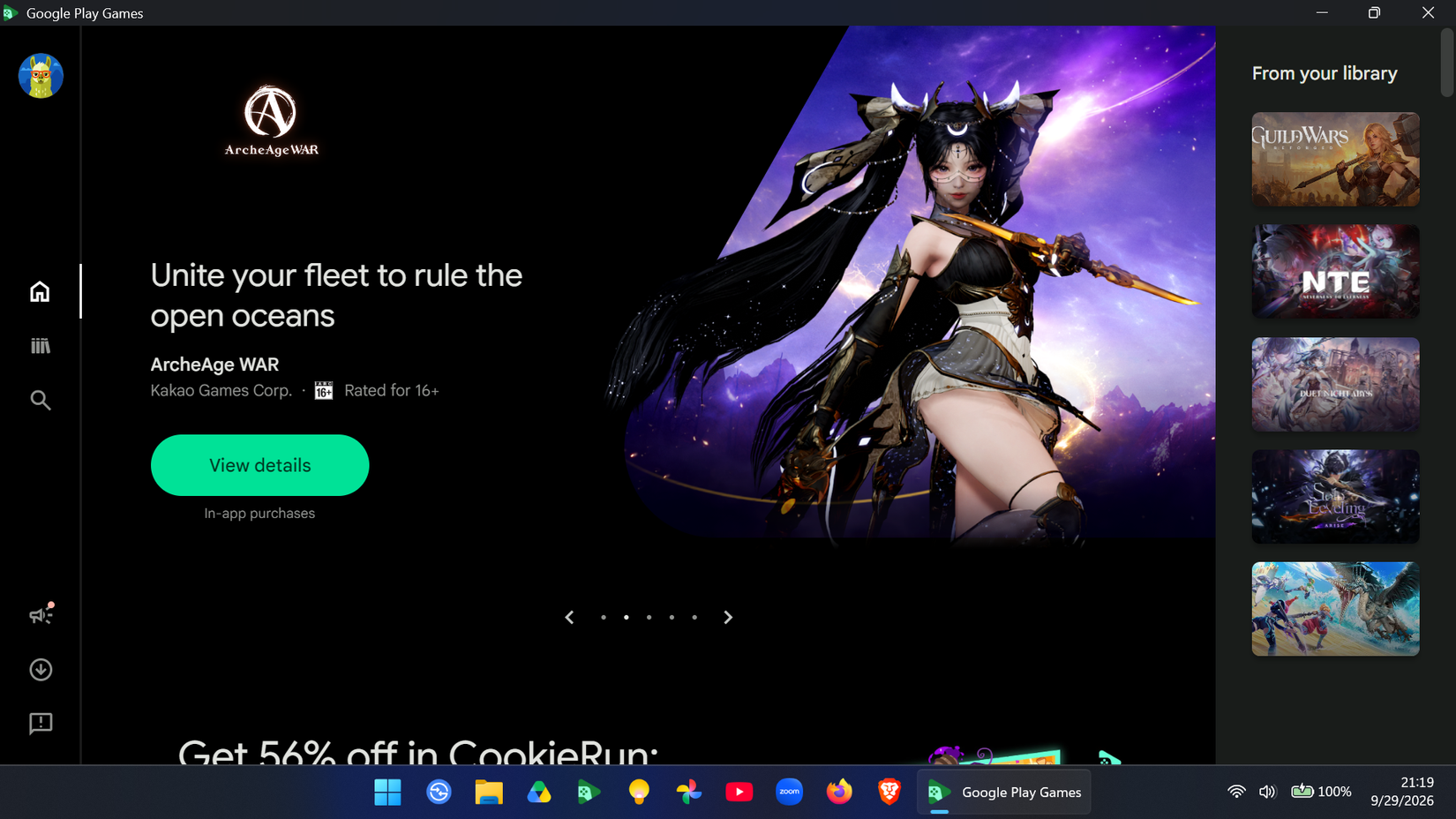
Nothing beats gaming on Windows. It has Steam and access to decades' worth of classic titles. You can expand on that by installing Google Play Games on Windows.
Yes, you can play Android games on your PC. It may not sound intuitive at first, but it can offer smoother performance and a larger screen than your Android.
The best part is . Whatever you accomplish on Android ports over to the Windows version of the same game.
Translating touch-based controls to a keyboard and mouse is dependent on each game. Some games handle the transition better than others.
Make sure to remap the controls in the app's overlay settings for a gaming experience similar to a Googlebook's.
Pin PWAs to the taskbar
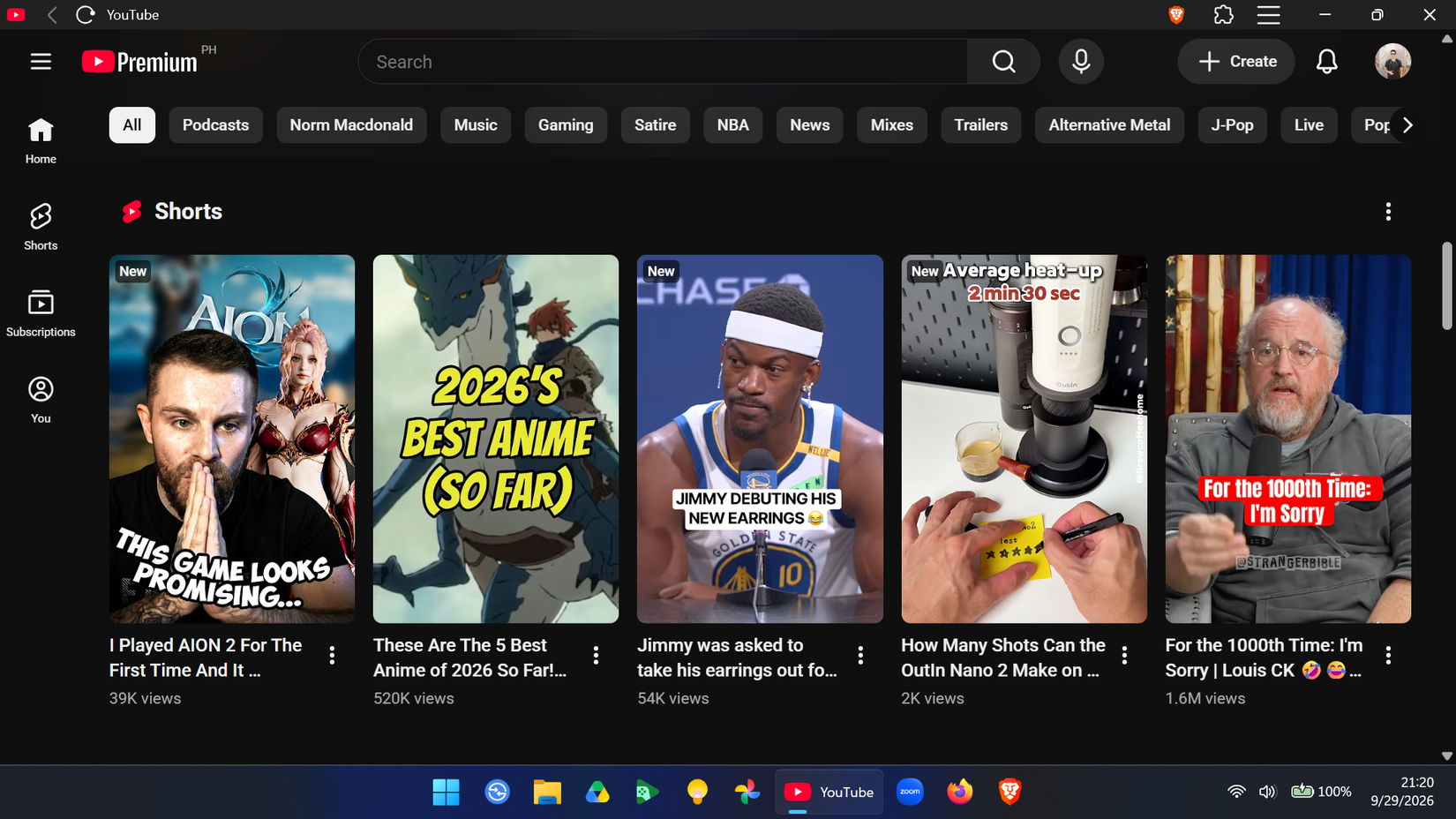
Installing Google Chrome doesn't sound like anything special. You probably have a Chromium-based browser on your PC. What matters more to recreating the Googlebook experience on Windows is .
You'll see that install icon to the right of the address bar when you visit Google websites. That installs a PWA on Windows. It's like a supercharged bookmark that lets you go straight to a Google service like Keep or YouTube from Windows' interface.
To complete the Googlebook look, pin each PWA to your Windows taskbar. It's similar to Googlebook OS's aesthetic, in that Google's primary apps each have a shortcut stationed at the bottom.
I have Google Keep, Photos, and YouTube PWAs on my Windows taskbar. Drive and Play Games have their own space on the taskbar thanks to their aforementioned app installations.
Click to Do
The next best thing to Magic Pointer
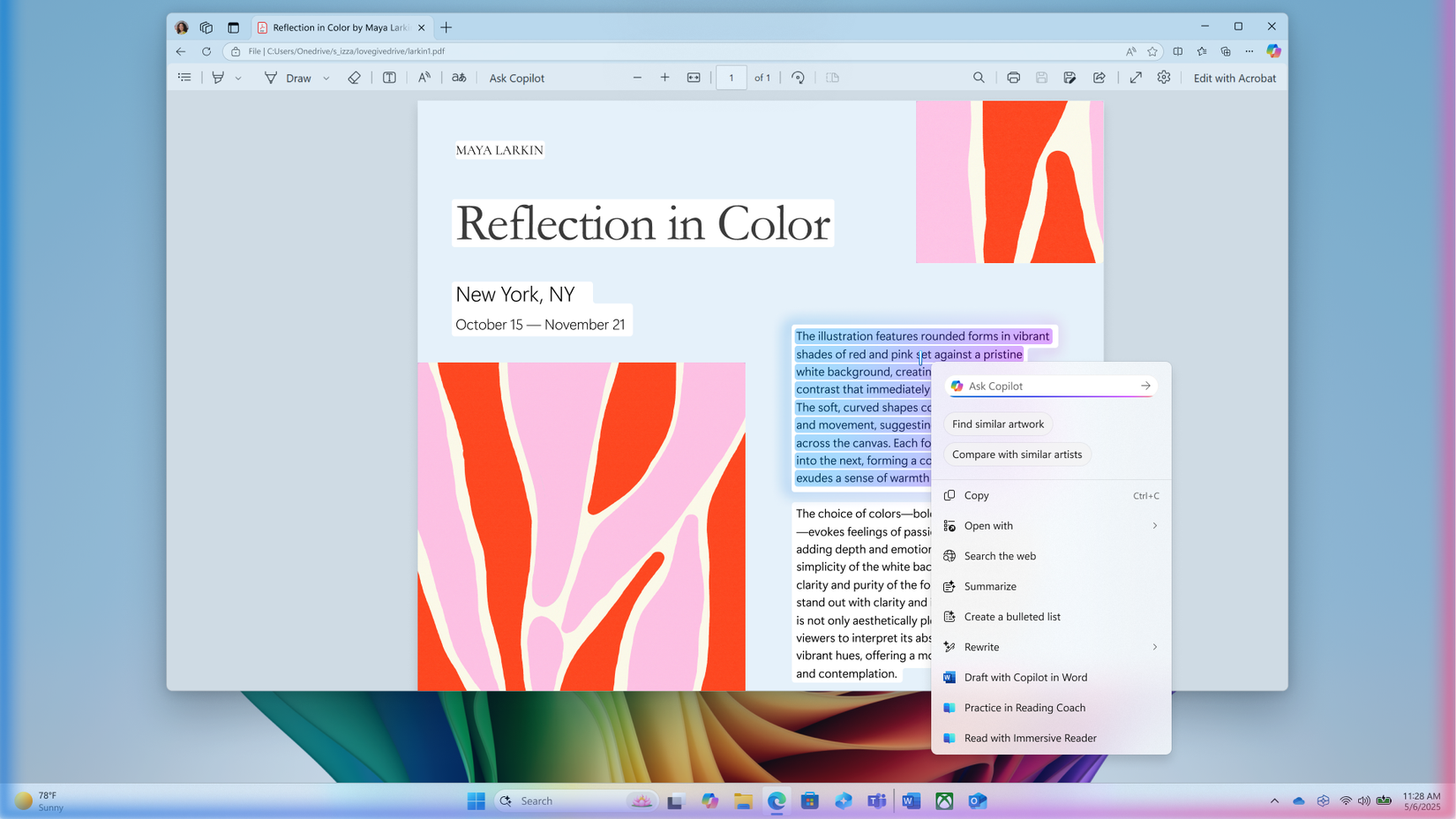
Magic Pointer is arguably Googlebook's biggest highlight. It's a Gemini-powered cursor that lets you activate the AI assistant with a gesture on the mouse or trackpad. It's the tactile equivalent of Circle to Search.
Not to be outdone, Windows has had this function with Click to Do for a while. Instead of sending screen data to the cloud, Click to Do works locally. It's meant to be faster and can work while you're offline.
It's easy to activate, too. All you do is hold the Windows key and click anywhere on the screen. Alternatively, press Windows key + Q to quickly bring up the tool.
Click to Do requires a Copilot+ PC. It's built into Windows 11 computers with compatible hardware. To check whether your Windows PC has it, search for Click to Do in Settings to toggle it on.
Windows has been a Googlebook all along
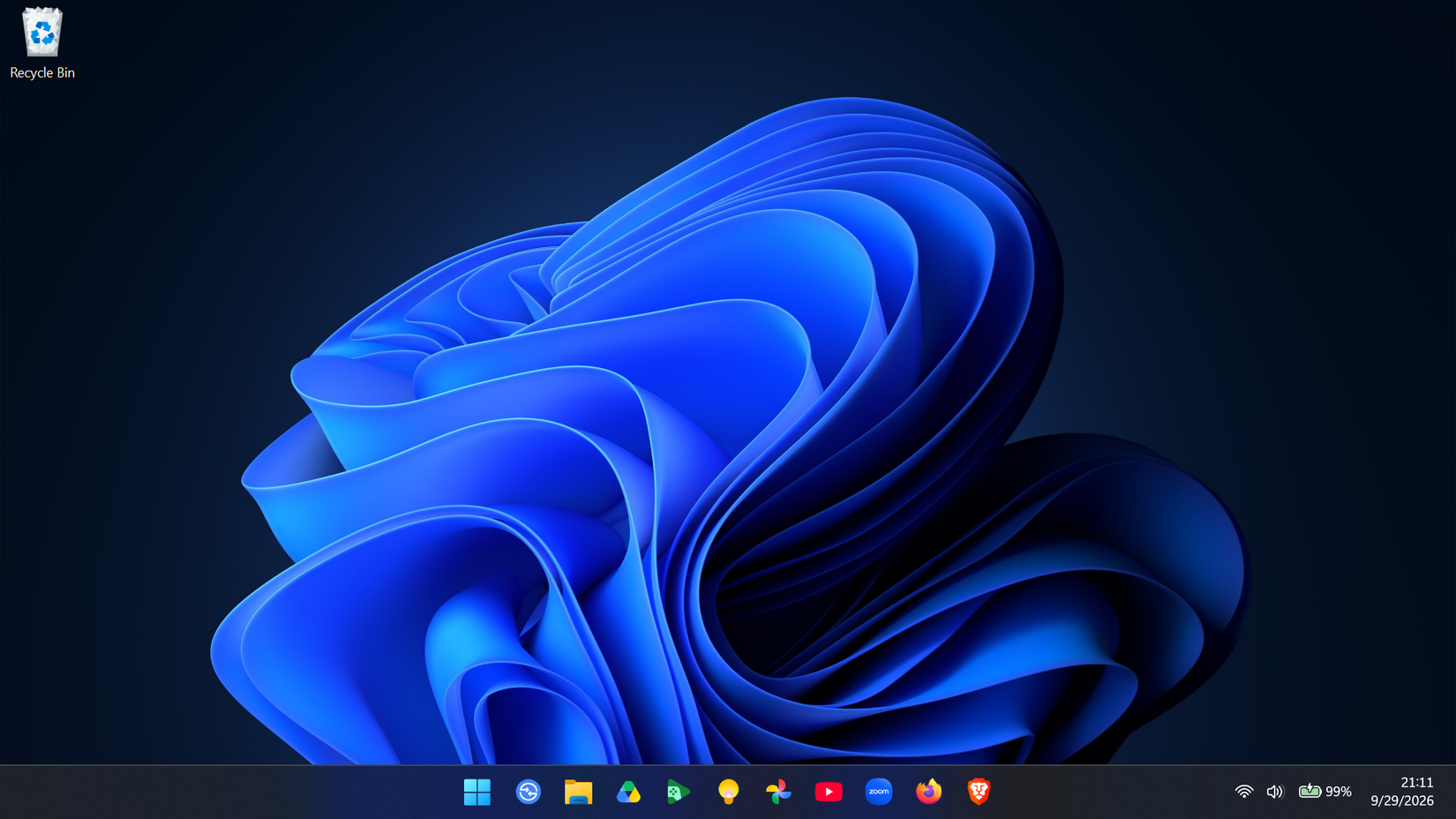
As impressive as the Googlebook is at first glance, Windows has had many of these Android integrations for years.
Windows connects seamlessly with Android, plays Android-exclusive games, and synchronizes with Google Drive storage. These are most of the Googlebook's main selling points.
On top of that, Windows offers a richer library of native apps and games. Combined with the wireless, cloud-first approach of the six aforementioned apps, you get the best of both OS worlds.
It's mostly in the software. Customize it the right way, and you literally have a Googlebook at home.