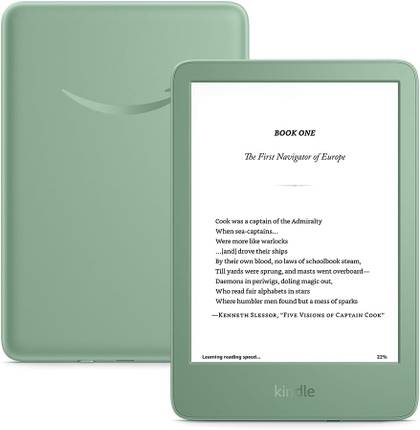
The Kindle has been through some rough times lately, so if you're still rocking an Amazon-branded e-reader, you have solid reasons for doing so.
I tend to come back to my Kindle every now and then, mostly to sample new wares on Kindle Unlimited, or read old classics that didn't make it to my Kobo e-reader when I moved. Which means I know my Kindle, and I know the secret settings that everyone should enable, but most don't.
Show clock while reading
It's too easy to keep reading until 1 am
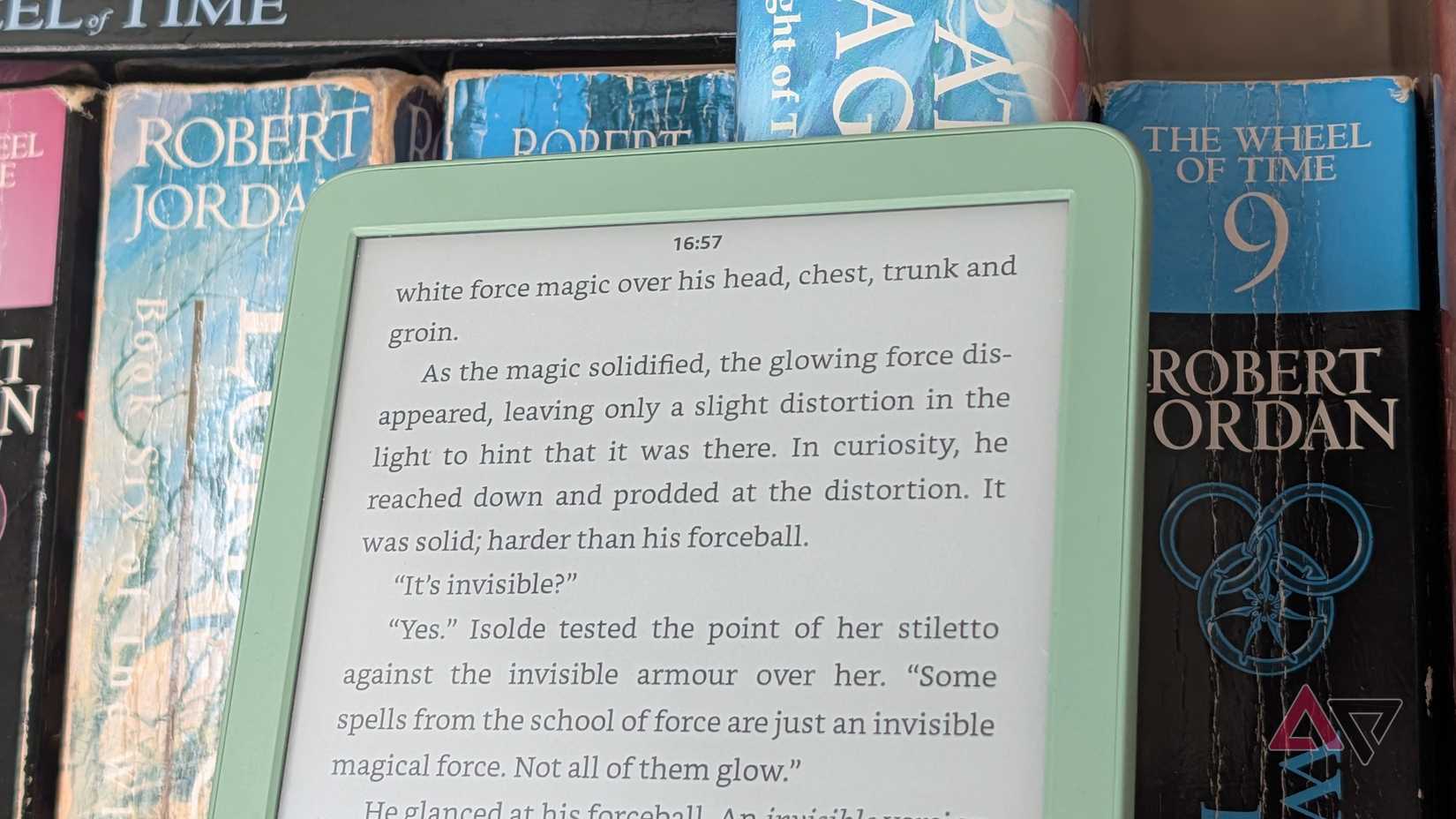
You might assume that the less on your screen while you're reading, the better. And by and large, you're right. The last thing you want is extra elements distracting you from your story, especially when it starts to get good.
But for many of us, real life refuses to wait until we've finished a chapter or gotten past the good bit, and we often need to get back to what we were doing. So a little clock in the corner of your reading screen is a great idea.
To turn it on, follow these instructions:
- Tap the top of your display while reading any book.
- Select the button for font options.
- Go to the tab and turn on the Show clock while reading option.
When on, a clock will show up at the top of your screen, so you can keep an eye on it.
Stay in this menu, because there's more here you need to know about.
Make the reading progress bar useful
What's most important to you?
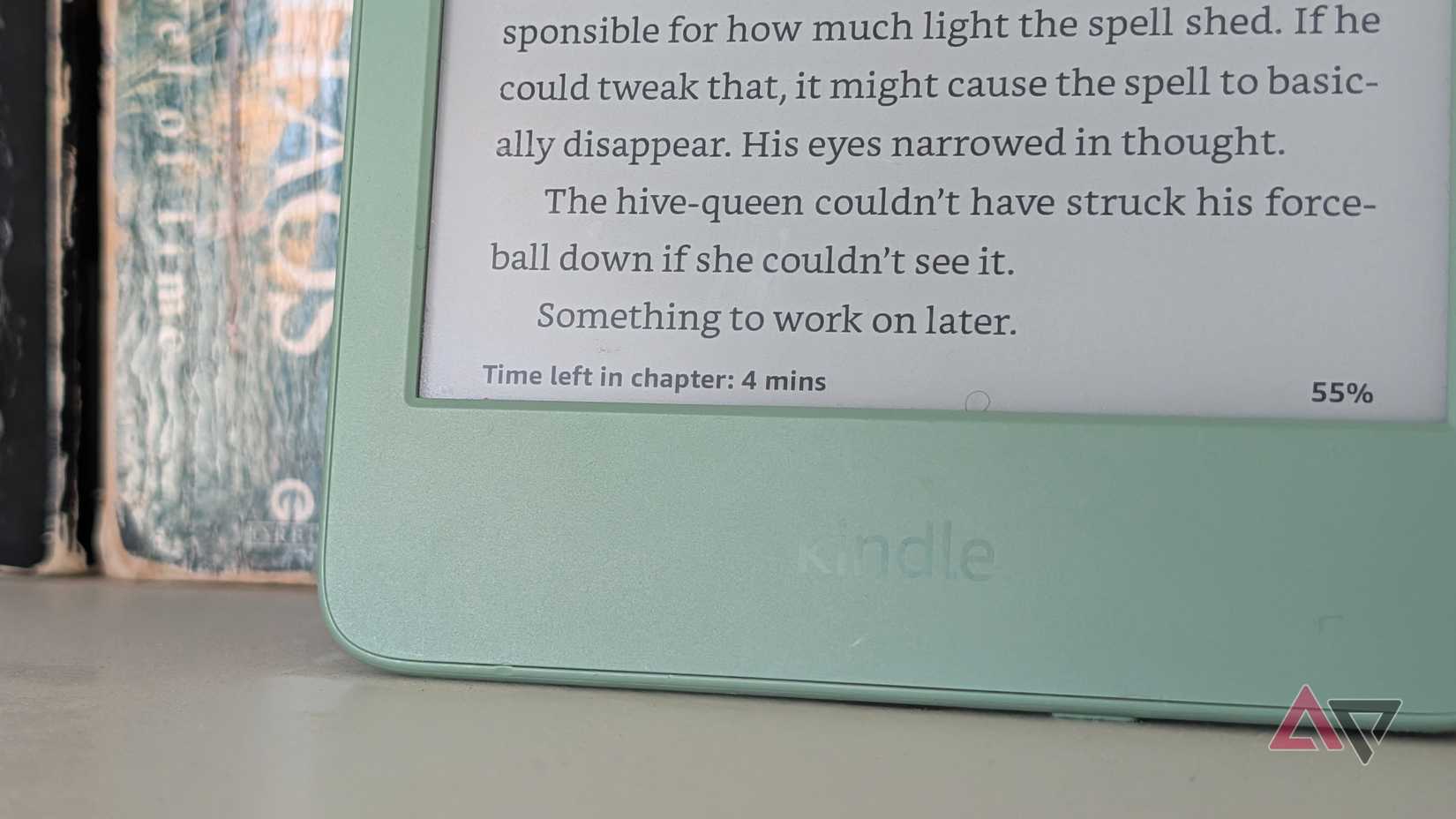
The reading progress text in the lower-left corner of the screen shows a page count by default. This is boring and not helpful most of the time.
Why not change it to something actually helpful? It's easy to do so.
- Go back to the menu through the instructions shown above.
- Select Reading progress, and choose one of the options.
Time left in chapter and Time left in book are my two favorite options, and I toggle between them often. Location in book is only really useful if you want a hyper-specific code to get you back to a specific part of your e-book. It's not useful most of the time.
And is there for the purists who want the reading and nothing else.
As another note, you can tap the Reading progress section to switch between the different options. I find this to be buggy, and it's not the best way to do it.
Find out when a book mentions another book
A must for students and the curious
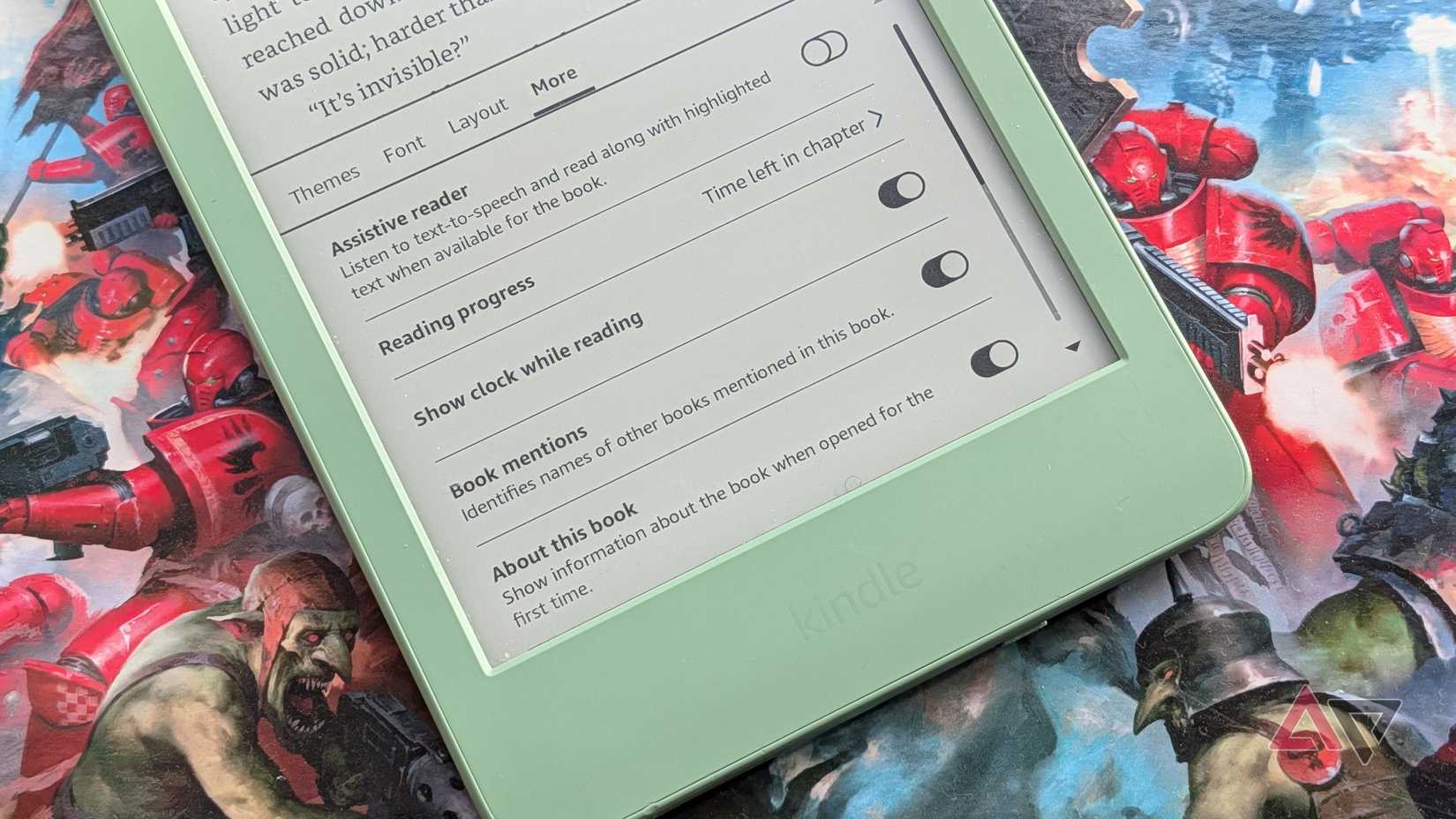
Finally, the feature is in this More menu. This is best for people reading non-fiction and reference works, as it uses Amazon's AI to recognize when other books are mentioned in the text and turns their names into hyperlinks, so you can buy the e-book from Amazon.
It's incredibly useful for some, but it's probably not for most people. Still, you can find it by toggling on Book mentions in the menu.
Turn on the warm screen settings
No more cold nights

E Ink displays are well known for their ability to read in bright sunlight, while relying on front lights for nighttime reading. But a dazzling front light can be hard on your eyes in the dark. Thankfully, it's easy to tint the light color so it's a bit calmer.
- Swipe down from any screen to open the Quick Settings.
- Adjust the slider to your taste and need.
Be aware that this setting will only display if your Kindle supports adjustable front lights. All new Kindles except the basic Kindle have support for warmer front lights.
Sorry, basic Kindle owners — but at least you still have the next options.
Dark mode is a must
Sorry, but white text on a black background is objectively cool
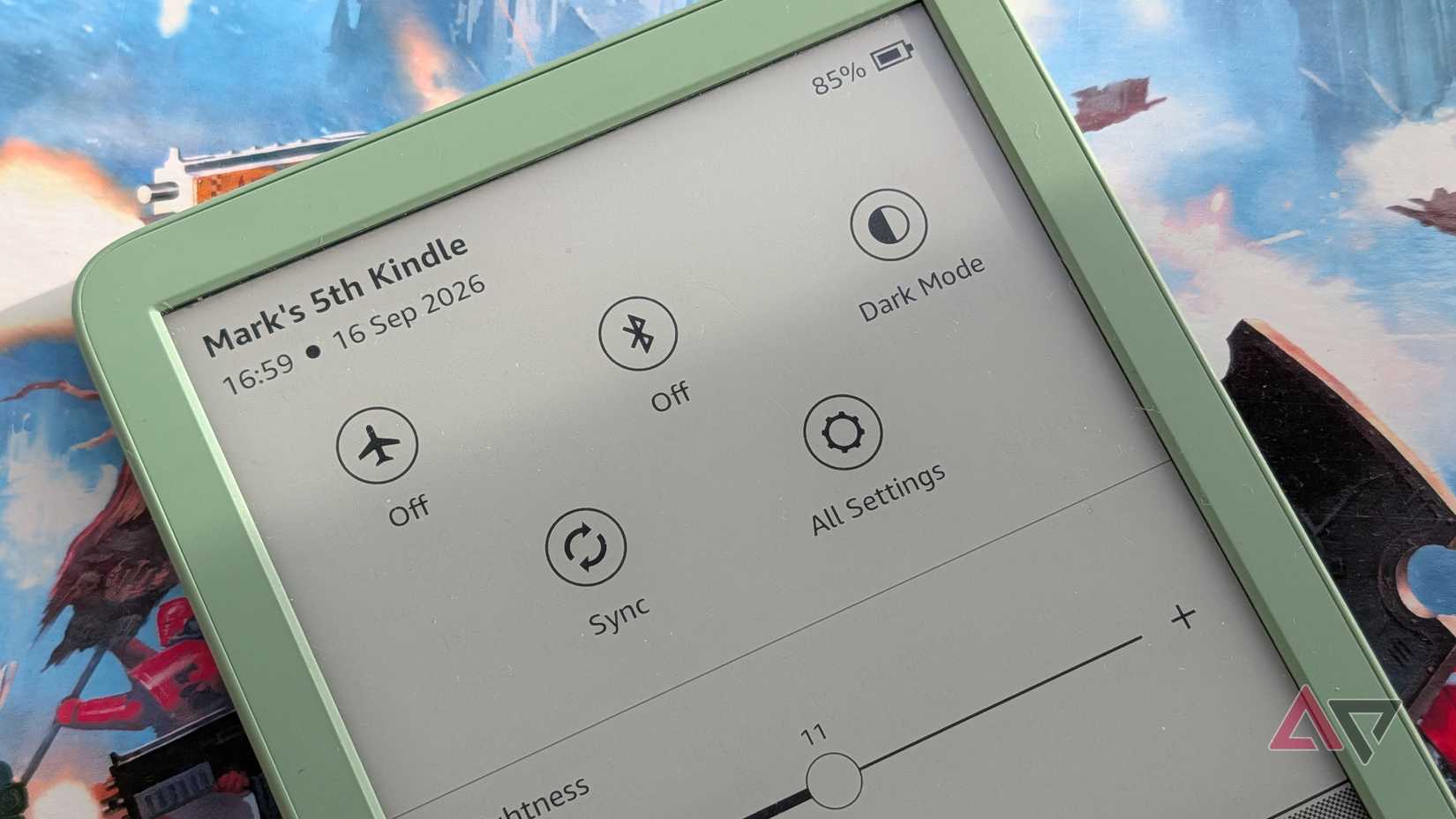
Dark modeinverts the Kindle's monochrome display, which means there's less white beaming into your eyes when it's dark.
You might think it doesn't sound like much, but it makes a huge difference when you're reading at night, and is especially important for devices without warm front lights.
You can toggle Dark mode from the same menu as the slider. Swipe down from the top of the screen and select Dark mode to toggle it on.
Add a PIN code for that spicier content
You don't want anyone knowing what you're reading
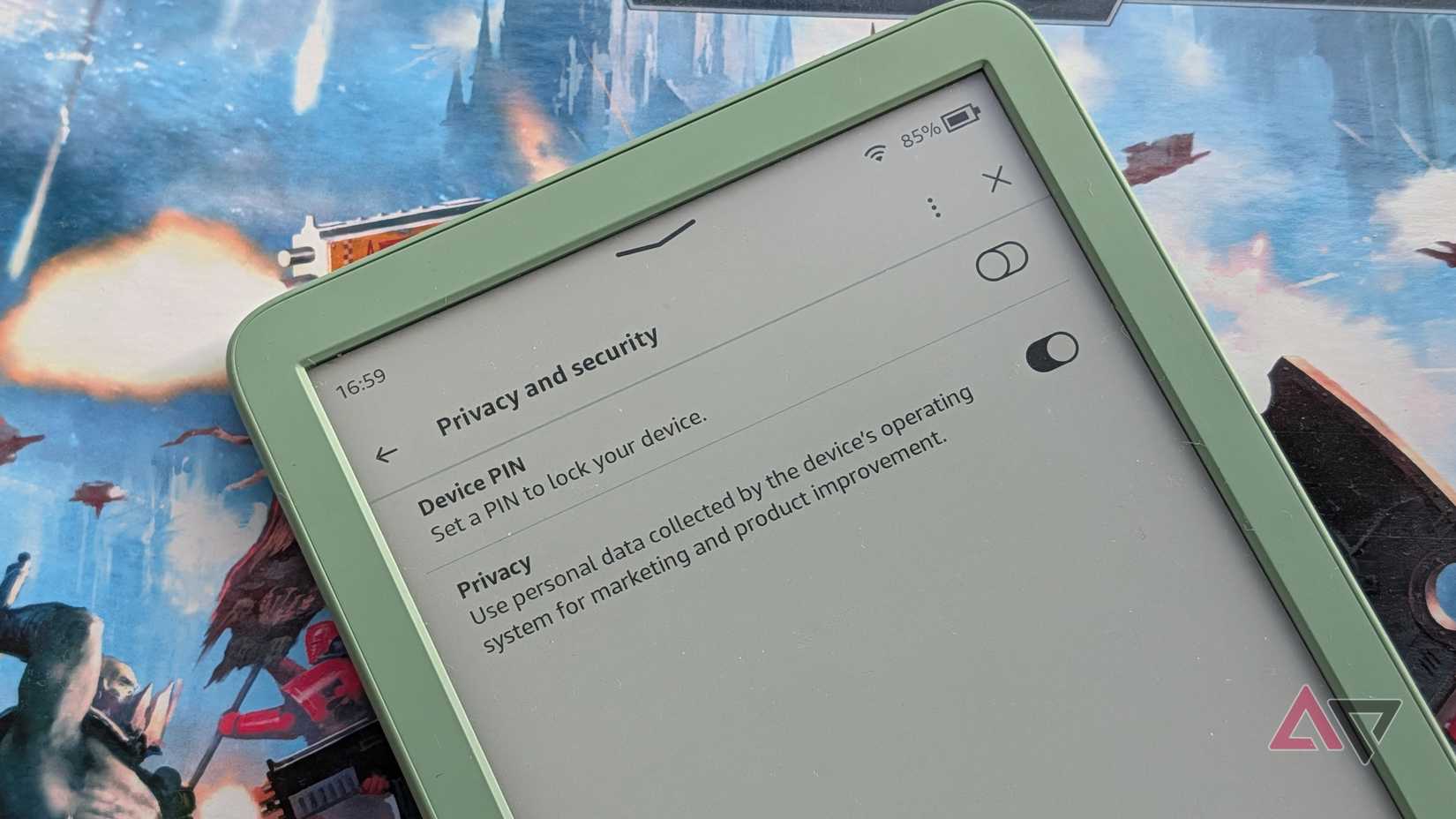
Many of you still reading on Kindles are reading sort of content.
It's fine; we don't judge. But if you are reading the sort of books you'd rather people didn't know about, it's a good idea to set up a PIN on your Kindle.
Most people don't care about this, but if you do, here's what to do.
- Go to from the three vertical dot menu on your Kindle's home page.
- Go to Privacy and security.
- Toggle on .
- Enter the PIN you want to use and select .
Now every time you unlock your device, you'll need to enter the code.