
The first time I tried to reply to a text after the September 2026 Google Messages update, I swiped left and pulled up a column of timestamps.
I had never seen that before, so I spent an afternoon looking through menus I had ignored since I turned on RCS chats in Google Messages.
Some of what I found is brand new, while other things have been on the app for years. I also learned some new "tricks" that fixed the irritations I've had about texting over RCS, from blurry photos to group chats that won't stop buzzing.
Google is rolling out the newest changes gradually, so a couple of them might not be on your phone yet.
Swipe left to see every timestamp at once
Checking delivery times no longer takes a tap per bubble
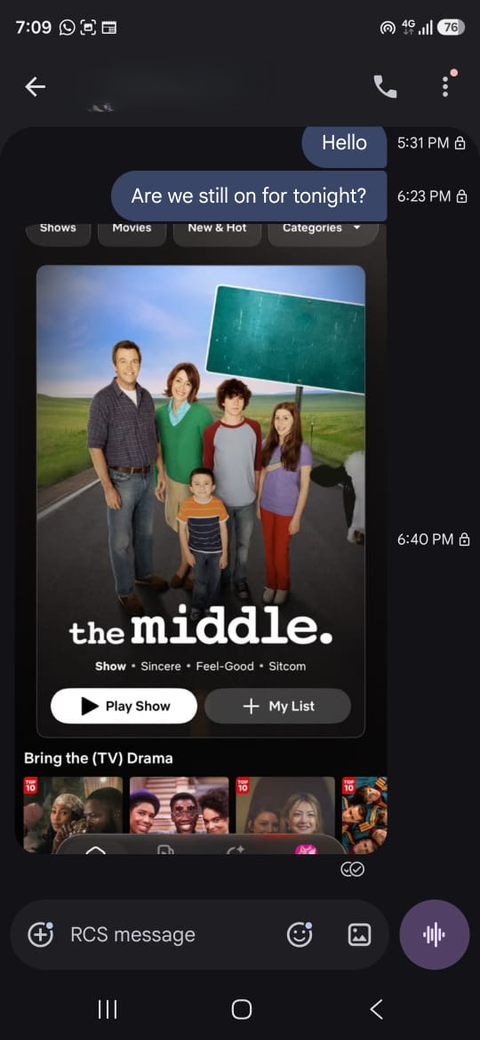
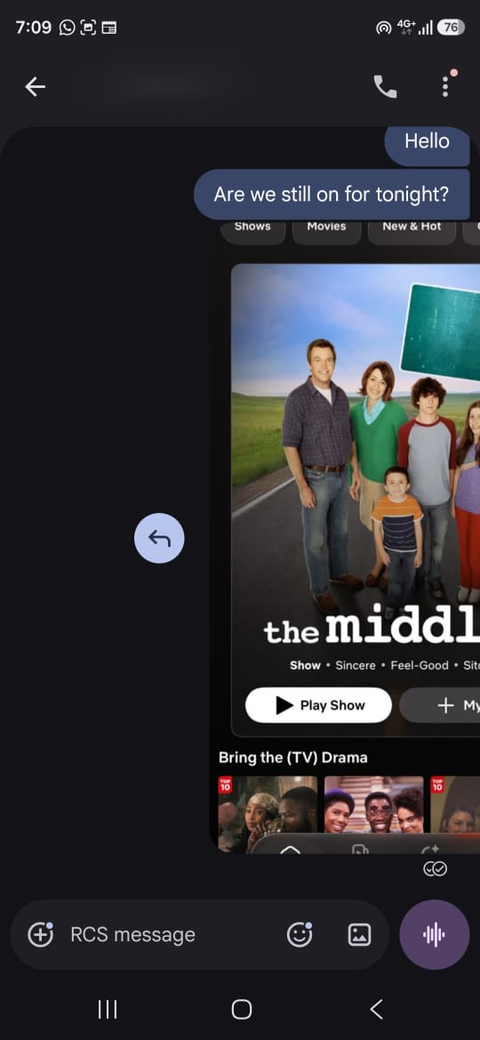
I used to tap bubbles one at a time to see when someone sent a message or whether the chat was encrypted. Now a left swipe anywhere in the conversation shows the time and RCS encryption status of every visible message all at once.
This has become useful in long message threads, where I want to see where a conversation ended without opening each message.
I can still check read receipts by tapping each bubble, so I didn't lose what I checked most often.
I now have to swipe right on a bubble to reply to a message, and it took some adjustment. But with Google Messages' new swipe gestures, I can scan a whole chat faster than the old tap did.
Press and hold to copy only the part you need
The new menu opens next to the message you pressed
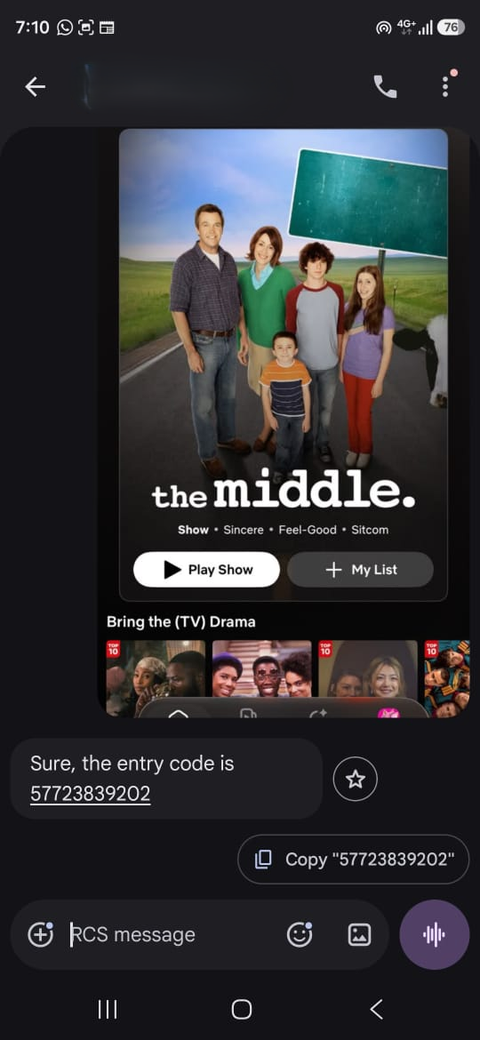
Copying a number out of a long text used to annoy me for a long time. Google Messages selected the entire message, so I had to paste into a note and delete everything around the part I wanted.
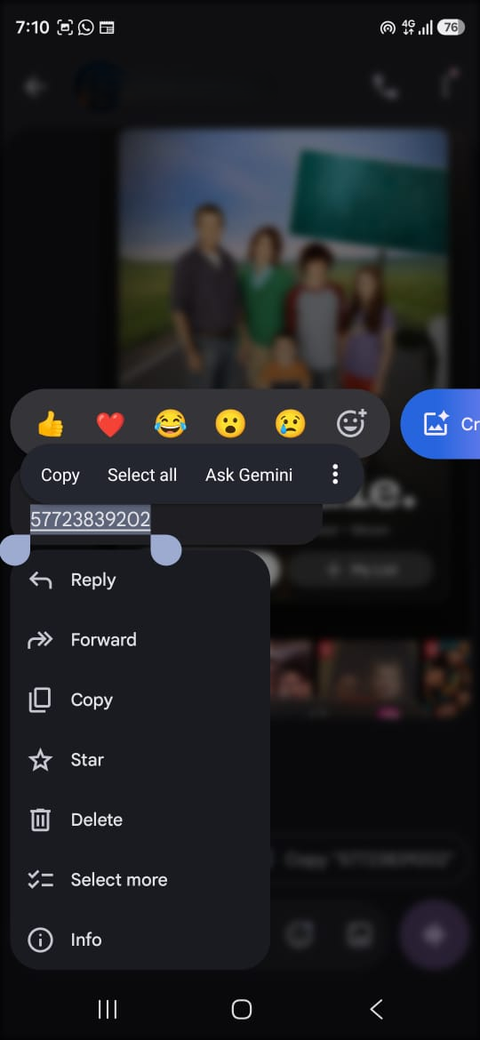
Now, pressing and holding a message opens a floating menu while the rest of the chat blurs, then a second long-press lets me copy part of the text.
The usual selection handles come up, and I can choose only what I need while dropping the rest.
It's a little buggy on my phone when I accidentally drag the handles outside the text area. I expected it to stay within the text area, but I was able to adjust it within 5 minutes.
The menu also keeps Reply, Forward, Copy, Star, Delete, Select more, and Info close to my thumb. These actions also work on photos, videos, links, files, locations, and contact cards.
Set photo quality to HD+ once for all messages
Google Messages remembers your media quality choice
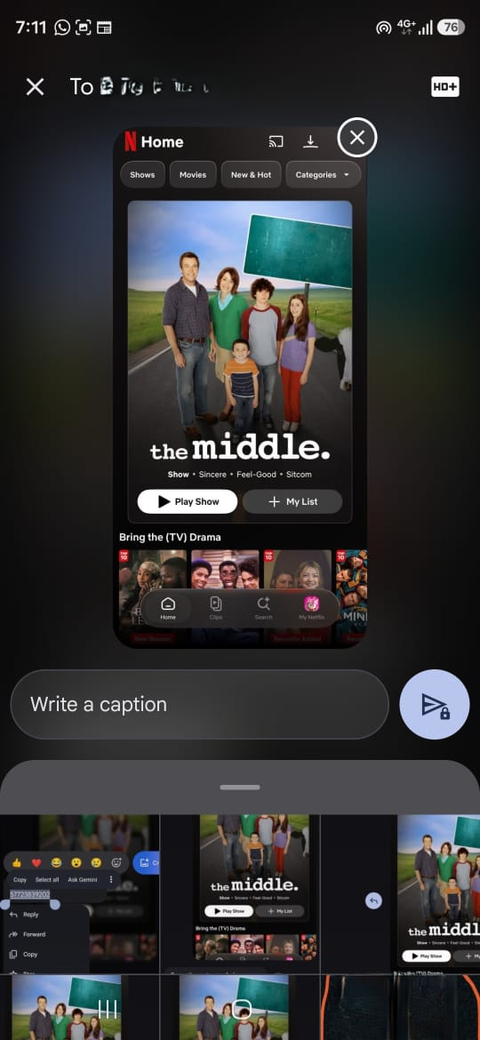
Photos I sent to my friends often looked noticeably worse on their phones than on mine.
I was used to SMS quality, so I always assumed that RCS compressed everything until I spotted the small quality button in the photo picker.
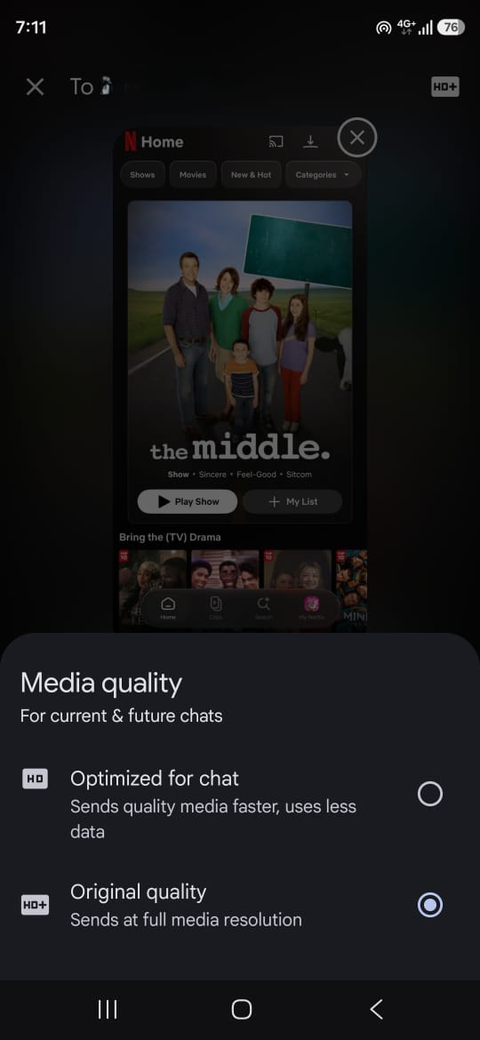
Tapping the HD button lets me switch to HD+, which sends media at full resolution, while standard HD sends faster and uses less data.
This is obvious in retrospect, but I like that I only picked HD+ once, and the app remembered my choice and applied it to subsequent images.
This only matters for RCS chats, though. Mobile carriers compress MMS messages, so photos in SMS threads still take a quality hit.
Choose how to handle RCS message failures
The Resend messages setting controls the switch
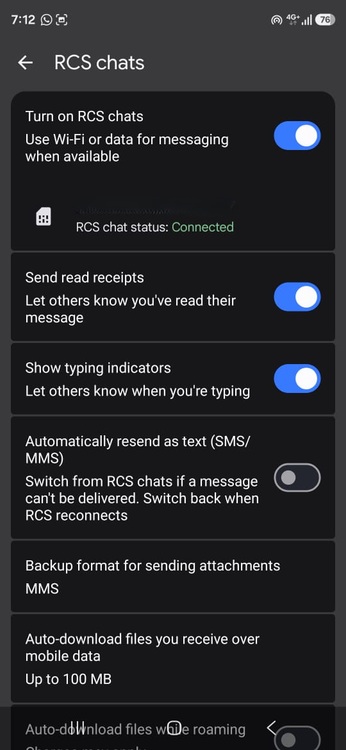
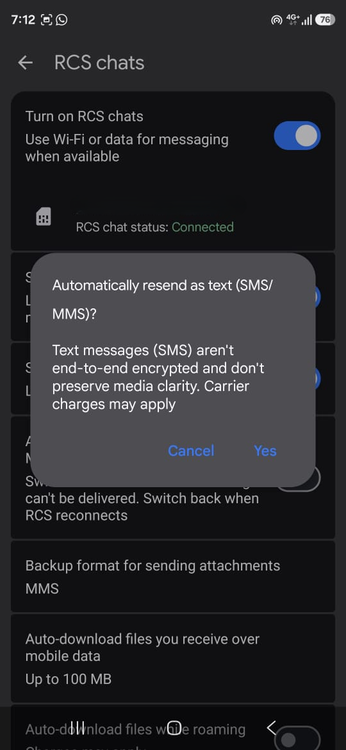
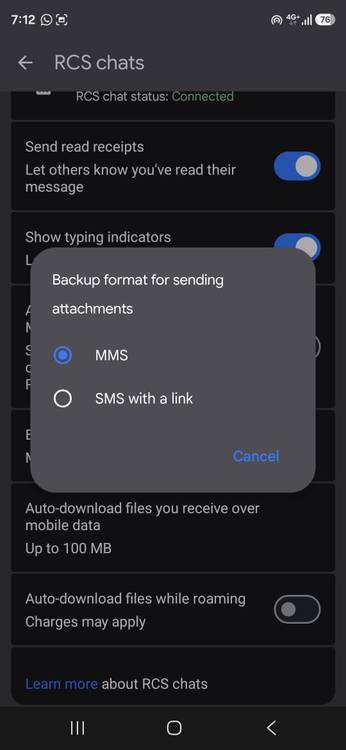
I've often had messages get stuck on sending with RCS, usually when the recipient has a weak data connection.
It took me a while to figure out that Google Messages lets me choose how it retries under Messages settings > RCS chats > Resend messages.
I avoid the option that sends media as an SMS with a link, since Google warns that such media could be sent as a public link it doesn't control.
The same menu shows your RCS status and the phone number being used. This is the first thing I check when messages stop going through.
If it shows "Connected," then RCS is working, while "Not supported" means you can't use RCS chats.
Mute a group chat without missing your name
Mentions reach you even when the group is muted
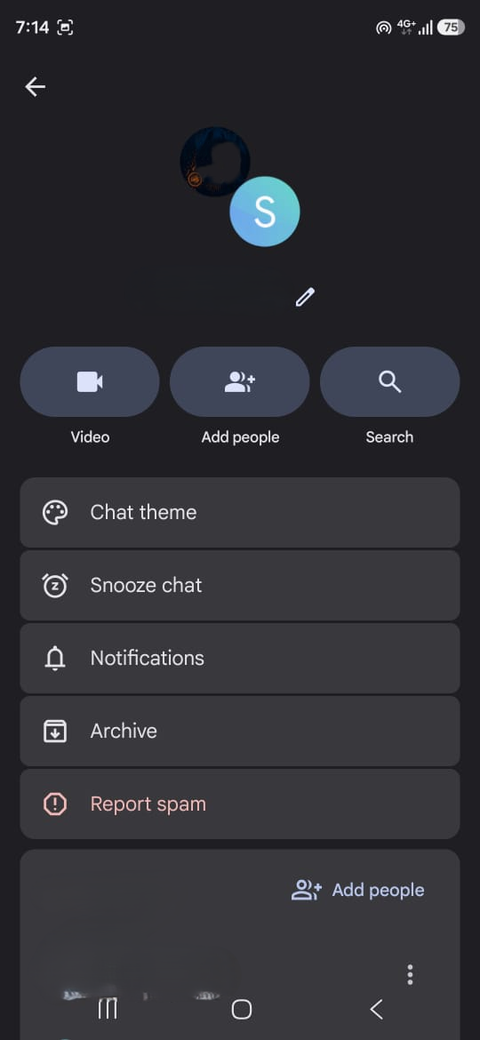
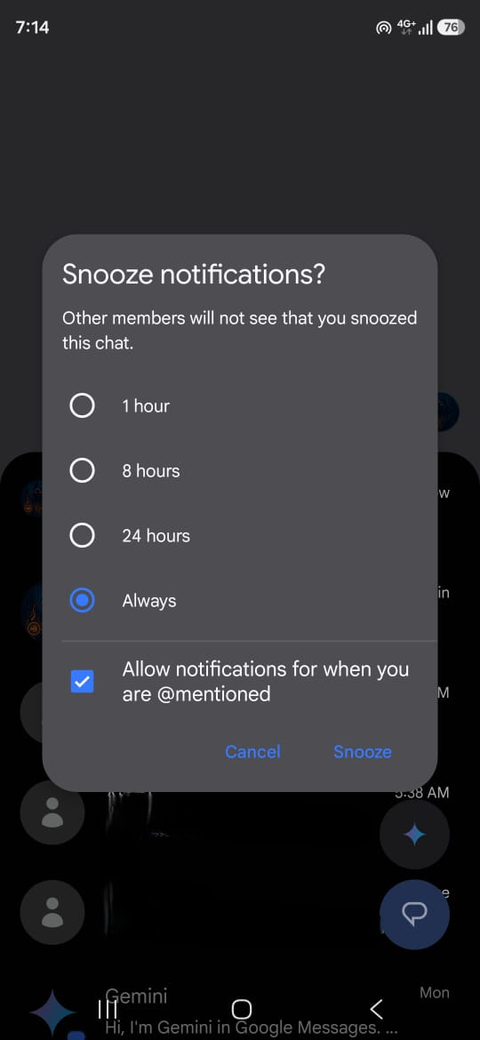
One of my group chats sends dozens of messages a day, and most of them have nothing to do with me or need a reply.
I muted it and now rely on Mentions to notify me of only the messages that matter. When someone mentions you, your phone gets a notification even if that group chat is muted.
Anyone can type @ or a contact's name in the message box and pick the right person from the suggestions.
This feature brings RCS chats closer to WhatsApp in feature parity, and the difference between the two apps is becoming harder to notice.
This trick only works in RCS group chats where every member has turned on RCS, so MMS groups don't support them.
Turn off expressive animations
One toggle stops effects triggered by everyday words
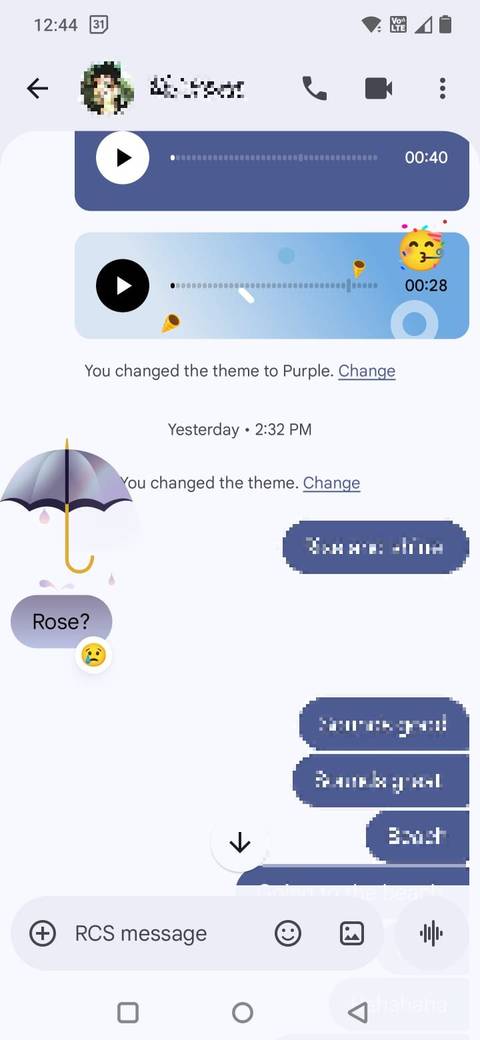
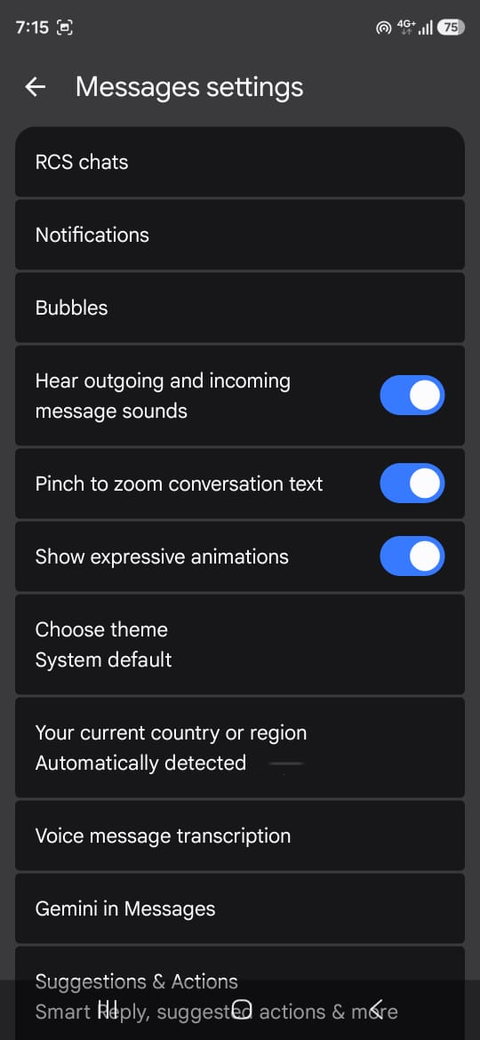
Google Messages plays full-screen effects when certain phrases show up, and those phrases regularly come up in normal conversation.
For example, typing or receiving "I love you" or "Sounds good" can trigger a screen effect, which can get annoying in a busy chat.
To stop it, I turned off Show expressive animations in Messages settings. Screen and reaction effects go away, and animated emoji become regular emoji, although reactions still animate slightly.
This setting isn't limited to RCS, since the animations play in SMS chats. If you enjoy them, you can experiment with the hidden screen effects in Google Messages that Google has never officially listed.
Google Messages is better without the defaults
If I set up a new phone tomorrow, I'd switch photos to HD+ and pick a resend option before I send texts.
The new gestures took me longer to adapt to, but I now check timestamps and copy codes faster than I did with the old toolbar.
These tricks don't change how RCS works underneath, since editing and remote deletes still depend on the other person's phone and app version.
But they do make Google Messages feel closer to the best way to text on Android that it's supposed to be.