
After extensive beta testing, Samsung has started rolling out One UI 9 for the Galaxy S26 series worldwide.
One UI 9 debuted with the series earlier this summer, but the update has only now started making its way to Samsung's previous-generation Galaxy devices.
As with previous One UI updates, Samsung added a number of new features with One UI 9, and since the update is based on , it brings several new features from the latest Android base layer.
If you've received One UI 9 on your Samsung Galaxy phone, there are plenty of new things worth checking out. Here are some of the best One UI 9 features to try as soon as you install the update.
Try My FanCam for easier video reframing
Keep your subject in frame after recording
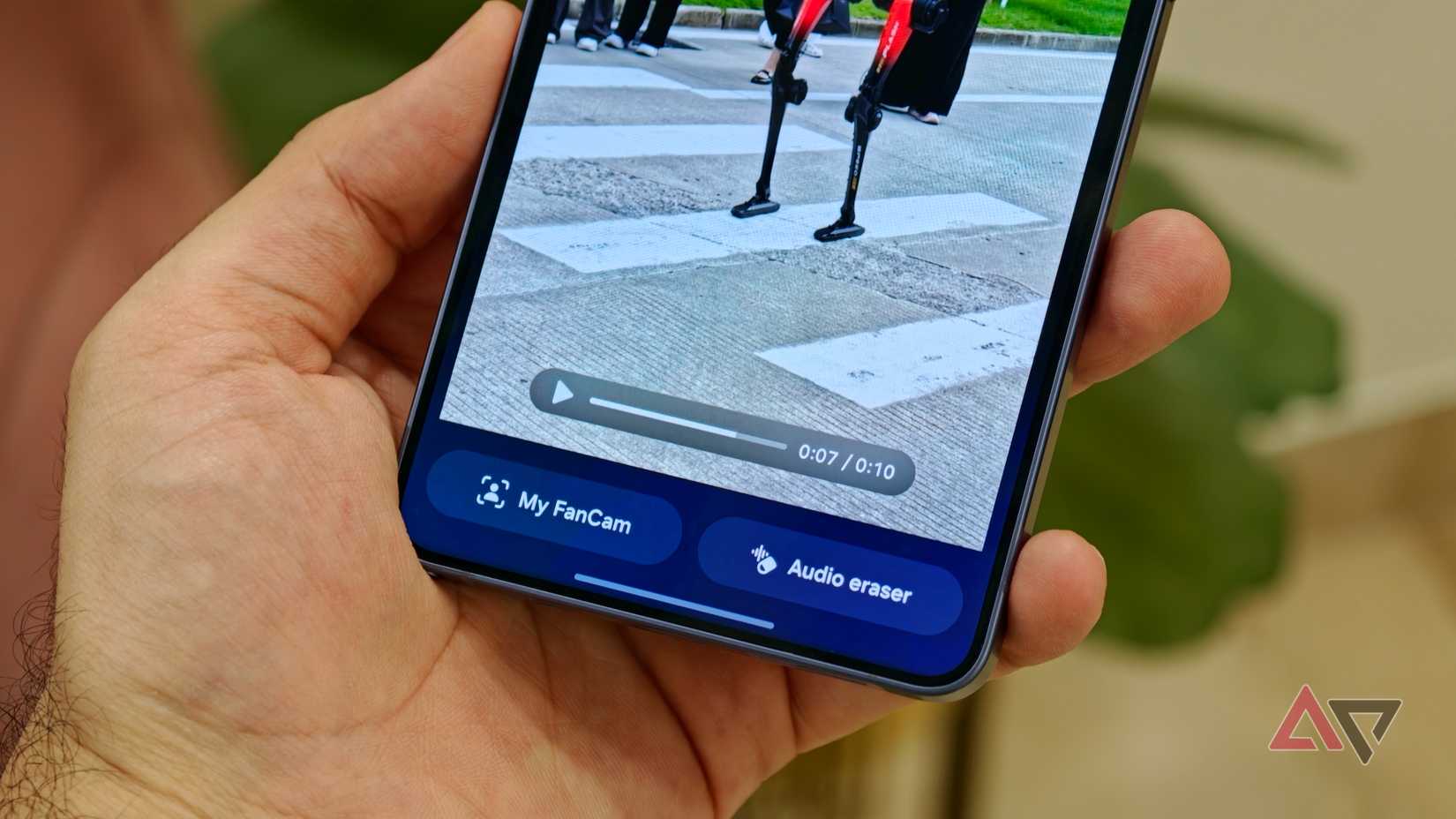
One of the best additions to Galaxy phones with One UI 9 is the new My FanCam mode. I tried this feature on the Galaxy Z Fold 8 earlier this year, and I'm glad it's making its way to the Galaxy S26 series, where it makes even more sense with better cameras.
My FanCam takes away the stress of constantly keeping your subject in the frame while recording. After you finish recording, Galaxy AI can detect a person in the video and keep that subject centered when you crop the footage later.
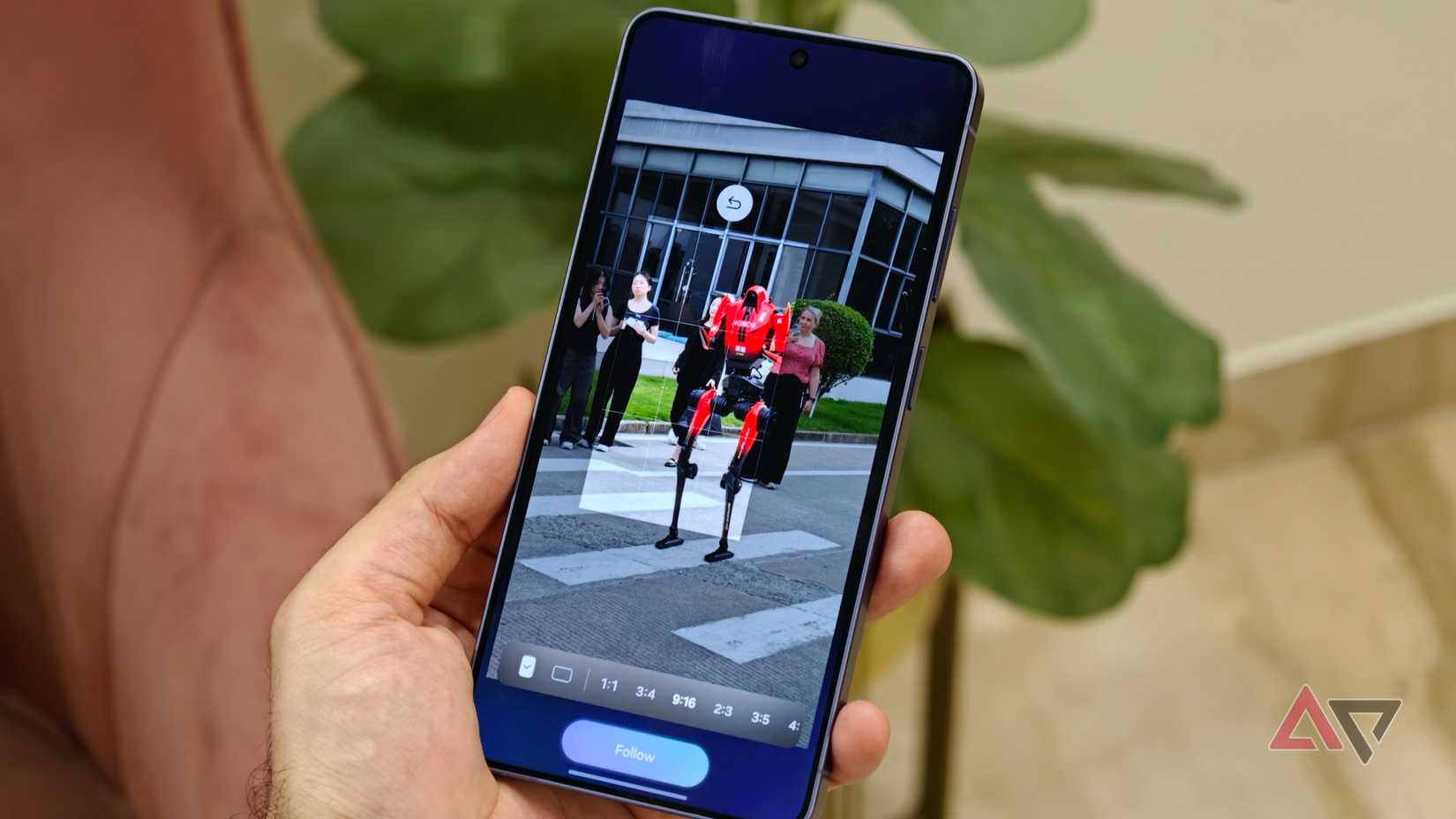
For example, imagine you're recording a horizontal video of your kid playing a soccer game and later want to turn it into a vertical Reel. With My FanCam, you can select your kid as the subject, and Galaxy AI automatically follows them and crops the horizontal footage into a vertical video.
To use My FanCam, open the video in the Gallery app, tap the , and select . Let it detect the people in the video, tap the subject you want to track, select your output aspect ratio, and tap . Galaxy AI will then follow that person throughout the footage and create a new cropped video.
Customize the Quick Settings panel to work your way
Keep important toggles exactly where you want
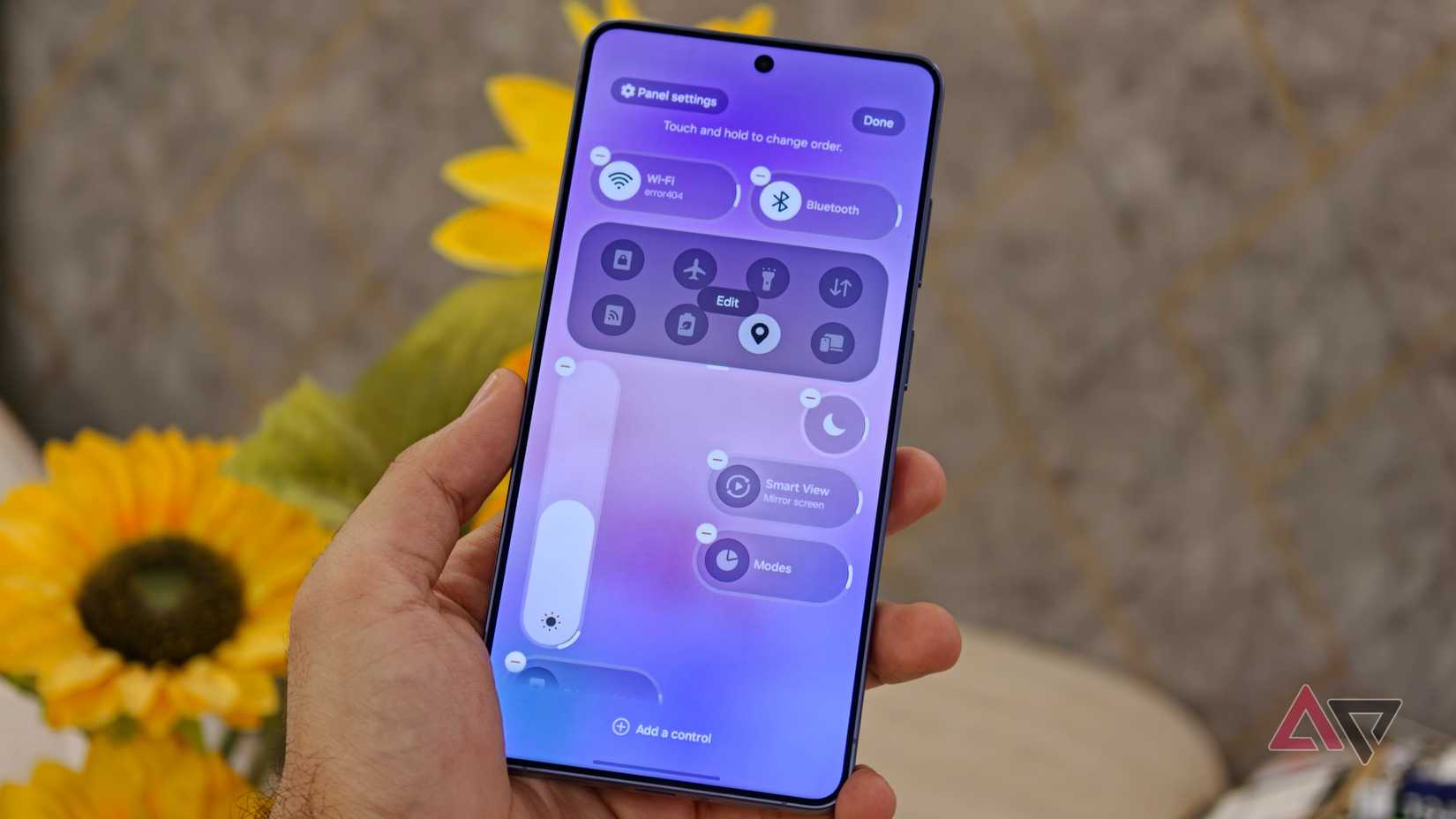
With One UI 8.5, Samsung brought a customizable Quick Settings panel to Galaxy phones, and with One UI 9, the company is making it even more customizable.
You can now resize the volume and brightness sliders to make them smaller or even keep them vertically aligned. You can also move controls like Dark mode and Mute out of their default positions and place them where you want.
To customize the panel, open, tap the pencil-shaped Edit button in the upper-right corner, and move or resize the controls. You can also add new ones by tapping Add a control at the bottom. When you're happy with the layout, tap .
See exactly which app checks your location much faster
The privacy indicator now names the app instantly
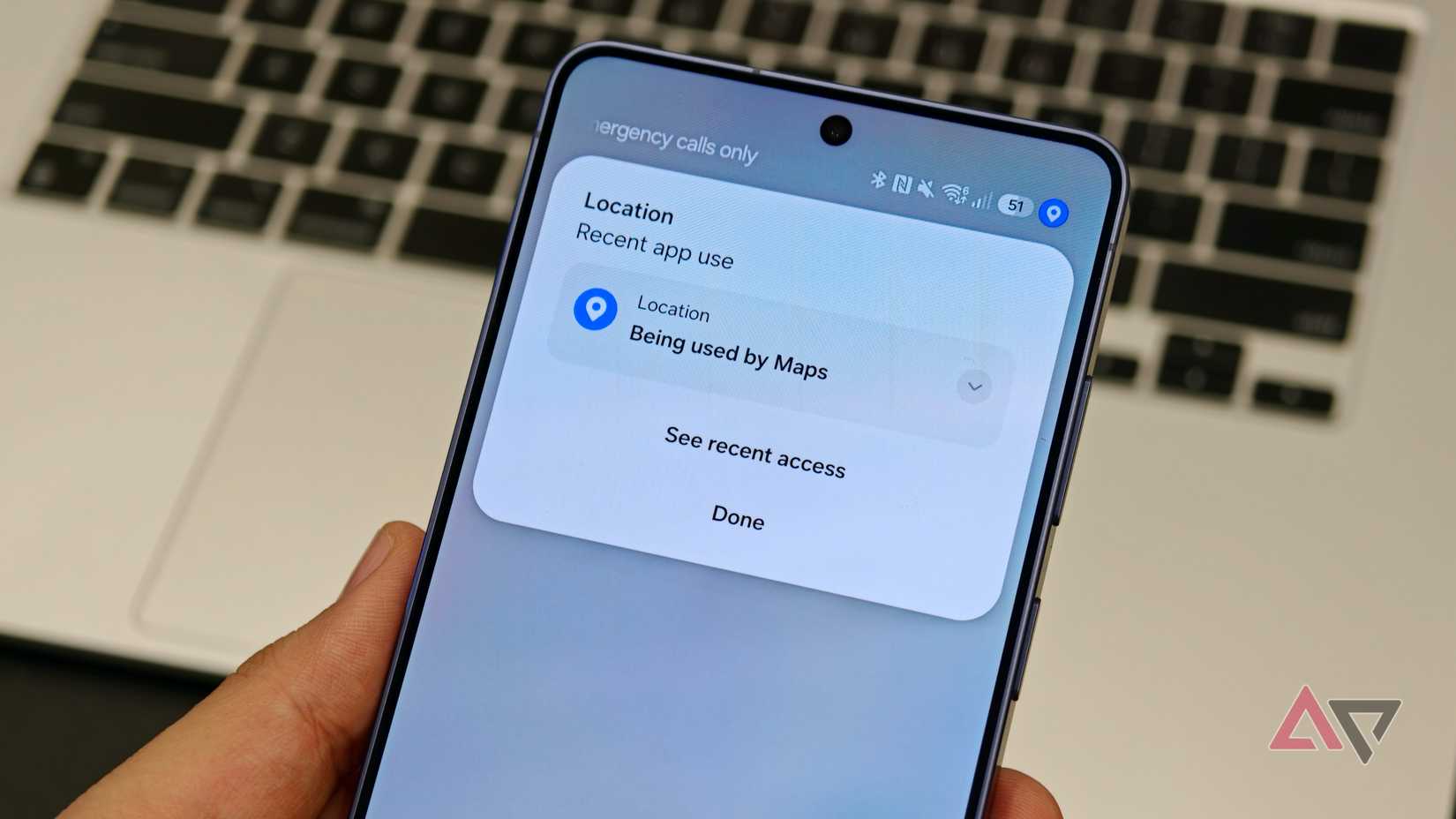
Android has had privacy indicators for a while now, showing a small colorful indicator when an app accesses your microphone, camera, or location. But One UI 9 brings a useful update to how these indicators work.
On One UI 9, when an app accesses your location, the privacy indicator turns blue. If you're not sure why you're seeing the blue indicator, swipe down to open the Quick Settings panel and tap it to see which app is accessing your location, whether it's running in the background or an app you're actively using.
When you tap the indicator, you'll also see a new See recent access option. Open it to see which apps have accessed your location over the past few days.
Add the new Finder shortcut to your home screen
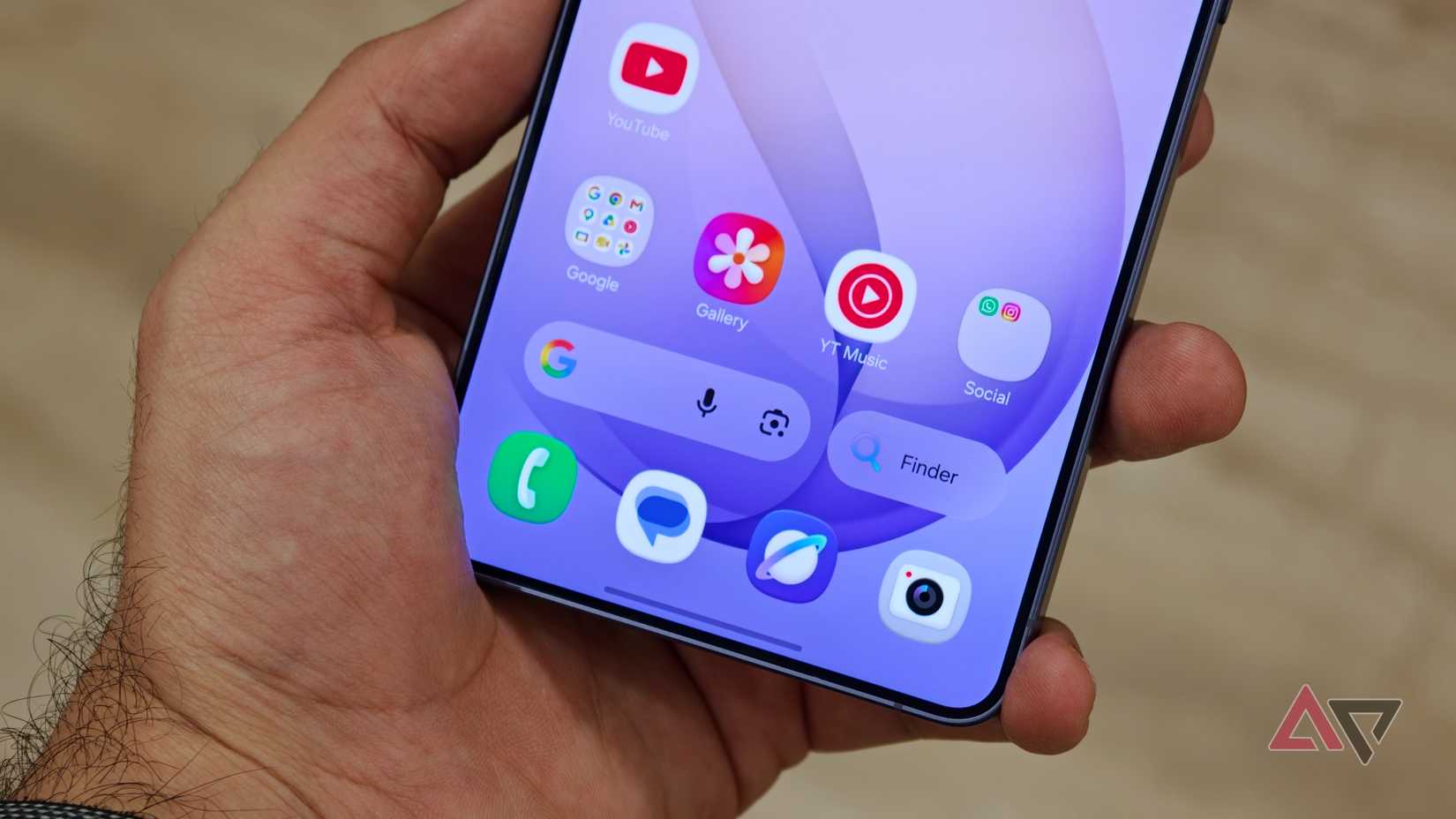
For years, Samsung has kept the Google Search bar on the home screen above the app dock. With One UI 9, Samsung lets you add faster access to its own Finder alongside the Google Search bar.
Finder is Samsung's built-in search tool that lets you search for most anything on your phone. You can find settings, contacts, messages, files, photos, apps, and more from one search bar. And now, you can access it from the home screen.
To enable it, pinch in on your home screen and select . Tap Show search on Home screen, then enable thetoggle.
When enabled, the search bar on your home screen splits between Google Search and Finder. Tap the Google side to search the web as usual, or tap Finder to search for anything stored on your Galaxy phone.
Motion Assist is worth trying while traveling
It can make using your phone in a car easier
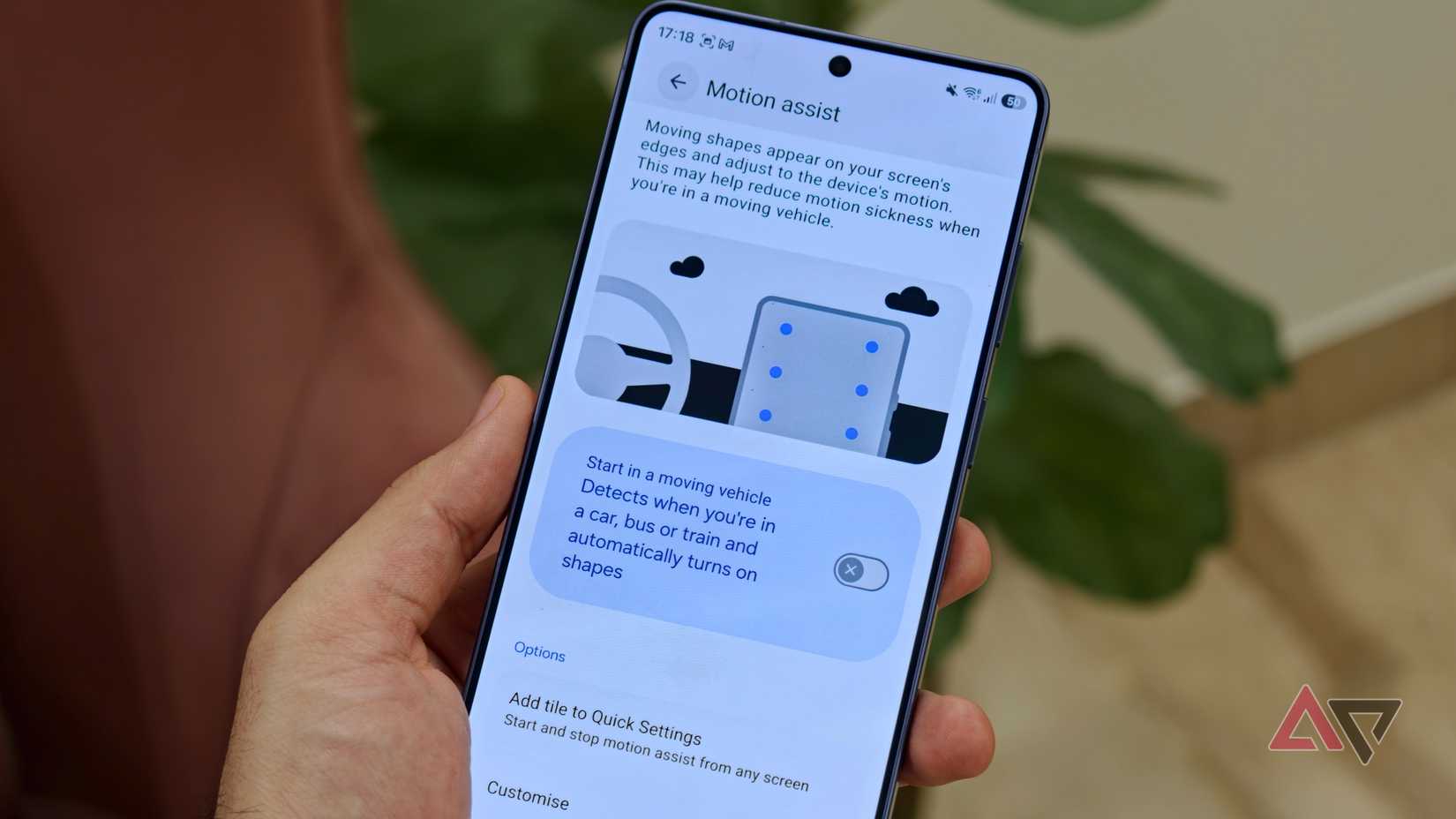
Not necessarily a part of the One UI 9 update, but another feature now available on Samsung Galaxy phones is . If you're like me and find it difficult to use your phone while traveling in a moving vehicle, this is worth enabling.
Motion Assist displays small moving bubbles around the edges of the screen that respond to the vehicle's movement and help reduce motion sickness. Google says these visual cues help your brain better synchronize what your eyes see with what your body feels.
To enable it, open , tap Google services, select All services, and under , tap and turn it on. The next time you're traveling and your phone detects that you're in a moving vehicle, it shows the visual cues.
My Files app can finally handle PDFs on its own
Open and manage PDF files without another app
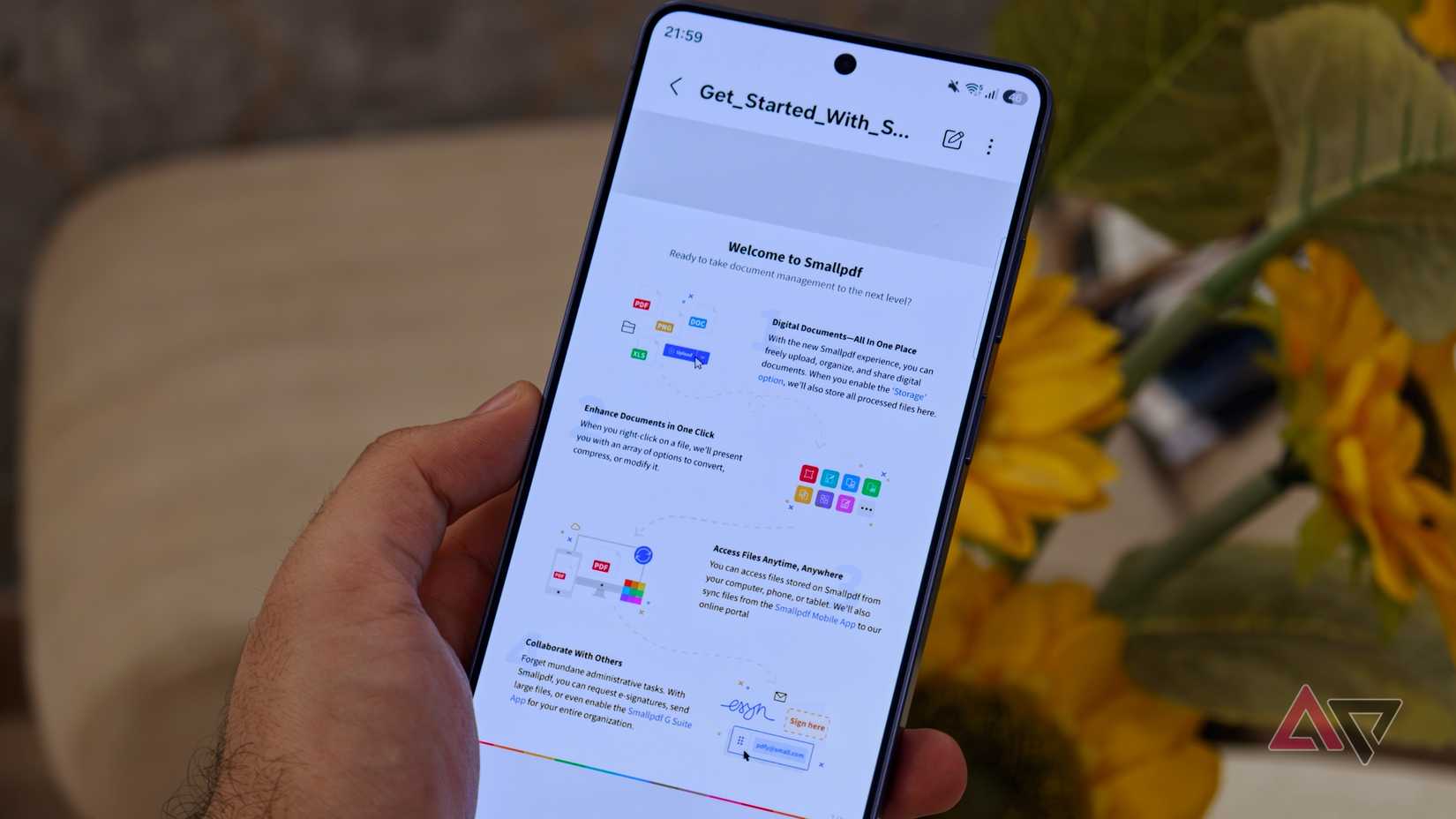
Another neat addition in One UI 9 is native PDF support in the My Files app. You no longer need a third-party PDF viewer or the Google Drive app to open PDF files on your Galaxy phone.
Now, when you open My Files and select a PDF, it automatically opens in One UI 9's built-in PDF viewer instead of asking you to choose an app.
You can also annotate PDFs in Samsung Notes, which makes the integration even more useful. If you prefer another PDF viewer, you can use the Open with option to open the file in your app of choice.
Don't overlook the other small One UI 9 upgrades
In addition to these, there are plenty of other changes in One UI 9 worth checking out. Now Brief and Now Nudge have been updated, letting users create custom scheduled dashboard cards based on what they want to see and when.
Security has also been improved with a stricter 13-attempt permanent lockout. If someone repeatedly enters the wrong credentials 13 times, the phone permanently locks and requires a reset before it can be used again.
There are plenty of smaller changes too, including Tap-to-Answer for calls and improvements to Bixby. These are only some of the additions in One UI 9, so it's worth digging through other to see more powerful features of your Galaxy smartphone.