Chronic and regular web surfers may have noticed that ads are becoming unbearable.
They drive me crazy, especially when I'm in the middle of my favorite apps, and there's a 30-second unskippable video blasting through my .
It breaks the experience and makes software look tacky. It's hard to fault some websites, though, when ads pay for the free content I use every day.
In some cases, I can ignore them and move on, such as a small banner at the bottom of a news article or a sponsored post in my feed.
DNSNet has helped me choose which apps keep their ads and which ones I ditch for good.
DNSNet stops trackers in their tracks
It's my cleanest tunnel for clean browsing
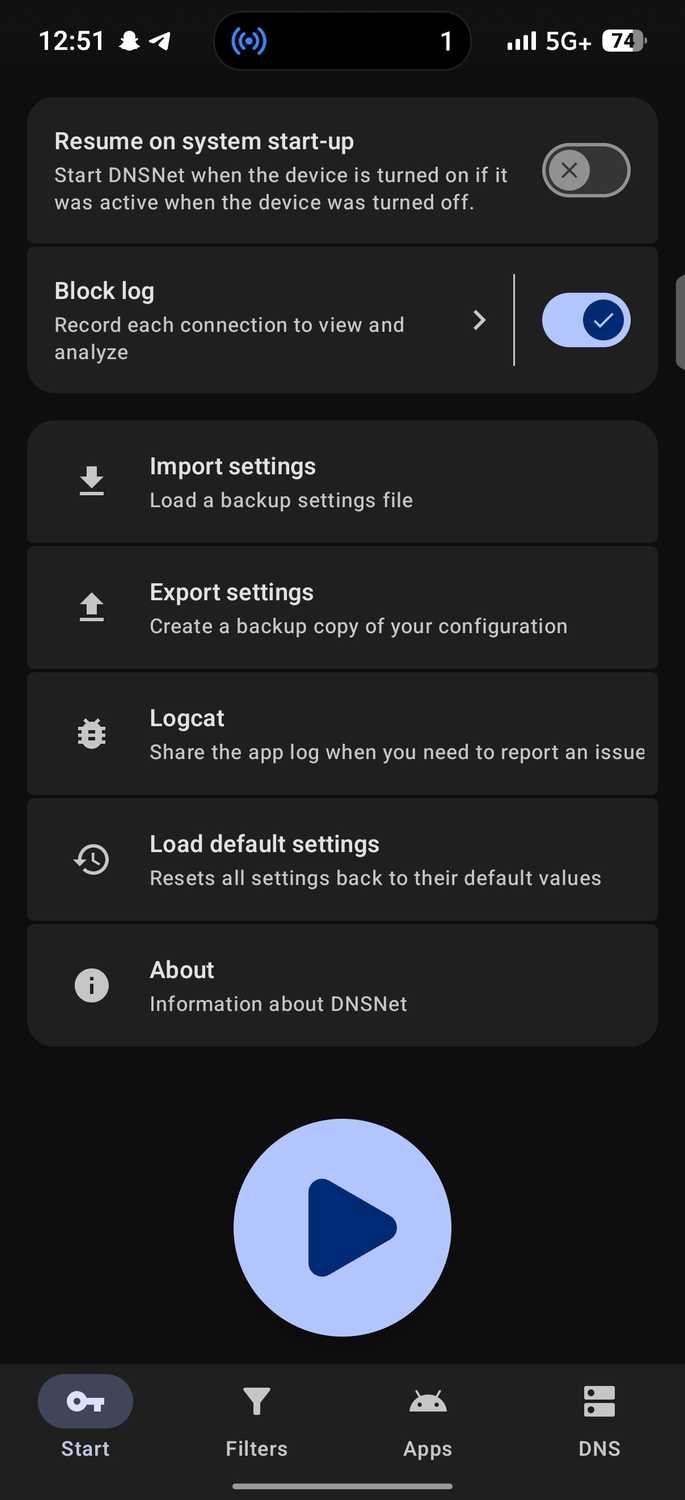
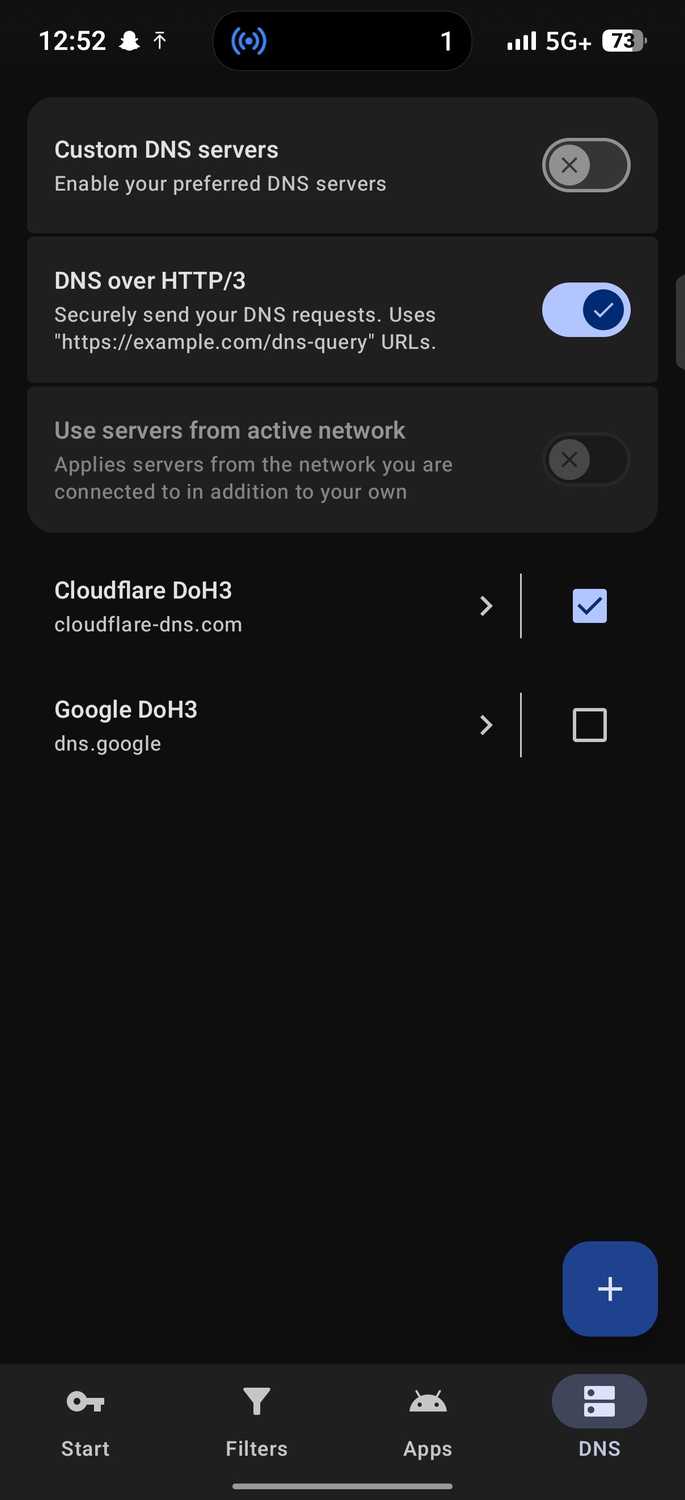
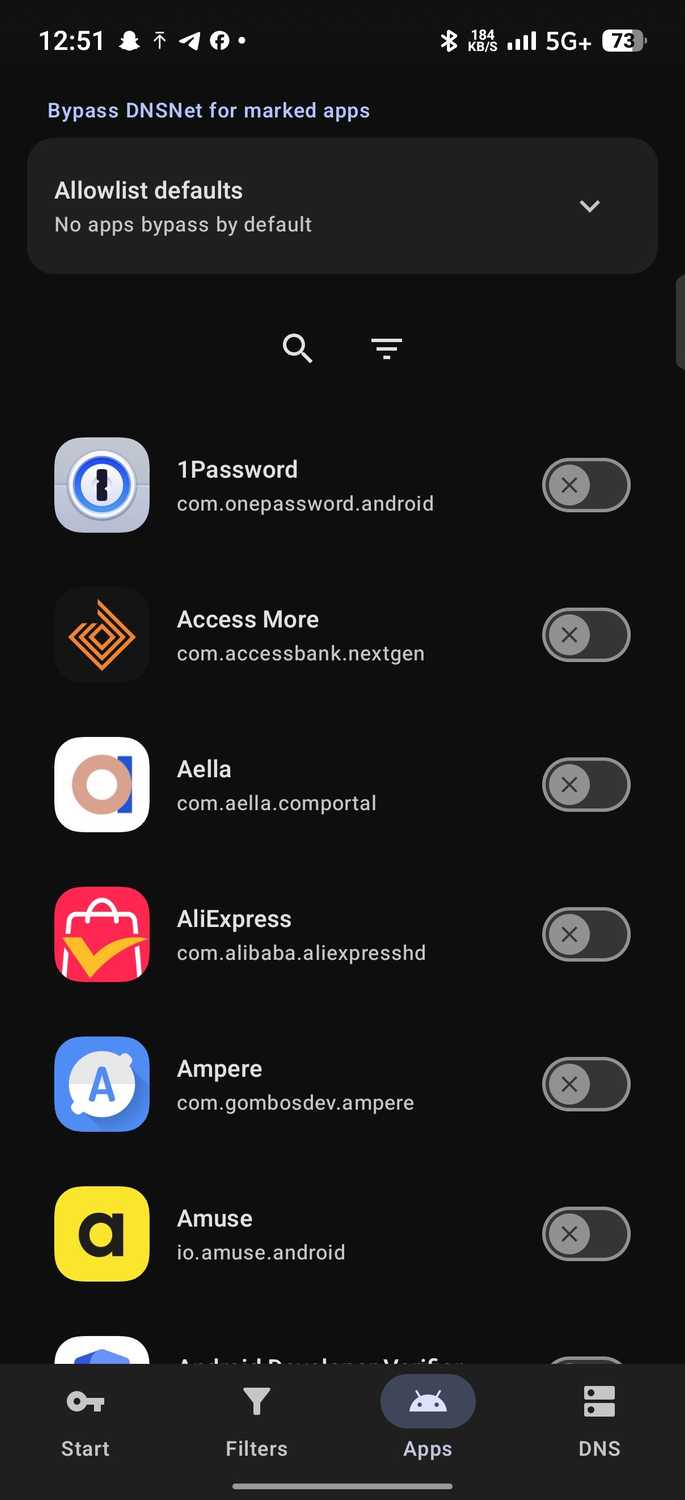
DNSNet is a free ad blocker for Android, and it's built on DNS66. DNS66 was among the first to block ads without root, and it borrows Android's VPN feature.
Like it, DNSNet is open source, and anyone can read its code on GitHub to check what it does with personal data. Every time an app loads ads, the app asks for the server address.
Then it checks each request against a list of known addresses and rejects any it finds. Tapping a big, tempting button on the screen triggers it, and tapping the button also ends it.
Because it uses Android's VPN API to intercept DNS queries at the system level, it doubles as a sort of VPN, and my phone shows the icon in the status bar.
I can't run a real VPN at the same time. However, it's not really a VPN, since it doesn't send my traffic to an outside server or hide my location. There are exceptions, such as when I use custom DNS servers.
Thankfully, the app doesn't undercut its own point by showing ads or asking me to pay. It's completely free.
The layout includes four tabs along the bottom. Besides , houses the blocklists, lists all programs installed on my phone, and controls where my allowed lookups go.
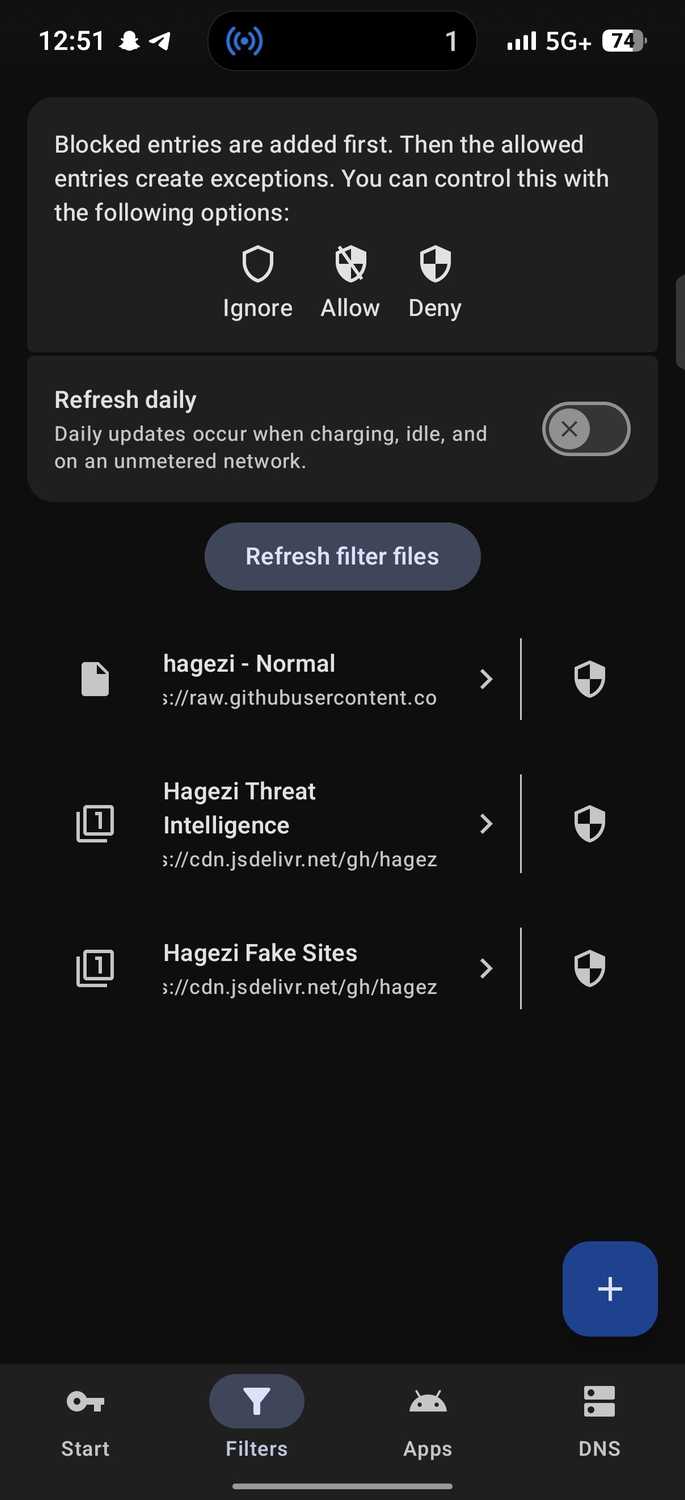
By default, the settings are reasonable. For example, Filters comes with the Hagezi Normal blocklist. It's a well-maintained list that doesn't break most sites.
Site breakage is one of the most common complaints about DNS ad blockers, and the usual culprits are links in emails and search.
I won't point accusatory fingers, but I can't count how many times I've tapped a link in a newsletter and gotten a blank page. I had to switch off my blocker to open it. That's why I eventually uninstall most of them.
That aside, the DNS tab sends my lookups through Cloudflare using DNS over HTTPS. It encrypts them, so my network provider can't see which sites I visit.
However, Refresh daily in the menu is switched off, so my blocklist never updates unless I remember to tap Refresh filter files. I'd switch it on so new ad servers get caught as they appear.
It might just be the right diet for my mobile data
Potential savings sighted
Ads don't only waste my time. They eat my data, and data isn't cheap. Although I haven't had enough time in my schedule to sit and monitor it, I did notice a slight data-saving potential with DNSNet.
With it on, five minutes of browsing news sites used 2MB in Chrome. With it off, the same five minutes used 24MB. I can't say it's anything to go by, but I'm excited that the ad blocker works.
The difference shows on web pages. With DNSNet on, ads, filler spaces, and slow-loading videos disappeared, and articles were easy to read straight through. I can also stream video content without disruptions.
With it off, ads broke up the pages between stories. However, DNS blocking can't catch everything. Because apps like YouTube serve ads from YouTube.com, they don't appear as selectable options.
Likewise, Chrome tracks you through its servers, and a blocker can't separate it from Chrome's core function. So, users might always have to seek alternatives.
Still, DNSNet accepts a broad list of blocklists you can mix and match, and it gives you control over which apps skip filtering. You can import extra lists from GitHub by pasting their links into Filters.
Once, I added two new Hagezi-based lists on top of the default: Threat Intelligence and Fake Sites.
Threat Intelligence catches phishing sites, malware hosts, and spam domains, while Fake Sites catches lookalike banking websites built to steal credentials.
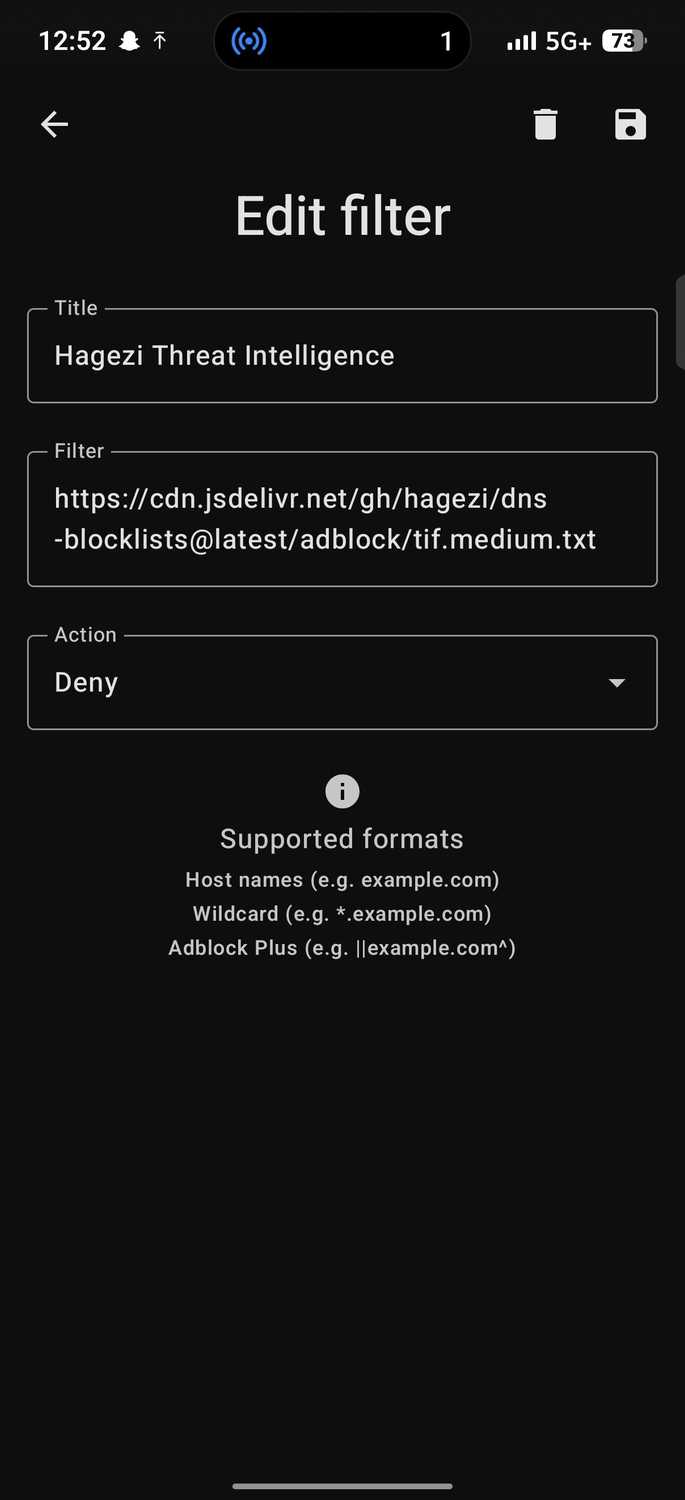
Now DNSNet checks domains against three security filters instead of one. I got them from Hagezi's Blocklists repository on GitHub, which publishes different versions for different threats.
Tap the button on the app's tab and fill in the form with their names and URLs to do the same. Then set the for both to .
The tab lists almost everything on my phone, and I can toggle each one on and off. So, if I turn blocking off for my banking apps, DNSNet skips them.
More importantly, I love that the app lets me export my settings as JSON. I can back up my setup as one file and restore it on a new phone in seconds instead of rebuilding my lists from scratch.
Go beyond basic hostname limits
Android's built-in Private DNS isn't enough, and realizing this is what made DNSNet convincing enough for me to use it as my primary blocker.
When I'm not using it, I . It's a system-wide DNS blocking system, like DNSNet.
But it adds the luxury of a dashboard where I can see what's being blocked, on-device logs to track every DNS request, multiple profiles, and annoyance filtering that removes cookie consent prompts.