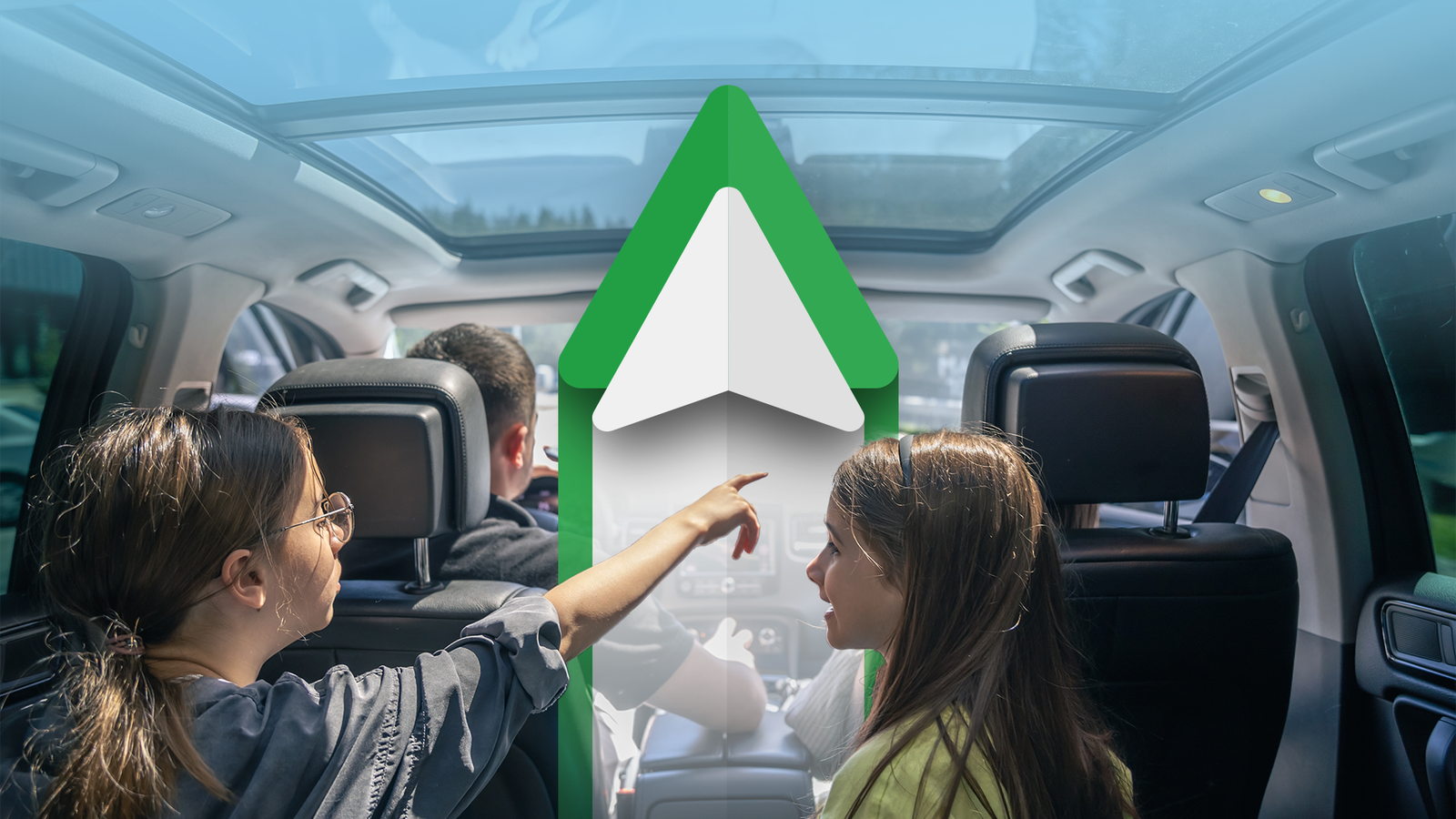
Gemini on Android Auto got a lot more personal last month. On October 20, Google started releasing Personal Intelligence for Gemini in the car.
With your permission, the assistant can now pull from Gmail, Google Calendar, Google Photos, Maps, YouTube, and Search.
When you're driving alone, that's handy. You can ask for your flight's gate, and Gemini pulls it from the confirmation email.
It can route you to a doctor's appointment sitting in your calendar, or find a place you once snapped a photo of and start directions.
Depending on your life, though, the passenger seat might never be empty. I haven't seen anything suggesting it can tell a solo commute from a packed back seat.
So before your next drive with people in the car, you might want to change these Gemini and Android Auto settings.
Turn off Personal Intelligence before anyone gets in
But check eligibility before you start
Personal Intelligence is only for personal Google accounts belonging to people 18 and older. Workspace business, enterprise, and education accounts can't use it.
It also isn't available in the European Economic Area, Switzerland, the UK, or Nigeria.
Android Auto is getting it now. Cars with Google built-in are next in line, with the feature arriving in the coming months.
If you're in one of those regions, on a work or school account, or driving a car with Google built-in, this setting won't apply yet.
Personal Intelligence is off until you turn it on. But chances are, you already switched it on in the Gemini app on your phone, which carries over to Android Auto.
To turn it completely off, open the Gemini app and go to Menu > Settings & help > Personal Intelligence, then turn off the main toggle.
This is less drastic than it sounds. Everything in the car still works without Personal Intelligence. Navigation and music carry on. Calls still go through, and Gemini still answers general questions.
What you lose is personalization, because Gemini stops consulting your account data for context.
Trim Connected Apps if you want to keep some personalization
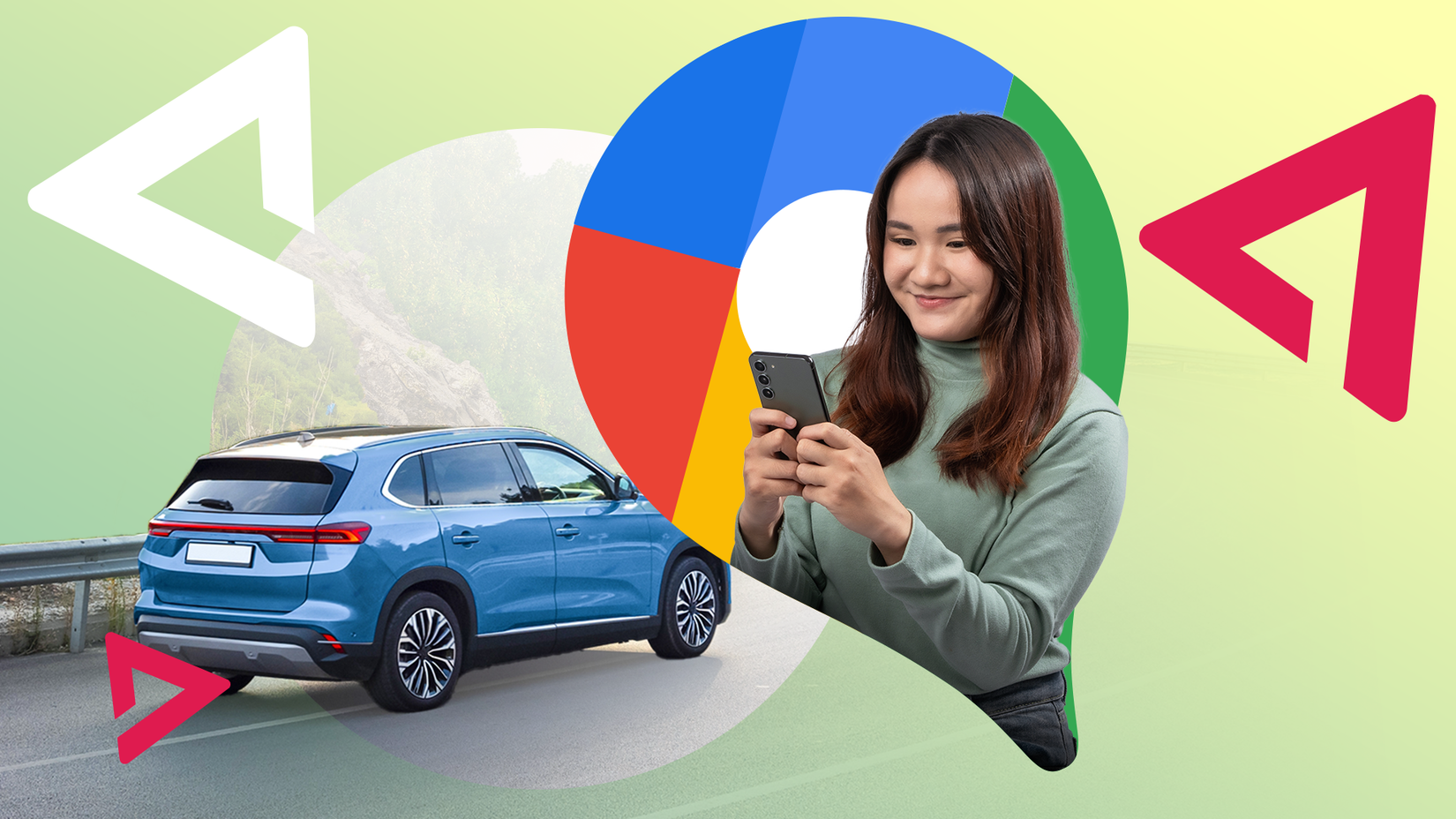
If switching everything off is overkill, the Connected Apps menu lets you pick and choose which services Gemini can reach.
In the Gemini app, go to Menu > Settings & help > Personal Intelligence > Connected Apps. The riskiest switch for a full car is also the easiest one to miss.
looks like a single app, but it covers Gmail, Google Drive, Google Calendar, Google Keep, and Google Tasks.
Your email and your schedule share a single switch, so you can't keep one without the other. Mine's off.
I would also turn off Google Photos. A vague prompt could surface where my photos were taken. That's not something I want narrated.
I'd leave Google Maps and YouTube on. Google Maps knows your past destinations and saved places. YouTube knows your watch history.
Retrain Voice Match, so passengers can't pull your stuff
Everyone in the car can say 'Hey Google'

A cabin is small. Everyone in it is within earshot of the mic.
If the assistant isn't tuned to your voice, a passenger saying "Hey Google" could ask for your personal data without meaning to.
Voice Match is your best defense here, even if it isn't perfect. In my experience, it gets confused now and then, but retraining it means fewer passengers accidentally waking the assistant.
In the Gemini app, tap your , go to Settings > Talk to Gemini hands-free, and retrain your voice model. On some phones, it's still called Hey Google & Voice Match.
While you're at it, hide your texts from the car screen
Some of the risk has nothing to do with AI. By default, Android Auto pushes incoming messages onto the car's display and can read them aloud with text-to-speech.
That's convenient when you're solo. But with passengers, it's your texts on a big screen and over the speakers for the whole car.
Open on your phone and scroll down to . Turn off Show message notifications to stop the pop-ups on the dashboard.
Then turn off Notifications with Assistant, which lets Android Auto read your messages aloud.