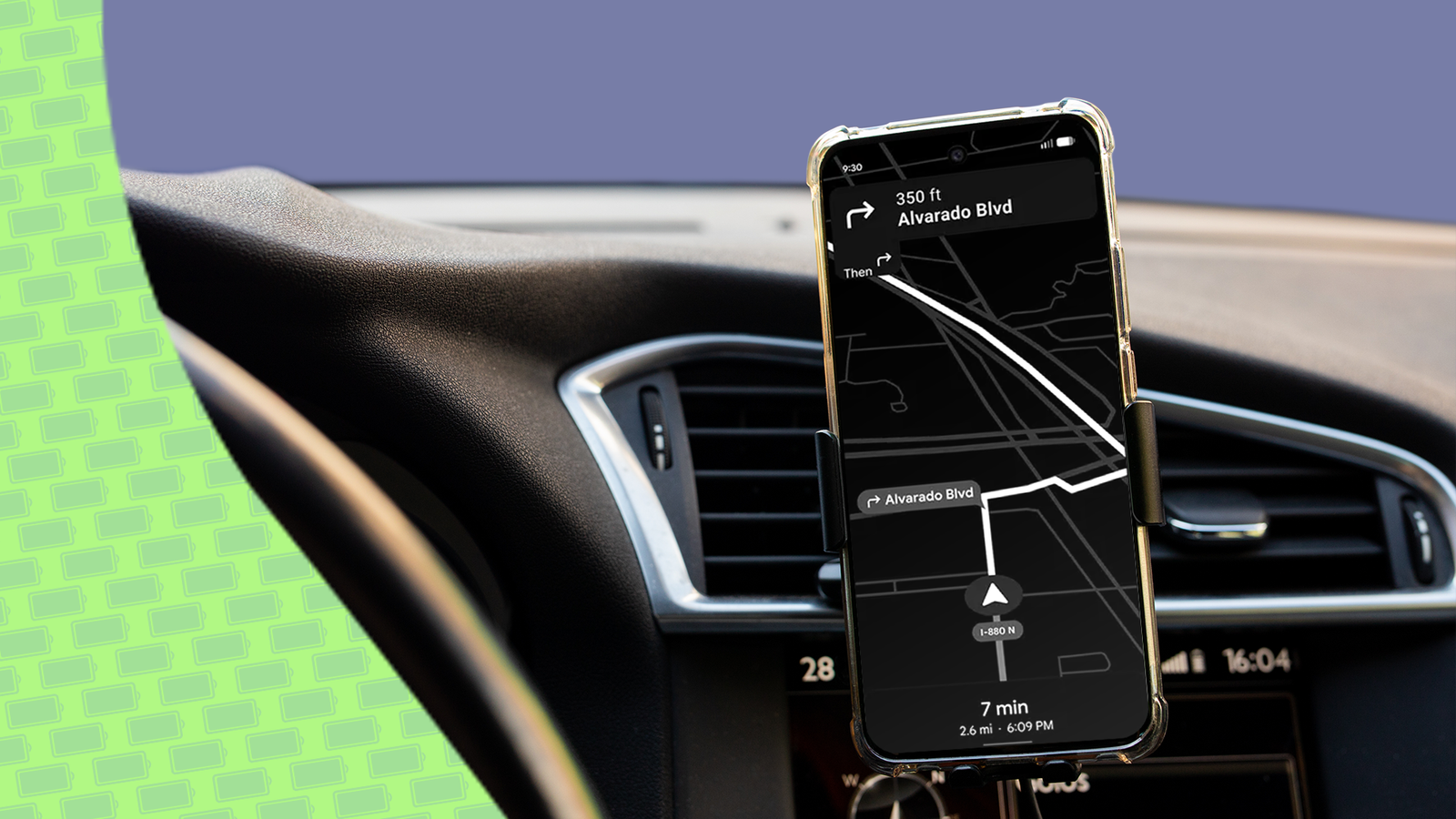
You've probably been there. You're driving a rental or an older car, watching your battery level plummet as you navigate with your smartphone bolted to your dashboard.
It's a sad reality that even in 2026, Android Auto still isn't as ubiquitous as we'd like. Not only are millions of pre-2018 cars still going strong, but many rental agencies only keep basic trims.
What's even more challenging is that I still often get blank looks from airport car rental clerks when I ask for a vehicle with Android Auto. That means every time I land in a new city, I'm rolling the dice on what I'll be driving.
That's why I always pack a vent mount in my carry-on. But it's another sad truth that I can't count on the USB port in many cars to supply enough juice to keep my Google Pixel or my iPhone happy.
Between running the GPS, downloading data, and driving a six-inch OLED screen, Google Maps uses more power than a little 5W USB-A port can provide.
Then there's the risk of thermal throttling. Land in Vegas during the summer, and the Nevada sun beating through your windshield is likely to shut down charging.
Keeping it simple
Get only the info you really need
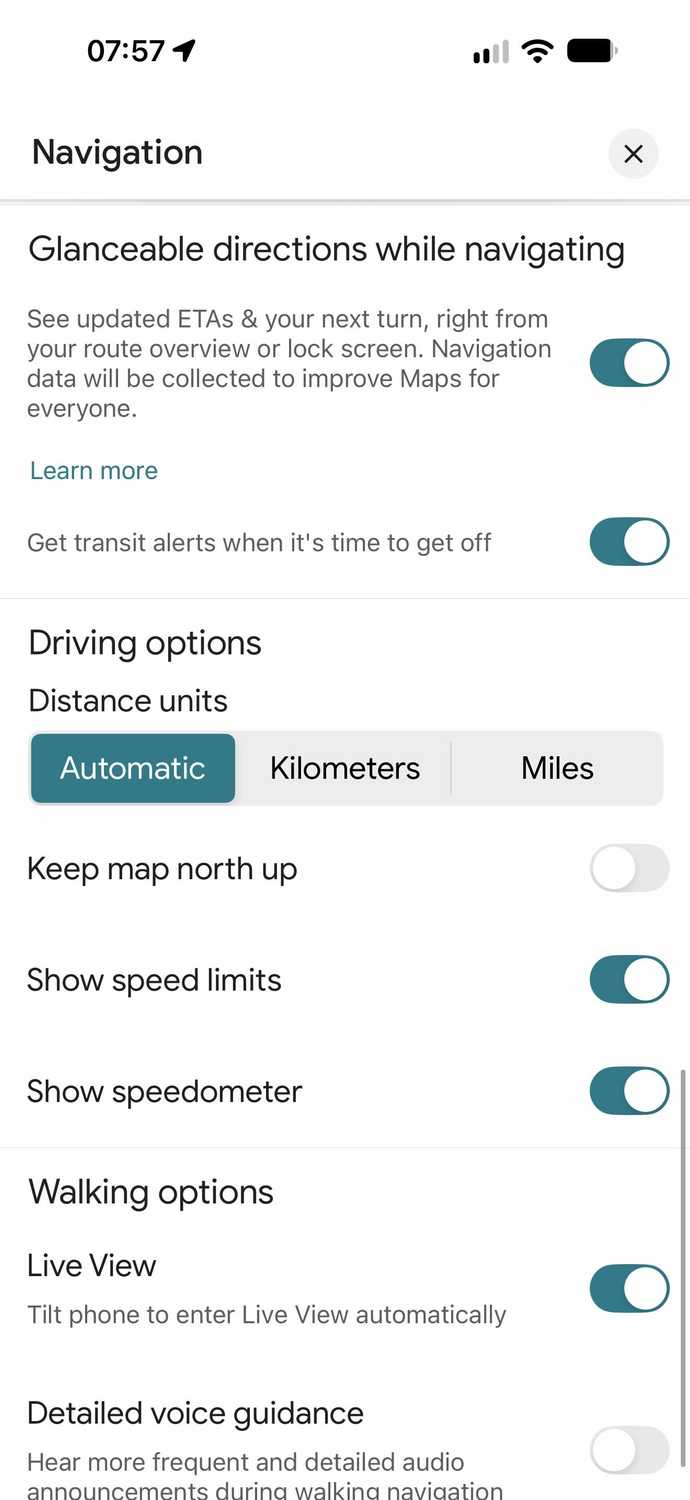
One of the first questions I asked myself is: Do I really need to render a full 3D map on my phone while I'm driving down 250 miles of straight highway? For me, the answer is an unqualified no.
It's a distraction, and the good news is I no longer have to keep my screen on to ensure I know what's happening on the road ahead.
In early 2024, Google added a subtle but incredibly useful new feature to Google Maps: Glanceable Directions. Google announced it a year earlier, but it took a while to roll out to everyone.
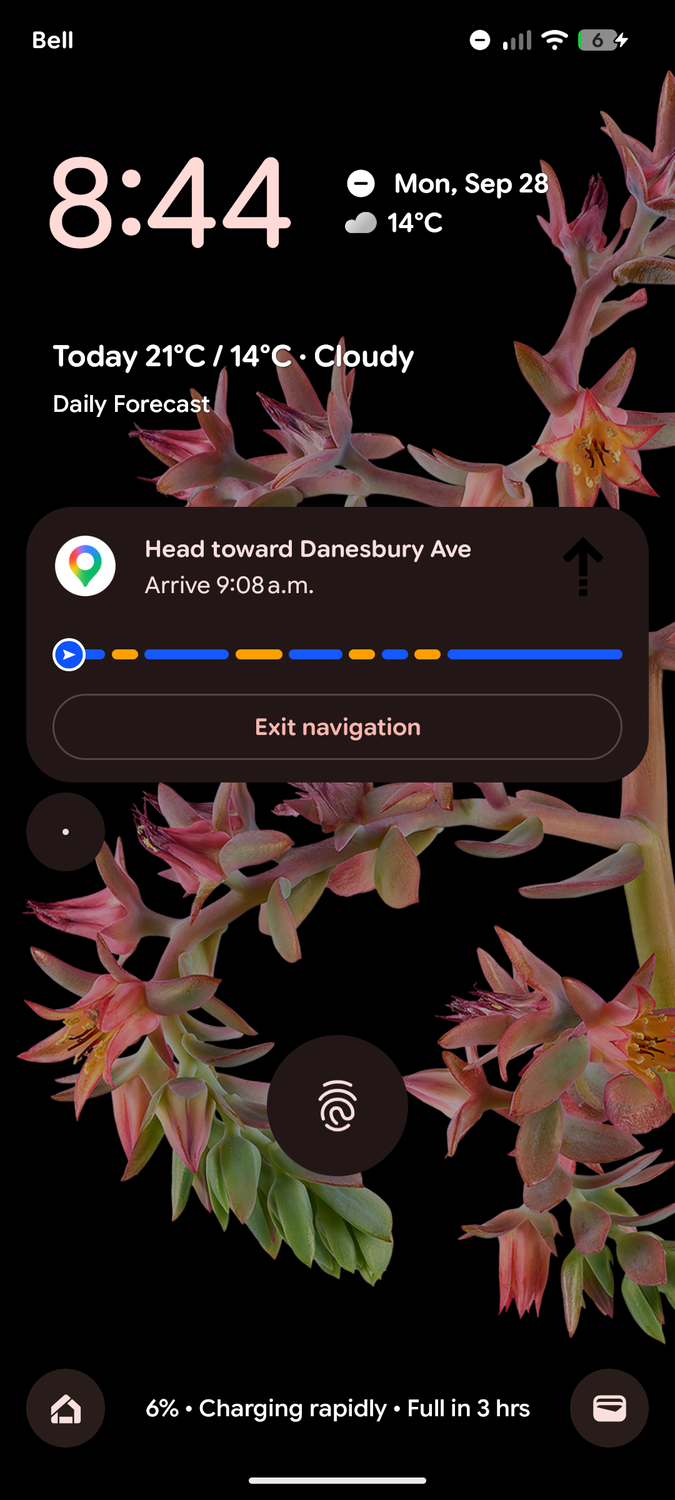
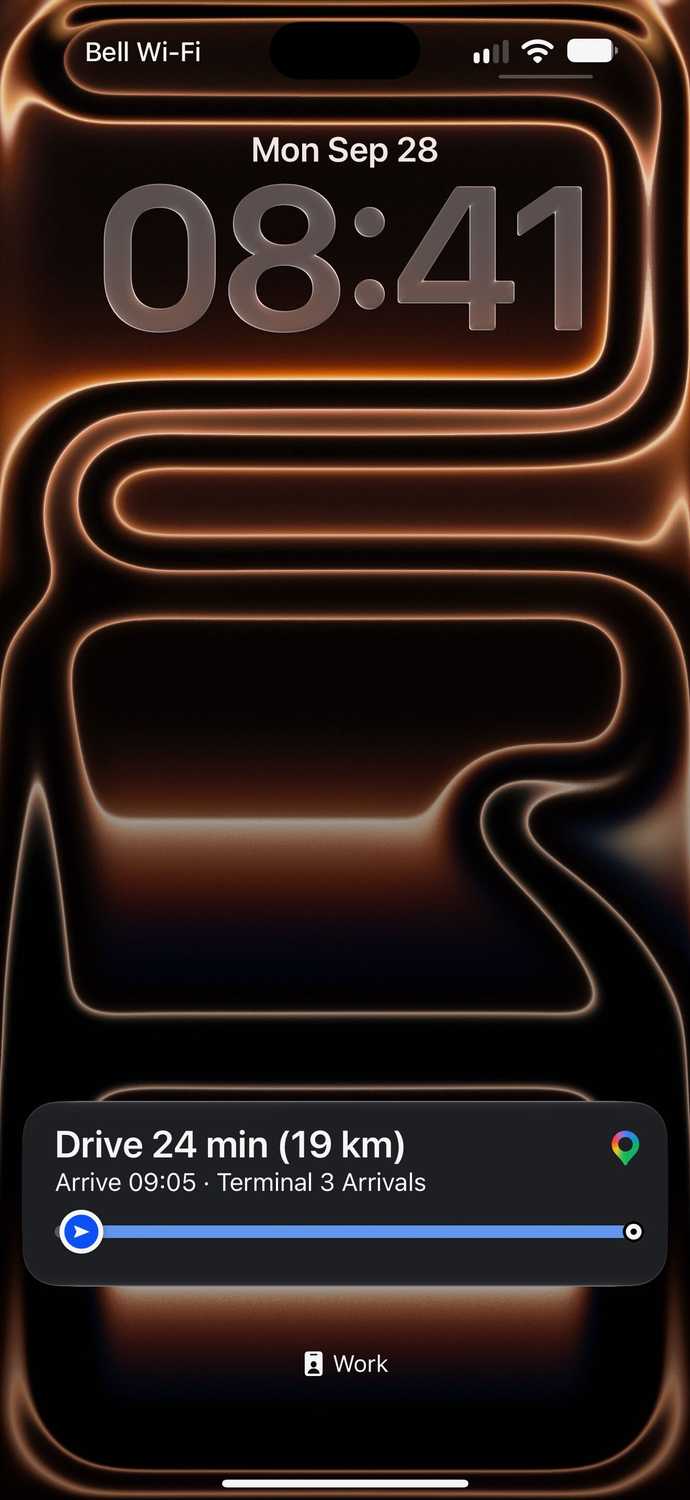
If you missed this feature — and we won't blame you if you have, since it's kind of buried — it simplifies the navigation process in Google Maps by putting the most important navigation information on your lock screen.
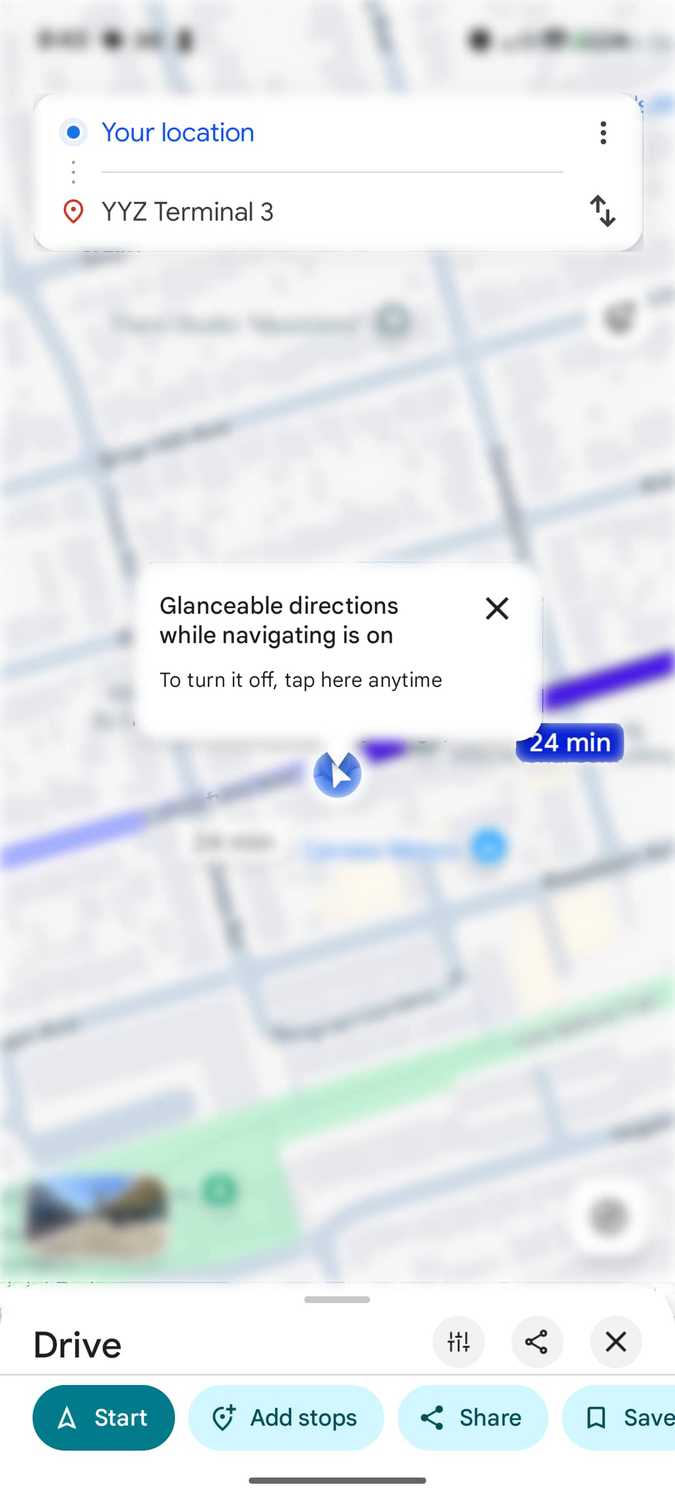
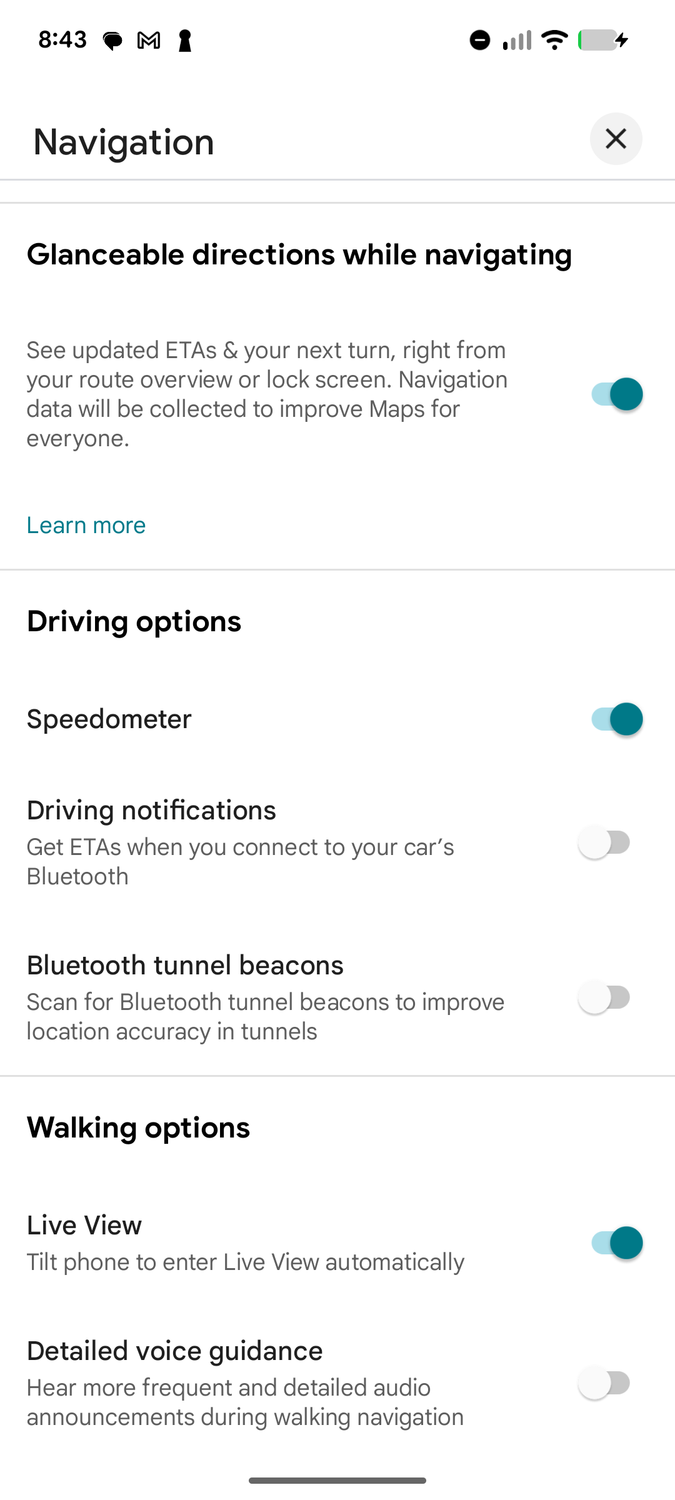
You can find this option in Google Maps by tapping your profile picture in the upper-right corner and choosing , then , and scrolling down to Glanceable directions while navigating.
Toggle it on, start navigating, and turn off your phone. The screen will stay dark or dim until a turn approaches or something else en route requires your attention. At that point, the screen wakes up to show you what's going on.
You'll be able to see at a glance your next turn, any accidents or traffic delays, or a faster route.
For passive directions, you can let the screen go back to sleep, but if you want to act on something, tap the lock screen notification to return to the full Google Maps navigation interface.
The best part is that it's device-agnostic. It works on any Android phone and even with Google Maps on the iPhone, where it takes advantage of Apple's Live Activities. The directions should also remain visible on any phone with an always-on display.
The Pixel advantage
Google's latest smartphones go one better
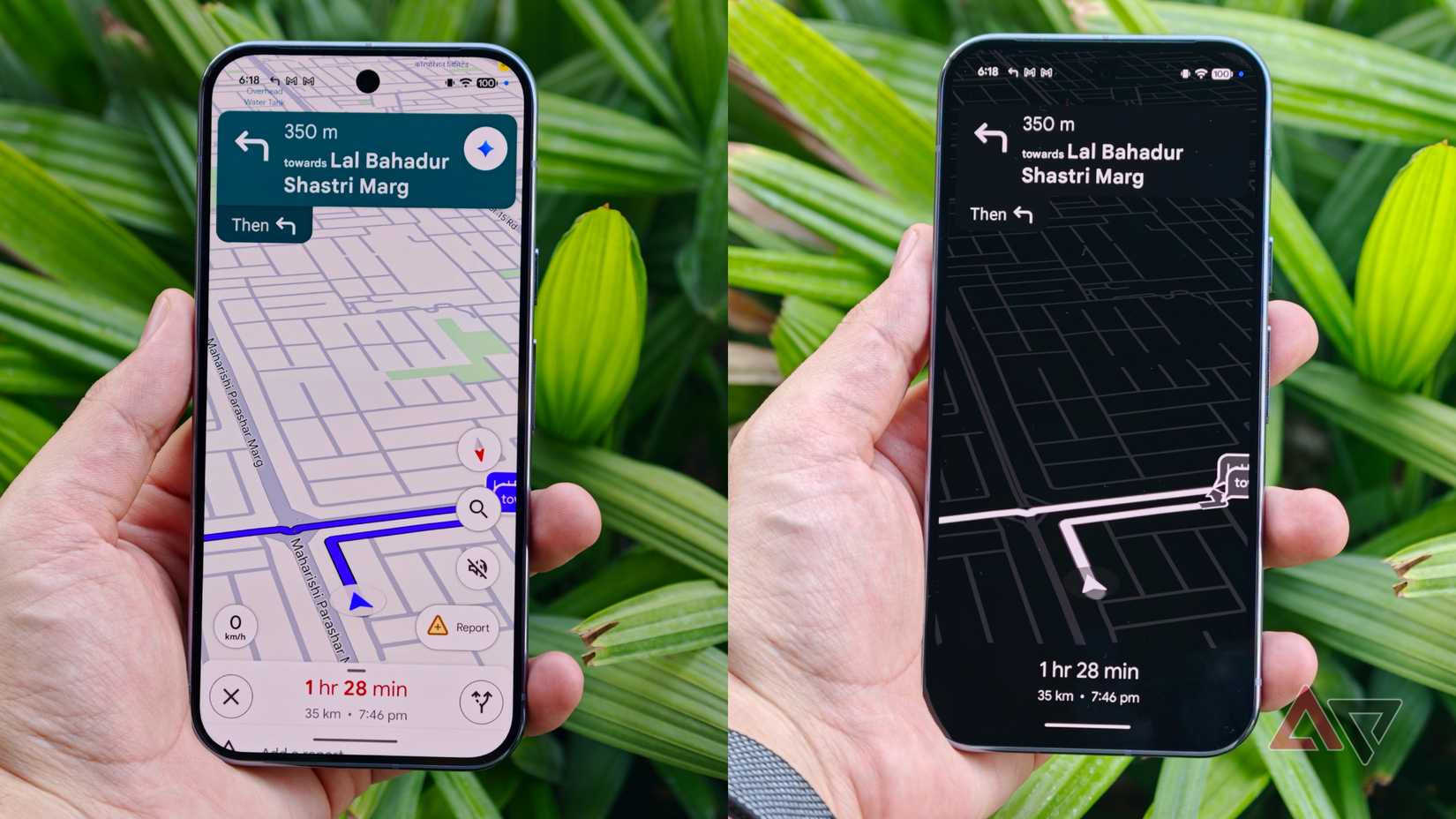
While glanceable directions is the most battery-efficient mode available —it's hard to beat leaving the screen powered down on long drives — those rocking a Pixel 10 or newer model have a more versatile option.
The biggest challenge with glanceable directions is that they're less than ideal for navigating a complex and unfamiliar urban environment where a visible map is crucial to knowing what's around the next corner.
For those times, Google's latest Pixels have the answer in the form of a new Power saving mode (which you can find in Google Maps by tapping your profile picture and heading to > > ).
This offers the best of both worlds. It should be enabled by default on supported Pixels, but you might have missed it because there's one hidden step to activate it that's easy to miss.
When you start navigating, Google Maps will stay alive and awake in full color (and at full power). Press the power button, and instead of going to sleep, Maps switches to a simpler black-and-white map that stays active on the always-on display.
With a lower refresh rate and no colors or 3D rendering, Google Maps starts sipping battery. Google estimates this can extend battery life by up to four hours.
In our testing, we saved about 2% to 3% over a standard 30-minute commute compared to leaving a Pixel 10 in dark mode. That may not seem like much, but it adds up quickly on a long drive — and it helps a low-power USB port keep up.
It also helps reduce the cognitive load of looking at the map while driving. The simplified view removes a lot of the usual cruft, and the high-contrast black-and-white rendering is easier to read at a glance.
Lastly, while this power-saving mode feature is only officially available on the Pixel 10 and newer models, we highlighted a hack earlier this year that can enable it on other Android phones.
The trade-offs
Power savings still require compromises
If getting the absolute maximum battery life is paramount, glanceable directions can make a huge difference — especially on older phones.
However, that comes with obvious drawbacks. You'll still get audio alerts and important lock screen updates, but you'll lose the ability to spot upcoming traffic blobs, points of interest, and icons for things like delays or speed traps.
You might think the Pixel's power-saving mode makes up for some of these, but it does not. The simplified map omits many of the same details, though it still shows safety-related indicators for things like construction zones.
In either case, you can tap the screen to open the full Google Maps interface, but that's an extra step, and depending on your phone model and settings, you may also need to unlock your phone.
The good news is that none of this is a binary choice. Turning on glanceable directions or power-saving mode doesn't prevent you from using the rich Google Maps navigation when you need it; they just offer alternatives when power is at a premium.
A beefy Pixel 11 Pro XL or iPhone 18 Pro Max won't have much problem surviving a long trip, but why put needless strain on my battery? Plus, it's nice to have enough juice at my destination to take photos and videos.