
Google Pixel phones are known for their clean software, clever AI features, and no-nonsense Android.
While I appreciate Google's minimalist approach, I have always felt the default setup doesn't fully showcase what these phones can do.
From managing important information and simplifying payments to turning my Pixel into a handy work companion, a few changes have made a noticeable difference in how I use my phone.
Let your surroundings fine-tune the audio
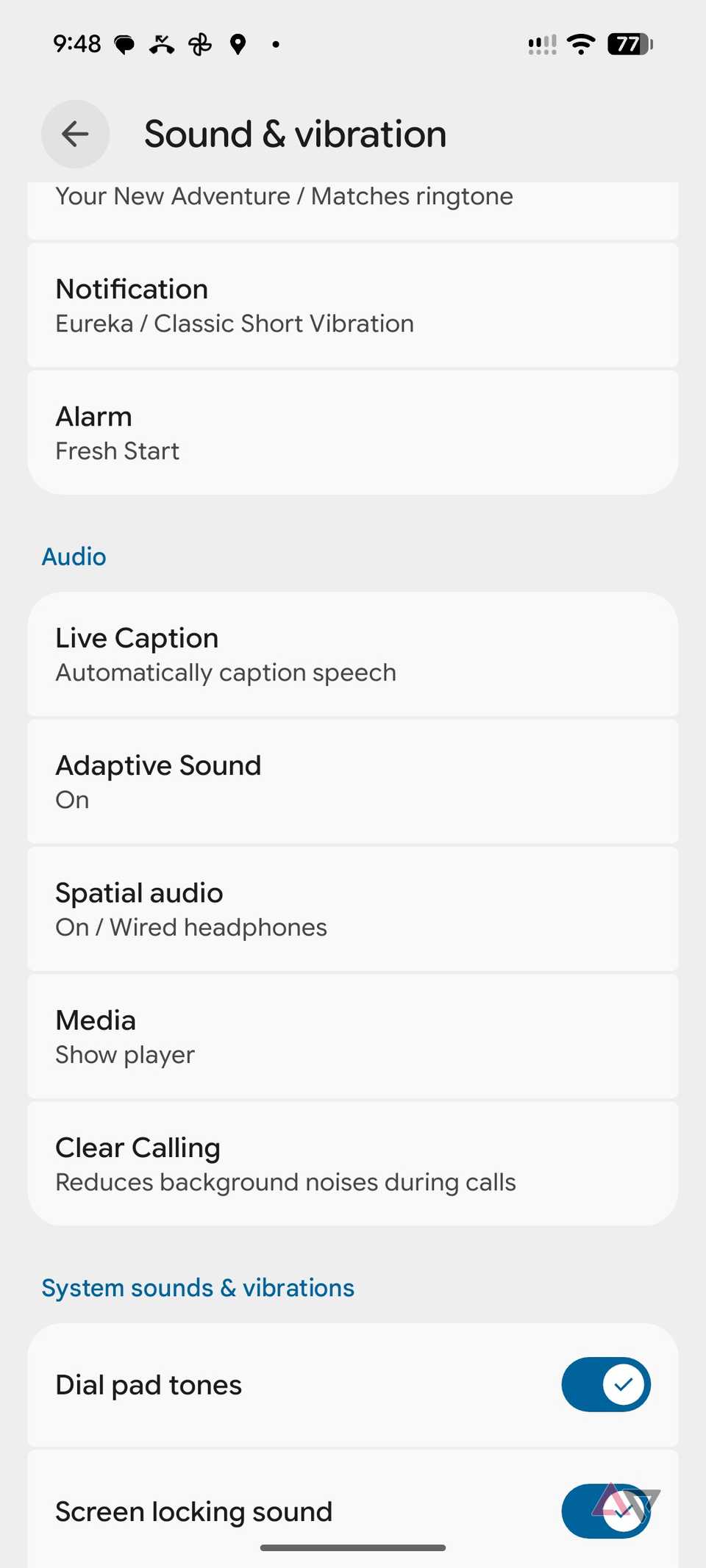
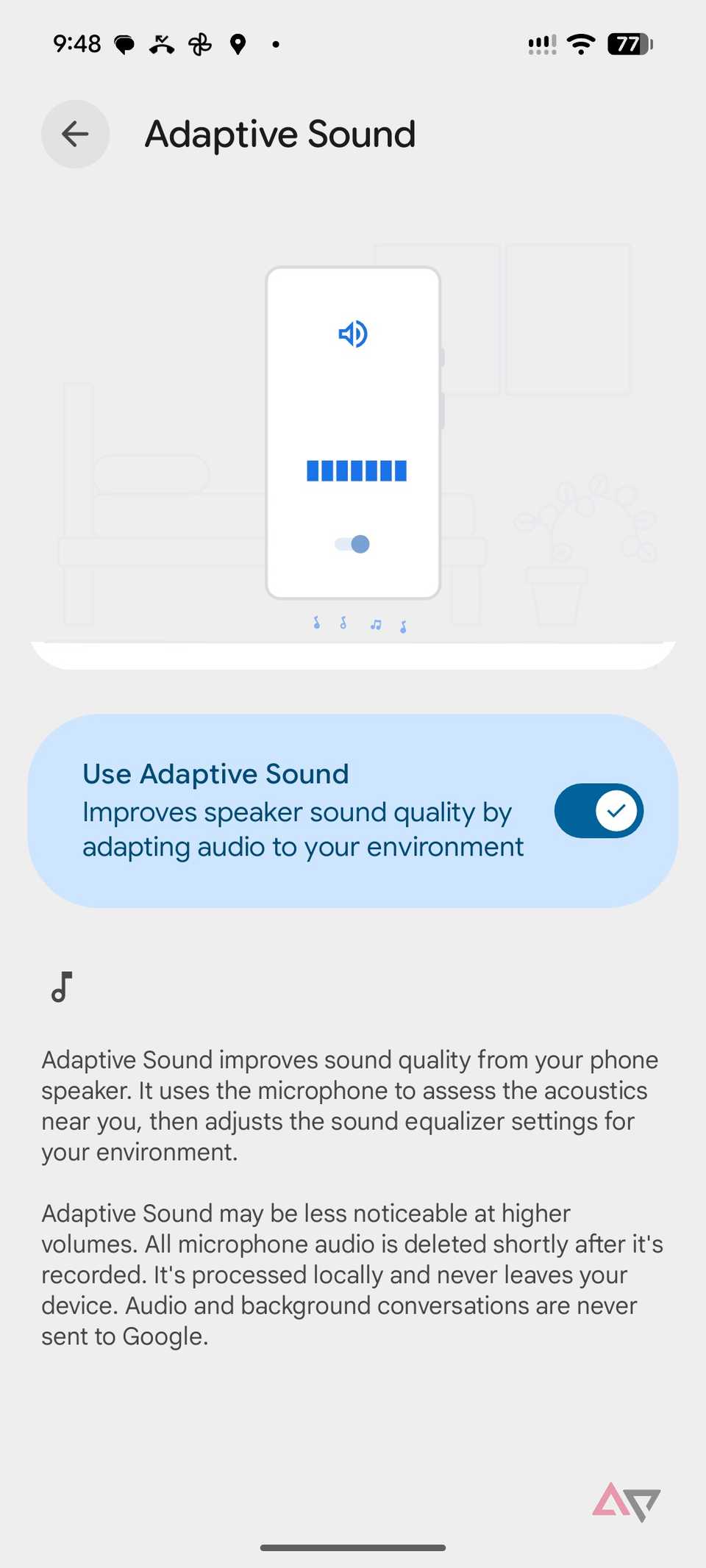
One underrated Pixel feature that I recommend enabling right away is Adaptive Sound. It automatically optimizes your phone's speaker output based on your surroundings.
For example, when I am watching a YouTube video in my quiet home office, my Pixel can optimize its speakers for the environment.
If I move to a noisy room, Adaptive Sound can adjust the audio output to better suit the surroundings.
It's a small convenience, but I appreciate not having to manually tweak sound settings throughout the day.
Enabling it takes only a few seconds. I go to Settings > Sound & vibration > Adaptive Sound and turn on the toggle. That's it. My Pixel handles the rest automatically.
Use Pixel Camera as a webcam
Your next webcam upgrade is free
I attend video meetings regularly, and I have noticed that most built-in laptop webcams struggle to deliver decent video quality.
Instead of investing in an expensive external webcam, I decided to use my Pixel's excellent camera hardware.
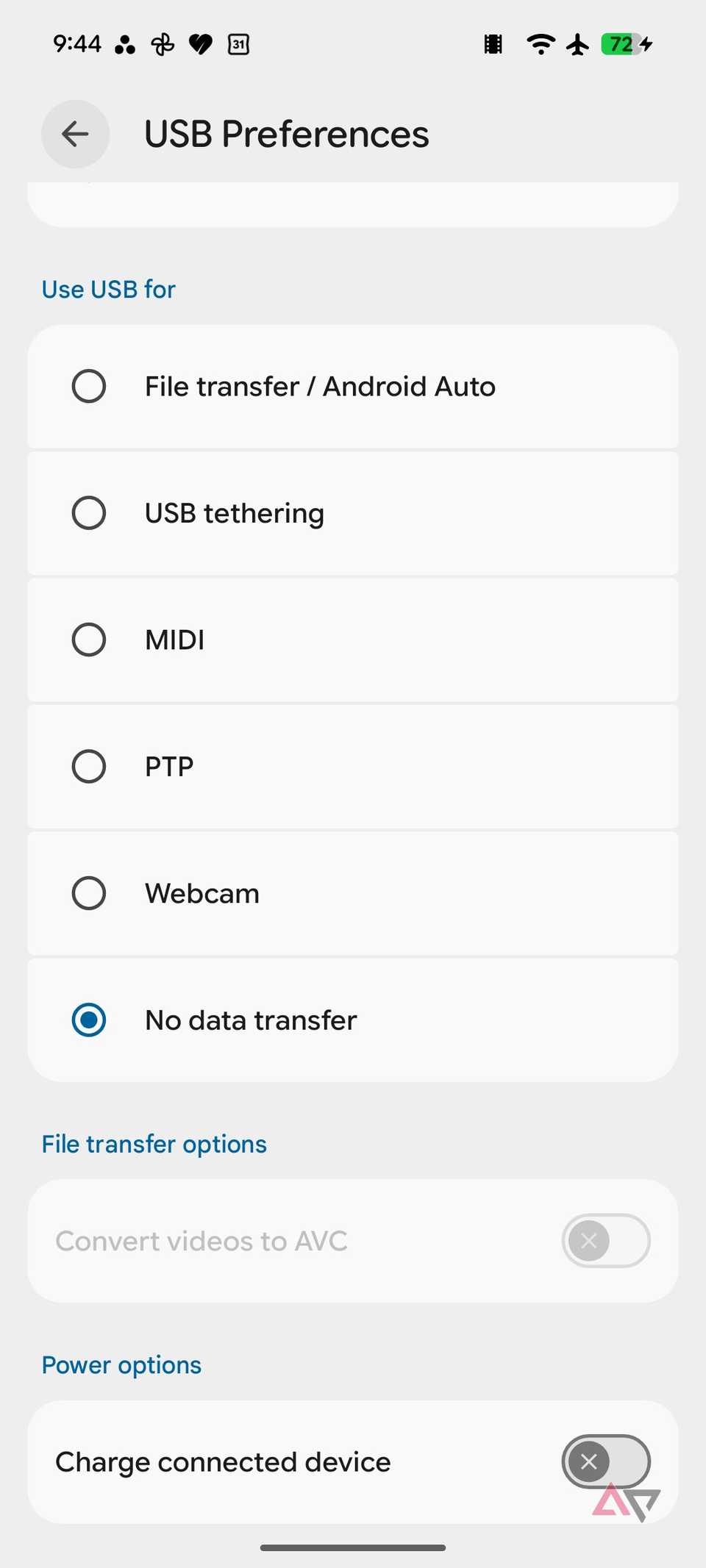
The setup is simple. I connect my Pixel to my Windows PC or Mac using a USB cable that supports data transfer.
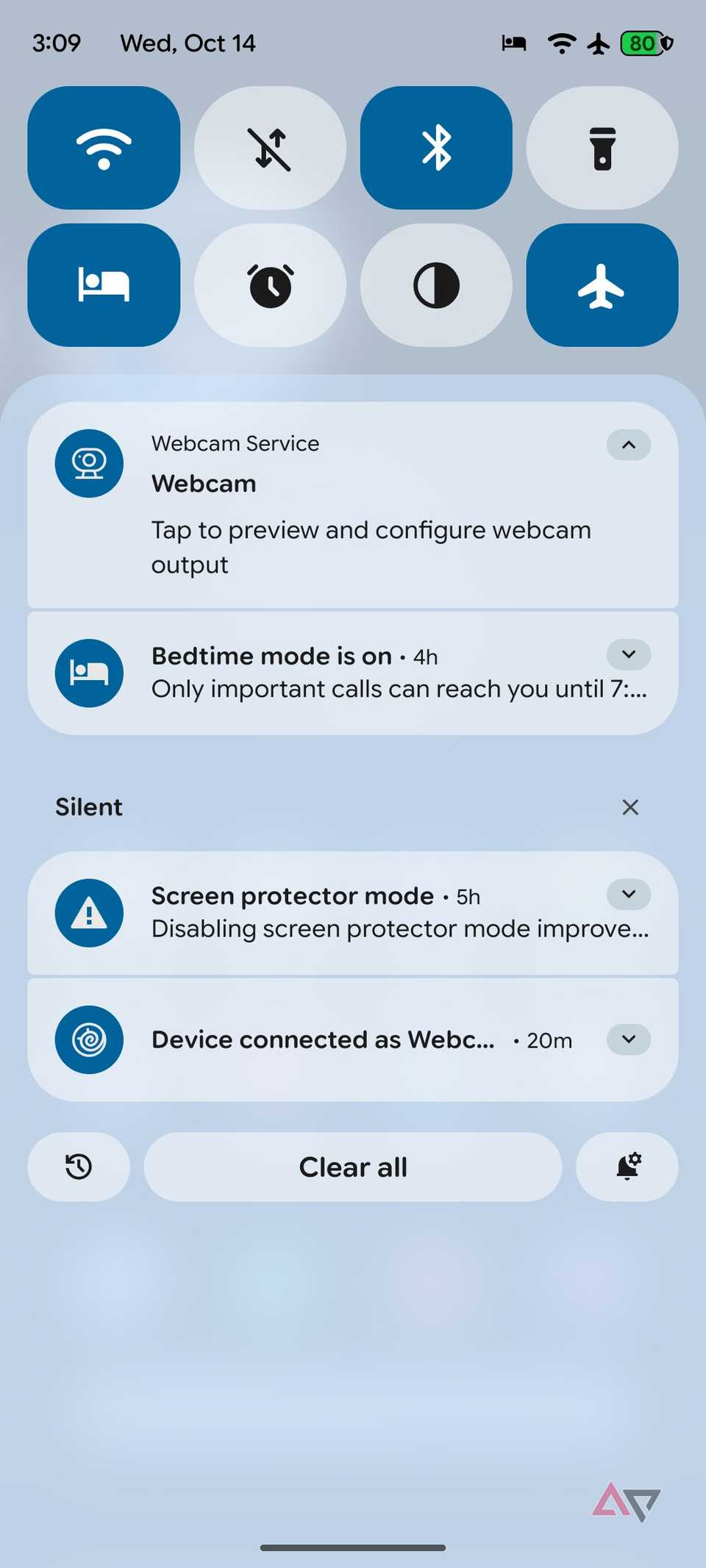
Next, I open the notification panel, tap Charging this device via USB, and select .
That's it. I can now open Google Meet, Zoom, or Teams and select Android Webcam as my video source.
I can even tap the Webcam notification on my Pixel to preview the feed, switch between front and rear cameras, and adjust the framing. I prefer using the rear camera for better video quality.
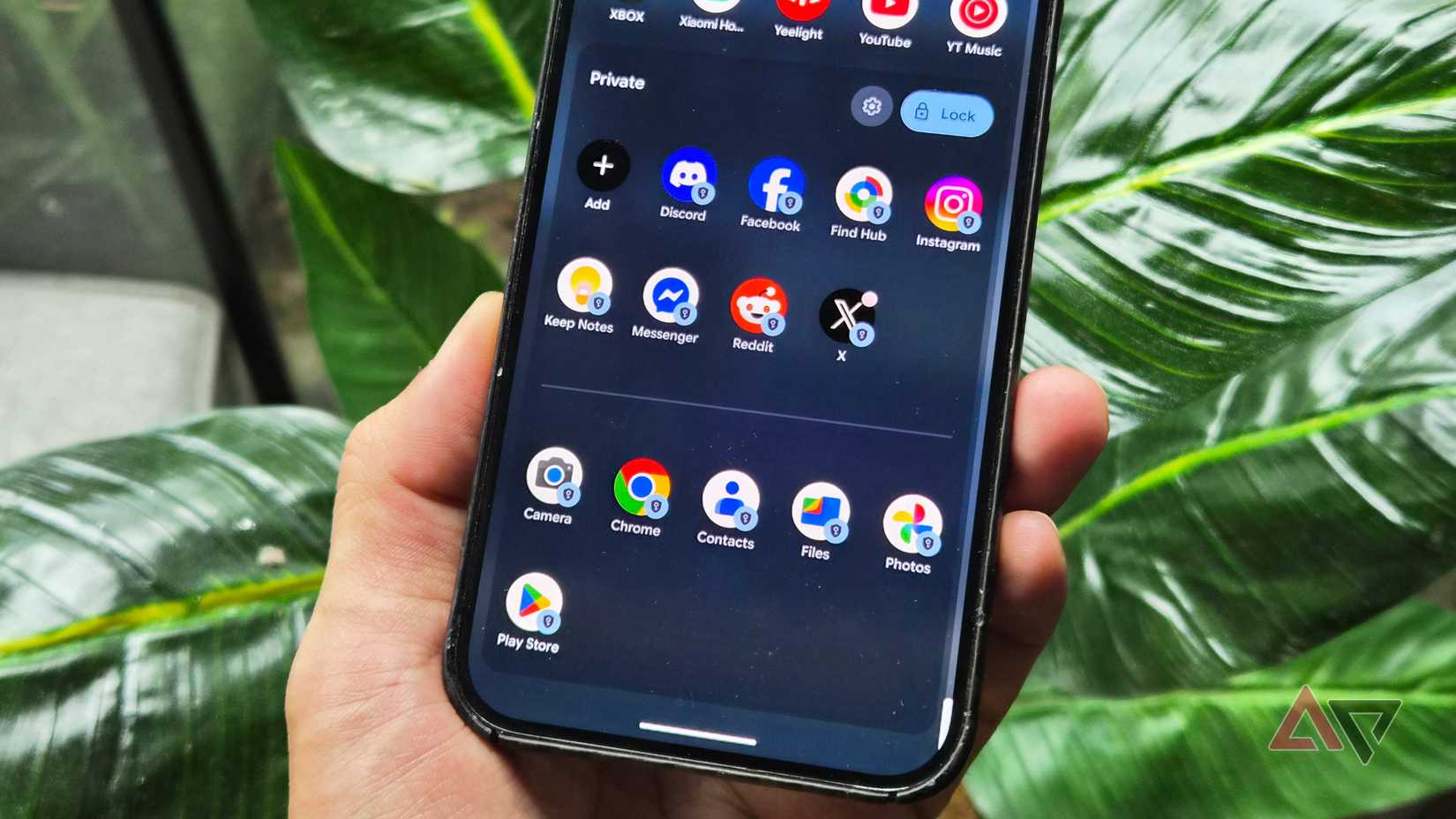
One of my favorite additions to Pixel UI in recent years is Private Space.
It's useful when I hand my phone to a friend or family member and don't want them accidentally opening my personal files or apps.
I use Private Space to keep certain financial apps, personal accounts, and other sensitive applications away from my regular app drawer.
I can even sign in with a different Google account to keep things separate from my primary profile.
Setting it up is straightforward. I go to Settings > Security & privacy > Private space, authenticate, and follow the instructions. I prefer setting a separate PIN for extra protection.
When configured, I can access Private Space at the bottom of my app drawer. I can also hide the entire section when it's locked.
Change the default AI assistant
Choose an AI that works better
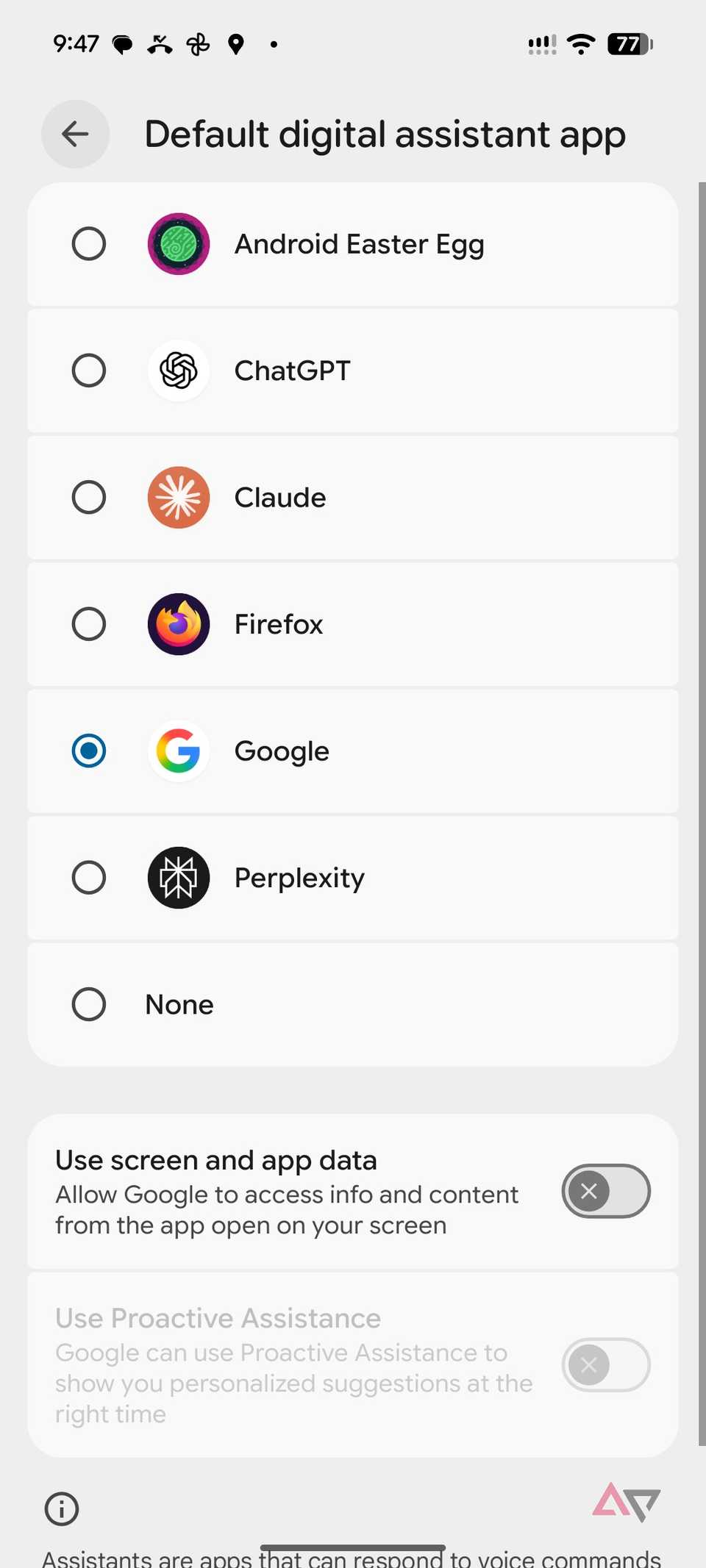
After experimenting with several AI assistants, I have found myself leaning toward Grok.
That's why I made Grok my preferred AI assistant on my Pixel instead of relying on Gemini.
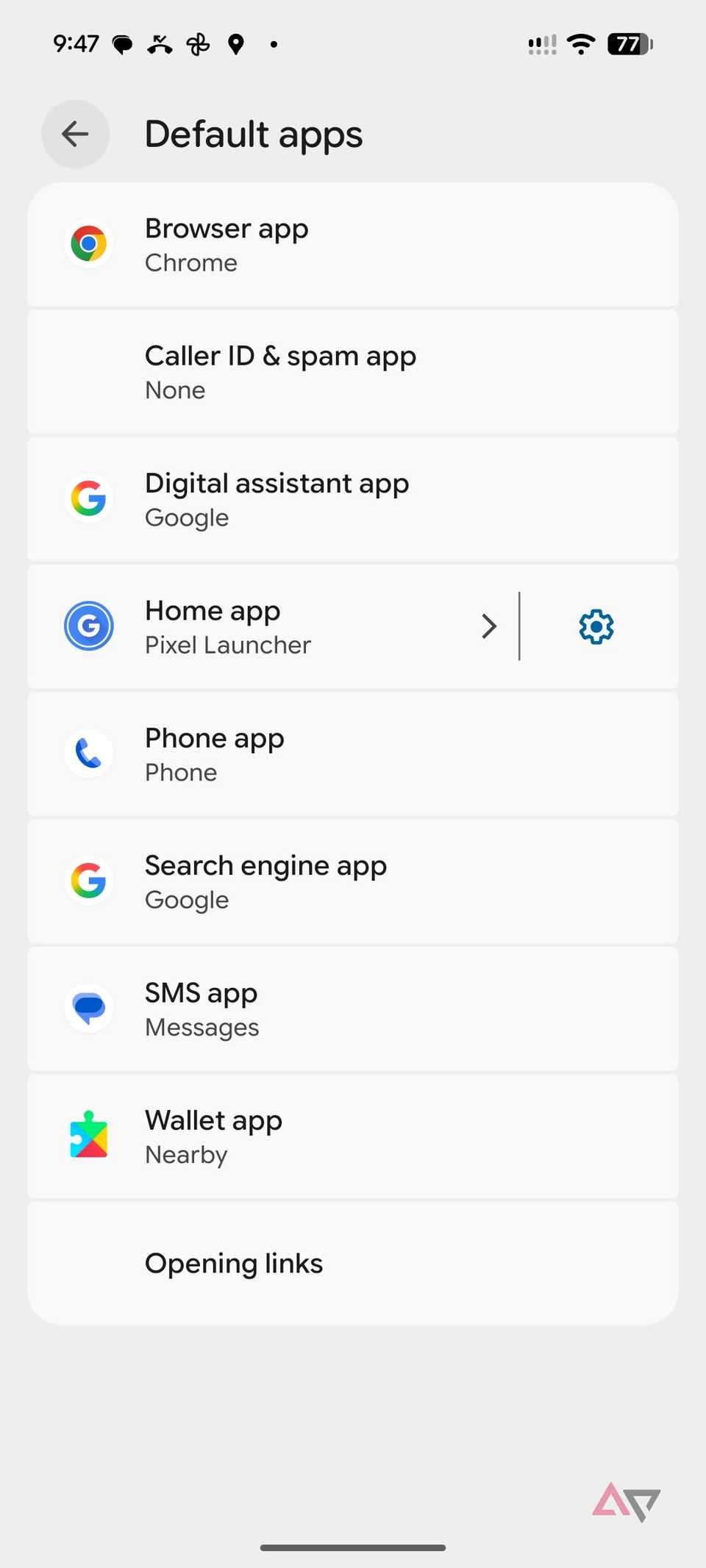
Android lets you choose a compatible assistant under Settings > Apps > Default apps > Digital assistant app.
Gemini still has an advantage when it comes to deep integration with Google's apps and services.
But for my everyday AI conversations, feels like a better fit. If you prefer, you can also set Claude or ChatGPT as your default AI assistant on Android.
Set up payment cards in Google Wallet
Leave your physical wallet behind
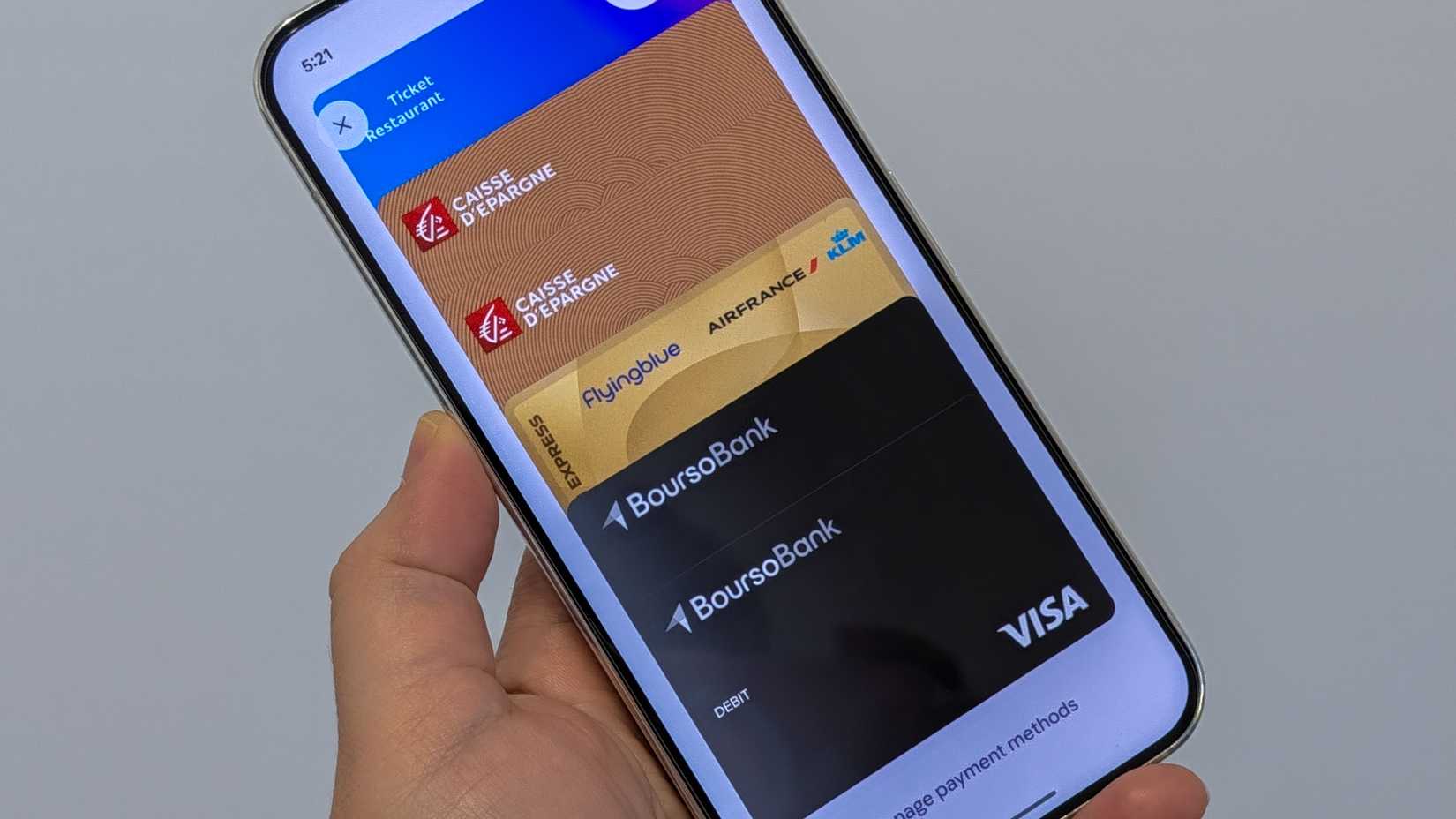
One of the simplest ways I make my Pixel more useful is by setting up my payment cards in Google Wallet.
In supported regions, I can add my credit and debit cards, enable NFC, and make contactless payments without reaching for my physical wallet.
The convenience extends to the Pixel Watch. I can add a supported payment card separately to Google Wallet on my watch and pay from my wrist, even without my phone nearby.
Take advantage of Pixel HiLight (for Pixel 11 Pro users)
Never miss important calls and messages

As a former BlackBerry fan, one of my favorite additions to the Pixel 11 Pro lineup is HiLight.
It uses a ring of colorful LED lights around the camera flash to keep me informed without checking my phone.
I can assign custom colors to favorite contacts, get visual cues for incoming calls, and, with the Android 17 beta, use Google Messages.
HiLight now flashes twice when I receive a message from a favorite contact.
I can enable it under Settings > System > HiLight.
It's a clever productivity feature, although I would love to see support for WhatsApp and other third-party apps in the future.
Your Pixel can do much more
A Google Pixel may look basic at first glance, but it offers more than Google's clean interface suggests.
You just need to know where to look. These small changes have helped me get more done, simplify everyday tasks, and make my Pixel a more capable companion.
The best part is that you don't need to install dozens of third-party apps or spend hours customizing your phone to see the difference.
These six changes are only the beginning. I highly recommend , experimenting with lesser-known features, and finding what works best for your workflow.