Someone asks for a photograph from last summer’s holiday. You check your phone, then an old laptop, then the family WhatsApp chat. You find a copy, but it is too small to print. The original is probably on a portable drive. Which one, and where is the cable?
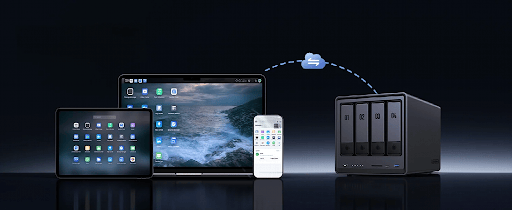
A home NAS can make that search less familiar. Short for network-attached storage, it is a device that holds files on your home network, where different computers and phones can access them through supported software. Systems such as give households a shared place for photographs, videos and computer backups. The appeal is straightforward: your collection no longer has to depend on whichever device happens to contain the original.

Bring the family photo collection together

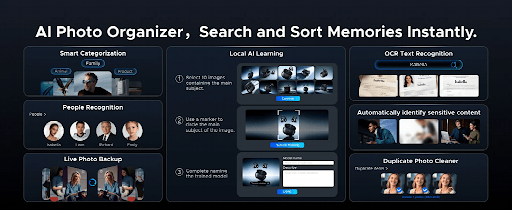
A NAS gives you somewhere to gather them. Start with a manageable collection, such as last year’s photographs, and copy the originals into folders with names everyone understands. A year followed by an event or place is usually enough. Keep the structure simple enough that another family member can find something without asking you.
Once the files are there, open a selection of photographs and play several videos to check the copies. Keep the originals while you set up an independent backup. If you use a phone app to upload pictures automatically, check its permissions and confirm that new photographs actually arrive. A setting being switched on is not the same as a completed backup.
Be especially careful if your phone keeps smaller previews while full-resolution originals remain in a cloud account. Check what you are copying before deleting anything. Bringing a collection together should leave you more confident about where the originals are.

Share the originals without sharing everything
A shared photo folder is useful when someone wants to make a birthday album or print a photograph for a frame. They can retrieve the stored original instead of asking you to send it again or digging through a messaging app for an older copy.
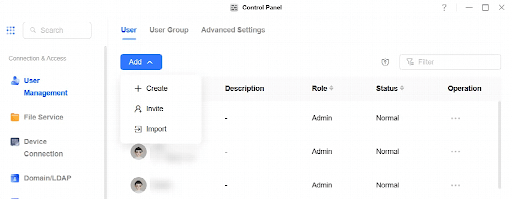
Sharing does not mean opening every folder to everyone. Give each person their own account, with access to the family collection and a separate private area where needed. Household paperwork and personal photographs do not all belong in the same shared space.
Video makes the benefit particularly clear. A recording from a family celebration can stay in one agreed location, accessible from a computer when somebody wants to edit it or make a copy. For relatives outside the home, a small cloud folder may still be the easiest way to share selected files. You can keep that convenience while storing the full collection locally.

Choose storage around the collection you have
Before looking at specifications, check how much space your existing photographs, videos and documents occupy. Then look at how much you added over the past year. A household recording long videos will need a different amount of storage from one mostly saving documents and occasional pictures.
For a growing collection, the is a four-bay option worth considering. Its four SATA drive bays provide room for multiple storage drives, while an Intel Core i3-1315U processor handles the system’s applications. UGREEN also specifies a 10GbE network port and a separate 2.5GbE port, which are relevant if you regularly transfer large video folders over a compatible wired network.
For everyday household use, concentrate first on storage capacity and a sensible backup arrangement. Faster networking becomes useful when waiting for large transfers is a regular nuisance. A laptop on Wi-Fi will not gain a 10GbE connection simply because the NAS has that port; the computer and the equipment between them also matter.
Storage drives are sold separately. Include them in the budget, and remember that a RAID arrangement providing drive redundancy leaves less usable space than the combined capacity printed on the drives. Plan the storage layout before loading your collection.
Give important computer files a backup routine
Once the photographs are organised, consider the files that would be awkward to lose from a laptop: university work, household records or a project you have spent weeks preparing. A NAS can provide a destination for computer backups, using software compatible with your operating system.
Set a schedule that fits when the computer is normally switched on and connected. Check the backup history occasionally, especially after changing passwords or replacing a computer. For documents that change frequently, choose a backup method that retains earlier versions so an accidental edit does not become the only copy.
Keep a copy beyond the NAS
Putting everything in one place makes it easier to manage, but that place still needs protection. If you delete the originals from your phone and computer, the NAS may now hold the only copy. RAID can help with certain drive failures; it cannot replace a separate backup against theft, fire or accidental deletion.
Keep an independent copy of irreplaceable files, with one copy away from home. That could involve a suitable cloud backup service or an external drive stored elsewhere and updated regularly. There is no need to abandon a cloud service that already does this job well.
A good first weekend with a NAS has a modest goal: copy one collection, check it, back it up and show someone else how to find it. Once that works, bring across the next folder. The useful change comes when somebody asks for that holiday photograph again and you both know exactly where to look.
Discover more from Tech Digest
Subscribe to get the latest posts sent to your email.