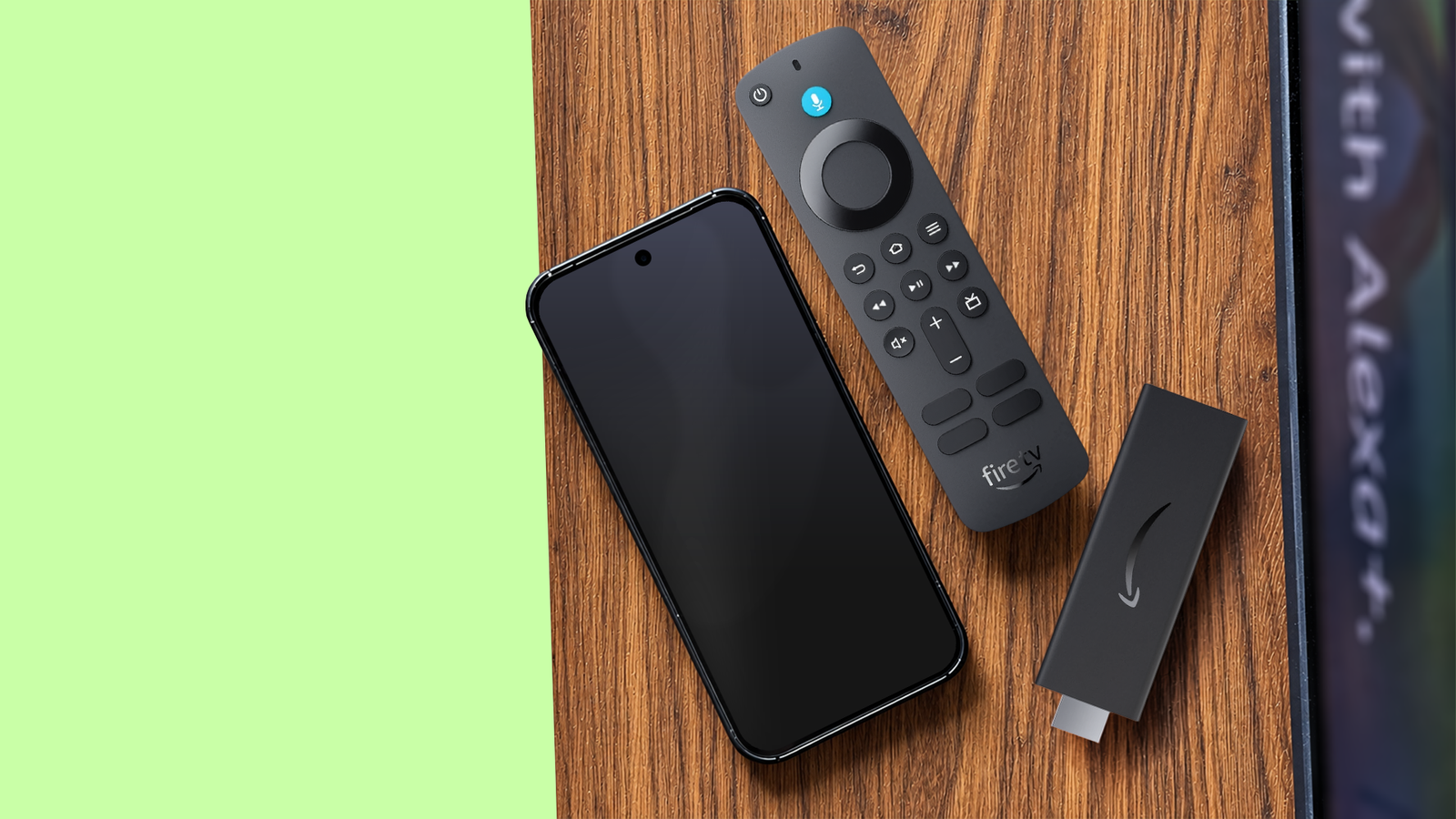
I love doing DIY projects that repurpose my spare phones. I told one of my colleagues at Android Police the same thing after the first project.
That DIY project encouraged me to repurpose my phone in many different ways, the latest being turning one of my spare phones into an Android Auto dashboard.
However, of everything I've tried so far, no DIY project has been as easy to follow as the one that helped me turn my phone into a streaming device. It worked so well that I didn't immediately need to plug my Fire TV Stick into my TV to add smart features.
I'm still using it and haven't gone back to the Fire Stick. I proudly flaunt this as one of my greatest DIY achievements, but it wouldn't have been possible without external help.
Here is how I made my spare Android phone work as my Fire TV Stick replacement.
The first thing I did before following the steps
This is important if you want a wireless setup
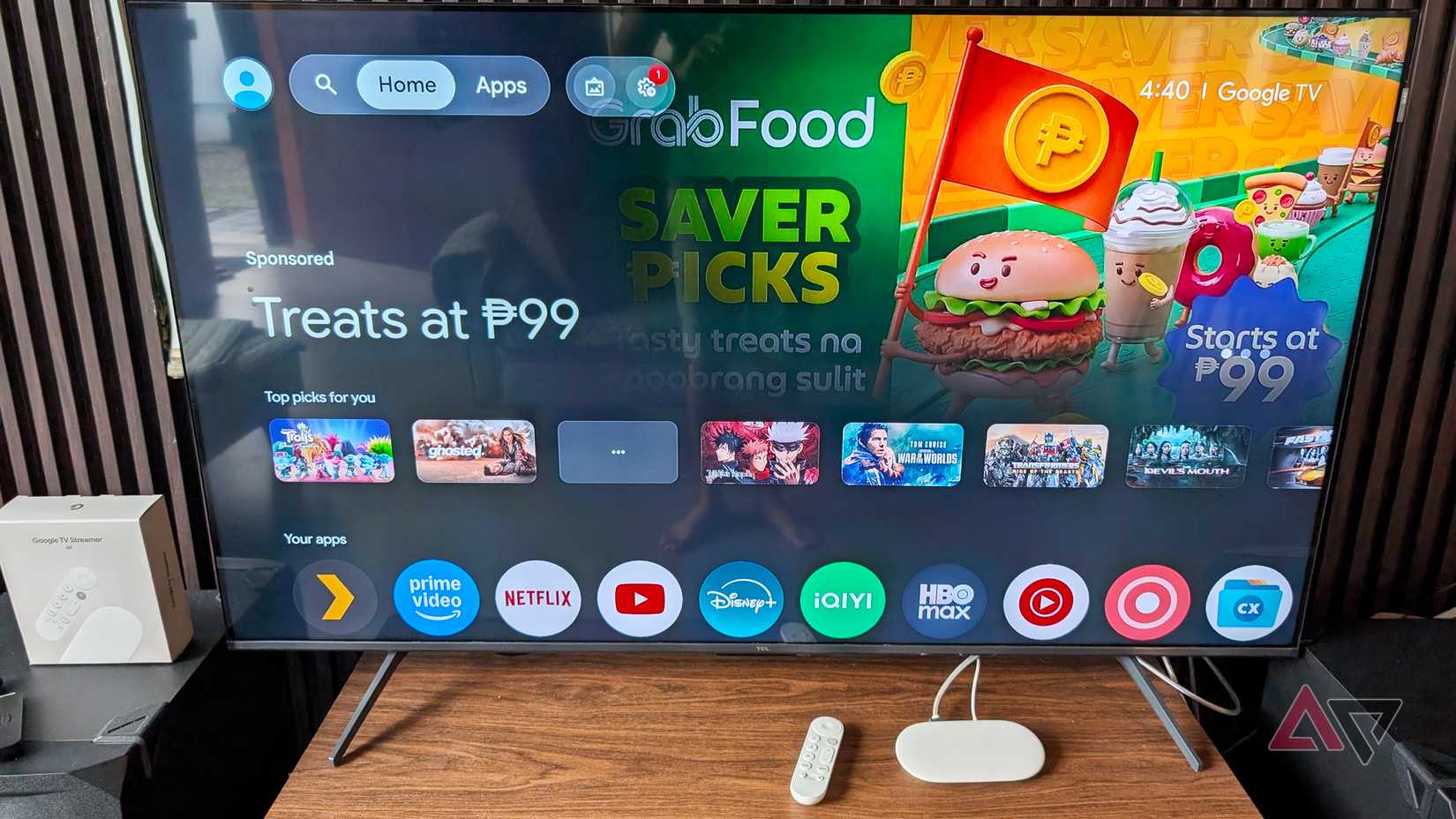
Instead of plugging in my Fire Stick, I connected my Samsung Galaxy phone to my TV. One UI's Smart View feature made it easy by letting me mirror the phone screen or cast to a TV in a few simple steps.
While it's easy to set up, you'll get an error when connecting it to your TV if your phone and the TV aren't on the same Wi-Fi. This isn't limited to Samsung phones.
Regardless of the Android phone, the handset must connect to the same Wi-Fi as your TV for casting to work. This is only when you want to connect your phone to the TV wirelessly.
However, if you want a wired connection, which I prefer for better reliability, you only need a USB-C-to-HDMI cable to connect the phone to your TV.
The changes I made on the software side
Because the phone isn't meant to be used as a Stick
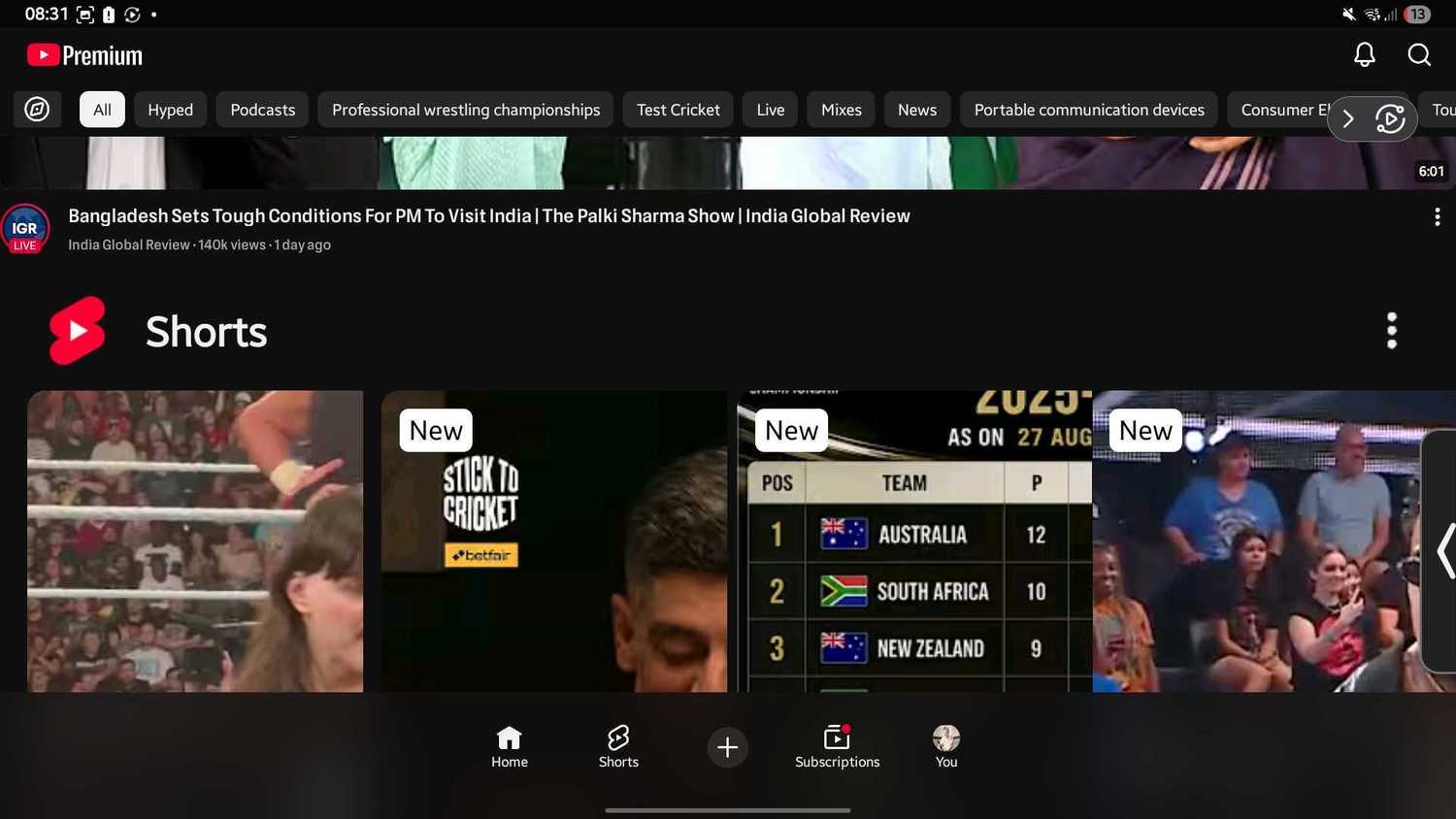
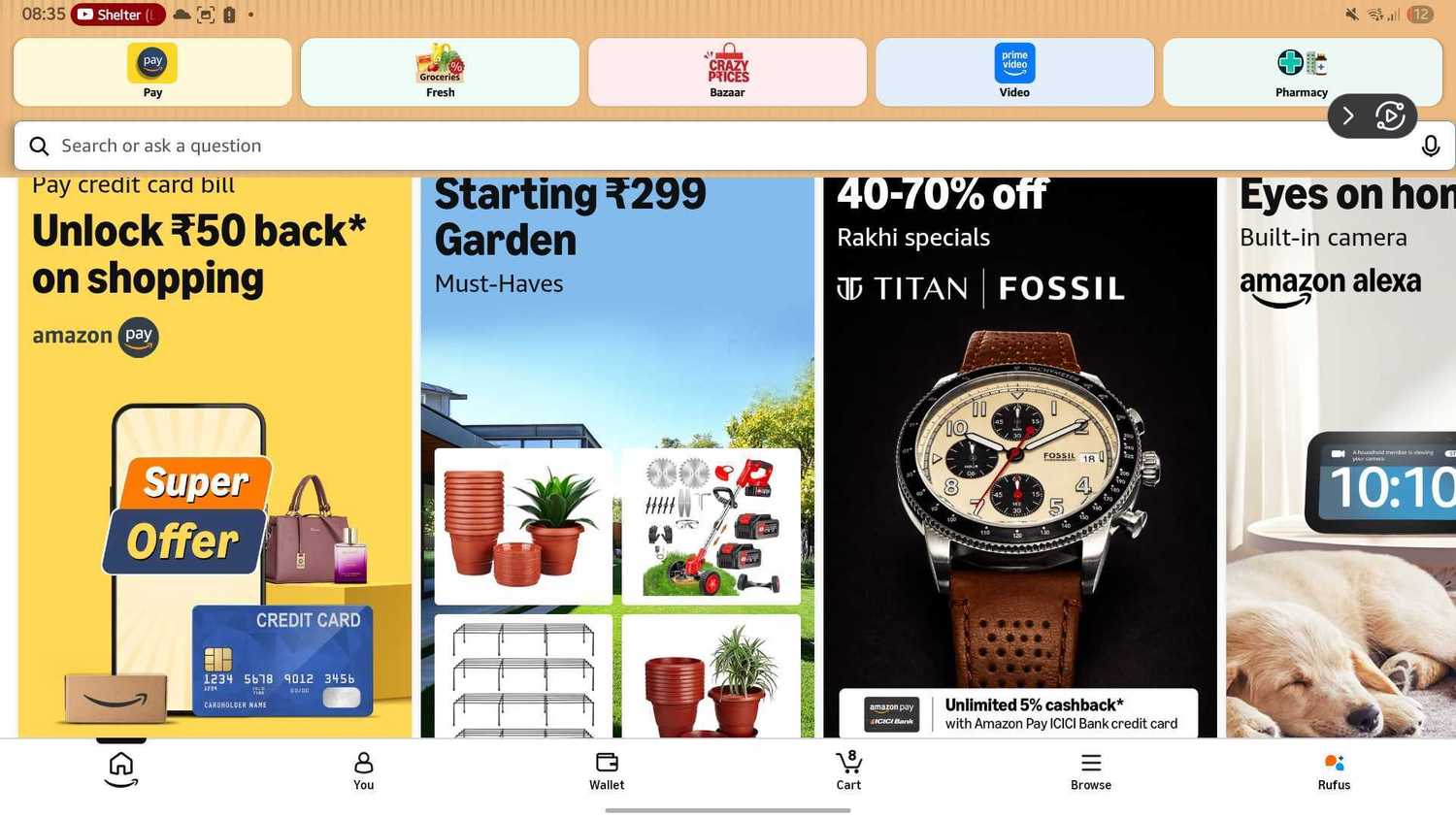
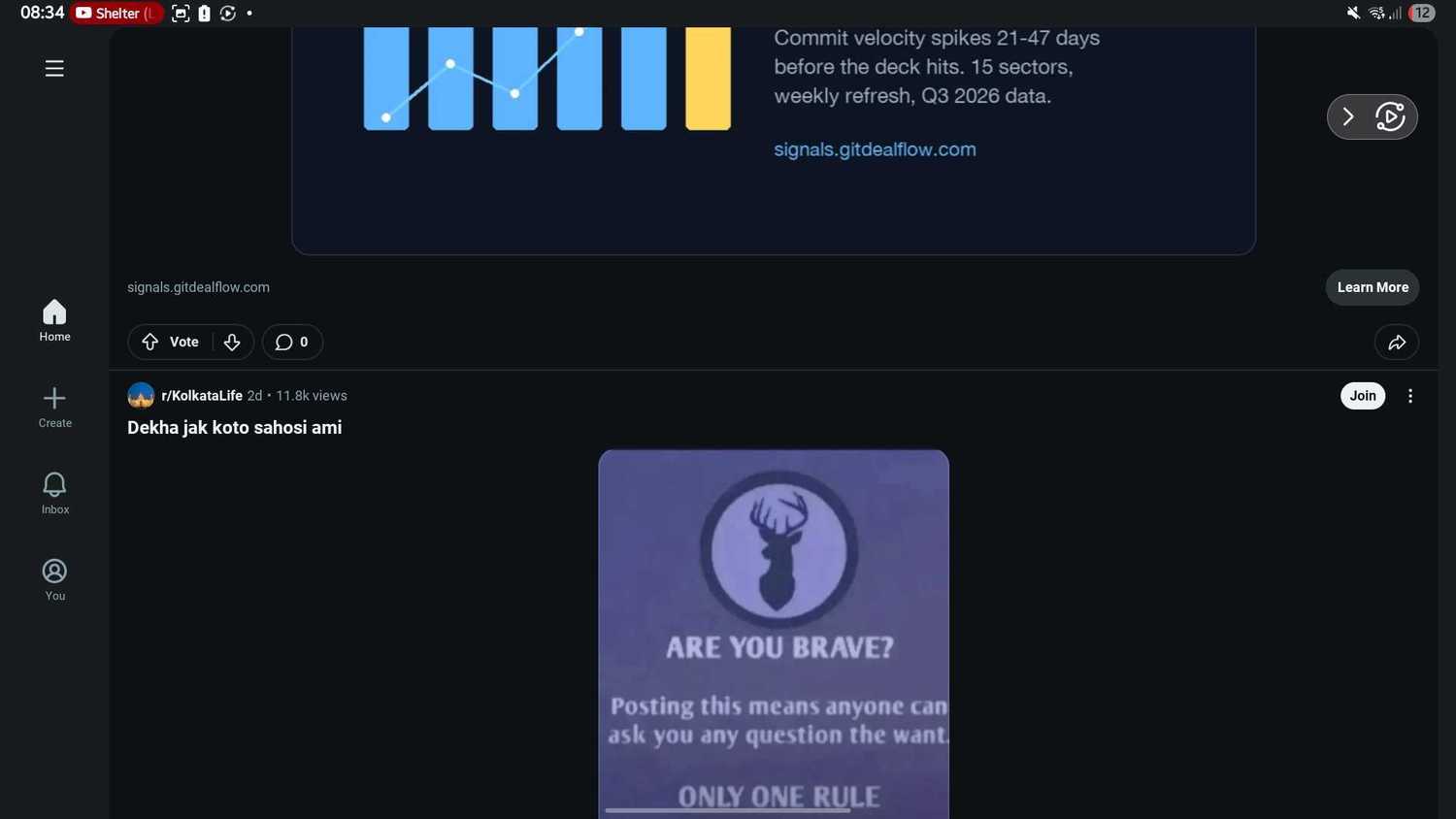
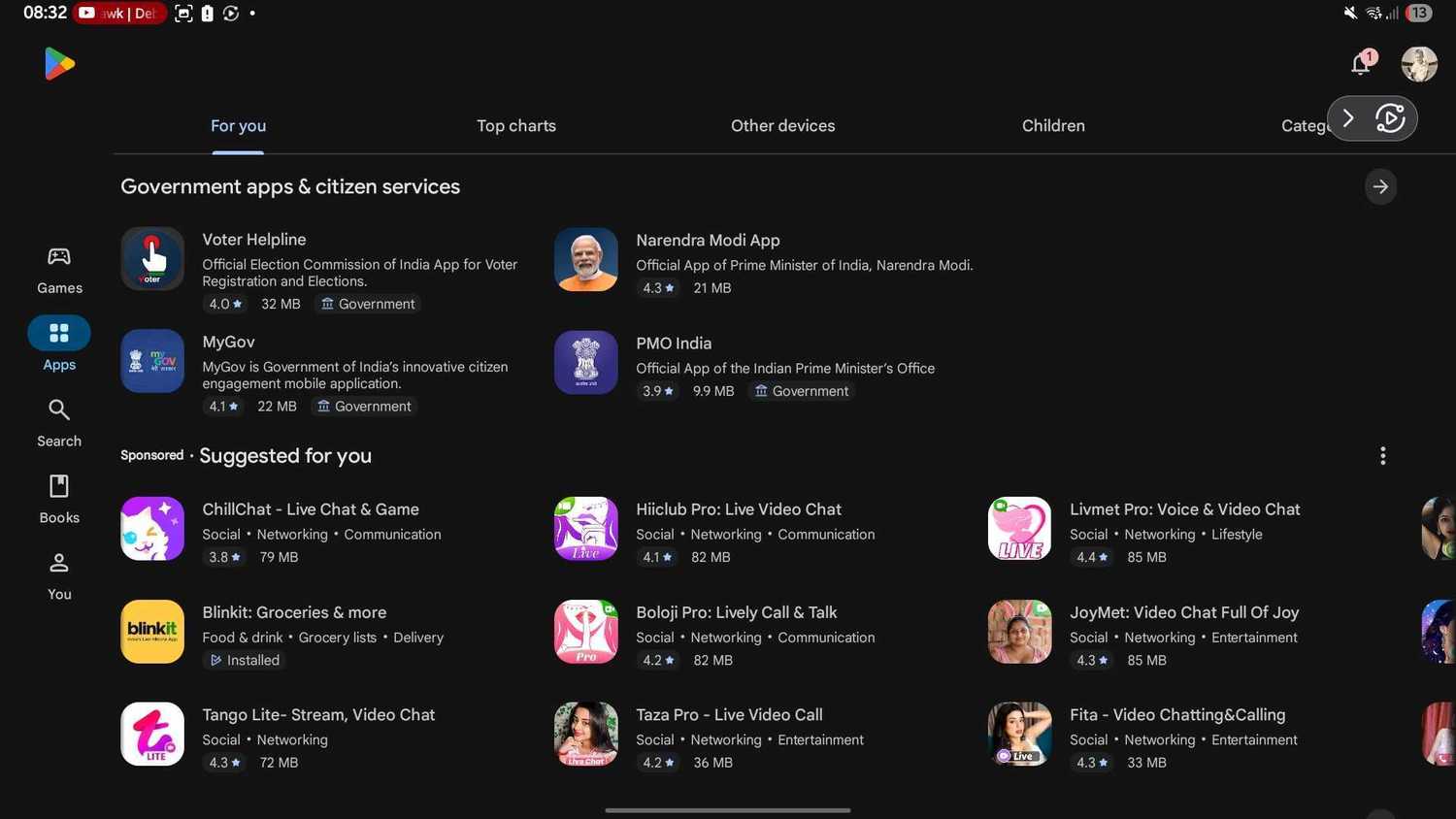
You need a TV-style launcher, and there are many such apps you can sideload, but I recommend Projectivity. You can install the app on your phone from the Google Play Store because it's not meant to replace your phone launcher.
To install it, download the APK and install it on your phone. However, I don't recommend getting started immediately after installing it.
Before setting up the app and making it my phone's default launcher, I changed an important Android setting to navigate better while setting up the launcher and for a better experience on my TV.
I enabled on my Galaxy handset by tapping the build number seven times quickly in Settings. After that, I typed "Minimum width" and changed the value to "720."
This makes Projectivity more accessible on your phone. So, if you want to change anything in the Projectivity Launcher from your phone, you'll be able to read the text clearly.
Also, setting it to "720" makes your phone's UI more TV-optimized. On your television, you'll no longer see those big buttons and menus after connecting the phone to your TV.
Last but not least. I enabled the Stay awake toggle in Developer options to stop the screen from going to sleep while charging.
I added a piece of hardware to the mix
You need this to watch from your couch
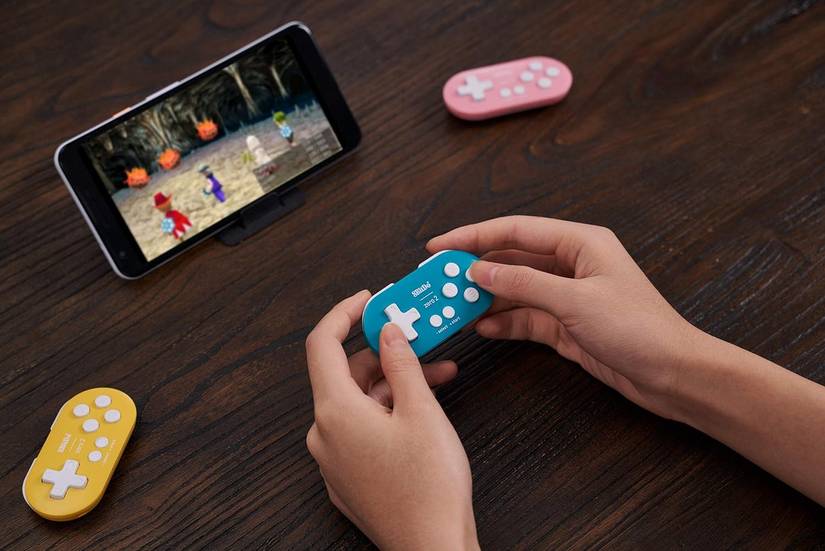
Even after doing everything right, you'll struggle to navigate because touch navigation on a big screen is frustrating.
To solve this problem, I initially connected a wireless keyboard with a trackpad to the setup, but it wasn't as smooth as I wanted. So, I didn't stick to it for long.
Instead, I replaced it with a spare gaming controller, which made me feel like I was holding a remote. To make it work flawlessly, I installed an app called Gamepad Mouse, which allowed me to map buttons, customize the cursor, and more.
That's everything I did.
Connecting the phone to the TV has some solid advantages over the Fire Stick
There are some limitations if you use your spare Android phone as a replacement for the Fire Stick all the time. The biggest challenge is keeping the phone's battery in good shape for a long time.
However, if this is something temporary, I recommend connecting a spare phone to your TV rather than plugging in a device like a Fire Stick.
Unlike the Amazon Appstore in FireOS (Amazon is replacing it with something called VegaOS), the Google Play Store hosts every Google app you need to use, from Gmail to Google Photos. You can run any Play Store app on your TV.
This is the biggest limitation of the Fire Stick, and only an Android phone can solve it.