I developed a bad habit of sending attachments to my Gmail ever since I discovered I could.
It was a quick, easy way to access important attachments, as long as they were sitting in my inbox.
Even though solves this problem, I kept doing it until my inbox got so messy I couldn't easily find documents or attachments.
I decided to organize my Google Drive better to break the habit.
Organizing Google Drive was the answer all along
My Gmail thanked me for the change
If you're wondering how bad my habit got, I would send attachments from other email addresses to Gmail.
This might seem daft at first, but since my Gmail has more cloud storage space, I use it to access things across all my devices.
Even though I knew I could do the same thing with Google Drive, I never used it how it was intended.
I would save and send everything — PDFs, screenshots, receipts, and large files — that I might need later on a different device.
But since Gmail is my primary email client, I often used it to send attachments to myself. Over time, I realized my inbox was filling up with attachments that cluttered it and wasted storage.
I constantly searched for these attachments and wasted more time looking for them than I would have if I'd used Google Drive instead.
Enough was enough, so I decided to organize so I could find these attachments easily and break my habit of self-emailing.
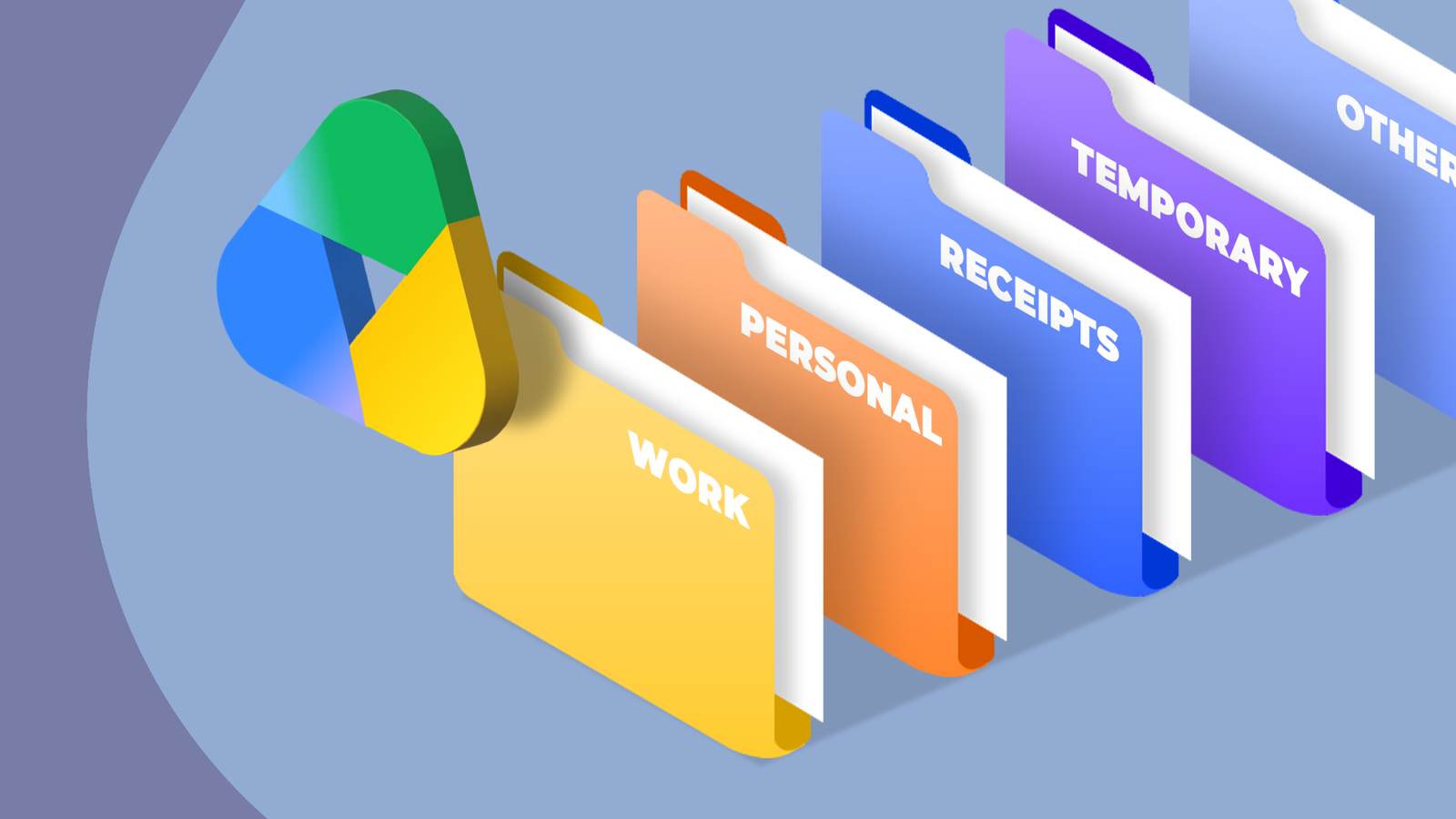
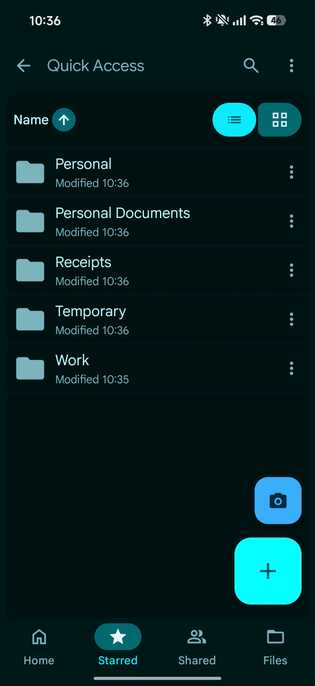
I started by creating a few high-level folders titled Work, Personal, Personal Documents, Receipts, and Temporary. These are the ones I expect to use most, but I'll follow the same process if I add new folders later.
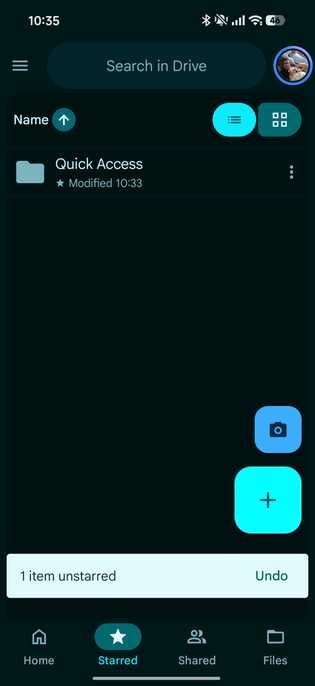
I then moved all of these folders into a single folder called "Quick Access," so it does exactly what the name suggests.
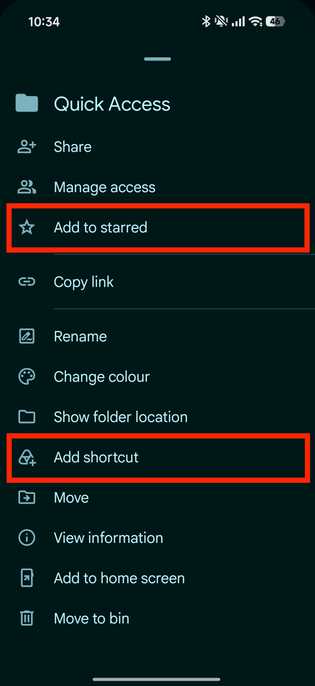
After moving these folders, I made sure to use Add shortcut to Drive for the Quick Access folder.
Creating shortcuts in Drive is the most underrated feature, since it doesn't use additional storage and keeps everything easy to access.
Finally, I also turned on the Available offline setting for the Quick Access folder to access all its content even without an internet connection.
How I started using Google Drive for all of my email attachments
Drive really did change my daily habits
To break my habit of emailing myself attachments, I had to make my workflow as frictionless as possible.
For attachments I received in Gmail, I used the Add to My Drive option and saved them in the corresponding folder within my Quick Access root folder.
For the attachments I downloaded on my phone, I needed to use only one app to upload them to Google Drive. On Android, this was easy; I just used the Files by Google app to upload attachments to Google Drive.
I would download a file, tap , and select Back up to Google Drive. Then I could select the Quick Access folder from the shortcut I created earlier and save the file seamlessly.
Some file managers integrate Google Drive, so you can transfer files without using the share button.
To speed up the workflow, add important Google Drive folders to the home screen or use Drive widgets for faster access.
After the files were in Google Drive, I could access them offline and send them as attachment links to other recipients.
Instead of finding the file to attach, I copy and paste the Google Drive link into outgoing emails, especially for larger files.
To stay even more organized, star the Quick Access folder and color-code folders so you can find them faster.
Finally, desktop and laptop users should also turn on Drive for desktop so you can drag and drop files to the Quick Access folder as if it were a normal folder.
How setting up Google Drive changed my daily workflow
After I set up the folders, I naturally started saving files to the correct Drive folder and keeping them available across all my devices.
I also started saving attachments I received in these folders instead of leaving them in Gmail and cluttering my inbox.
It's an understatement to say that organizing Google Drive changed a bad habit I developed over the years.
Google Drive made me change a decade-old habit
Adding a shortcut and starring my folder in Google Drive made me .
Setting up a Quick Access folder helped me break a habit that was getting out of control.
This method worked seamlessly on my Android phone, letting me use widgets, home screen shortcuts, and direct access from my Files app.
As a result, I waste less storage, get instant offline access to important files across all my devices, and keep my Gmail inbox cleaner.