And why that one cable takes forever to charge your phone.
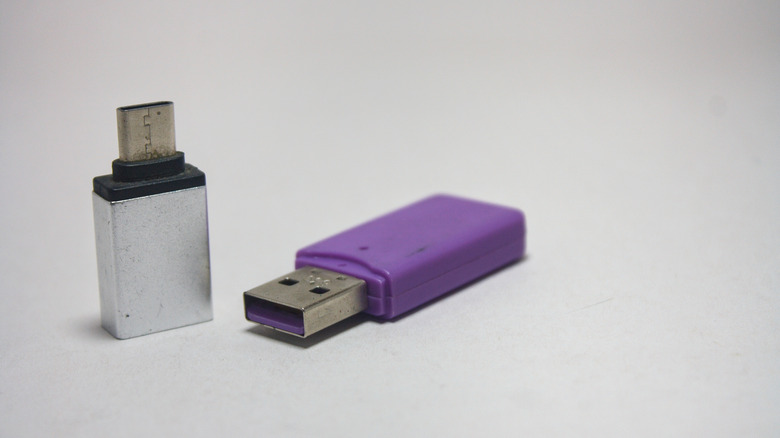
A USB to USB-C adapter looks simple enough, right? A small plastic connector with a male USB-A plug on one end and a female USB-C port on the other. But not all adapters perform the same way, and picking the wrong one can mean sluggish file transfers, slow charging or, even worse, a damaged port.
These adapters solve a common problem. You've been buying USB-C to USB-C cables in bulk because they're so much faster for charging, but your laptop only has one C-port, which you need to use to actually charge the laptop itself, and you're left scrambling for a USB-A to USB-C cable around the house so you can charge your headphones, for instance. The same goes for older wall chargers or your car that still features USB-A ports.
The catch is that not all USB-A to USB-C adapters are built the same. They're not all following the same standardized protocol. Two adapters can look nearly identical while performing very differently, depending on the USB specification they support, the power they can deliver and the quality of the components inside. Before buying one, it's important to understand what these differences actually mean for your devices and which ones matter for your specific use case.
USB specs, power and speed — What you need to look out for
The USB version printed on the packaging indicates both data transfer speed and charging capability. This is super important to check because the gap between versions is significant.
A USB 2.0 adapter will top out at 480Mbps for data and delivers just 5V/0.5A of power — about 2.5W, although when used with wall chargers, they can supply up to 7.5W. That's not much, but it's also not meant to be. This kind of adapter is built for low-power accessories like mice, keyboards and wearables that don't need fast charging or high-bandwidth data transfers.
A USB 3.0 adapter is a whole different story because it supports up to 5Gbps in data transfer (about 10 times faster than USB 2.0), while a USB 3.2 Gen 2 adapter supports speeds up to 10Gbps. When it comes to charging, a laptop's USB-A port caps output around 7.5W, but plugging the adapter into a dedicated USB-A wall charger can push that number up to 12W-15W.
Here's the thing though — you're plugging this adapter into a USB-A port, so you're going to have to tailor your expectations to what that port can actually do. You're probably used to super-fast charging by using that same cable with your capable charger, but it's just not going to work the same when plugged into an adapter. You'll be able to use it just fine for data transfers, but you'll have to be OK with slow charging for your phone. Truthfully, you're probably better off using it for your wearable gear, headphones and peripherals and only resort to charging your phone through it when you have absolutely no other option.
Matching the adapter to the job
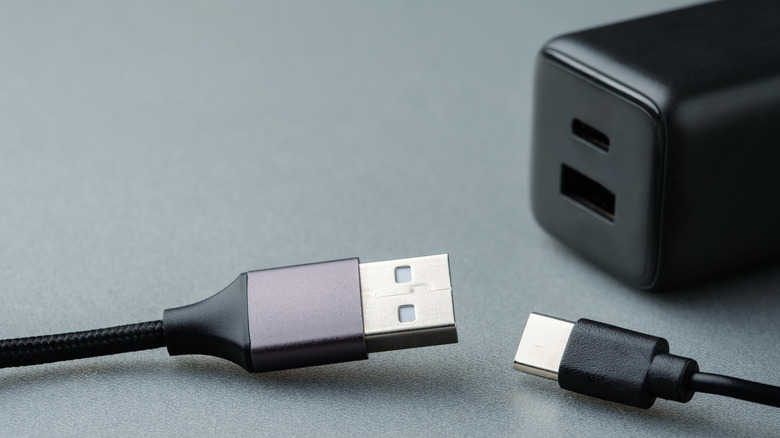
Before buying, you'll have to know a few things. What generation USB port does your computer have? If it's an old device with a USB 2.0, buying a newer generation adapter won't increase the transfer speed. It's also important to figure out what you're going to use the adapter for before buying.
While a basic USB 2.0 adapter is fine for low-power devices, you should opt for USB 3.0 if you're plugging in something like an external drive or flash drive. Otherwise, that 480Mbps cap on USB 2.0 will make you want to take a snooze.
Brand matters just as much as specs here. Cheap and uncertified adapters can fail to regulate power correctly, which creates a risk of overheating or damaging your device's charging port over time. Stick to manufacturers with a track record, check for safety certifications like UL or CE and check for extra features like overvoltage protection. You may be happy to save a few bucks on a no-name adapter, but you might end up paying way more to fix a damaged laptop port.