You have a lot of control over AI on your iPhone.
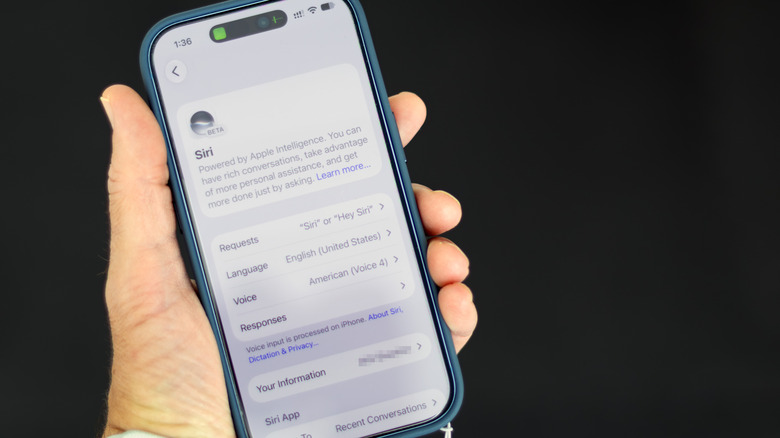
As Apple brings more AI to the iPhone, the technology is getting harder to avoid. While there's no longer a single switch to shut down Apple Intelligence system-wide, you can still turn off many AI features in iOS 27. You just have to do a little more digging.
These instructions are for Apple Intelligence-capable iPhones (iPhone 15 Pro or newer or iPhone 16 or newer) running iOS 27. If you're still on iOS 26, the simpler universal shut-off switch is still there: open Settings > Apple Intelligence & Siri, and turn off Apple Intelligence.
Turn off Siri AI — or switch to the old version
iOS 27 brought Siri's long-awaited AI revamp, transforming it from a simple voice assistant to a more conversational and context-aware one. But not everyone wants a chatbot-like Siri. To turn it off, open , scroll to the bottom, tap and confirm on the next screen.
After that, you can switch back to the old Siri if you want. In that same settings screen, tap , then choose . That way, you can still use it for simple tasks like setting timers and playing music.
Turn off AI summaries
Apple Intelligence isn't just about Siri. Among its other skills, it can summarize messages and other notifications. But you can turn those off, too.
For AI-generated summaries of messages, open Settings > Apps > Messages, and turn off . This disables the AI-generated recaps of messages in the conversation list. For email's equivalent, go to Settings > Apps > Mail, and turn off . That deactivates the AI summaries in your inbox, showing the first lines of the most recent message instead.
Apple Intelligence summarizes notifications, something that it has gotten embarrassingly wrong in the past. To turn those off, go to Settings > Notifications > Summarize Notifications, and switch the feature off. Or, if you prefer to leave it on for some apps, you can toggle them individually on that same screen.
You can also stop Apple Intelligence from placing the notifications that it considers the most important at the top of the stack. To do that, open Settings > Notifications > Prioritize Notifications, and turn the feature off.
Turn off other AI-based suggestions
iOS supports Smart Reply, which can draft AI-powered email responses in your writing style. To deactivate it, go to Settings > Apps > Mail, and turn off .
Even the Phone app isn't spared from Apple Intelligence. It can suggest actions for voicemails, like creating a reminder or calendar event based on the transcript. To disable that, go to Settings > Apps > Phone, and turn off Suggestions in Voicemail. Apple Intelligence can also show relevant information, like a reservation number, when you call businesses. To put a stop to that, go to Settings > Apps > Phone > Apple Intelligence & Siri, and turn off .
Apple Intelligence even turns up in the Journal app, where it can suggest what to write. To disable that, go to Settings > Apps > Journal, and turn off .
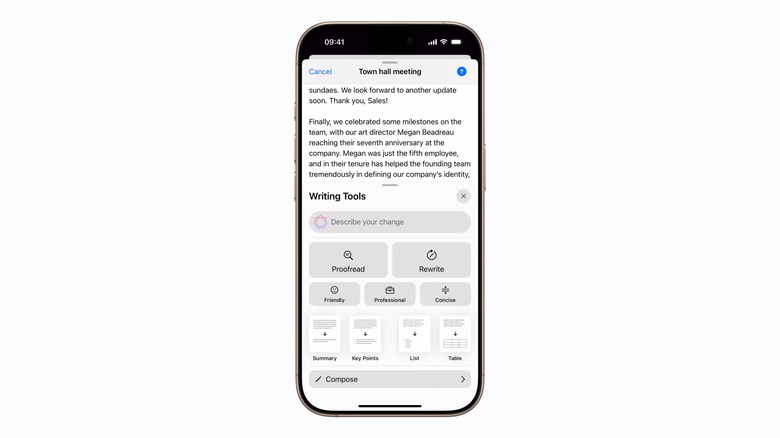
The standard Siri settings don't include toggles for Writing Tools and image creation. But don't worry: you can still block them. Strangely, that toggle lives in Screen Time settings. Navigate to Settings > Screen Time > Content & Privacy Restrictions, turn on the restrictions, then tap .
In that menu, you can turn off , Apple's system-wide rewriting, proofreading and summarizing tools. Just change the toggle to . Meanwhile, blocks tools like Image Playground, Genmoji and Image Wand.
While you're there, you can also block , which provides help with complex math problems in Calculator and Notes. And if you don't want Apple Intelligence handing requests off to services like ChatGPT, you can block here, too.