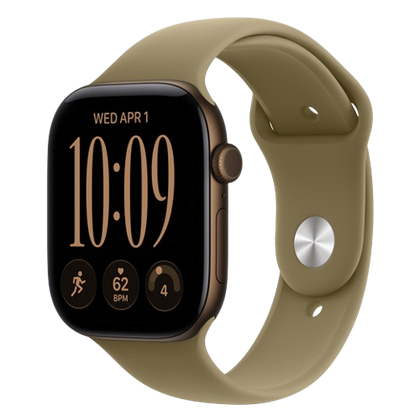
While the Apple Watch is designed to work seamlessly with iPhones, there are Android users who prefer the Apple Watch over its Wear OS competitors. Yes, you can technically pair an Apple Watch with an Android phone, but the workaround comes with strict limitations and missing features. This guide breaks down exactly how to connect the two devices, what apps actually work, and the compromises you'll have to make.
Can you use an Apple Watch with an Android phone?

Yes, you can use an Apple Watch independently of an iPhone, but there are some major drawbacks.
Apple designed the Apple Watch lineup to work within the Apple ecosystem. That means you will get the whole experience and functionality when you pair your Apple Watch with an iPhone.
It's a similar experience to Android. Wear OS watches work best with Android phones, which is why we don't recommend pairing an Apple Watch with an Android phone or vice versa.
You will also face various compatibility issues, some of which can be alleviated with a third-party app, and some of which you're going to have to learn to live without.
Fair warning: Your Apple Watch will lose some functionality when paired with an Android phone
This guide was updated in late 2026, and future watchOS updates could add additional limitations. It's also important to note that you'll need to have access to an iPhone to activate your Apple Watch. All that said, here are the known limitations:
- iMessage works fine when sent from an Apple Watch, but SMS messages tend to fail. You should be fine if you message using Telegram or WhatsApp.
- You can use the Apple Watch's fitness and health monitoring apps, but they may not work perfectly on Android. The Merge Watch app appears to be the most reliable option if you want health and fitness data syncing.
What will I need to make my Apple Watch work on my Android phone?
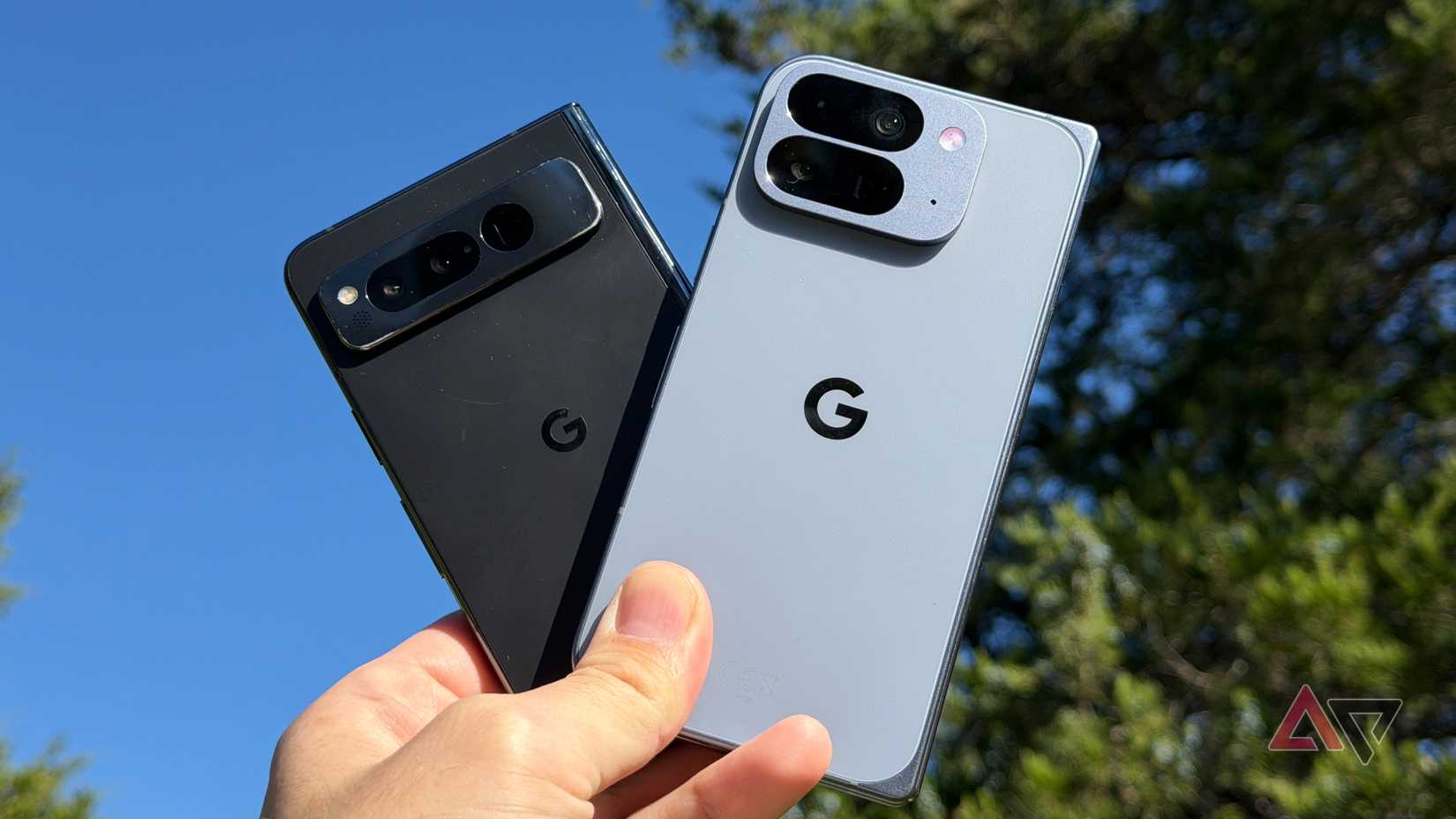
You need a few things to make the two devices work together.
First you'll want to make sure you have access to an iPhone that's compatible with your watch. Apple Watch Series 11 and 12, Watch Ultra 3 and 4, and the Apple Watch SE 3 can pair with an iPhone 11 or later. You can check out Apple's support page for compatibility on older models. You'll need to use an Apple Watch with cellular connectivity if you plan to pair it with an Android phone, unless you're willing to the monthly Merge Watch subscription.
You'll also transfer your SIM card to an iPhone to activate your watch. If you own an iPhone 13 or older, or you live in a region where iPhones still have a SIM slot, you can remove your SIM with a paperclip or SIM key. iPhone 14 and later models in the U.S., as well as all versions of the iPhone Air and iPhone Duo use an eSIM, which can be transferred between devices via the settings or with the help of your carrier.
Make sure your Android phone and iPhone use the same-sized physical SIM card. All modern iPhones and most modern Android phones use a nano SIM card, but not all Android phones do. Some Android devices may use a micro SIM card.
How to set up an Apple Watch to work with an Android phone

When you have all the items you need, follow these steps:
- Make sure your SIM card or eSIM is loaded on the iPhone you'll use to activate your Apple Watch before turning it on.
- Once your Apple Watch is turned on, put it close to the iPhone. A new pairing screen will appear. You can also go to the app and select .
- .


- A swirling blue circle appears on the Apple Watch, and the Viewfinder camera opens on your iPhone. Center the phone over the device so that the Viewfinder captures the image. The devices begin syncing.
- Get to Know Your Watch to learn more about how the watch works and select apps.


- Turn off the iPhone and Apple Watch.
- Transfer your SIM from the iPhone back to your Android phone.
- Turn on your Android device and let it connect to your cellular network, then turn on the Apple Watch. You may need to turn on Airplane Mode on your iPhone for this to work properly.
At this point, your Apple Watch receives calls and sends messages, even though your primary number is connected to an Android device.
If you have trouble with messaging or phone calls, re-pair the device with your iPhone and update it.
Third-party apps can pose a security risk. While the Google Play Store and App Store both have systems in place to prevent bad actors from publishing apps on their platforms, you should still read the developer's TOS and only enable the minimal permissions necessary to make an app perform properly.
Want more features? Set up the Merge Watch app
While it can't fix everything, the Merge Watch app adds many features that are usually missing when you pair an Apple Watch with an Android phone. It can alert you with notifications and message replies, use music controls, and share health data between your Apple Watch and an Android.
Merge Watch isn't a free app, and it gets mixed reviews in the Google Play Store and the App Store. A basic subscription clocks in at $4 and the pro subscription at $6.
You'll need to follow the steps above to pair your Apple Watch with Android before you set up the Merge Watch app. Once you've finished pairing the devices, follow these steps to set up the Merge Watch app:
- Install the Merge Watch on both devices. On your Android phone, search Google Play for Merge Watch. On your Apple Watch, open the App Store and install Merge.
- Approve permissions and other settings. Open Merge on your phone and accept every prompt. Once you've finished, open the Merge app on your Apple Watch and approve Bluetooth pairing.
- When your phone appears on the watch screen, tap it. A PIN will pop up, and you'll need to enter it on your phone.
- Notification controls: In the Merge app on your phone, turn alerts on or off for each app.
Once you've set up the app, workouts, heart rate, sleep, steps, and calories sync to Health Connect. ECG readings stay in the Merge app on your phone.
No iPhone-free Apple Watch setup yet (but maybe soon)

Apple Watch Companion is an open source app that can technically activate and pair an Apple Watch without an iPhone, but it's nowhere near ready for prime time. The developer's repo states it has been tested on a OnePlus 13 and an Apple Watch Ultra 2 running watchOS 26.2. It's definitely worth keeping your eye on the project, but most people should not use this method to pair their Apple Watch and Android.
Why we recommend a Wear OS smartwatch for most Android users
While you can set up an Apple Watch on an Android phone, you won't get the whole experience without an iPhone. You also lose several core features like Siri.
If you want the full-fledged smartwatch experience with your Android device, the Samsung Galaxy Watch 9 series or Google Pixel Watch 5 are your best bets.