Your iPad can give your Mac or PC some much-needed extra screen space.
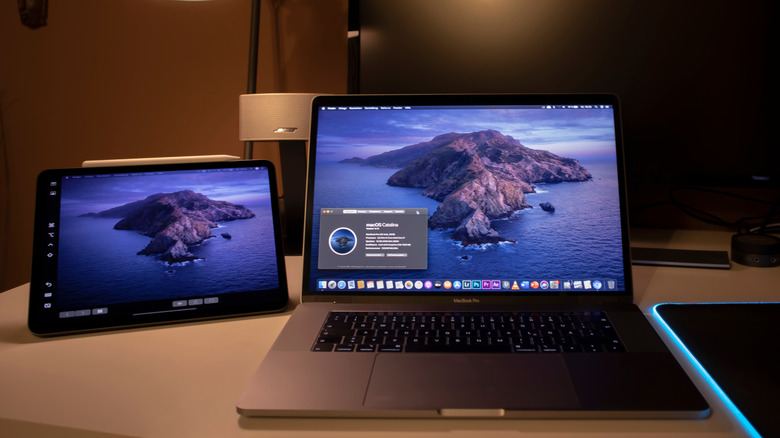
Portable displays can be quite useful for boosting your productivity on the go, and your iPad can pull double duty as one. It wasn't exactly designed to work as an external monitor, but it actually works really well for that purpose. Maybe you're working from a coffee shop or traveling, and all you have with you is your Mac and iPad. From third-party apps to Apple's own solution, there are many ways to turn your iPad into a monitor. Not only that, but they also enable features like Apple Pencil support on your Mac. It all depends on your setup and the features you need.
Sidecar: the built-in option for Mac
Sidecar is the simplest route, but there are a few requirements you need to meet. The most important one is having a Mac. Windows users are out of luck here, although there are alternatives in that case. If you already have a Mac, you're ready to go. From there, both devices need to be on the . It won't work if you use different accounts on your devices, so check your before continuing.
If your iPad and Mac are already signed in to the same account, using Sidecar is easy. On your Mac, open — it's the icon with two toggle switches in the . Look for , the two overlapping squares, in the list. Choose your iPad, and it turns into a secondary display for your Mac. From there it acts like any external display with full resolution and adjustable placement. You can even go to the Display settings under to rearrange the iPad's screen however you like.
iPad and Mac users also have access to Universal Control. Instead of turning the iPad into an external display, the idea is to use inputs from one device to control the other. Move the Mac's cursor onto the iPad's screen, send input the other way or even drag and drop between the two devices. Like Sidecar, both devices must be on the same iCloud account. Two-factor authentication has to be on, too. It works with pretty much every Mac and iPad released in the last few years.
If that doesn't work for you for some reason, try manually enabling Universal Control in the in . Look for . Click "" and select your iPad from the list.
Alternatives for Windows users
There are apps that replicate Sidecar's features on Windows too. Duet Display is one of the most popular ones, and it offers even more controls than Apple's Sidecar. It also runs on Mac, useful if your Mac and iPad aren't on the same Apple ID. But while Sidecar is completely free, Duet Display requires you to pay for a license. Also, you need to install the app on both your PC and iPad. It's an extra step Mac users skip, but a minor one. Open the app on both devices and you're set.
Luna Display, for Mac and Windows, works differently. It relies on a companion dongle that you plug into your computer first. This dongle handles the wireless transmission and makes it more reliable. Plus, Luna doesn't require a subscription — you pay $79 for the dongle, and that's it. It's good for those who hate being tied to a recurring subscription. Another big plus over other solutions is that Luna Display has a "headless mode." Plug the dongle into a Mac mini and use it directly with your iPad. No monitor needed.
Duet Display, Luna Display and Sidecar let you control macOS using the iPad's touchscreen. You can even use your Apple Pencil for navigation and drawing, turning your iPad into a graphics tablet. The Mac's own mouse and keyboard keep working the whole time. The experience is largely seamless, though glitches do turn up now and then. Keep in mind using a wired connection can help reduce these issues. Also, having the right iPad accessories — like a nice stand — can take your Sidecar experience to the next level.