
When I find something I want to remember, I usually don't stop what I'm doing, open Keep, and create a new note. I've found a few quicker ways to record my ideas.
Whether I'm browsing on my phone, working at my computer, or talking to , I can usually capture it without breaking my flow.
Here's how I set it up.
On my phone, the Share sheet does most of the work
I don't even need to open Keep
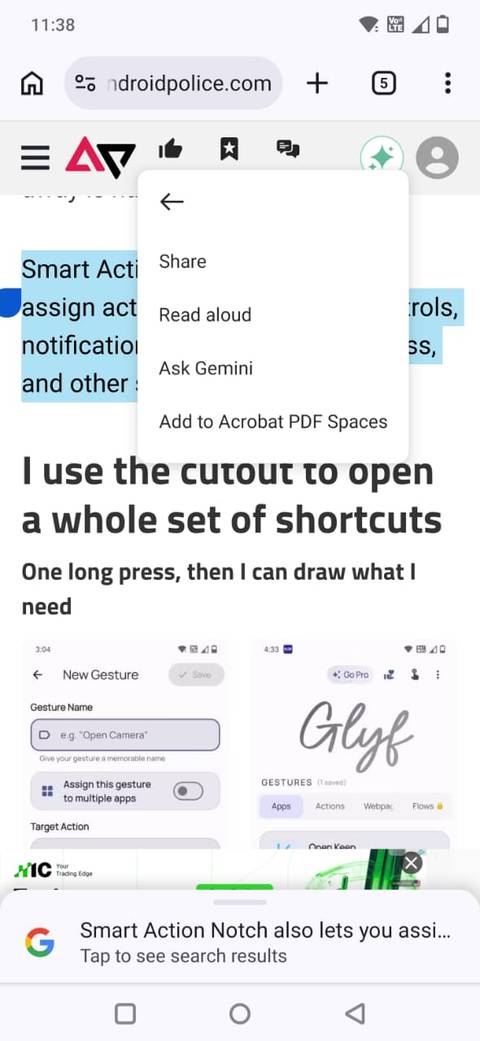
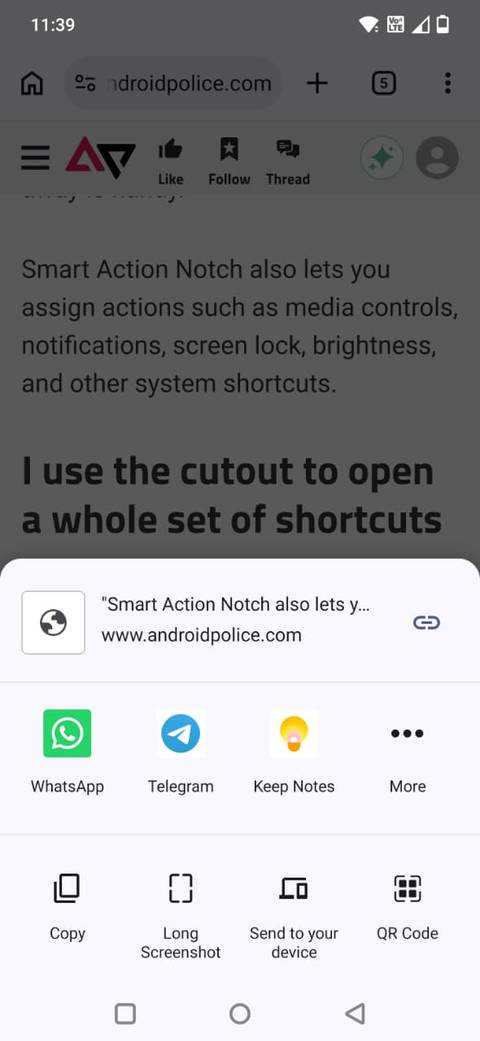
This is the trick I use most. If I'm reading something in Chrome, or any other Android browser, I can send it to Keep without opening the app first.
Say I come across a paragraph I want to save. I long-press the text, select what I want, and tap .
That opens Android's Share sheet, where I've pinned Google Keep so it's easy to find. I tap Keep, and it adds the text and the page link to a note.
When you open the Share sheet, find Keep, press and hold its icon, and tap .
This moves the app toward the front so you don't have to search for it every time.
I use the same trick when I want to save a web page. Instead of copying the URL and opening Keep, I tap the browser's share button and send it straight to Keep.
It's handy because I don't have to worry about whether the browser has a Google Keep extension. On my phone, the Android Share sheet is my shortcut to Keep.
The Keep extension is even quicker on my computer
Saving notes from my browser takes one click
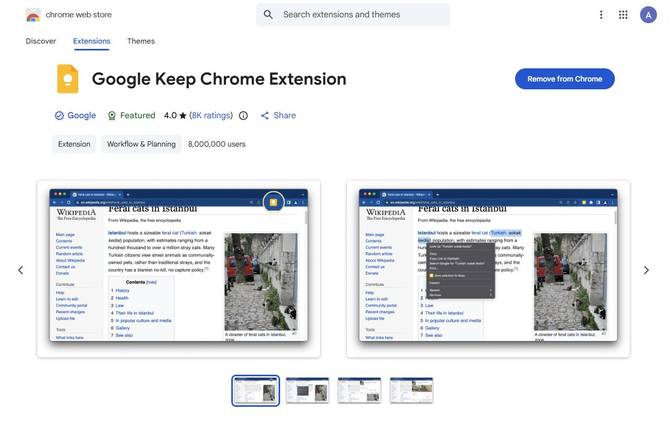
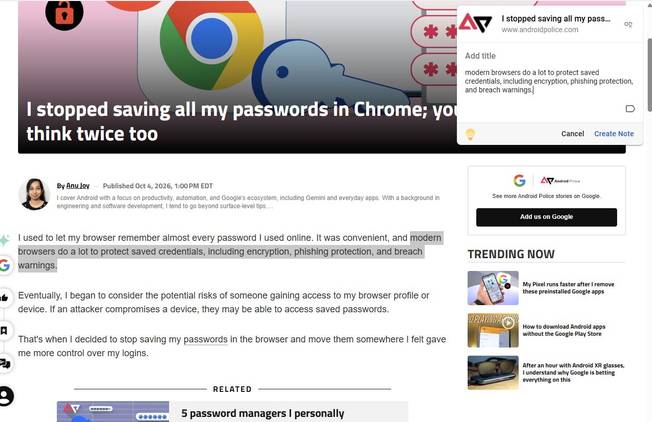
Saving something to Keep is even more convenient on my computer. I use the Google Keep Chrome extension, so I don't have to open Keep in another tab when I find something I want to save.
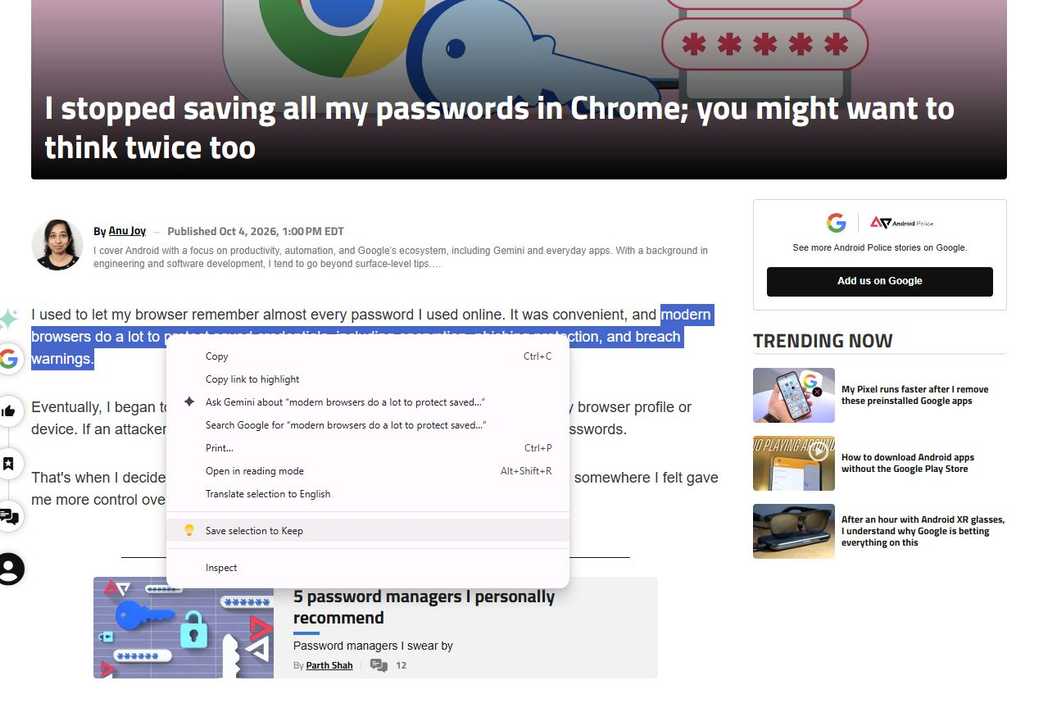
I can use the extension to save an entire web page with a click, or select text or an image and save that to Keep from the right-click menu.
If I'm reading an article and come across a useful quote, for example, I can highlight it, right-click, and choose Save selection to Keep. To save the whole page, I click the Keep icon in Chrome's toolbar.
It feels almost instant since I don't have to copy the text, open Keep, create a note, and paste it in.
Gemini can send notes straight to Keep
It makes capturing a note almost effortless
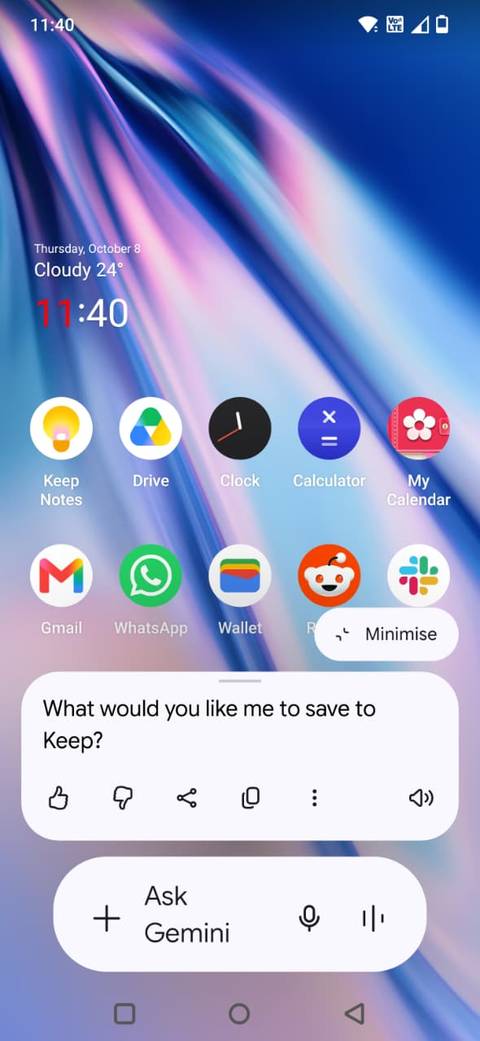
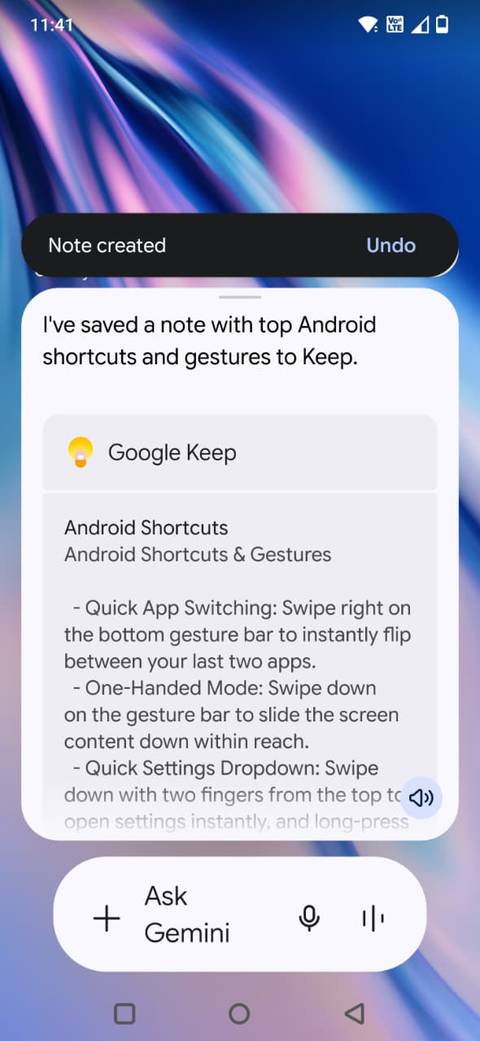
Gemini offers another way to get things into Keep without opening the app.
If I'm using Gemini, I can ask it to save something to Keep. I can also say "Hey Google" and what I want the app to remember, and Gemini can send it to Keep.
For example, if an idea pops into my head while I'm doing something else, I can say, "Hey Google, save this to Keep: [note details]."
You must connect Gemini to Keep by opening Gemini's settings, going to >, and choosing .
I can do the same thing from the Gemini app. I can tell it what I want to save and ask it to put it in Keep, or use in my prompt to make it clear where I want the note to go. Gemini can create new Keep notes and add items to existing Keep lists when Keep is connected.
This is probably the most hands-off way I use Keep. I don't need to stop what I'm doing, open the app, and start typing. If something occurs to me, I can tell Gemini to save it.
Keep is right there in my Gmail sidebar
Add a note without leaving Gmail
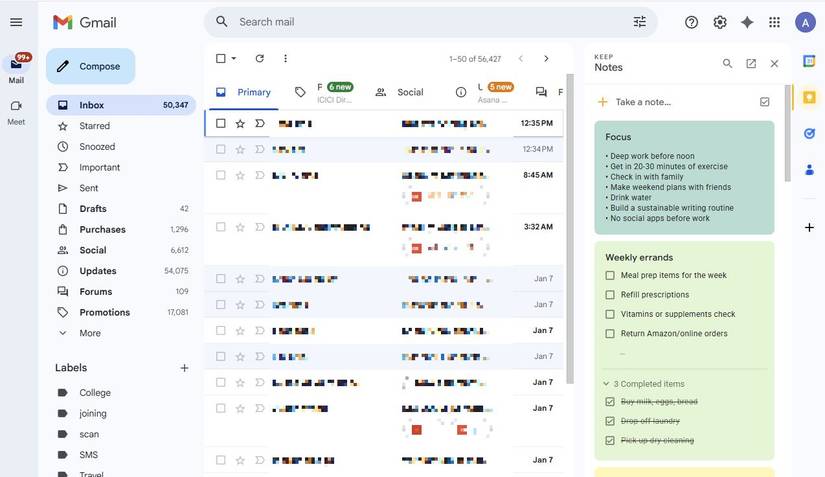
There's another way I use Keep on my computer that doesn't require opening a separate tab. When I'm using Gmail, I can open the side panel and click the Keep icon.
My Keep notes appear alongside my inbox so I can check or add something without leaving Gmail. I can also access Keep from the same side panel in Calendar, Drive, Docs, Sheets, and Slides.
I find this handy when I'm working through emails. I can have Keep open beside Gmail and add a note without switching between tabs.
Keep is the app I don't have to open
If I find something on my phone, I can send it to from the Share sheet. On my computer, I can save things with the browser extension or pull up my notes from . And when I'm using Gemini, I can ask it to save a note to Keep.
That means I don't open Keep as often, but I save more notes to it.