I made the mistake of using without changing any settings and plugging it into my car for Android Auto.
But soon after, I realized the app has a few settings you can tweak to cut down on some of its annoying features.
Some settings change how the app behaves, while others affect navigation.
Here are the settings I changed to make my Waze experience better in Android Auto.
I hate it when Waze talks to me when I need silence
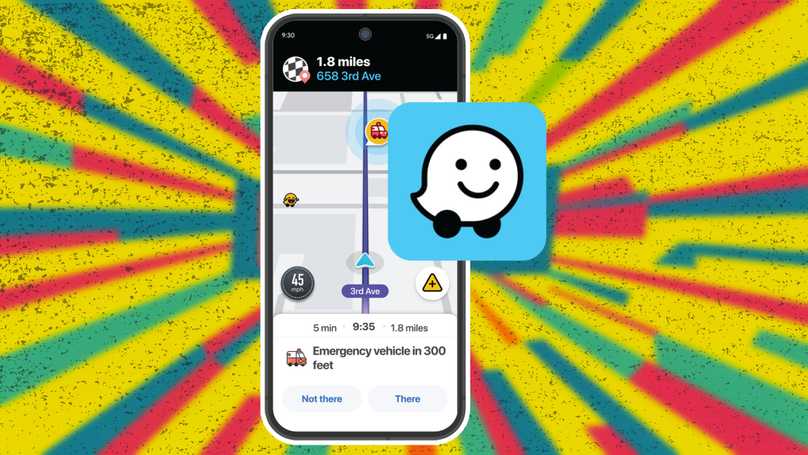
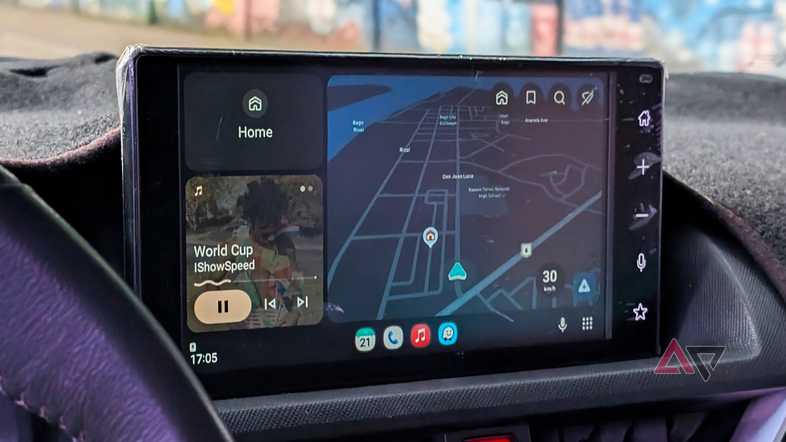
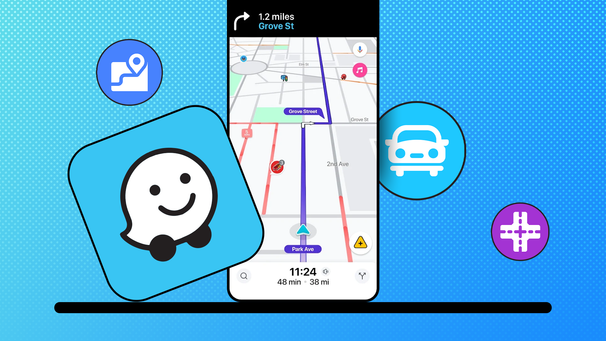
Waze includes many community-powered alerts and notifications. Many of these alerts are important, while others, in my opinion, don't need an audio alert.
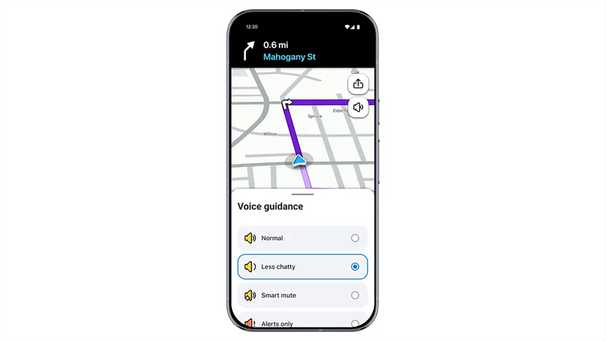
I found Waze to be a bit more chatty than Google Maps, and I wanted to replicate that experience.
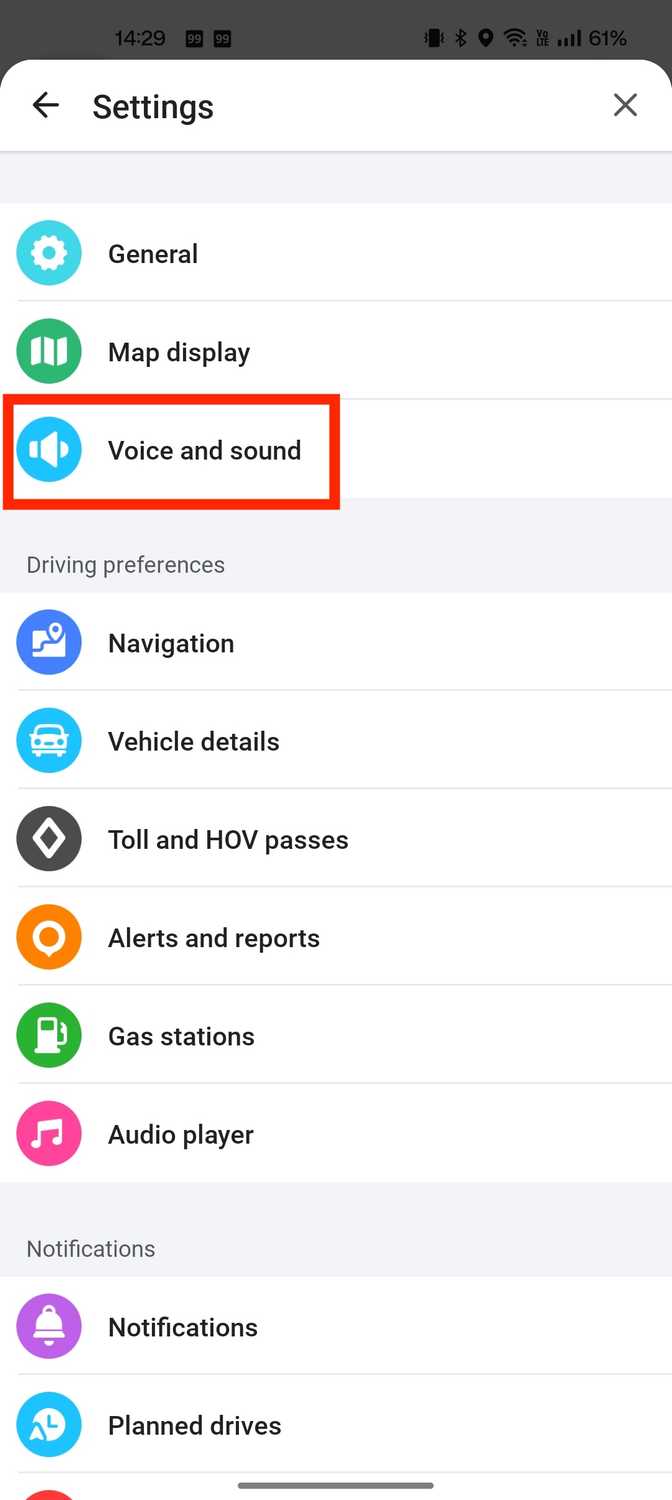
In the Waze app on the phone, go to > , select , tap Spoken directions or Voice directions, and choose the option.
This setting lets Waze give alerts only for important notifications and keeps them brief.
You will still get essential alerts like turn instructions, hazard alerts, and lane guidance, but it removes the irritating "in 500 feet… in 300 feet… turn right" alerts.
I prefer to turn on this feature when I'm on a road trip or an unfamiliar highway, but it wasn't necessary for .
This also lets me enjoy music or podcasts without Waze's alerts interrupting me, and they get really annoying fast.
Cleaning up the map
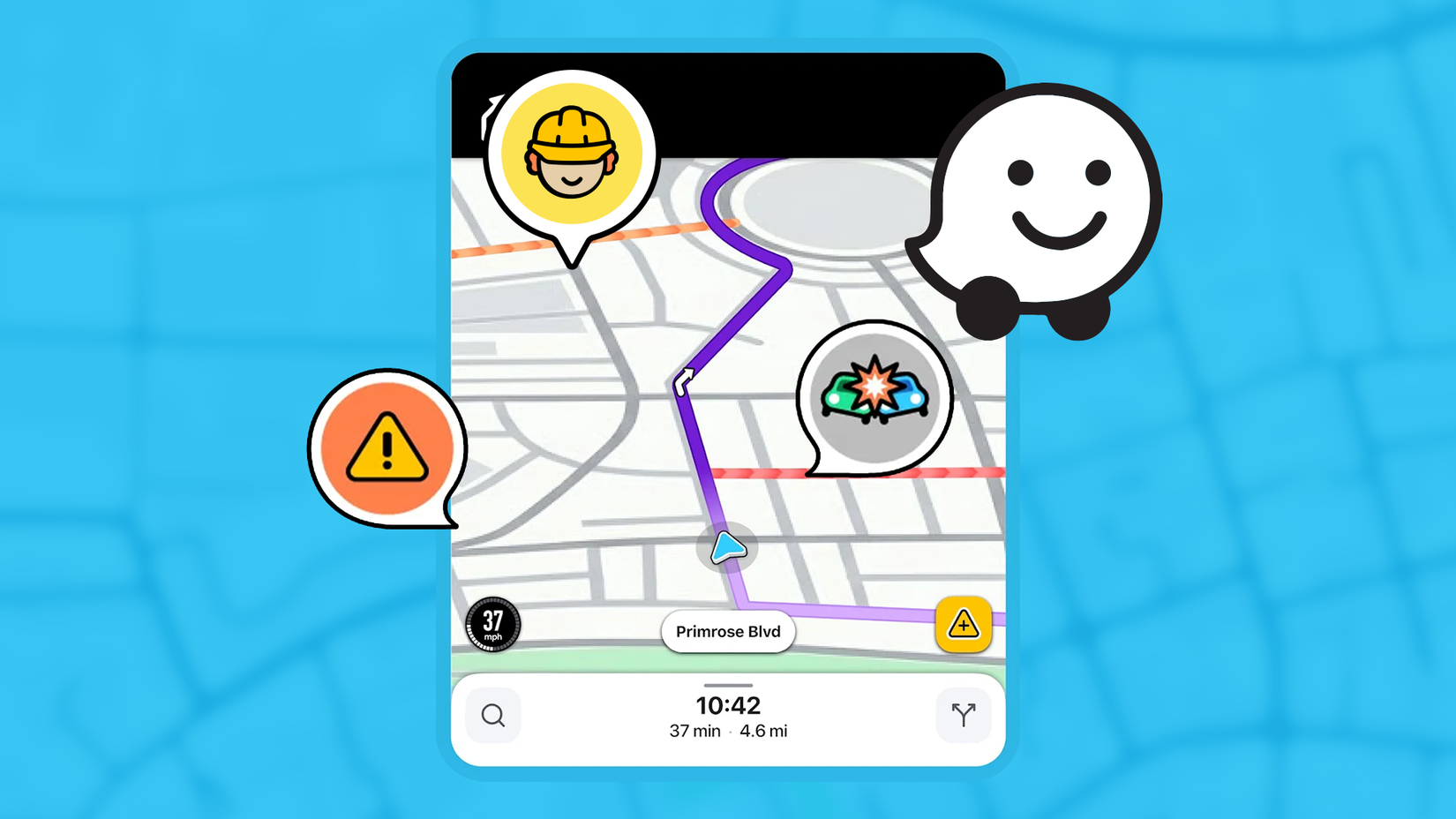
For all its benefits, Waze can sometimes feel like a that also serves as a social media network.
Don't get me wrong, I love the Waze community and their contributions, but I don't need to see every Wazer in my vicinity on the map. It serves no purpose beyond spotting another Waze user on the same road.
But after a while, it gets tiring and visually overwhelming. So I turned off the setting to see other Wazers to make the app a lot cleaner.
To hide other Wazers on the map, go to > and turn off . The same menu also lets you toggle off other non-essential icons.
After I turned off the Show Wazers setting, the map looked more like a navigation app.
On Android Auto, since the display can be small in some cars, this helps you get the relevant information quickly.
To remove more clutter from Waze, I also turned off certain report categories that didn't matter as much.
Finally, I made sure the setting was on so I could see live traffic flowwith red/yellow/green markers.
After I tweaked these settings, Waze felt more like a navigation tool that made my daily commute a bit more bearable.
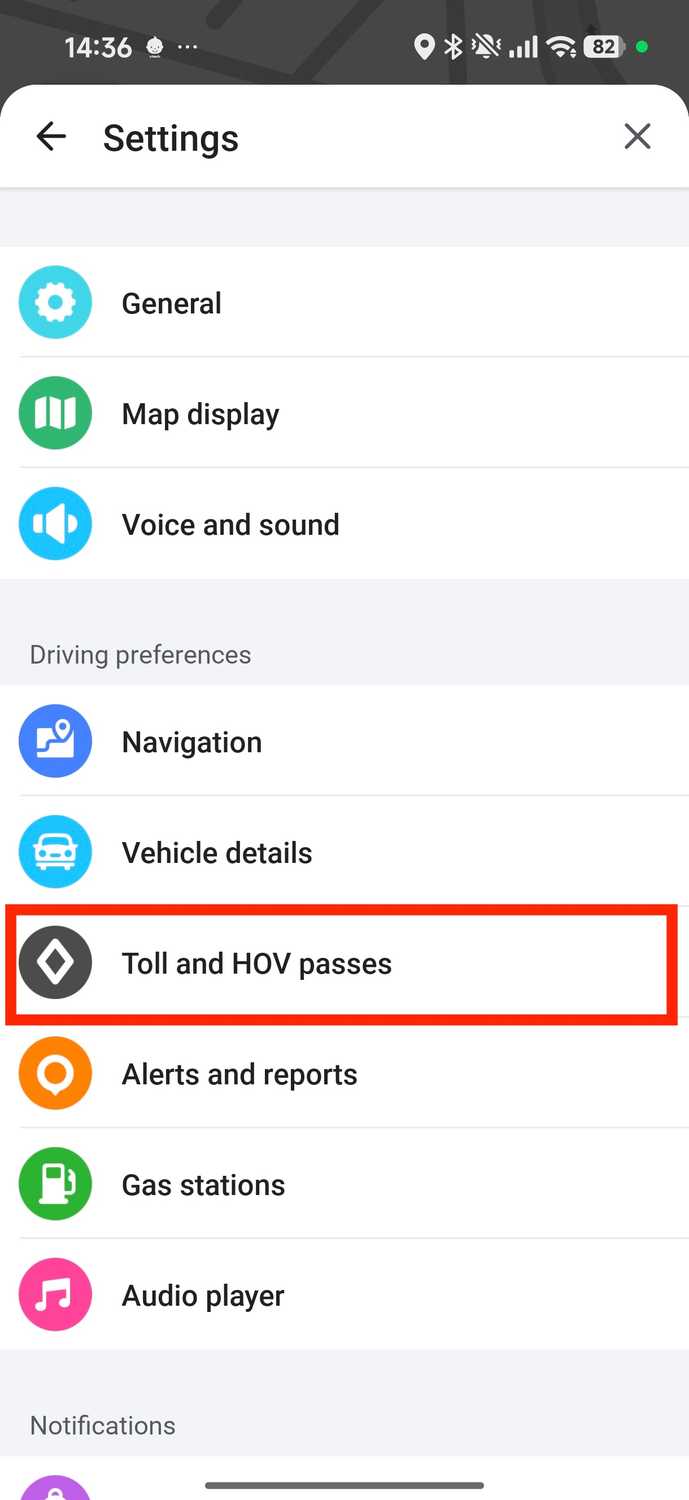
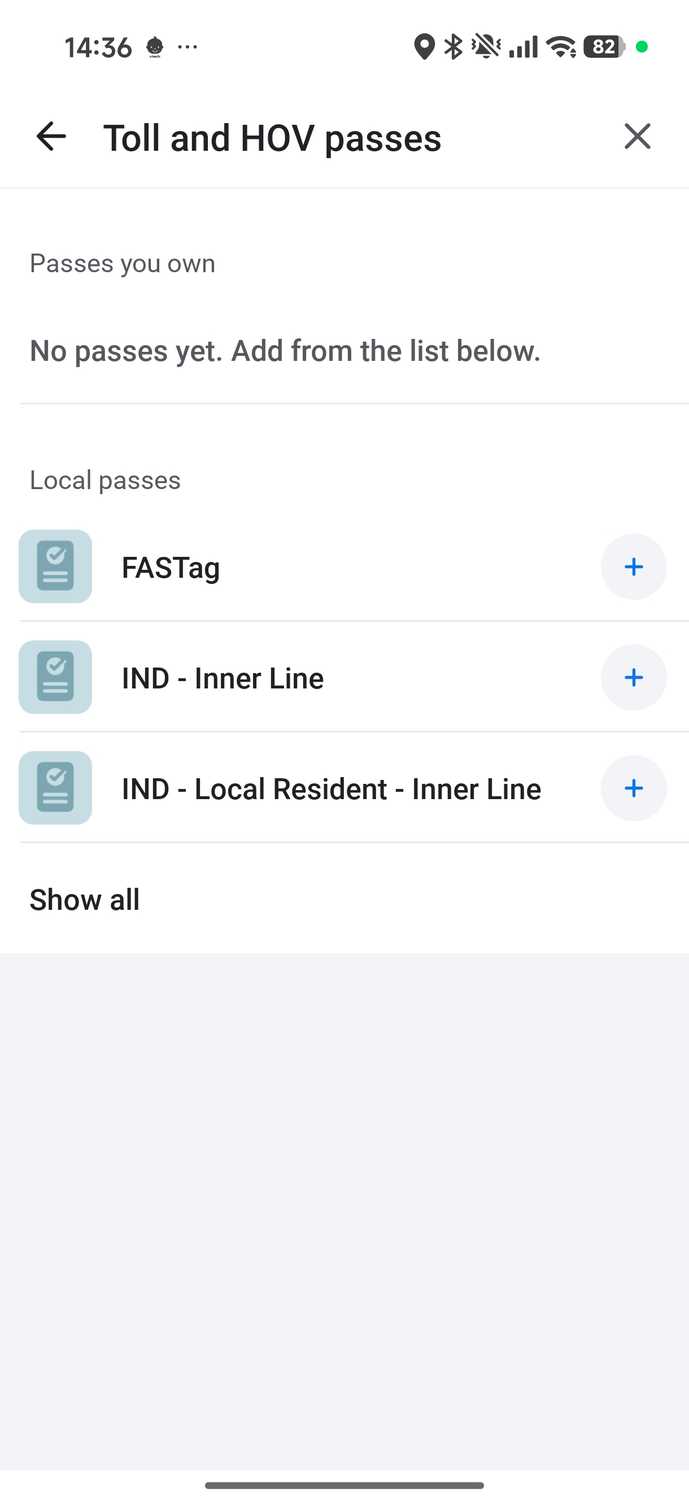
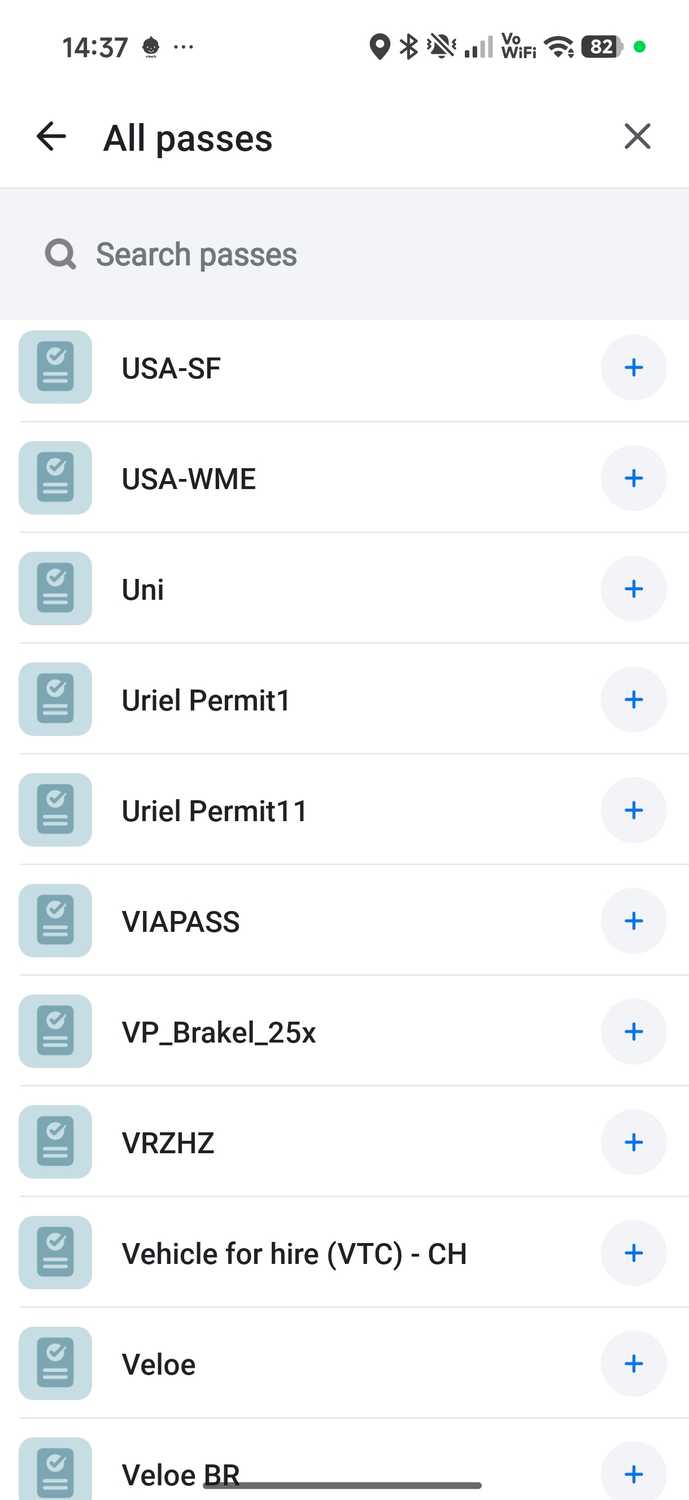
By default, Waze reroutes aggressively and avoids tolls or HOV lanes unless you enter your pass details.
This could mean that you will reach your destination later than usual, especially if Waze reroutes you via obscure roads.
But you can easily mitigate this if you have an HOV pass/stickers and electronic toll tags.
I wasn't aware of this feature until a fellow Wazer pointed it out, and now I breeze through peak-hour traffic using Waze.
After adding my pass, Waze offers routes with HOV lanes and roads that I can take based on my pass.
This not only helps me reach my destination on time, but also makes ETAs more accurate and helps me avoid slower roads.
In my opinion, changing this setting is essential for Android Auto users, and saving time during the daily commute equals money.
Full HOV/toll-pass routing support has limitations in some regions, so verify local availability.
Additionally, go to > and turn off Avoid toll roads if it helps your daily commute.
After I changed these settings, I noticed I shaved at least 10 to 15 minutes each time.
Waze stopped sending me the long way and started showing faster options with accurate pricing.
I no longer feel overwhelmed by Waze
Tweaking these settings made my Waze experience in Android Auto much smoother than the default settings.
While I still switch some settings on the highway or in unfamiliar areas, these changes made all the difference to my daily commute.
I recommend changing these settings if you haven't already.