Google Messages is my go-to texting app, but I don't love everything about it. My inbox gets messy quickly with promotional texts, verification codes, delivery updates, and conversations.
Even when I only want to find an important , I must wade through numerous chats.
After I spent some time cleaning things up and turning off distractions, the app became easier to manage. These tweaks made the biggest difference.
Turn on spam protection in Messages
Keep unwanted messages away
Unwanted texts are one of the biggest reasons my Google Messages inbox gets cluttered. I regularly come across messages from unknown numbers advertising products, promoting suspicious offers, or trying to get me to click questionable links.
Instead of deleting these messages every time, I let Google Messages' built-in spam protection manage them.
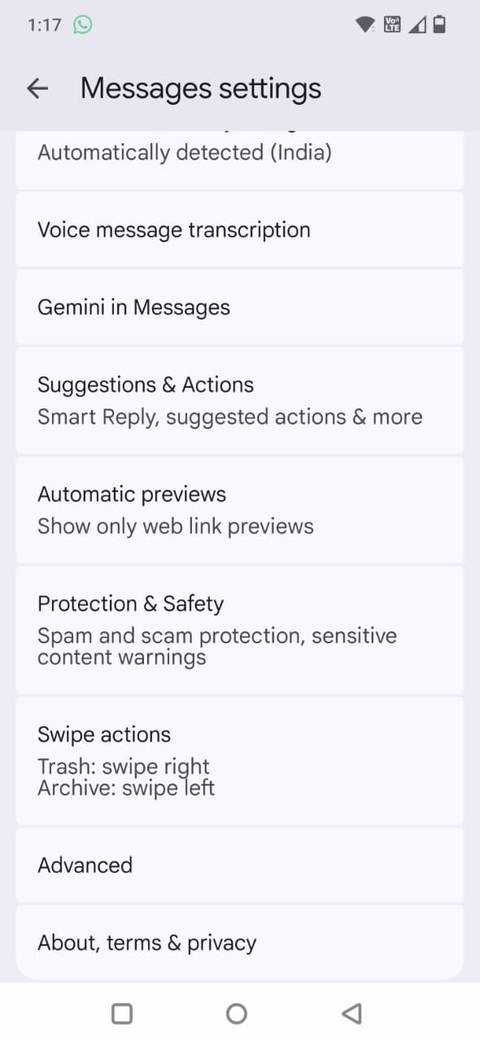
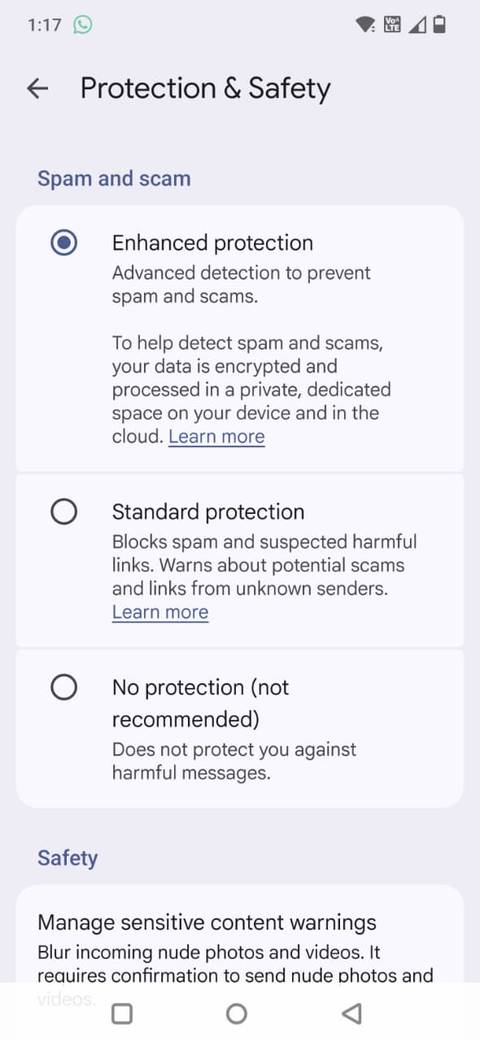
To enable it, open Google Messages, tap your , and go to Messages settings > > Enhanced protection.
When enabled, Google Messages uses machine learning to identify suspicious messages and moves them into the folder. It also warns you about potentially harmful links and scams, helping you avoid interacting with messages that don't look trustworthy.
I also help improve spam detection by reporting messages that slip through the filter. I open the conversation and tap Block and report spam. This blocks the sender and moves the conversation out of my main inbox.
Automatically delete old OTP messages
I stopped them from taking over my inbox
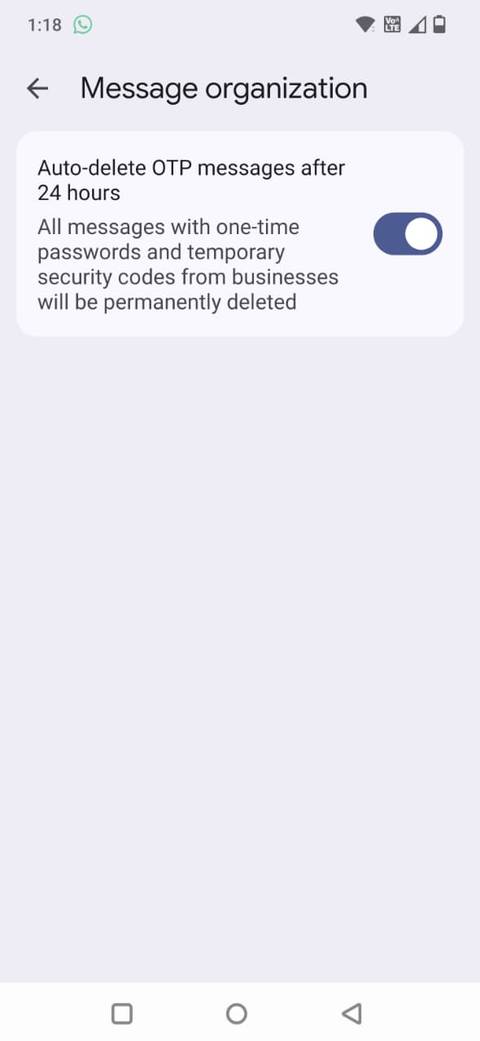
One of my biggest inbox annoyances is one-time passwords (OTPs). I receive them when I sign in to accounts, confirm purchases, or complete online transactions.
The problem is that these messages tend to accumulate in my inbox, adding to the clutter. Instead of deleting them, I let Google Messages handle it.
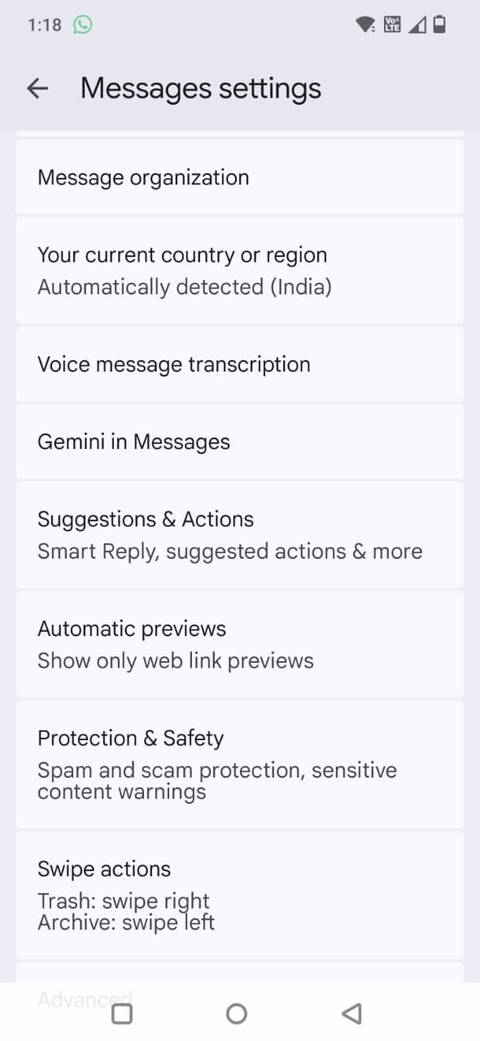
To enable this feature, open Google Messages, tap the , and go to Messages settings > Message organization. Look for the option and turn it on.
Google Messages will automatically remove OTP messages after they've been in your inbox for 24 hours.
Verification codes are usually temporary, and keeping dozens of expired ones serves little purpose. It's a simple set-and-forget feature that keeps my inbox cleaner without requiring me to sort through old messages or delete them individually.
I get the Gemini button out of my way
Make Messages feel less cluttered

Google Messages is my default texting app for chatting with friends and family. I don't need an AI assistant alongside my conversations, especially when I have the standalone Gemini app.
The Gemini shortcut in Google Messages also takes up space on the main screen, so I prefer hiding it to keep the interface focused on my conversations.
To hide it, open Google Messages, tap your , and go to Messages settings > Gemini in Messages. Turn off the option.
After it's off, the Gemini shortcut disappears from the main conversation screen, leaving me with a cleaner interface and fewer distractions when I open the app.
I got rid of chat bubbles that kept getting in my way
Stop Messages from taking over the screen
Chat bubbles might be useful if you want to reply to messages without leaving the app you're using, but I find the floating icons distracting.
They sit on top of whatever I'm doing, whether I'm browsing the web, watching a video, or reading something, and can get in the way when I least expect them.
I'd rather open Google Messages when I want to respond than have conversations hovering over my screen all the time.
I can turn them off without turning off message notifications. I open Google Messages, tap my , select Messages settings, and tap .
From there, I choose Nothing can bubble. This stops conversations from appearing as floating icons over other apps, but I still receive regular message notifications in the notification shade.
If you only want to switch off bubbles for certain conversations, choose Selected conversations can bubble. That way, you can keep the feature for important contacts while preventing other chats from interrupting.
I turned off outgoing message sounds
Silence unnecessary message alerts
One final tweak was getting rid of the sounds that play when I send messages. I don't need an audible confirmation every time I tap Send, especially when I'm looking at the conversation.
I went to Messages settings and turned off . This removes the unnecessary sound that plays when I send messages.
A few simple changes made messaging less annoying
has several useful features that helped me cut down on clutter, avoid unwanted interruptions, and keep important conversations within reach.
Some changes work in the background, such as OTP auto-deletion and protection. Others, such as muting noisy conversations and turning off chat bubbles, give me more control over how I interact with messages.