For weeks, I was convinced that my Google Pixel 8 keyboard was broken. Autocorrect kept twisting my words into things I never typed, and every few messages I had to stop and fix it before tapping send.
It got to the point where I was constantly proofreading every message twice, which defeats the purpose of typing quickly.
I did what most people do. I dug through Gboard's correction settings, flipped a few toggles, and hoped something would stick.
None of that touched the actual problem, though. Plenty of Gboard's default behavior should be changed, and the real issue wasn't autocorrect at all. It was sitting on one menu the whole time.
The problem was physical, not autocorrect being bad
I was pressing the wrong keys before autocorrect ever got involved
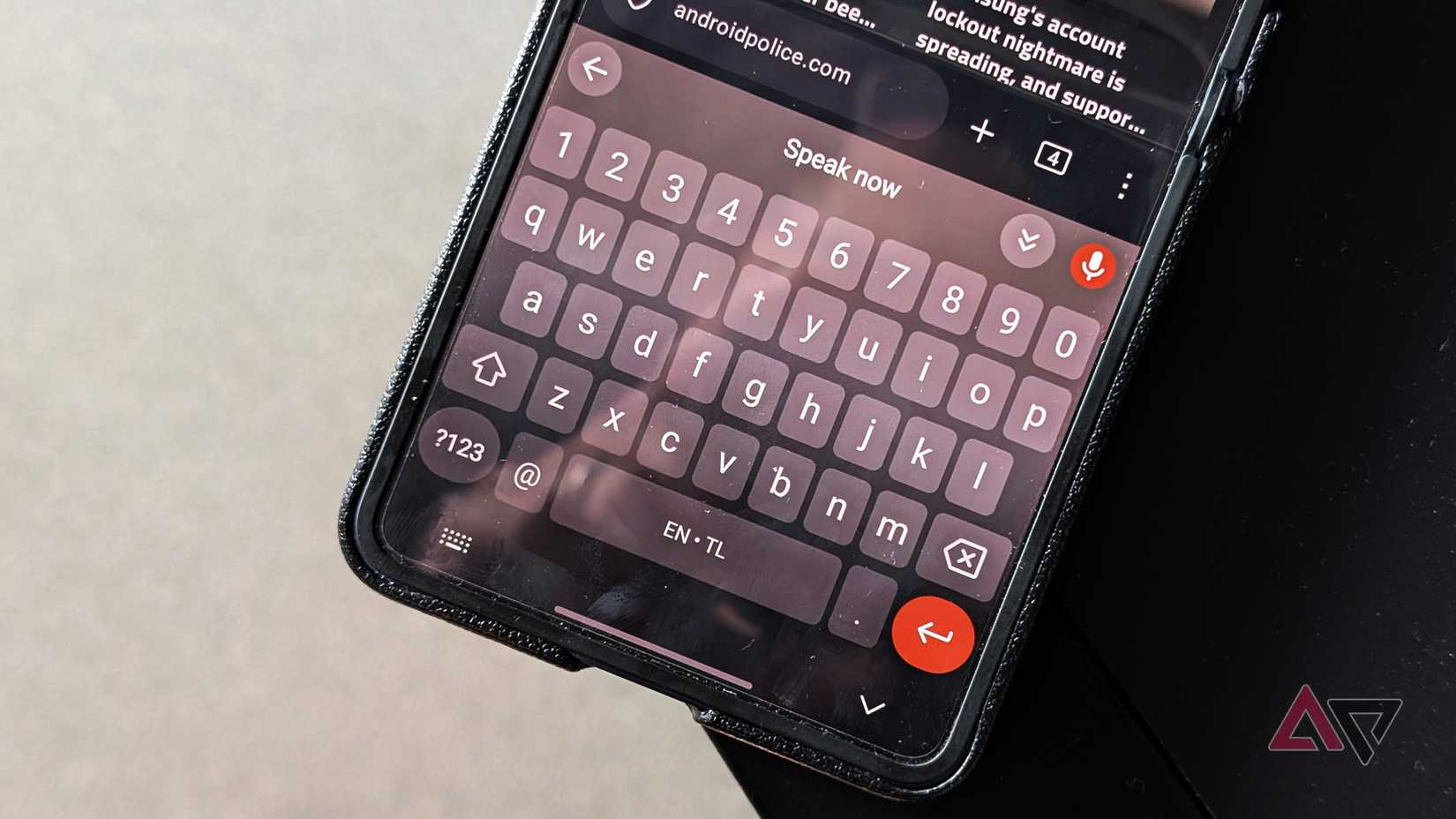
Gboard's default keyboard layout had me tapping adjacent keys constantly, especially when I typed with one hand.
A small missed tap on the letter sitting next to the intended one doesn't look like much on its own, but autocorrect treats overly confident guesses as a feature instead of a bug, and kept fixing those near-misses into words I never meant to type.
The keyboard wasn't reading my mind. It was reading my thumbs, and my thumbs were constantly landing a few millimeters away from the target.
By the time I noticed the pattern, I'd been blaming the wrong settings all along.
Resizing the keyboard fixed most of it almost immediately
A taller keyboard gave my thumbs more room to perform
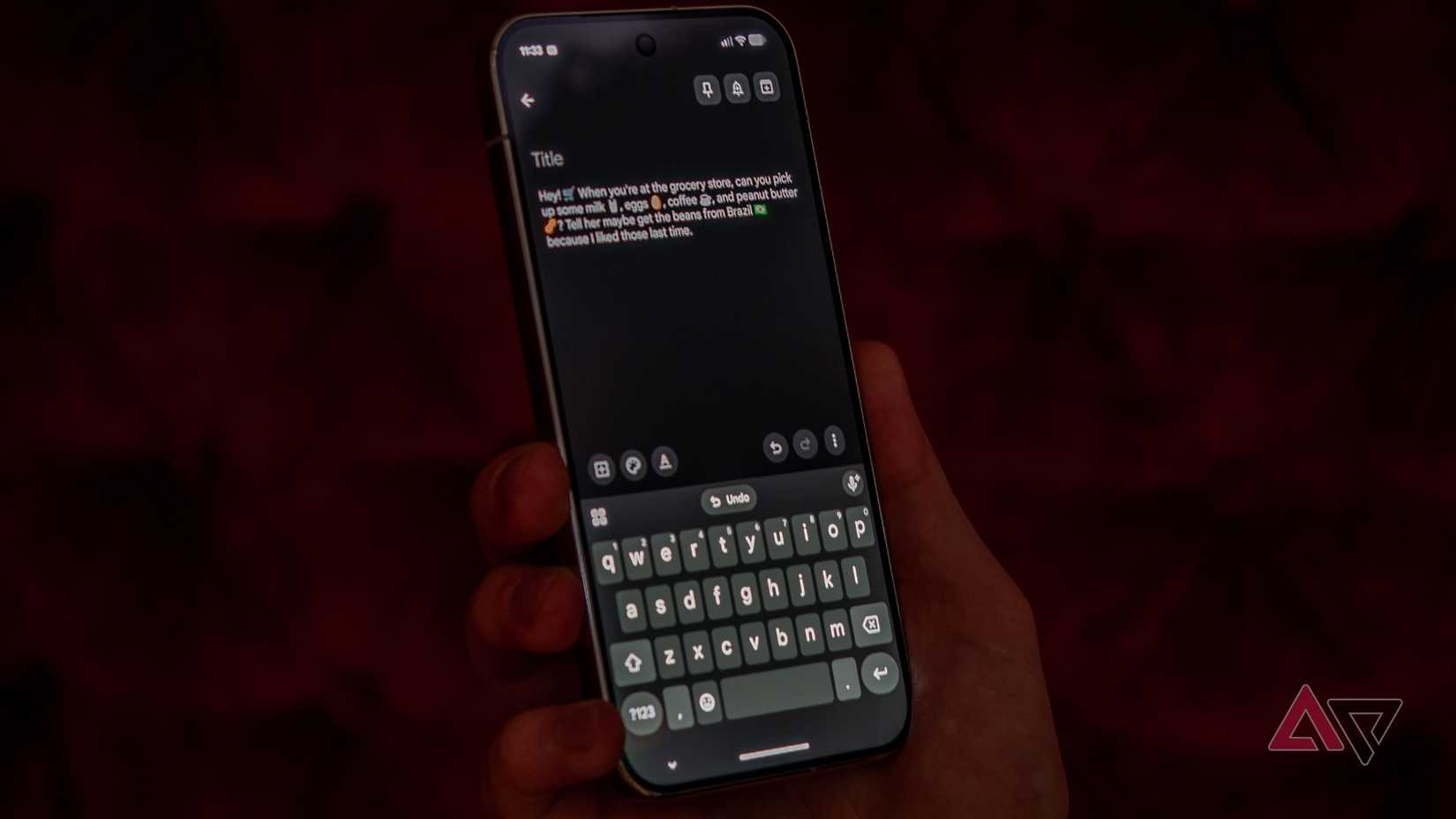
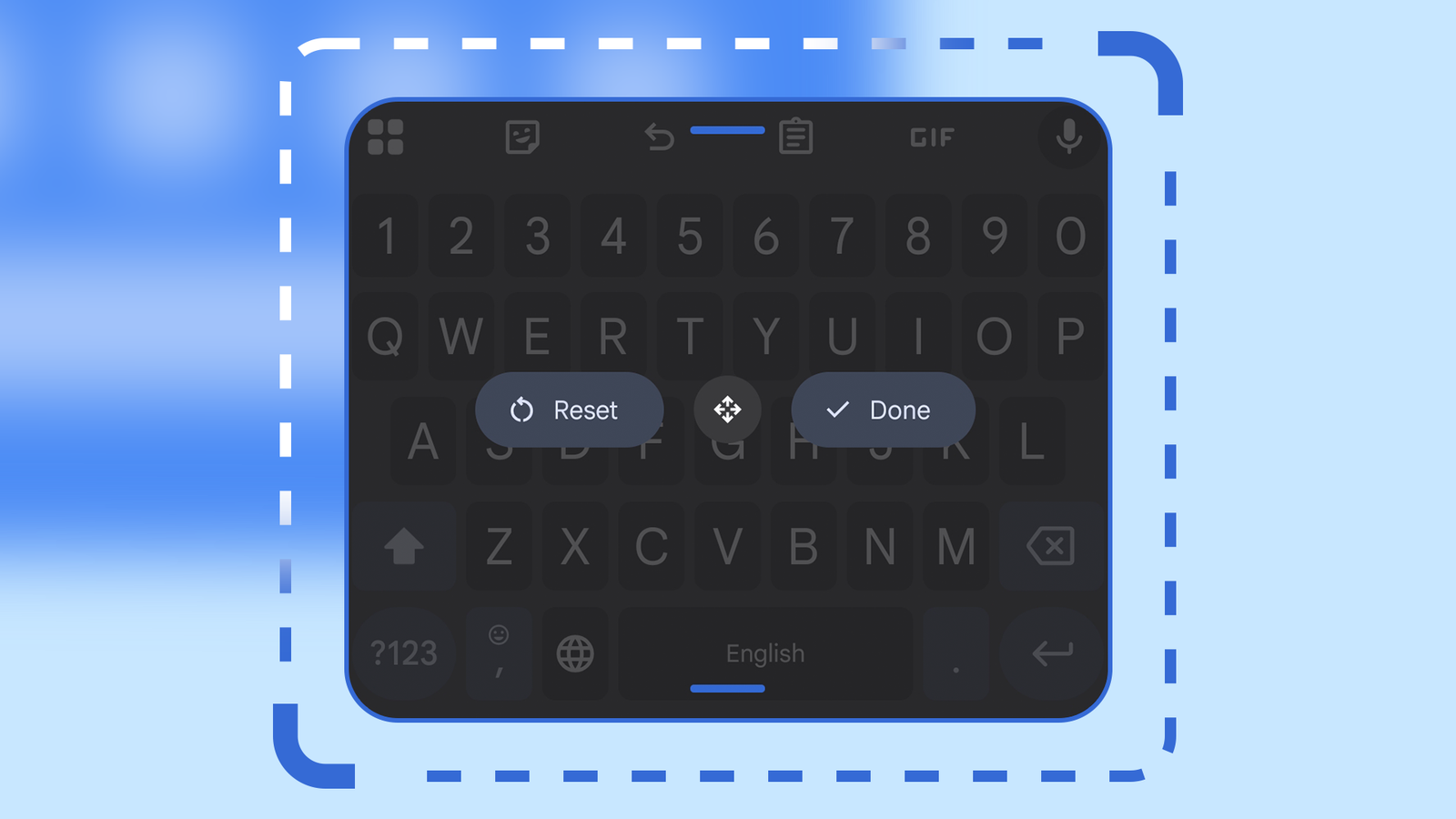
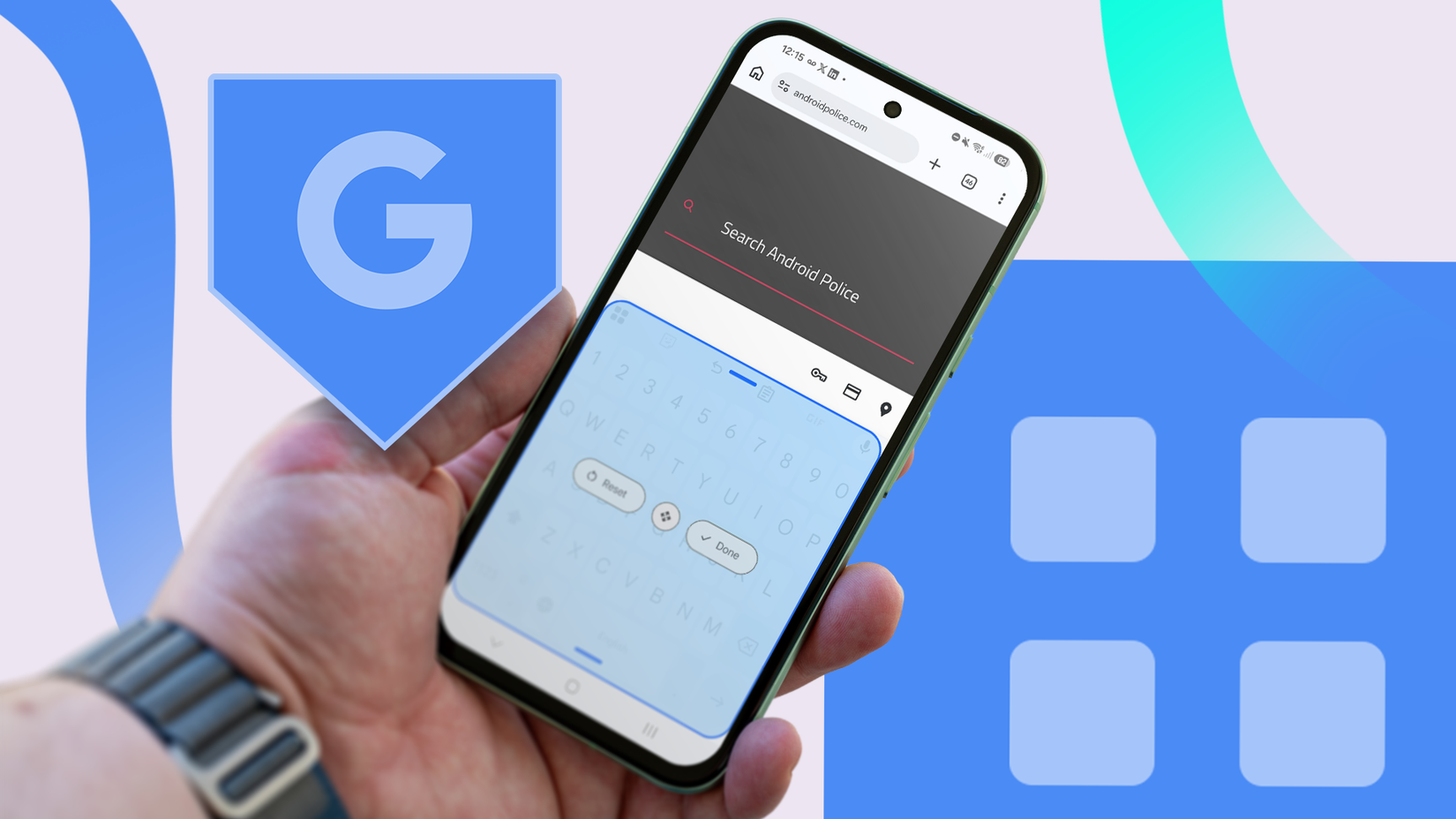
The fix lives under the four-square toolbar icon on Gboard, in the Resize tool, away from the standard settings menu where you'd expect to find something useful.
I adjusted the height and widened the gap between the rows to match how I hold my phone, which gave my thumbs more breathing room.
After I made the changes, I noticed fewer mistakes than before in the first few messages. I needed a short adjustment period since I was used to the older layout.
After my thumbs memorized the new layout, the spelling went just fine after a while, and autocorrect had fewer errors to work with.
Three smaller settings cleaned up what was left
The supporting fix, not the main one
After the physical mis-taps dropped, I went after what autocorrect was still getting wrong on its own.
First up was my Personal Dictionary, found under > , where I cleared out old entries and added names and shortcuts that Gboard kept getting wrong.
Gboard has no way of knowing an unusual name until you type and tell it.
I also dialed back under , so it stopped rewriting words abruptly while the suggestion strip still let me tap the right word manually.
Turning on the Number row wasn't about autocorrect; it just meant one less place for my thumb to slip when typing a digit.
None of these three options mainly helped me get over the autocorrect flubs, but they did help me type faster one way or the other.
I only applied these changes after I'd fixed the real cause of my issue. So I was just tidying up the place or polishing my experience.
The fix wasn't perfect, and that's fine
Error frequency dropped, but not to zero
None of this fixed autocorrect completely, and I'm not going to pretend that my typing experience is now perfect. The flubs still exist, and it's a never-ending process.
Names it's never seen before still occasionally get mangled, and fast typing under real pressure still slips a wrong word through here and there.
There will always be mistakes, and Gboard can't fix them all at once. Gboard still guesses the intent of my words as soon as I type them, and those guesses go wrong at times, no matter how good the layout is underneath my thumbs.
What changed was how often mistakes happened. From constant errors to the system autocorrecting only sometimes is a win for me, and probably for you too.
It wasn't really about Gboard's settings menu
But about where mistakes actually originated
The entire fiasco has nothing to do with a single toggle. Autocorrect gets blamed for a lot of typing problems that start somewhere else, usually in how comfortably your thumbs reach the keys long before any software gets involved.
A plethora of typing frustrations on Android turns out to be fixable without touching the autocorrect toggle. I just had to figure out the real problems and find their solution.
Mine were resting inside the Resize menu the entire time, one tab away from the corrections settings I'd been fiddling with for months.
It's strange to admit that the fix for autocorrection flubs was never about autocorrect.
But that is exactly what made this fix stick after I found it, buried in a menu I would typically ignore.