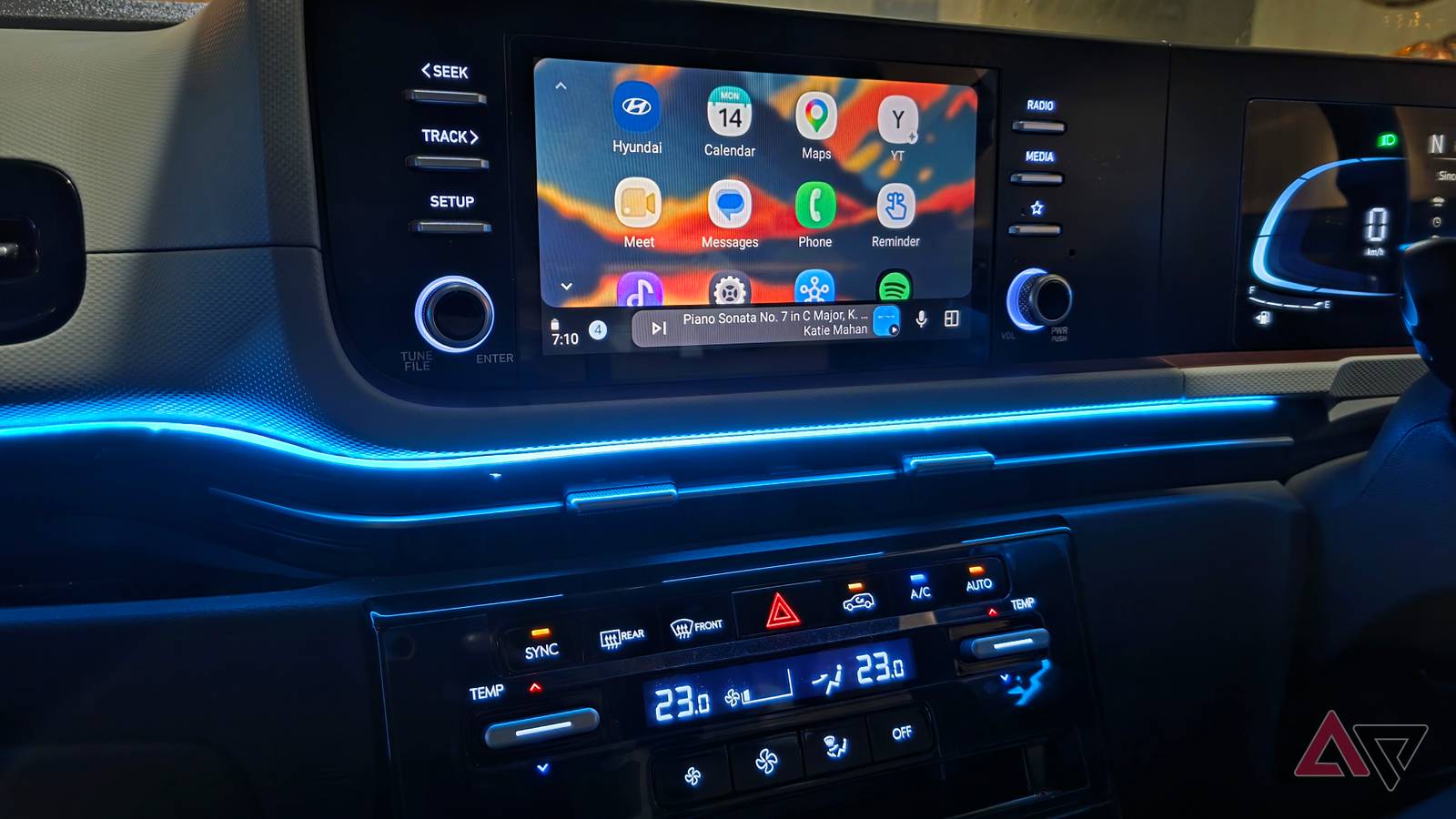
Android Auto is supposed to make driving simpler, but my phone was quietly making the experience more complicated than it needed to be.
Some heated up my phone, others wasted battery, and a few added distractions I didn't need while driving.
So, I started switching things off one by one, and the difference was bigger than I expected.
My phone now runs cooler, Android Auto feels cleaner, and the entire experience is less frustrating.
Removing instant messaging apps from the launcher
Do you really use WhatsApp or Telegram while driving?
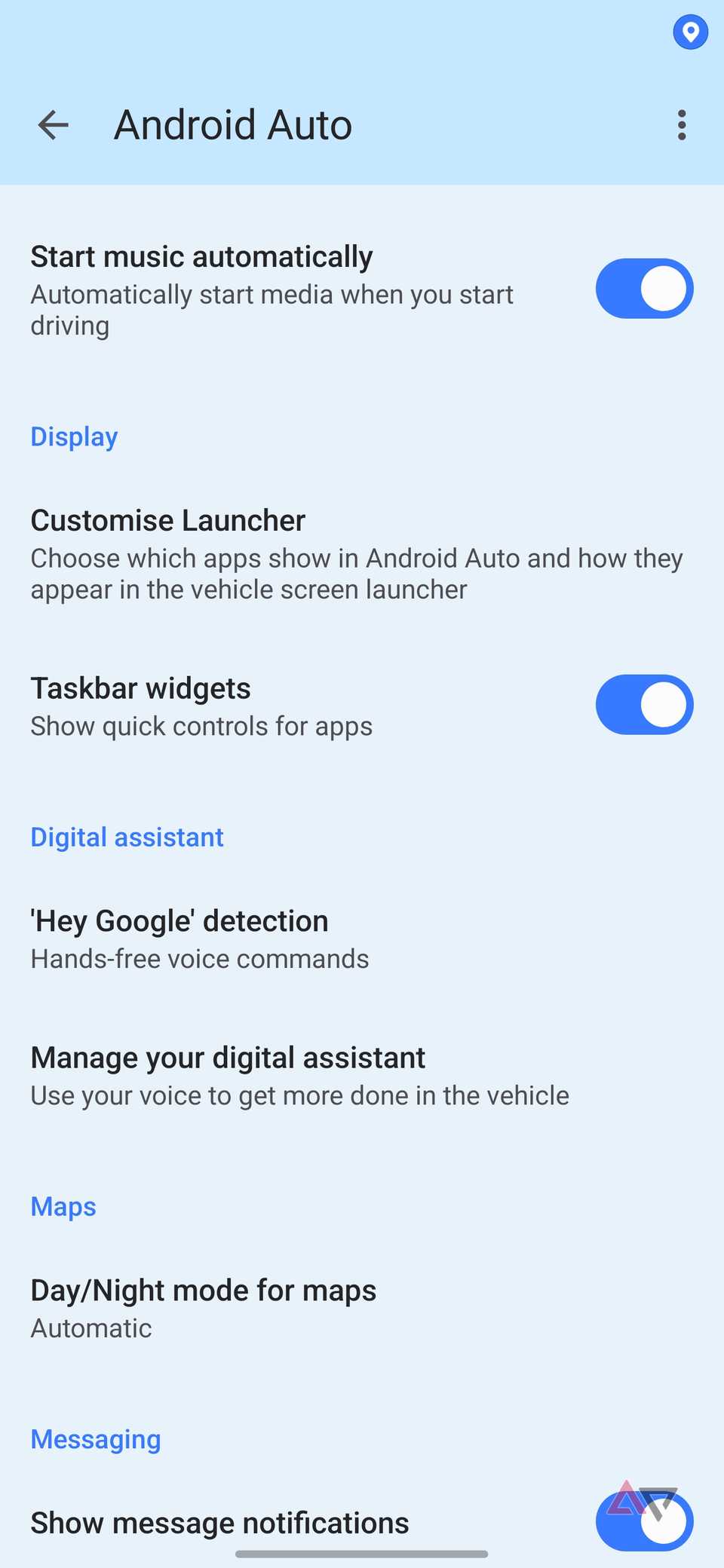
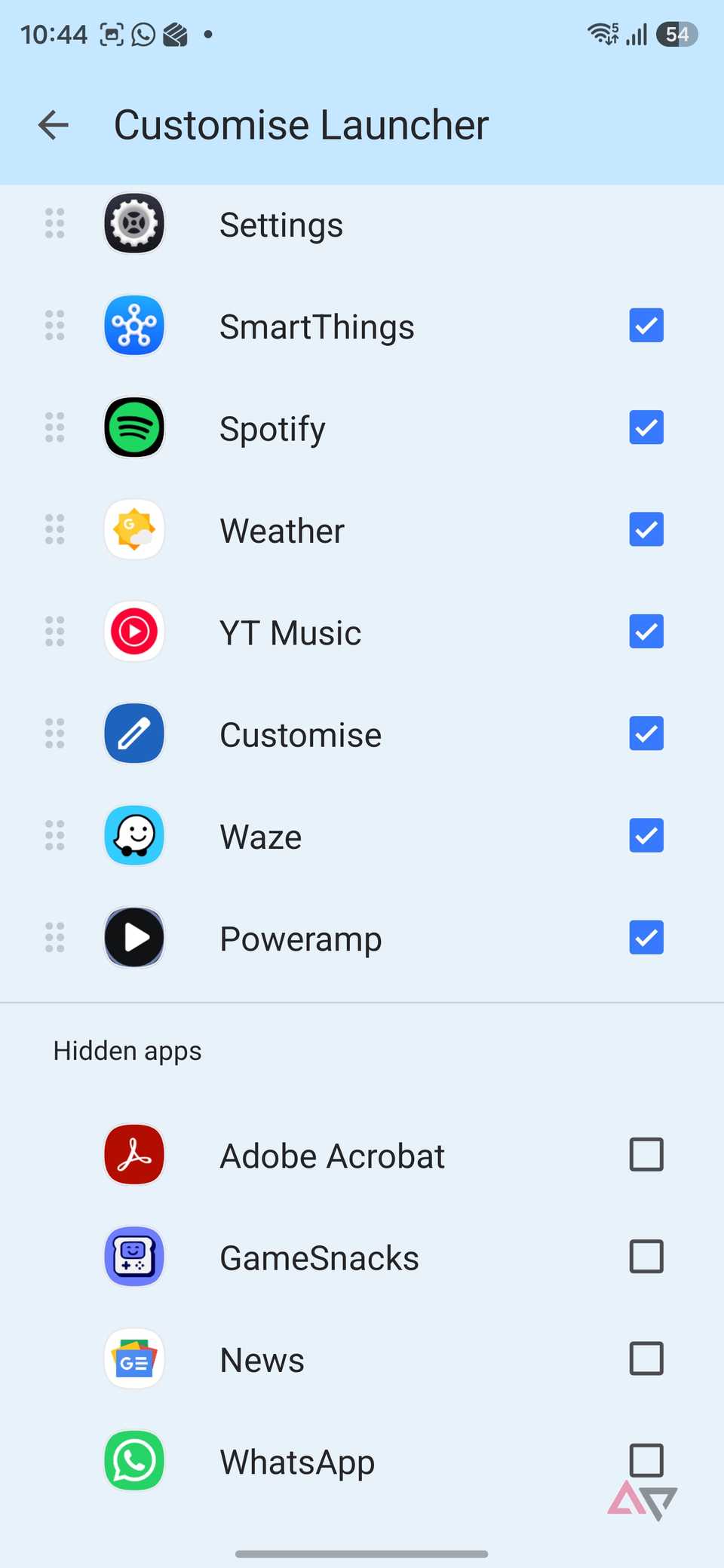
One of the first things I removed from my Android Auto launcher was instant messaging apps like WhatsApp and Telegram.
The more I thought about it, the less sense it made to keep them there.
After all, do I need to check or reply to messages while I am on the road? Not really.
I also rarely want incoming messages read aloud when someone else is in the car. Some conversations are private, and the last thing I need is Android Auto announcing a message in front of passengers.
I headed to the Android Auto settings on my phone and removed WhatsApp and Telegram from the list.
That doesn't mean I lose messaging completely. If I need to ping someone on WhatsApp, I can always use Gemini.
For example, I can ask Gemini to share my ETA with Jack on WhatsApp, and it does the job in no time.
I get the convenience when I need it, without keeping messaging apps front and center throughout every drive.
Turn off automatic media playback
Play music at a convenient time
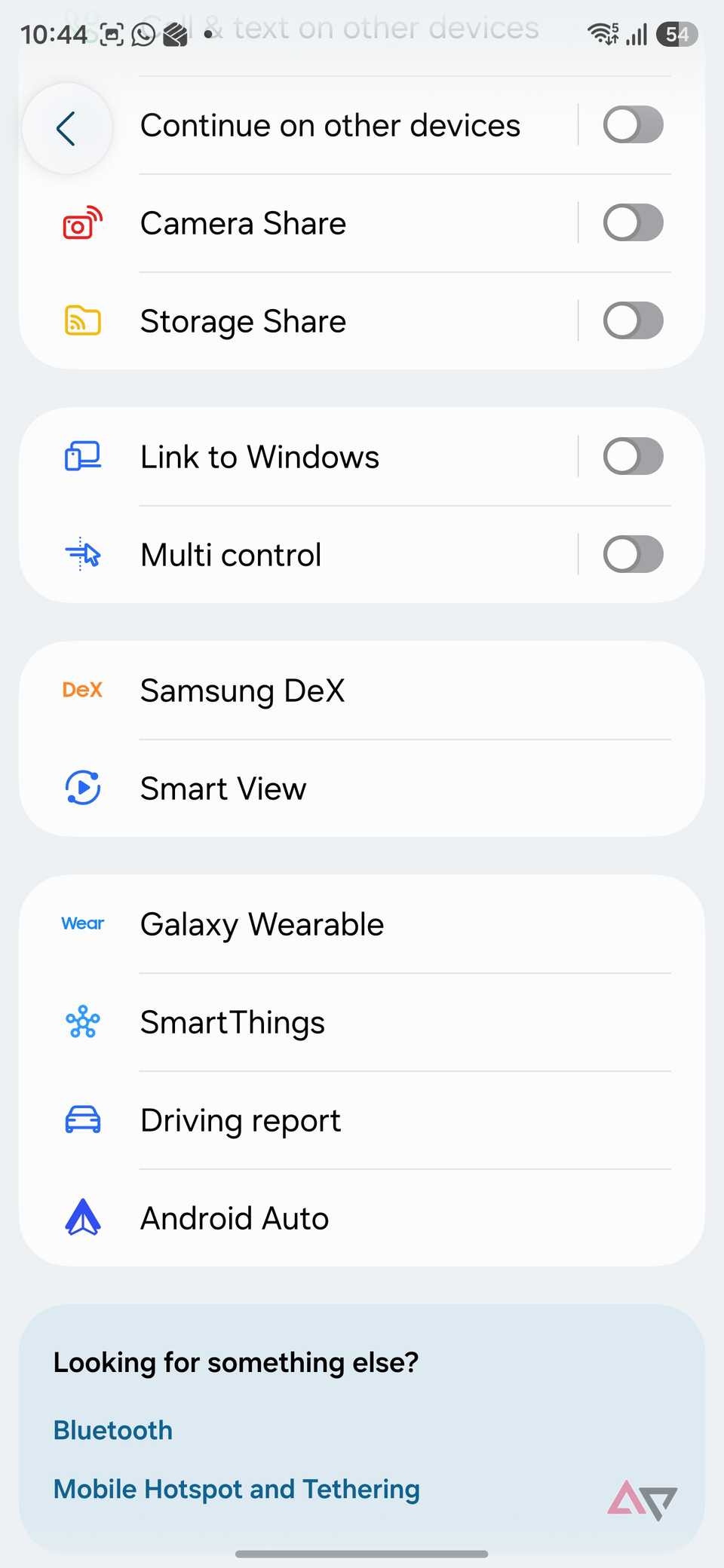
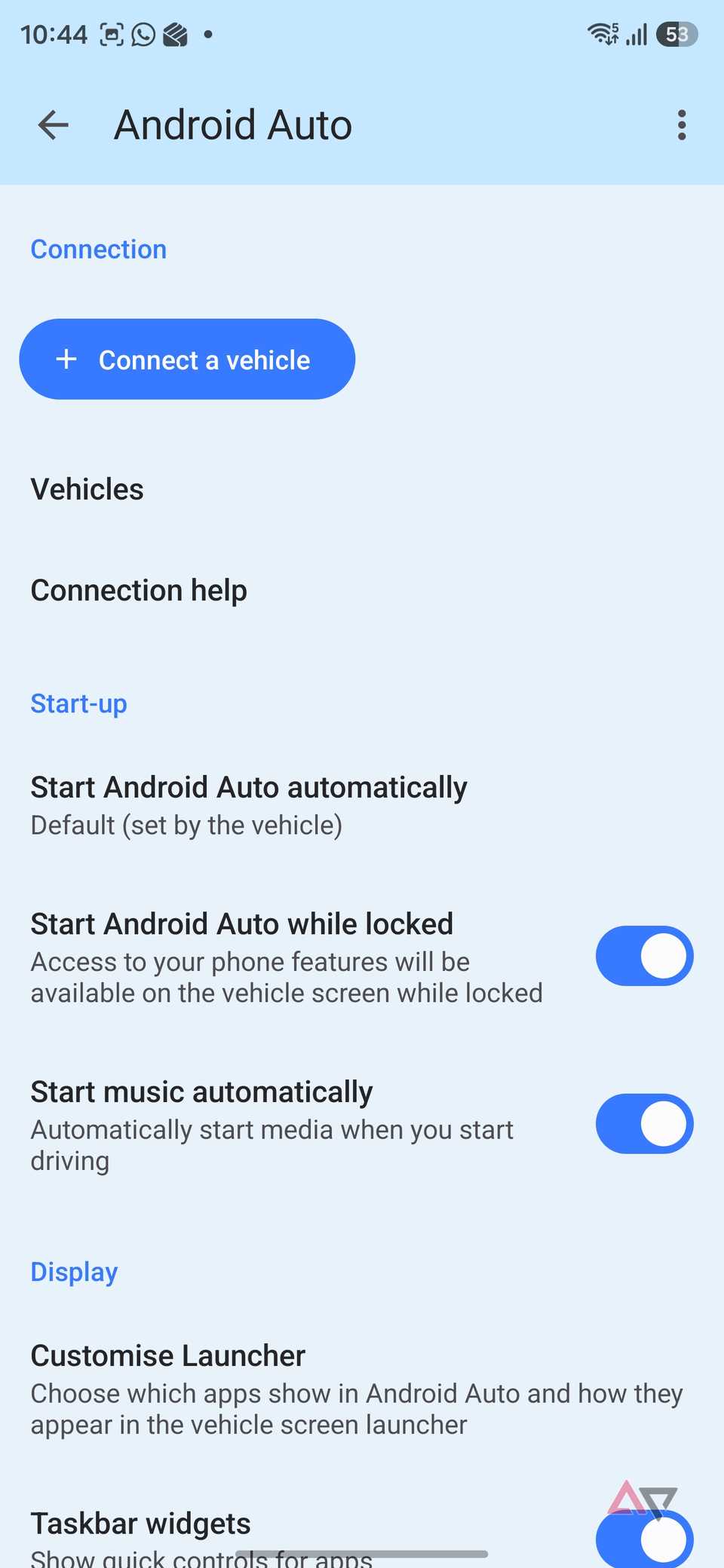
I also turned off automatic media playback because I got tired of Android Auto deciding what I wanted to hear the moment I started the car.
Sometimes it would resume a podcast, playlist, or song from hours earlier, even when I only wanted to start navigation and drive in silence.
It sounds like a small annoyance, but when it happens every day, it becomes one more thing I have to stop or change before I can settle into the drive.
Now, nothing starts playing unless I ask for it. If I want music, I can launch YouTube Music, Spotify, or Poweramp, or ask Gemini to play a specific playlist.
I prefer having that control, especially on short drives where I may not want any media at all.
It also makes Android Auto feel less chaotic when it first connects.
Instead of navigation, notifications, and music all kicking in at once, I get a much calmer start and decide what I want from there.
Disable the first line of messages
Another distraction on the road
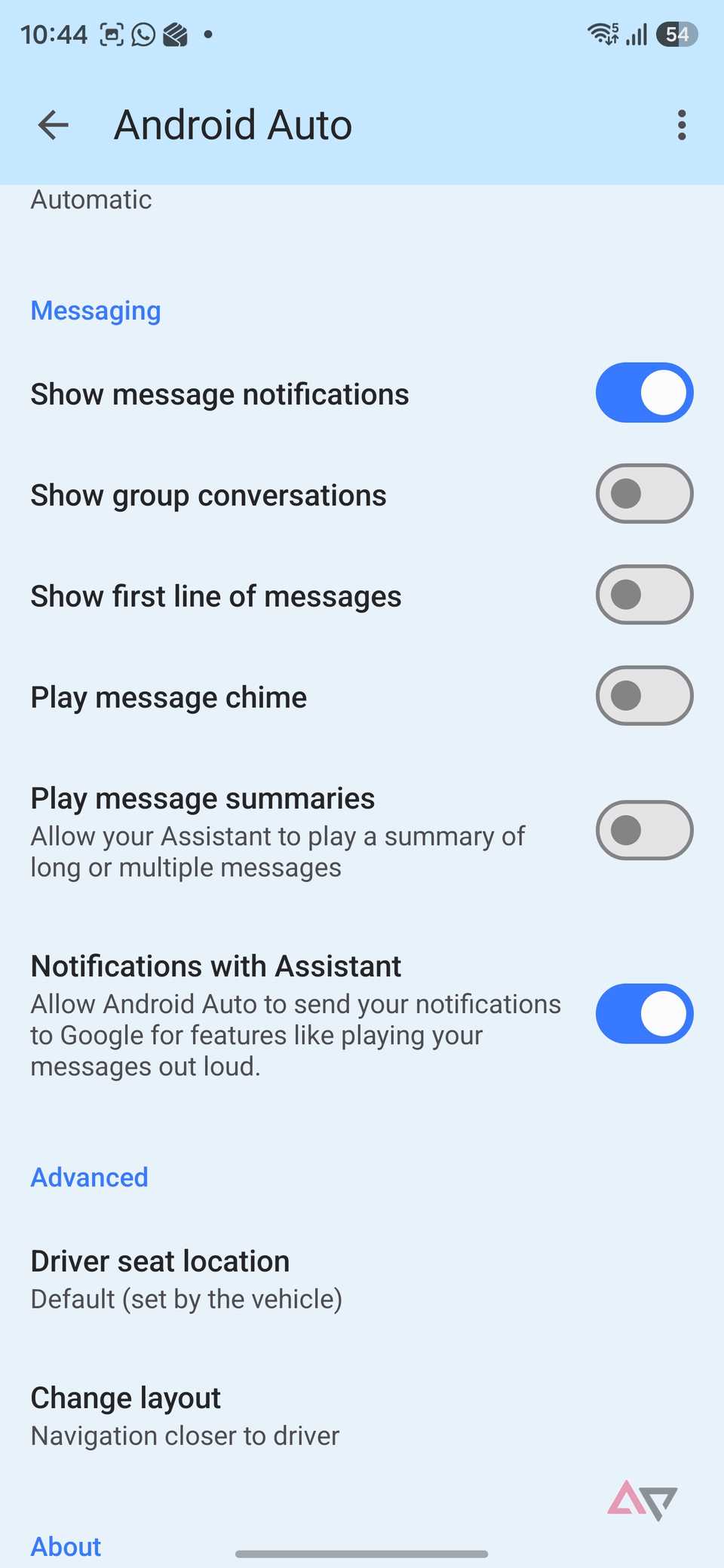
Another small change that made Android Auto feel much less distracting was disabling the first line of incoming messages.
I don't need part of Messages or any other app appearing on the car display.
Even a short preview is enough to pull my attention away from the road, especially when it looks important or comes from someone I know.
There is also a privacy angle here. If I have family, friends, or colleagues in the car, I don't necessarily want the beginning of every incoming message displayed for everyone to see.
Turning off the first line keeps notifications much more discreet.
I still know when a message arrives, so I am not completely cut off. The option to disable it is available under the Android Auto menu.
Create a routine to turn off power-hungry features
A powerful trick for Samsung users
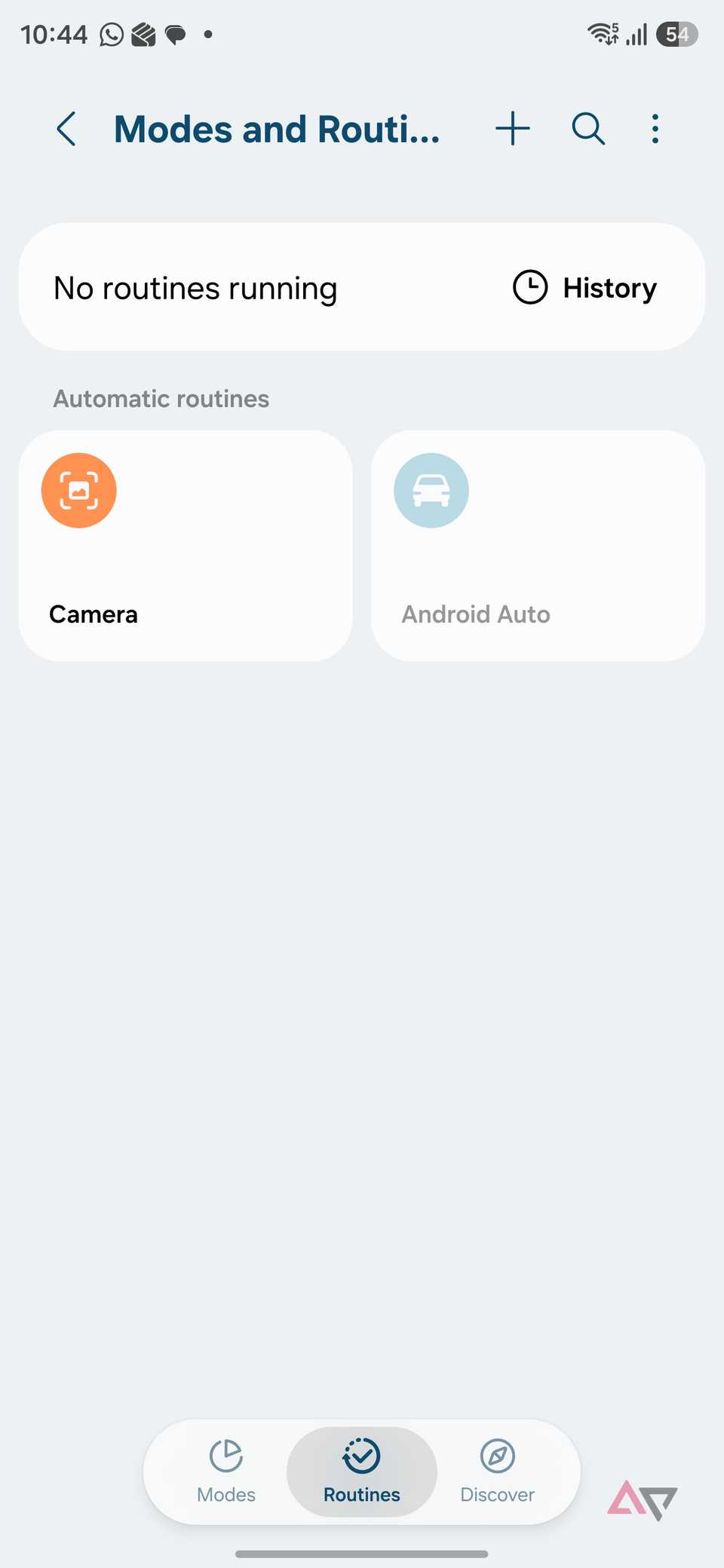
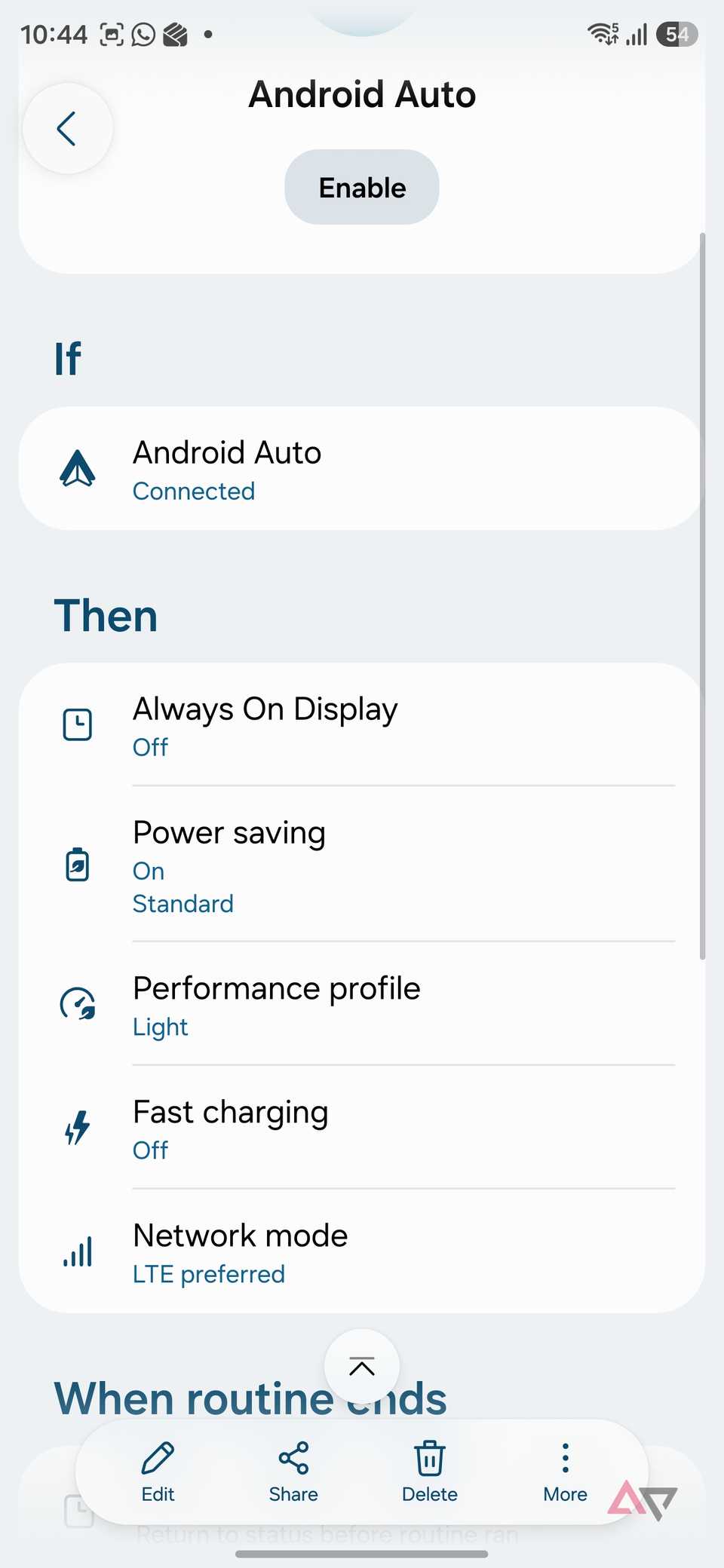
One of the most useful changes I made was creating a Samsung routine that automatically cuts back on power-hungry features whenever Android Auto connects.
The moment Android Auto starts on my Samsung Galaxy S25 Ultra, the system disables the always-on display, turns off fast charging, switches to the Light performance profile, and drops from 5G to LTE.
I don't have to remember to change any of these settings manually before every drive.
The main reason I set this up was the heat. During a long trip, my phone is already handling navigation, music playback, voice commands, and more.
Add fast charging, 5G, and unnecessary display activity, and temperatures can climb quickly.
With this routine, my Samsung stays more manageable, and I haven't run into any performance issues on longer drives.
When I disconnect Android Auto, my phone goes back into the same stage with all the options enabled automatically in the background.
Go to , tap , and set conditions.
The secret was disabling more stuff
Android Auto already does a good job of simplifying the driving experience, but I found that the biggest improvements came from changing what my phone does in the background.
These changes only take a couple of minutes, but they make a major difference whenever I am behind the wheel.