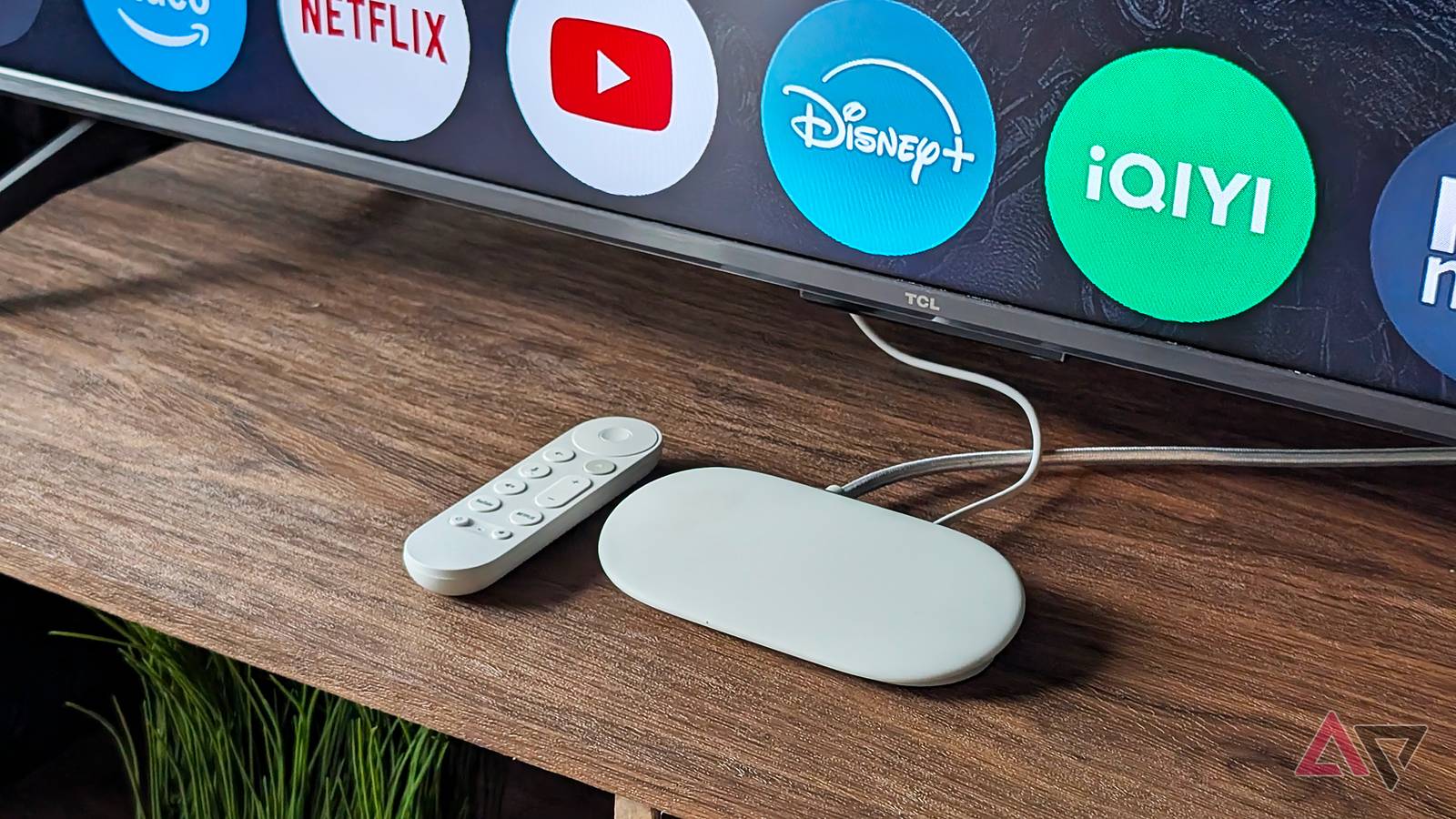
Apart from running Android, I mainly bought the Google TV Streamer for its 4K HDR and Dolby Vision support that matches our large LG television in the living room.
However, since setting up the Google TV Streamer, I've been scratching my head about why it slows down and stutters every time I fire up ultra HD content.
But it relies on outdated wireless hardware
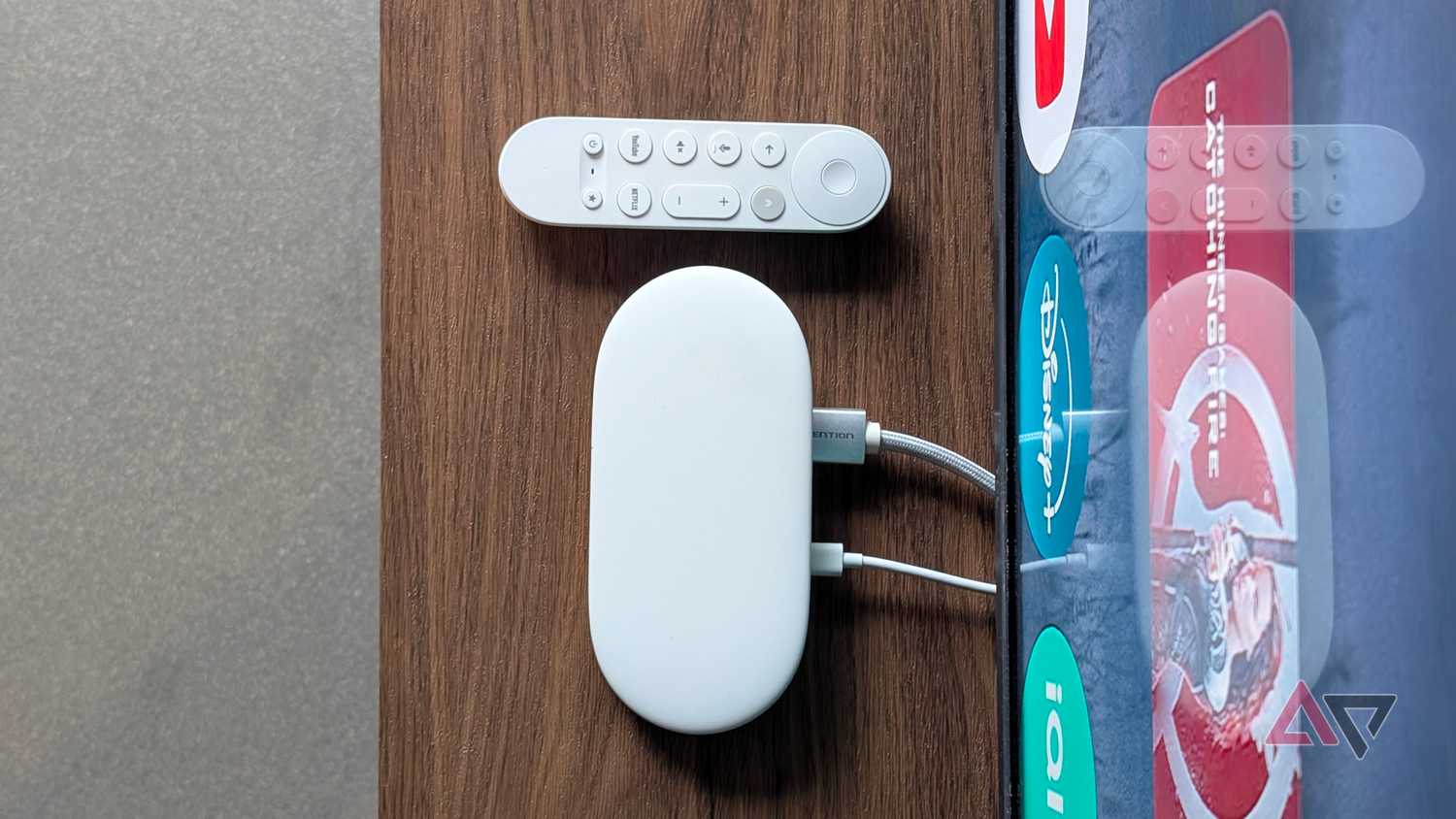
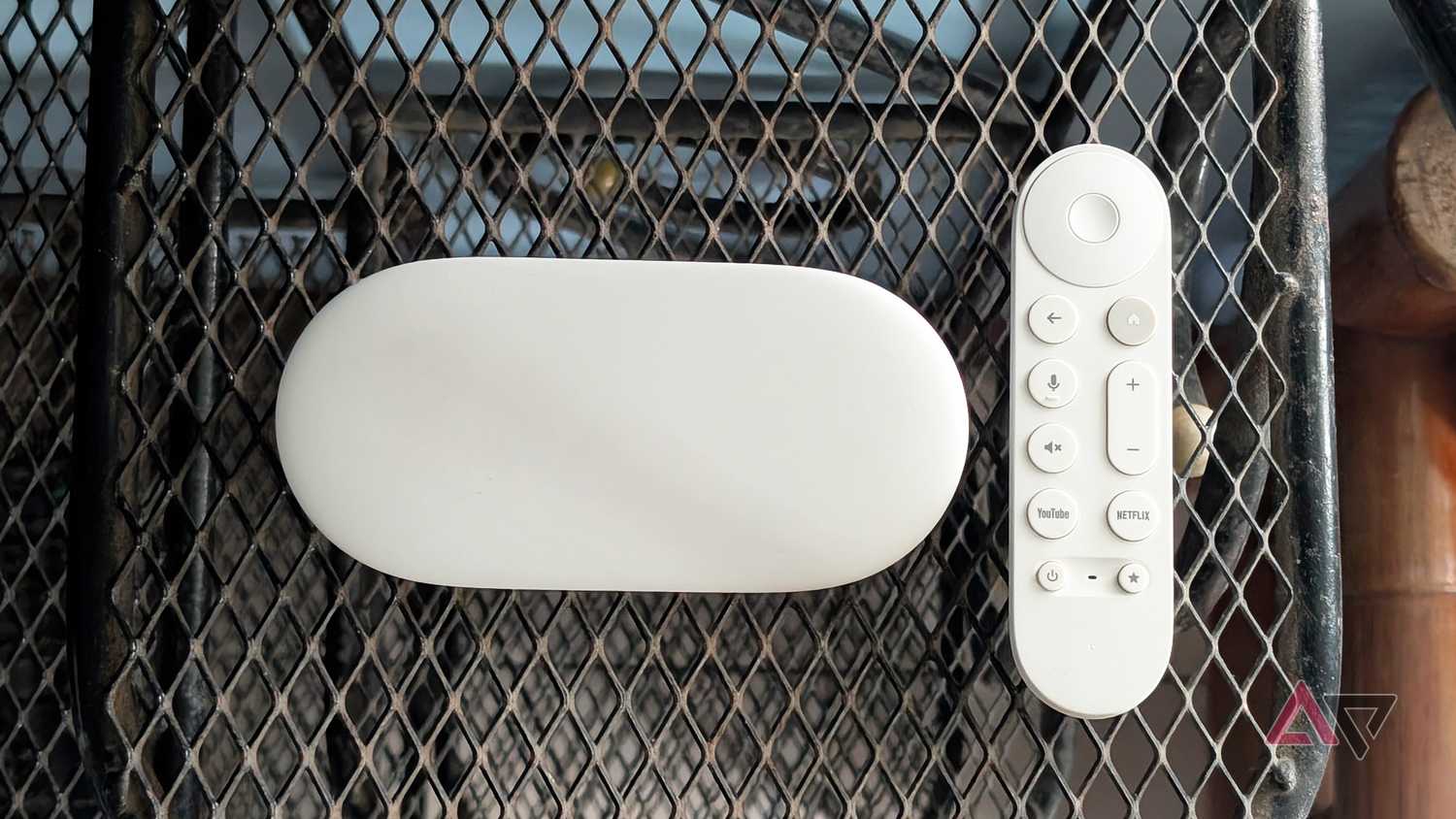
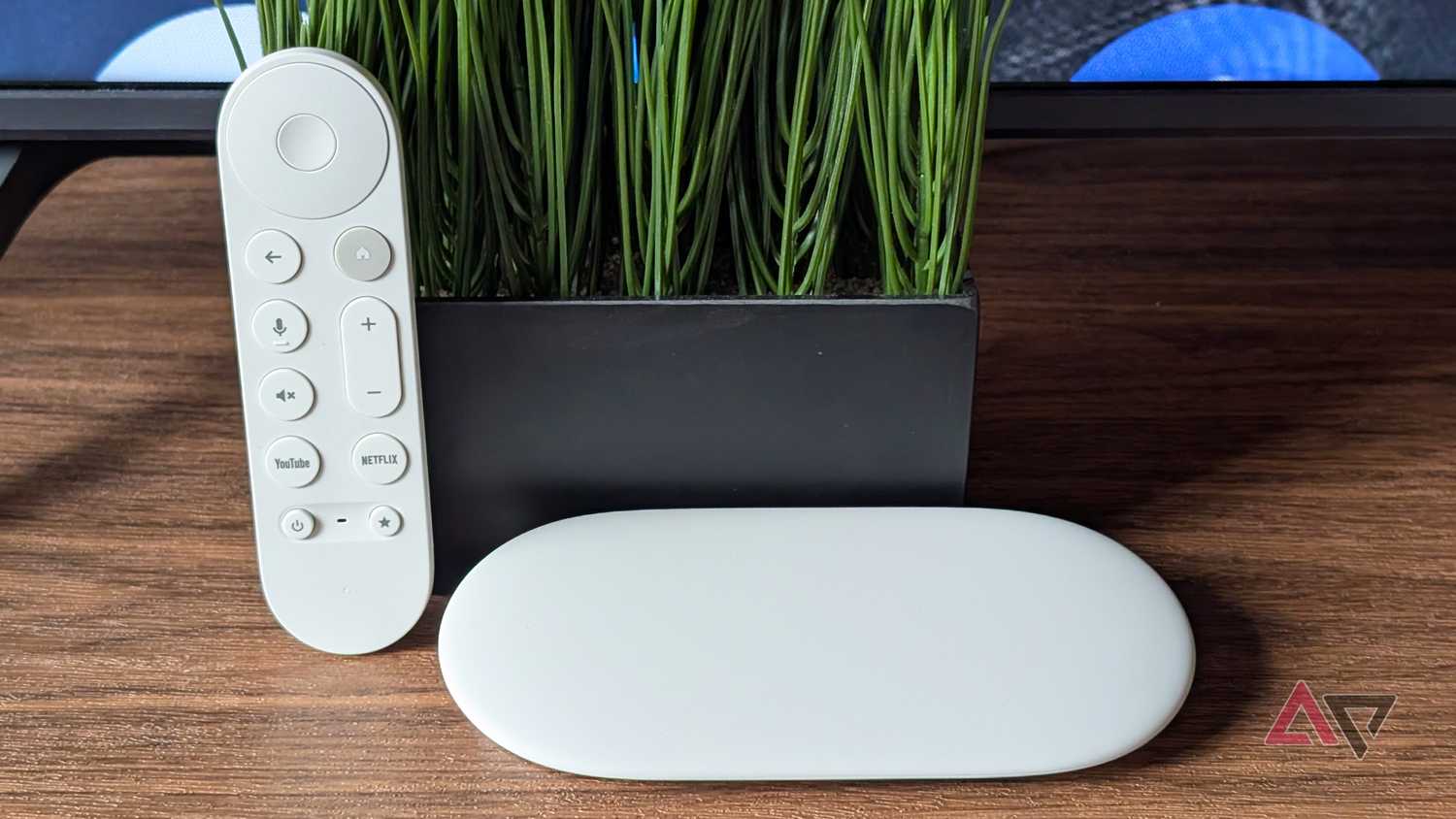
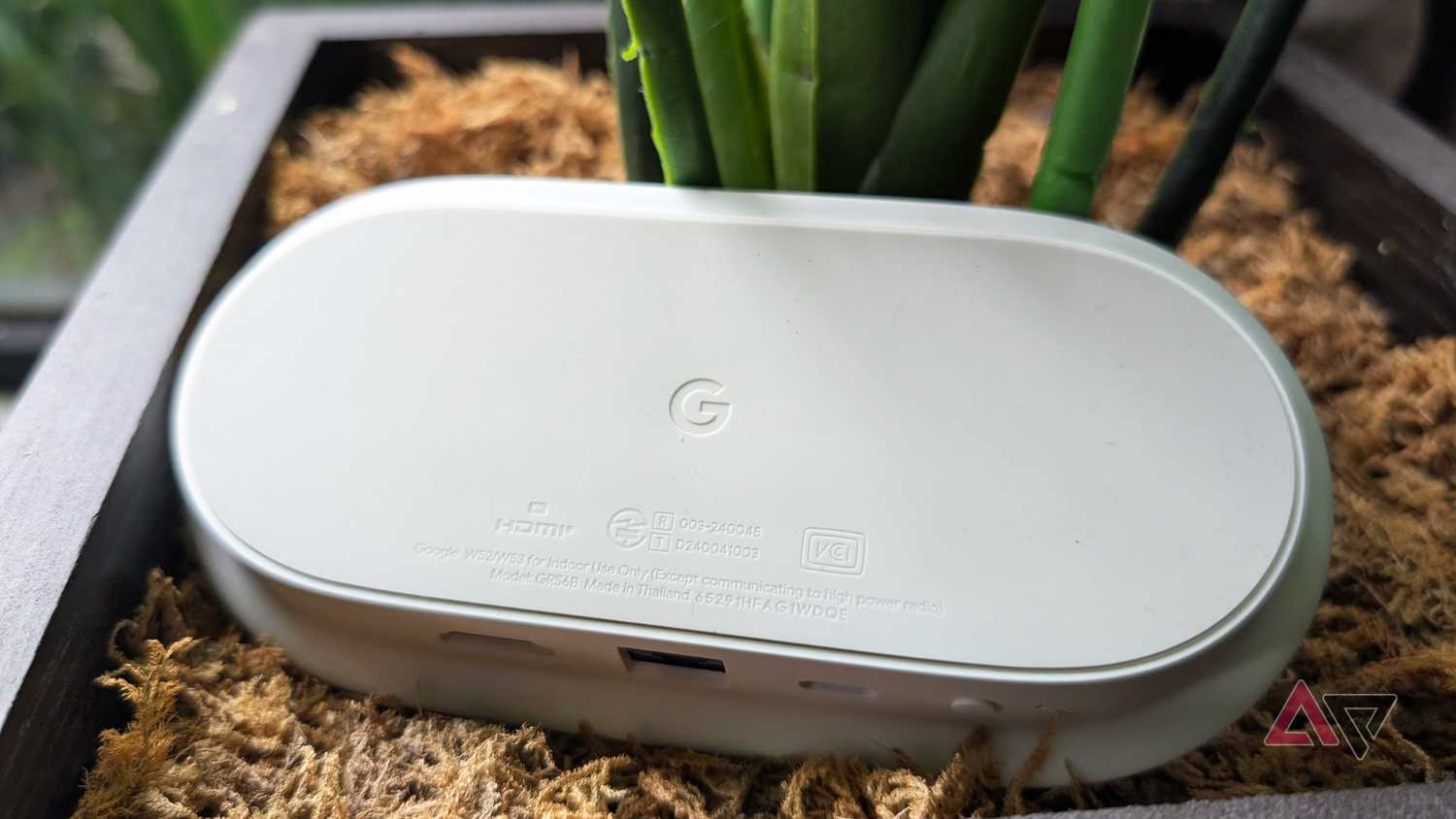
Google TV Streamer is a . It ships with a sleek tabletop form factor that blends well into our living room.
It also has a faster processor and better graphics, which helps with 4K HDR playback and gaming. This is a meaningful step forward over the older Chromecast 4K.
While that sounds great, I had a hard time getting the most out of it, as 4K movies noticeably buffer and take time to play smoothly.
Sometimes a video pauses halfway through, requiring a few seconds to catch up before playback resumes. Even worse, some streaming apps load content much more slowly.
I ended up downscaling most of the movies and series I watched to 1080p. While that workaround works, the image quality is notably compromised.
The frustration extended beyond video streaming, since gaming also took a hit because loading times were stretched.
I almost performed a factory reset to restore responsiveness on my TV Streamer until a much simpler tweak saved me.
I kept blaming my local storage
But an overloaded home network was the real culprit
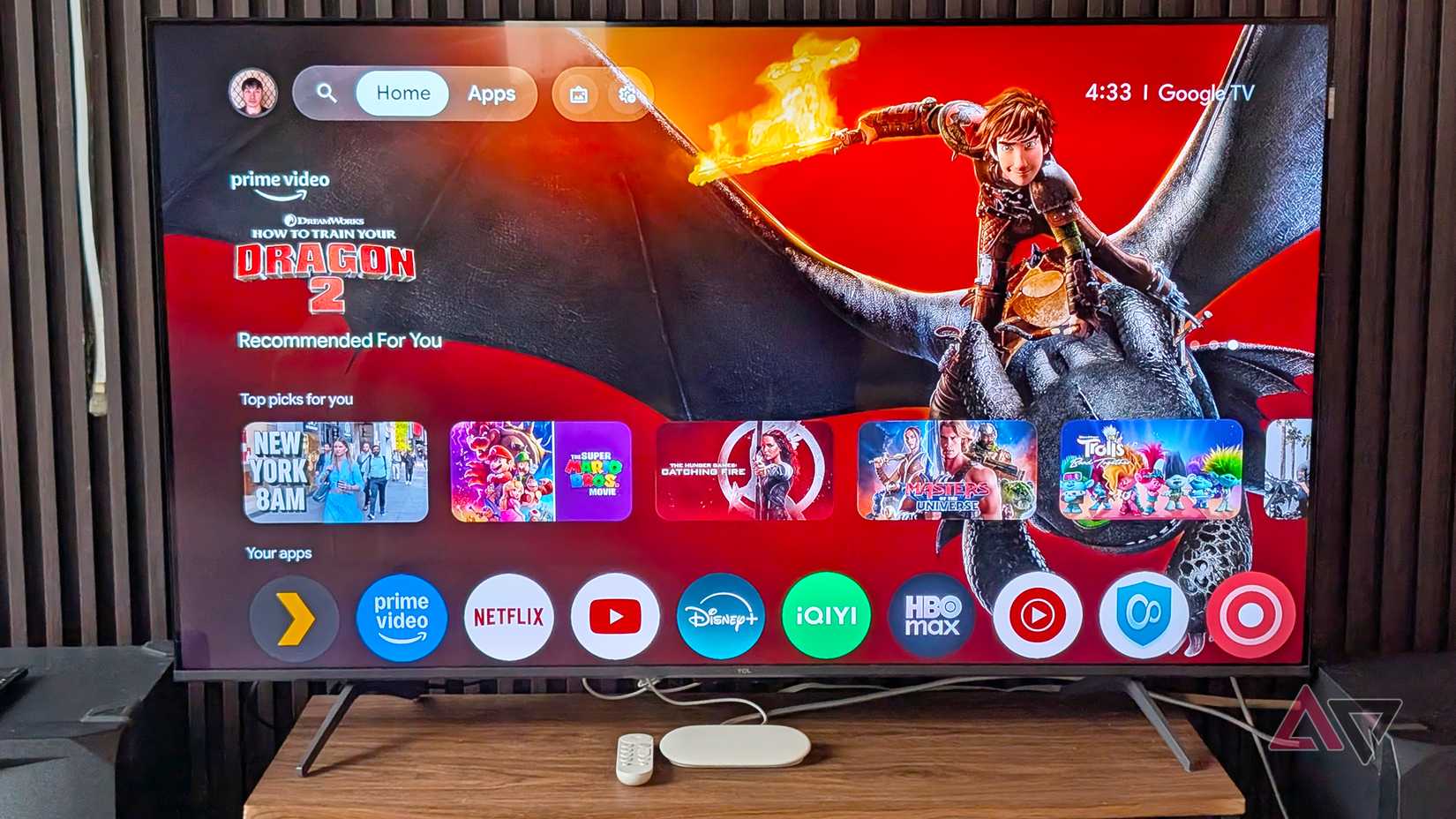
At first, I thought the internal storage was getting full, blaming myself for installing loads of apps and games that could be choking the console.
Rather, the real bottleneck turned out to be Wi-Fi connectivity.
Unlike my Fire TV Stick 4K Max, which has Wi-Fi 6E, the Google TV Streamer 4K still uses the older Wi-Fi 5 standard.
That is rarely a problem when the network is light, but lag starts to show up when more devices crowd the same network.
Bandwidth isn't the only reason for the buffering. It is actually the increased latency.
That latency spikes further if your router is farther from the Google TV Streamer, or if structures obstruct the signal.
There had to be a fix for that.
Plug into dedicated Ethernet
A wired connection removes the latency
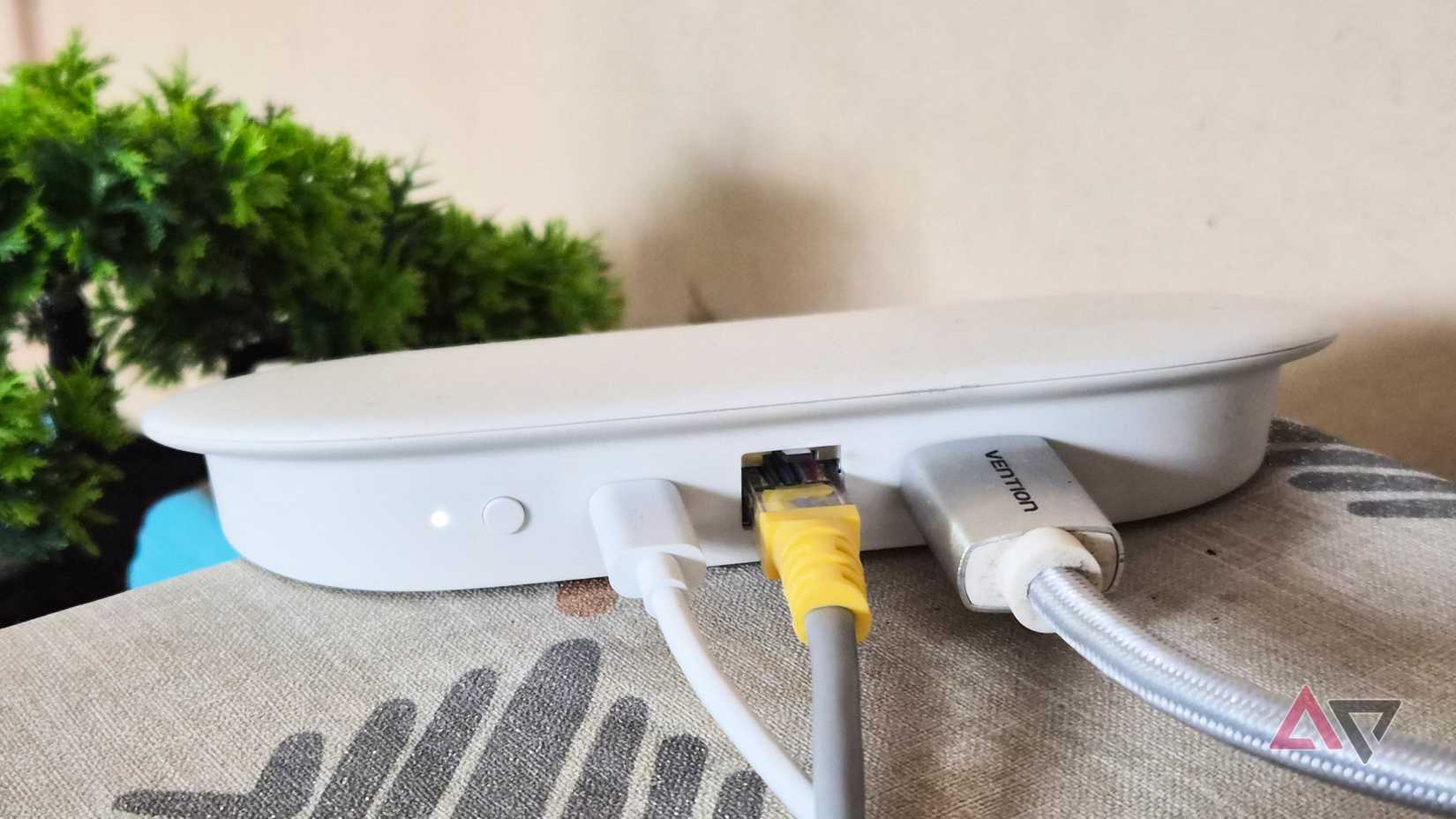
The clear remedy is to use the built-in Ethernet port.
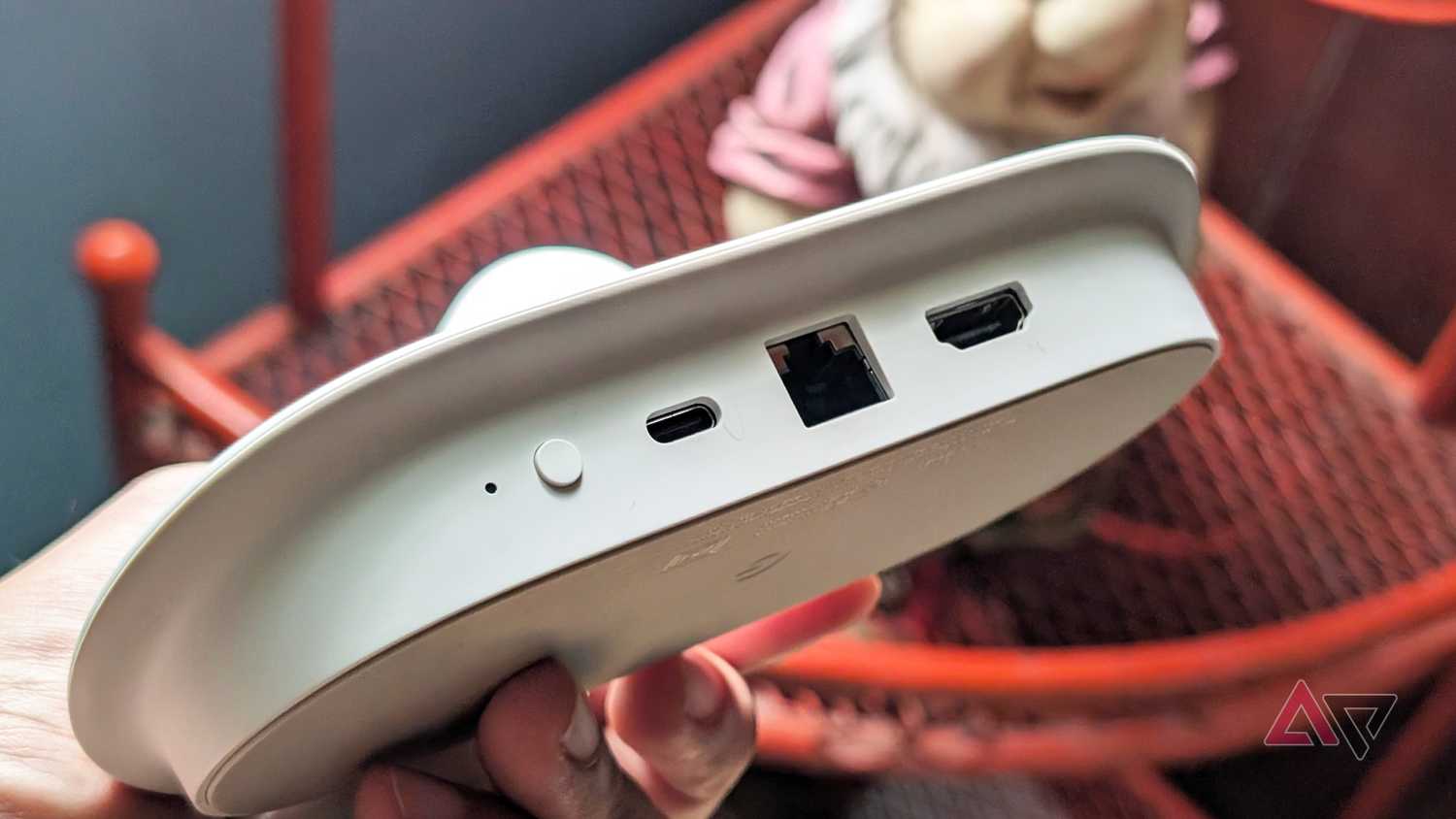
The Google TV Streamer includes a dedicated LAN port beside the Find My Remote button and USB-C port. That remains an underrated perk that streaming boxes and compact TV sticks mostly lack.
Connecting the TV Streamer with Ethernet gives me significantly more stability with almost zero latency compared to relying on Wi-Fi.
Since our router is only a few feet from our TV, I ran an RJ45 cable between the two. The result is noticeably faster loading times every time I start a 4K movie or launch a game.
This bypasses the Wi-Fi, though you might need to toggle Wi-Fi off in your settings to ensure the wired connection is active.
However, I recommend doing this only if you run into hiccups with the remote or casting from your phone.
In most scenarios, it is best to keep both Wi-Fi and Ethernet running, since the Google TV Streamer can automatically choose which network to use.
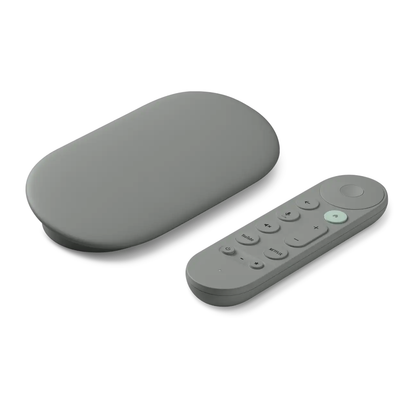
- USB-C (power/data), HDMI 2.1 (Type A), Ethernet (10/100/1000Mbps)
The Google TV Streamer 4K offers 4K HDR and Dolby Vision. Don't miss the latest offers.
Switch to a Wi-Fi 6 router
And keep your home network unclogged
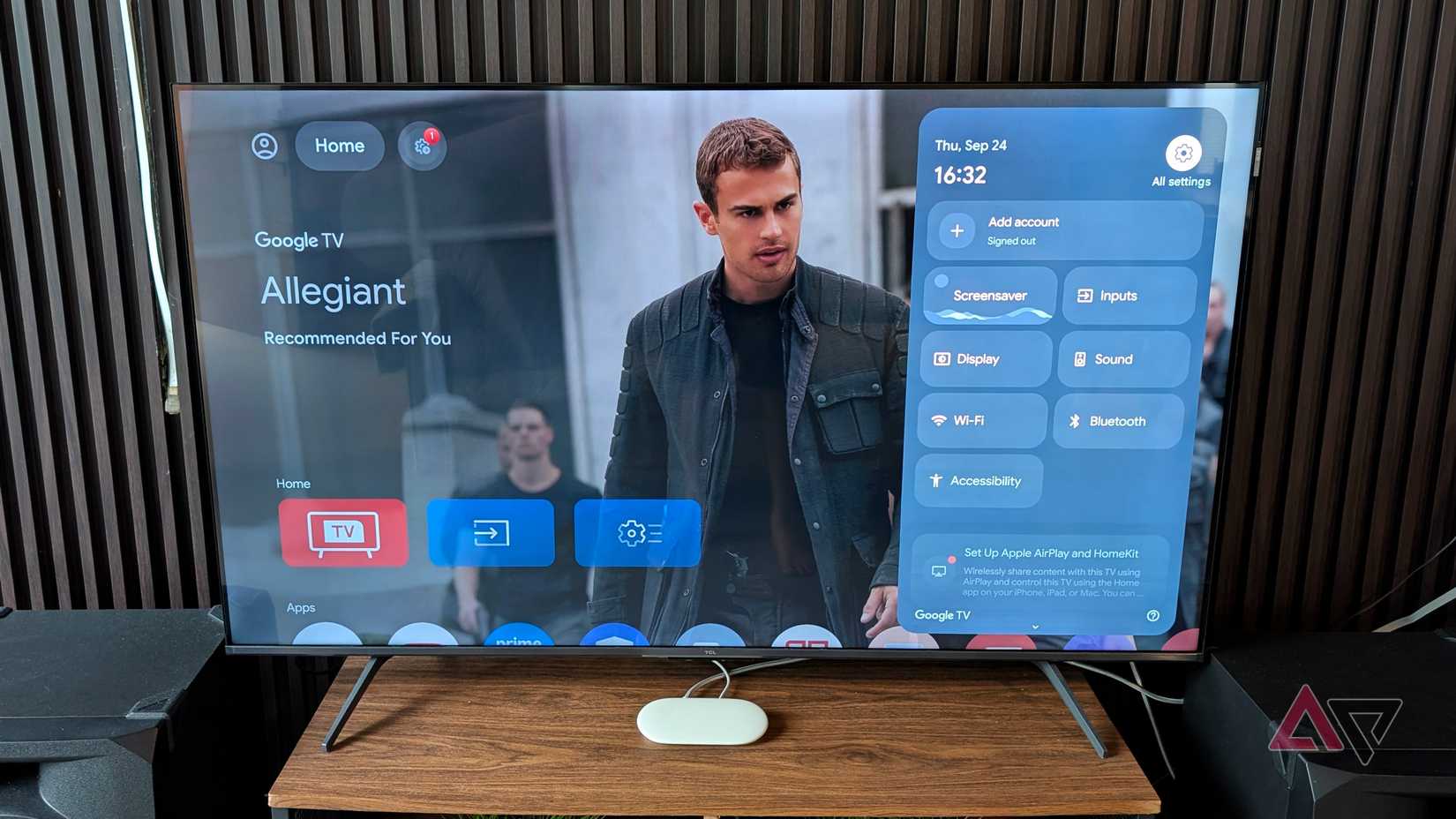
If buffering is mainly from heavy network congestion throughout the house, upgrading to a mesh network that supports Wi-Fi 6 or higher might fix it.
Even though the Google TV Streamer doesn't natively support Wi-Fi 6, it will still benefit from an overall improved network.
A mesh setup creates wider data channels and a less congested network, resulting in much more reliable streaming.
Alternatively, you can configure the TV Streamer to strictly use the faster 5 GHz band instead of the crowded 2.4 GHz frequency.
The 5 GHz frequency offers more channels and less interference. It also provides a faster downlink stream, which helps when downloading 4K videos or large files.
Clear app caches
Reclaim your precious local storage
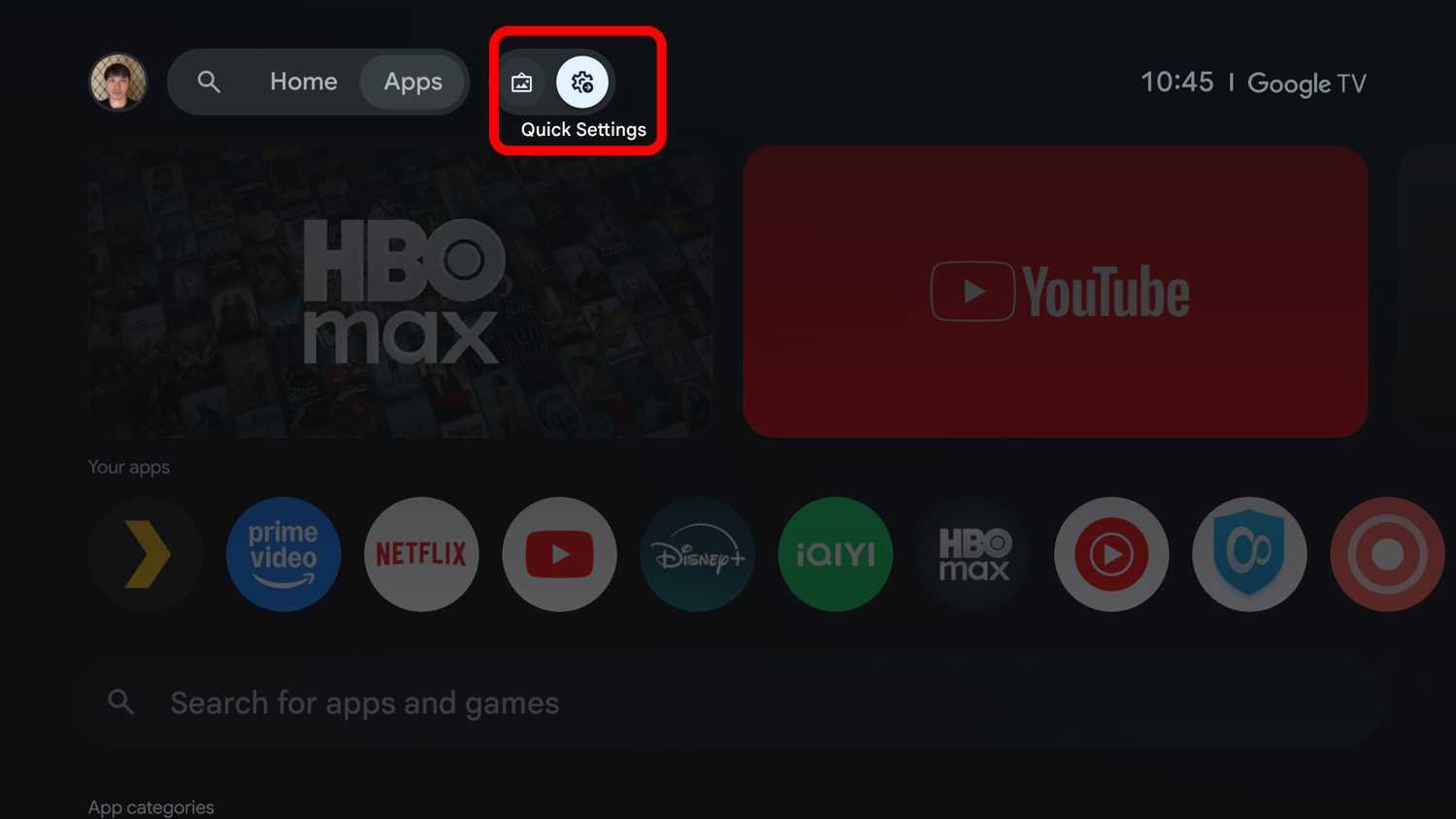
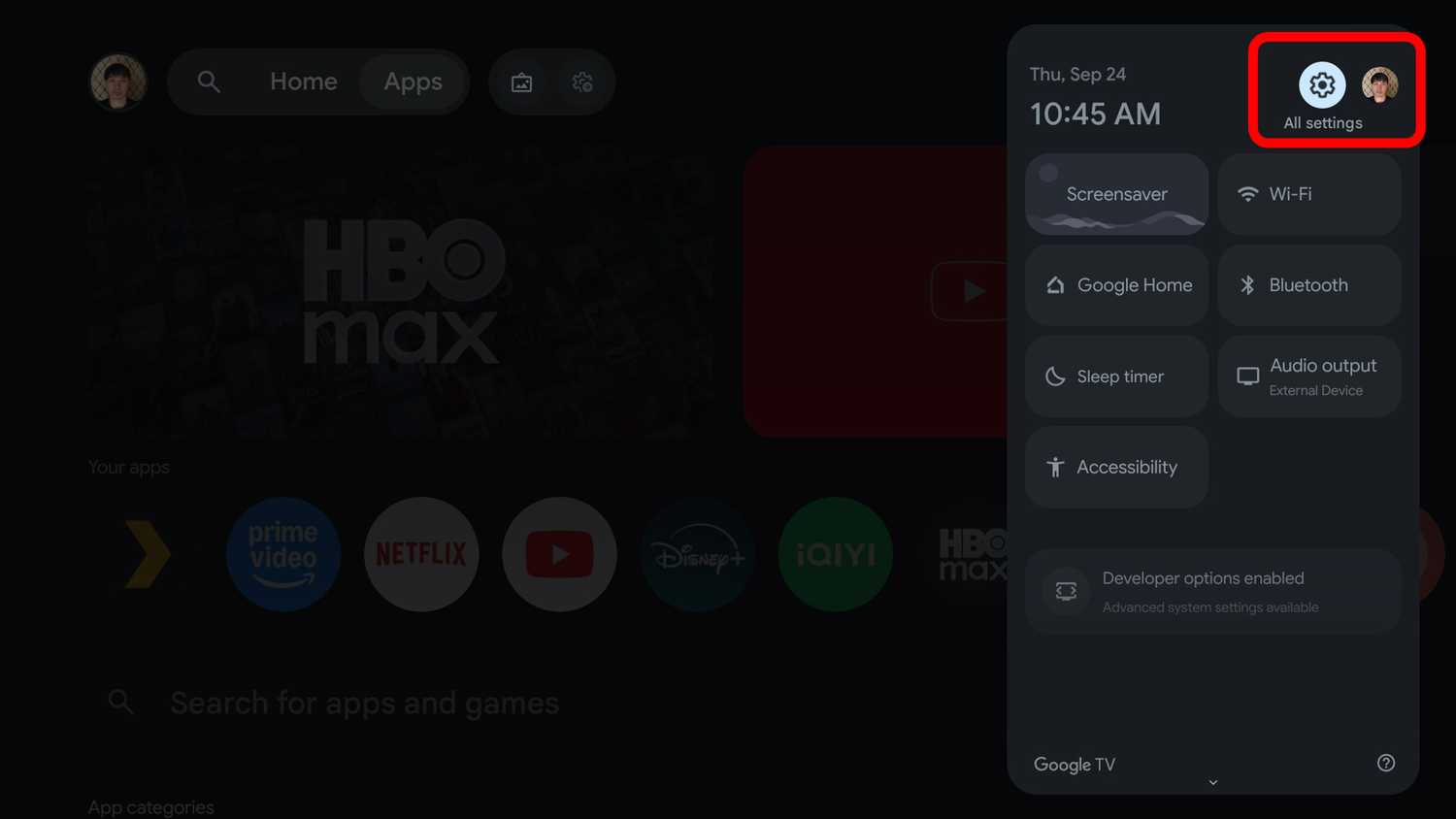
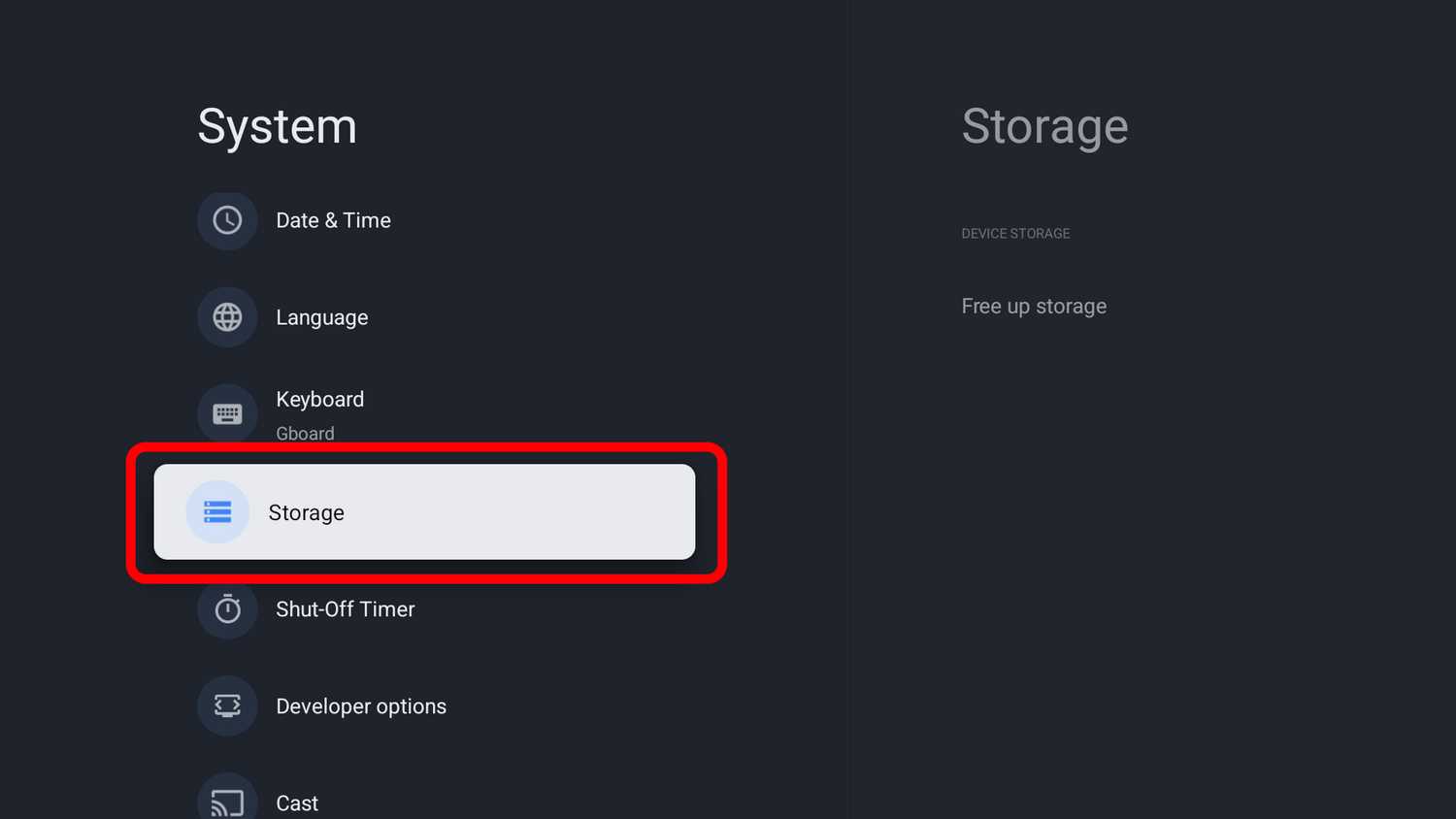
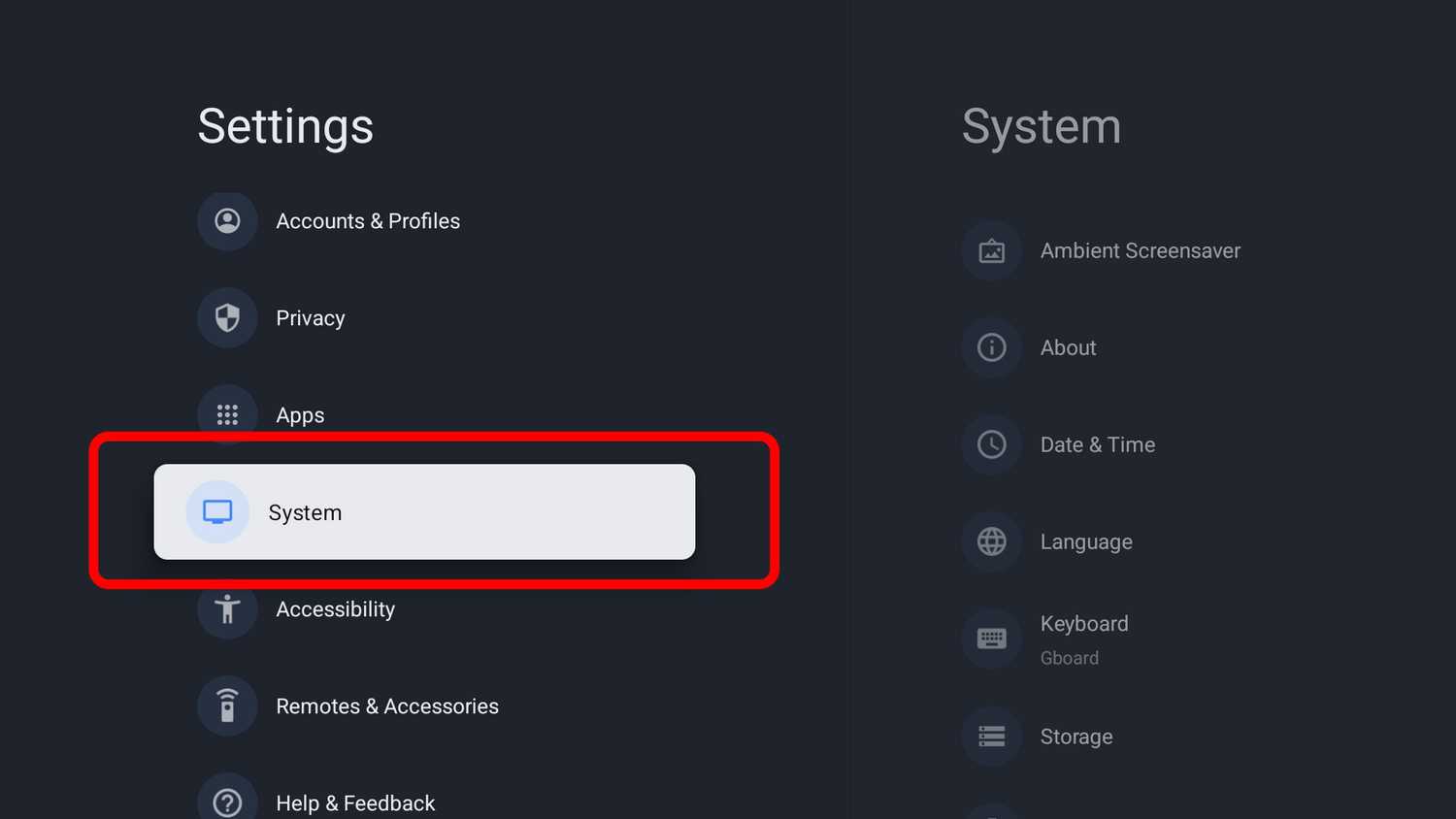
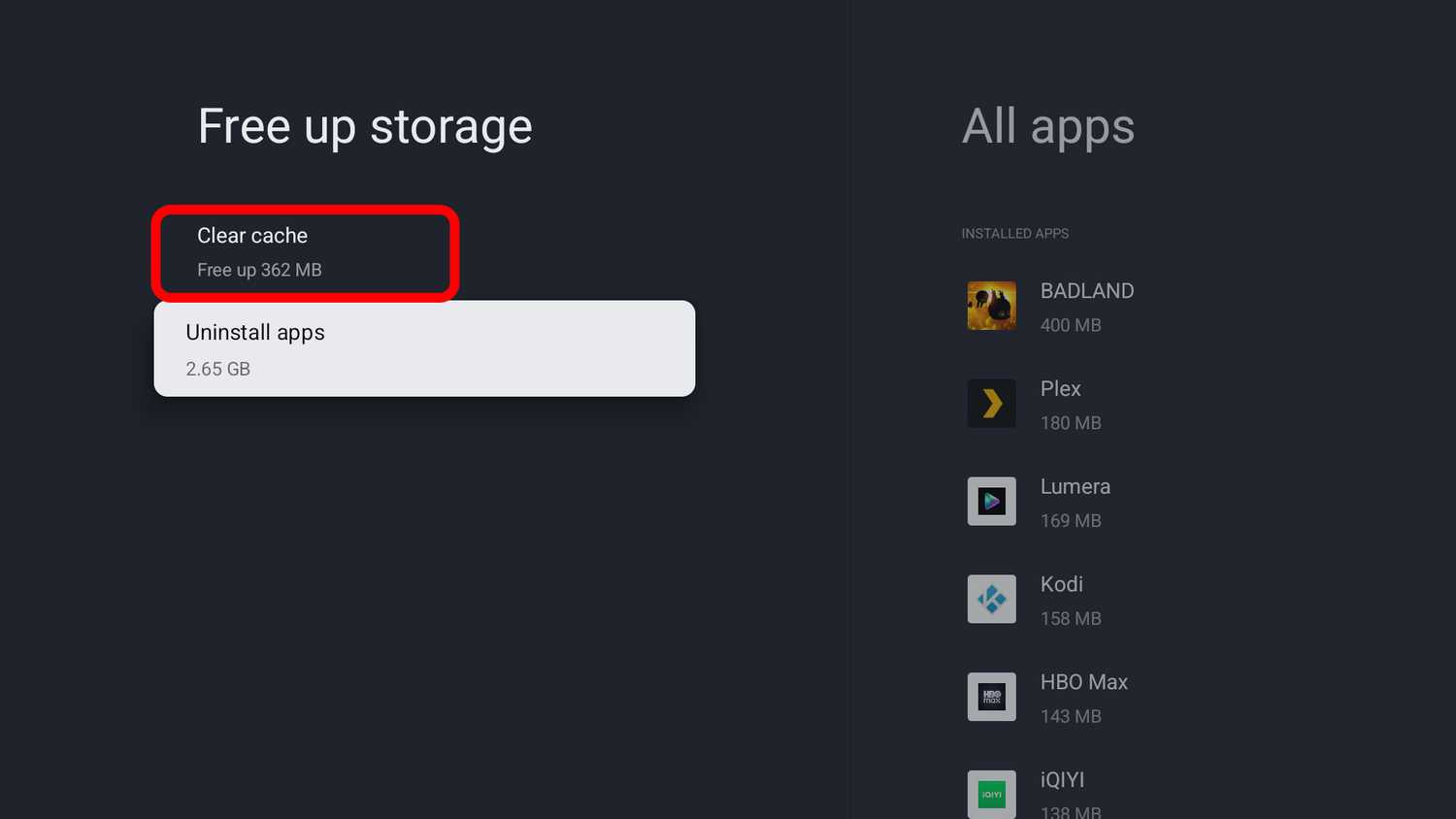
If nothing else works, a classic maintenance step might still help.
That means clearing cached app data to free up internal storage and speed up sluggish apps.
This is especially helpful if the stuttering is isolated to specific streaming services like Netflix or YouTube TV.
To clear it out, go to , select , open , tap Free up storage, and tap Clear app cache.
You will typically recover anywhere from hundreds of megabytes to a couple of gigabytes, depending on your library size and how often you use those apps.
It is a risk-free trick, as it only deletes temporary assets like cached thumbnails and video snippets while keeping your login credentials and game progress.
Google shouldn't force us to fix its cheap Wi-Fi choices
You wouldn't have to jump through half of these troubleshooting hoops if Google hadn't cut corners on the Google TV Streamer by omitting Wi-Fi 6 or 6E.
A newer Wi-Fi standard inside would make a night-and-day difference, saving you the ridiculous chore of dragging your router across the room to get a stable signal.
For now, these basic workarounds work for on the Google TV Streamer.