
I watched a lot of iOS vs. Android videos when I was studying in college and felt the temptation to buy an iPhone for all its awesome features. That was years back, and I had to wait a long time to get my first iPhone.
While I was impressed with some of its features, I couldn't consider it a replacement for my Android phone because of serious limitations.
Most of those limitations still exist, while Android further closed the gap by adding a few handy iOS features it previously lacked. I'm happy with the kind of iOS features it added to Android over the last few years.
The addition I'm happiest about is the setting called "Cross-device services," which lets you connect another phone to your primary phone's hotspot without a hassle.
All I did was flip one hidden Google setting on my Android phone, and tethering finally worked as smoothly as on an iPhone.
Android finally matches the seamless sharing of data on an iPhone
It also has caveats, like the iPhone
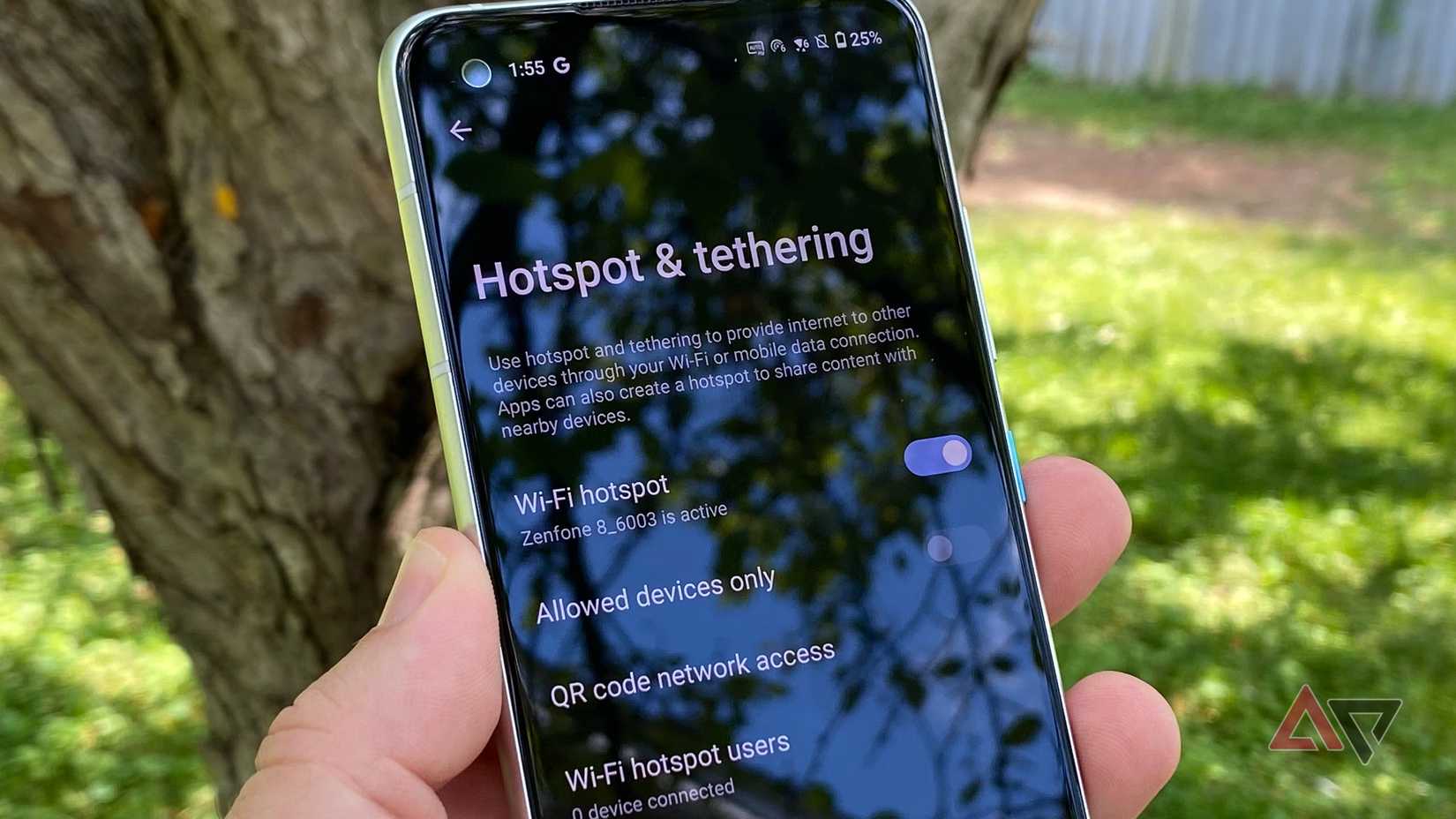
Google announced the Cross-device services for Android at the Google I/O developer conference in May 2024.
However, I knew it was coming before the official announcement, thanks to Android Expert @AssembleDebug, who leaked the feature a couple of months earlier.
I still remember the excitement around this, as Android users have long been requesting Google to add the feature.
After trying the feature on my , I understand the hype around its release. The Cross-device services setting makes sharing data with another Android phone as easy as it gets.
It eliminated the need to dig deep into settings, search for Wi-Fi, and type passwords. Instead, you can tap a button to start tethering. However, it doesn't work with any random phone, as is the case with an iPhone.
How Google's Cross-device services made it easier to share my data
No home Wi-Fi, no problem
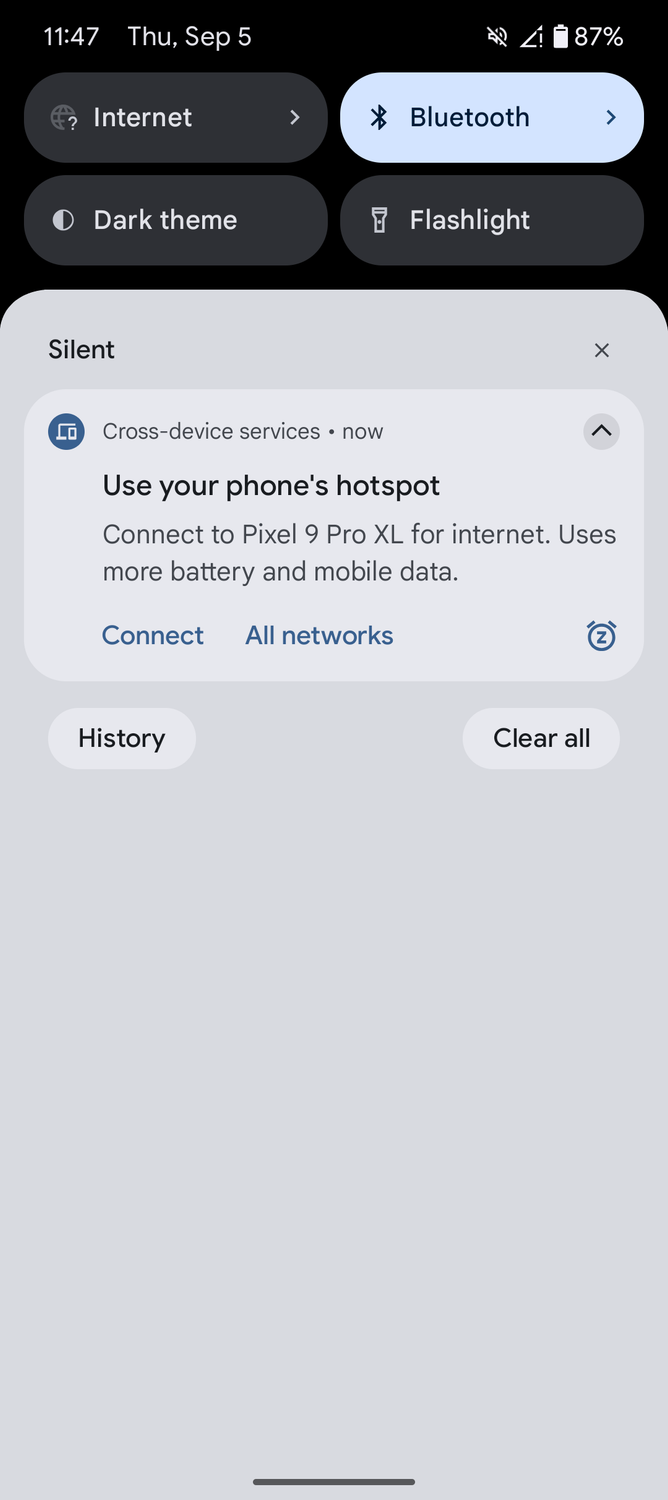
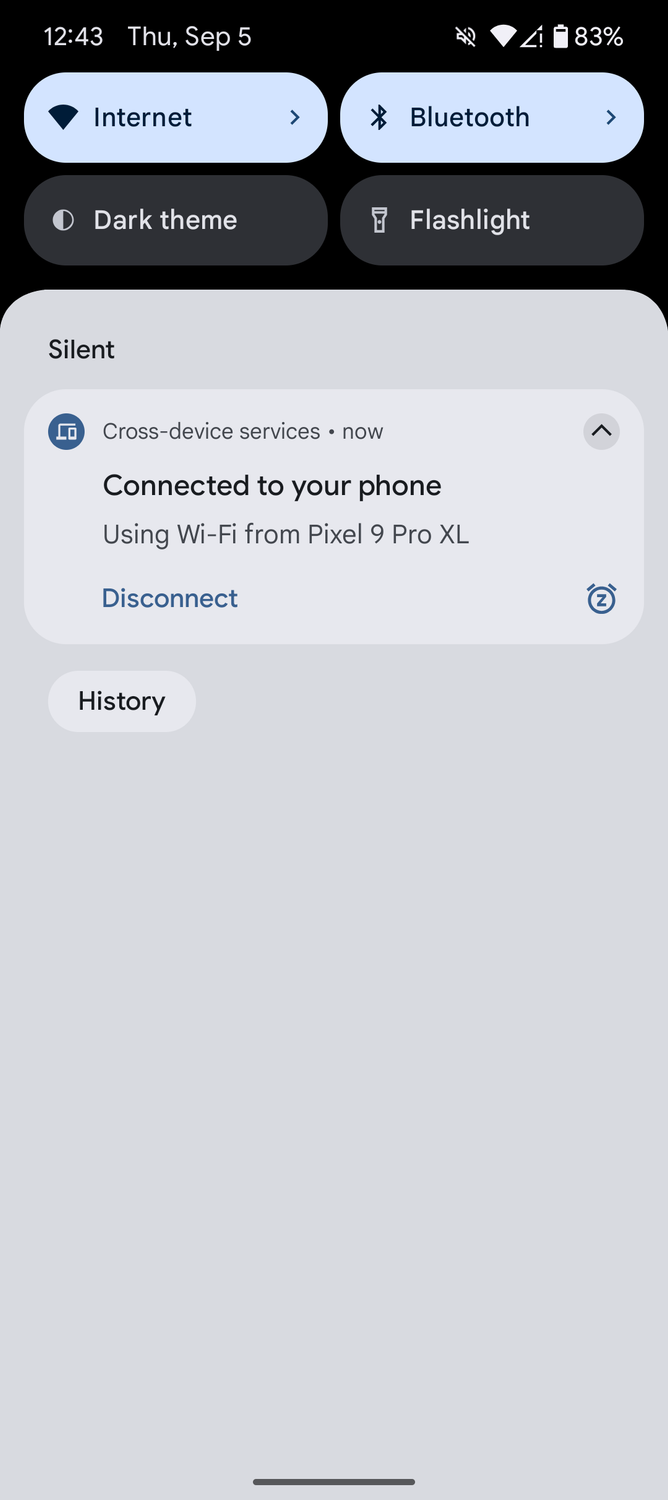
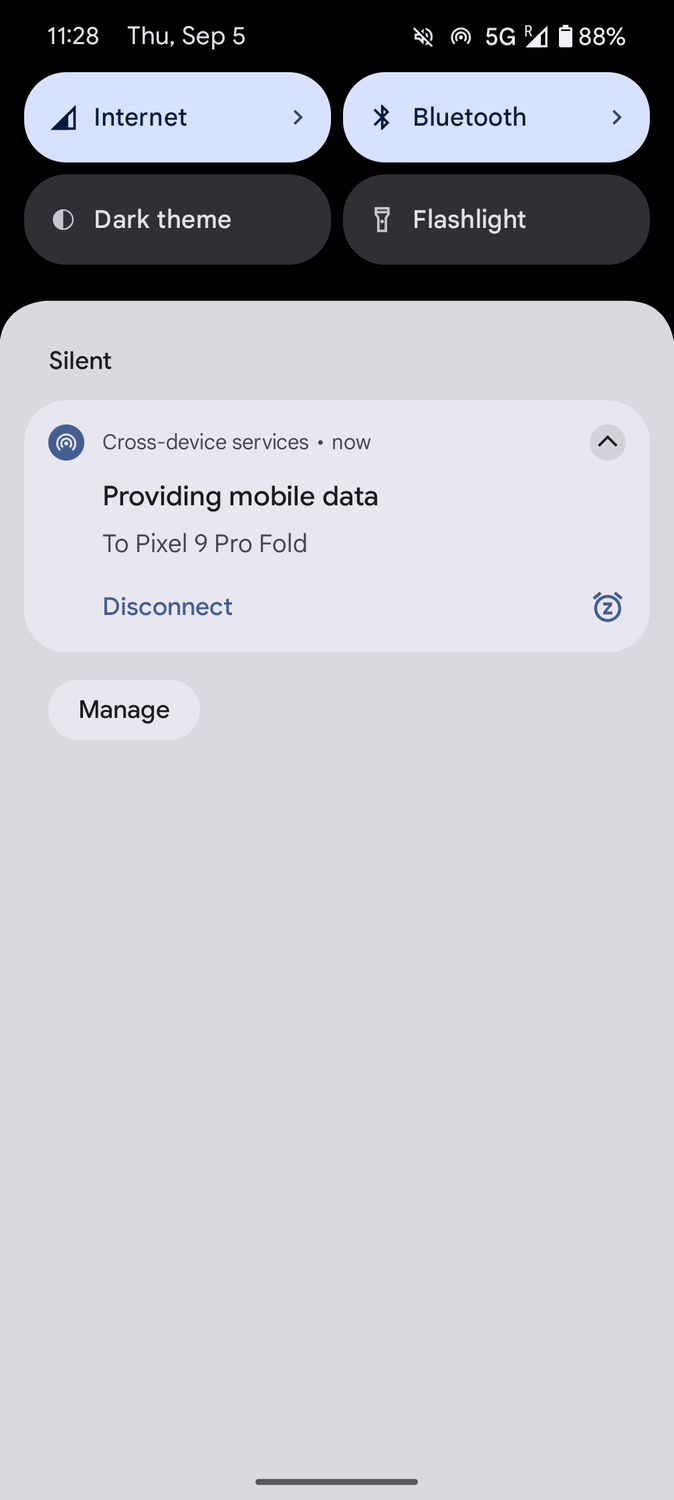
I don't face frequent power cuts in my region, but even if there is a power cut and my home Wi-Fi switches off, I don't lose internet because my main phone, the one with a SIM card, can provide instant internet to my other Android phones.
When you enable the feature, Cross-device services sends a pop-up on the phone you want to use to access the internet.
Tap the button to turn on the hotspot on your main phone and connect to it. The phone with the SIM card must have the internet turned on. You also need to turn on Bluetooth.
That's how I connect my Motorola Edge 50 Neo to my Pixel 9 Pro XL's hotspot. I don't touch my Pixel 9 Pro XL to turn on the hotspot and provide internet access to my Edge 50 Neo.
This isn't limited to the phone. It can provide internet to another Android tablet and Chromebooks.
However, if I take my Pixel 9 Pro XL with me to a friend's place, they can't turn on my hotspot and automatically connect to it to access the internet on their phones.
It doesn't work this way because internet sharing between devices using the Cross-device services setting requires all phones to use the same Google account.
When two or more phones use the same Google account, the company marks them as belonging to the same user group, and hence it is safe to share or receive data. Additionally, both phones need to be nearby for seamless internet sharing.
How to turn on Cross-device services on an Android phone
It only takes a few simple steps
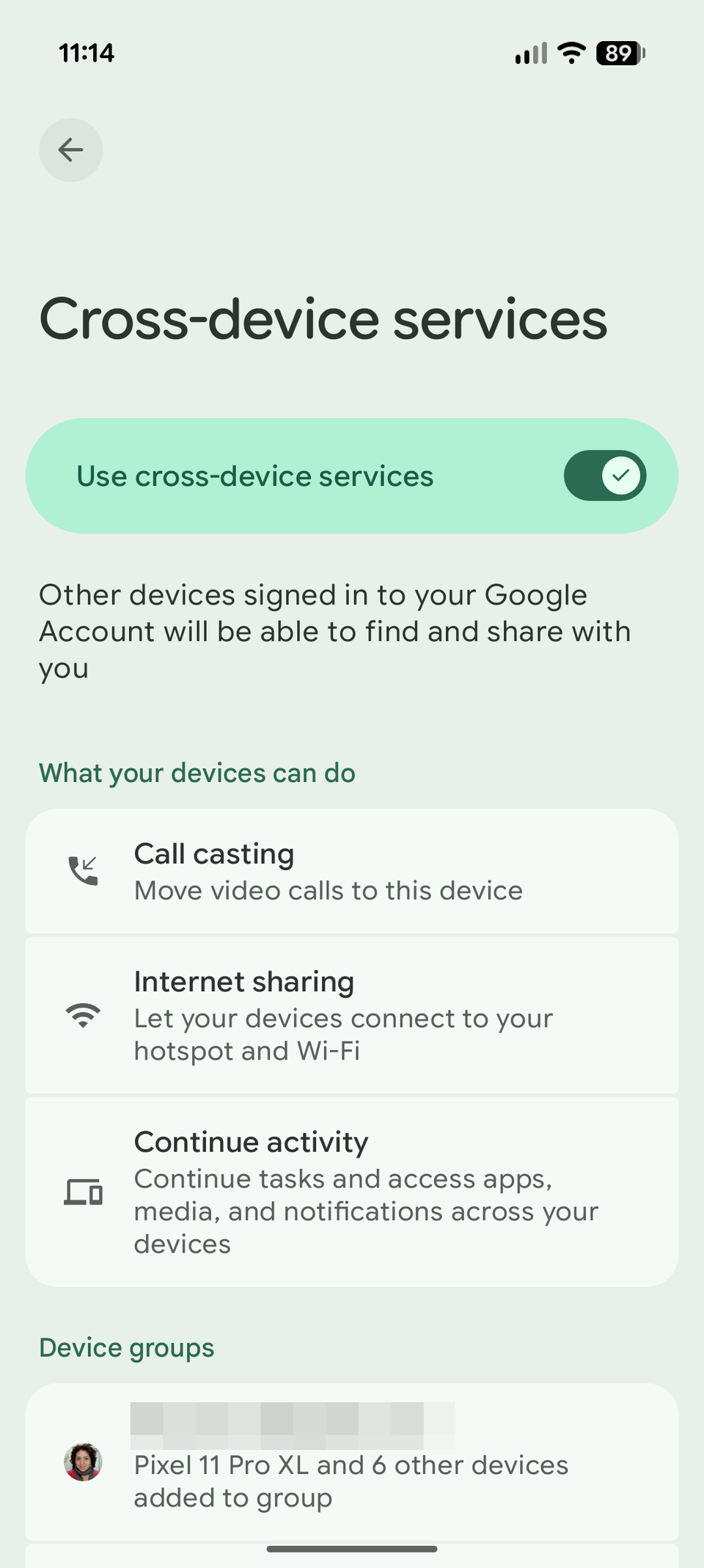
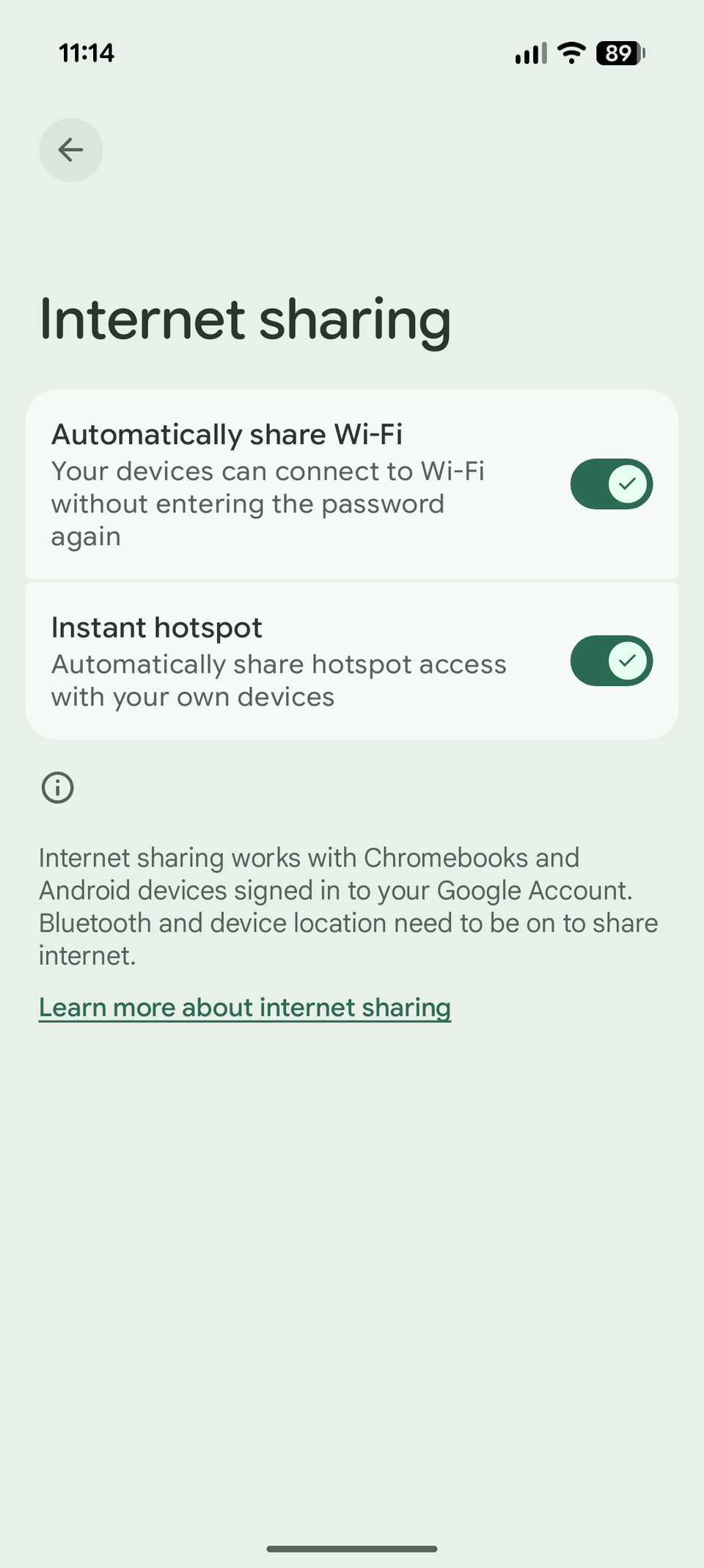
The setting is buried deep in Settings, but it's easy to turn on. Follow the steps below to set it up.
- Open Android .
- Go to Google devices & services.
- Tap All services.
- Click Cross-device services.
- Turn on the toggle.
- Tap Internet sharing.
- Enable the Instant hotspot toggle.
That's it. You're now ready to go.
The Instant hotspot feature is available on Galaxy S25 and newer. If you have an older model, you can use , which does the same thing.
I wish more Android users could take advantage of this feature
It's hard to build something with universal appeal. Android's Instant hotspot does everything right, but it is designed to serve only a limited number of people and not every Android user.
It's useful only for people with at least two Android phones that use the same Google account. Aside from my colleagues at Android Police, I don't know anyone in my friends and family who owns more than one Android phone.
For a feature that works this well, it's a shame so few people can use it.