I firmly believe in making do with what I have and not going beyond my means. I hardly find myself at a deadlock when a device breaks.
When I ask, "What else can I do about this situation?" and being more committed to DIY crafts, I tend to race through unconventional solutions. Two expensive PC breakdowns were the catalysts for this habit.
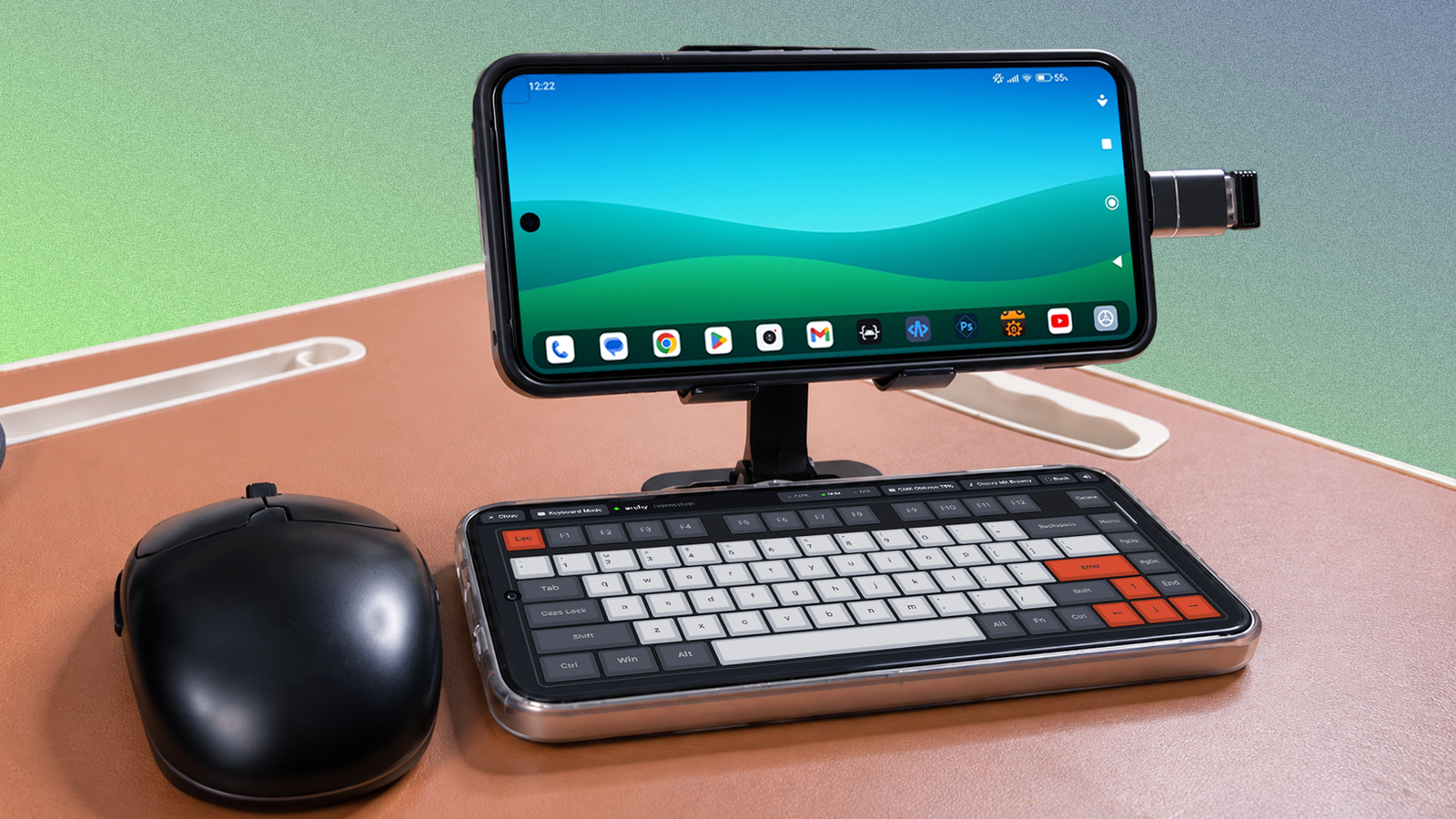
I think being a product tester has shown its major benefits. I recently repurposed my Android phones into a mini workstation.
It serves as an effective backup for quick work when I'm away from my desk. These two apps made it possible.
Small screen adjustments are worth it for on-the-go productivity
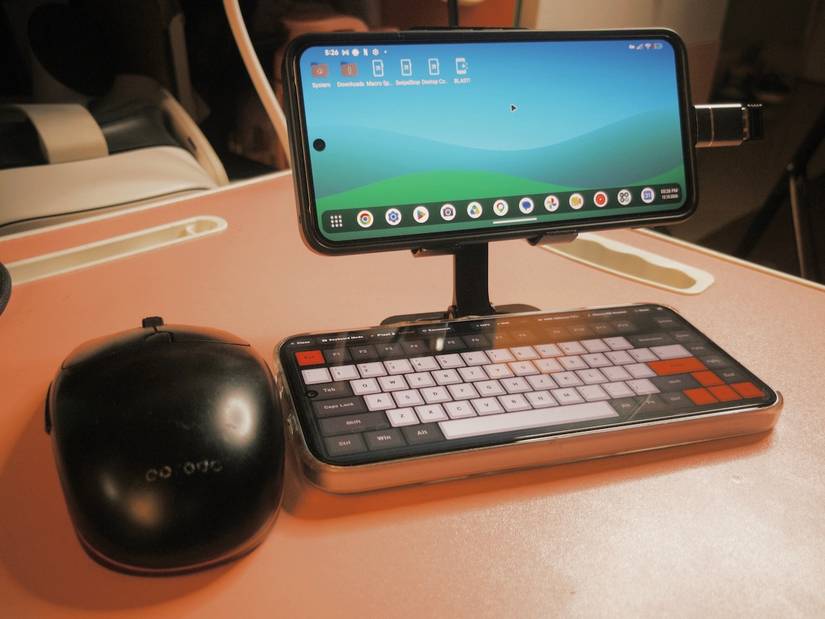
You could say I built a mini Googlebook of my own, if it counts, that my Pixel 8 is Google-centric and is now doubling as a backup workstation that sits on my desk occasionally.
The setup was boredom-inspired, and a free desktop-environment utility served as a great alternative for Samsung DeX to make it happen.
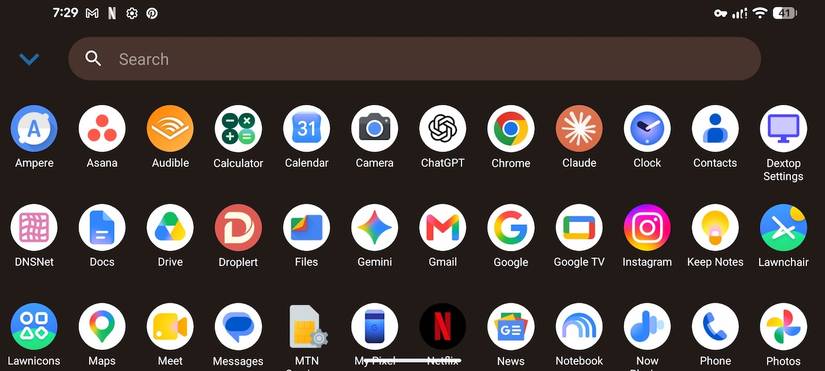
Dextop provides a forced landscape workspace with a Windows-style taskbar, system tray, and an app drawer button that opens an alphabetical app grid.
The taskbar sits at the bottom of your screen, with the apps icon in the far-left corner. The system tray on the right side shows battery, time, date, and calendar shortcuts. Tapping it opens Quick Settings and your notification panel.
You can drag app icons around your screen as usual, and now add file shortcuts. Widgets also scale up and look better in the wider view.
However, it doesn't offer flawless window resizing on smartphones like Samsung DeX. You'll enjoy it better on bigger screens or your tablet. Its biggest appeal is that it's not limited to Galaxy devices.
Although it's not a launcher in the traditional sense, there's a finicky twist. If you don't set it as your default home app, your phone keeps rotating back to portrait mode.
Each Android app can request how the screen is oriented while you're looking at it. By default, Dextop declares the HOME intent at the software level.
The operating system then lets you choose it as your home screen, and it opens in landscape orientation every time.
While the app is running, open from your App drawer. Then select Set as default launcher and choose . Alternatively, go to > > Default apps > Home app. Then select .
Accessories make mobile desktop mode feel complete
A spare phone and a USB mouse did it for me
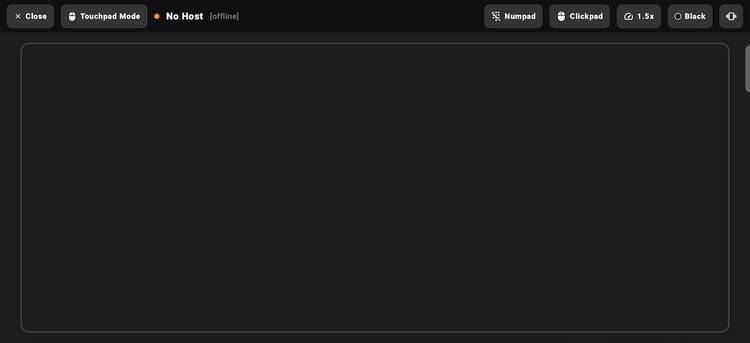
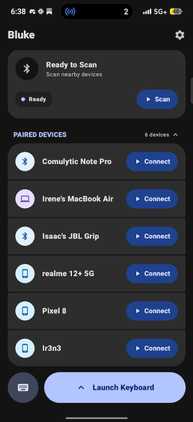
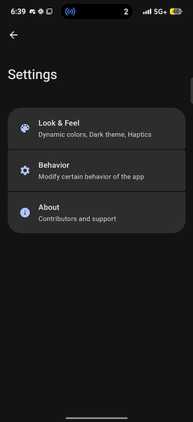
Desktop mode on your phone is only half complete if you're still swiping at your screen. Otherwise, it's just a tiny tablet. You make the most of it when you connect your accessories.
I connected my wireless Porodo office mouse via its dongle to my phone. It had a USB-A connector, so I converted it to USB-C with an adapter and plugged it into the Pixel 8 to make them compatible.
This setup freed up Bluetooth for my other phone, even though Android phones can now handle multiple Bluetooth connections at once.
Plus, my mouse's Bluetooth was unstable and kept disconnecting. It's more reliable to use a dongle or wired connection.
As for my text input method, I didn't consider buying a wireless keyboard because this was a temporary setup. At best, I needed it for quick work, photo editing in Snapseed and Lightroom, and video editing.
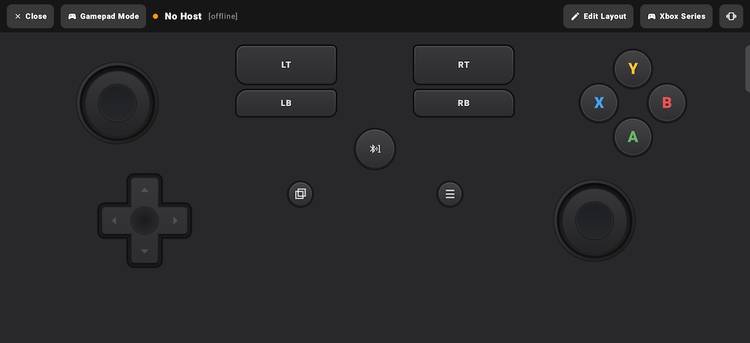
I already had the Bluke app installed on my second phone. It's a 3-in-1 app I normally use as a gamepad for playing Sims 3 and 4 on my laptop.
I've also used it as a keyboard and trackpad when my old PC's native input methods got damaged. In this case, I paired my Pixel 8 with the other phone via Bluetooth and tapped .
The keyboard displays on your phone's entire screen, and the connected device receives the input.
You'd be surprised how aesthetics elevate typing
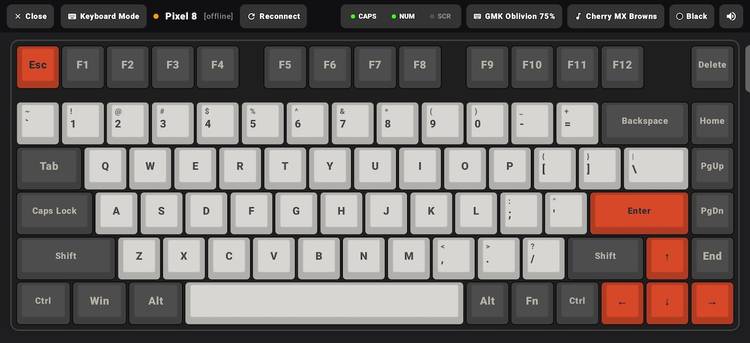
Bluke's default keyboard on the Pixel 8 is a beauty. It's a 75% mechanical layout and a nod to the popular Oblivion keycap set from German manufacturer GMK. That is, the plastic tops you press.
The app's default version features charcoal bases with silver legends and orange accent keys on and . The function row spans the top, while Numbers, QWERTY, and symbols stay in their proper places.
Navigation arrows cluster in the lower-right corner, and the keys resemble a real set you'd order online, even though it lacks the ergonomic feel of one.
I love that the clickety-clack sounds mimic the real thing. It's a relaxing ASMR to my ears and adds realism to the typing experience.
The app cycles through different switch profiles, including Cherry MX Browns, Holy Pandas, Alpacas, and Turquoise Tealios. Each one has its own sampled acoustic signature.
You can further customize the keyboard in the settings menu. Tap in the upper-left corner. Then tap the in the upper-right corner.
You should see two menus: and . The former handles the sensory side, where you can change dynamic colors that pull from your wallpaper, disable haptics, and do more.
The latter lets you set key sound cycles through different profiles, adjust touch sensitivity, and hide unsupported devices.
You can also configure , which keeps Caps Lock matched between your phone and the device you type into.
Computers usually notify your phone when Caps Lock is on, so you'll pick . TVs don't, and selecting makes the phone track it instead.
Choosing the wrong setting doesn't stop your typing from working. It only means Caps Lock may fall out of sync between your phone and the device, so you may type in the wrong case without noticing.
My remote productivity has reached peak minimal
Even without Dextop's windowing capabilities, my mini-workstation combination has been undeniably useful.
I complete my full writing schedule and access my content management systems when my laptop's battery runs out, and I'm out of power. However, the keyboard takes getting used to because of the smaller screen space.
You may want to get that portable keyboard attachment after all. Sometimes, I hook my Pixel to external monitors, such as my Rayneo Air 3S smart glass series.
I get an extra desktop mode option on top of what they already offer in mirror mode.