
Moving from one home to another is a painstaking ordeal. Transferring furniture and setting up your appliances takes an inordinate amount of effort and time.
After you have everything in place, you have to deal with the next big hurdle: setting up your home network and reconnecting your devices.
I recently dealt with this when I helped my niece move into her new apartment. All of her devices had been connected to our home's Wi-Fi network; installing a new router and starting from scratch would have been an all-new stressor.
It didn't have to be. I applied a simple adjustment to her new router's settings to make the transition seamless.
Start with this setting in the new router's setup
It'll save you hours of needless headaches
The biggest hassle of moving to a new home network is manually resetting and reconnecting multiple devices. Aside from the usual phones and laptops, you have to consider your like the TV, speakers, and plugs.
Many people assume they're bound to a router's default setup. To them, changing the credentials would mean compromising security. They couldn't be more wrong.
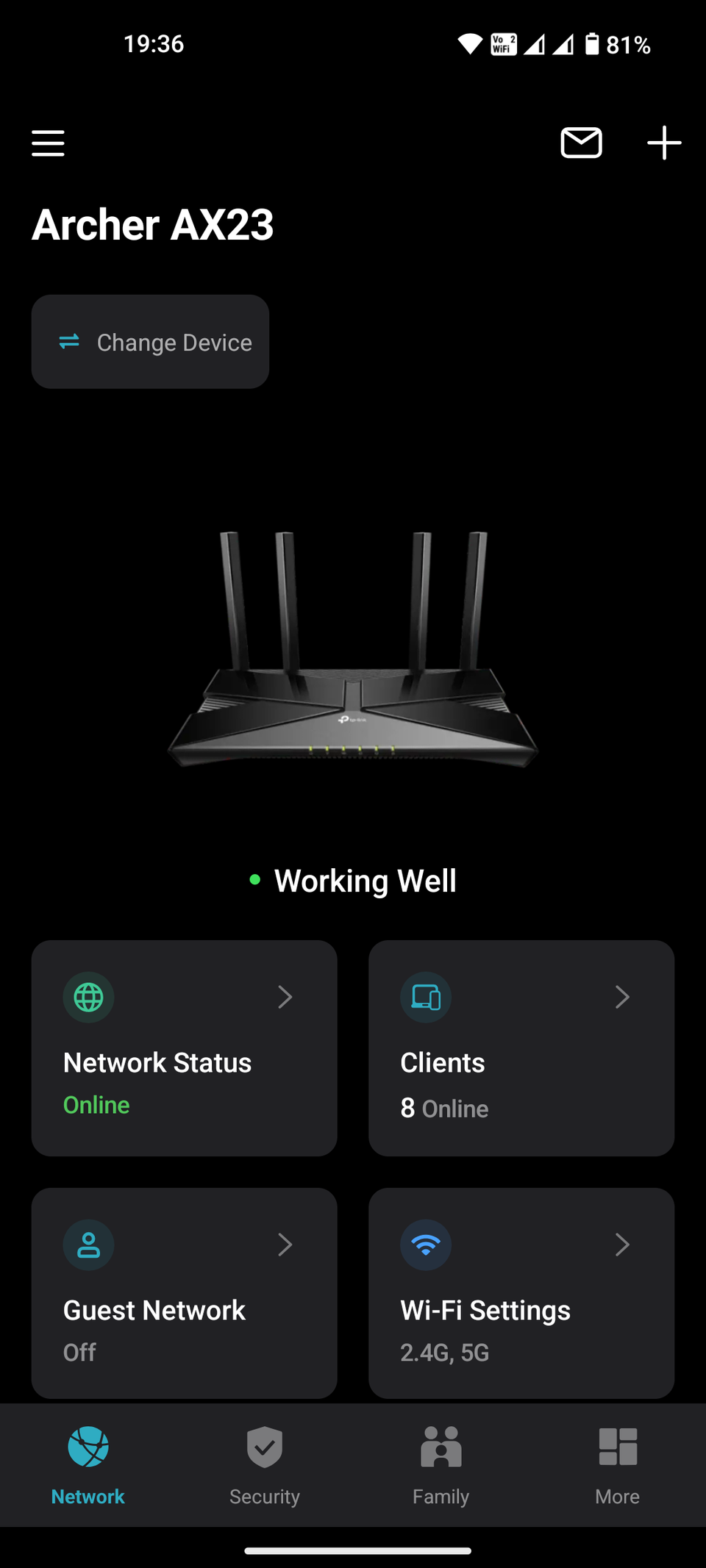
Modifying a new router's settings should be your first step. You can do this by logging in to the router's admin panel through a web browser or the accompanying app. From here, you'll be greeted by the initial setup process.
Here's the trick: use the same SSID (or Wi-Fi name) and password as the old router's. All devices that connected to the original home network instantly recognize the new router.
Both the SSID and password are case-sensitive. Naming the new SSID "HomeWiFi" would throw off any device looking for "homewifi" when trying to connect.
This works because smart devices don't look for specific hardware; rather, they search for the SSID and match it with a password when it's within range.
The same trick works for temporary networks while waiting for the ISP to install a wired connection in your new home. If you're using your phone's built-in mobile hotspot or a dedicated 5G device, use the same SSID and password as your original home Wi-Fi's.
This lets your devices work seamlessly with a temporary setup when your ISP hasn't set up the new modem. It saves time by avoiding teaching your security camera or smart lightbulb a new hotspot password, only to change it later.
Continue with proper placement and security
Don't stop at the introductory setup
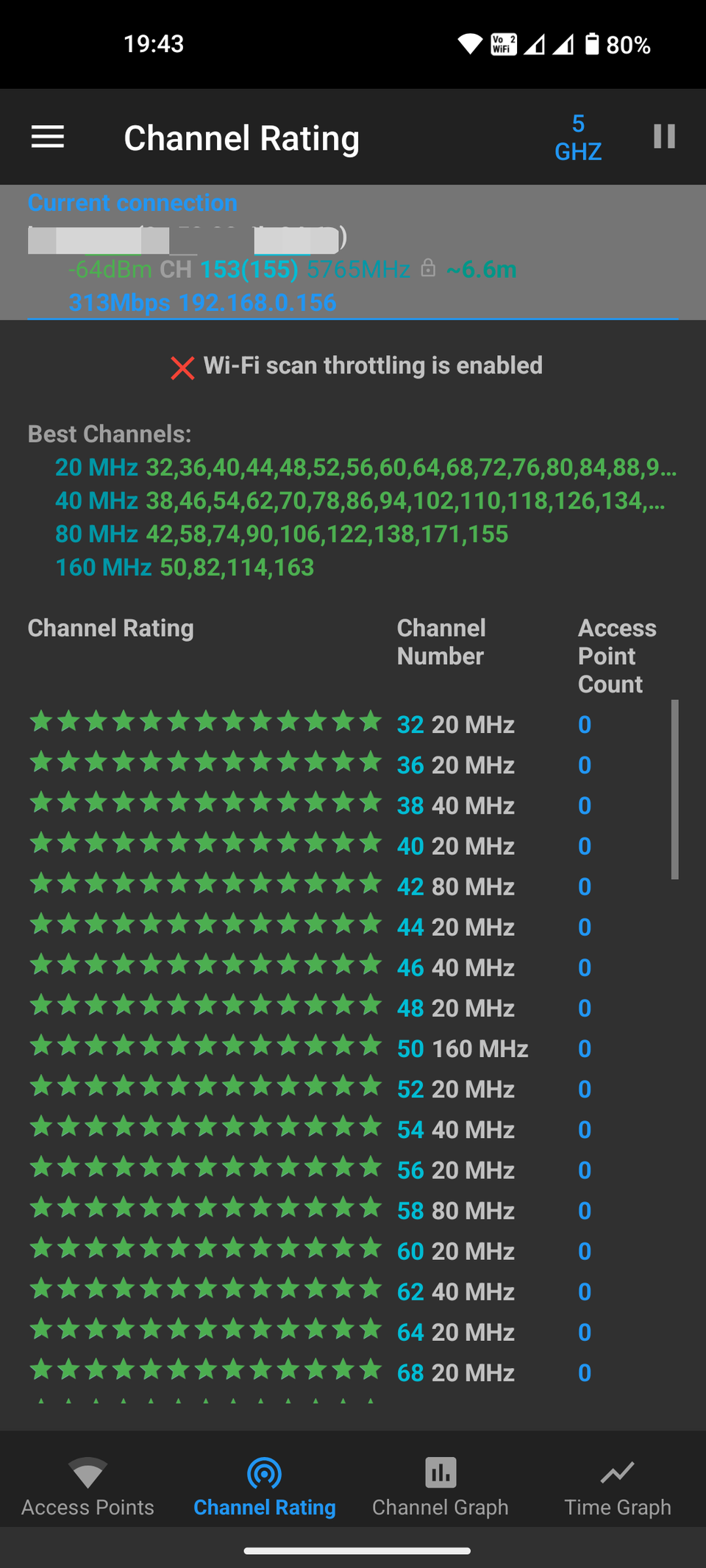
First, find an optimal spot for your new router. Resist the temptation to leave it wherever the ISP technician set it. Place the router in a central location in your new home and keep it at least one meter above the floor. This prevents the need for in faraway rooms.
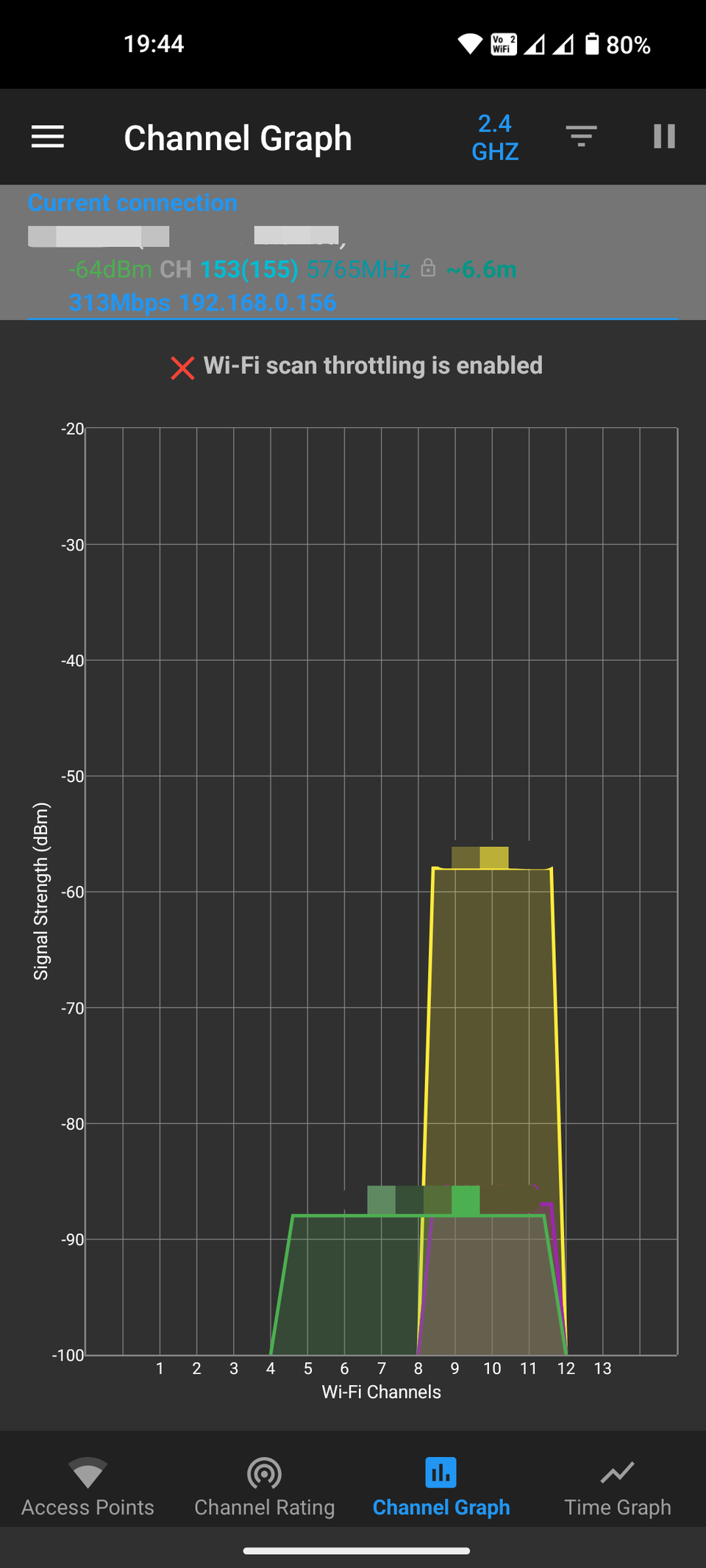
Next, keep the router away from large metal appliances (like a refrigerator) and aquariums, as these can degrade Wi-Fi signals. Use a Wi-Fi analyzer app on Android to check the quality of the wireless signals and if they're affected by the neighbor's Wi-Fi.
Security is the next and more important agenda. Before you start, take a photo of the router's bottom plate. The default SSID and password will come in handy the next time you hard reset the router. The same goes for the default administrator username and password.
Since you're keeping the same SSID and password as your previous router, you only need to check the security protocol. Ensure that it's set to WPA3. It's the latest standard and more secure than older versions.
Don't downgrade your security protocol to something like WEP or WPA to support older devices. Devices should adjust to the router, not the other way around.
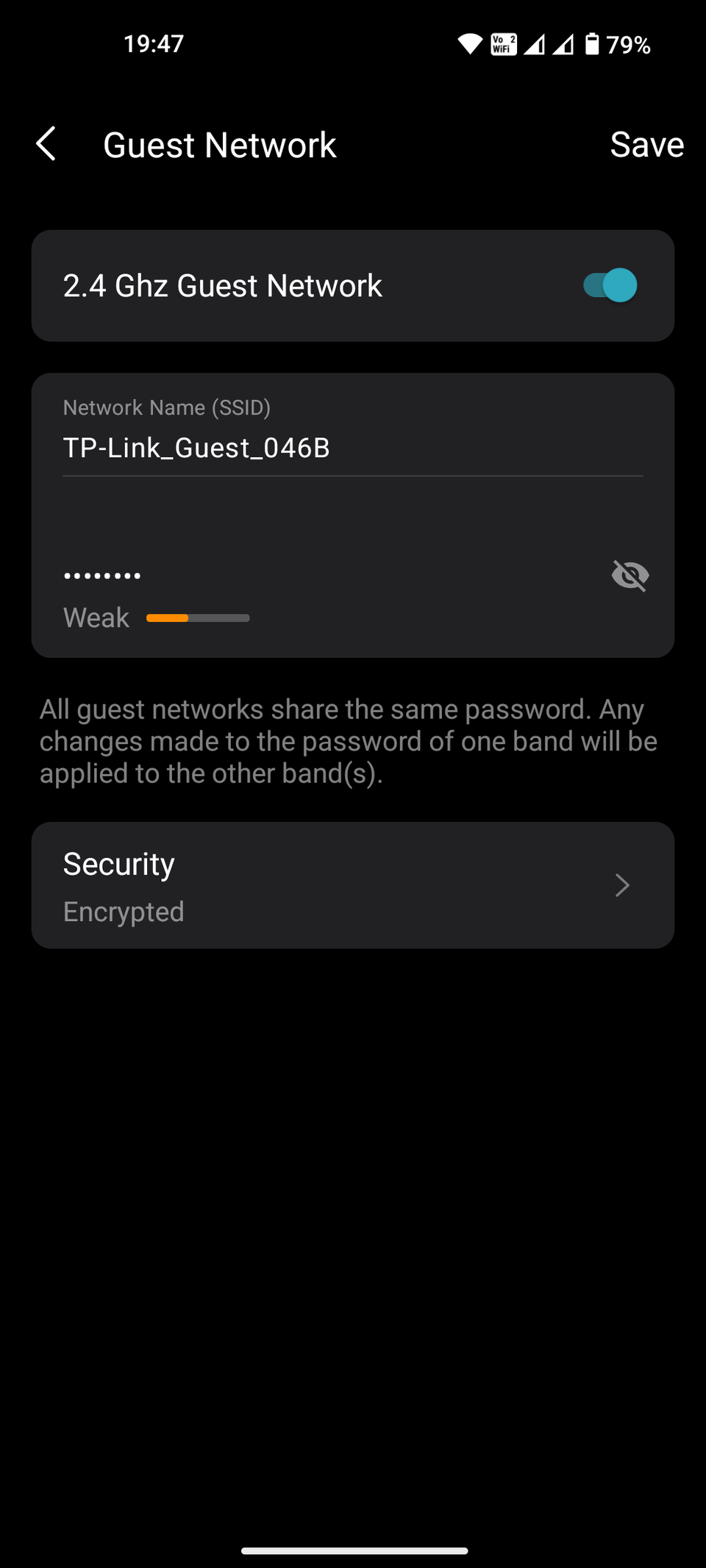
After setting up your primary network, create a guest network. Give this secondary SSID a different password and run it on another Wi-Fi channel. It's not only for guests; you can connect your less-important smart gadgets here to decongest the main network for your phone and laptop.
Before leaving the router setup, update the administrator username and password. Unlike the SSID and network password, you can change the router's login credentials to something unique. Leaving them at the default can make the router vulnerable to local tampering.
Move into your new home with fewer steps
Bringing all your devices over to your new home and reconnecting everything shouldn't be a chore if you follow these steps.
The only potential setback is your devices flagging the new router as a malicious network. Some Android devices might read your new router's MAC address and realize it has been swapped, even if it carries the same SSID and network password.
This built-in security measure helps prevent spoofed networks. If you experience this on your phone, forget the Wi-Fi network and rejoin. This signals to your Android that the reconnection is intentional.
It's a handy security layer and only a minor setback before you're done moving in. All that's left is to sit down on your sofa and watch another season of Love is Blind on Netflix.