I don't have home Wi-Fi because it's not common where I live.
So, all my internet connectivity comes from my mobile data, either directly on my Samsung Galaxy phone or on my laptop through my phone's hotspot.
But that quickly exhausts my plan, so I end up spending more than I budgeted.
However, after years of running my laptop through my phone's hotspot, I've found ways to make it work, and one of them is a metered connection.
Let me walk you through my setup.
A metered connection is the most important setting
It cuts most of the background data drain
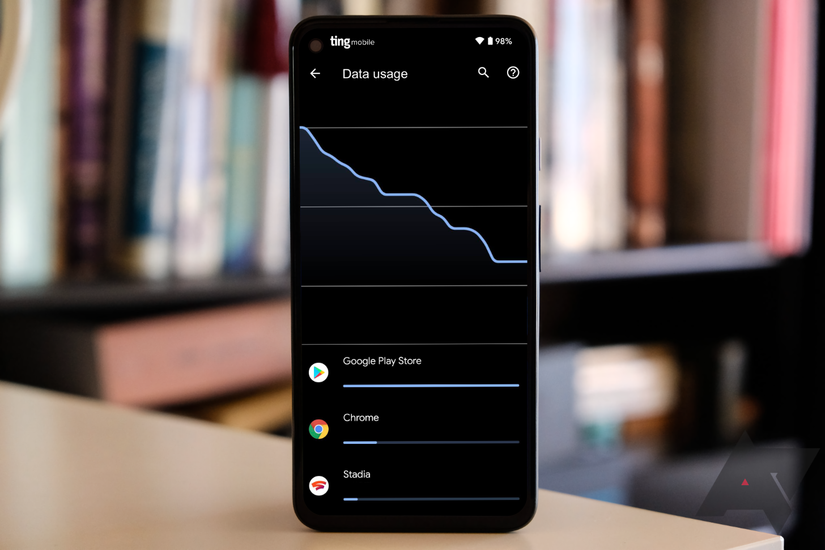
A metered connection tells Windows you're on a limited-data network, so it holds back many background activities that drain your data.
Before I found it, I lost several gigabytes after a few hours of laptop use on my phone's hotspot.
Now, when I get a new laptop and connect it to my phone's hotspot, I turn on the metered connection option first.
Here's what changes after it's on:
- Windows only downloads priority updates.
- Microsoft Store apps stop updating automatically.
- Delivery Optimization stops sharing update files with other PCs.
- OneDrive pauses syncing until you resume it.
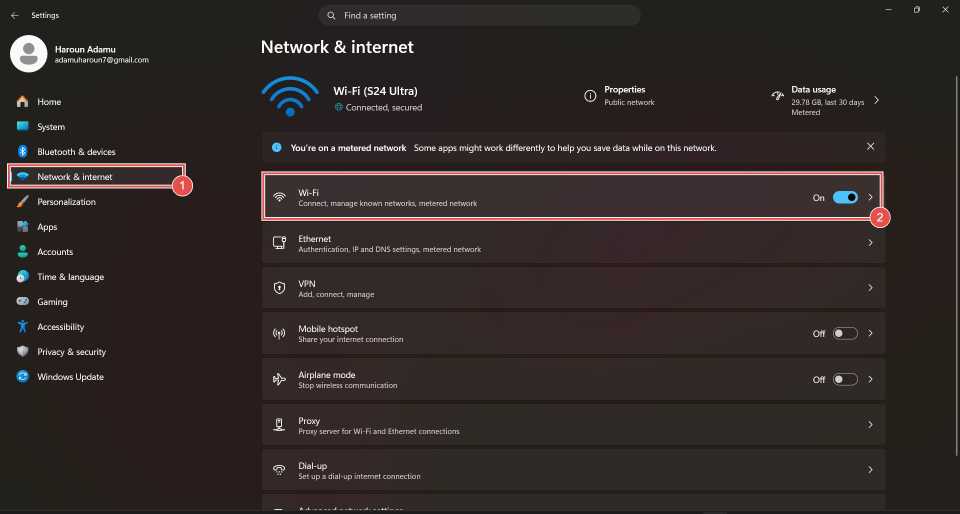
To turn it on:
- Open and go to .
-
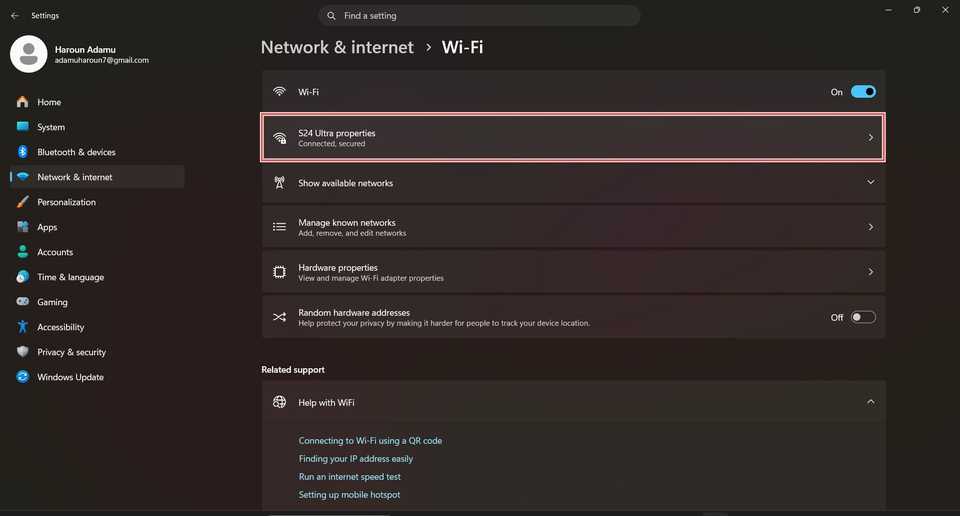
Go to and select your hotspot (you need to be connected for it to appear).
-
Flip the toggle next to Metered connection.
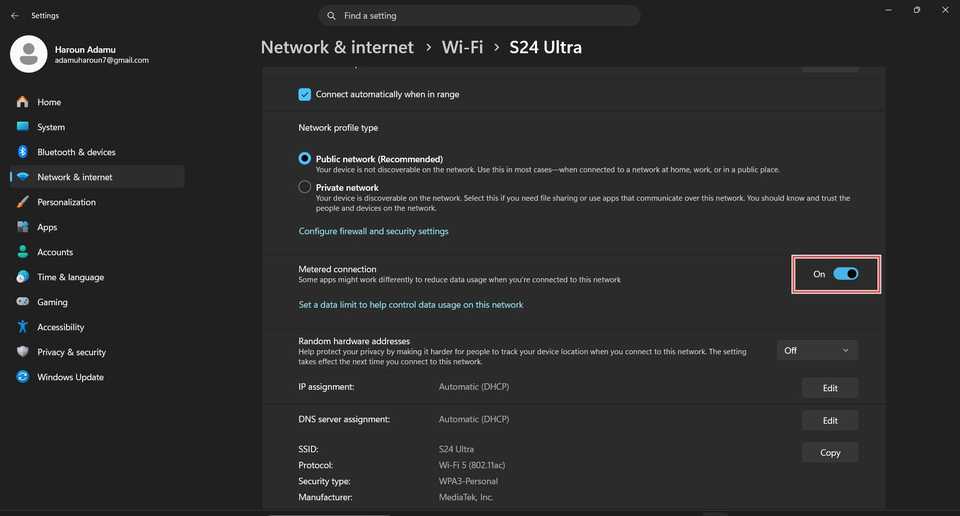
You only need to do this once. Subsequently, when you connect to your phone's hotspot, the metered connection option will be enabled.
A few more Windows settings to check
Most won't be enabled, but it's worth checking
Setting a metered connection on your phone's hotspot is the most important step, but other Windows settings may still bypass it or give you extra controls.
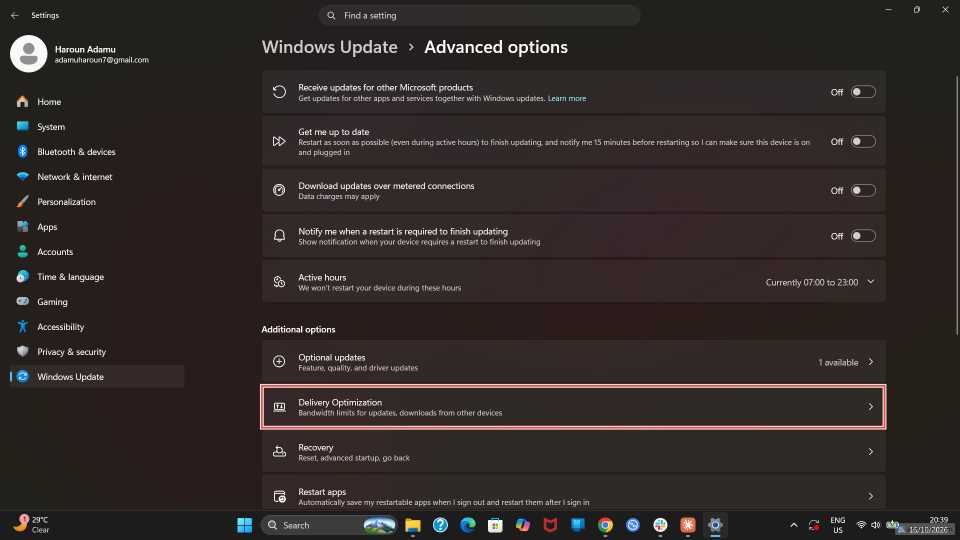
Get updates over metered connections: Lets Windows download updates even if a metered connection is enabled. Go to > > Advanced options and ensure it's turned off.
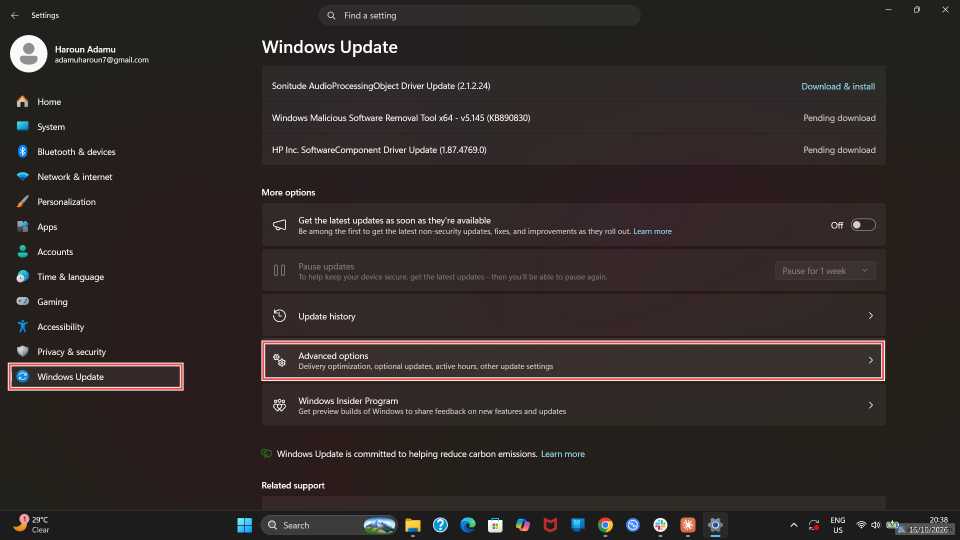
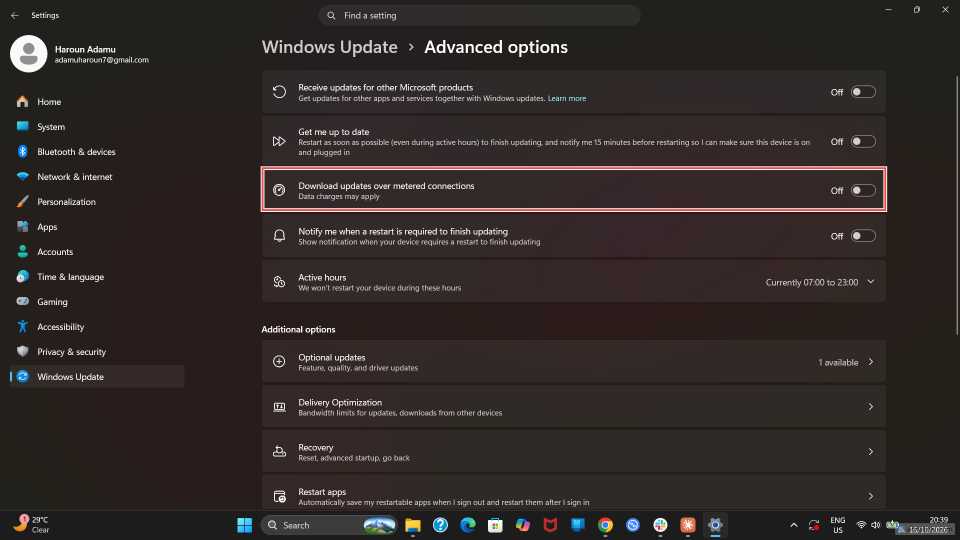
Allow downloads from other devices: Downloads Windows updates from other computers on your network. You'll find it in > > Advanced options > . A metered connection should limit this, but it doesn't hurt to turn it off.
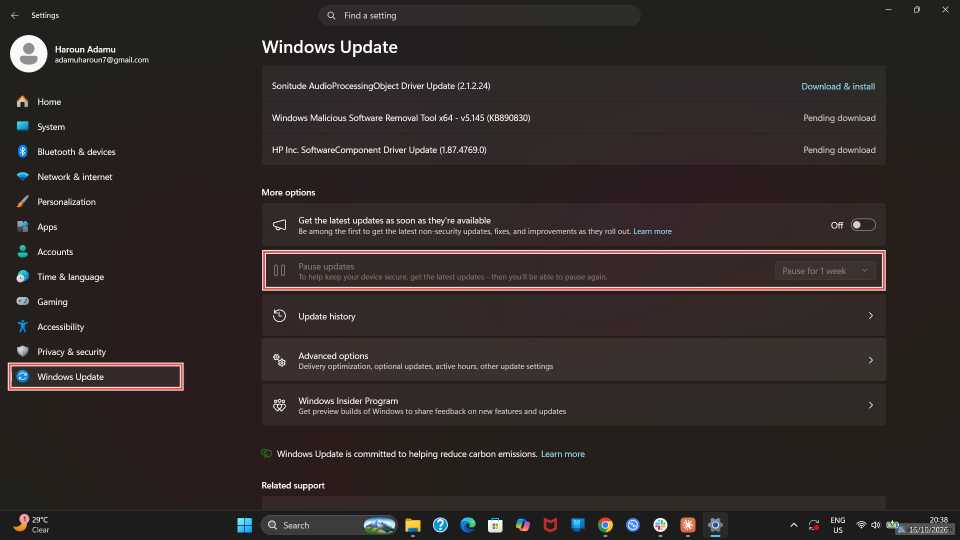
Pause updates: Available on the main Windows Update page. It lets you pause updates for up to five weeks. It's handy when you want to prevent a large update from draining your data. After the full five weeks, you need to install the pending updates before you can pause again.
Data limit: You'll find this link under the metered connection toggle. It takes you to the data usage page where you can set a daily, weekly, or monthly data limit for your hotspot.
My Samsung adds an extra safety net
Data limits, pauses, auto turn off, and so on
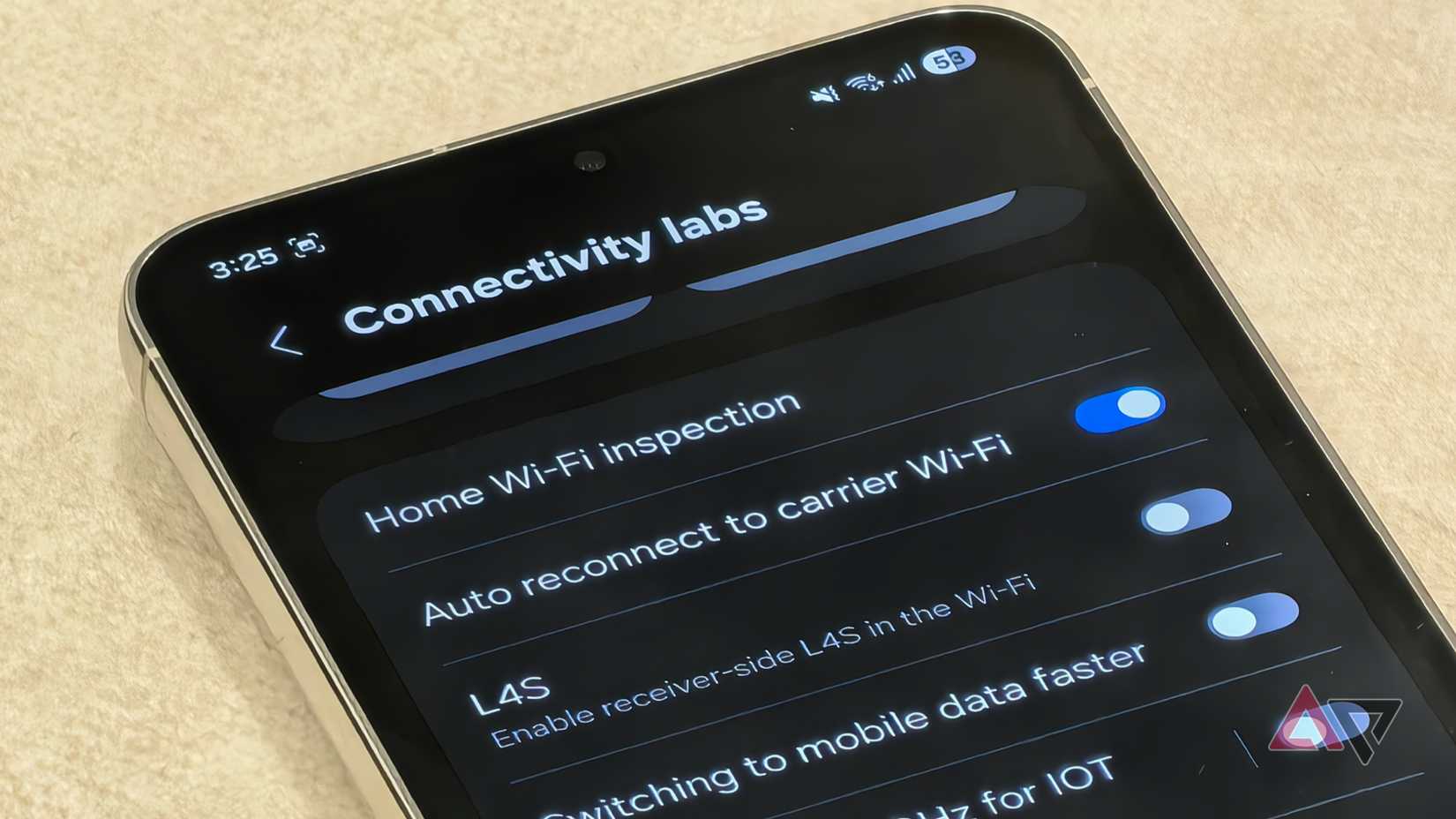
In addition to those Windows settings, I like to have a safety net on my phone. And Samsung has a few nifty tricks.
First is per-device limits, which let me set a daily data or time limit for each device connected to my hotspot, including my PC. I can also pause sharing, cutting off my laptop's data access until I turn it back on.
To do this:
Go to > > .
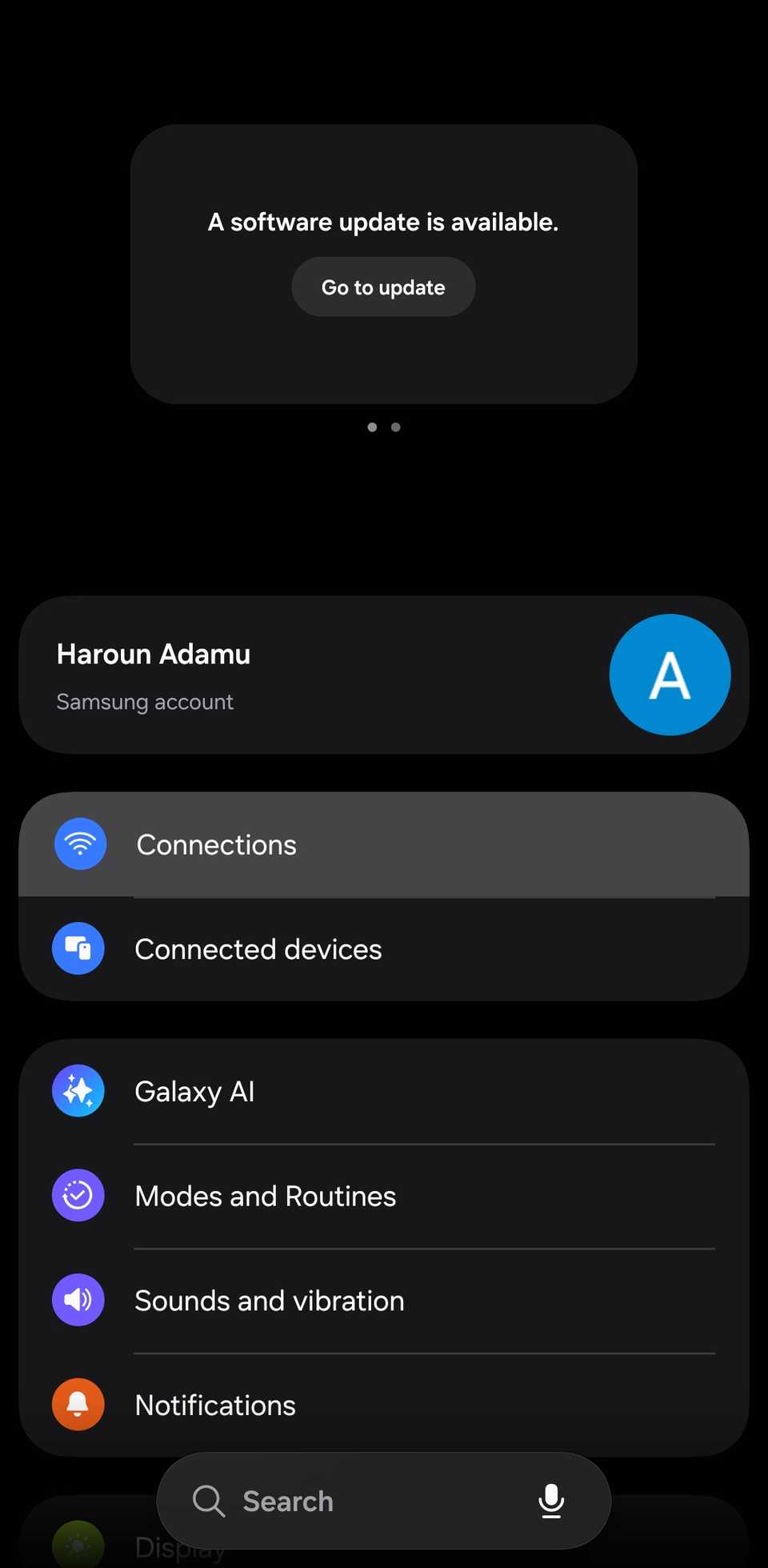
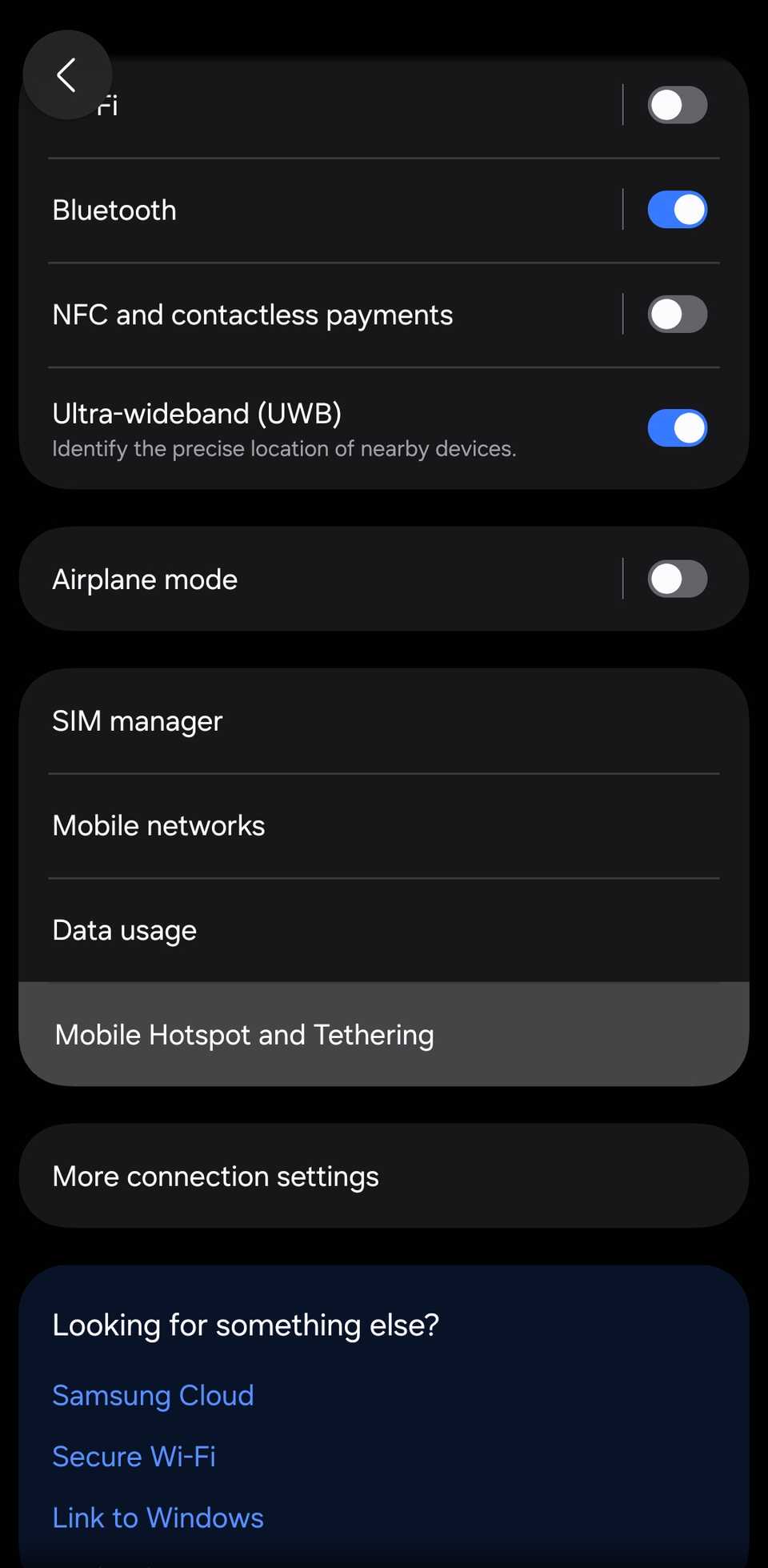
Then select , tap the Mobile data shared today box, and select your laptop (it has to be connected).
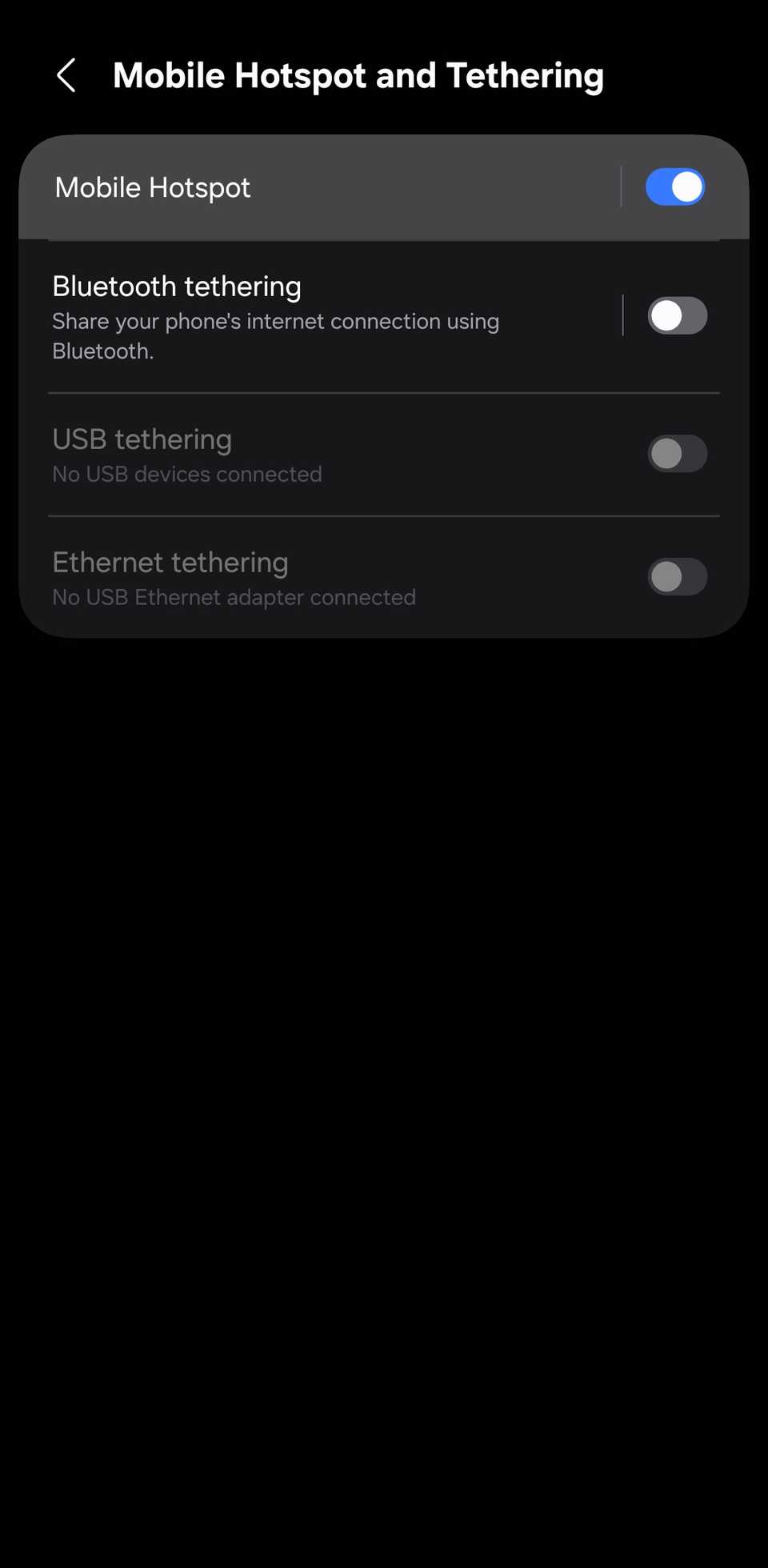
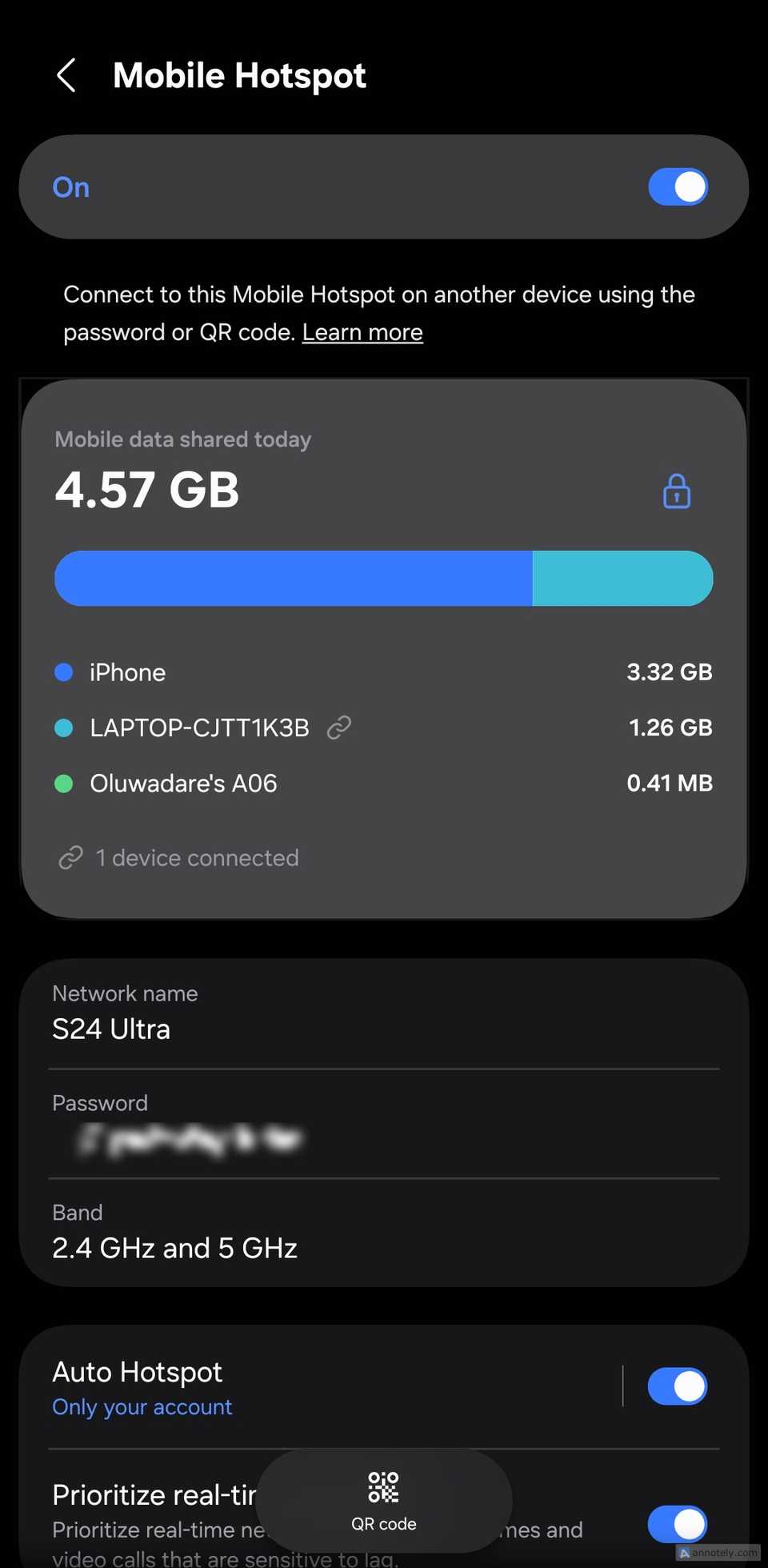
You can also see how much data each device has used that day on the same screen, which makes it easy to spot when something on the laptop goes rogue.
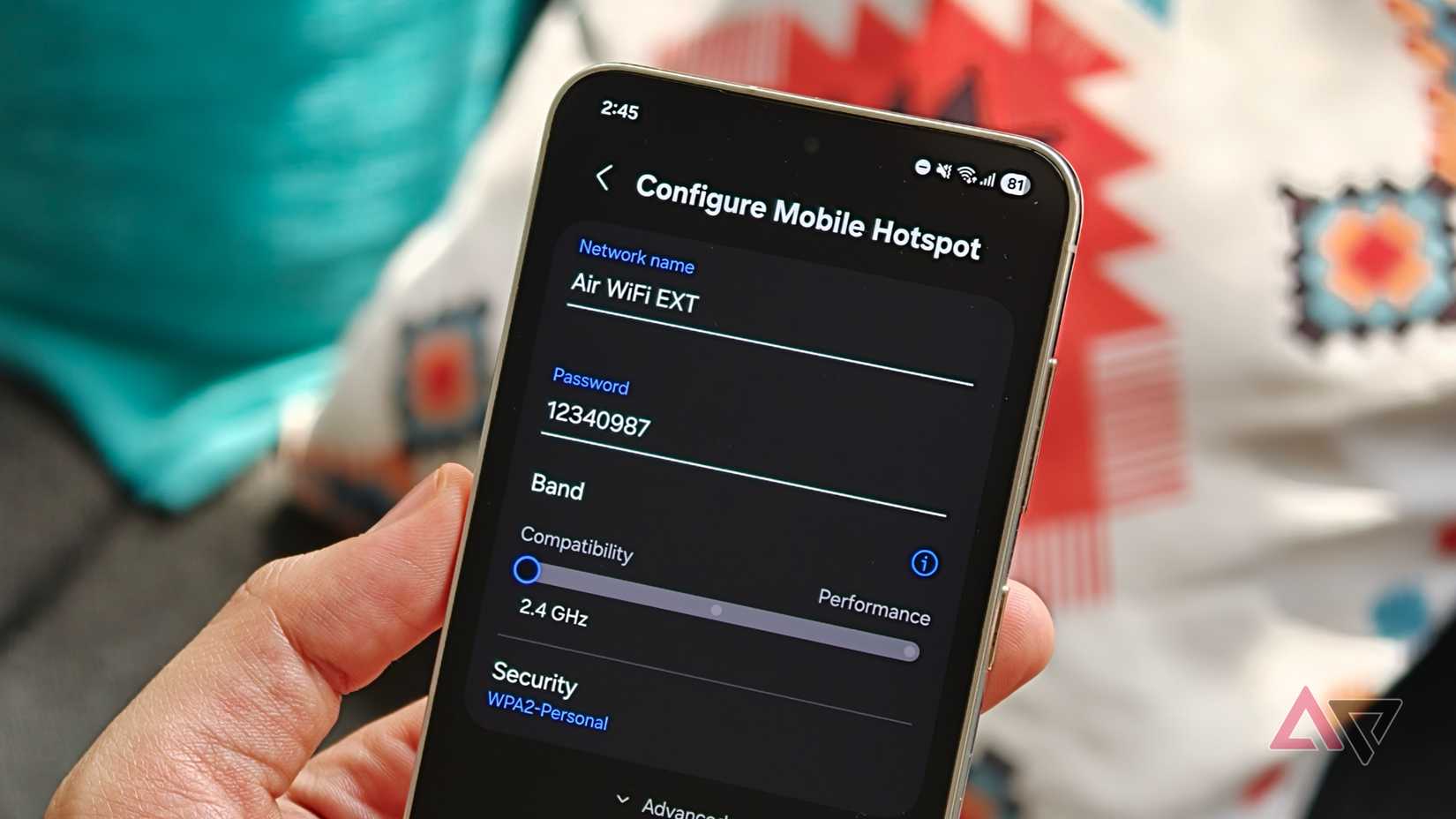
My hotspot also turns itself off after a while with nothing connected. Some Galaxy phones let you change that timer in the hotspot settings, but mine doesn't have the option.
What a metered connection won't do
It doesn't stop everything
A metered connection limits background activity for apps and services Windows controls. But anything you start yourself still uses data at full speed.
Your browser is probably the biggest culprit. Video calls and large downloads will consume as much data as they need. A download manager can help here. It'll allow you to pause or schedule big downloads so they don't eat into your plan all at once.
Apps you install from outside the Microsoft Store don't always respect a metered connection. Some will keep updating in the background. Open each one and see if it has an option to turn off automatic updates.
These settings make my hotspot setup manageable
Running a laptop on mobile data will probably never be as carefree as home Wi-Fi.
But thanks to Windows' metered connection, a few extra Windows settings, and my phone's hotspot settings, I barely lose any valuable gigabytes to things I didn't ask for.
If your phone is your main internet source, start with the metered toggle and work your way down from there.
And if your mobile data keeps dropping even with full bars, a single Private DNS setting might be the cause.