My Gmail is littered with newsletters, spam, promotional emails, and other unnecessary messages, making it hard to get work done.
I've used the same account since launched, and I use it to sign up for e-commerce accounts and newsletters.
But after a few years, it got out of hand, and I spend more time deleting emails than reading the important ones. That's when I decided to use Gmail's filter to make my life easier.
I get more newsletters than spam and needed to do something about it
A filter to manage newsletters

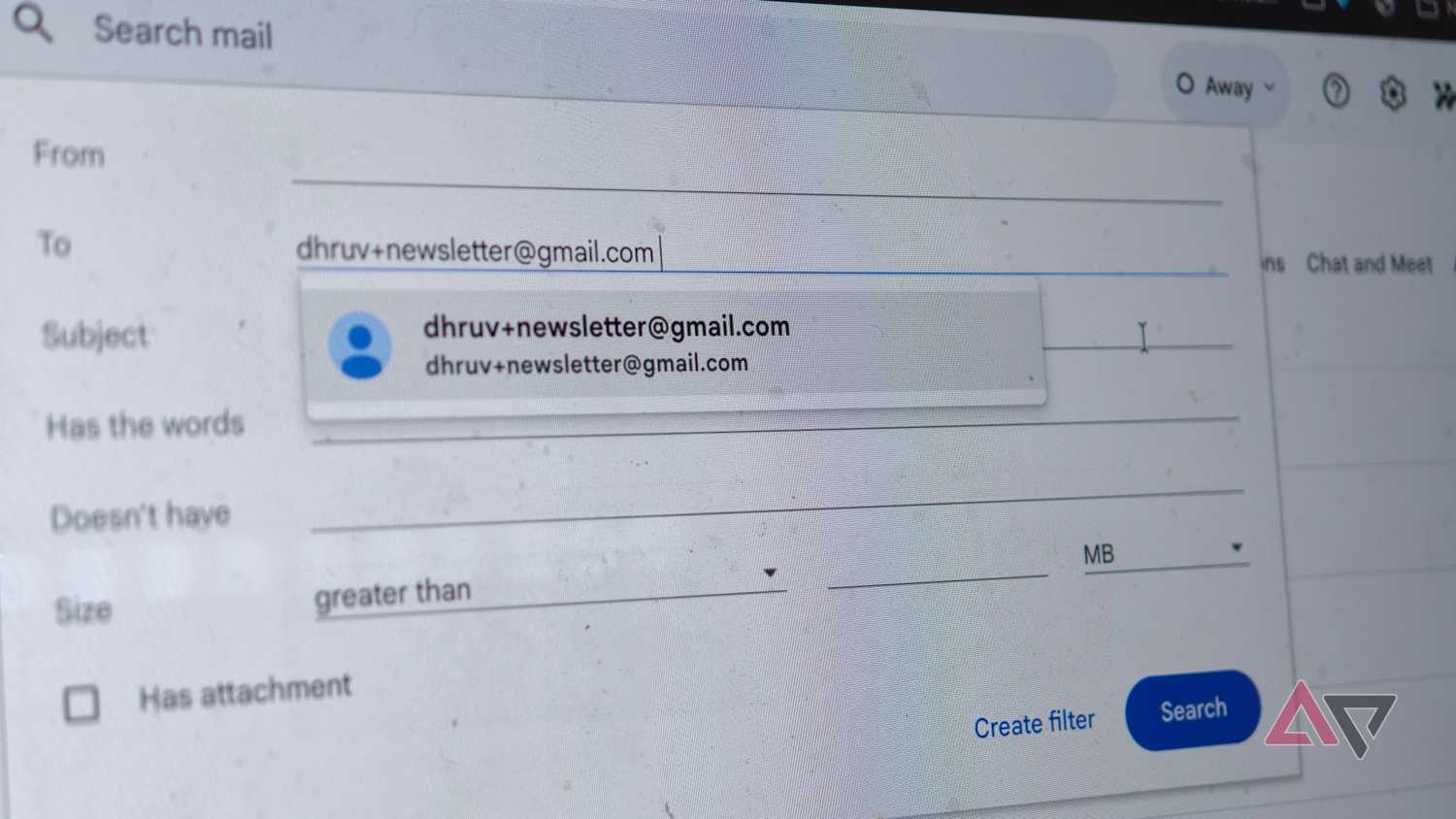

To handle all the , I first needed a filter I wouldn't have to tweak later. The set-it-and-forget-it filter works like a charm and takes less than a few minutes to set up.
If you're wondering how to set up a filter, it's straightforward.
You will need to access Gmail on a desktop first, as it is the fastest way to do it. Here are the steps you'll follow:
- Open Gmail on your web browser.
- Click on the search bar.
- In the search bar, click Show search options (the slider icon).
- Go to .
- Select Create filter.
- Choose .
- Select Also apply to matching conversations to apply this to all existing emails.
- Finally, click Create filter.
After you've followed these steps, open a newsletter email and click the three dots. Select Filter messages like these.
When creating the filter, you can turn on actions such as:
- Skip the Inbox (Archive it)
- Apply label, Mark as read
- Always/Never mark as important
- Categorize as
- Star it
- Never send it to Spam
For newsletters, I started including a criterion that looks for the words "unsubscribe," "opt out," and "Substack."
The above method needs to be repeated for all subsequent filters mentioned below.
Most newsletters and promotional emails include these words. It's either in text form, a link, or as a header. The filter scans most of my email, then applies a label and takes another action.
The actions I've included for the newsletter filter are applying a label and "Skip the inbox." This simple action decluttered my inbox and stopped it from filling up with digests I couldn't read at the moment.
But if I wanted to read newsletters, I could filter by the "newsletter" label and read any I found interesting.
I filtered important and work emails to get to them first
Giving them the VIP treatment
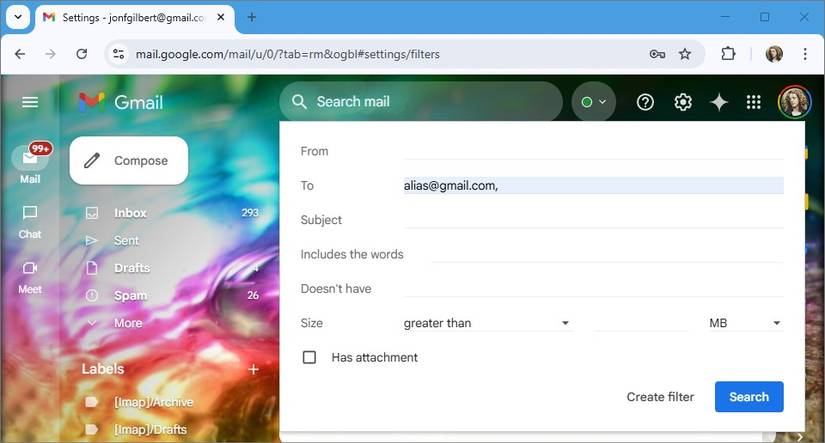
The next Gmail filter surfaced important emails from people I work with, family, and other internal work emails.
I followed the same steps as above, but instead of adding a keyword, I added email addresses and domains to the filter's "from:" category.
This is how the format looked: from:person1@email.com OR person2@domain.com
Similarly, for all important emails from within my company or vendors, I added the domains instead so that any new emails from their entire network get the same filter.
For this, I added "@importantcompany.com" to the same "from:" category. Next, I added the right actions, so these emails never got buried under promotional emails and other unpredictable spam.
I first gave it the "VIP" label so I could use it later with Gemini.
I then added these actions: always mark it as important, star it, categorize it as primary, and never send it to Spam. Do not skip the inbox.
Since these emails needed my attention the same day I got them, these actions mattered. When I use Gmail on my phone, this filter also helps me get summaries from Gemini.
I give Gemini the prompt below, and it helps me get started on replies and important work.
Any action items or deadlines in my VIP or Primary emails today?
Gemini in Gmail gives me a brief overview of the important emails in the VIP label and tells me what to complete first.
I use filters that I can later use for tax filing
Keep a record of all your purchases

I buy a lot of things online, and most of them are work-related. These include raw materials, stationery, internet bills, and other transactions.
But during tax season, finding all these bills can be cumbersome unless you are highly organized or keep physical receipts in a folder.
I solved this problem with a simple Gmail filter and label that saved me countless hours.
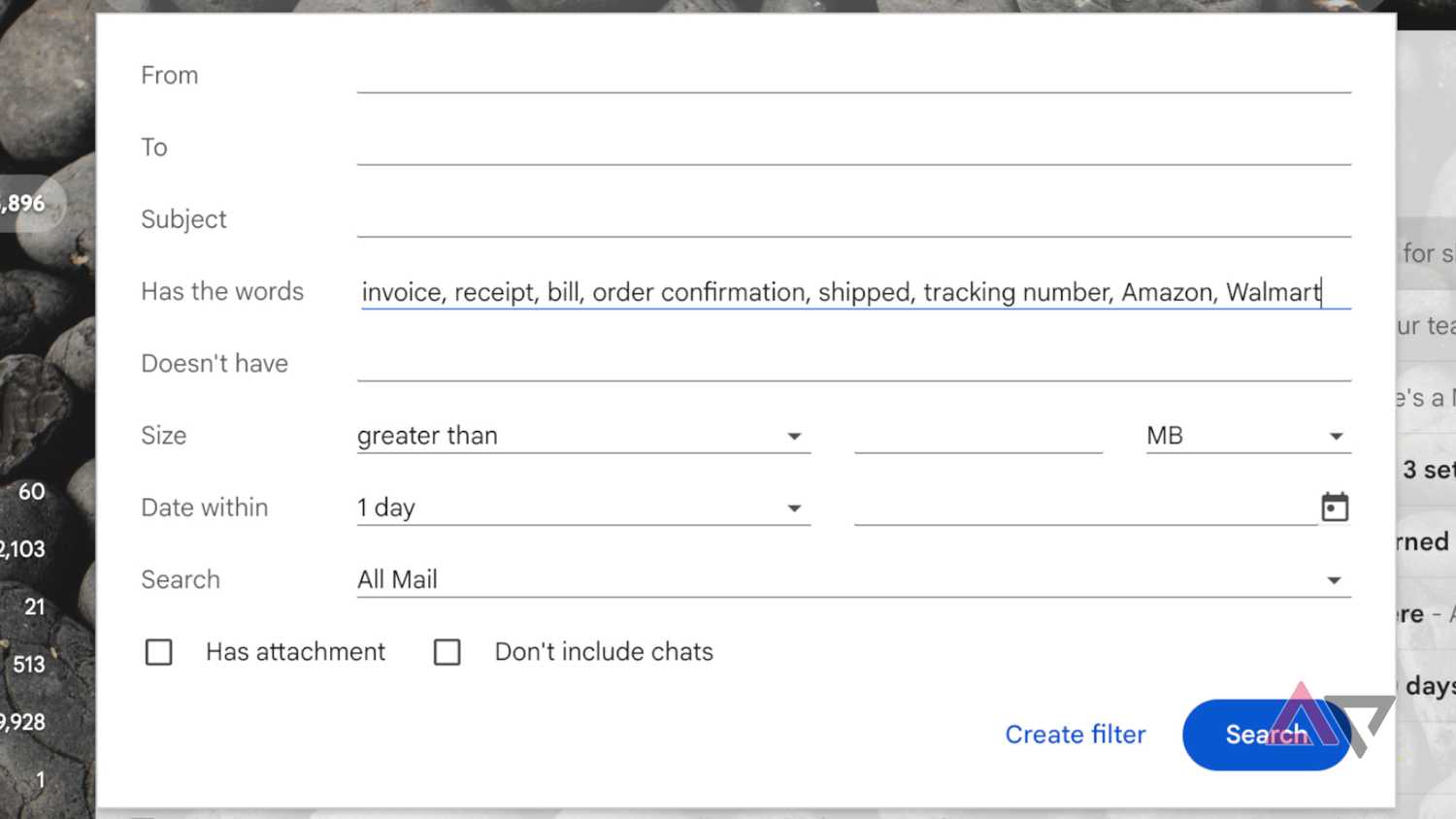
When setting up this filter, I added criteria that included the words receipt, invoice, bill, order confirmation, shipped, tracking number, Amazon, Walmart, and other payment-confirmation emails.
With this simple filter, I can easily pull up any receipts or invoices I can use later for tax returns.
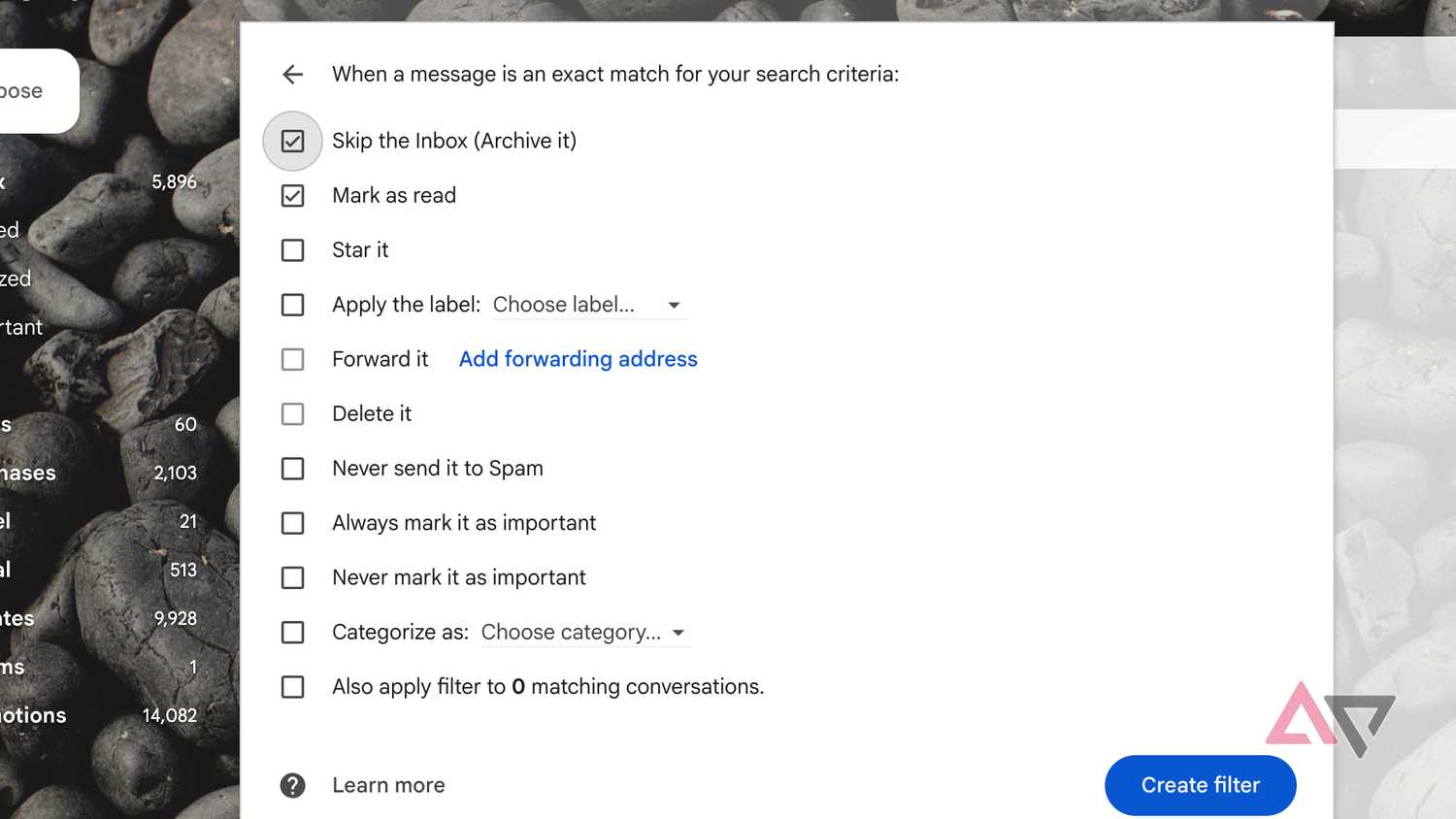
I also applied the "skip the inbox" and "mark as read" actions, so these menial updates didn't interrupt my workday.
When I needed a specific email, I could ask Gemini to find an order from a specific company in the "Receipts" label and download the invoice if needed.
Automated notifications also didn't deserve space in my inbox
Those 'no-reply' emails started to annoy me
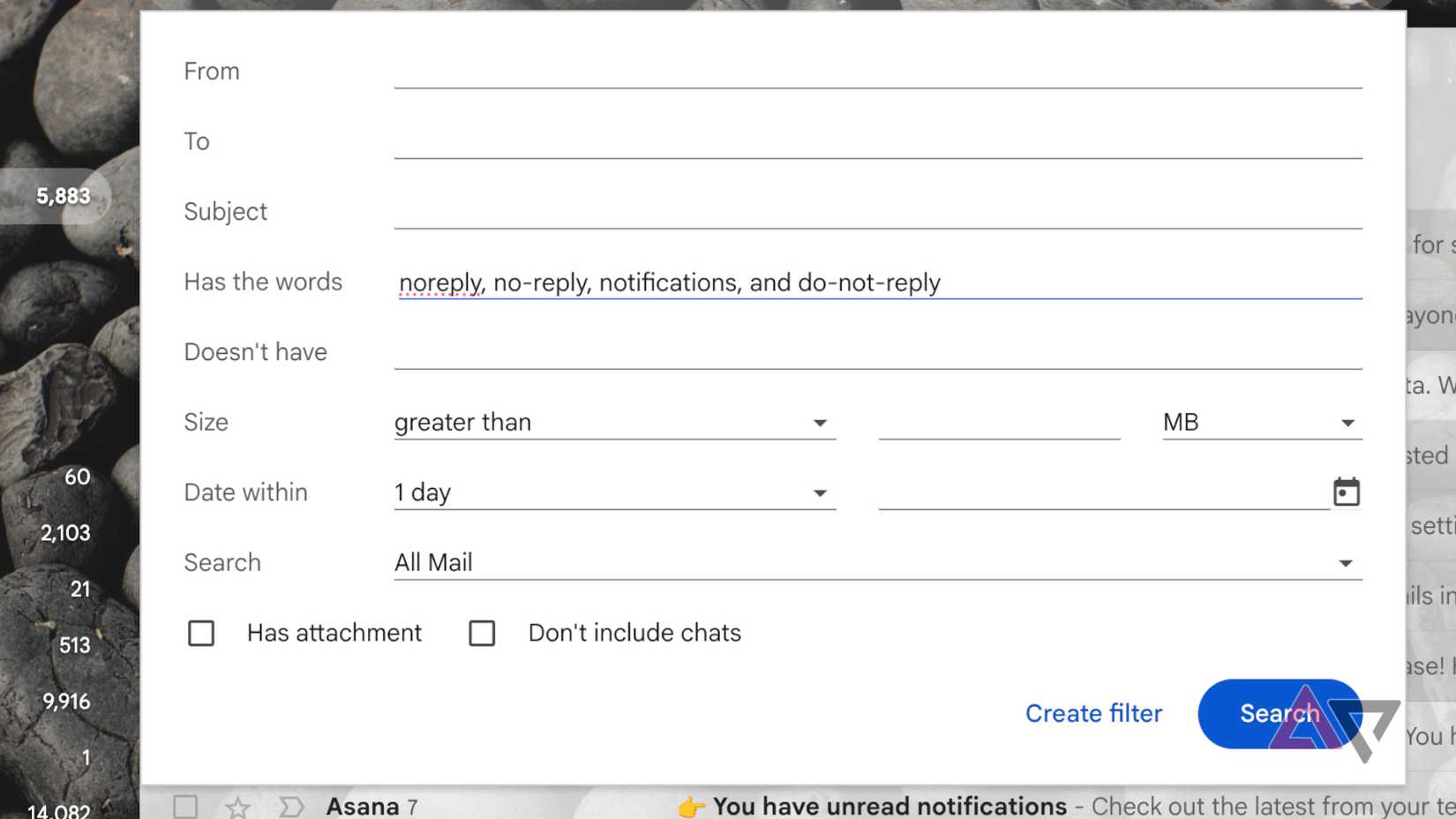
After setting up the filters above, I noticed a certain type of email flooding my inbox. These included notifications from apps, social media, and website updates that didn't deserve space in my Gmail.
That's when I decided to create a specific filter for these emails and label them "useless."
The criteria included keywords such as "noreply, no-reply, notifications, and do-not-reply" so that these emails were filtered out and never showed up in my inbox. I also added the action "Delete it," so it never took up .
OTPs and security alerts also clogged up my inbox
Organizing them saved me a lot of time
My final filter targeted emails often sent from various sources. These can include (one-time passwords) or verification codes for logging in to apps and websites, or courier deliveries.
While these emails are important, I often forget to delete them when I'm done. To fix this, I set up a filter that flags them when I need them.
I added the label "OTP" and criteria that include the words: OTP, verification code, one-time, sign-in alert, security alert, and new login.
I also set up actions to make sure I never miss these emails. I added actions to categorize them as Primary, never send them to spam, and never auto-archive them.
Since these emails are time-sensitive, I needed to make sure I never missed them in a flooded inbox and that they stayed front and center.
After I finished these emails, I asked Gemini to delete all emails in the OTP label toward the end of the week, saving a lot of time.
Gmail filters can be quite useful when used the right way
Gmail filters can save a lot of time for people who have and other useless emails. Since I switched to filters, I've managed my inbox more efficiently than ever.
It takes some time to set up, but after it's set up, you never have to worry about your inbox flooding again.