
A code is useless after a few minutes, but a bank alert can keep transaction amounts and account details in my inbox for months.
Gmail doesn't offer an option to delete mail after a set number of days, and there's no hidden Gmail setting I can use.
So I wrote a short Apps Script that moves these emails to Trash after three days, and I left it running for a month.
Gmail does not auto-delete mail by age
Filters only see new mail
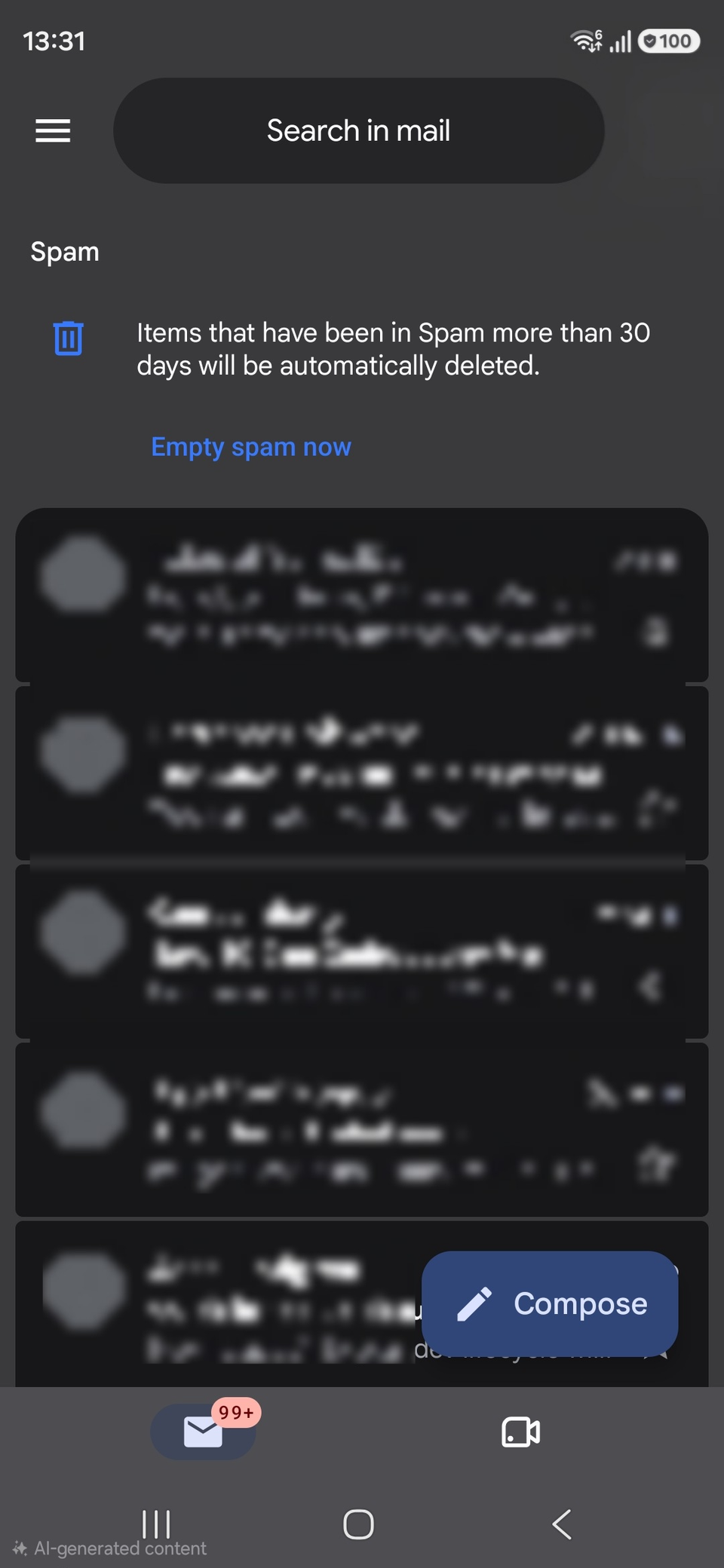
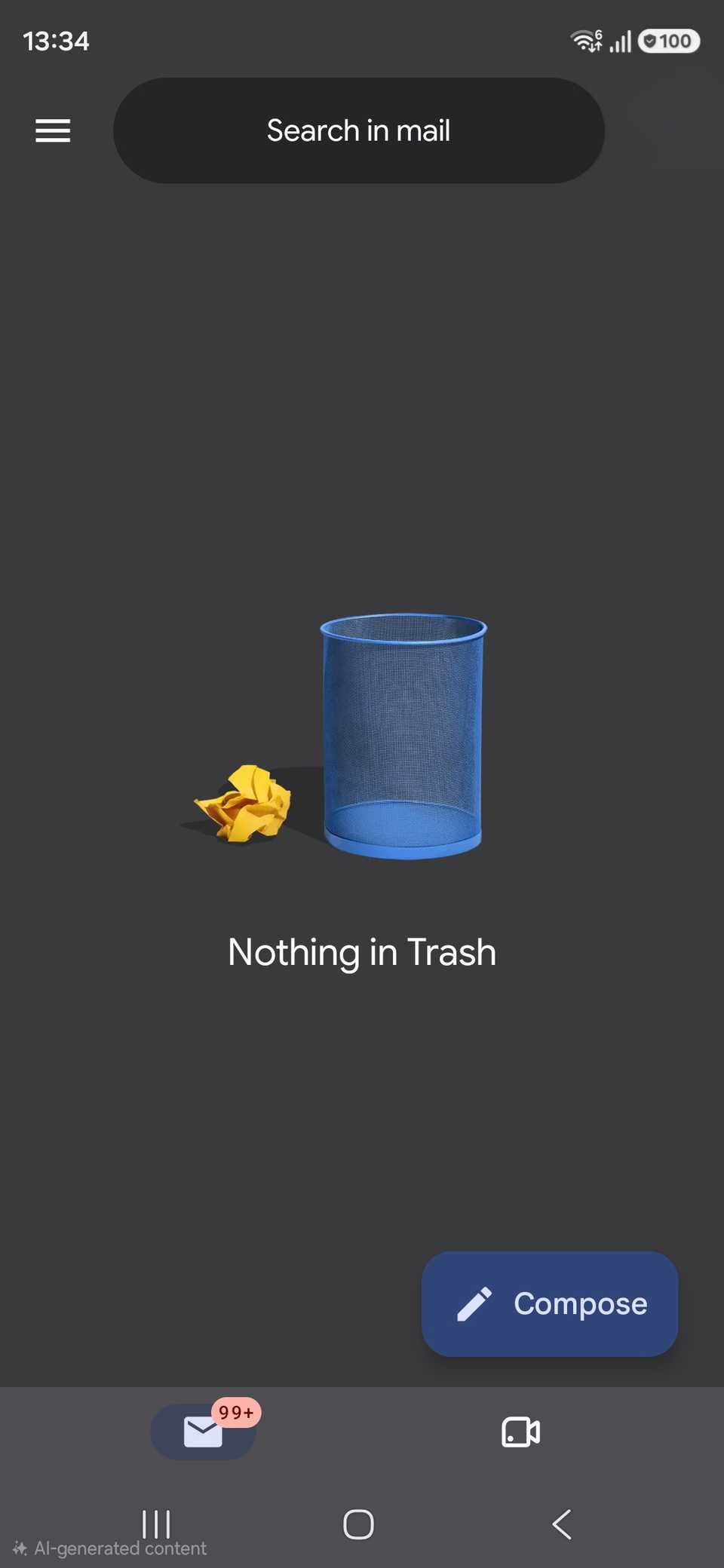
Gmail clears out only two folders on its own. Trash and Spam both delete messages older than 30 days, but everything else in my inbox stays until I remove it.
While filters seemed like the obvious fix, I learned that a filter checks a message only when it arrives, and never again.
The problem is that I often don't read bank alerts until a couple of days after they arrive, by which time the filter is gone.
The search operator gets me closer. I can build a filter with it and tick Also apply filter to matching conversations, but that only clears what matches at that moment.
Google Workspace admins get an Email and chat auto-deletion setting in the Admin console that does exactly what I wanted. However, I use a free personal account, so that setting is not available to me.
Most Gmail cleanup steps rely on bulk deletion, which only works once. I wanted something that kept running in the background without manual input.
Building the script
All I needed was one label
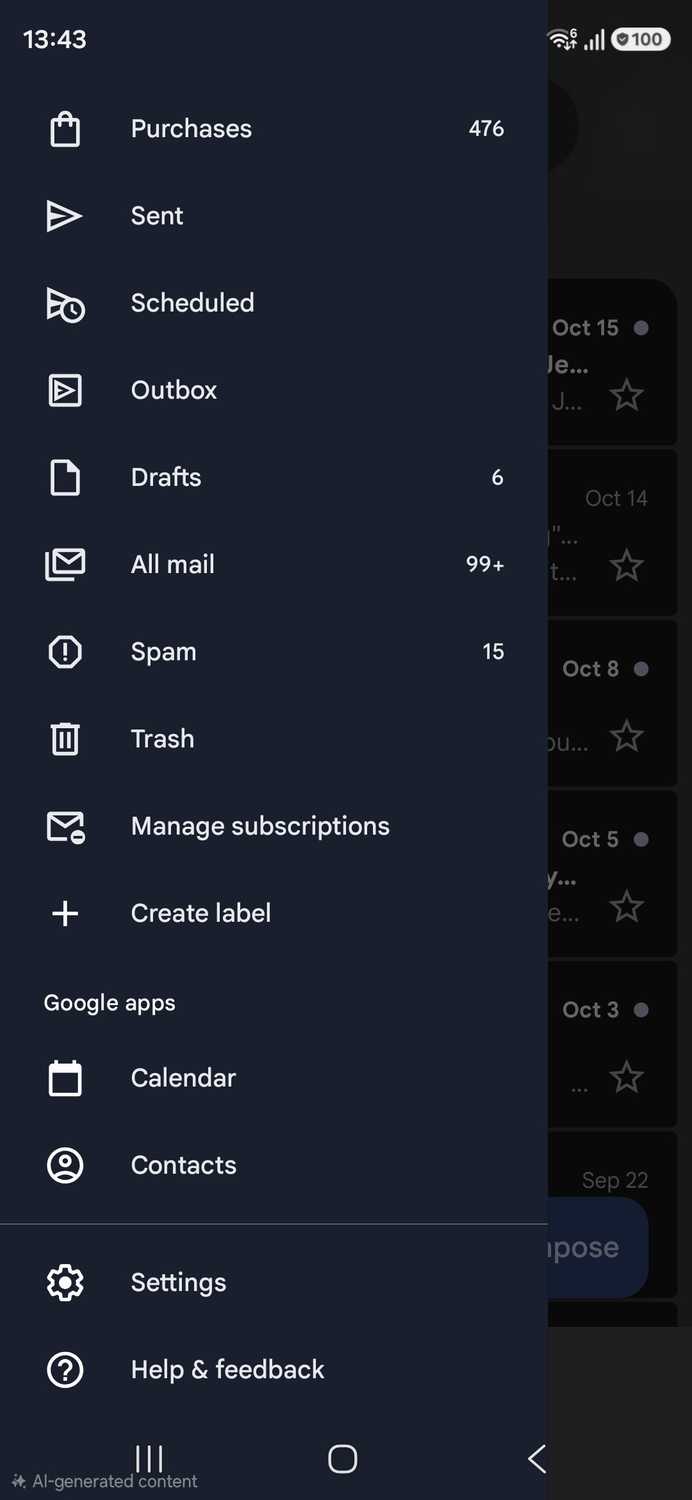
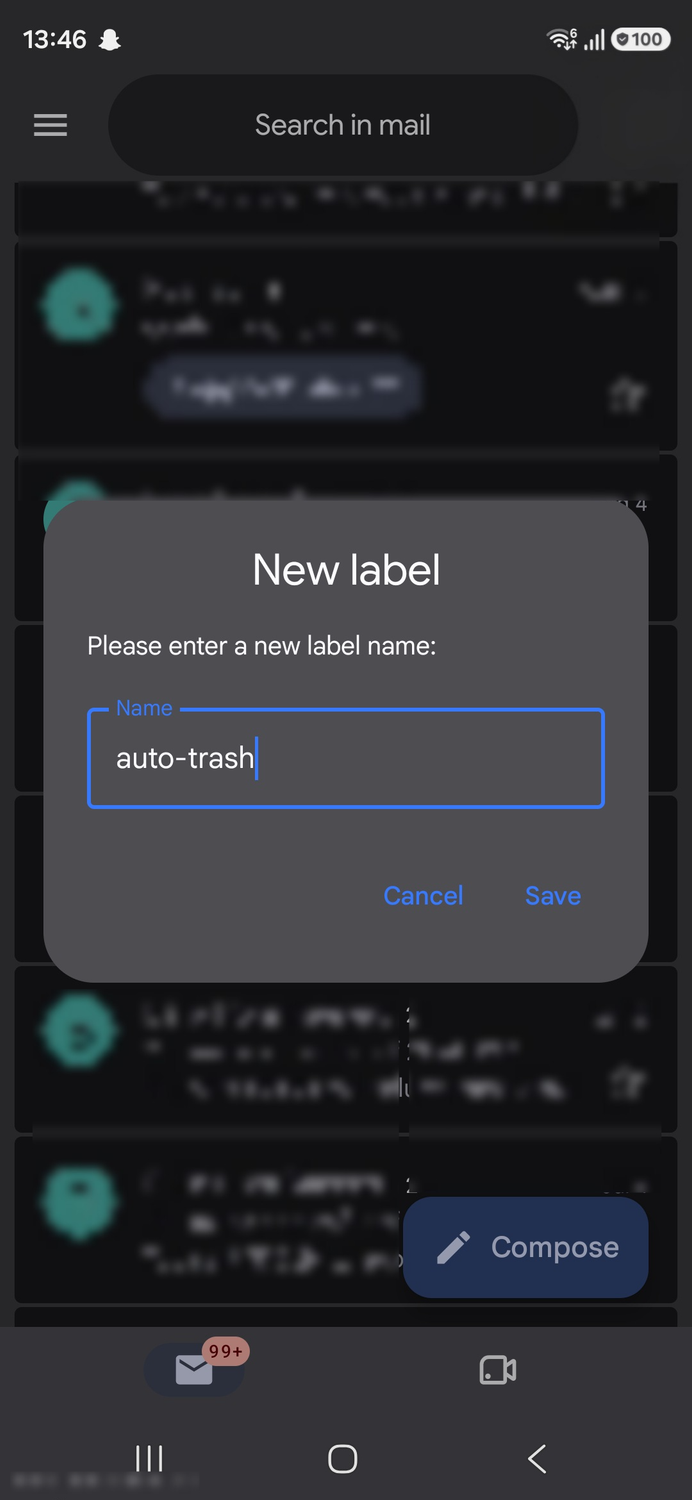
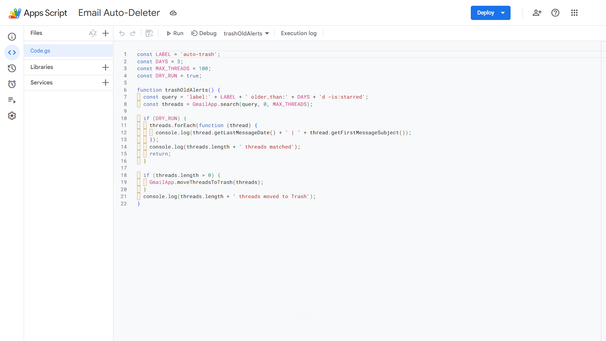
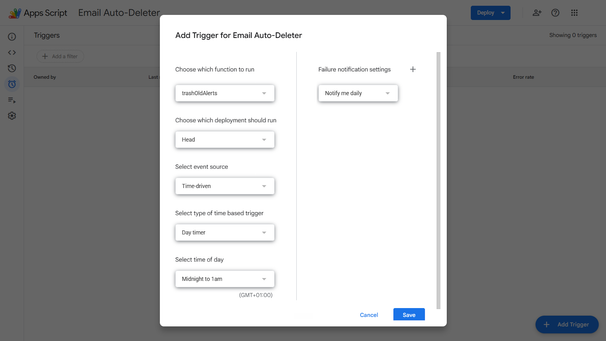
The setup has two parts. A filter tags alerts as they arrive, and a script trashes anything with that tag after a few days.
- Create a label in Gmail called .
- Create a filter that matches your alerts, such as "verification code" in the subject, and set it to apply the label.
- Open script.google.com and start a new project (use the desktop site for the best experience).
- Paste the script below, leave set to true, and click .
- Click the clock icon in the sidebar and add a daily time-driven trigger.
const LABEL = 'auto-trash';
const DAYS = 3;
const MAX_THREADS = 100;
const DRY_RUN = true;

function trashOldAlerts() {
  const query = 'label:' + LABEL + ' older_than:' + DAYS + 'd -is:starred';
  const threads = GmailApp.search(query, 0, MAX_THREADS);

  if (DRY_RUN) {
    threads.forEach(function (thread) {
      console.log(thread.getLastMessageDate() + ' | ' + thread.getFirstMessageSubject());
    });
    console.log(threads.length + ' threads matched');
    return;
  }

  if (threads.length > 0) {
    GmailApp.moveThreadsToTrash(threads);
  }
  console.log(threads.length + ' threads moved to Trash');
}
Matching on the sender address works better for bank alerts, because banks often change the subject line between card, transfer, and login notices.
However, you can write your query to match whatever you want.
This script searches the label for threads older than three days and moves them to Trash. Changing the value keeps alerts around longer, which I would do for bank alerts since they double as a spending record.
The first run showed a warning that Google hasn't verified the app, which is normal for a private script. I clicked , opened the link to my project, and allowed Gmail access.
That script has deep access to my Gmail, since it can read and delete anything in my account. I wrote every line of it myself, and I wouldn't approve a script from someone else without reading it first.
The Trash folder is the safety net

A script with delete access to my inbox needs limits, so I scoped it to a single label. The search also excludes starred threads, so it won't touch anything I star.
Before turning on deletion, I ran the script with set to true. This mode logs the date and subject of each match without deleting it. This confirmed that the filter was catching the right emails.
Each run handles at most 100 threads, which is the same batch limit for moving threads to Trash. On the first day, it took only a few manual runs to clear my backlog.
The script never deletes anything permanently. Trashed emails stay recoverable for 30 days, which gives me time to catch a mistake before it matters.
If you're worried about losing important emails, you can disable the daily trigger and run the script manually after starring what you want to keep.
This approach still beats deleting emails by hand one after the other.
What a month of auto-trashing cleared
Inbox count and storage, before and after

The script was effective from the start, removing about 300 old alerts in my first few runs.
After that, the label held 10 to 15 emails at any time, depending on how many transactions and account changes I made.
The script trashed about 30 emails on its own in the first week. This barely affected storage since these messages are small, but it feels better not to have so many emails in my inbox.
Apps Script keeps a record of every trigger run on its Executions page. Checking what the script did on a given day takes a few seconds.
I rarely open these emails now, since Gmail on Android lets me copy verification codes straight from the inbox. That made it easier to trust a three-day window for OTPs.
A good fit for noisy inboxes
I would start with one type of alert and a short window, then broaden the filter when the dry run looks good. OTPs can go after a day or two, while bank alerts are worth keeping a week or longer.
I had expected this feature from Gemini in Gmail, but until it can delete emails on a schedule, this script will remain on my account.