Most of us keep a small collection of apps installed on our phones just in case they come in handy.
In my case, I have a dozen or so apps I use only once a month, or less often.
The problem is that these apps get as much access to my phone's resources as the ones I use more often. They can be performance and battery hogs, especially on an aging device.
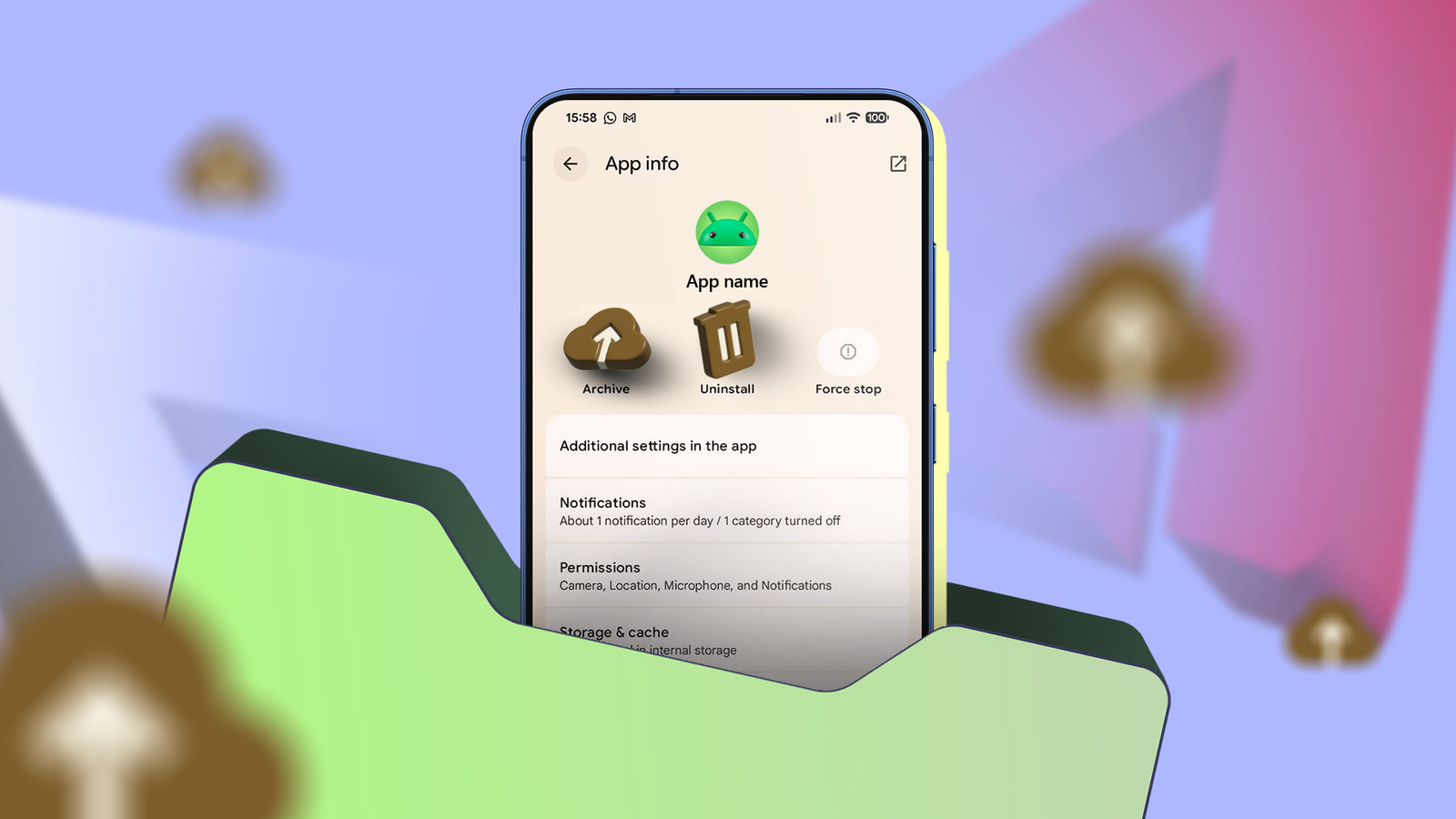
But the other day I stumbled upon a feature on my Google Pixel phone that can keep these infrequently used apps at bay without fully removing them: app archiving.
Even though the feature was introduced in Android 15, it's hidden deep in system menus that few of us ever reach.
Why I archive apps instead of uninstalling
No more frustrating logins
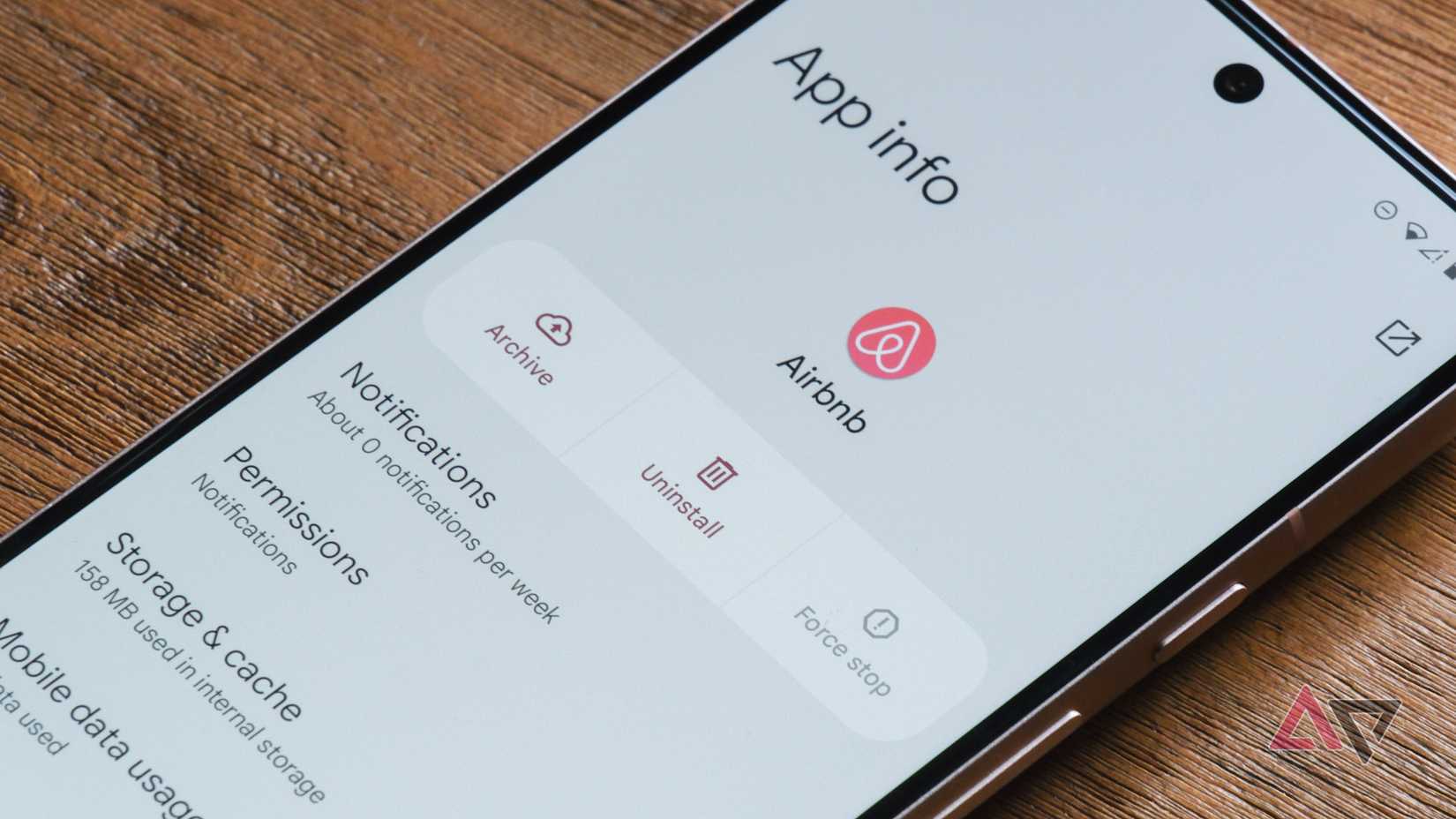
When Google introduced app archiving, it pitched the feature as a way for developers to reduce app uninstallations by freeing up space on our devices.
That's a valid use case — archiving an app restores nearly 60% of your storage space. But that's not why I have started using the feature for my infrequently used apps.
Archiving an app only removes the APK file and any temporary cache files from your device.
Any user data associated with the app remains completely intact and is automatically restored when you unarchive the app.
To archive an app, press and hold the app's icon and tap . The option sits alongside the button on devices running Android 15 or later.

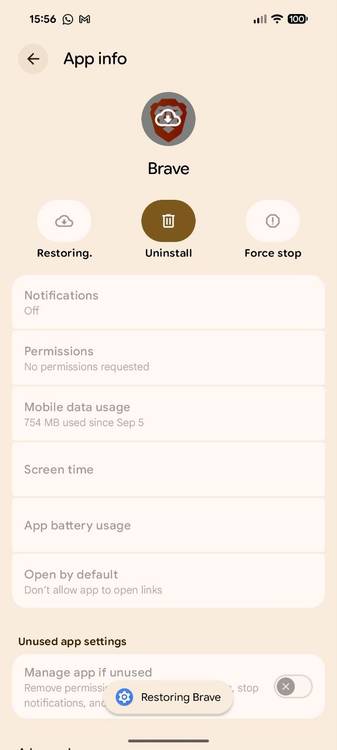
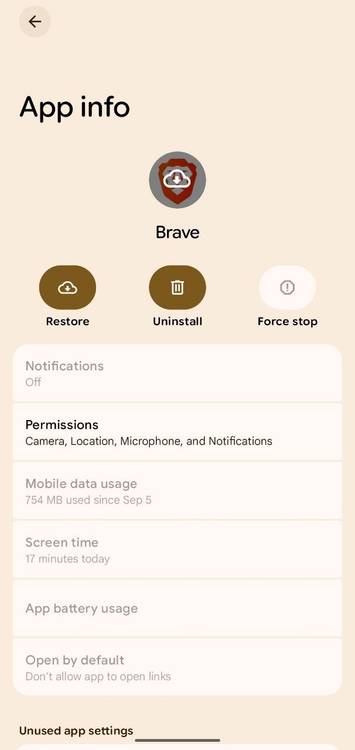
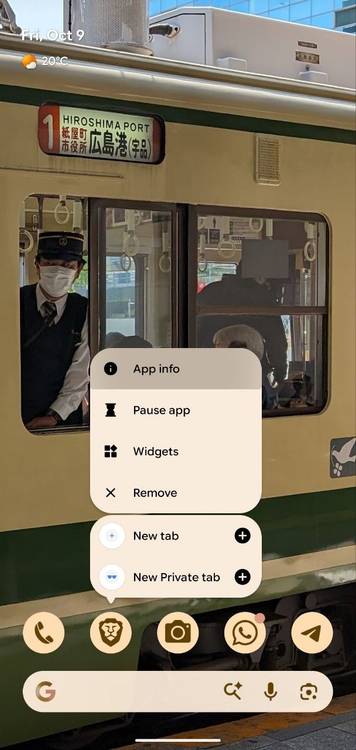
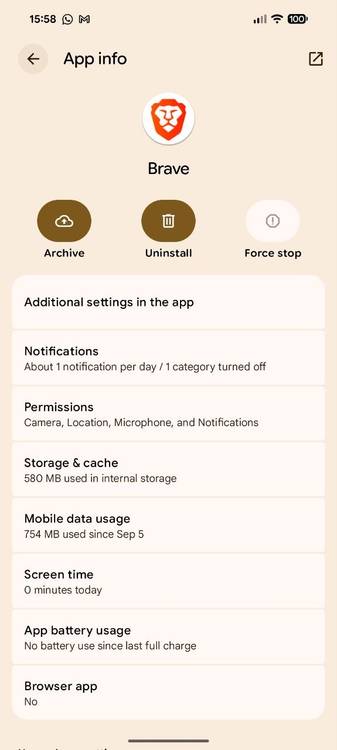
Archived apps also stay in your phone's app drawer indefinitely, though they appear grayed out with a small cloud icon.
It doesn't reduce clutter, but I prefer this approach because I don't need to open the Play Store and search for the app when I need it.
Most apps can be archived, with some rare exceptions. But because you have to open the App Info menu, it’s easy to overlook compared to uninstalling from the home screen.
Restoring an archived app is painless
It takes a single tap
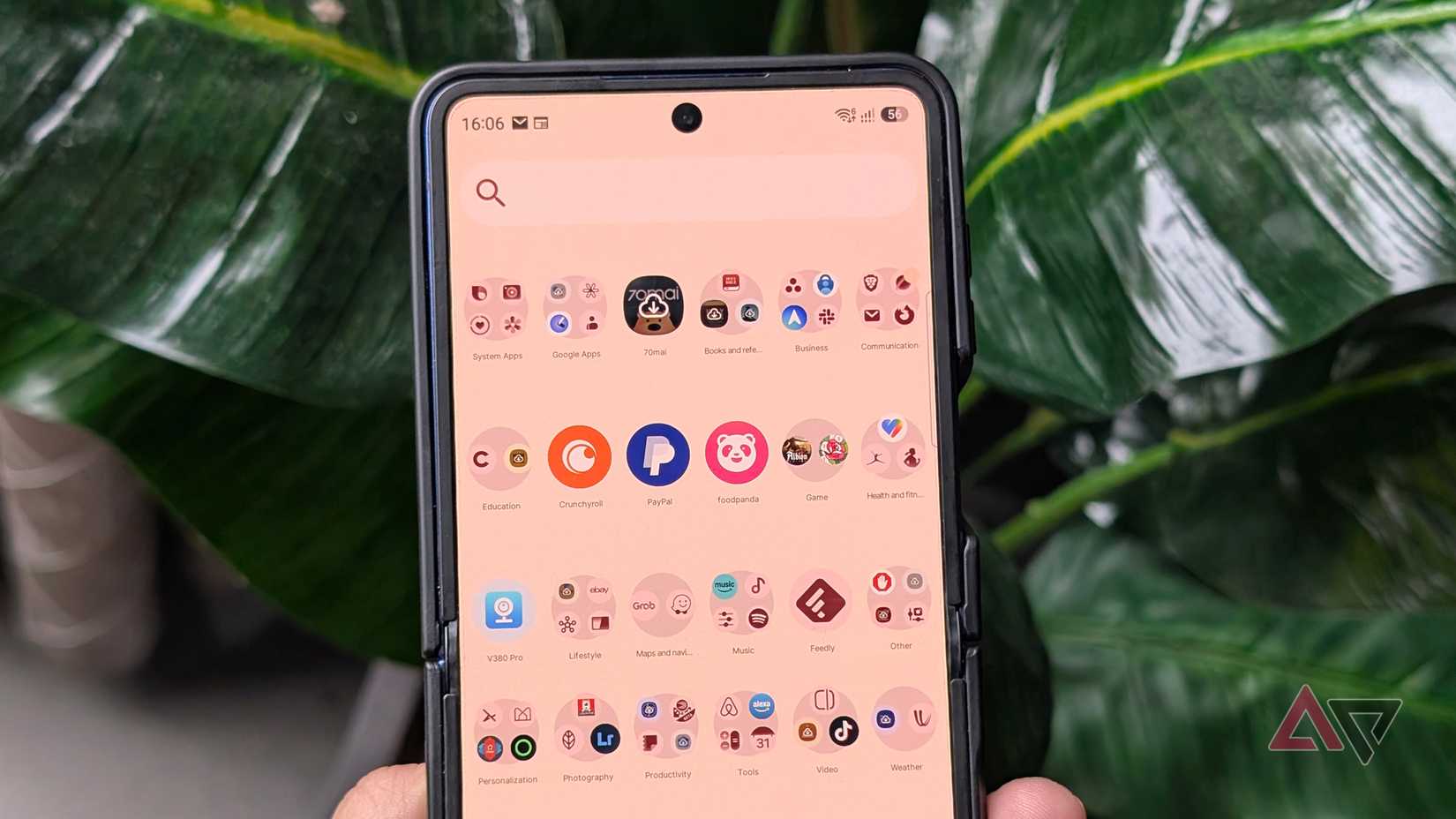
Restoring an app takes one tap, with the APK downloaded in the background and a live progress bar indicating how long you'll wait.
With a 400MB APK file and a decent Wi-Fi connection, the unarchiving process took less than half a minute. From my perspective, it was only slightly more friction than using an app I already had on my phone.
The real advantage comes when you open an archived app that you later restore. Since the phone doesn't delete the app's associated data, I can pick up right from where I left off.
After restoring an app, I don't need to log back in to my accounts or go through the permissions approval flow. Archiving even preserves your Android , which can take several minutes to set up after reinstalling.
How I use app archiving, and why you should too
You can automatically archive apps too
I archive all of my smart home apps, like Philips Hue, since I can use Google Home for consolidated control. But when I need to pair a new light, I can temporarily unarchive it.
The same goes for many loyalty apps, which I only use when I'm traveling.
I need the Marriott app for the digital key feature, for instance, but only once every few months or so. I could banish it to , but that doesn't free up the app's resources.
If I reinstalled the app instead of archiving it, logging in could take several minutes. And if the app relies on SMS for two-factor authentication, international roaming can delay the process even more.
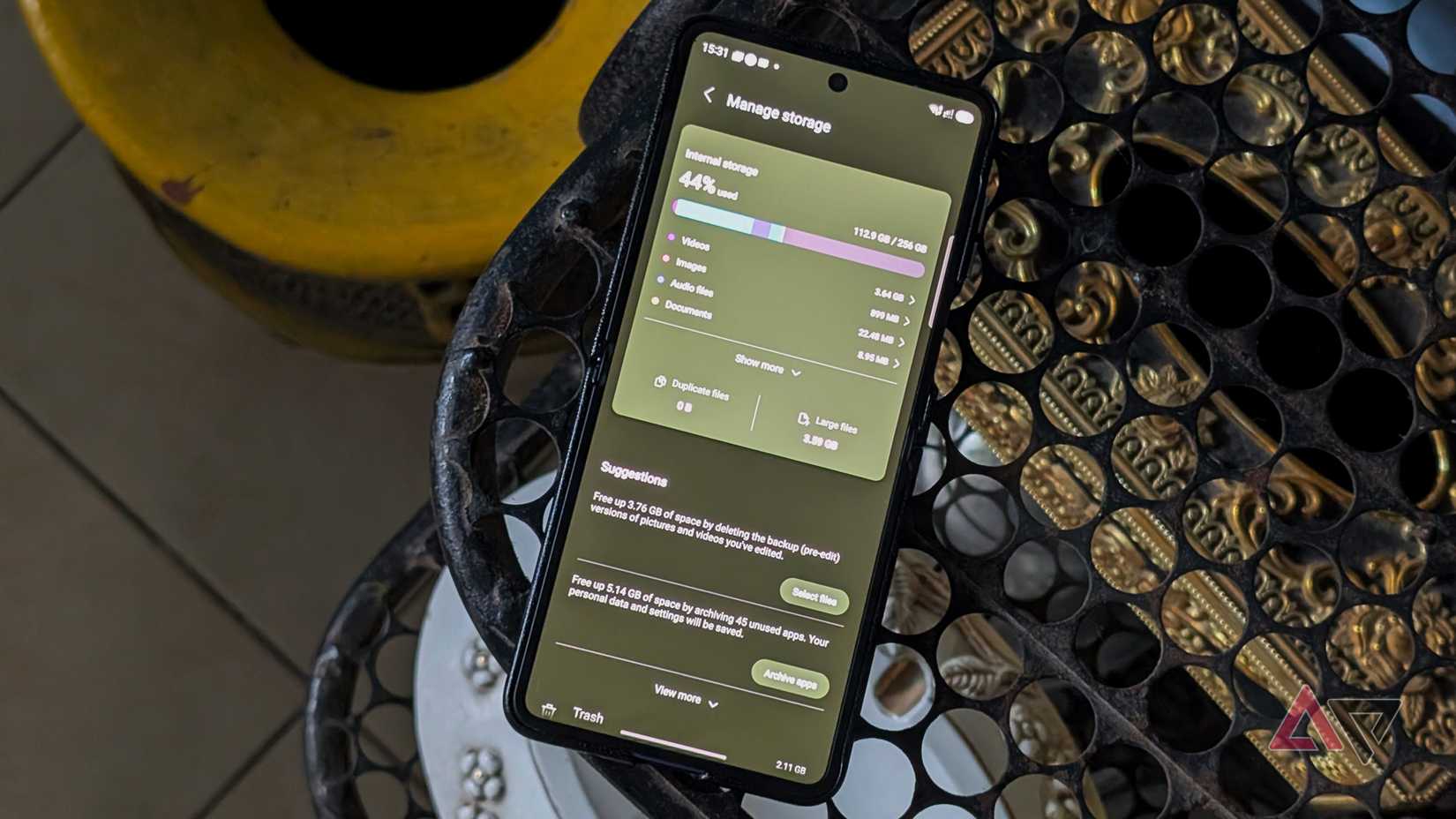
Combined, I have over a dozen archived apps on my phone. But I could go even further to reclaim my storage with automatic app archiving. This feature isn't enabled by default, but you can find it in > > > Automatically archive apps.
With the feature enabled, your phone automatically archives rarely used apps when your device storage runs low. On my 128GB Pixel 8 Pro, it happens often enough to trigger automatic archiving, but I'm not a fan of not being able to control which apps go dormant.
There's no practical downside to archiving apps
Whether you're like I am or just want fewer apps sipping your phone's resources in the background, you may want to consider archiving your unused apps.
The only exception I'd make is enabling automatic app archiving if you're on a limited data plan, since it can be annoying if you urgently need an app that the phone has decided to archive in the background. I've run into that situation an embarrassing number of times before disabling it.