I've used and other file managers on my phone for different purposes.
But I've always found them lacking, or they track me and serve ads. I've tried numerous apps, and most either require a subscription or have ads integrated.
Needless to say, the experience was quite jarring.
I needed a lightweight file manager that could do more than Google Files, and I finally stumbled upon the perfect alternative.
Most File Manager apps can't deliver what I need
Thankfully, open source alternatives exist
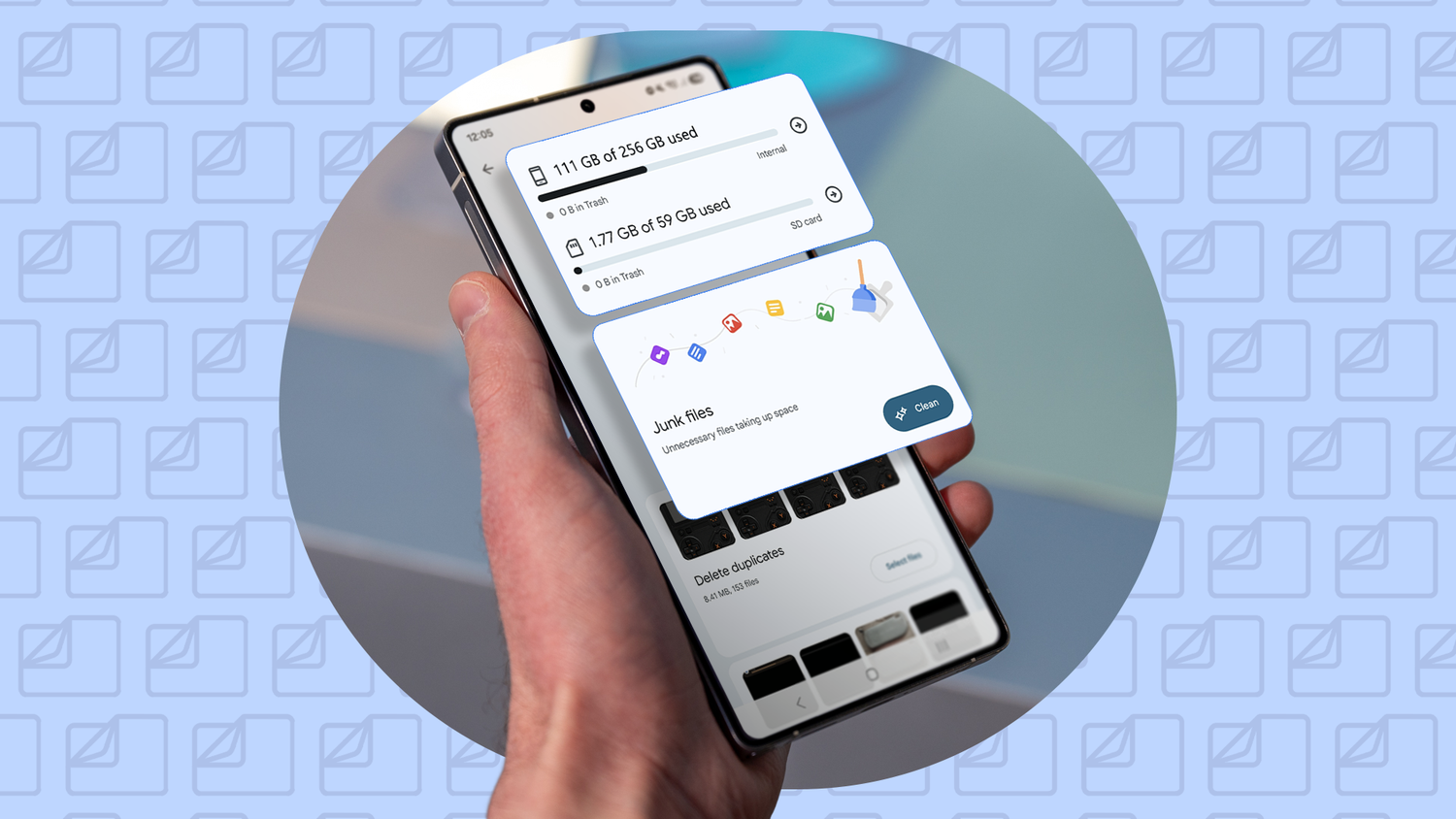
Android's File app has served me well for years, but I find it limiting. The same goes for stock file managers that are pre-installed on phones.
They are often bloated with ads, , require paid feature unlocks, or show ads that aren't ideal when moving crucial files.
After testing a few apps, I found an open source file manager app on the Play Store.
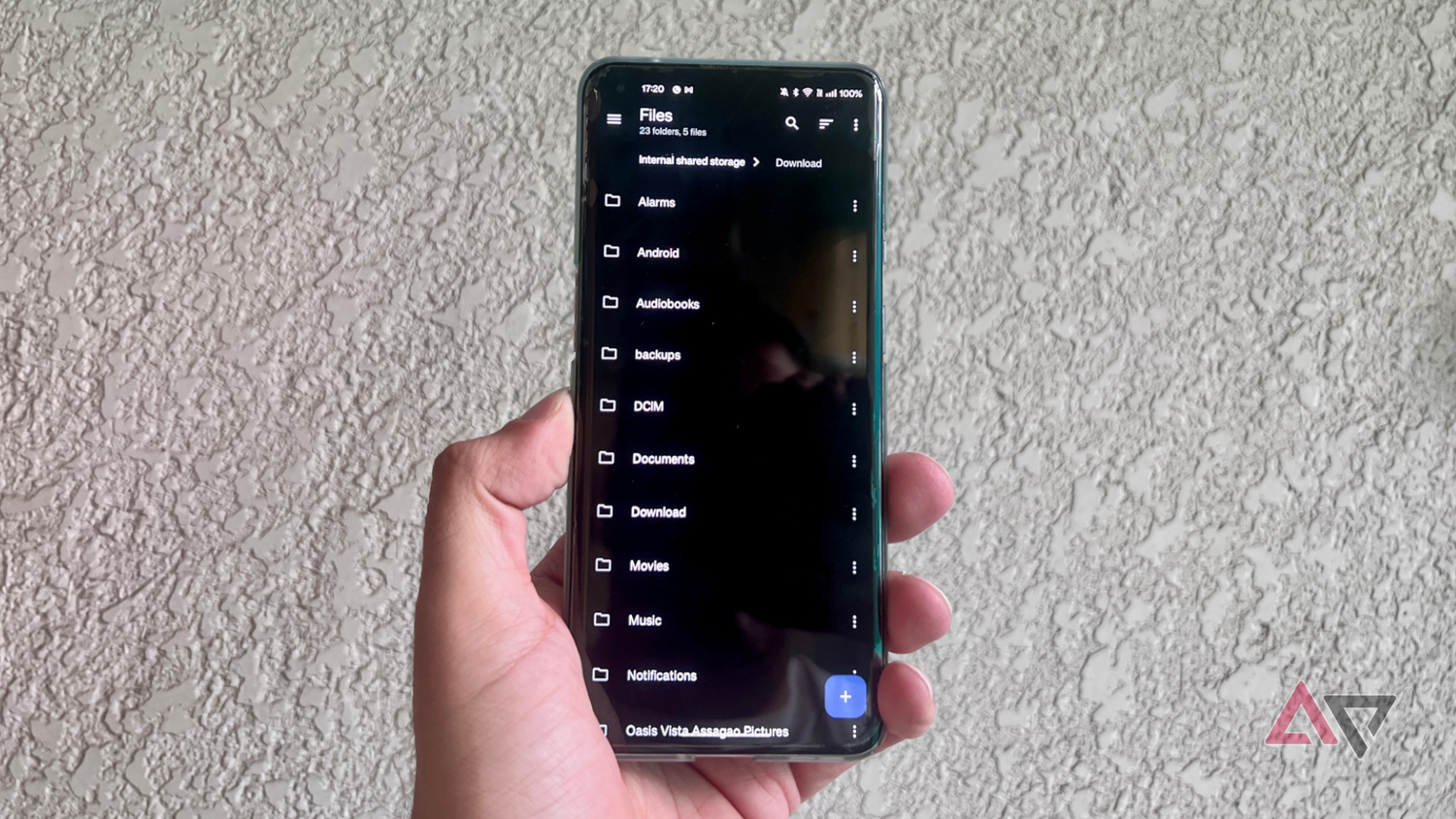
When I downloaded Material Files, I was expecting the same experience as some other file manager apps until I started using it. The app is free, lightweight, has a clean interface, and doesn't push any ads or subscriptions.
It has no in-app purchases and no telemetry tracking. Material Files was exactly what I was looking for.
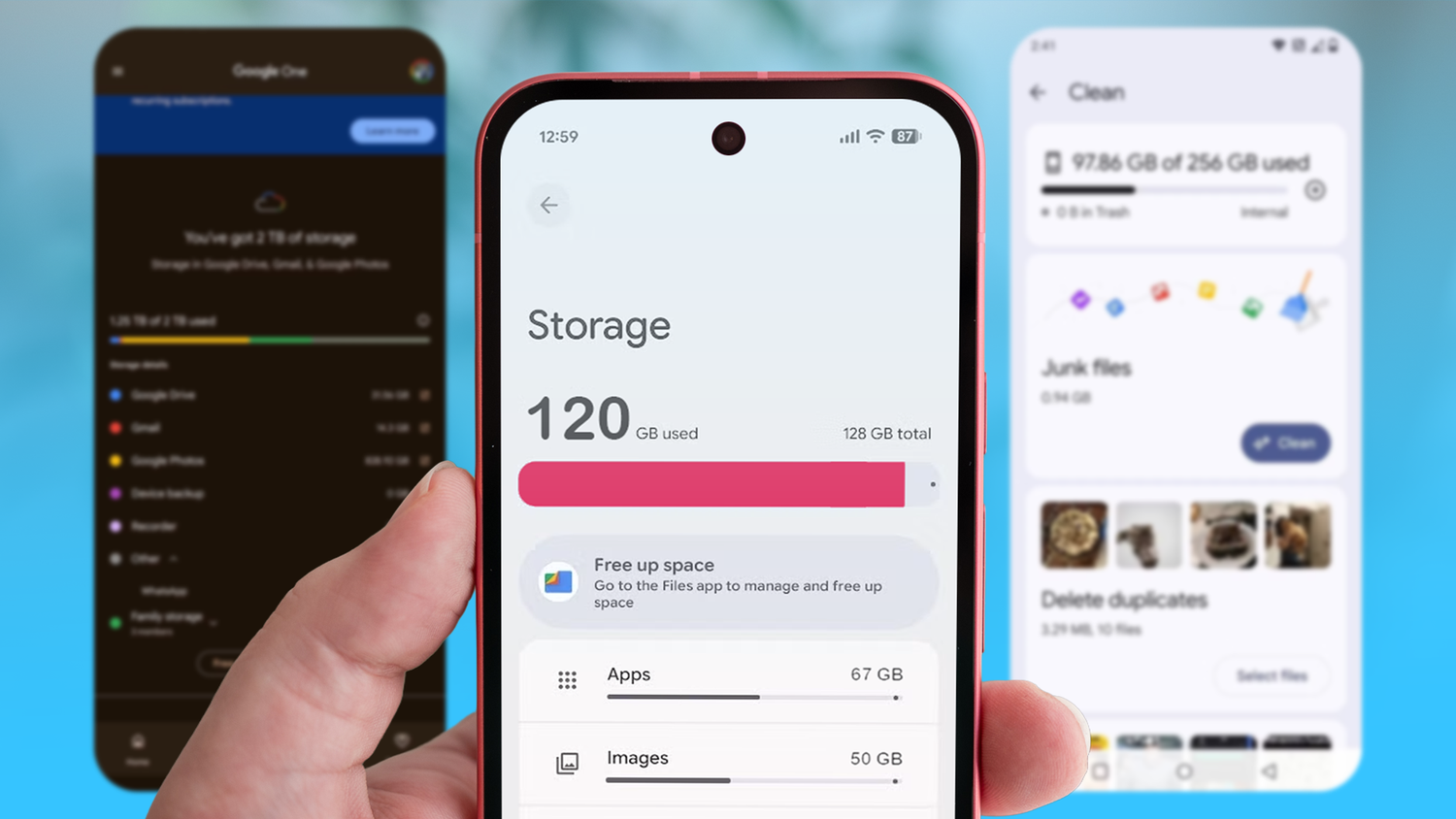
On the flip side, Files by Google aligns more with the company's cloud business and doesn't offer any power tools I need.
It's purely for managing files on your internal storage, and that's about it.
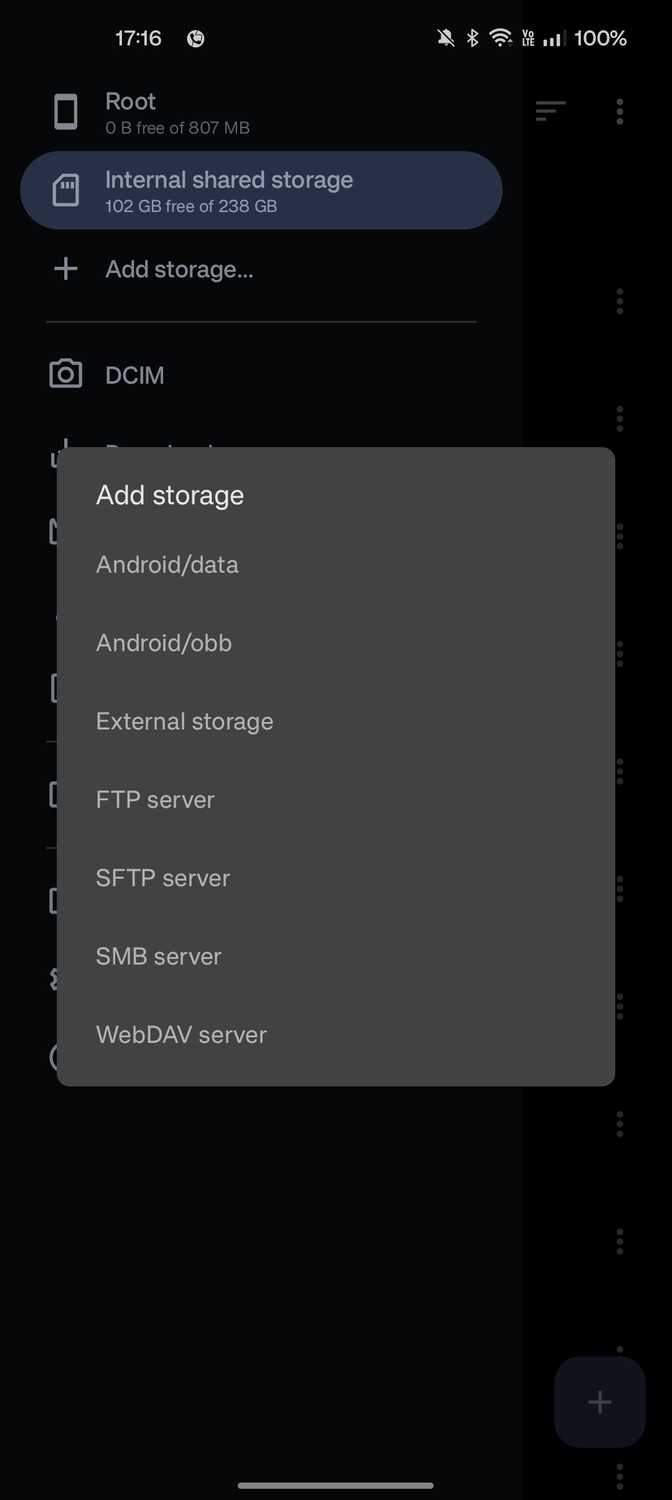
But I've always wanted an all-in-one app that lets me transfer files via FTP or to my Network Attached Storage (NAS).
Other popular apps that offer these features either require a subscription, a one-time payment, or show intrusive ads. Some apps need root or deep storage access, which I wasn't comfortable with.
The same goes for how I would navigate these apps. Some apps reminded me of the early days of Android and felt archaic. Material Files, on the other hand, draws on the Material Design language and is snappy to use.
In short, Material Files is simple, clean, fast, and a reliable file manager app that respects my time.
Material Files is the ideal file manager app for power users
Everything the app gets right
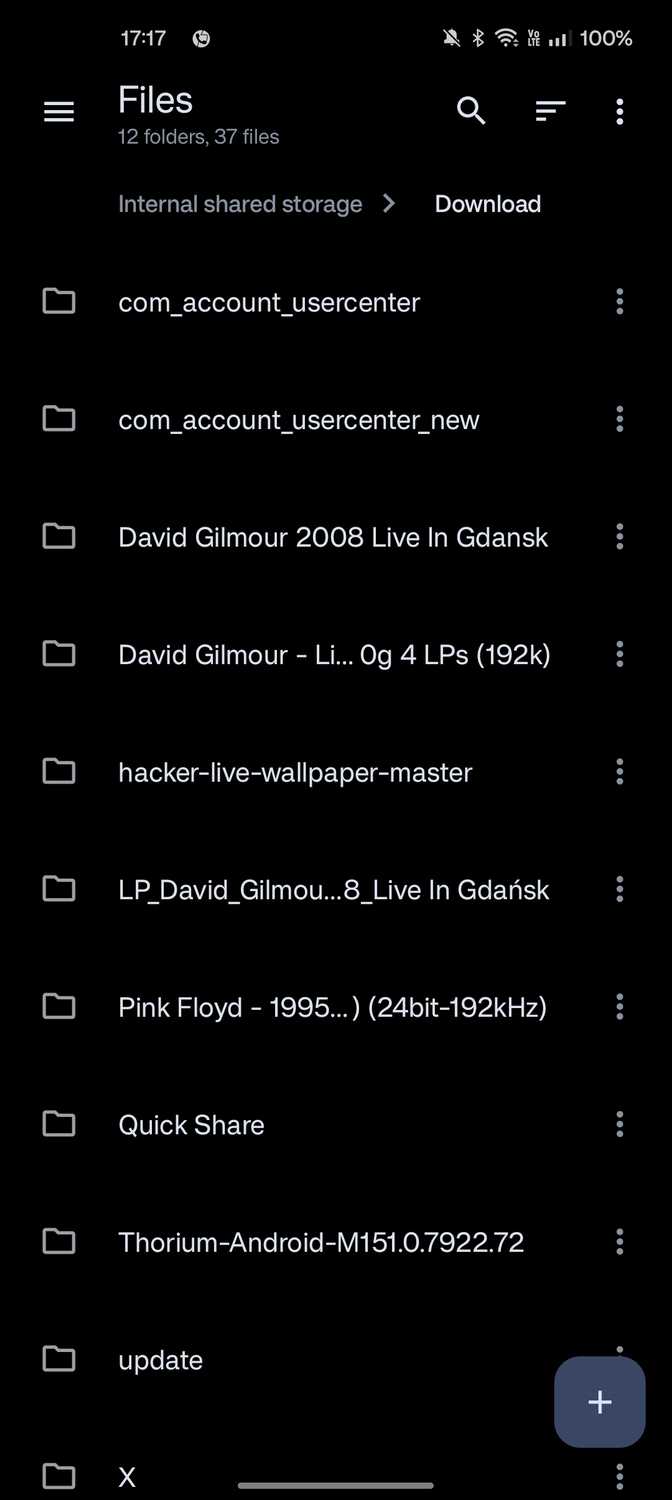
If you want a file manager that feels snappy, Material Files is a strong contender. But it also has plenty of features power users will appreciate.
For example, Material Files uses a dual-pane/multiple-window workflow that makes transferring files faster and easier.
I don't know about you, but I like seeing the source folder I'm transferring files from, and most other apps don't offer this.
At first, I didn't think much of it, but after using it for a few days, I refused to go back to Android's default file manager app.
But what I appreciate most is how fast it loads folders. I found it faster than the Files app, which makes a big difference when transferring many files.
The app also has other features I deem essential for power users. These include:
- Transfer progress visibility
- Permissions handling
- SELinux context as a desktop Linux file manager
- Open in Terminal to launch a command-line environment directly in the current directory.
For archiving, Material Files also lets me browse a zip file without extracting it. The archive browsing feature is useful because I don't need to extract zip files to see their contents.
It saves me storage space and lets me make quick checks that aren't possible in stock file manager apps.
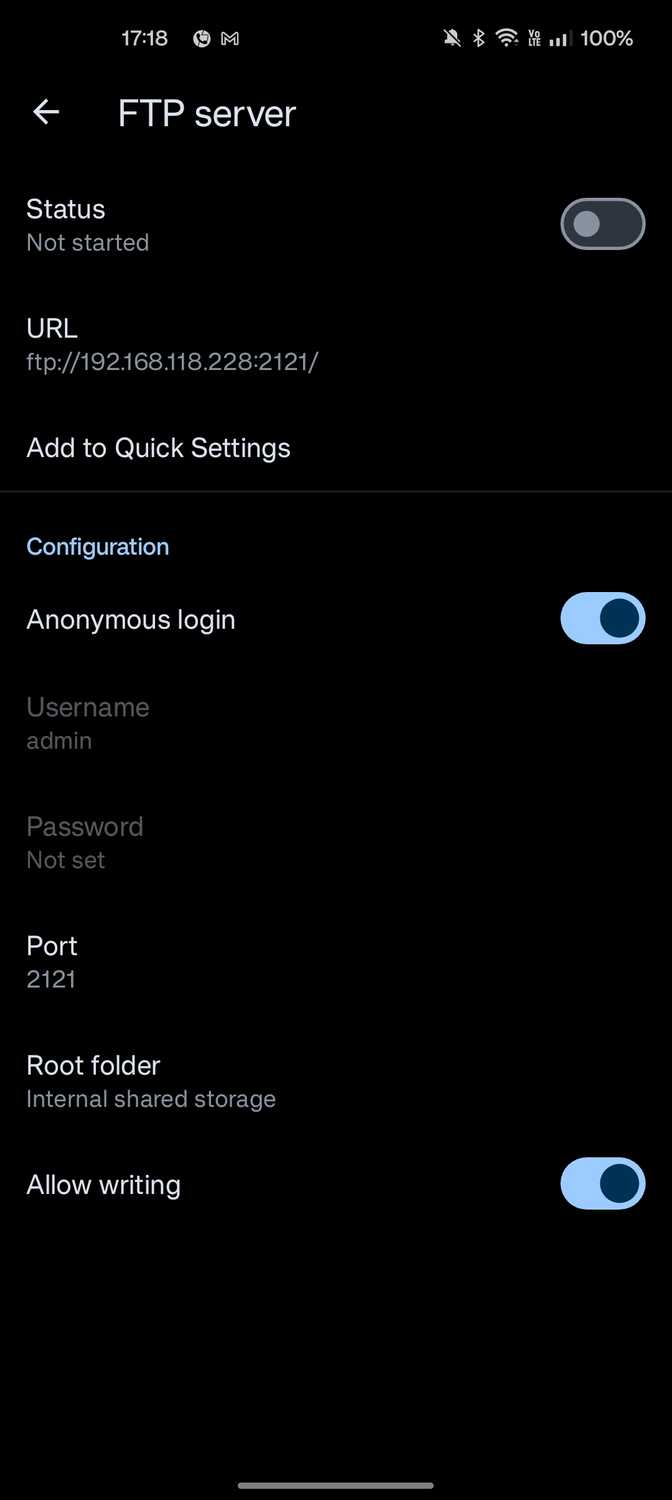
Another feature I greatly appreciate is its native support for FTP server transfers. While I use Syncthing to back up files and data between my computer and phone, I don't set up other folders in the app.
In such cases, I use FTP to transfer files between my phone and computer, especially when I need to transfer very large files. It's faster and doesn't require me to upload or download from Google Drive or other cloud-based services.
Finally, the one feature that made me jump ship fully was its support for transferring files to a NAS system.
To transfer files using Material Files, log in to your Synology account or another NAS service account in the SMB Files option after tapping the sign. You will also need to enter your NAS’s local IP address or its server name.
After I entered the information needed to access my Synology NAS, I could upload any file from my phone and have it accessible across other devices in seconds. This let me delete Synology's DS File app, freeing up storage space on my phone.
Material Files may be the Swiss Army knife of file manager apps, and I highly recommend trying it to see the difference.
Material Files was the open source answer to all my prayers
I was about to give up on third-party file manager apps and go back to my phone's default app. Thankfully, an like Material Files made transferring files far less frustrating.
If I stack and compare Material Files' features with other file manager apps, only one wins.