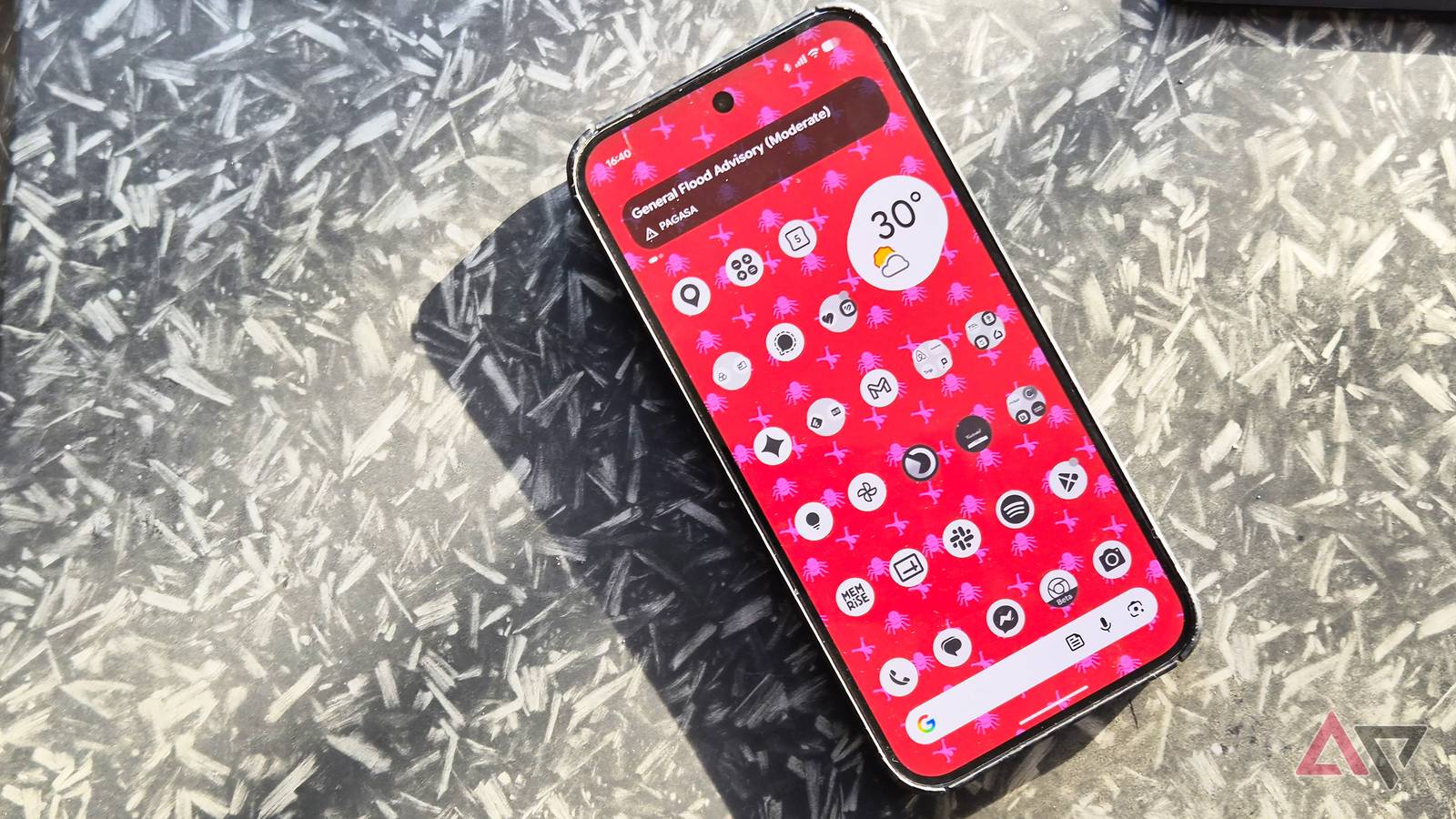
Owning a Google Pixel usually means a little special treatment from Google, which on paper seems exciting. But after owning a Pixel for some time, I find myself hoping for updates that fix existing problems rather than introduce new features for their own sake.
With each update, I think, maybe this time I'll get a meaningful display option, an intelligent or less clunky app drawer, or something that makes the camera cutoff functional.
I don't want fancy new updates. I was so close to quitting my Pixel until I discovered three apps that made my phone feel like a new device.
The Pixel is clean, but it's also bare
Attractive but needing more
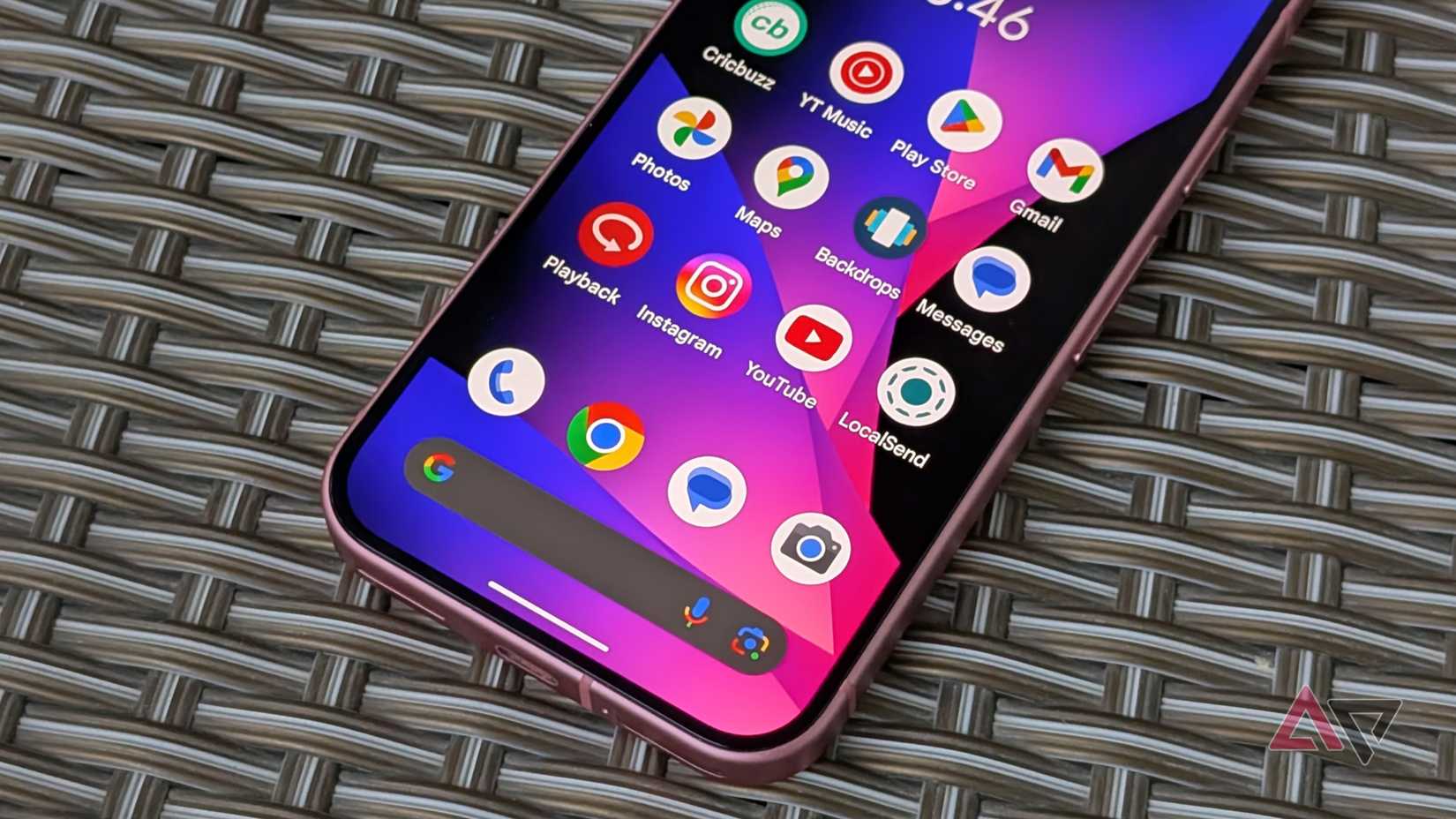
Without a doubt, the Pixel is one of the slickest and cleanest phones out there. It's fast in its processing and beautiful to behold. That's what I call clean.
But its minimalist approach can be a pain, given how opposed it is to customization.
These issues frustrate me every week. No solution for the long app drawer list. Settings that are one and all for every single app, eliminating per-app options. Last but certainly not least is the camera cutoff that does nothing but sit there.
I have found a solution. One that doesn't require a jailbreak or getting a new brand, something much simpler in the shape of three applications.
Undervaluing what others want
Samsung and Xiaomi offer tools that don't limit the user experience. Google could learn a thing or two.
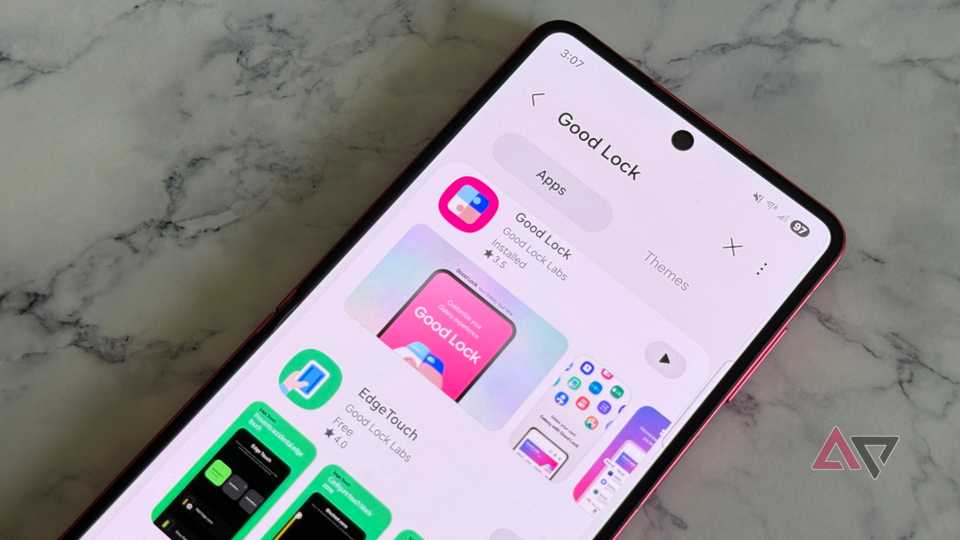
Samsung users benefit from the power of the , a great tweaking kit. Good Lock is a hidden workshop that helps you rearrange menus, change how your phone looks, and even how it behaves.
The camera cutout is a design element many phones have used. It has also evolved beyond aesthetics and now includes an interactive feature.
This isn't an experience on the Pixel, but Xiaomi has the HyperIsland showing what's happening. On a call, connected to a device, or listening to music.
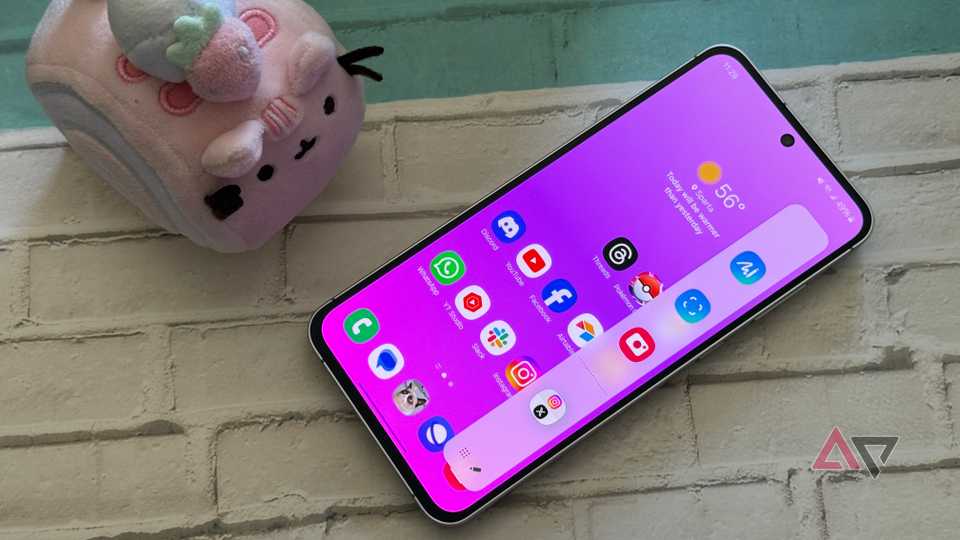
The UI department is also one to envy on other Android devices. Looking at Samsung, the Edge Lighting feature makes the edge of your screen glow when a notification arrives. The Edge panel helps with shortcuts to your frequently used apps.
It's easy to undervalue these features until you lose them.
The rigid app list arrangement on Pixel is probably my biggest concern. As the app library grows, scrolling becomes infuriating. While I can search, the lack of categorization makes me envy other Android users.
These features aren't standard on the devices they are meant for. They're basic and outdated, which only makes their absence on the Pixel frustrating.
Thankfully, I found three that make up for what's missing.
Smart Launcher rearranges your chaos
Fixing the never-ending alphabetical app drawer
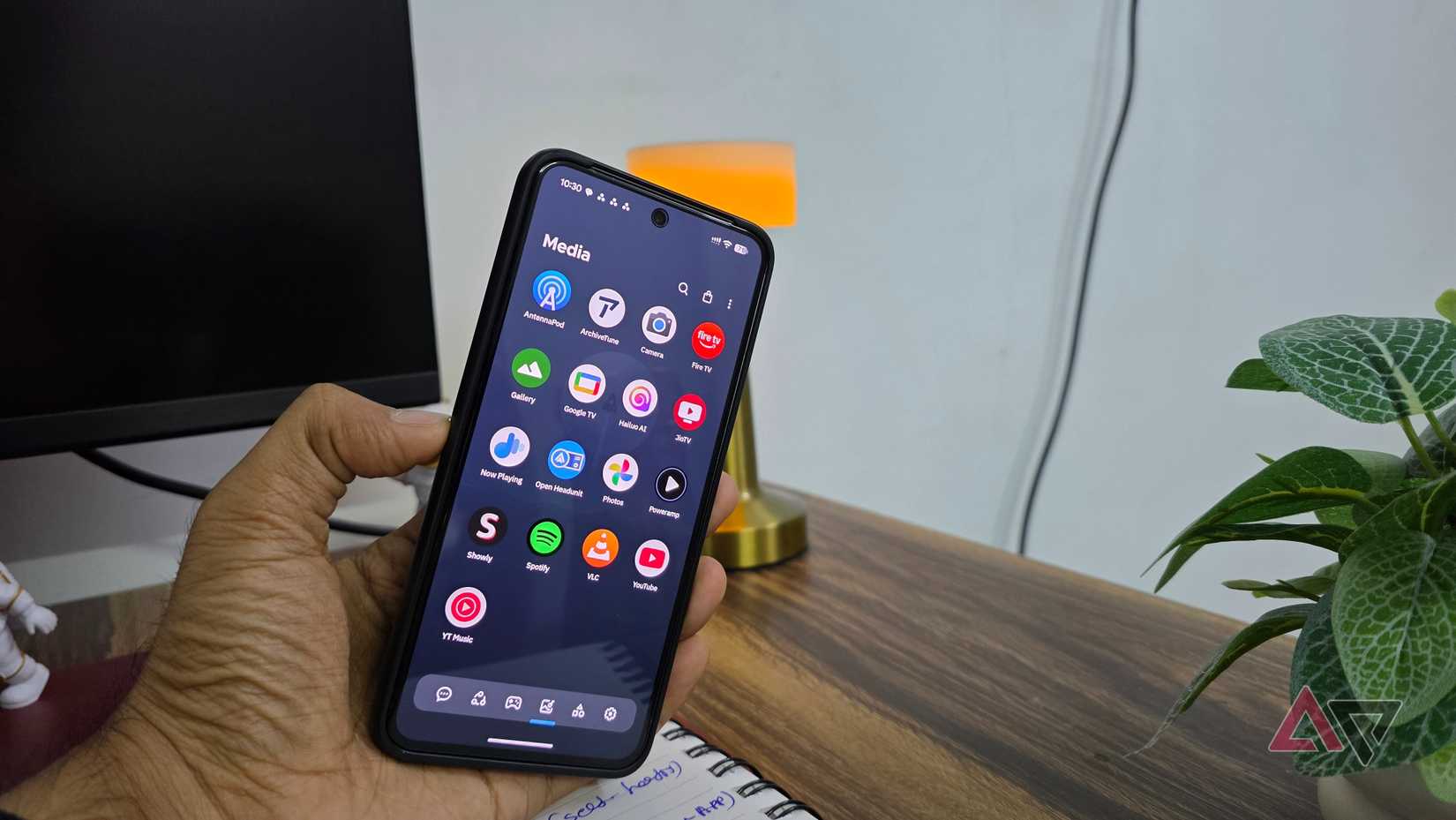
The Smart Launcher app is meant to replace the Pixel Launcher with its secret weapon: Automatic categorization. It sorts apps by function: Messaging, Socials, Games, Health, and Utilities.
Another feature is gestures and search across both apps and calendar entries. The never-ending, tiresome scroll is gone.
Setting up Smart Launcher:
- Install Smart Launcher from the Play Store.
- Set it as your default launcher when prompted.
- Choose a layout and let it sort the apps.
- It takes about five minutes to assign gestures.
The main drawback is that the free version has limited features: you can only remove and rearrange existing categories. For customization, you'll need to purchase the Pro version.
Essentials covers the basics Google skipped
Now you can tweak your toolbox
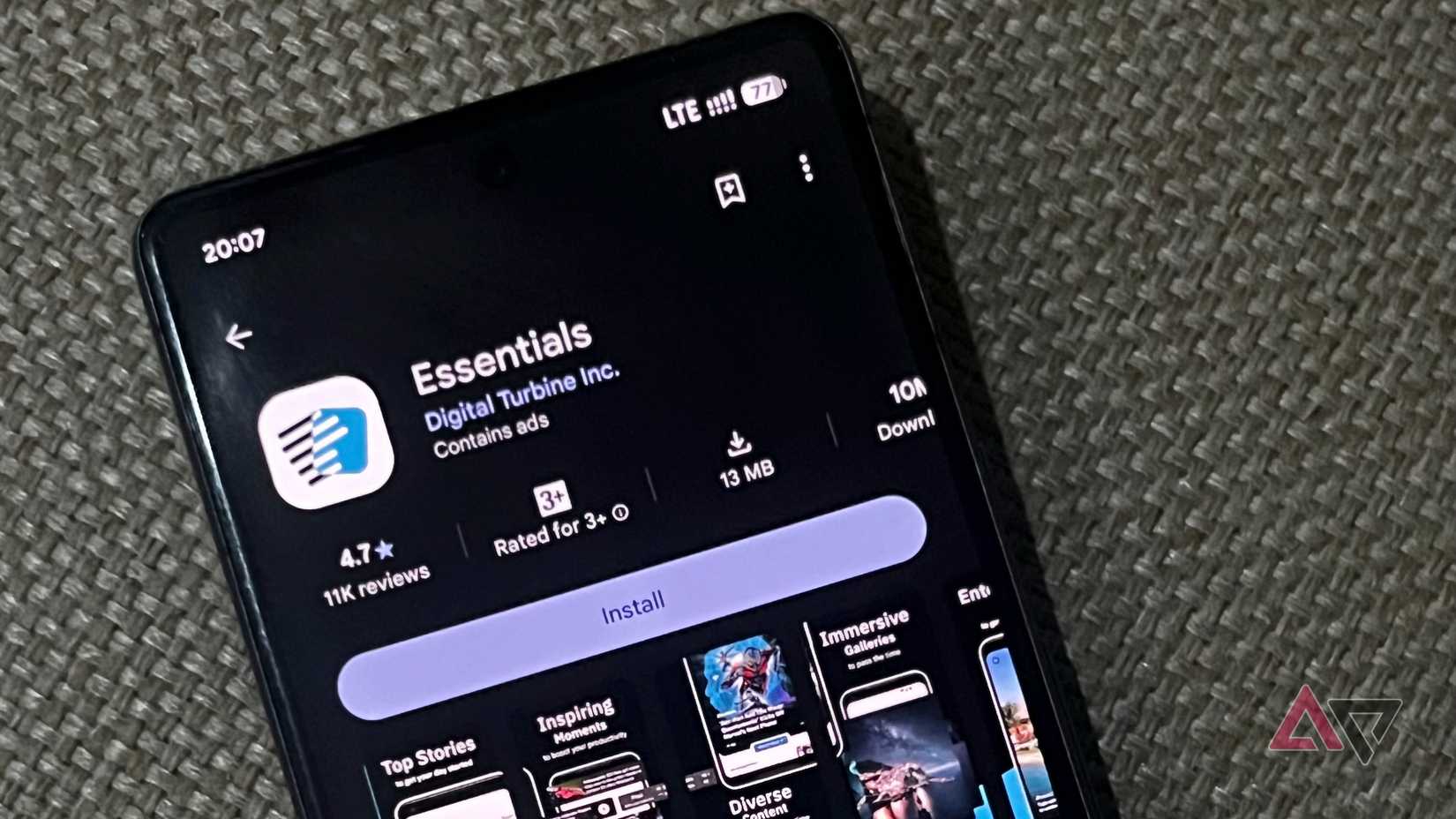
I've found Essentials to be the best replica of Good Lock for Pixels. An open source and free application. What's not to love?
It bundles many small tweaks and shortcuts. It's known for essential tools, mods, and workarounds for Android devices.
Essential has four standout features that make it the best choice for your Pixel:
- Notification Lighting like that of Samsung Edge Lighting.
- Automations that run parallel with Pixel mods.
- Per-app Night Light when Google offers you only a toggle.
- Display controls like per-app frame rate caps, scaling, and animations that usually sit buried in the developer settings.
Setting up Essentials:
- Install it and give permission only for the features you will use.
- Activate the tools that you wish to use.
- Set up Shizuku manually with advanced tools.
The limitation is that it requires a wide range of permissions, from write access to accessibility, which Shizuku needs for Maps power-saving mode and several Quick Settings Tiles.
Material Capsule adds the finishing touch
Adding an intelligent hub around the camera
That's the app that made me wonder how my friends knew what I had done with my smartphone.
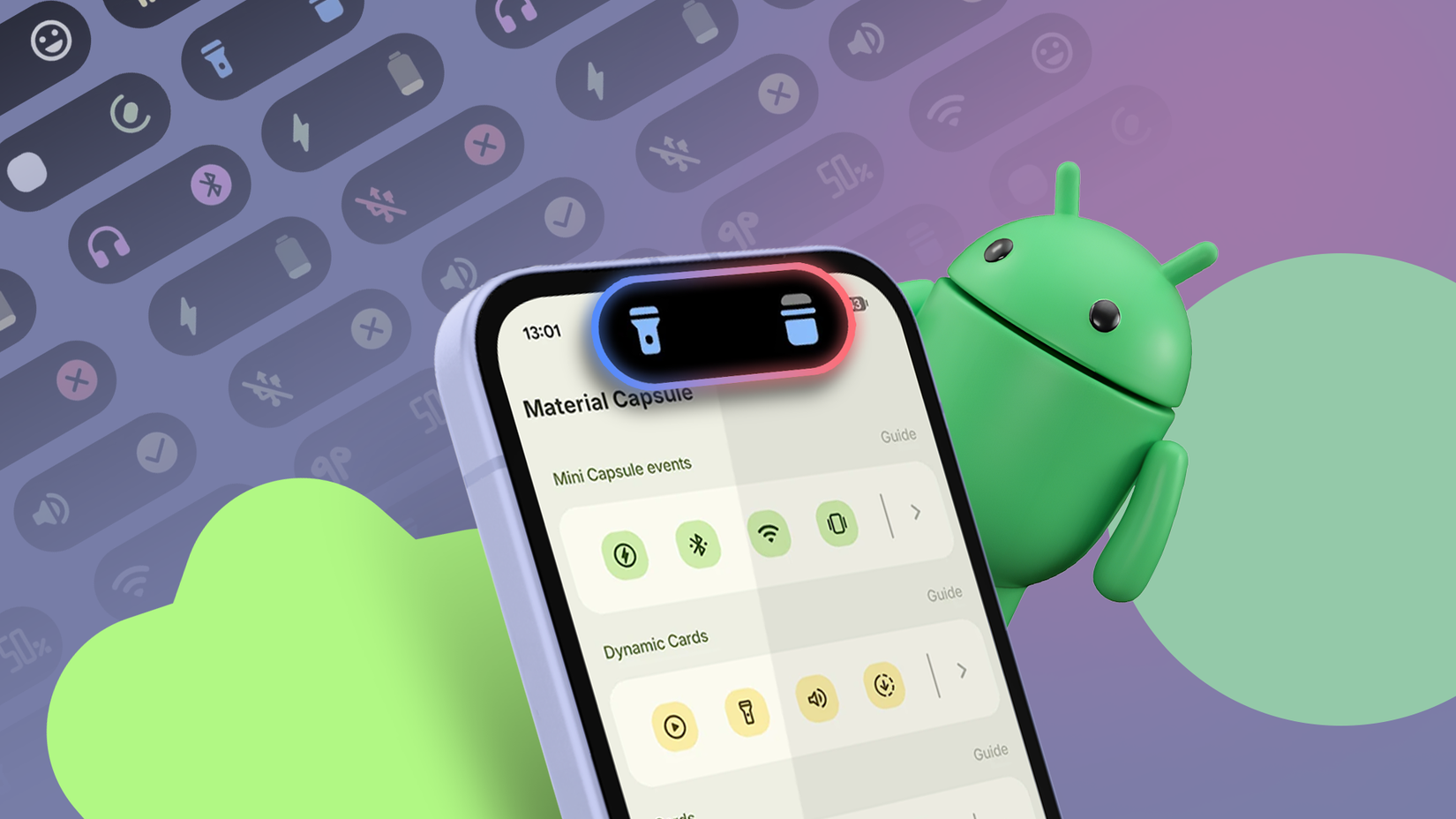
The Material Capsule places a Material 3 Expressive-inspired capsule around the front-facing camera. The app uses the Dynamic Island concept and introduces Material You color based on your wallpaper theme. In my case, it displays media controls in the cutout area.
The app can also light up with notifications for system-related events such as Bluetooth connections or volume profile changes.
Lastly, it supports the , which includes a card with up to six app or contact shortcuts implemented within the island.
Setting up Material Capsule:
- Download it from the Play Store. Requires Android 12 or higher.
- Grant all the permissions it asks for.
- Adjust the size, shape, and position to match the cutout.
- Pick your alerts and cards.
The downside is that it's a freemium app with a one-time purchase to unlock the full set of features. Because it runs as an overlay on top of the operating system, the solution may feel different from a native function. Don't forget to watch battery consumption during the first week.
Is it worth the tinkering?
Deciding if you should give it a shot or not
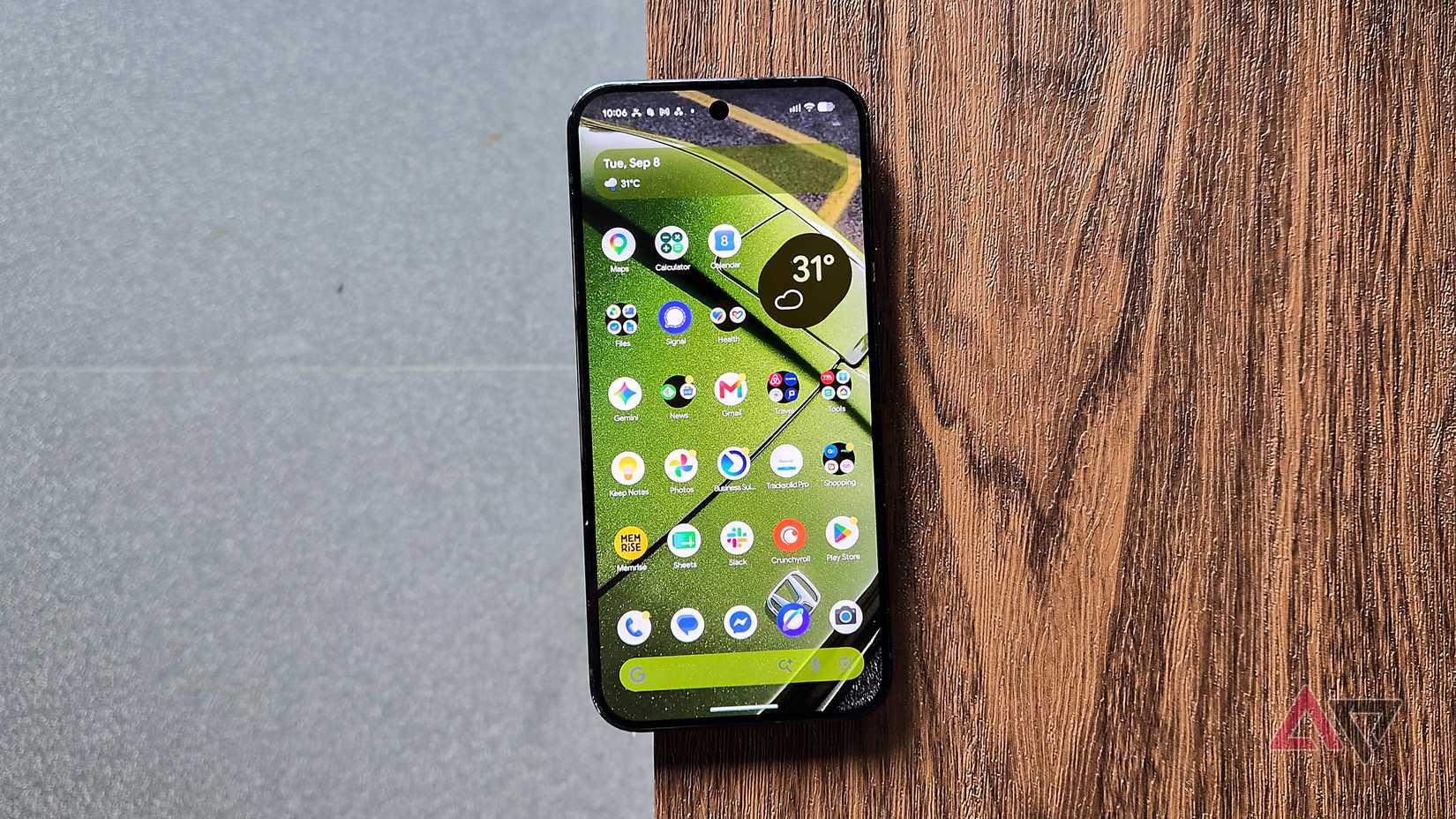
Yes, for me, but with reservations.
All three apps request permission to access private information, so install them only if you feel comfortable with that.
Two of the three apps offer premium packages, so make sure to verify the prices.
Pixel battery usage can also vary by device, so it's best to install one app at a time instead of trying all three on the same day.
If you use a Pixel, like the hardware, and want to manage it yourself, especially if you have experience with Samsung or Xiaomi extra features, I think these features are worth a try.