
I remember when I had to carefully ration my month's data allowance to avoid racking up huge charges. But since 2016, I've never had to worry about my .
Unlimited plans, or plans with high data allowances, are so affordable that running out of data isn't a concern.
However, there is one exception. When I'm traveling abroad, I usually pick up an eSIM or roaming package. These are also affordable, but the data caps are much lower and excess charges are high.
I've still never run out, thanks to these settings.
This one setting stops expensive mistakes
A rate limit gives me time to stop big downloads
When I've incurred excess data charges, it's always because of a mistake. Either I left a YouTube video playing in the background, my music app started downloading songs, or I've opened an unexpectedly large attachment.
Within minutes, I've used up my data allowance and incurred extra charges. A solution is to disable roaming entirely, but I prefer to keep it active so that I still receive messages and notifications.
The solution is buried in Android's developer options. Enable them first to find this setting.
- Open the app.
- Scroll down and tap .
-
Scroll down and tap Build number seven times until you see the pop-up message.
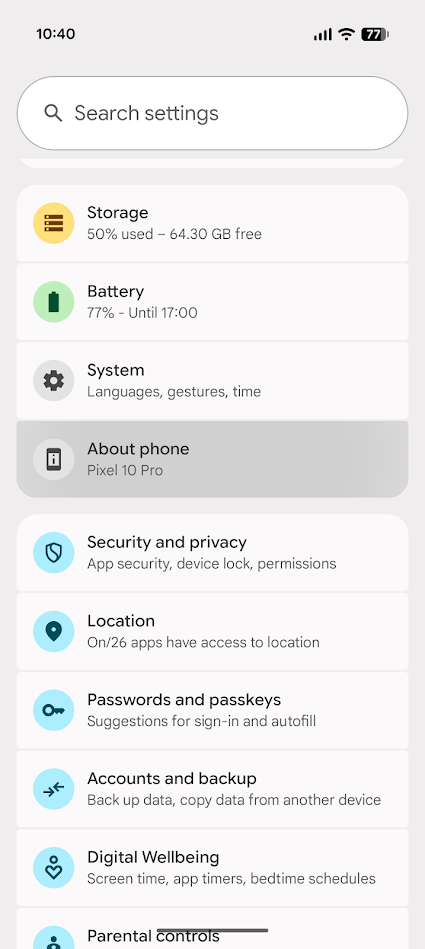
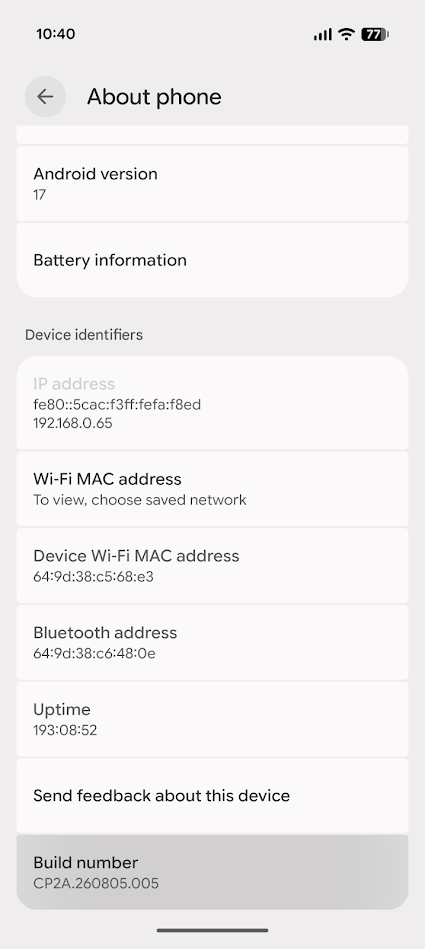
In Developer options, scroll down and find Network download rate limit.
This setting limits Wi-Fi and mobile data download speed. They range from 128kbps to 15Mbps.
Importantly, these settings also affect Wi-Fi download speeds. Nevertheless, they act as a buffer for accidental downloads.
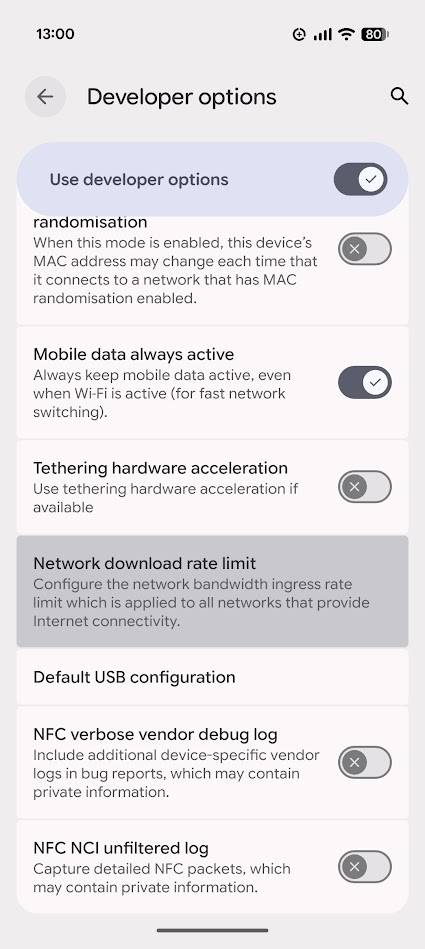
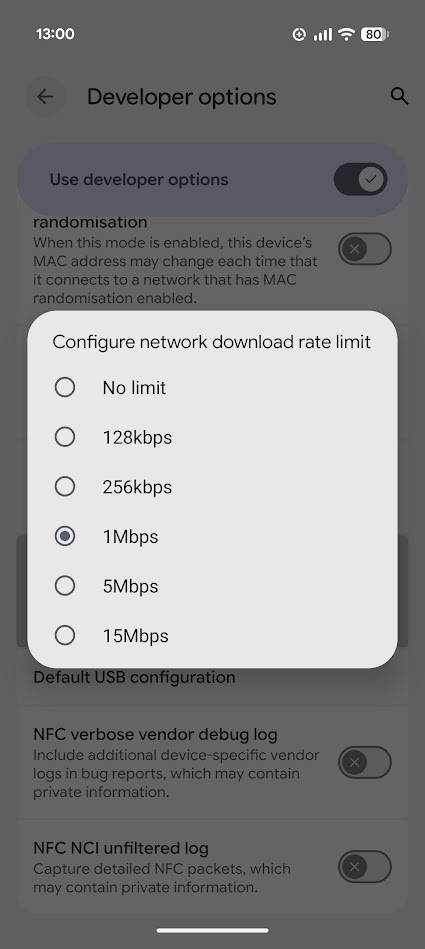
For example, the largest international roaming package my carrier offers is 4GB. If I set my phone's download rate limit to 256kbps, it will take at least 4 hours and 20 minutes to use up my data.
By that time, I should have noticed I was playing a video or downloading a file and canceled the action.
The downside is that I have to manually tweak it when I want to stream content. Nevertheless, I keep it enabled to avoid the colossal data charges that come from exceeding data allowances.
I always take advantage of offline content
I don't rely on a data connection
I like to keep my mobile data enabled when traveling, especially if I'm traveling with others. That constant connection is useful, but I don't like relying on it, especially with download rate limits.
Therefore, I always make sure to download two crucial travel companions ahead of time: maps and translation tools.
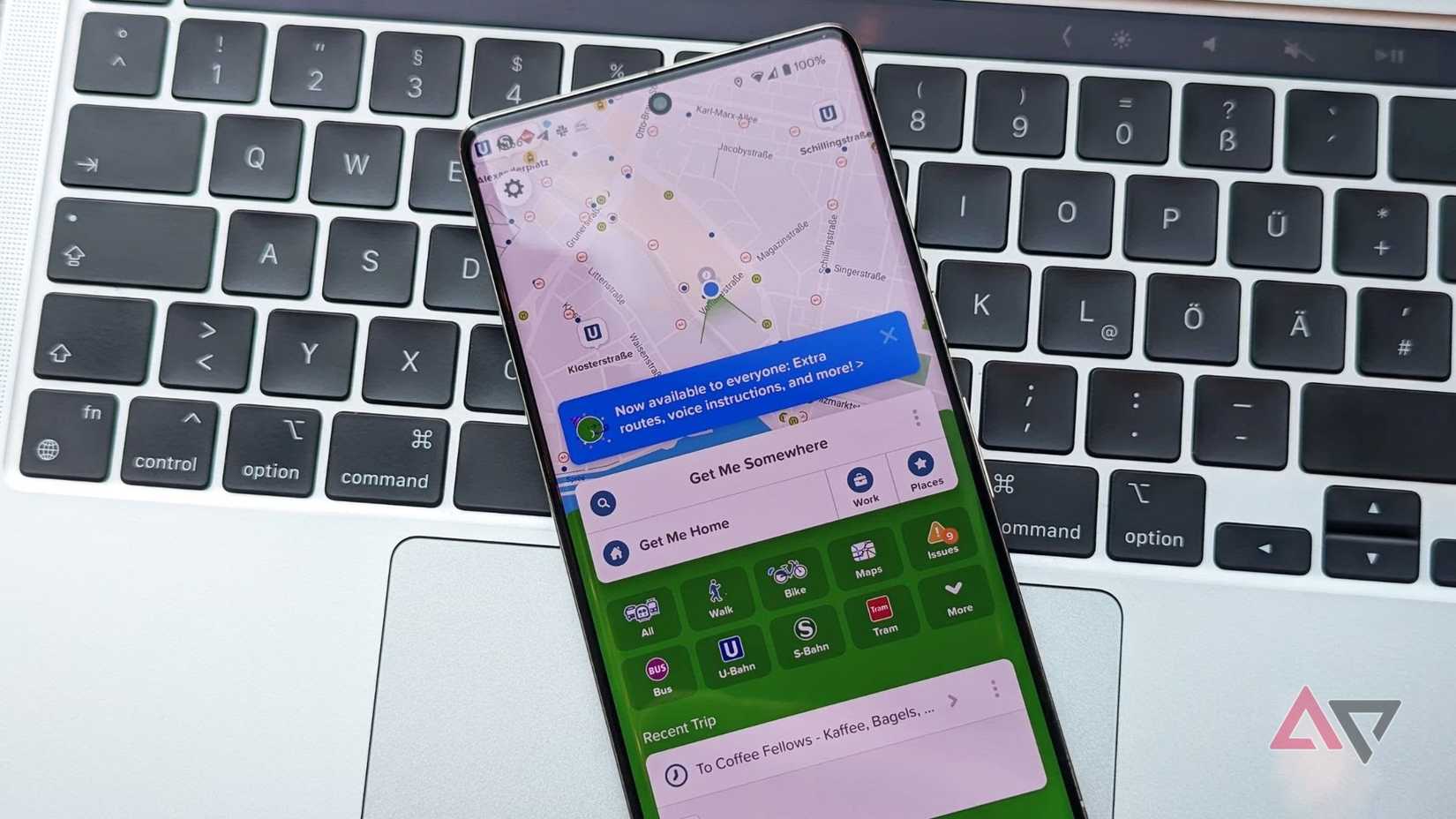
Google Maps is the simplest choice with clear offline features, but I use Citymapper when I can. As long as it supports the city, it's the better choice; it has built-in offline timetables for public transportation.
Google Translate is the other essential offline app. If I download the local languages for the destination, I can use features like Live Translate offline. It also lets me translate signs on the go, which is perfect when I'm lost and nobody is around to help.
When I need extra help, I can use my data without worrying about massive downloads thanks to the download rate limit setting.
Data Saver is the final tool I use to travel worry-free
Stop background downloads
Network rate limit stops active apps from chewing through data allowances, but it doesn't stop downloads entirely.
The Data Saver tool in Android's Settings app stops apps from sending or receiving data in the background. For example, if I receive a message with an image attachment, Android won't automatically download the image.
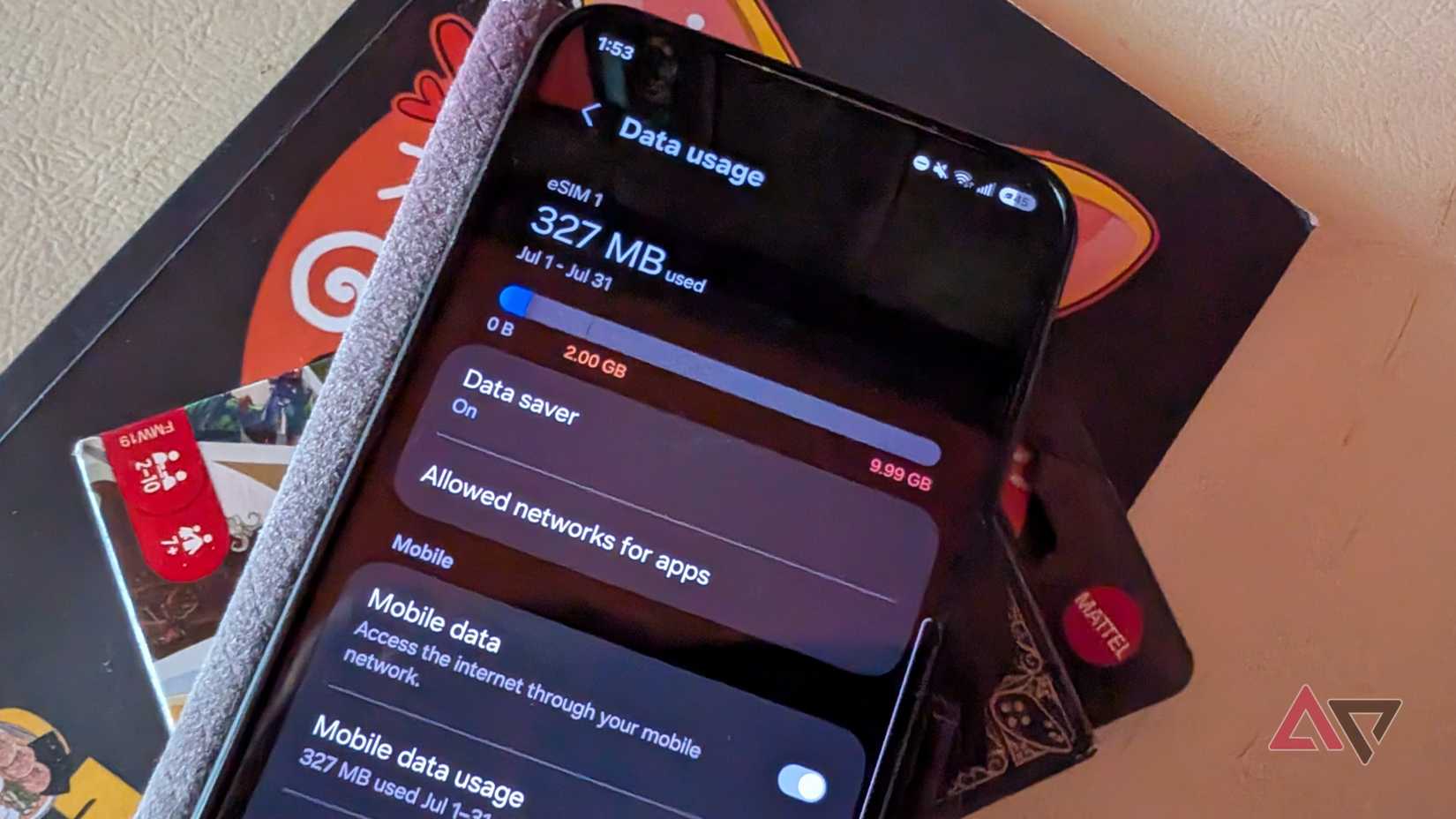
This manual prompting of downloads stops the quiet background data usage that can eat up data allowances. Paired with download rate limits, I can travel knowing that I won't look at my phone to discover my data allowance is gone.
An eSIM app is the most affordable way to use data
A small amount of data goes a long way
No matter how much I control my data usage, I still need data to use. The carrier plans I previously mentioned are useful, but very limited.
Instead, I tend to use an eSIM app like Airalo. These apps offer plans with tiny data allowances (for example, 1GB for roughly $5), but with the data-saving techniques outlined earlier, I can make 1GB last an entire holiday.
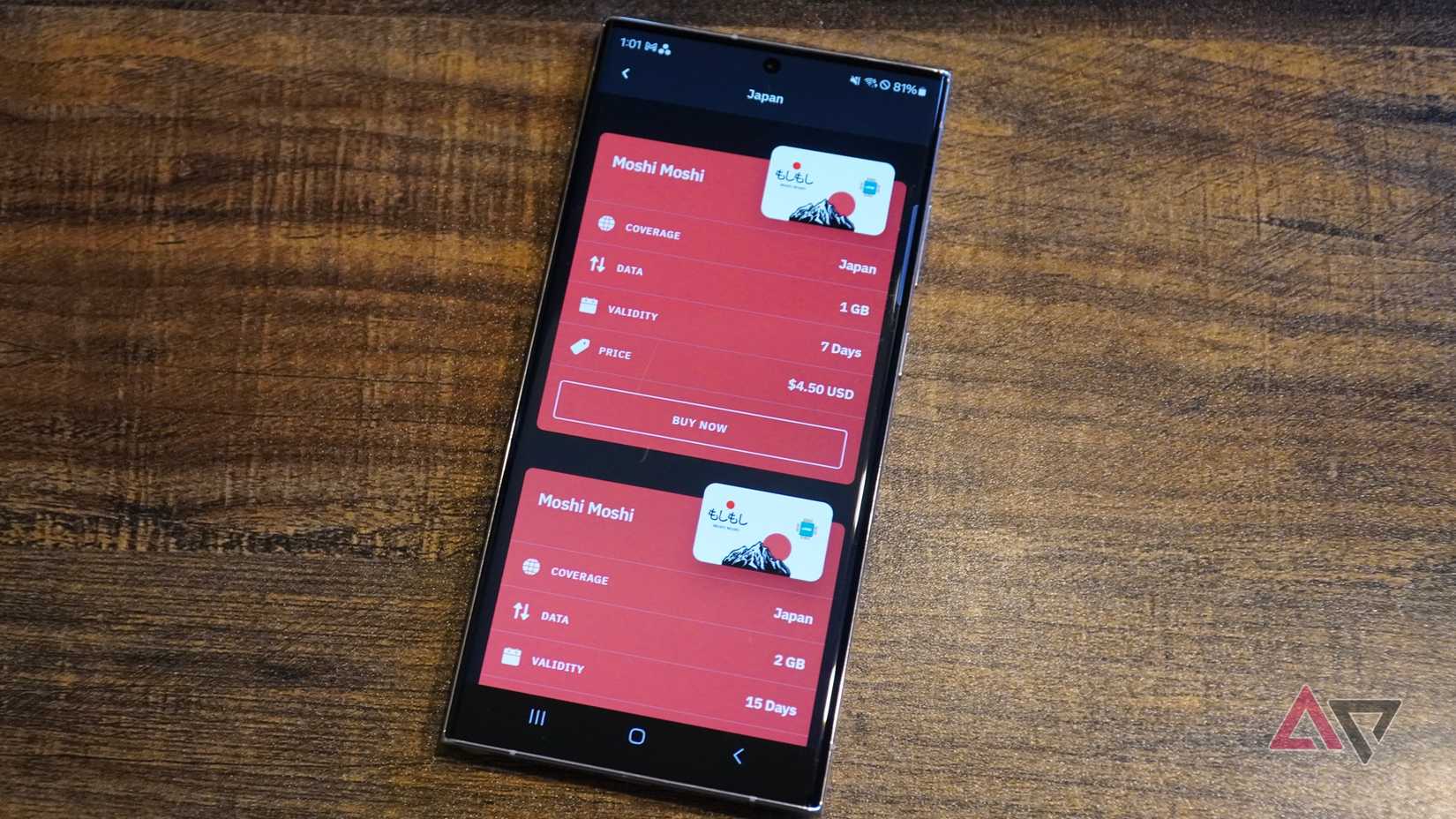
I rarely need my data when traveling, but when I do, it's essential. Having 1GB of data in reserve is all I need to avoid stress while traveling.
Download rate limits have saved me from excessive charges
On my last international trip, I realized at the airport that I hadn't downloaded any music for the plane. I quickly set my library to download using the airport Wi-Fi, and promptly forgot about it.
A couple of hours after I landed, I opened my music app again and remarked on how fast the airport Wi-Fi must have been to download so many songs. Except it wasn't. My phone was still downloading tracks over a data connection.
In two hours, I had used up half of my allowance for a 10-day trip. Had I enabled download rate limits, I wouldn't have had to shell out again for more data. But now I have my data plan under control, and I haven't been overcharged since.