Google Authenticator is useful, but convenience isn't the only thing I'm after from a two-factor authentication (2FA) app.
When I think about an authenticator, generating Time-Based One-Time Password (TOTP) codes is only one part of the job.
I also want to know how those codes are stored, how to recover them, and what happens if I . That's where Ente Auth stands out.
Ente Auth takes a different approach to keeping your authentication data available across devices.
It offers end-to-end encrypted cloud sync, encrypted exports, and works on a phone, computer, and the web. You can use it instead of Google Authenticator and still keep your synced codes.
Google Authenticator is convenient, but I want more from my authenticator
Ente Auth combines encrypted syncing with flexible recovery options
Google has improved the app over the years. You can sync your codes via your Google Account and access them on all your supported devices.
That makes switching phones much easier, since you don't have to manually transfer all your entries from your old device.
My authenticator app holds the keys to my email, social media, and all the other services I use.
If I lose access to those codes, getting back into those accounts could be a nightmare. I want a recovery plan that doesn't leave me confused if I lose my phone.
That's one thing Ente Auth seems to do well. It provides end-to-end encrypted cloud backups, so the device encrypts the authentication data before it reaches the cloud.
Ente Auth provides encrypted sync across supported devices, so I can access my codes without being connected to a Google Account.
Ente Auth also supports Android, iOS, desktop operating systems, and the web. That would be useful if I wanted to access my authenticator entries on more than my phone.
I also like that the app isn't restricted to one method of storing your authentication data. You can use an Ente account for encrypted sync, or you can use the app in offline mode without an account.
In offline mode, your code is stored on the device rather than synced to Ente, so recovery depends on the encrypted exports and local backups you create.
What happens to my codes if I lose my phone?
How Ente Auth handles recovery
One of the most important things I look for in an authenticator is a way to recover my entries if I lose or replace my phone.
Ente Auth provides end-to-end encrypted cloud syncing and supports encrypted exports. This lets me back up my authenticator data and import it back into Ente Auth.
To create an encrypted backup, open > > Export codes. Pick the encrypted option and set a password. Save the file somewhere private and accessible on another device.
Ente Auth's policy makes it clear that the export password is separate from the Ente account password and that they can't recover it for you. If you lose the file password, you could be locked out of that backup.
Ente Auth also supports automatic local backups, which matter most in offline mode. These are encrypted with a password that I choose, and I can pick where on the device they are stored. It keeps up to five of the most recent backups
A local backup isn't the same as a backup stored elsewhere. If I lose both my phone and the only backup on it, I could lose access to those entries. That's why I back up my data and store it in a separate location I can access when I have a new device or want to switch.
An authenticator backup contains sensitive data used to generate verification codes. Leaving an unencrypted export in a random folder or sending it via an insecure channel would be risky.
So I made a separate copy of my authentication data and kept it in a dedicated folder on my laptop. That way, I have a secure option for restoring my codes if I lose or replace my phone.
Moving to Ente Auth was easier than I expected
I imported my existing authenticator codes and checked that they worked
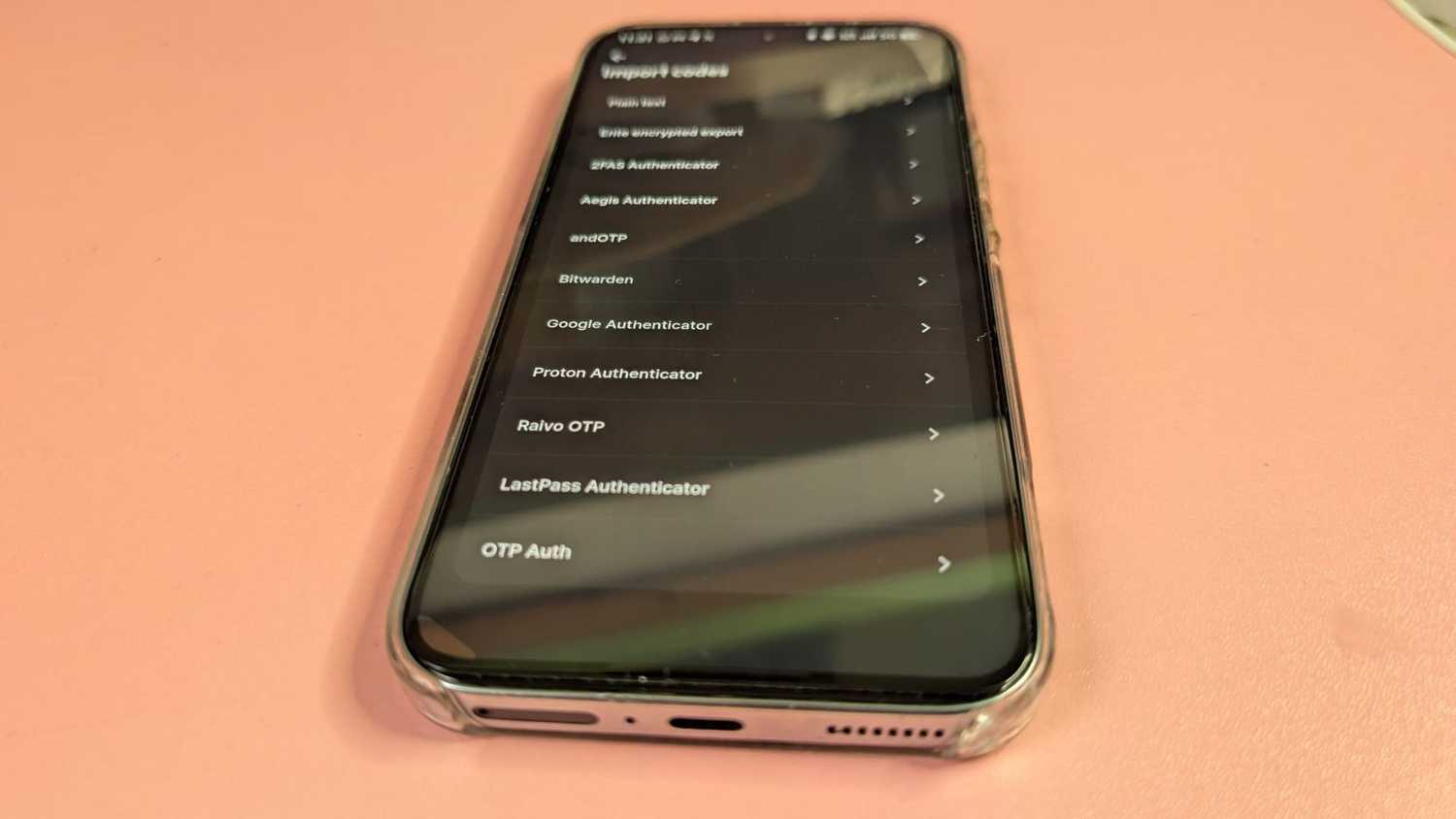
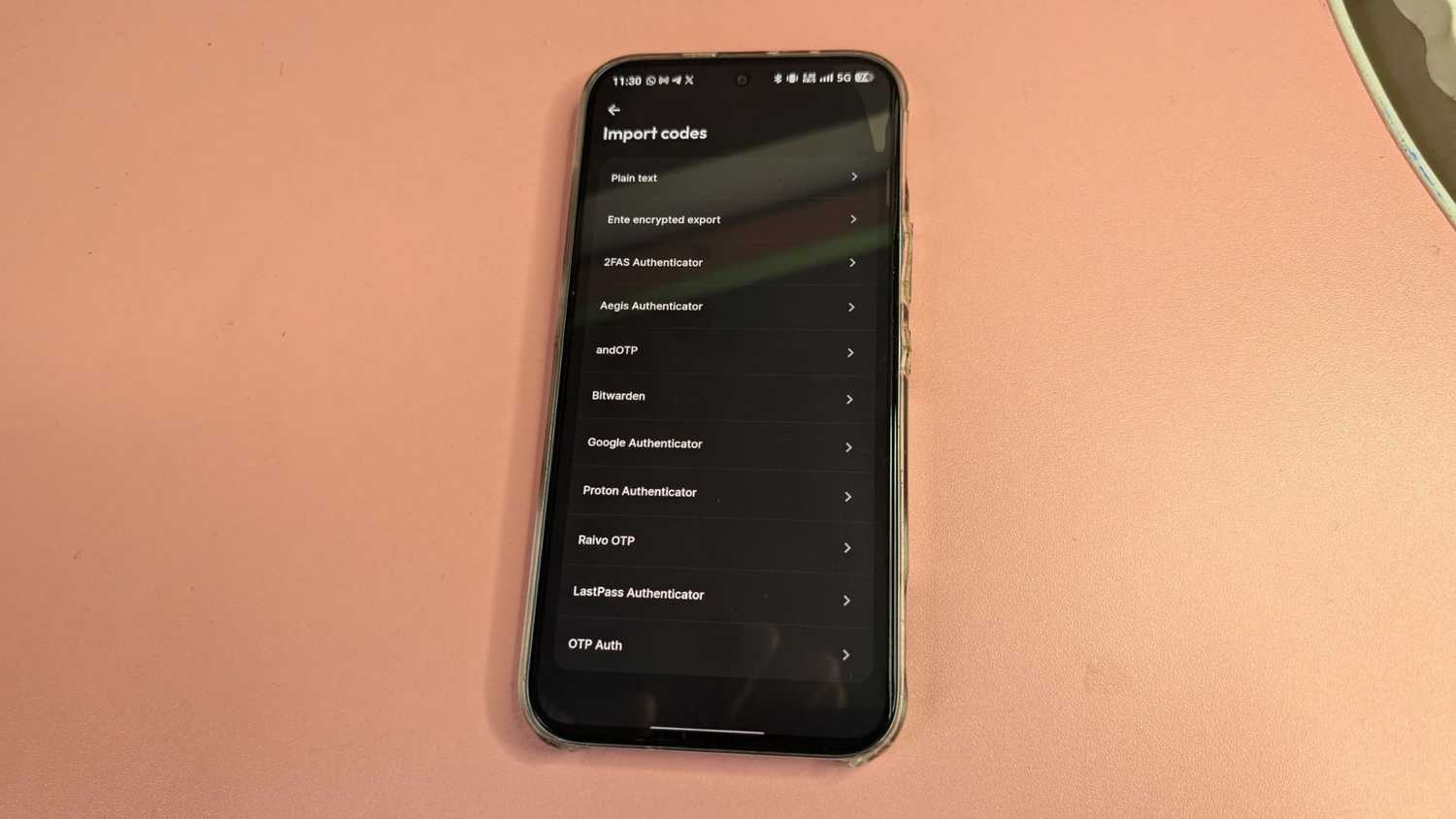
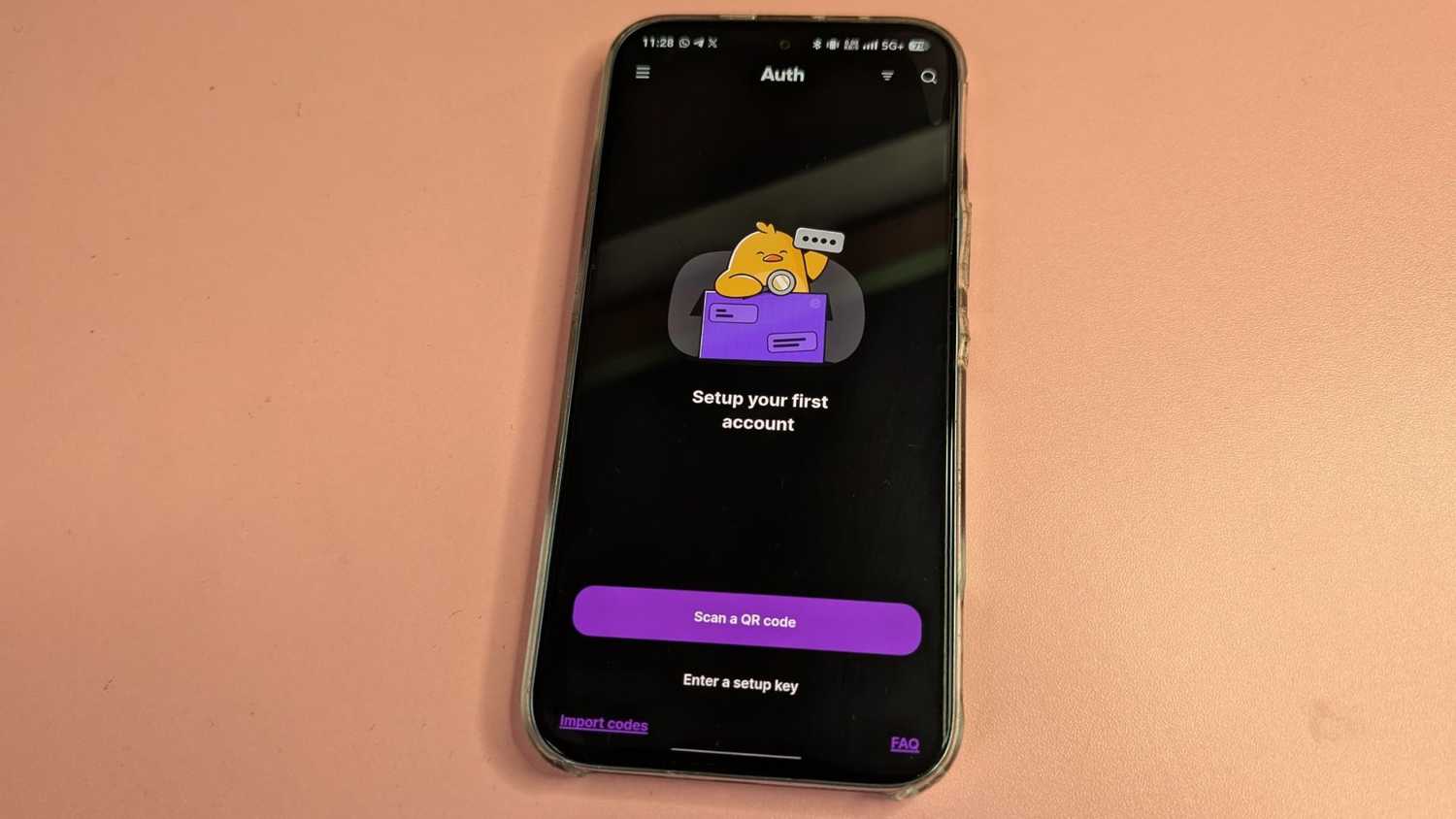
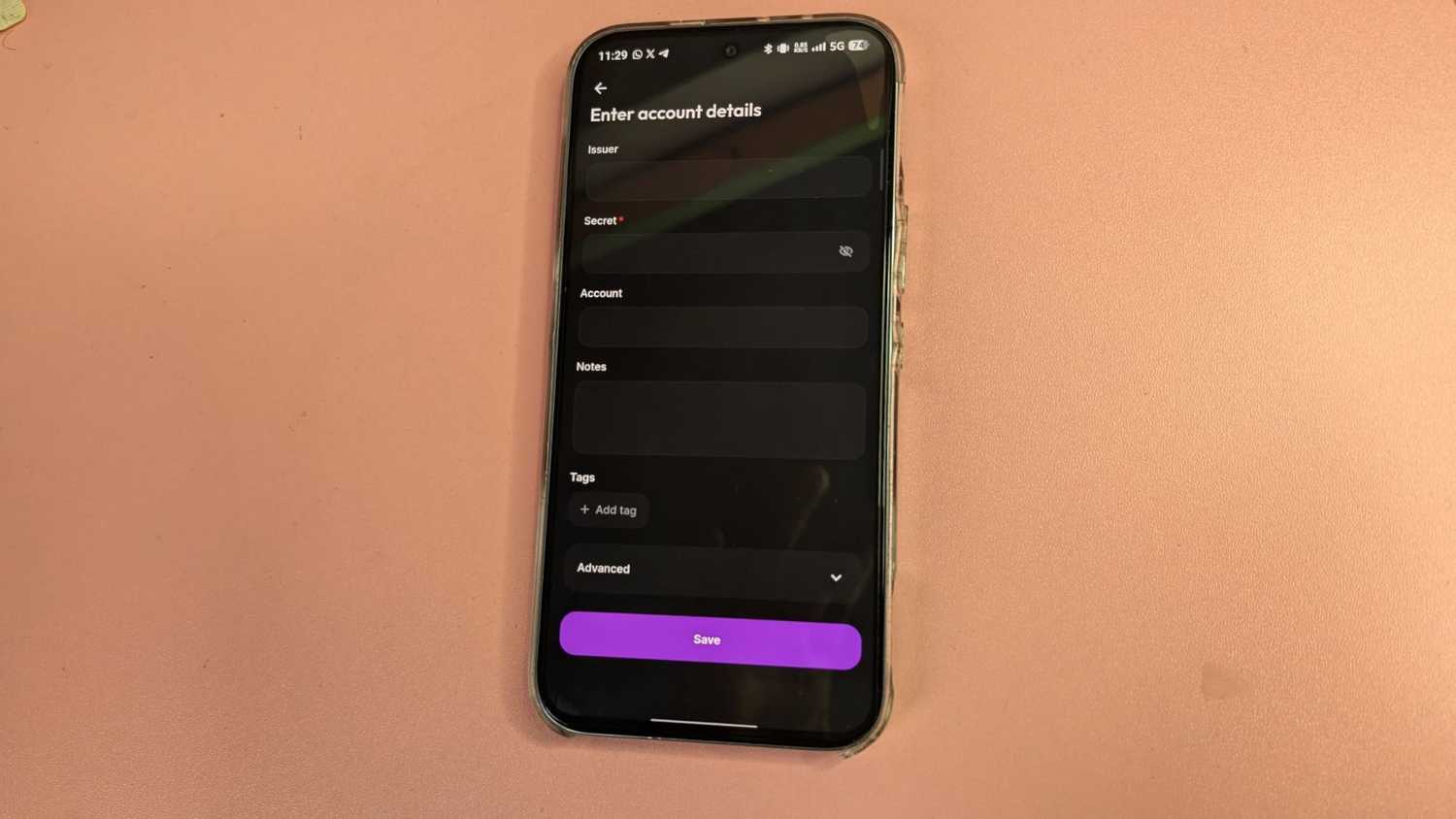
Ente Auth has import options for several supported authenticator apps, so you can import your existing entries.
I moved my accounts from Google Authenticator using its export feature.
Open the app, go to the menu, and tap Transfer codes > Export codes. After you verify your identity, pick the accounts you want to move. Google Authenticator will show a QR code with everything you need to transfer those entries to another authenticator.
You can't screenshot the QR code on Google Authenticator. You’ll need another device, a second phone, a laptop webcam, or a camera, to capture the code. In my case, I took a picture of the QR code with my laptop’s webcam and then deleted it.
Then open Ente Auth, log in, tap > > Import codes > , select Scan a QR code, and use Ente Auth to scan the QR code from Google Authenticator.
After the import, I checked that my Ente Auth codes worked with a couple of services I use.
I'd definitely recommend doing the same instead of assuming it all worked.
Ente Auth is a good fit for what I need
What I like about Ente Auth is the flexibility. You can sync your codes across devices, create encrypted exports, and recover your entries if you lose your phone.
All you need to do is keep your account details and your backup .
The best authenticator isn't always the one with the most features. What matters is that it keeps your authentication data safe and gives you a recovery process you can actually use.
Google Authenticator is still a good choice for simple sync, but Ente Auth is worth considering if you want more control over how you manage and recover your codes.