Brave promises anyone looking for a privacy-focused browserthat it stops other companies from tracking you online.
On my Android phone, Brave blocked ads, trackers, third-party cookies, and fingerprinting from the first time I opened the app.
However, Brave also had five settings turned on for itself in my new install. These settings send data to Brave or show you its own ads. Meanwhile, setup only asked me about two of them.
Beyond those five settings, I found other places where Brave's privacy features fall short on Android.
Brave had my back before I touched any settings
But the stricter level that breaks sites stays off
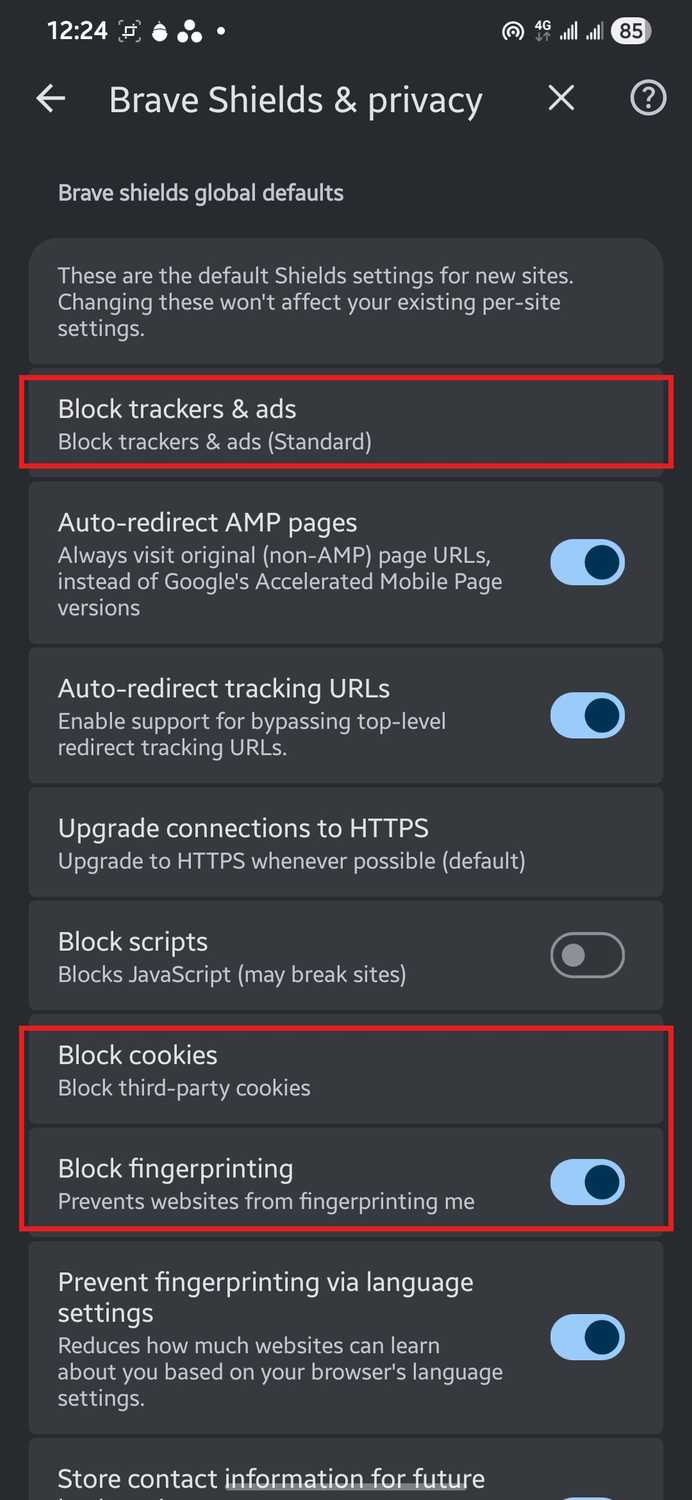
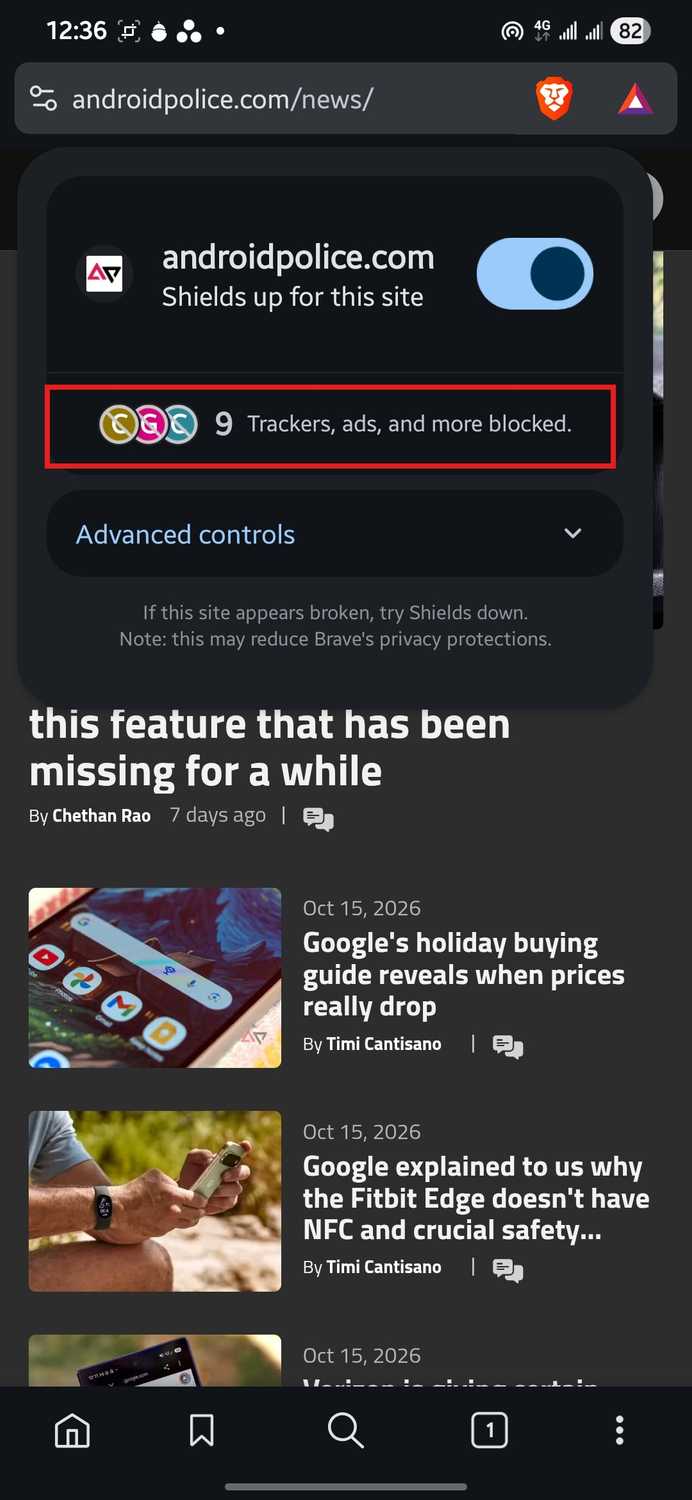
Brave's Shields page promises default protection with no setup required.
Before I changed any settings, Brave's Shields & privacy page had Block trackers & ads set to . Brave also blocked third-party cookies and fingerprinting, and auto-redirect tracking URLs were on.
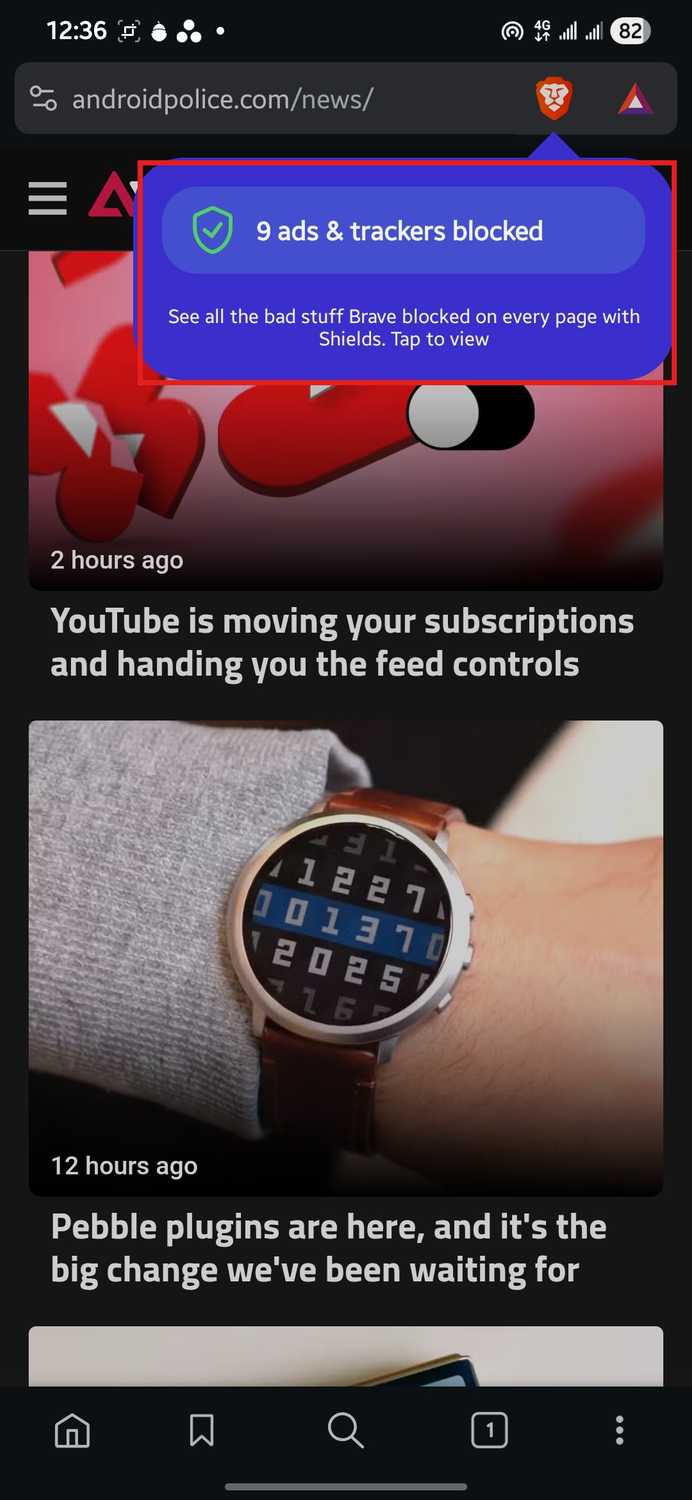
So on a busy news page, Brave reported blocking nine ads and trackers.
Those default settings put Brave ahead in privacytests.org's Android comparison, updated Oct. 22, 2026. It passed more tests than the other 10 Android browsers in the study, although the site's operator works for Brave.
It's worth mentioning, though, that Brave has a stricter Aggressive level. However, it's off by default, and tests found that it broke checkout pages and logins.
Brave guards my data from other companies, but wants some for itself
It never asked me about its ads or daily ping when I set it up
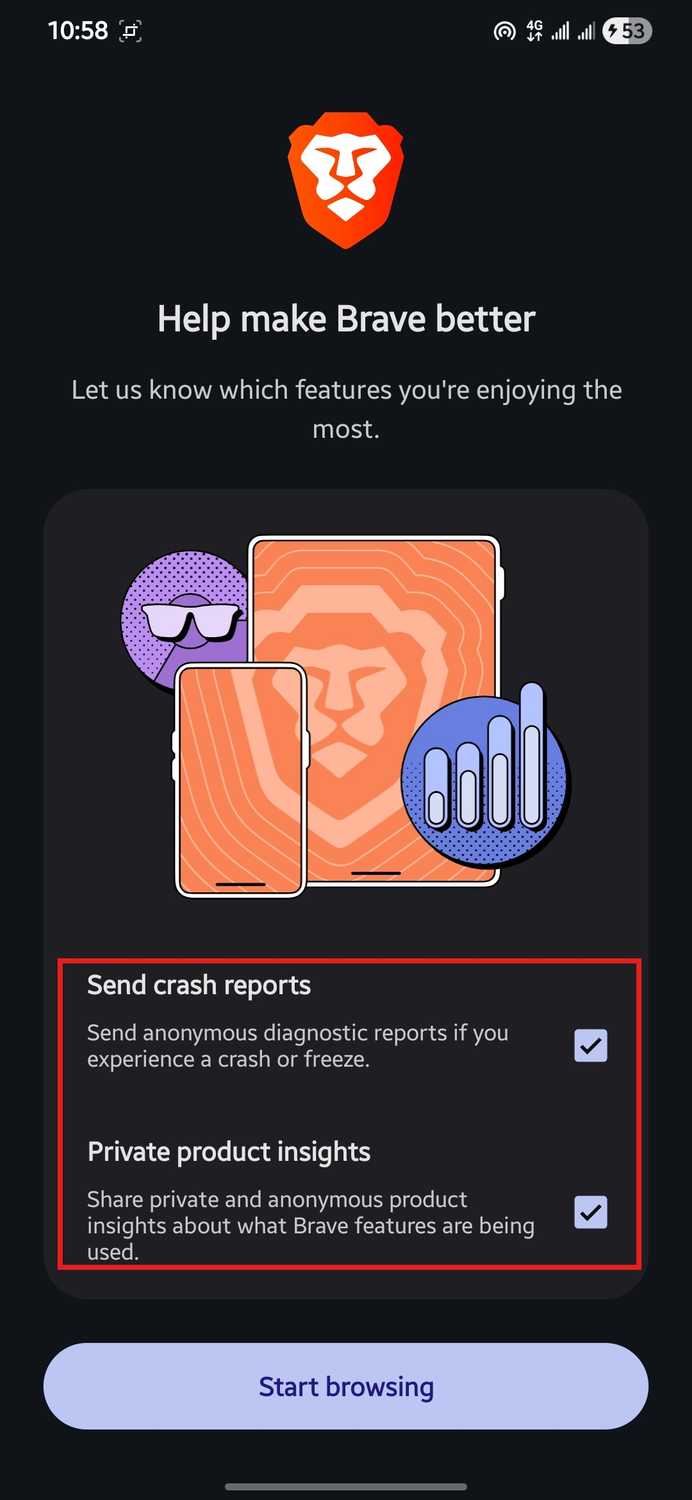
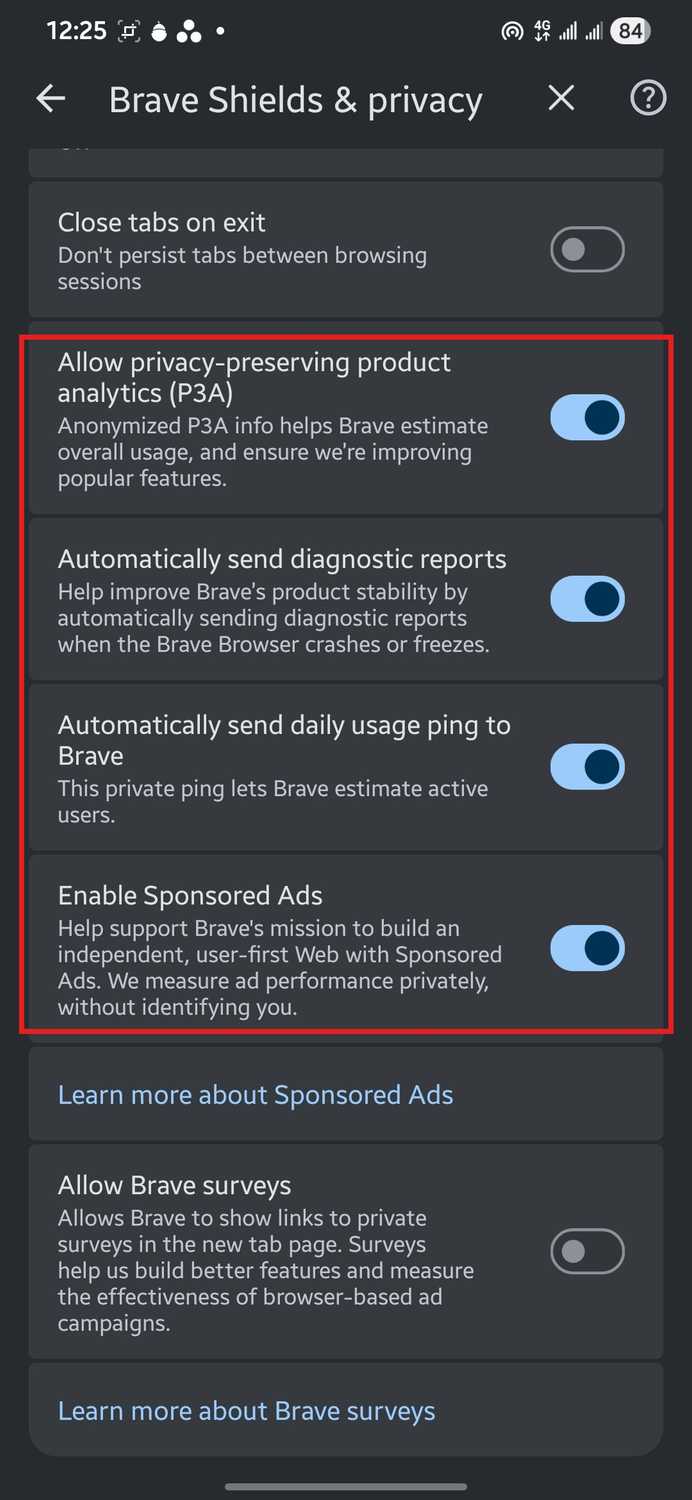
While Brave blocked other companies' trackers, five of its own data and ad settings came switched on.
The first two were on the Help make Brave better screen, where Send crash reports and private product insights were selected.
Because I left them as they were, both were still on in Settings as Automatically send diagnostic reports and Allow privacy-preserving product analytics (P3A).
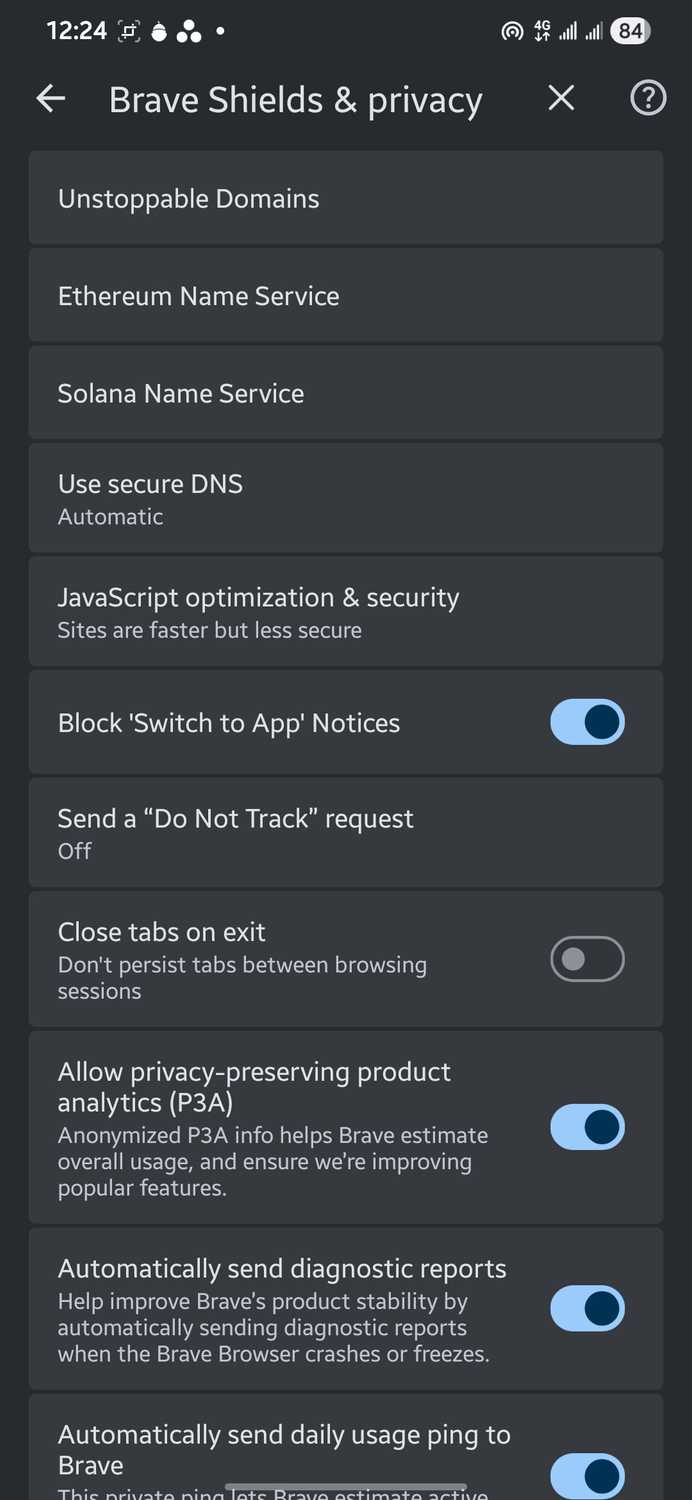
Brave's Shields & privacy settings also had Automatically send daily usage ping to Brave and turned on.
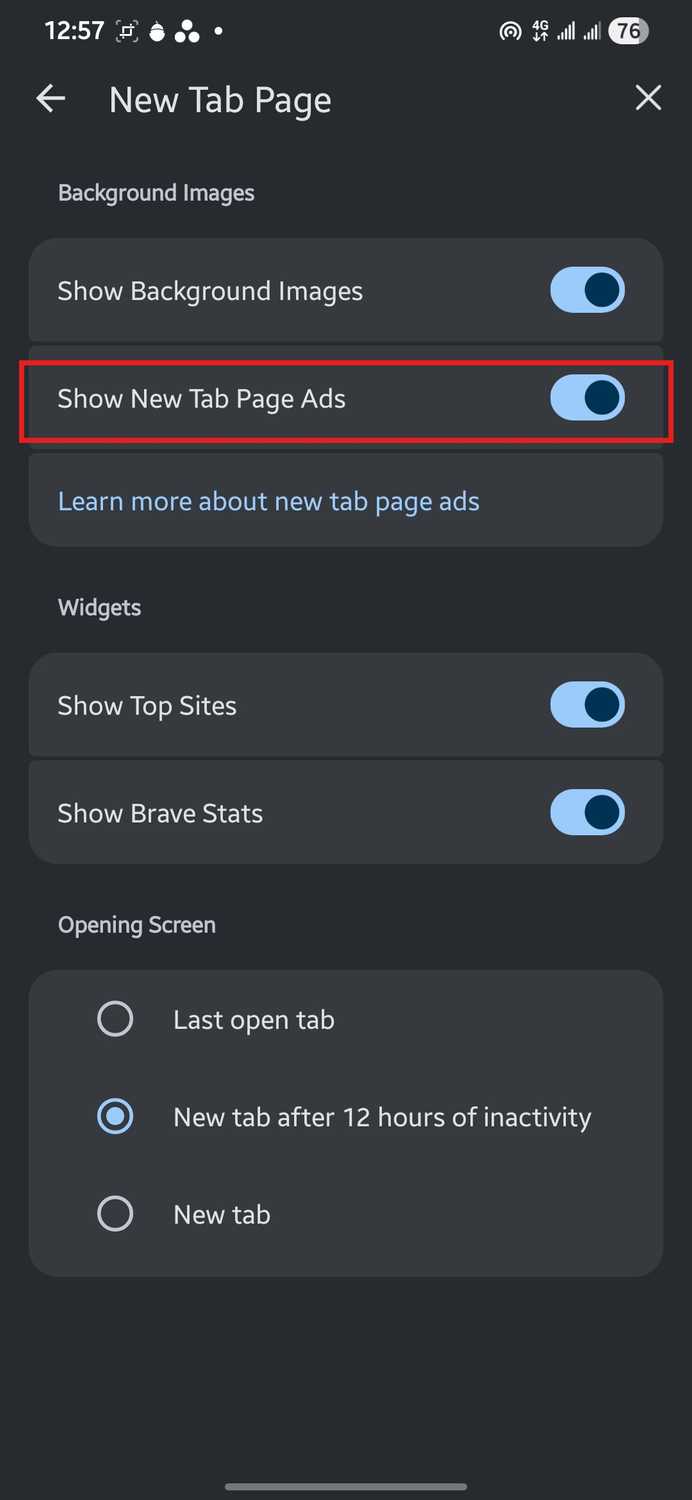
The last one, Show New Tab Page Ads, was turned on in the New Tab Page settings.
Safe Browsing was on by default, too. However, its Android checks go through Google Play Services, which exposes your IP address to Google.
Of those five, only the first two come up when you set up Brave. The daily usage ping, Enable Sponsored Ads, and Show New Tab Page Ads don't.
Brave explains two of them. It says the ping lets it estimate active users and measures sponsored-ad performance privately, without identifying you.
To turn off all five settings, go to > . Turn off Allow privacy-preserving product analytics (P3A), Automatically send diagnostic reports, Automatically send daily usage ping to Brave, and .
Then go to > and turn off Show New Tab Page Ads.
With Shred off, sites can keep you in mind
Even though Brave says it blocks all tracking by default
In a June 2026 post, Brave makes a broad claim that it blocks all tracking by default. However, a site can still save data in the Brave browser and use it to identify you on your future visits. Blocking third-party cookies doesn't stop that.
PrivacyTests.org's Android page includes tests for this kind of tracking from one browser session to the next. Brave ranks first overall on that page, yet it still fails 24 tests. Mozilla's Firefox Focus and Tor Browser pass them.
As for why Brave fails them, a likely reason is that Brave's Shred feature was off on my phone. Shred can delete a site's data when you close its tab or the app. But in my new install, Automatically shred browsing data was set to , and Clear data on exit was off.
To turn on , go to > > , and set Automatically shred browsing data to Site tab closed or App close.
My private tab said 'Leave no trace,' but my phone kept the image
To be fair, the download message gave me a heads-up
Brave's private tab page leads with "Leave no trace on your device," and the lines under it say what that covers.
They promise that sites you visit in private windows won't appear in your history, and that cookies, form data, and site data are cleared after all private windows are closed.
However, those promises don't cover downloads, and Brave's Android help page says it keeps downloads from private tabs.
To see what that looks like on a phone, I downloaded an image in a private tab. As soon as I tapped download, Brave showed a message saying that anyone using the device can see downloaded files. After that, I closed every private tab.
When I checked, Brave's downloads tab was empty. But the image was still in my phone's files, and I could open it in Gallery.
Brave's data comes with no names or history attached
I'd still like the 'Maybe later' that Web Discovery gets
For its five data and ad settings, Brave calls each one private or anonymous. Its privacy policy also says the company doesn't collect or store a user's browsing history, and none of these settings involve browsing history.
On top of that, you can turn all five settings off for free from just two settings pages.
When I first opened Brave, the Web Discovery Project showed up on its own screen: Help Brave Search grow. Neither option was picked for me, so I had to choose Maybe later or .
Brave News works the same way. Its new tab page card says up front that it runs on private, anonymized ads, but it's off until you tap it. So, Brave could give you the same choice for its own data collection and ads.
Brave is still worth keeping, after you spend 2 minutes in its settings
After testing Brave, I switched to the browser on my phone. Its blocking worked from the first launch, with default settings.
Still, despite its promise of protection with no setup required, Brave still needed a few minutes of setup. That meant turning off Brave's data collection and ads, and turning on Auto Shred.
So if you're switching, you'll see the Send crash reports and Private product insights boxes when you first open Brave. Clear both. Then, in Settings, turn off the daily usage ping and both ad settings, and set Auto Shred to Site tab closed.
With that done, Brave gets much closer to the private browser it says it is.