
Updating your smartphone isn't exactly a chore. For most of us, come in the form of a pop-up asking us to restart and offering to bump it to the middle of the night. It's not exactly an arduous process.
But it's vital, and worryingly, those automatic update processes can't be trusted to update everything when they need to.
Thankfully, there's an easy fix, and it lives in a secret menu. All you do is visit it every now and again, and your phone will stay up to date and safe.
Keeping everything up to date is vital
It's not always the stuff you remember
Most of us assume that leaving automatic updates on will keep our phone fully updated. And you'd be forgiven for assuming that, as it makes sense. After all, what are automatic updates for, if not for updating automatically?
That assumption doesn't survive contact with the Google Play Store. Go there, and even with automatic updates on, you'll see a long list of app updates that haven't happened.
Whatever internal reasoning Android uses isn't important. The point is updates sometimes don't happen. And that's a problem, because apps and services are updated for a reason.
Missing out on new features is the best-case scenario. Updates for many background apps are often to patch security holes or fix bugs that interfere with everyday use.
While you'll often hear about the worst problems and go looking for updates, it's also common not to hear about security holes at all. Most companies don't like to proclaim when things go wrong, and as long as a problem is fixed, what's the harm, right?
The harm could be real if the update doesn't arrive in time. My had been experiencing a slight slowdown issue. Nothing major, but enough that I started to look into it. It turned out the problem was because a vital background service wasn't updated.
So, it's important to make sure those services are updated. All you need to do is check one hidden menu from time to time.
There's a secret menu for service updates
Make regular visits
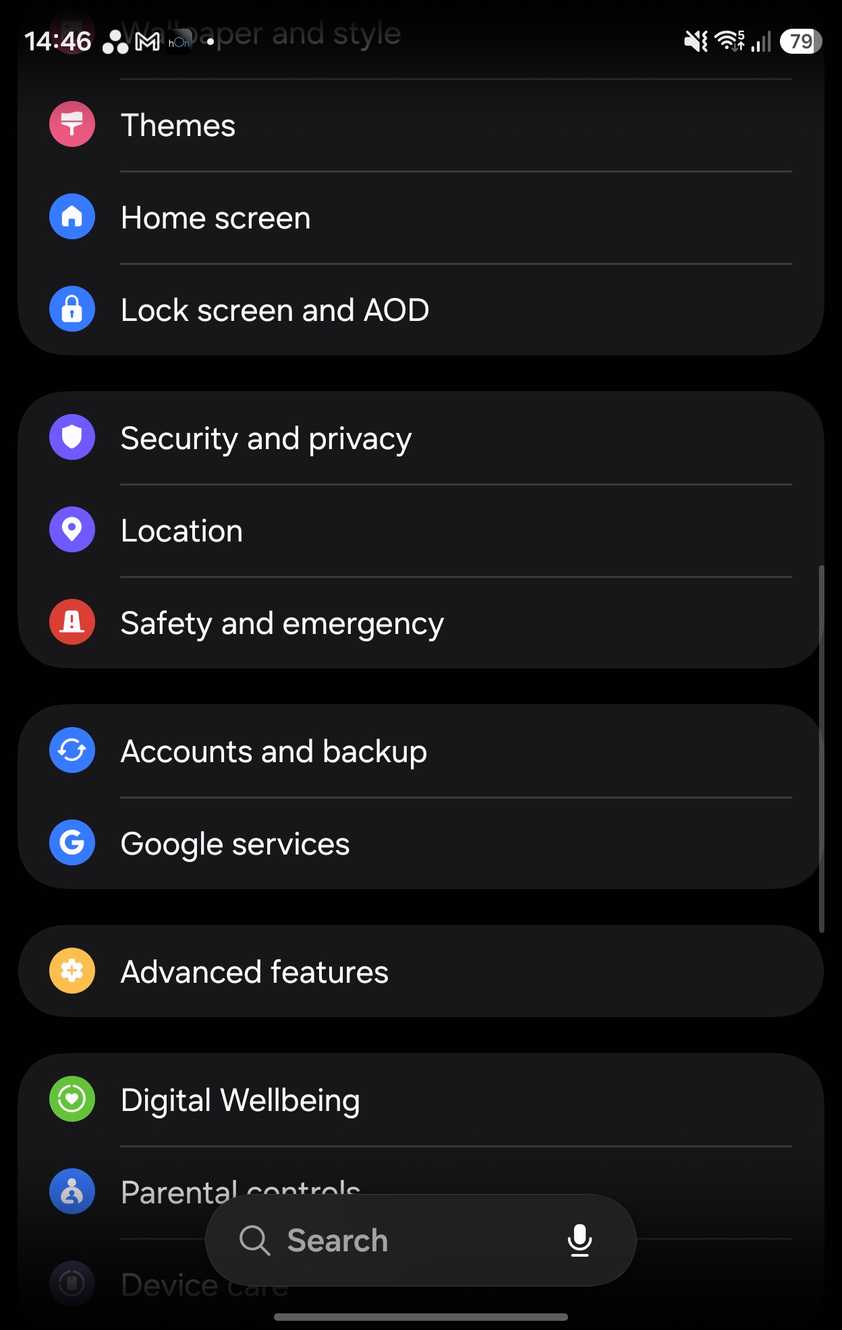
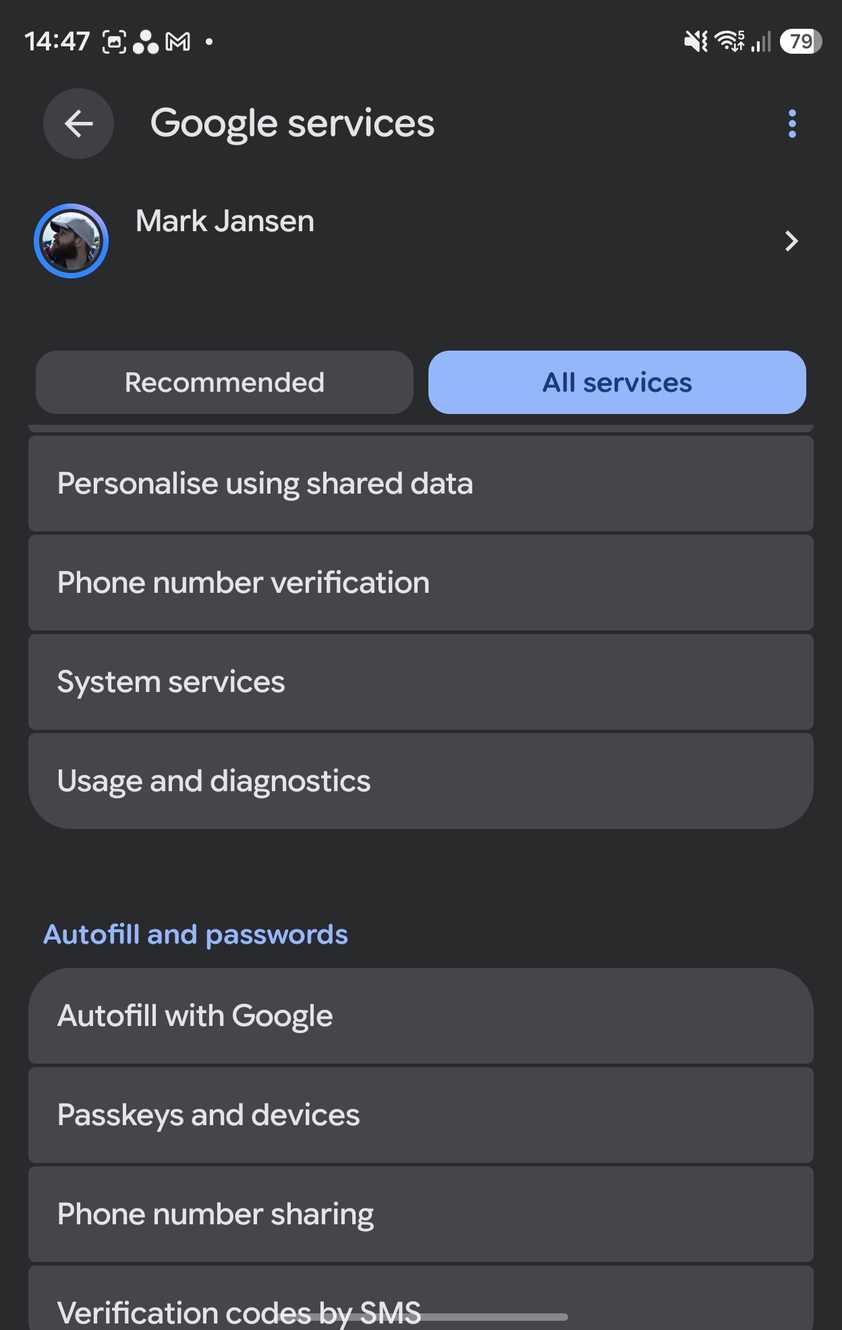
The first place anyone goes when looking for updates is Settings > Software update > Check for updates. You wouldn't be wrong to go there for updates, but it's not a complete solution.
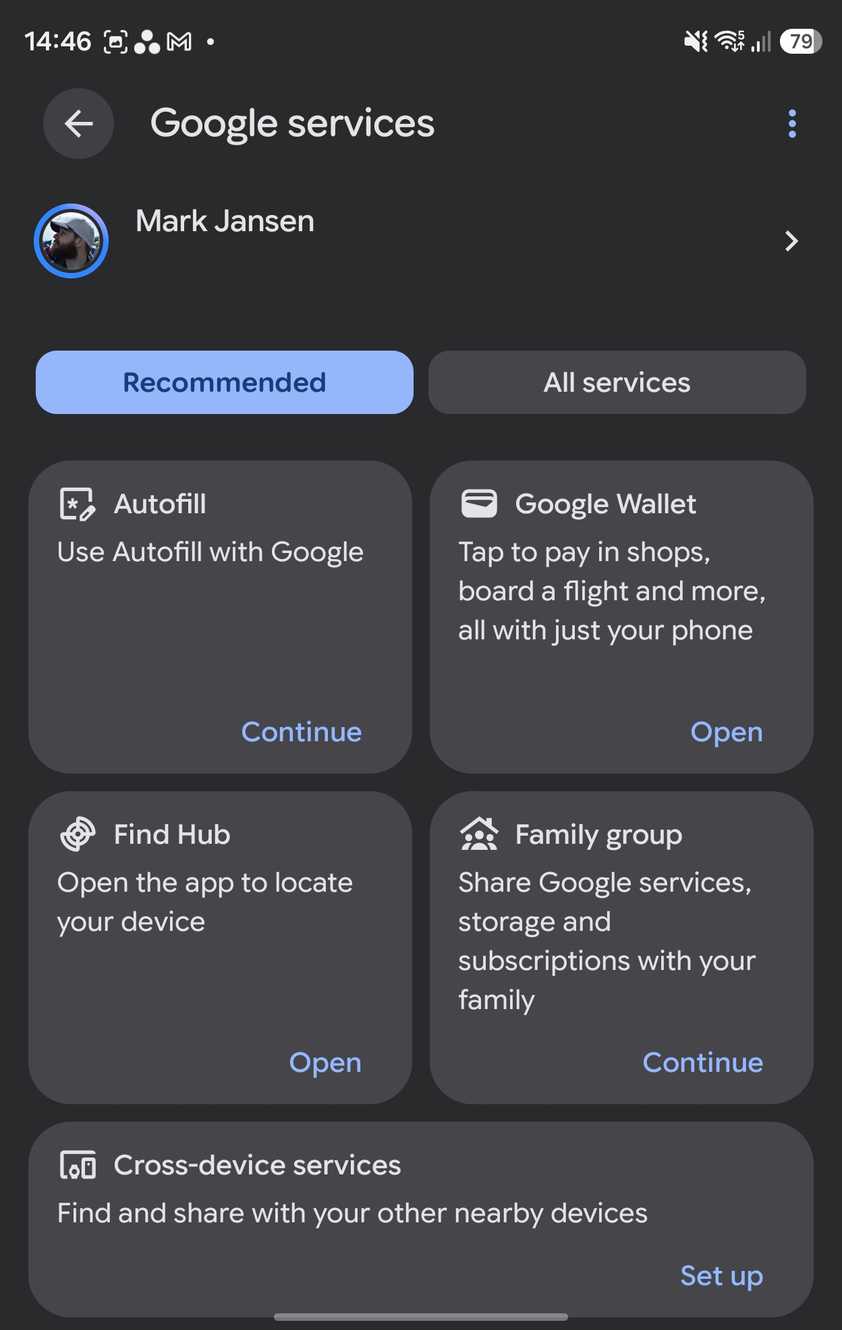
Instead, go back to your menu and find the Google Services menu.
- On a Google Pixel, tap your name at the top of the menu, followed by the All services tab.
- On a Samsung Galaxy, scroll down your menu until you find Google services. Then select the All services tab.
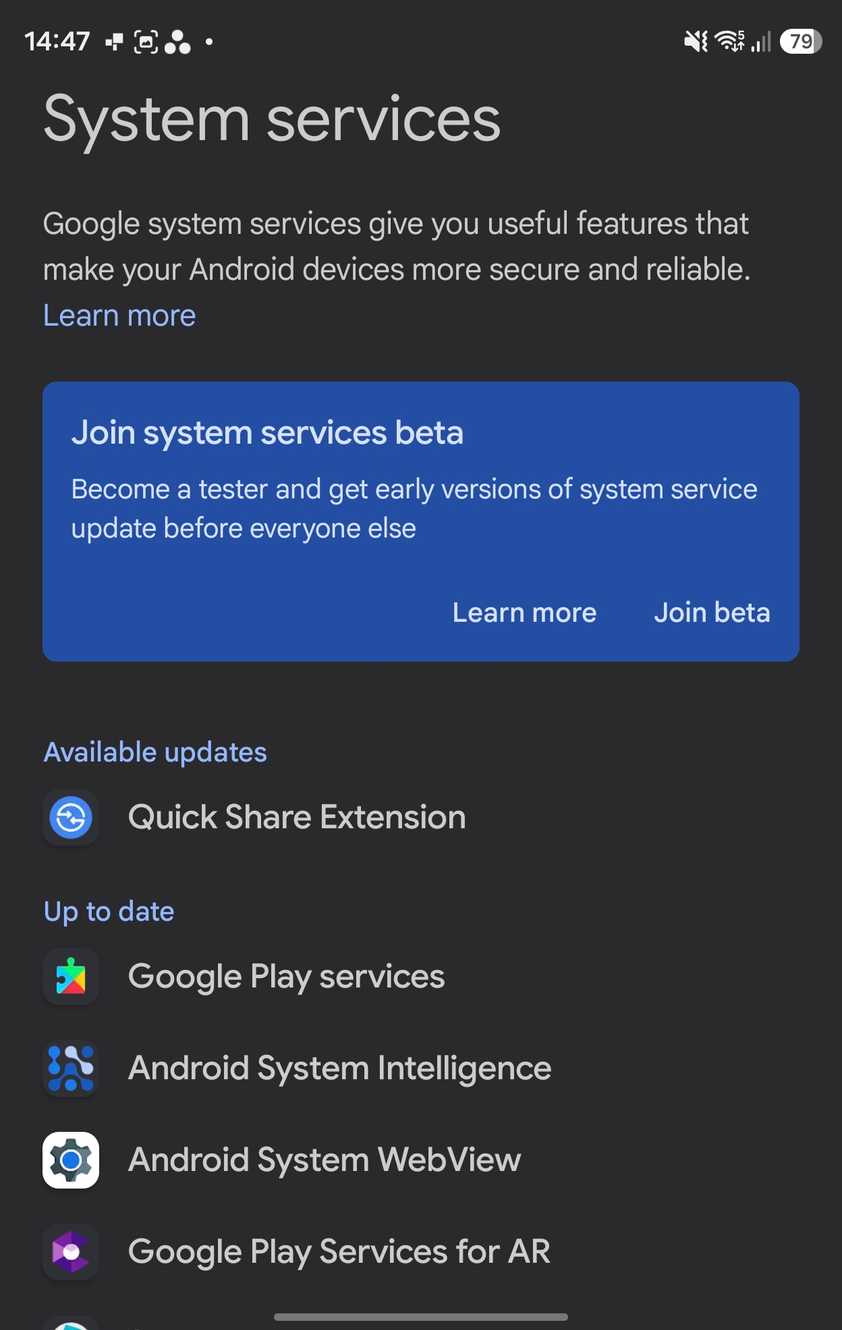
Then, scroll down and tap System services.
This is your list of system services, the background apps and features that might easily be missed. They can be vital to how your phone runs, and you'll find things like Google Play Services, Android's parental controls, and AICore.
These services are easy to miss in updates, but it's often a good idea to make sure they're fully updated. Because I've been here fairly recently, most of mine are up-to-date, except for the Extension.
But not for long. To update that, all I need to do is tap it and select . It'll take a moment, and that's it.
It'll take longer to update all of these if you haven't been here before and there are a lot of them, but it is worth doing.
It's worth doing enough that it's worth making coming back here into something of a habit. Though not too often.
Every few weeks or every month should do it, or every time you see one of these services mentioned in a headline. That should keep you on top of these updates. I've been doing it this way, and it's worked out nicely for me.
Updates are important
Don't let your phone be left behind

There are only a few reasons to avoid updates, and the most common is that a particular update makes things worse, not better. We've seen a few examples of that over the last year, and I even for some time because of it.
Knowing about this menu means that you won't miss an important update. Combined with your usual software updates, this helps keep your phone securely updated and patched for longer, so you don't need to upgrade anytime soon.