I went from almost always running a custom ROM on my primary phone to not trying one in eight or nine years.
That meant I was out of the loop about the installation process, which is typically messy and requires downloading several files and then following device-specific instructions.
When LineageOS announced its new browser-based flash tools with the release of LineageOS 24, I pictured connecting my Google Pixel 8 Pro, selecting LineageOS, and letting the tool handle the rest.
Turns out, it's not that simple, but this is still a step in the right direction.
The first hurdle popped up even before flashing anything
Getting connected still takes some know-how
From my custom ROM days, I still remembered the basics: enable USB debugging, allow bootloader unlocking, then get the phone into bootloader mode before unlocking it and flashing the necessary files.
But after so many years away from the custom ROM scene, I needed to verify the process and make sure nothing had changed.
I expected LineageOS's browser-based flash tool to streamline the process and guide me through it. Instead, it still required me to open the device-specific wiki for detailed instructions.
More importantly, until I enabled USB debugging, there was no way the LineageOS web flash tool could identify and connect to my through ADB while Android was running. I still had to prepare the phone before the browser tool could help.
For someone returning to custom ROMs after years away, a little guidance here would have made getting started easier.
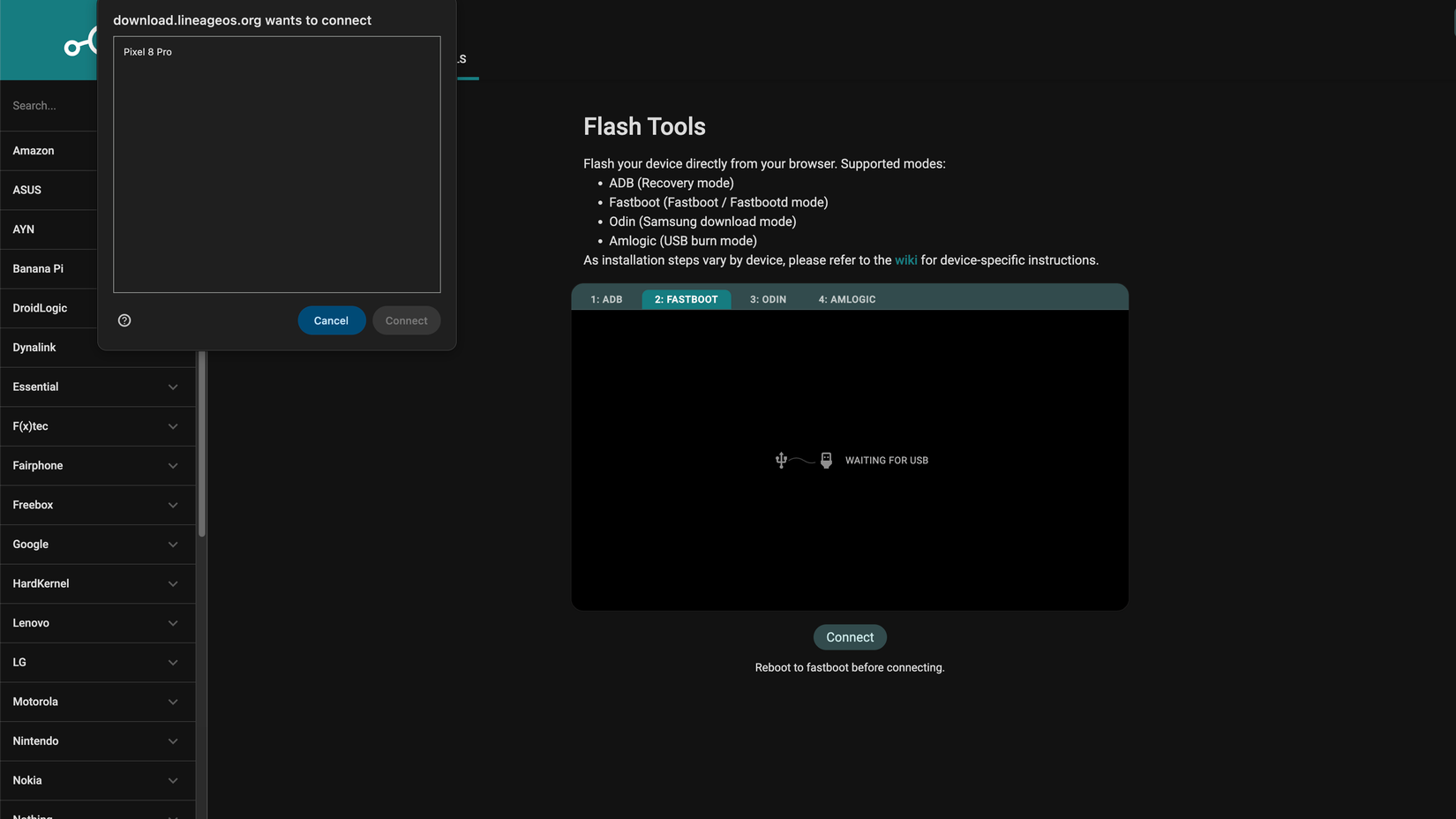
To be fair to the LineageOS team, they clearly mention this in their announcement about the tool. They never promised the automatic installer I wanted.
They explicitly say the browser tools are an additional option and that the device-specific wiki guides remain the default supported installation method.
The web flash tool saves me some time and effort
But I'm still switching tabs for instructions
So what's the benefit of the LineageOS web flash tool? It saves me the hassle of just to access those functions. I can open the browser and work from there. For someone who doesn't use these tools regularly, this is a welcome convenience.
Does it make installing the custom ROM easier? Not really. None of this means the browser-based flash tool isn't useful, especially since I wanted more.
Preparing the computer is a part of the installation experience, and removing any step from that is always a welcome addition.
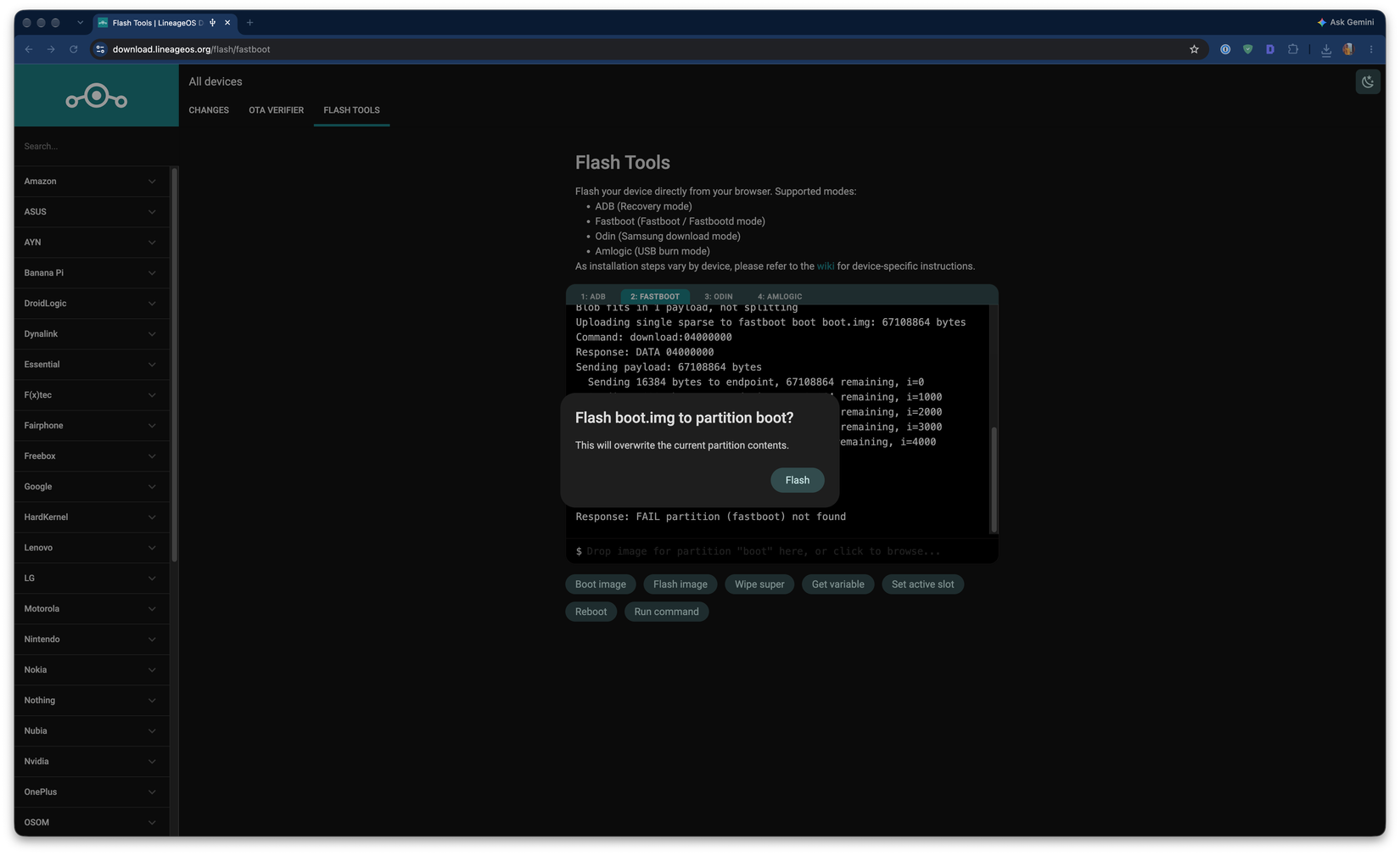
What I still missed was having the instructions alongside the tool. I had to open the wiki in one tab and the flashing interface in another, switching between them to check what I needed to do next.
After years away from flashing phones, I could not rely on my memory.
Ideally, the tool should display the device-specific installation steps below the flashing controls. That would make following the instructions easier, even if I had to perform them manually.
Having those instructions on the same page would have helped when I clicked the "flash image" button. The tool asked me to specify which partition to flash the file to.
After many years away from the custom ROM scene, I was no longer familiar with the partitions involved.
Unsurprisingly, my initial attempts ended with the "partition (kernel) not found" error. The wiki explained what I needed to do, but I had to switch tabs again to find out.
I want an installer that handles more of the process
The right files and clear steps would make a big difference
I want the LineageOS browser flash tool to go further. Ideally, I'd select my Pixel 8 Pro, and it would automatically download the required installation files from LineageOS's servers.
It could then guide me through flashing each file to the correct partition, rather than leaving me to figure everything out by reading the wiki.
That would address many of the issues I ran into while installing LineageOS on my Pixel 8 Pro.
I don't mind connecting my phone, enabling a few settings, or confirming an action. But after years away from custom ROMs, figuring out the right partitions meant relearning parts of the process.
I don't want the tool to do everything on its own. Even explaining the process and flagging when an action will erase my data would help.
With so many Android devices, each with its own hardware and installation requirements, I understand the complexities involved in making something like this work and the risks if something goes wrong.
First steps to the custom ROM installer I want
LineageOS's web flash tool isn't the guided installer I pictured, but I'm glad it exists. It saves me some setup work, even if I still need the wiki to get through the installation. For now, that's a great starting point.
I hope the team will continue refining the tool to handle more of the setup process. That would give first-time custom ROM users more confidence that they're flashing the right files.
This would make them more excited about giving their old Android phone a new lease of life, instead of worrying about accidentally bricking their device.