I used to treat my Gmail inbox like a second to-do list. That worked until my inbox got busy, and the important messages started disappearing beneath everything else.
I eventually started a new scheduling system. Now, when an email requires action, I turn it into a task or add it to my calendar.
The best part is that I am not constantly copying information between apps or opening a separate to-do list to remember what an email was about.
I can capture the task from Gmail, add it to my schedule, and then let Tasks or Calendar remind me when it's time to deal with it.
It has turned three Google apps I was already using into a surprisingly seamless task management system.
I stopped leaving important emails unread
No more treating emails like reminders
I had a bad habit of marking emails as unread when I didn't want to deal with them immediately. It felt like a simple way to tell myself I'd come back to it later.
The problem was that the email became a reminder I couldn't switch off. I would see it in my inbox, remember that I still had something to do, and mentally push it away again.
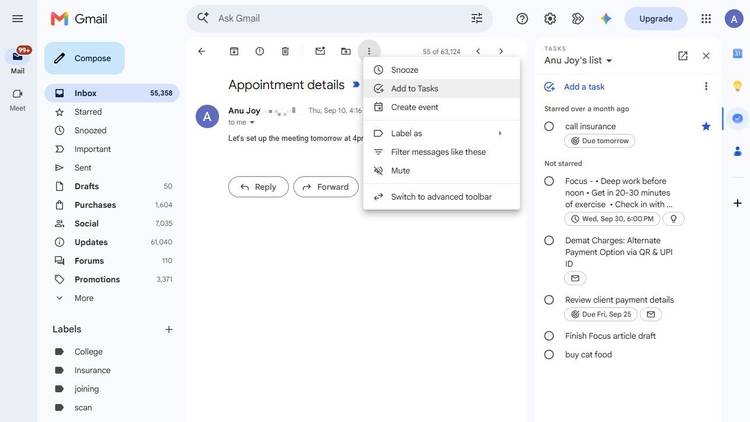
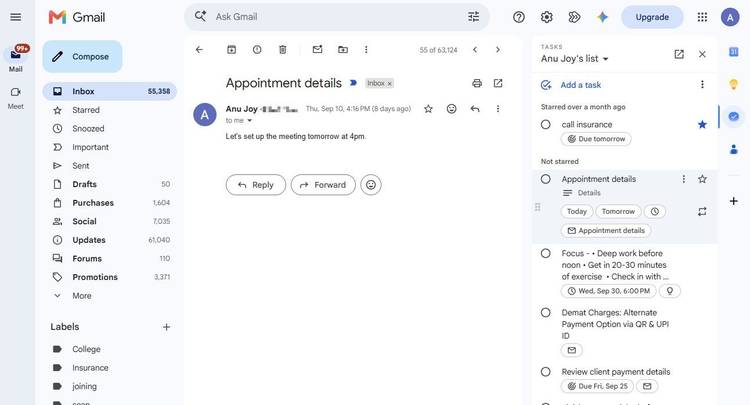
Now, if an email requires me to do something, I turn it into a task. I can add an email to Google Tasks, and the resulting task stays in Gmail's side panel.
In Gmail on the web, I open the message, click the , and select Add to Tasks.
Similar steps apply to the mobile app.
I use Gmail's side panel to keep an eye on my tasks. Clicking the Tasks icon on the right opens Google Tasks alongside Gmail, and I can check them without leaving my inbox.
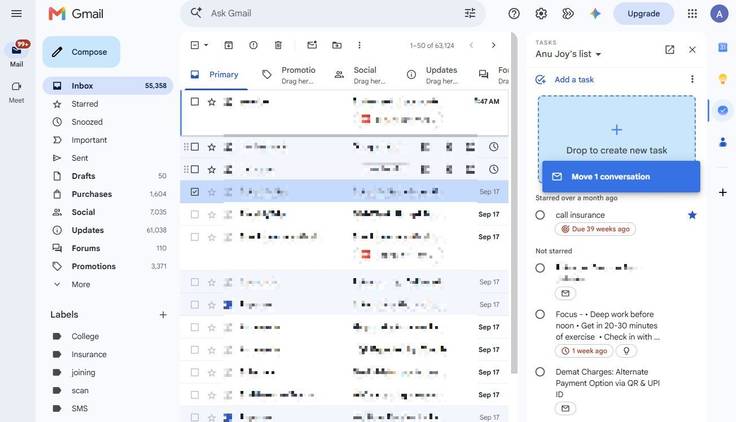
I can also drag an email from my inbox into the Tasks panel. Gmail creates a task from it, using the email's subject and keeping a link to the original message.
I turned emails I couldn't ignore into calendar events
Some emails deserve a place on my schedule
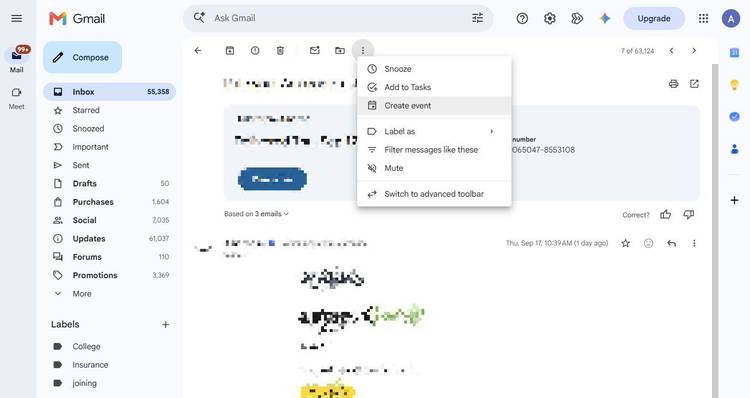
Some emails are easy to deal with later because they don't have a deadline. Others keep nagging at me because I know I need to do something about them at a particular point. Those are the emails I turn into Calendar events.
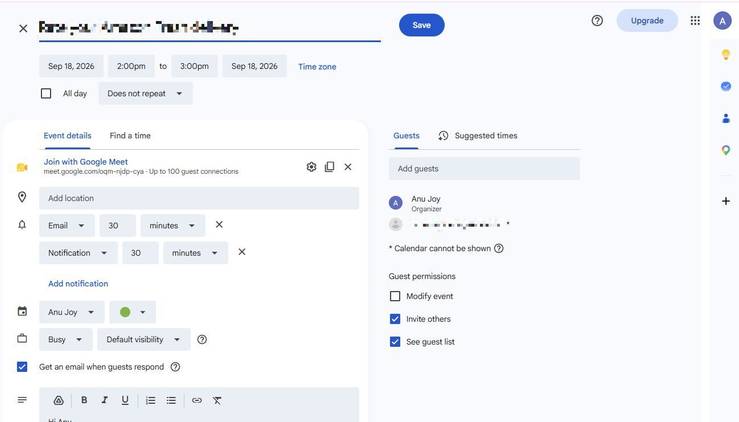
On the web, I open the message, click (), and click Create event. Gmail creates a new Calendar event using the email's subject and message text.
It also adds the people from the email as invitees. However, I remove them most of the time because I'm usually creating these events as personal reminders rather than sending another invitation to everyone on the thread.
After I've saved the event, I don't have to keep returning to the email to remember what I was supposed to do. The email stays in Gmail, but the commitment now has a place in my schedule.
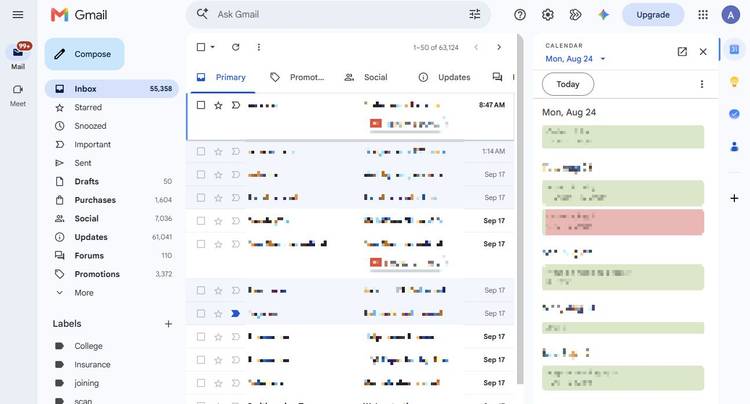
I frequently use another aspect of this workflow on the web. Gmail has a Calendar icon in the right side panel. Clicking it opens Calendar in a sidebar without taking me away from my inbox, so I can see my upcoming events while I'm reading email.
I can also open an event from that panel to view or edit its details.
I use Tasks for my to-do list and Calendar for my commitments
The right task goes to the right place
When I receive an email asking for a document, need to return a call, or have a purchase to make, I add the task to my to-do list. I can set a deadline or schedule a time to work on it, and I mark it as complete after I've finished it.
Google Calendar is my go-to app for meetings, appointments, dinner reservations, and flights. If I want to block out an hour to work on a report, I add it as a Calendar event.
There's some overlap. A task can have a date and time and appear on my Calendar, so I can still schedule time for something I need to get done without turning it into an event.
The rule I use is: If I need to check it off, it goes in Tasks; if I need to plan my day around it, it goes on my Calendar.
That keeps my Calendar from becoming a giant list of errands while still making sure important to-dos don't disappear into the inbox.
My inbox is no longer my to-do list
The best part of this system is knowing that I no longer have to keep every unfinished email, deadline, and follow-up in my head.
Now, an email becomes a task in a couple of clicks, and if it needs a place in my schedule, I add the date and time so it shows up in Calendar.
Tasks also appear in Calendar, meaning I can see scheduled to-dos alongside my other commitments.