I mainly use Brave for daily browsing, but sometimes I need to switch to Chrome for certain websites.
I also use it on older phones like the Google Pixel 4a when I’m using it like an iPod.
But I've noticed Chrome on older or mid-range phones can feel laggy, with janky scrolling on image-heavy websites.
After digging through the settings, I found three settings that made it much smoother.
Changing how Chrome uses my phone's GPU was the first step
This setting was very well hidden
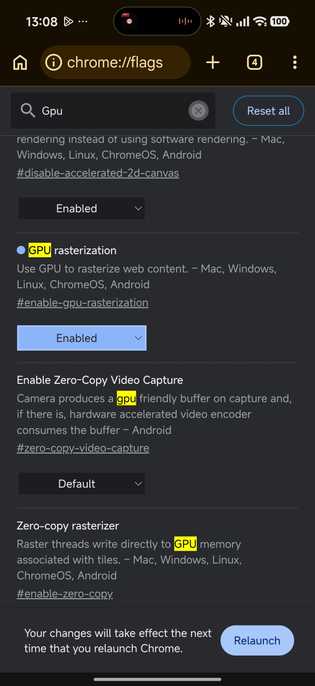

None of the settings I changed are in Chrome’s default settings menu; you have to access a secret Flags menu that is well hidden.
They are hidden for good reason, as they are still experimental, but in my experience, they were quite stable.
What's neat is that I didn't need to root my phone or add any extensions since these options are available in Chrome.
To access Chrome's secret settings menu, I typed in the address bar. After I had access, I found a setting I needed to change right away.
In the secret menu, I found a setting called , which I turned on to improve my Chrome experience. Here's what it does: it moves the rasterization process from the CPU to the GPU.
Results from turning on the GPU rasterization feature vary depending on your phone's GPU, Chrome version, and age.
It takes pressure off my phone's CPU, which can be a godsend when I'm multitasking with different apps.
Since GPUs handle parallel graphics tasks better, the switch made sense, as it could handle heavier websites with animations and complex pages more easily.
It helped reduce scrolling jank because Chrome depended less on the CPU and freed up a thread that could be used more efficiently.
After turning on GPU rasterization, I also made sure it was working.
You can verify it by typing in the address bar to see if the feature is hardware accelerated or forced.
This feature may be enabled by default on modern phones, but on older or budget-friendly devices, it doesn't hurt to check.
Turning on an experimental protocol in Chrome also made a massive difference
I didn't anticipate this setting would be this impactful
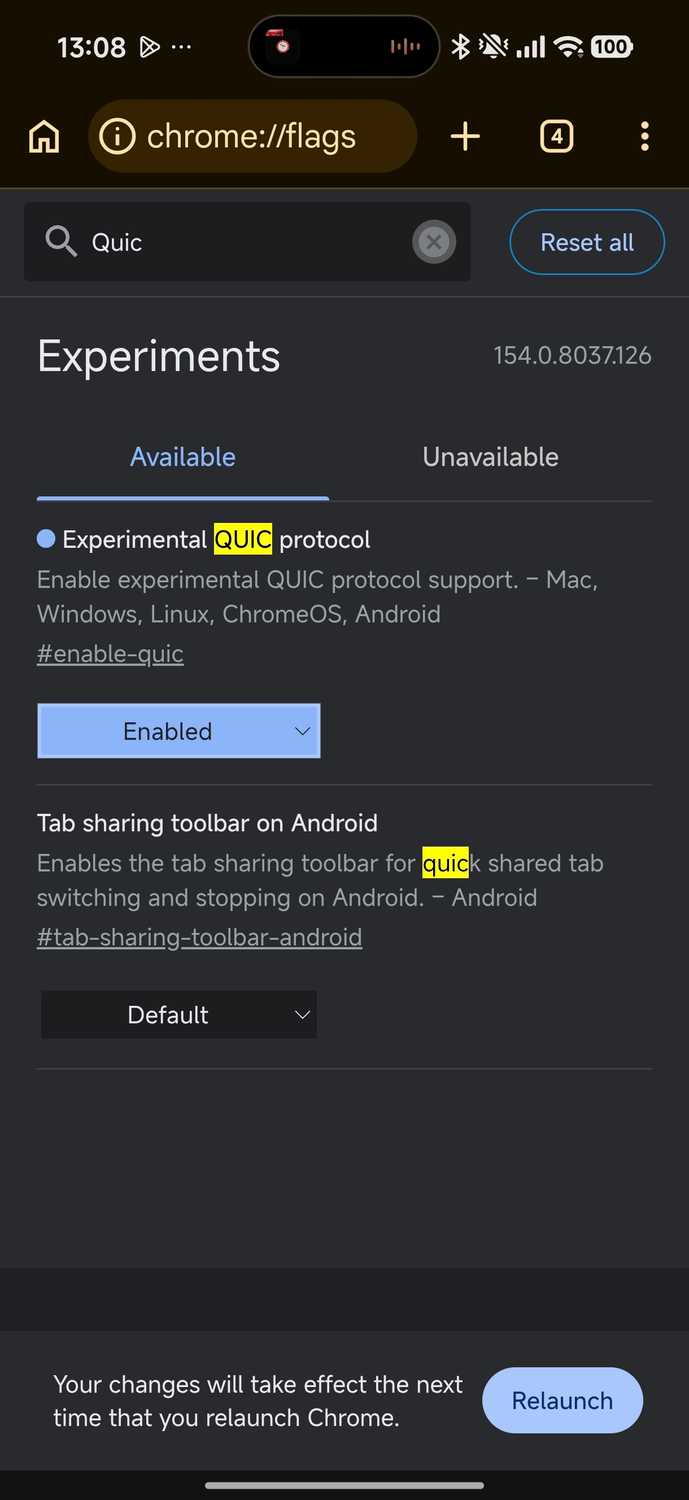
Another setting I found in was called QUIC. It uses UDP (User Datagram Protocol) instead of the traditional TCP connection.
UDP is used for lower-latency connections that result in faster website loads, especially for websites you visit often.
To turn on Chrome's QUIC feature, use the search bar in the Flags menu and look for . When using the phone's data on the go, I've found this protocol more reliable than traditional TCP.
Since mobile networks can be lossy, UDP helps render pages faster, which I found more responsive.
This connection works best with Google's domains and most major CDNs (Content Delivery Networks) and websites that support HTTP/3.
After I made the switch, I noticed web page load times were snappier, especially when using multiple tabs for shopping. I felt the same snappy experience when I refreshed a page.
Word of caution, though: turning on Google's QUIC feature might cause rare connection errors. You will get a message that says, "."
In those cases, it is best to turn off the feature, since some web pages still don't support the HTTP/3 protocol.
The final hidden setting that I discovered recently
It works in tandem with GPU rasterization
While tweaking the two settings above made a massive difference, I wanted to know if I could tweak something else to get more out of Chrome.
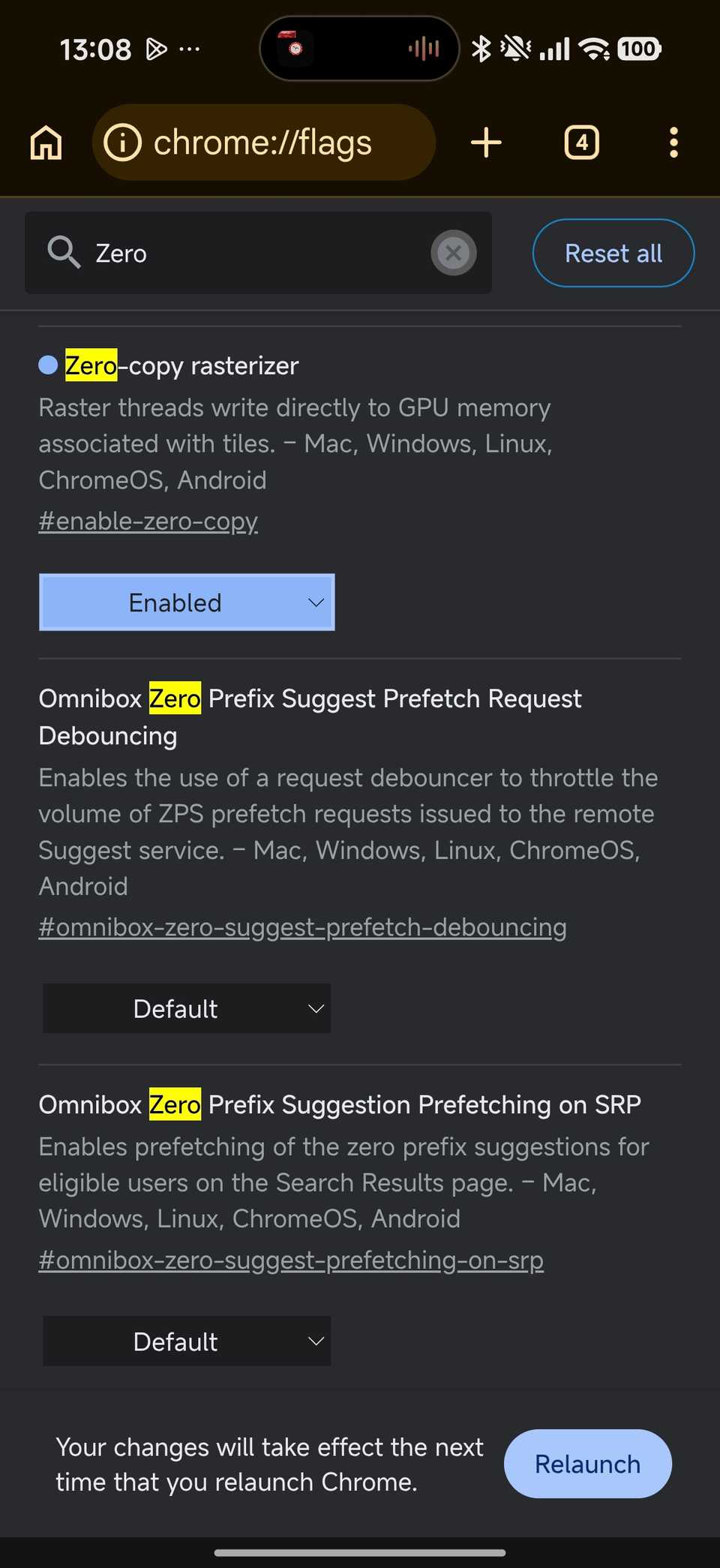
That's when I came across a setting called zero-copy rasterizer. It works in tandem with GPU rasterization to further smooth out the experience.
To get a bit technical, Raster threads write tiles directly into GPU memory, which can be further optimized.
That's where the zero-copy rasterizer comes in, as it copies the tiles through system RAM first.
This setting eliminates any memory-bandwidth bottleneck you might face and reduces micro-stutters when scrolling in Chrome.
After turning on the setting in the Flags menu, scrolling and animations on websites felt cleaner.
If you have a high-refresh-rate phone, you'll notice the difference instantly. But zero-copy rasterizer only works if GPU rasterization is turned on.
As with previous settings, if you experience glitches or issues, you can turn off this feature from the Flags menu.
On and OnePlus 9 Pro, I didn't see any issues with Chrome's latest build, but results vary by device and Chrome version.
Chrome's hidden Flags settings are worth a look
Chrome has many hidden settings in the Flags menu that I didn't know about until recently.
Brave also hides many settingsin the Flags menu, and I'm more familiar with it. But since Brave is a Chromium browser, my inquisitive side wondered if I could do the same in Chrome.
After tweaking the aforementioned settings, my scrolling and browsing experience has become much smoother, and I encourage you to experiment as well.