I've tested a lot of interesting launchers, but I've never enjoyed "minimalist" launchers like Niagara. I tend to feel frustration, rather than relief, and they don't help me cut down on my screen time.
So when I encountered the Ikigai launcher, I wasn't expecting to enjoy it. But Ikigai surprised me twice. While it has some rough edges, this is the most exciting launcher I've tried all year.
It might not be a replacement for the Pixel Launcher, but it's worth installing just for its doomscrolling blocking.
Ikigai embraces minimalism, but understands a fundamental truth
Minimalism doesn't have to be boring
No matter what it is, from my apartment to my phone, if I own it, I want to personalize it. I like having control over the things I interact with daily, and that's where launchers like Niagara go wrong for me.
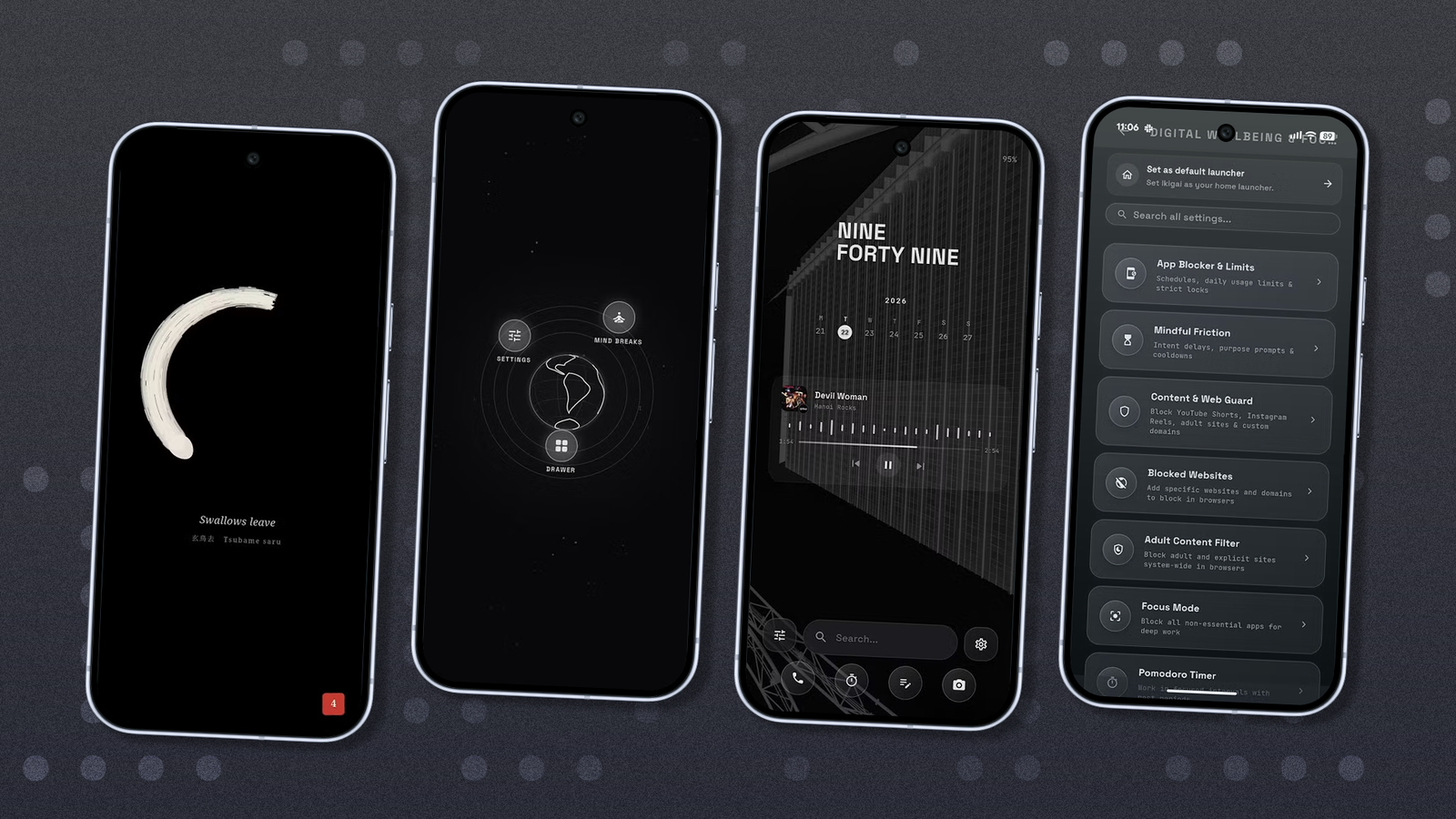
Ikigai offers four launcher styles: Void, Breath, Erev, and Studio. These offer varying levels of minimalism (100%, 70%, 50%, and 30%, respectively), and while these percentages feel arbitrary (surely 100% minimalism would be a .txt-style list of apps?), each is carefully thought out.
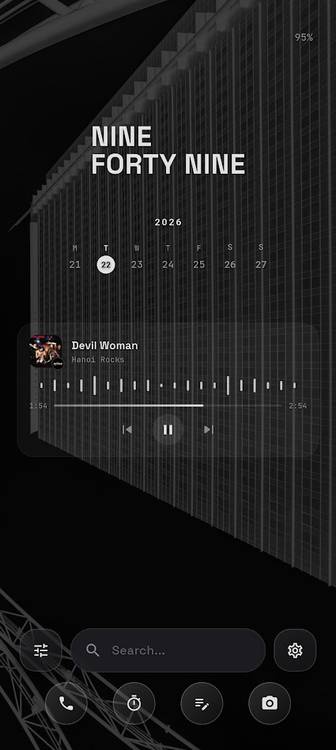
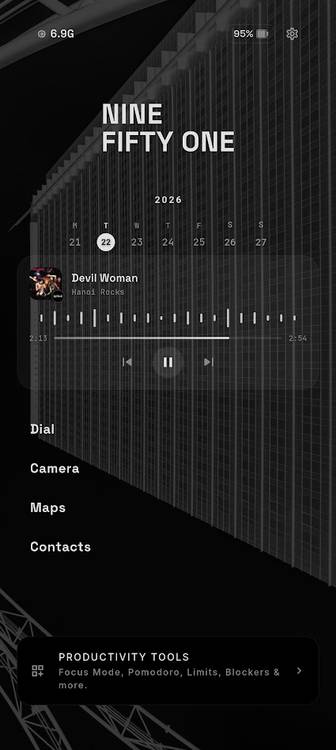
Rather than stripping out features at each level, each style is unique. Void offers a mesmerizing solar-system layout, Breath offers a Niagara-style list, Erev feels like a black-and-white Pixel Launcher, and Studio combines Breath's list and Erev's features.
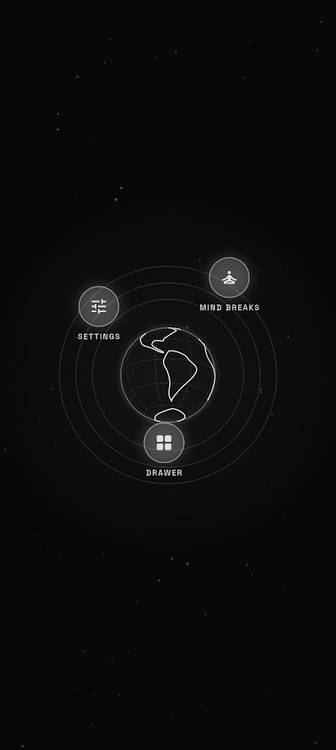

Out of the four, Void is my favorite. The solar-system layout (where you can pin six apps) is awesome. I thought constantly moving apps would get frustrating quickly, but it's strangely calming.
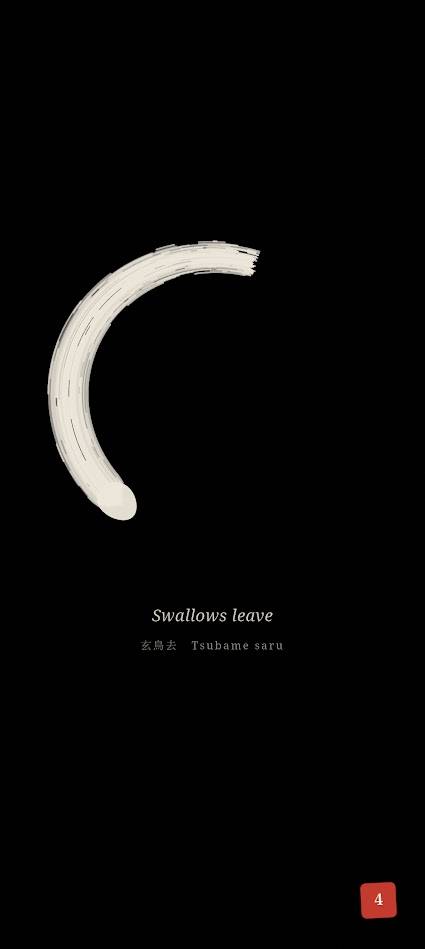
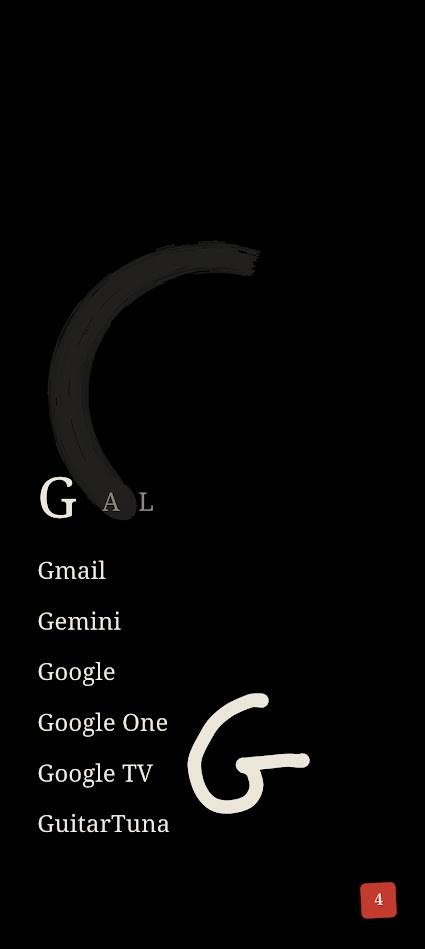
However, there's an alternative mode which is just so cool. It shows a white ink brushstroke along with this week in Japan's 72-season calendar (there's no option to show the week in another calendar) and a red seal indicating the number of unread notifications.
As the day goes on, the ink dries. It's cool, but here's the fun part. While an app drawer and search bar are accessible by swiping up, you can also search for an app by drawing its first letter.
Both Void types are excellent. They are minimalist and fun, which is a rare achievement among Android launchers.
The other styles are more customizable. Ikigai offers various widgets that fit the app's theme, and I never felt like I was missing out on tools from Pixel Launcher. However, the launcher is only half the app.
Ikigai is packed full of digital well-being features
Some are silly, but others help cut down on mindless actions
Ikigai has a comprehensive suite of features designed to improve your digital health. You can add delays and purpose prompts, which I found particularly effective.
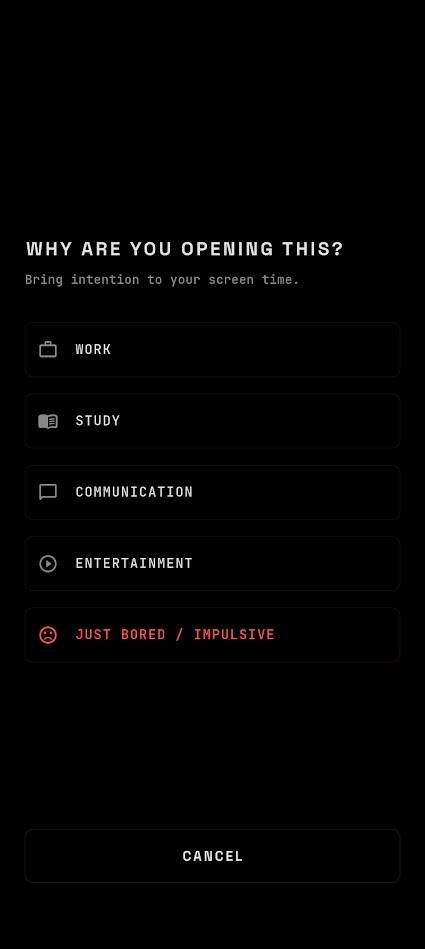
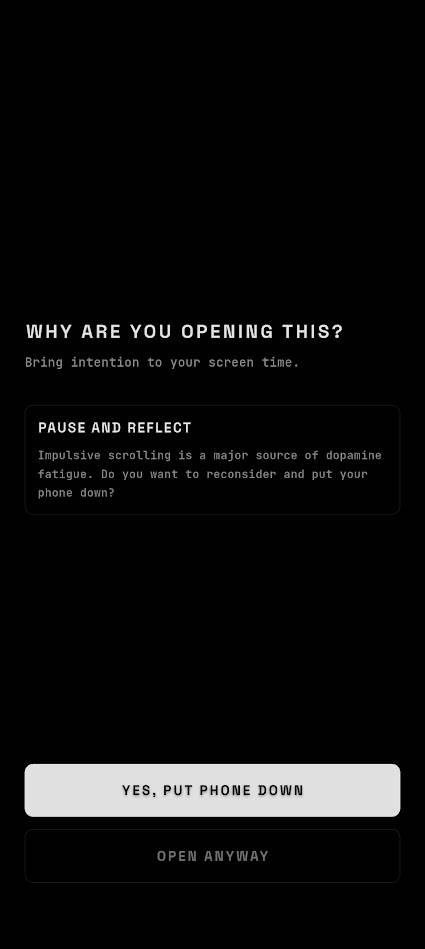
I found the delays option irritating, but having to write a purpose prompt (beyond making me feel like I was in trouble at school) created genuine moments of introspection.
It's a bizarre experience, and I can't believe it worked on me. We don't doomscroll because we want to; we doomscroll because it's easy. Forcing myself to write "Text Jim" when I opened any social media app helped me avoid mindless doomscrolling.
Doomscrolling short-form videos is impossible on Ikigai regardless, but more on that later.
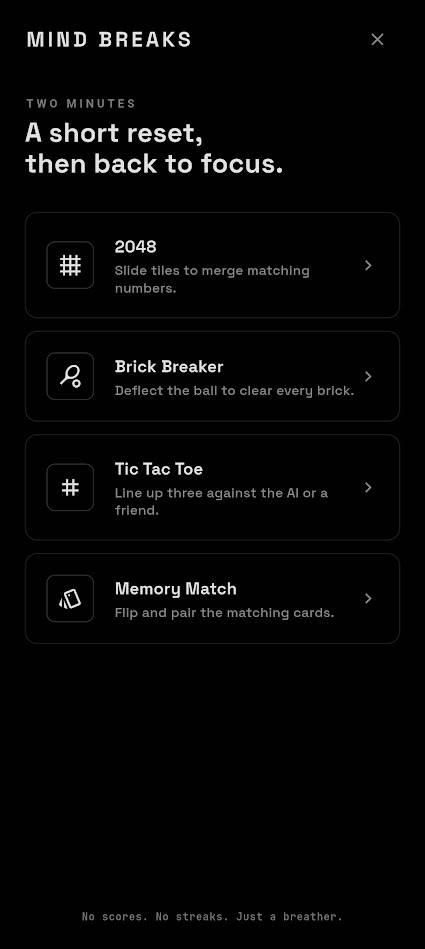
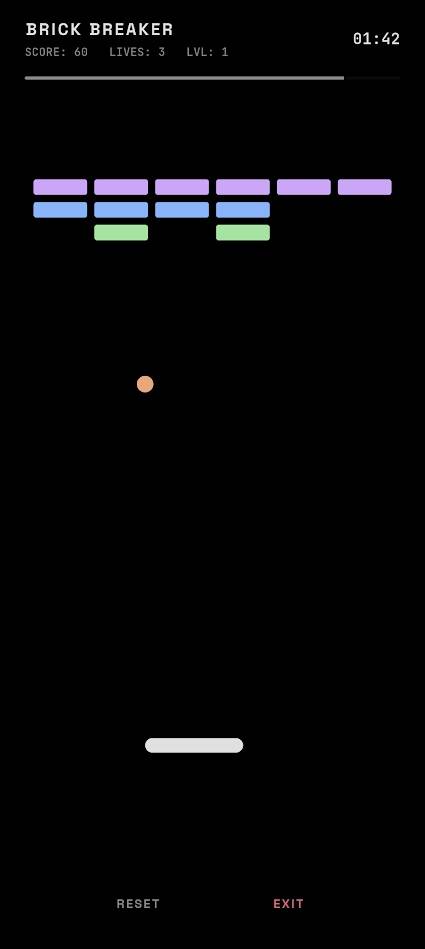
Ikigai also offers meditation tools, a journal, and a variety of games for "mind breaks." I tried each of these games when I was stuck for words while writing this article, and I'm not convinced that playing Brick Breaker for two minutes helped me focus. Still, at least there are no microtransactions.
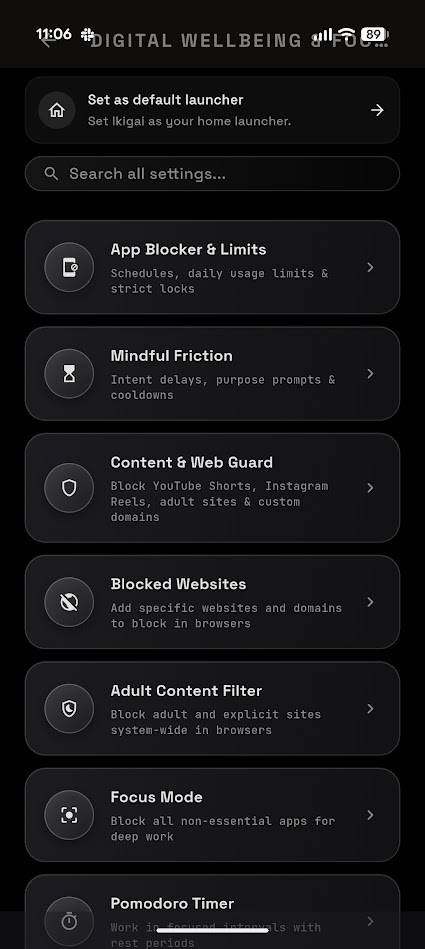
It also includes productivity tools like a Pomodoro Timer and a variety of customizable web filters. But the killer feature is Distraction Blocking, which is the best solution to doomscrolling I've ever seen.
Install Ikigai Launcher to stop doomscrolling
I've never seen such an effective solution
I've tested a variety of apps designed to stop doomscrolling. Recently, I tried custom automations to hide Instagram's home screen and Reels, but the approach had notable downsides.
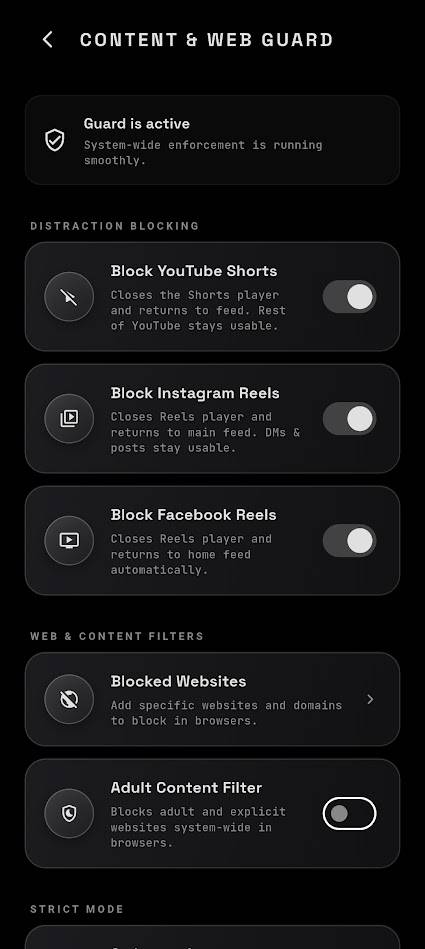
Ikigai takes a different approach. With a simple toggle, it disables YouTube Shorts, Instagram Reels, and Facebook Reels. Try to open one, and the launcher forces you back to the home page.
It's remarkably effective. There's no workaround; I haven't been able to access Reels since I started using it. But here's the best part: you don't have to use Ikigai Launcher to use this feature.
I'm constantly enabling and disabling various launchers and apps, and after a few days with Ikigai, I jumped back to Pixel Launcher to get a fresh perspective. Shortly thereafter, a friend sent me a Reel, and when I tried to watch it, the app flipped me back to the home screen.
Even if Ikigai isn't the default launcher, the content-blocking tools still work. To me, this is a feature worth installing the app for. You also get an entire launcher on top of it.
Ikigai has some rough edges, but it still blows me away
Ikigai isn't as responsive as the Pixel Launcher, and some features like draw-to-search take a long time to get used to (I've never had to write the letter Q like that before).
While some of its focus tools are built into Android, Ikigai presents them all in a brilliant package.
Nevertheless, it's the best minimalist launcher I've used. It's well worth the $1 price, especially as there are no ads, no microtransactions, no subscriptions, and no AI tools.