Don’t pay for a subscription when full office suites are available for free.
Buying Microsoft Office used to be simple: you paid once for a license and could use that version as long as you wanted. But like a lot of software, a one-time purchase has turned into an endless subscription, as is the case with Microsoft 365.
Since Office 2013, Microsoft has pushed the subscription (originally called Office 365) as the main way to buy Office. You can still buy a standalone version (like Office Home 2024 for $180) for access to Word, Excel and PowerPoint, but it only works on one computer and is pricey.
Microsoft 365's Family plan is a decent deal if you have enough people in your family (especially since they get 1TB of cloud storage each), but being pushed into a subscription for such a fundamental tool is frustrating. That's even more so after Microsoft crammed the plans full of AI features you may not want, then raised the price with no way to skip the AI tools.
Thankfully, there are free alternatives that offer a lot of what you need from Office without all the nonsense.
The simple option: Office Online
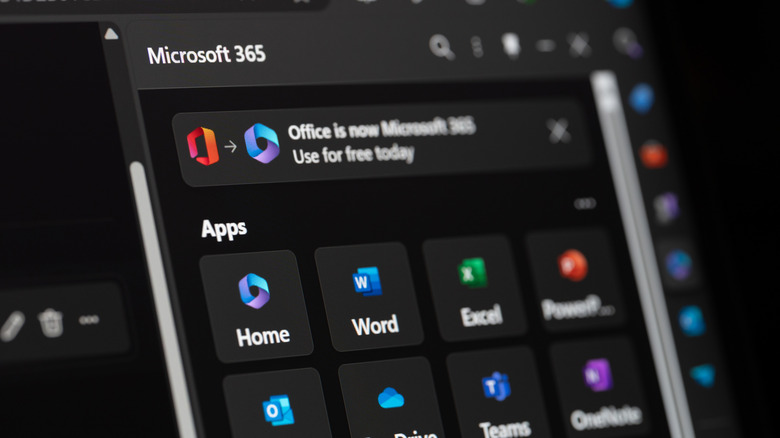
If you don't want to use a third-party alternative, Office Online is a Google Docs-like suite that's a suitable replacement for many people. By signing into your Microsoft account, you gain access to free web versions of Word, Excel, PowerPoint and OneNote, plus other tools like Forms, Teams and To Do.
These are stripped-down offerings that lack advanced features like macros and watermarks, but still offer core features like headings in Word, pivot tables in Excel and transitions in PowerPoint. If you're familiar with the Office environment and want files you know will work with standard Office apps, this is a suitable choice. It's more than enough for creating a quick report, and also supports collaborating with others in real-time if that's something you need.
However, there are other downsides aside from the slim feature set. One is that you must have internet access to use it; you may be able to open documents you've saved for offline use, but this flavor of Office is meant to be used while connected. Another is that you're pushed to save documents to OneDrive, where the free 5GB storage isn't a lot. Lastly, Office Online can struggle with heavy or complex documents, so it's not a great fit for a spreadsheet with half a million rows and complex formulas.
OnlyOffice offers a full Office experience

While there are several free Office suites to choose from, I've been happy with OnlyOffice for a while, and it's the one I would recommend. It supports four types of files: documents, spreadsheets, presentations and PDFs. These all open as tabs in the same app window, letting you quickly switch between multiple docs of different types. It saves in standard Office formats like DOCX and XLSX, so there are no worries about compatibility with the main Office apps.
The interface is a lot like Microsoft Office, so you won't have to deal with a huge learning curve. It uses the familiar Ribbon interface, with the options changing depending on the document type you're editing. While it doesn't have every little trick from Word and Excel, most of what you'll need is present. Documents have features like track changes, signatures, footnotes and tables, while spreadsheets support data validation, cell protection and freezing. The tab groups common formulas by type and provides a quick explanation of each, which is great if you're not already a pro.
Presentations have ready-made themes, plus transitions, animations and plenty of ways to create charts and add shapes. Meanwhile, the PDF tool works for both creating PDFs and reading existing ones, though it can't combine PDFs. When making one, you have access to data fields like dropdowns and checkboxes, plus the option to manage the recipients and which fields are for whom. It's also one of the few PDF readers I've used that allows you to copy text.
I greatly appreciate the dark theme (including dark mode documents, which is missing on Google Docs) and easy software updates. You'll also find to help you create documents with less manual work. To go further, there are plugins that expand what the tool can do. OnlyOffice does have AI features and can integrate with a chatbot of your choice, but this is all optional. On the main tab at the top-left, choose , uncheck and restart the app. Everything AI-related will disappear.
Other Office suites to choose from
OnlyOffice is a strong free replacement for Microsoft Office that's good for anyone who's used to Microsoft's suite and Windows in general, but it's far from your only choice. If you're looking for another, LibreOffice is one of the most popular options that may better fit your workflows. Unlike OnlyOffice, its apps are each opened separately. In addition to the core docs, spreadsheets, and presentations, it includes Math for writing formulas, a vector editor (Draw) for work similar to Microsoft Visio and Publisher, and a database manager called Base that's akin to Microsoft Access.
LibreOffice can save in and open Office formats, but uses OpenDocument formats like ODT and ODS by default. Compared to OnlyOffice, it feels a little more Linux-like, which might involve relearning where a few elements are at first. The software is also open-source with community-run development, and it's intentionally built without AI by default.
I'd recommend trying both and seeing which clicks with you more. I used LibreOffice for a long time and was overall happy with it, but OnlyOffice feels smoother and its tabbed interface with PDFs alongside everything else is indispensable. WPS Office is another option that is polished and has many fans, though I haven't tried it. It's much more AI-forward than either of the above, though, plus it has ads, so it's a harder sell than OnlyOffice or LibreOffice if you just want something simple.