Movavi had already released a competent and affordable video editor, and they’ve built upon this sound foundation with their new ‘Templates’ feature which is much more versatile and customisable than it appears at first glance. A great addition to quickly introduce a bit of style and panache to your project.
Reasons to buy
Reasons to avoid
Why you can trust TechRadar We spend hours testing every product or service we review, so you can be sure you're buying the best. Find out more about how we test.
But time waits for no computer program, and as version 27 has recently been released, I thought it was time to check how it has improved.
- Subscription is fairly priced
- Perpetual license is way more expensive for Americans
- Free trial available
Let’s face it: everything’s getting more expensive. Whether it’s food, petrol, or subscriptions, the price keeps going ever higher, so it was with trepidation that I looked at Movavi’s current pricing structure.
However, it’s not all doom and gloom: Movavi have actually lowered their prices. Should you decide to pay monthly for your video editor, you’ll need to fork out $20, €19 or £18, but the big incentive is to pay yearly, as it’s only $55, €44, or £41, which is a little over 2 months’ worth.
It’s not as cheap as free of course (like DaVinci Resolve), but it’s a heck of a lot cheaper than Adobe Premiere Pro (which would set you back $276 each year).
If you’d rather pay once and actually own the software you’re downloading, a perpetual licence is also available for £150, €90 or £90 (the massive discrepancy between currencies is… puzzling).
And perhaps best of all, the software is multi-platform, allowing you to work with it, whether you use a PC or a Mac.
If you’re not sure about investing in this application, there’s a free trial you can access. A watermark will be added to any output, and your projects are limited to 60 seconds in length. Still, it should be enough to give you an idea of what you can do with Movavi Video Editor.
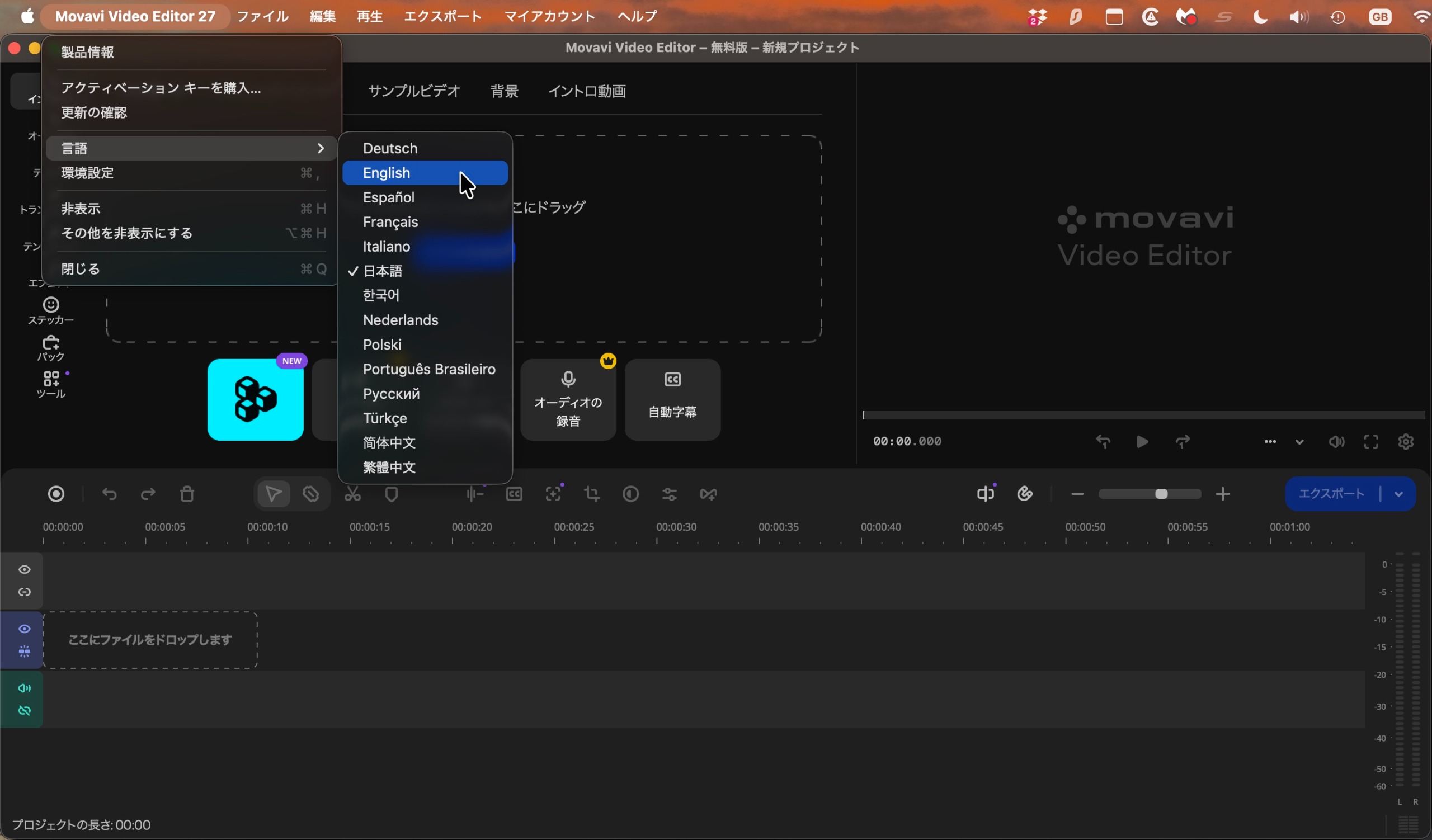
- The software still doesn’t know which language your OS is set to
- So it defaults to Japanese
Last time I checked out Movavi, back when it was on version 25, I made a point of stating that unusually, the first time you launch the software, you’re not greeted with an interface in your own native tongue, or at the very least in English.
Instead, all the menus are in Japanese. That’s not an issue if you know that language, but if you’re more familiar with those that use the Latin alphabet, you’re faced with an unexpected challenge.
Thankfully, if you grab a screenshot of the interface and submit it to Google Translate, the solution will become more obvious, and changing the default language then becomes a trivial matter. But it’s disappointing to see that after all this time, Movavi still treats this as a feature, not a bug.
Software should be able to detect the OS’s chosen language and default to that when you launch it. I’m surprised Movavi still insists on making life difficult for many of its customers.
- Score: 2.5/5
- Shame so many of them are locked behind subscription plans
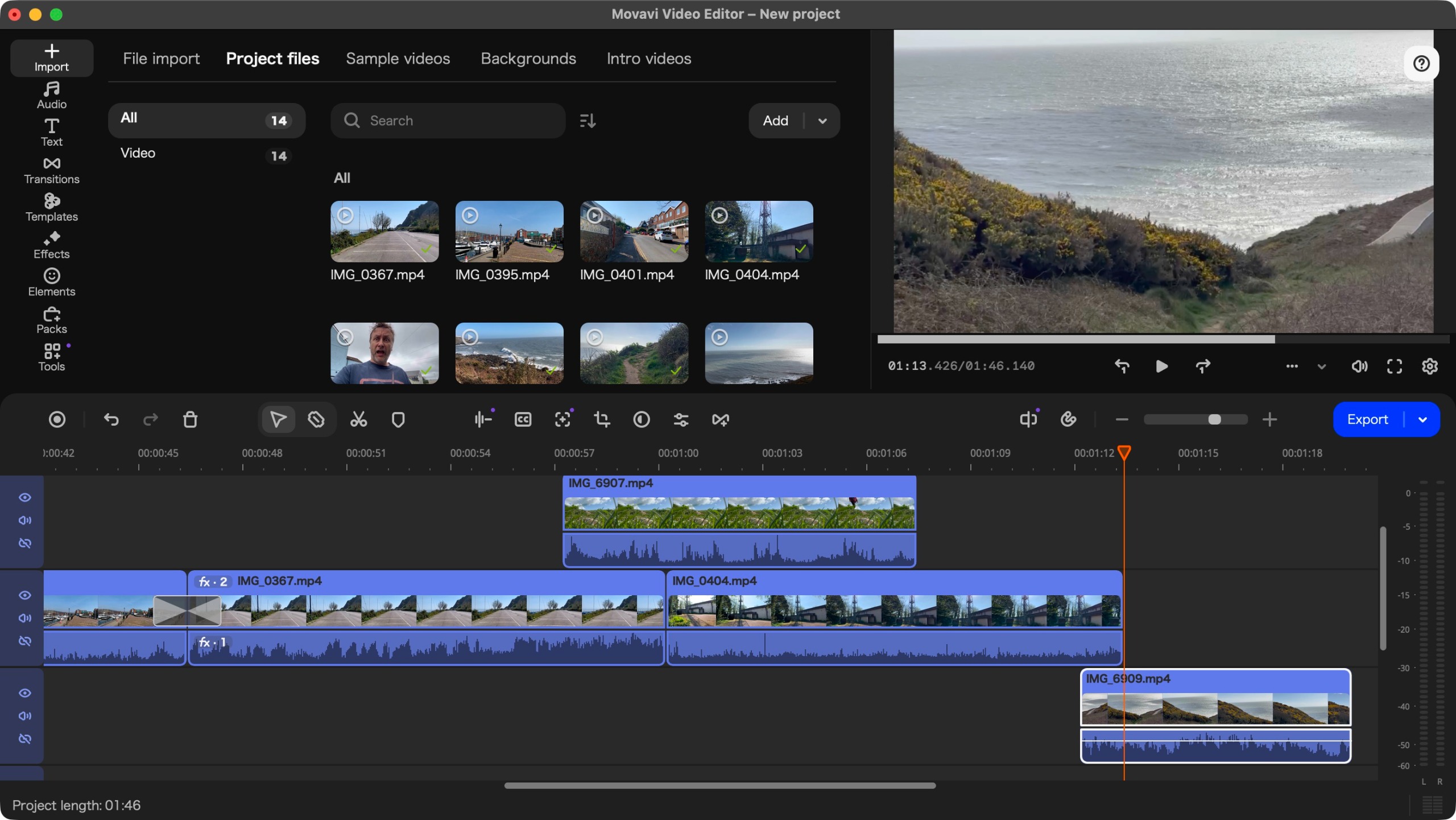
Initial frustrations aside, when it comes to video editing - what the software is designed for - Movavi Video Editor does a sterling job. It starts with mousing over an imported clip in the media section. Doing that allows you to preview the clip as you move the cursor over it, enabling you to set in and out points with ease.
You can work with multiple layers of course, although there is a base layer beneath which you can’t add other clips, which can be a little annoying if you like to create complex projects and move clips around a lot.
There are Titles, Transitions, Effects, and Elements aplenty, all organised by category with a handy search field available, although many of those are restricted behind a paywall. These are identified by a little ‘crown’ logo, top right of their thumbnails.
You can still use them in your project, but you’ll be informed upon export that you need to purchase a subscription to be able to share any video with them in it, for either €36 a month, or €110 a year, which, I’m sure you can tell, is much more expensive than the actual program itself. This can be annoying but it’s entirely possible to restrict yourself to non-premium assets by setting the filter for each section to ‘free’.
The Tools section houses important features, such as image stabilisation, background removal, green green work, and an AI-based subtitle feature which worked incredibly well when I tried it out. Thankfully, everything stored in that section is part of the software’s base cost.
But all of this was already part of Movavi Video Editor. The big innovation that’s being introduced in version 27, is Templates.
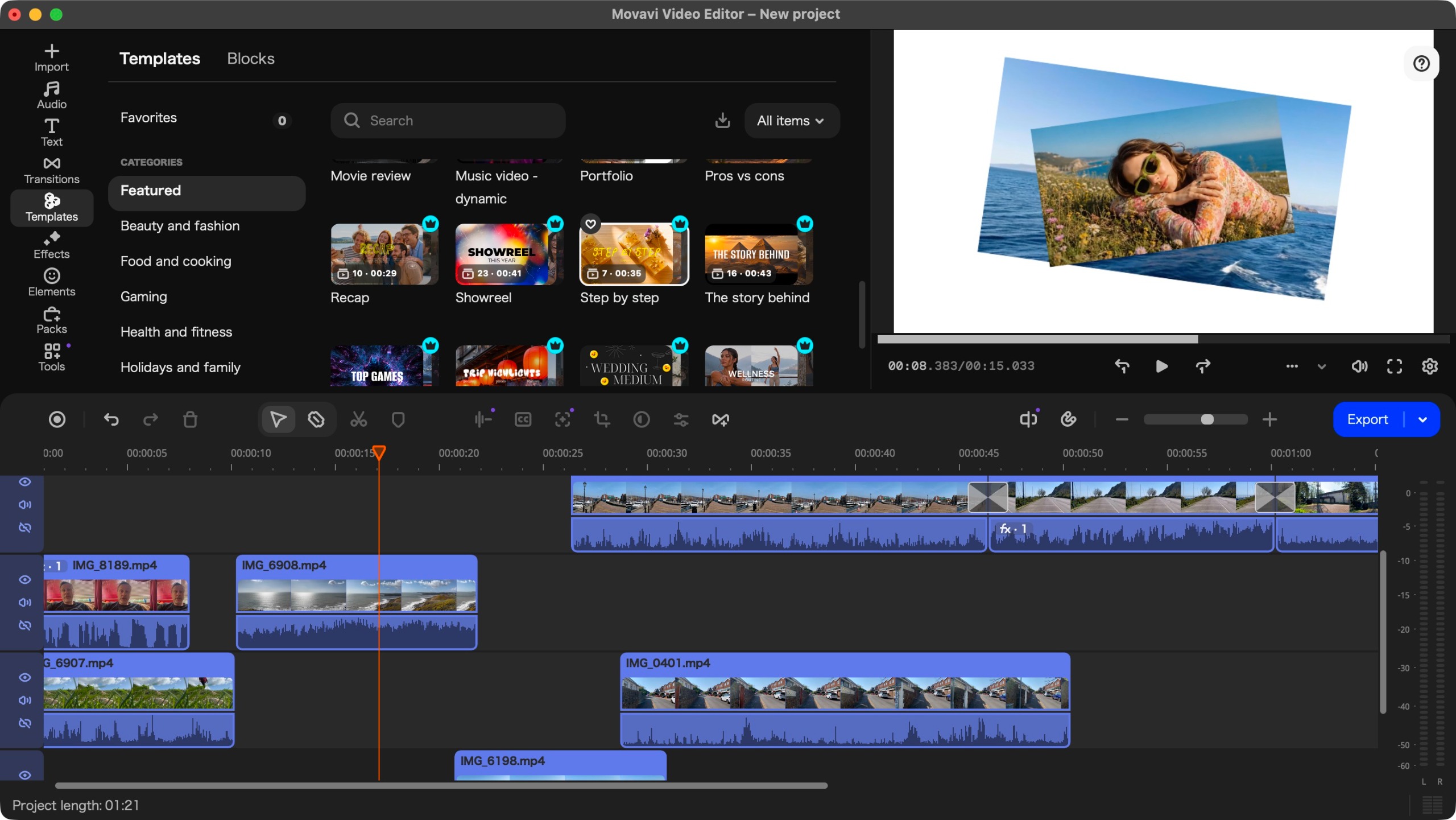
- Templates offers a great and versatile way to spice up your project
- Can be used wholesale or just choosing just the parts you’re interested in
The concept of Templates is pretty clever: editing can be hard and time consuming, and if you just want to put something out there but lack the skills or experience, it can really be a chore. So Movavi have created a large collection of ready-made templates which you can add to your project. One template could be your entire video, or alternatively, be part of a larger one. It’s also entirely possible to add multiple templates to the same project.
These are organised into 12 categories, from Beauty and Fashion, to Gaming, to Marketing and Promo, and more. And it probably won’t surprise you to know that nearly all these templates include some premium features of some kind, although each category has at least one free option for you to choose.
Dragging a template to a project expands it into various sections, each of which lets you know how many placeholders within it need to be replaced. Some sections don’t give you the option to replace theirs which is odd, but it’s a simple matter of deleting them entirely and adding one of your own clips in their place.
As for actually replacing those placeholders, it wasn’t as intuitive as I had expected, but once you’re aware of the concept, the process is quite simple: click on the ‘clips to replace’ text on the section’s representation in your timeline, to reveal the placeholder’s large thumbnail above it.
Clicking on that thumbnail opens a window containing all the media you imported into this project. Select the one you want, choose the part of it you’d like to use, and click on ‘Apply’. Repeat that for every placeholder.
Need more customisation? Double-click on a Template’s Section to reveal its ‘Clip Settings’. In addition to offering you another way to replace those placeholder clips, you also have other options, such as customising the text fields, or checking the applied effects, for instance.
These templates also come with a soundtrack which you’re free to use or discard, just like you can reorder or delete the sections it came with, which actually allows you to mix and match parts of different templates to create your own unique project in minutes rather than hours.
I found it a great fun way to quickly build something original.
- Score: 4.5/5
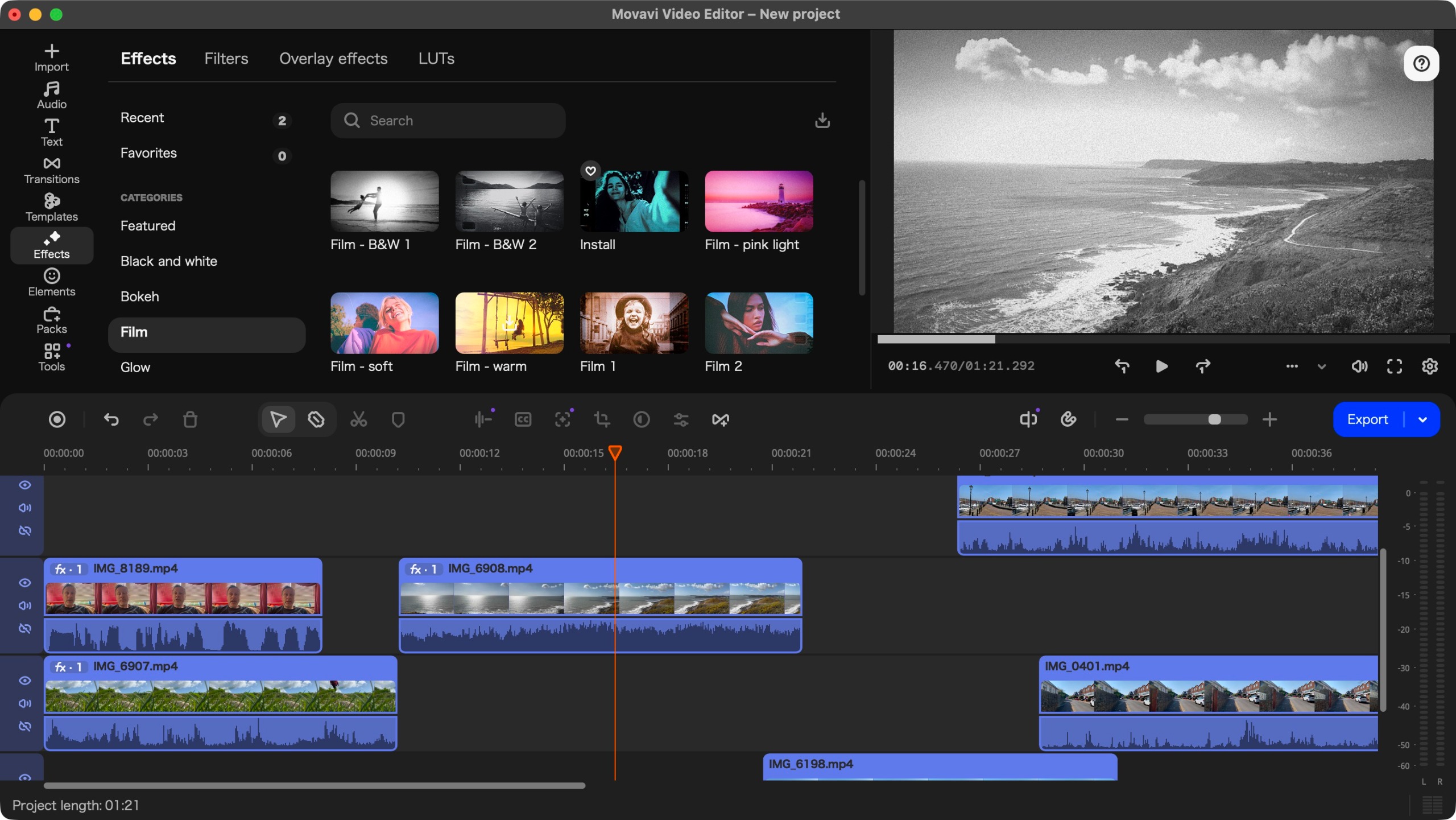
Buy it if...
You’re into video editing and are looking for an affordable application that will let you do just that, and you appreciate the addition of versatile and customisable templates to speed up your work.
Don't buy it if...
You don’t spend enough time editing video to warrant paying for such software, so you’d rather find something that’s free, even if it means having fewer tools at your disposal.
Movavi Video Editor is multi-platform, being compatible with Windows and Macs alike, which is a great thing (sorry Linux users). I always like to test such software primarily with the underdog (or I prefer just Macs… you decide).
In this instance, I put it through its paces on a recent laptop sporting Apple Silicon, as based on my previous exploration of this software when it was at version 25, I had concluded it needed a ‘decently powerful machine’ to run effectively.
The software ran incredibly smoothly and was very responsive. I particularly liked the way it looks but, to be honest, that could be due to the fact the interface, and even the way the clips are presented in the timeline, resembles Final Cut Pro, one of my preferred video editing platforms.
For more creative apps, we've tested and reviewed the best free video editing software for mobile devices.