When someone stole my Samsung Galaxy S22+, I opened Samsung Find first. I expected it to show me where my phone was. Instead, it showed me nothing. My phone was offline, and I hadn't activated Offline finding.
For weeks, I regretted not setting up the location tracker properly. So when I bought a new phone and recovered the stolen one with the police's help, I went all in on Samsung Find.
I set up all the necessary settings and tried simulating an actual theft. I wanted to see how much I could've done if I'd had Samsung Find running at full speed that day.
Samsung Find is useless when it's not set up properly
How Samsung Find works by default
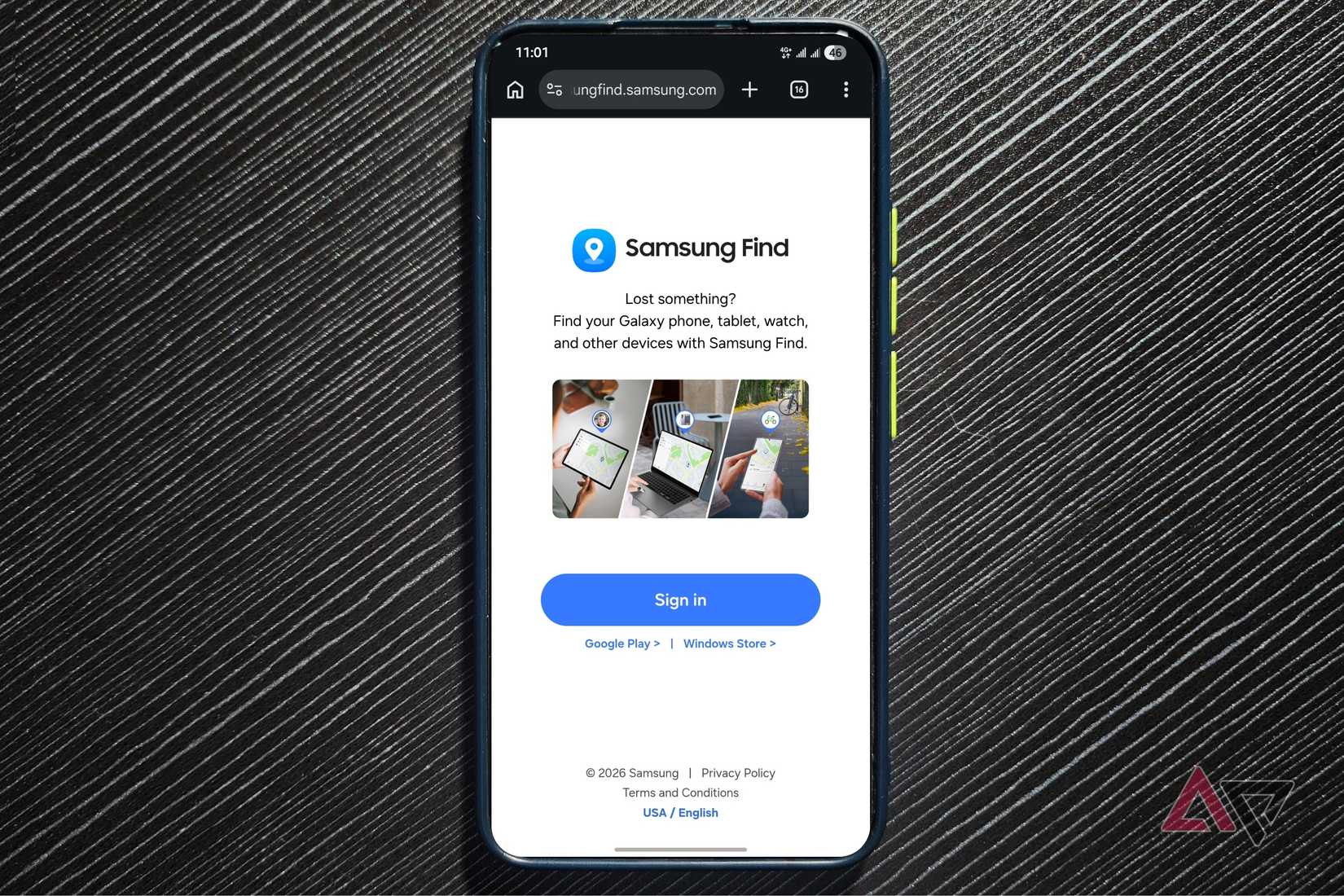
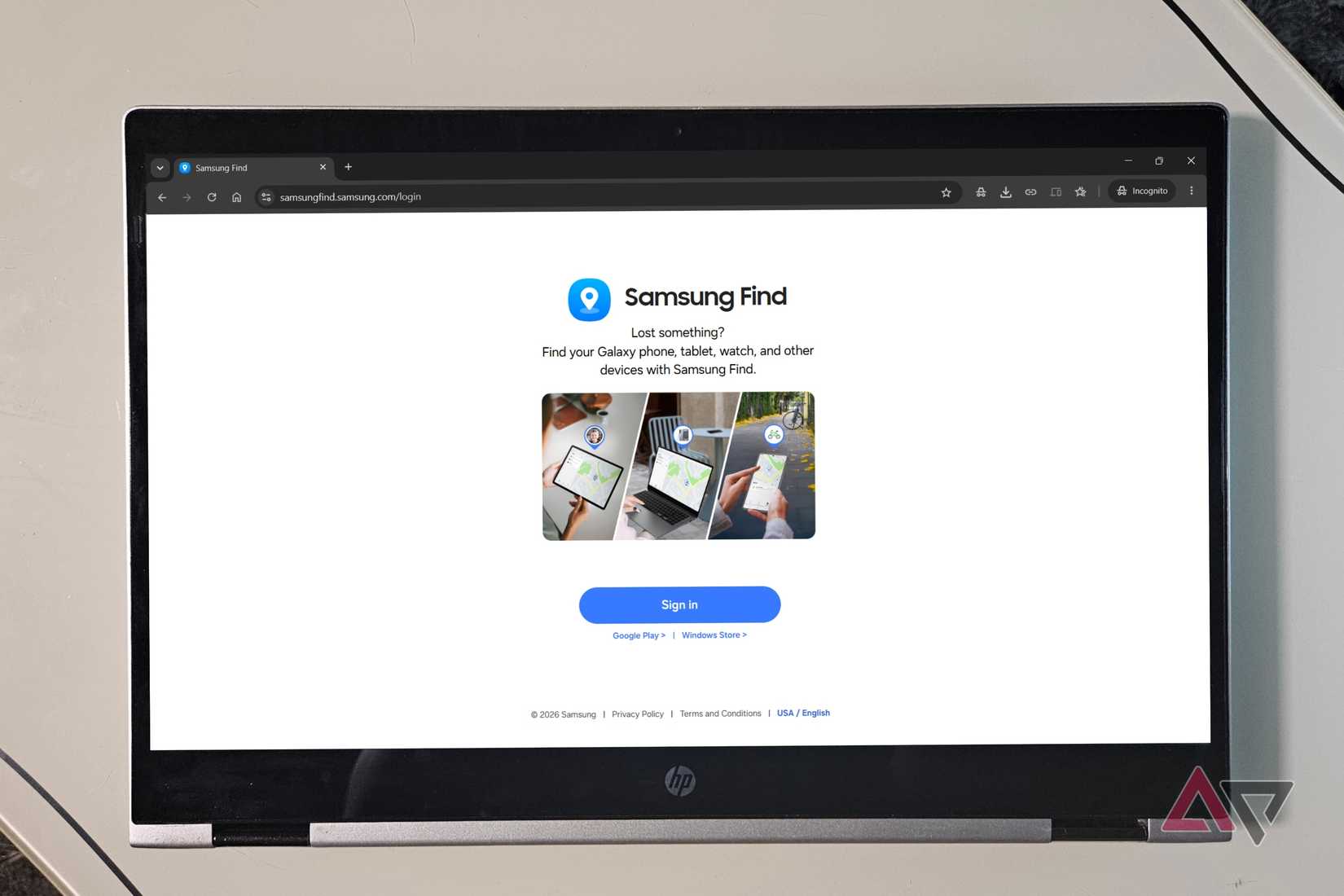
As long as your phone is on Wi-Fi or mobile data, Samsung Find can track it. You can log in to your Samsung account on another device to check your phone's location, lock it, make it ring aloud, or even erase its data remotely.
That's the app's default setting, and a thief can easily deactivate it by removing your SIM card or turning off your mobile data or Wi-Fi. Or, worse, they could turn on airplane mode or switch off your phone from the Lock screen.
When a phone is turned off and disconnected from the internet, Samsung Find has nothing to track. At best, it'll show your phone's last known location.
Most Galaxy users ignore these two lifelines
Make your offline Galaxy trackable
With Offline finding active, you can find your phone's location without an internet connection. After the phone has been offline for 30 minutes, it automatically starts broadcasting a Bluetooth signal.
Nearby Galaxy phones and tablets pick up the signal and report your phone's location to Samsung. This is what enables Find to show your offline phone on the map.
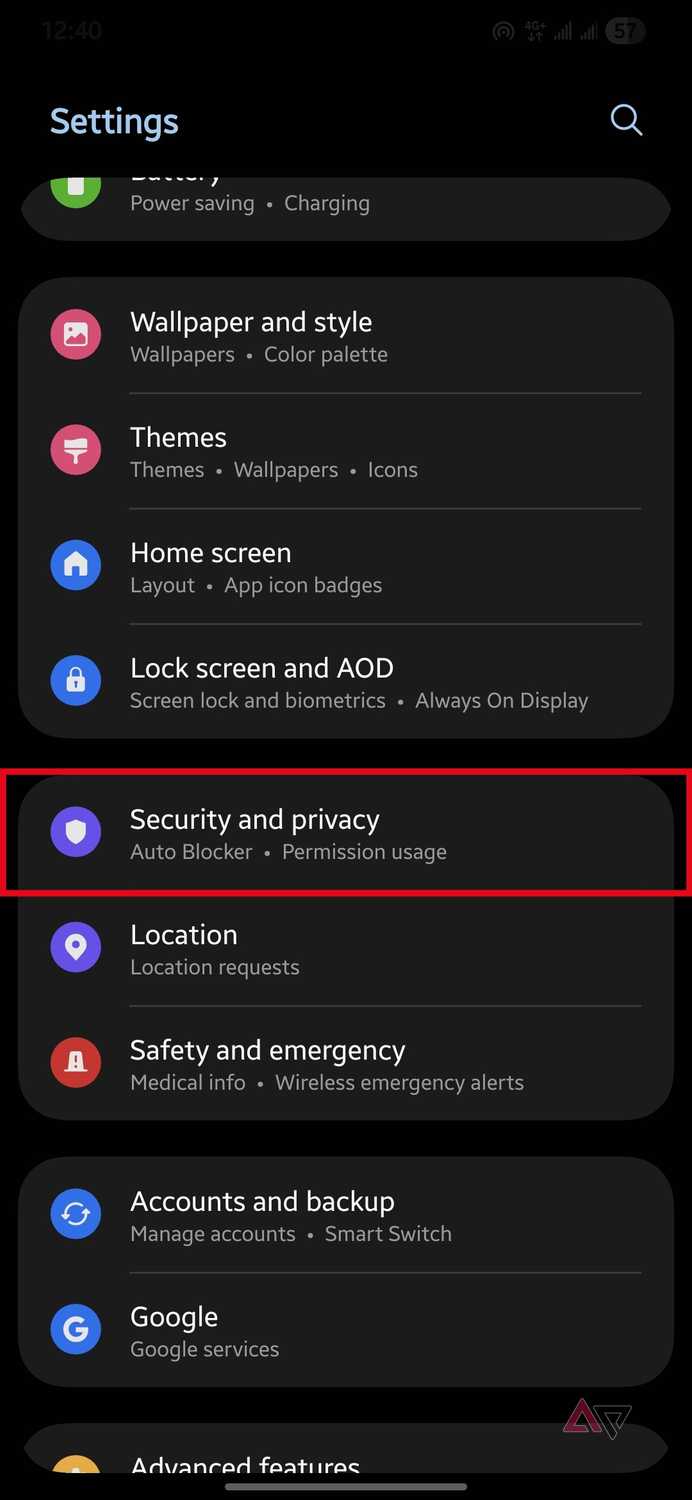
To turn on Offline finding, follow these steps:
- Open .
- Tap Security and privacy.
- Tap Lost device protection.
- Tap .
-
Tap the Offline finding toggle to turn it on.
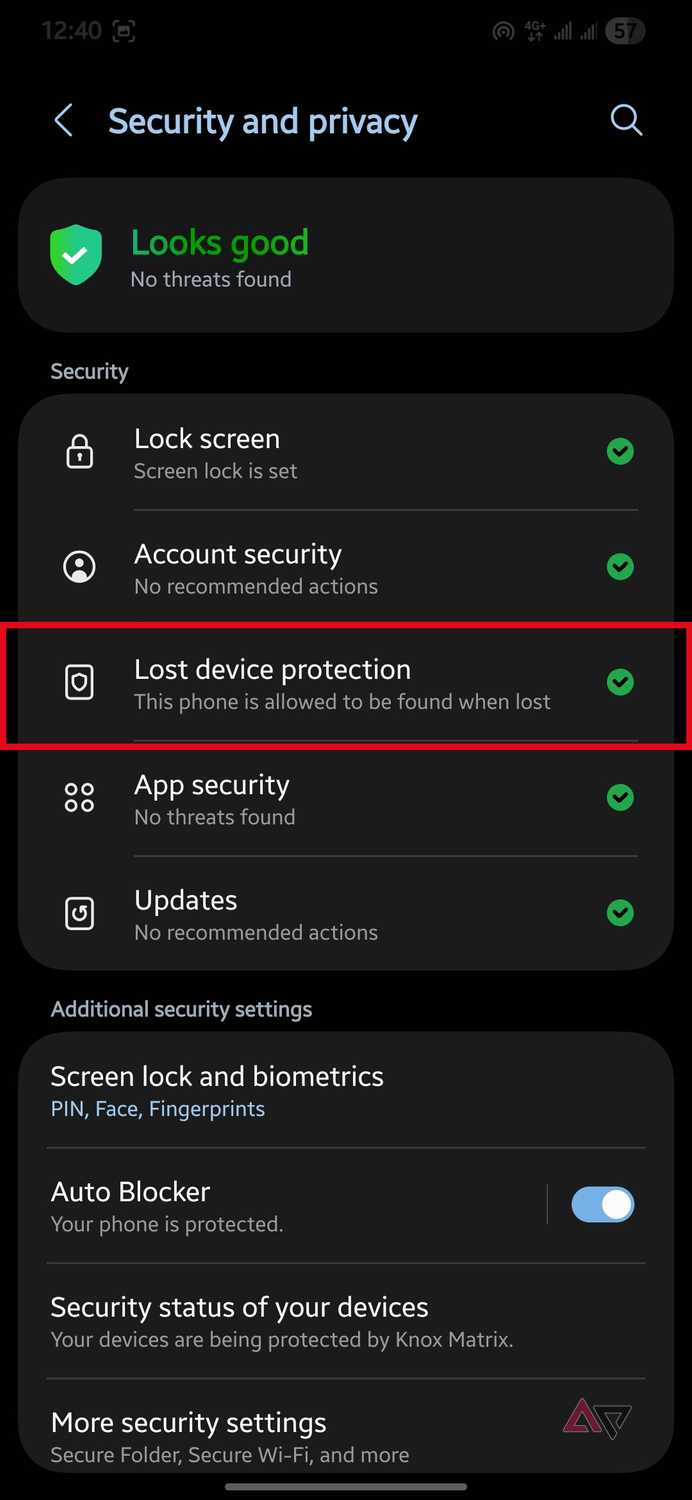
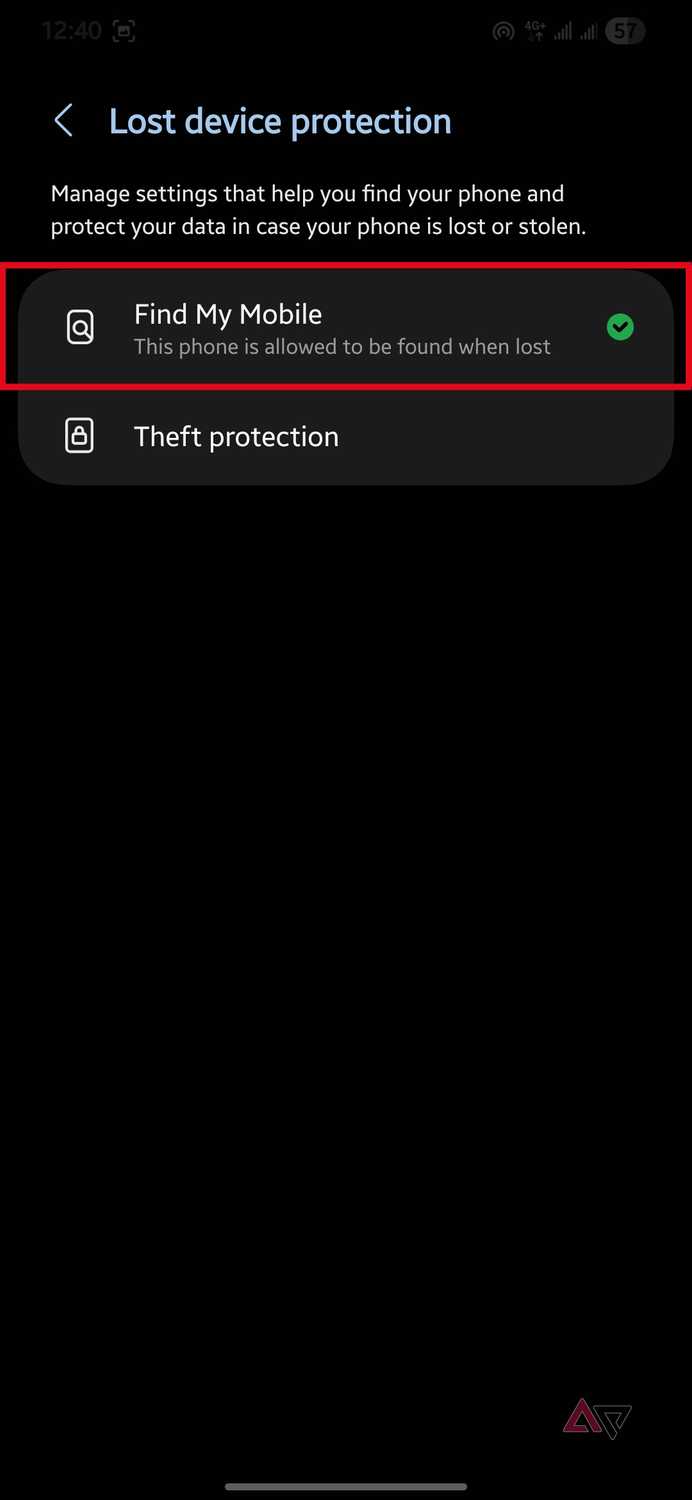
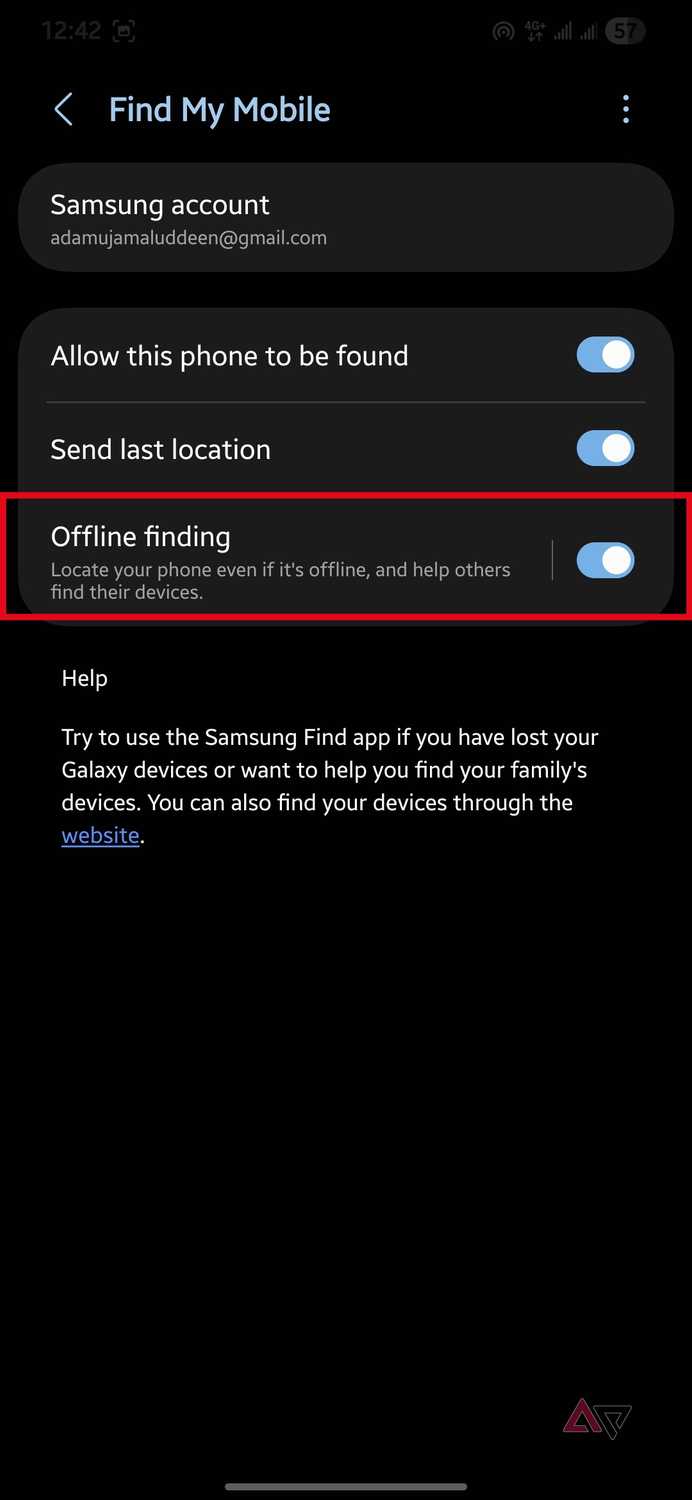
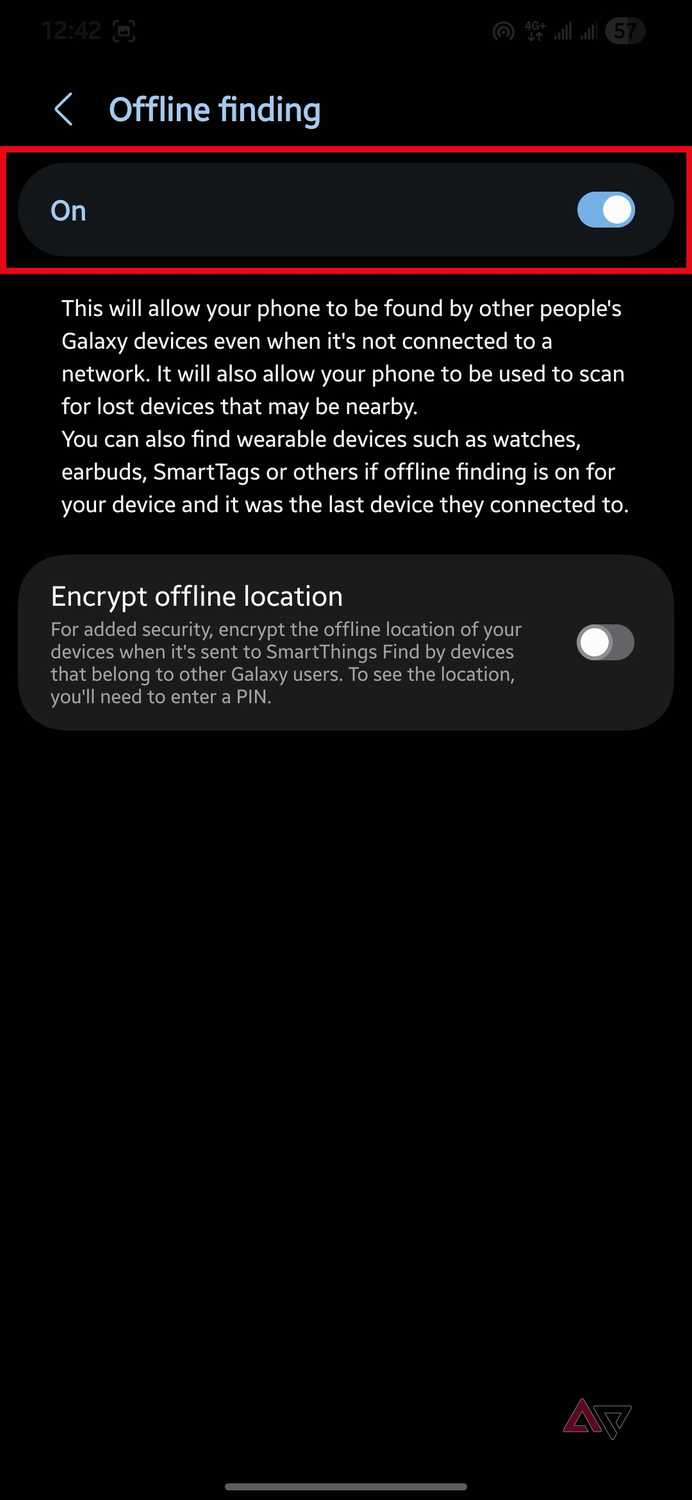
Another thing to keep in mind is that activating Offline finding makes your phone a helper device that reports the location of lost offline Galaxy devices nearby.
Stop thieves from switching off your phone
Even with Offline finding active, a thief can make Samsung Find useless by switching off your phone or turning on Airplane mode.
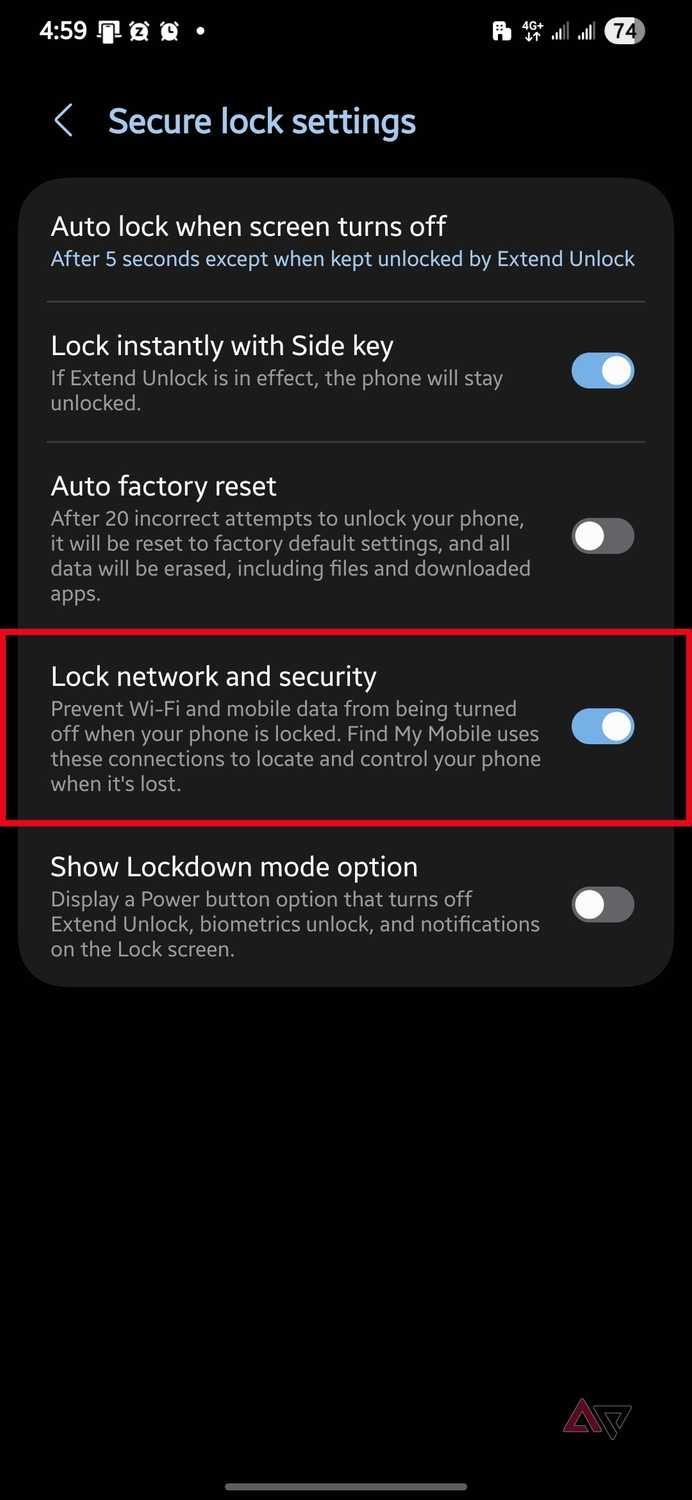
That's where Lock network and security comes in. With this setting, a thief can't switch off your phone from the lock screen without providing your passcode.
The setting also prevents your Wi-Fi, mobile data, and Airplane mode from being turned off from your lock screen.
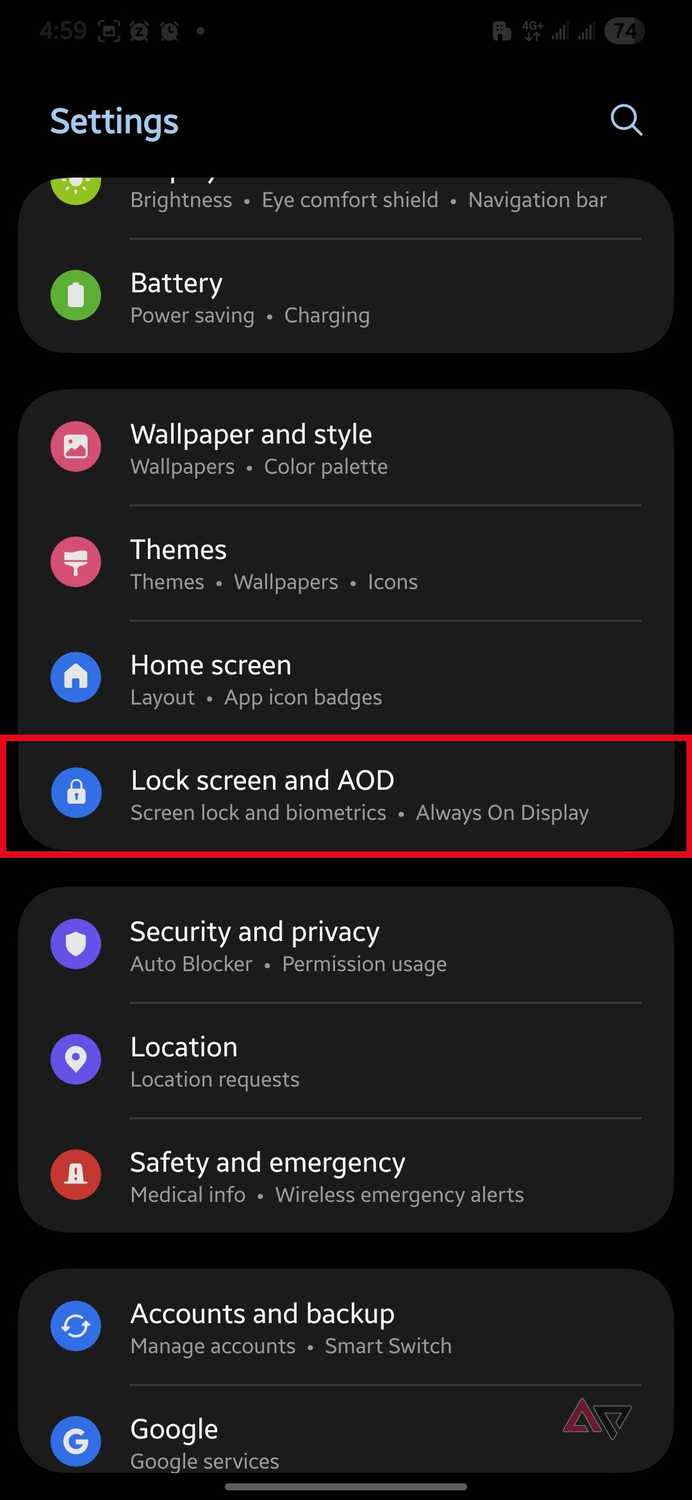
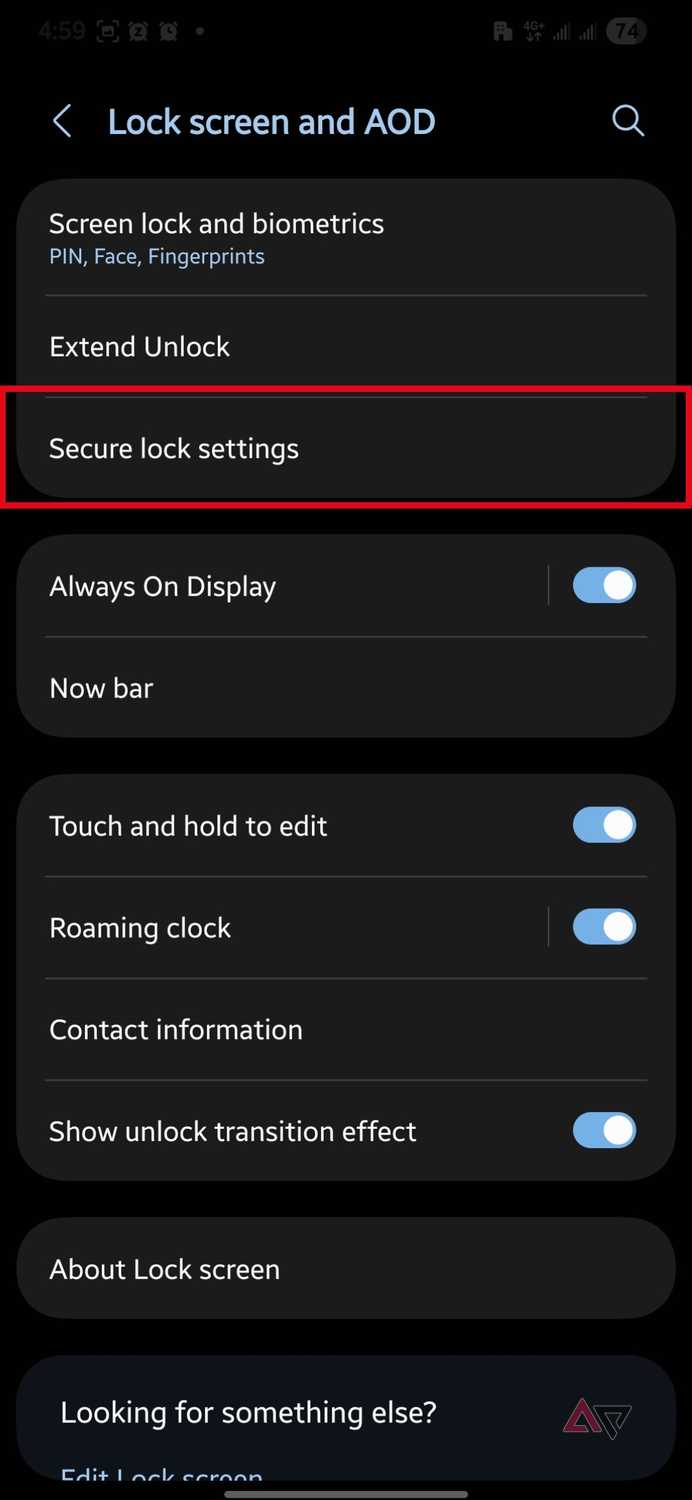
To activate Lock network and security, follow these steps:
- Launch the app.
- Tap Lock screen and AOD.
- Tap Secure lock settings, then enter your passcode.
-
Tap the Lock network and security toggle to turn it on.
One switched-off toggle killed my tracker
You might want both settings active
When my phone was stolen, I had the Lock network and security feature on. However, Offline finding was off.
I had told myself that I would research the privacy implications of the feature before turning it on.
Later, when I should've done the research, I told myself it didn't matter. My mobile data is always on, and no one can remove the eSIM on my phone.
But on the fateful day when my device was stolen, I had accidentally turned off my mobile data in haste to sit for an exam. That was all it took to make Samsung Find useless.
A properly set-up Samsung Find is still unreliable
Offline finding failed most of my tests

I'll always advise Galaxy users to set up Find properly. But I won't convince them to rely on Offline finding. That's because, in my tests, the feature isn't reliable.
One time, when I was on a bus, I put my offline Galaxy S22+ in my bag and got off the bus without it. With my second phone, I tried tracking the S22+ from outside the vehicle.
Samsung Find couldn't spot the device. It only showed the phone's location from over 24 hours ago. Even when I came close to the bus, I still couldn't get a hold of the S22+ with Offline finding.
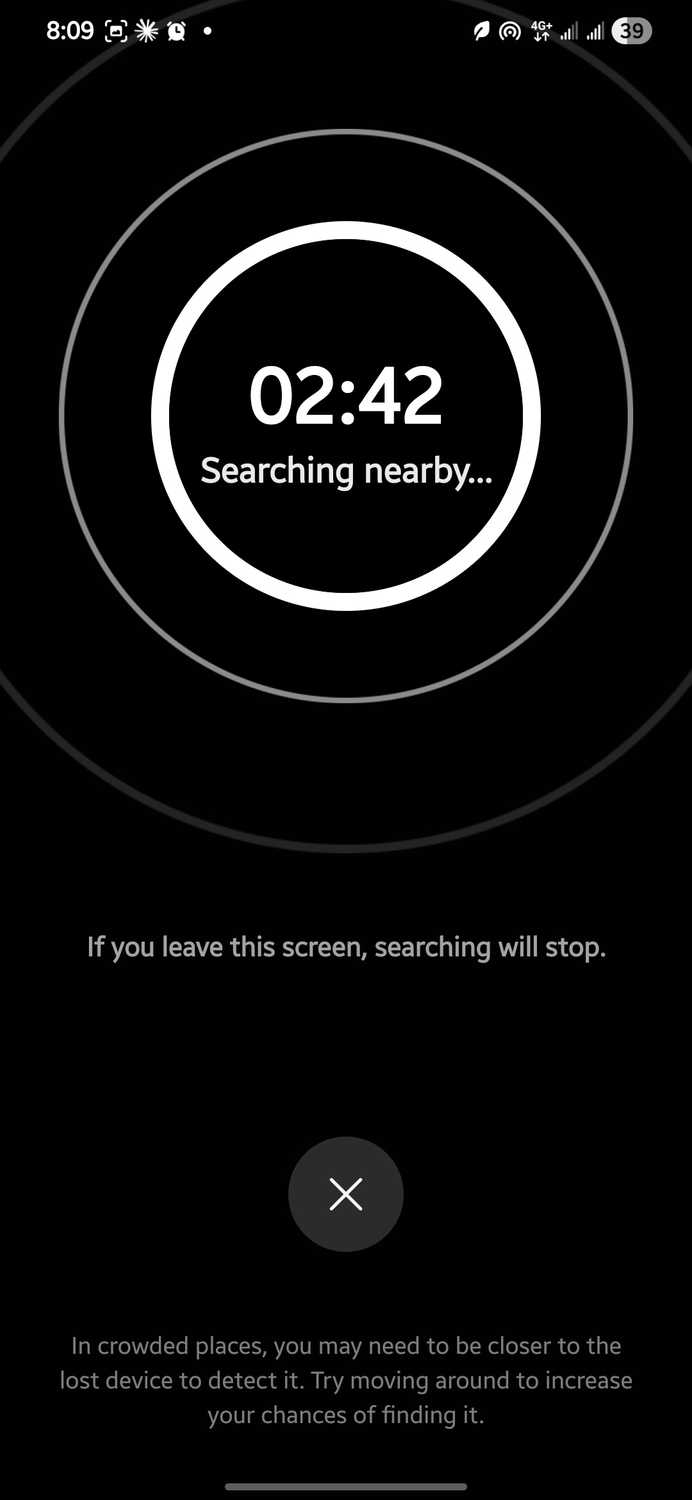
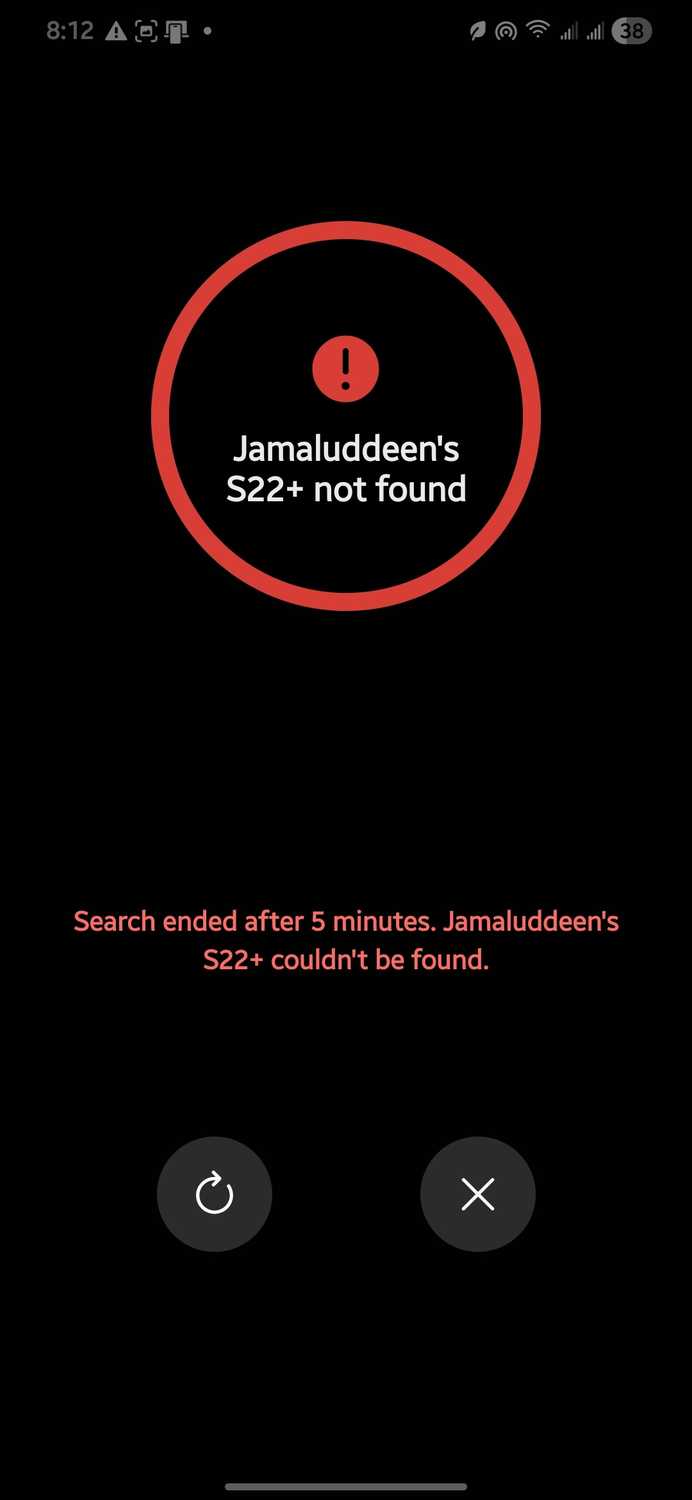
In another case, I left my offline phone in my room and tried tracking it from outside the house. Samsung Find couldn't spot the phone. I tried walking around the house with Search nearby active. Still, nothing was picked up.
Offline finding only seemed to work for me when an online Galaxy phone was in the room next to the offline device.
Compared to a real theft case, it's clear Offline finding won't be very useful for finding a stolen phone.
How I ended up recovering my stolen phone
IMEI tracking worked, but slowly
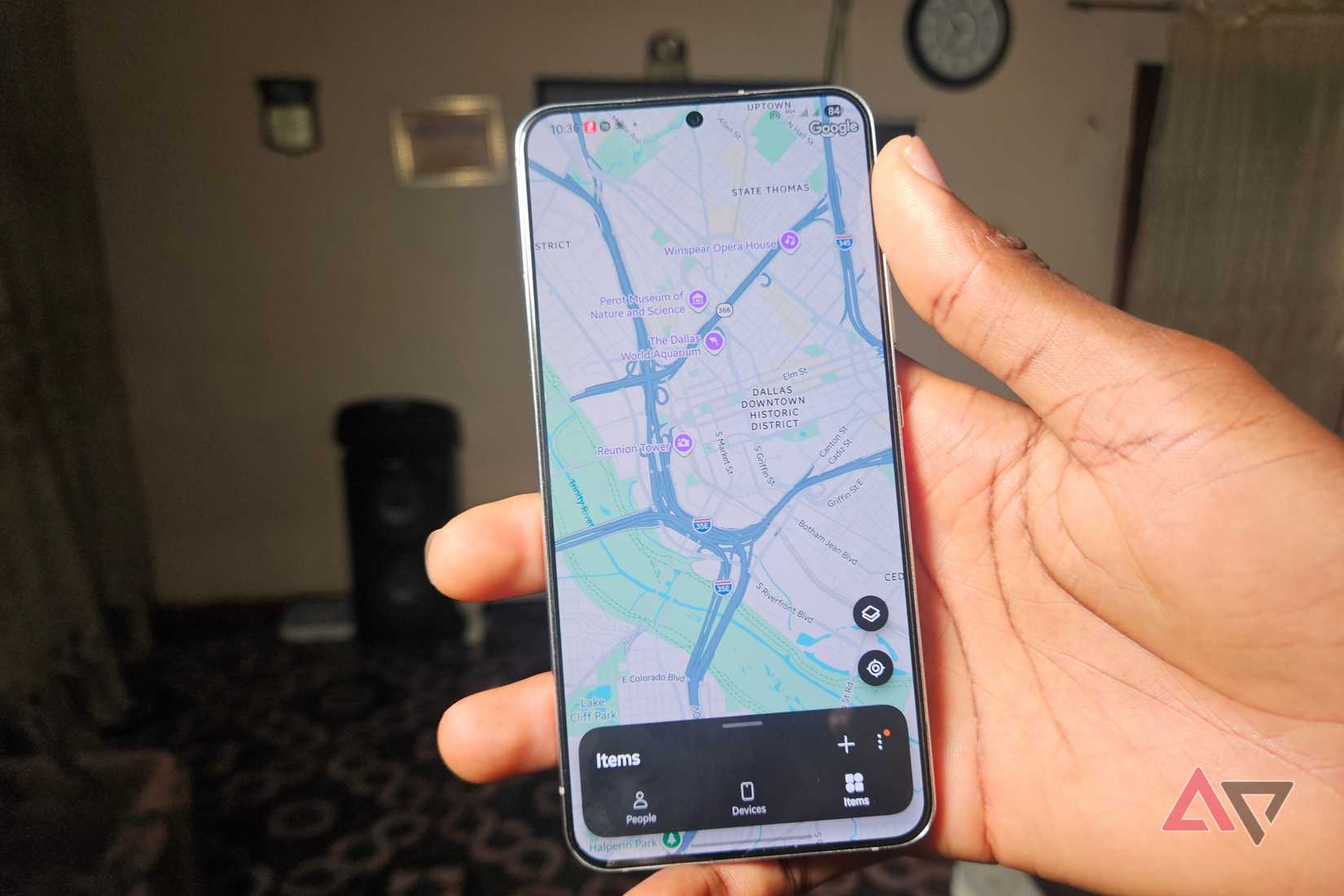
When Samsung Find failed to help me recover my phone, I knew I'd have to rely on IMEI tracking.
I reported my case to the police, and they told me my phone would need to be active to track it. That meant the thief would need to successfully break into my device and get a new SIM active on it.
That wouldn't be easy. That's why it didn't surprise me when it took over three months for my phone to be tracked and recovered.
Samsung Find is actually quite decent
In most of my tests with Samsung Find, I was able to track my online device to the exact street where it was. In some cases, I even tracked the Galaxy phone to the yard where it was.
The results were rarely spot on, but usually close enough not to matter.
So, if there's one lesson you can learn from all this, it's that you should always keep your phone online and connected to the internet, even when you have Offline finding active.
If you need to focus, you can always turn on DND and have peace of mind without making your phone untraceable.