
My Wi-Fi had started acting strangely in one part of my home. I'd sit in the living room to watch something or browse on my phone, and the connection would become unreliable.
A video that had been playing normally would start buffering, or a page would take noticeably longer to load.
I found it particularly frustrating that when I moved to another room, the connection would return to normal.
Since I had multiple Wi-Fi access points throughout my home, I couldn't attribute the issue to the distance between my phone and the router.
Was the signal really getting weaker in that part of the house? Or was something else interfering with the connection?
Instead of guessing, I used my phone to figure out what was happening with my Wi-Fi.
I couldn't explain the Wi-Fi dead spots in my home
Something was wrong with my Wi-Fi coverage

I initially had a single router in the bedroom, but the signal didn't reach the living room. Instead of setting up a dedicated mesh system, I added another router in the living room.
I finally got a usable Wi-Fi connection in the living room without depending on the signal traveling all the way from the bedroom.
For a while, I was happy with the setup. But I eventually noticed something odd: the living-room connection wasn't consistently reliable even though I had a router sitting right there.
Sometimes everything worked normally. Other times, I'd be sitting in the same spot and run into buffering. Moving back toward the bedroom could make things behave normally again.
I could have started changing settings at random, but I wanted to understand what was happening to the Wi-Fi around my home first.
That's when I started looking for a simple way to check the signal, link speed, and nearby wireless networks while I moved from room to room.
I turned my phone into a Wi-Fi signal meter
A better way to check Wi-Fi signal strength
I didn't need to create a full heatmap of my home to figure out where my Wi-Fi was struggling. I wanted something that could show me what was happening to the connection as I moved from one room to another.
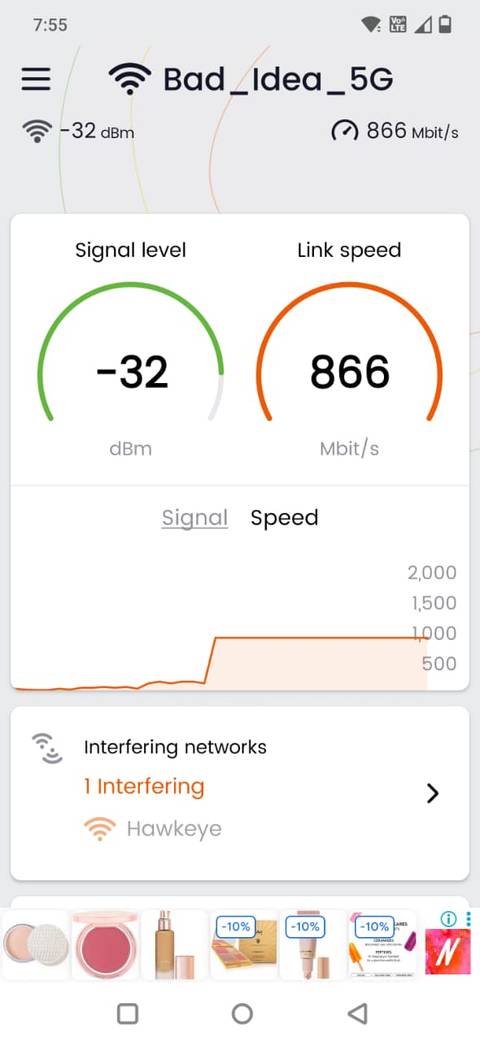
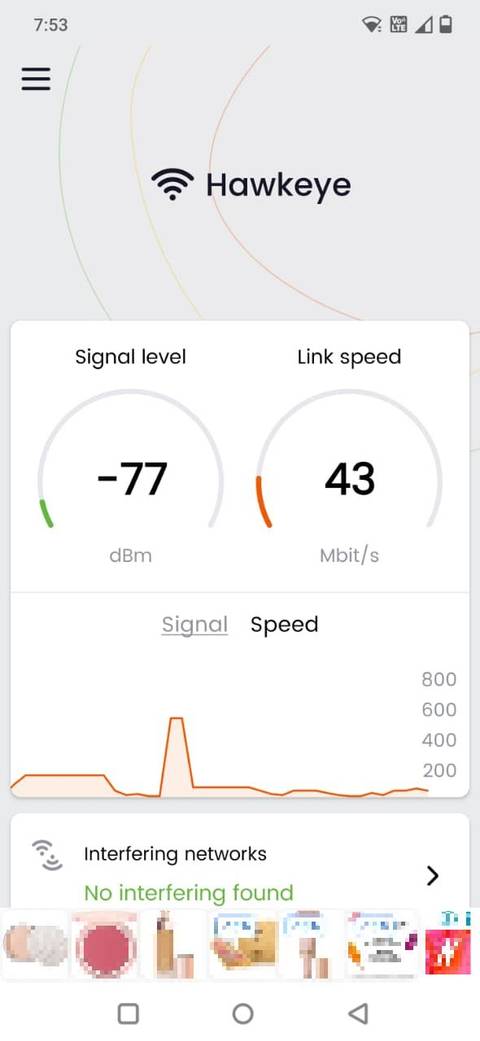
That's where WiFi Heatmap came in. The app gives me a real-time view of my Wi-Fi connection, including the current signal level and link speed.
It also shows information about the network I'm connected to and can identify other nearby networks that could be interfering with my connection.
I opened the app and started in the bedroom, where my Wi-Fi was normally reliable. Then I walked toward the living room with the app open, watching the numbers change as I moved.
I saw the signal strength change as I moved farther from the access point.
I also kept an eye on the link speed. This gave me another useful reference point because a strong-looking Wi-Fi connection doesn't necessarily mean my phone is maintaining the same connection speed everywhere in the house.
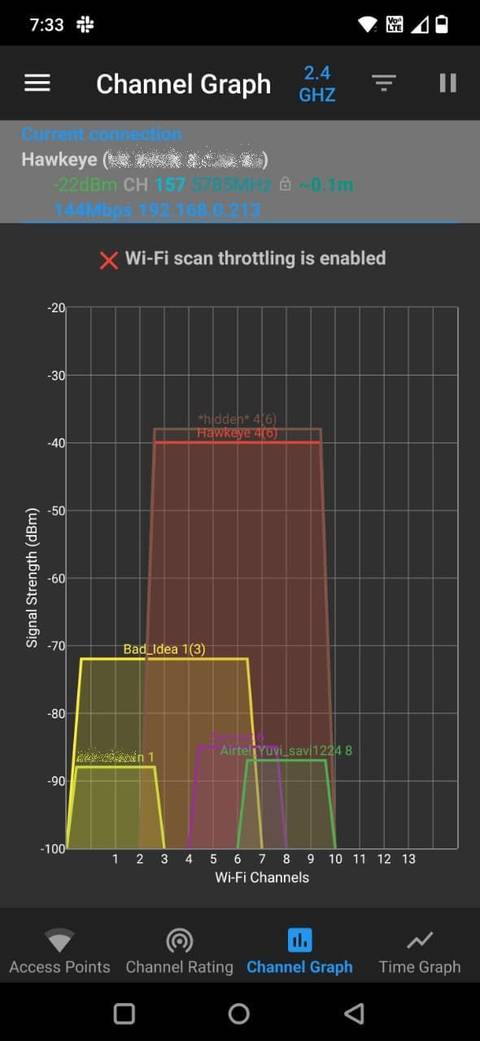
Then there was the information about other networks around me. WiFi Heatmap can scan for third-party networks that may interfere with your connection, which gave me another possible explanation to investigate if the signal looked fine.
My router was in the room, but the coverage still wasn't great
The Wi-Fi problem wasn't about distance
Seeing the signal drop in the living room was confusing because I already had a router there. If the router was only a few feet away, why was my connection still becoming unreliable?
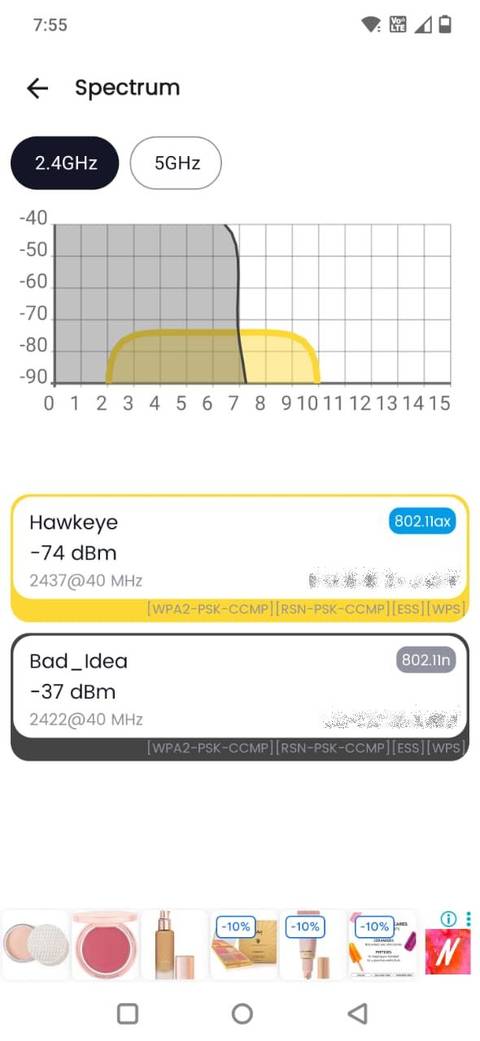
I started looking at what else the app was showing me. Along with my own network, WiFi Heatmap can see other Wi-Fi networks around me. Its interfering-networks view shows nearby networks that could affect the connection's quality.
The problem was that other wireless networks around me were competing for the same radio space.
I checked the networks the app was picking up and looked at the channels they were using. That was enough to make me try something I hadn't considered before: changing my router's Wi-Fi channel.
I logged in to my router's settings and switched the 2.4GHz channel from 6 to 1. The app showed fewer nearby networks competing on channel 1, so it seemed worth testing.
Wi-Fi channels can become congested when multiple nearby access points use the same or overlapping channels, particularly on the 2.4GHz band.
After changing the channel, I went back to the living room, tested the connection again, and noticed that the signal was more stable.
I didn't have to live with unreliable Wi-Fi
Walking around with WiFi Heatmap gave me a clearer picture of what was happening in my home. I could see the signal level change between rooms, check surrounding networks, and identify the interference that prompted me to change my router's channel.
The biggest benefit was having enough information to troubleshoot the problem. And in my case, that was enough to make the connection more reliable.