If you've ever tried to send a large video to someone, share a batch of vacation photos, or move files from your phone to your laptop, you probably know how unnecessarily complicated the process can get.
You could upload everything to Google Drive, send it through a messaging app, or email the files to yourself. But Android has a much simpler option built right in: Quick Share.
It lets you wirelessly transfer photos, videos, documents, links, and other files to nearby devices. You don't need to install a separate app on your Android phone or upload your files to first.
After I realized how much this feature could simplify everyday file sharing, I wondered why more Android users didn't rely on it.
Quick Share saves me from the usual file-sharing hassles
Sharing files doesn't have to be complicated
Sharing files between devices can be frustrating. I have faced issues with messaging apps that compress photos, email attachments with size limits, and the extra steps required to upload files only to download them elsewhere.
Quick Share, formerly known as Nearby Share, offers a much simpler alternative on Android.
I can open a photo, video, document, or other file, and share it to a nearby device through Quick Share.
The recipient can accept the transfer, and the file is sent without uploading it to a cloud storage service or exchanging contact details.
Quick Share uses Bluetooth to discover nearby devices and a local Wi-Fi connection to transfer files quickly, so you can send large videos or batches of high-resolution photos without first uploading them to the cloud.
Transfer speeds depend on the devices and connection, but you can move files between compatible devices without relying on mobile data or an internet connection.
How to use Quick Share to send files in seconds
It makes sharing files a breeze
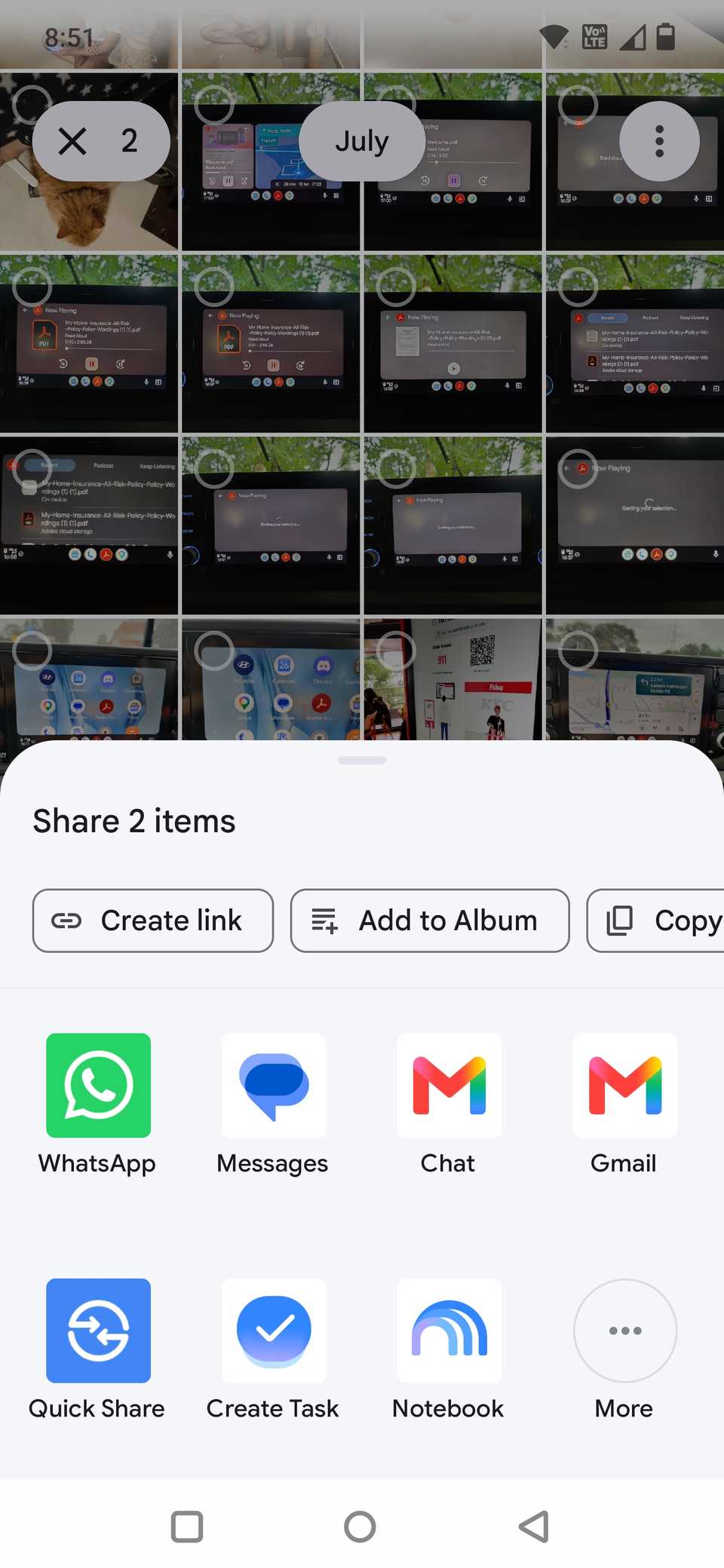
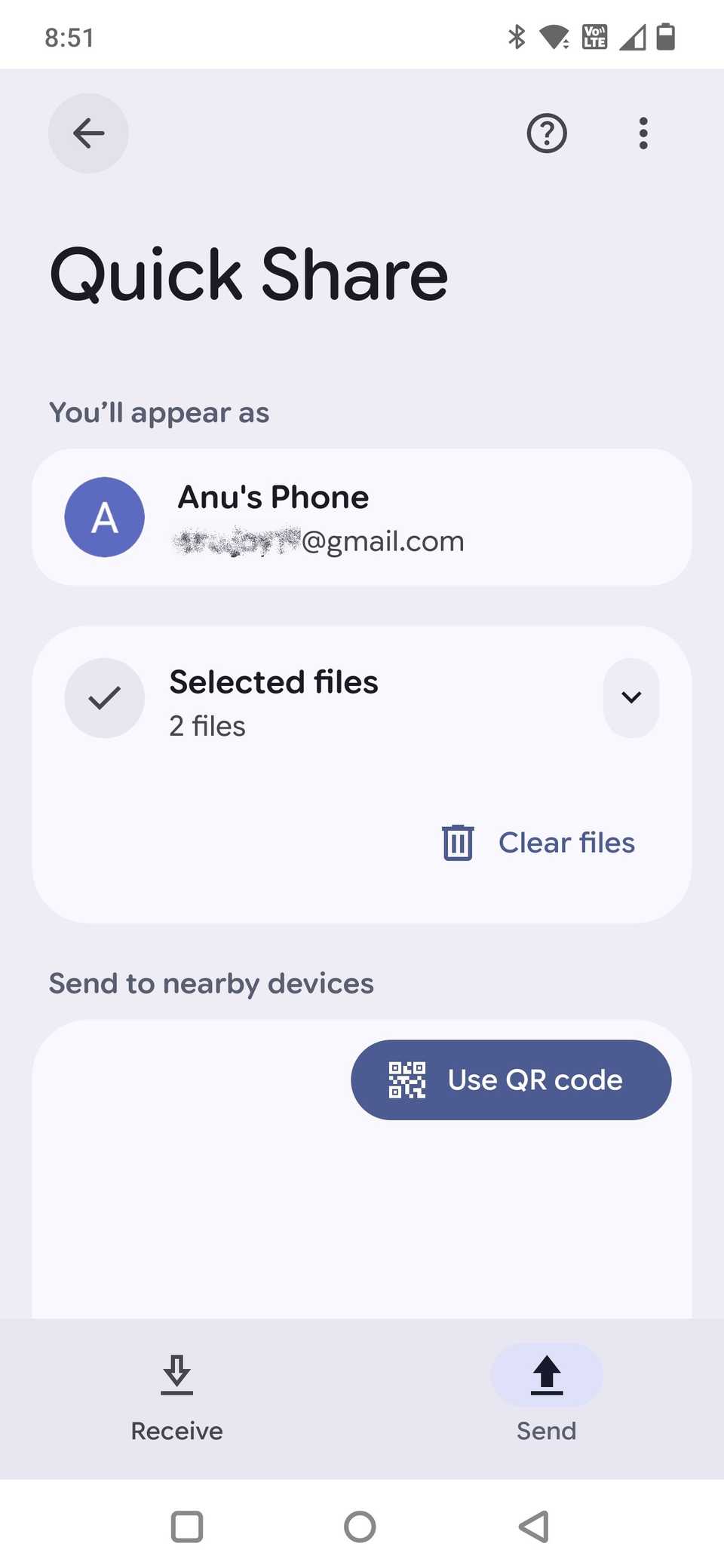
You don't need to install an additional app to use Quick Share.
Open any file, tap the , and select . Your phone searches for nearby devices; you must tap the recipient's device name to send the file.
The recipient must accept the transfer on their device before it begins. Both devices should have Bluetooth enabled and be nearby, with their screens unlocked for receiving files.
If the device still doesn't appear, you can use Quick Share's QR code option instead.
There are several ways to access Quick Share on Android
It is always within easy reach
If you use Quick Share often, you can pin it to the share sheet. That keeps it readily accessible, so you don't have to look for it among other sharing options.
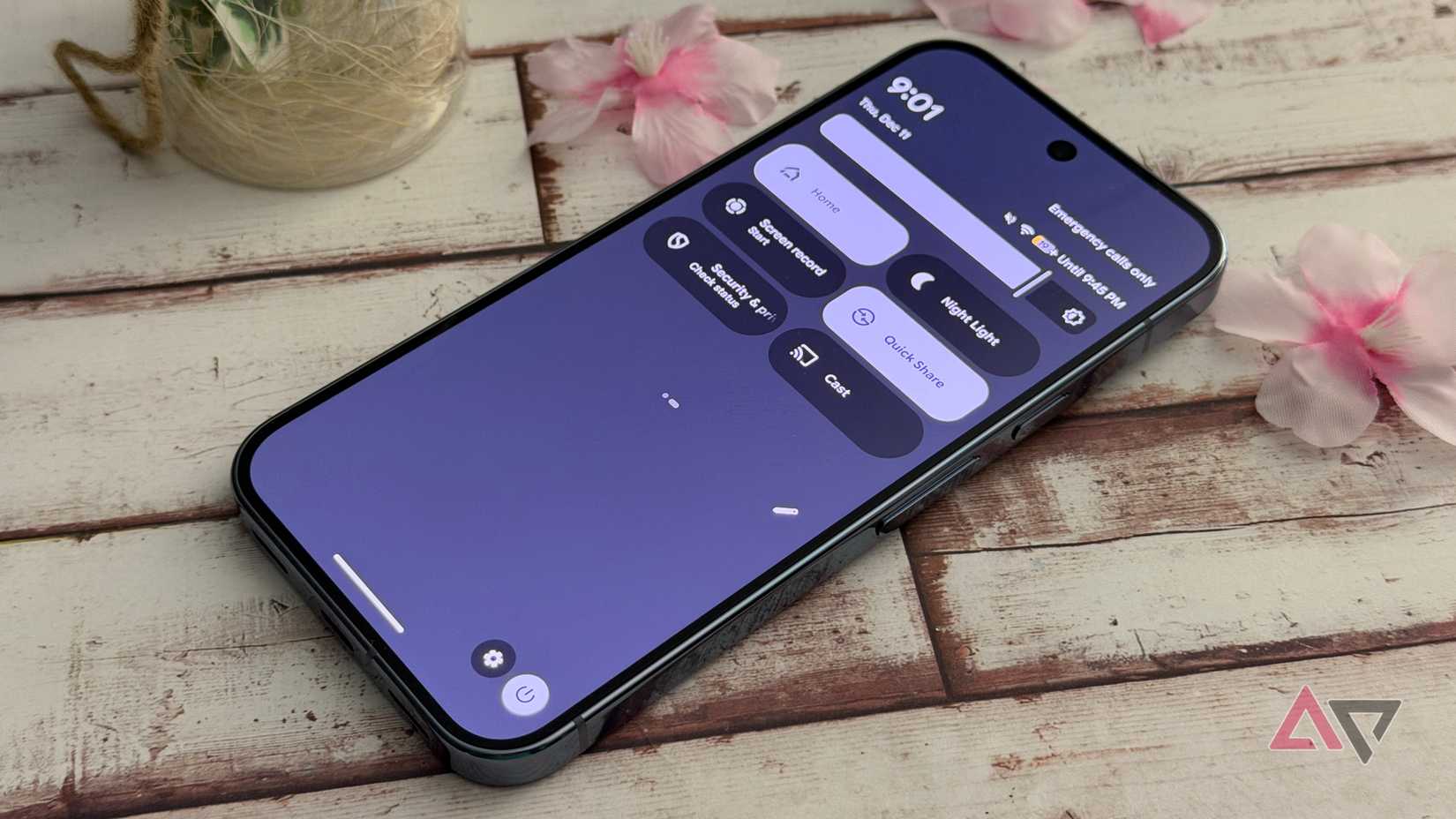
You can also access Quick Share through Quick Settings. Swipe down from the top of your screen to open the panel and look for the .
If it isn't there, tap the to add it to your available tiles. Alternatively, open your phone's app and search for to access its settings.
Quick Share works with more than just Android phones
My phone can share files across platforms
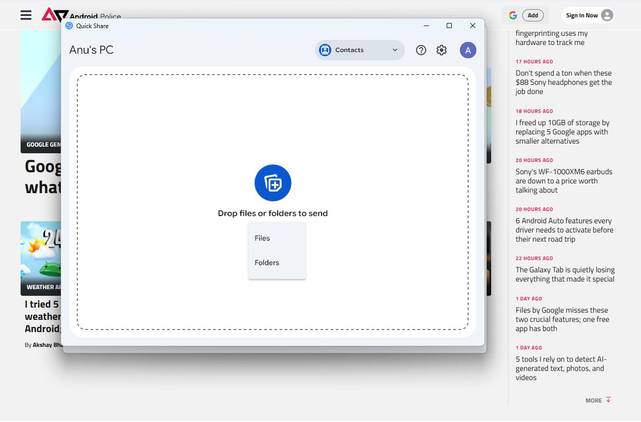

Quick Share goes beyond Android-to-Android transfers. I can use it to move photos, videos, and documents between my phone and a Windows PC or Chromebook.
Windows users must install Google's Quick Share app, while Chromebooks support the feature natively.
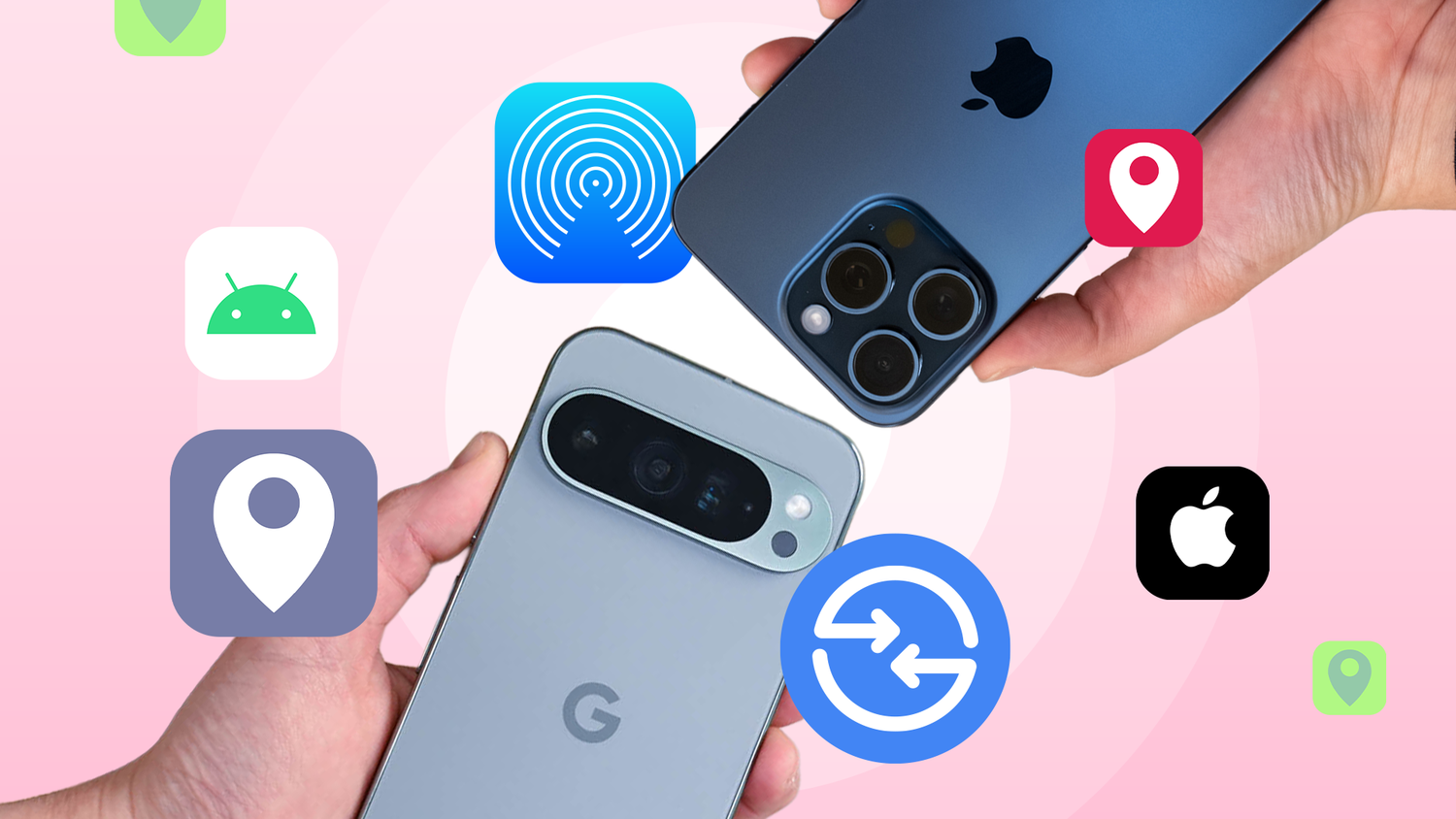
Quick Share also works with Apple's AirDrop on select Android phones. Compatible models include the Google Pixel 10 and Pixel 9 series, Samsung Galaxy S26 and S25 series, and OnePlus 15.
That means you can send files to an iPhone, iPad, or Mac without asking the recipient to install another app.
The recipient needs to set AirDrop visibility to Everyone for 10 minutes and accept the incoming transfer.
If your phone doesn't support AirDrop compatibility, you can still share files with an Apple device using Quick Share's QR code option.
The recipient can scan the code with their camera and open a link to download the files. This method requires an internet connection, but it gives me another way to share files across different platforms without relying on email attachments or messaging apps.
When I use Quick Share instead of other file-sharing methods
It beats email, messaging apps, and cloud storage
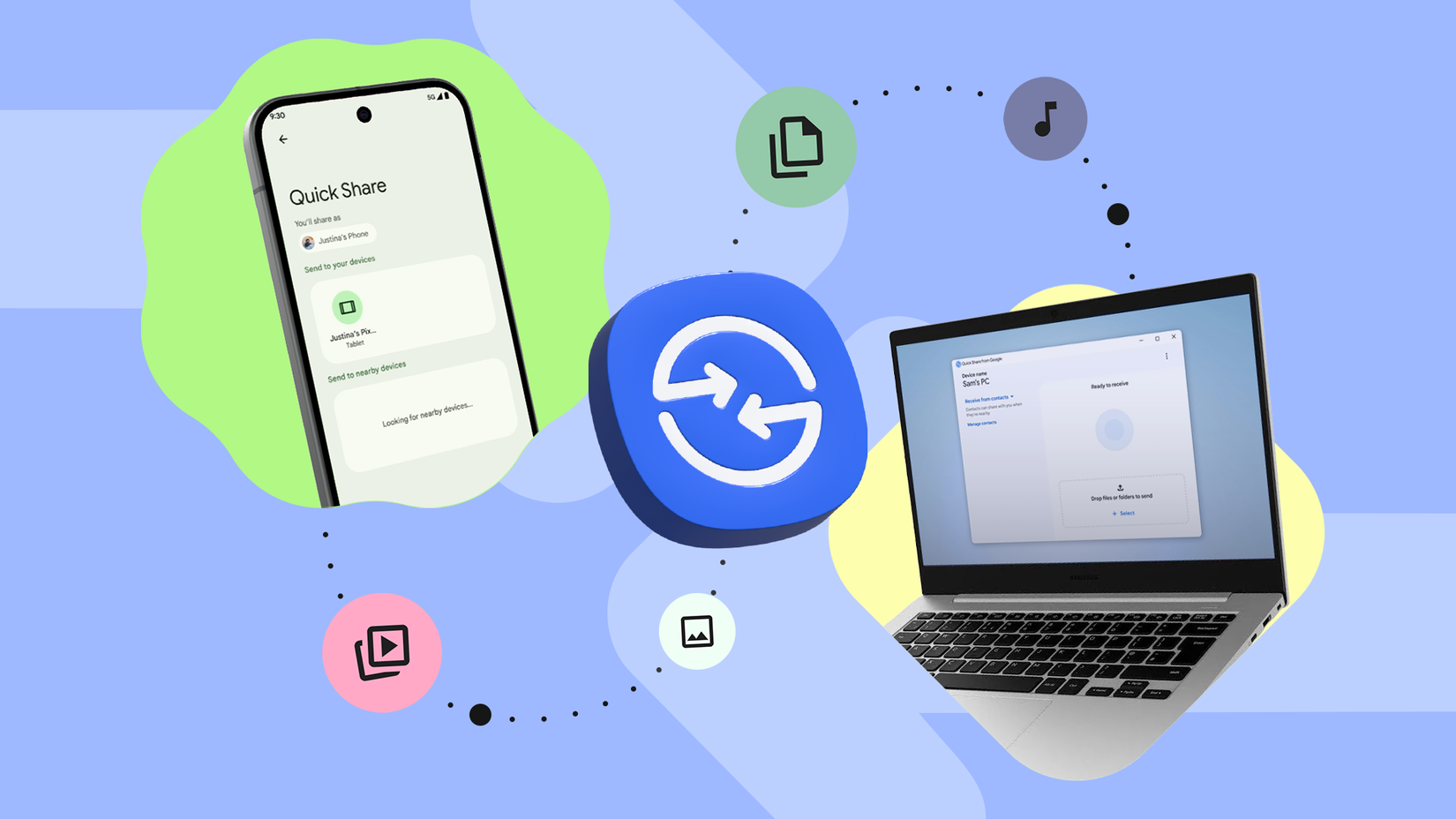
Quick Share is useful when I want to transfer files between nearby devices without extra steps.
For example, if I've taken a bunch of photos on my phone and want to edit them on my Windows PC, I can send them directly instead of uploading them to cloud storage or emailing them to myself.
The same applies when I need to move a PDF, share a video with someone nearby, or send a document to another Android phone.
Quick Share is also handy when someone nearby needs a file from me, but we don't use the same apps or messaging services.
Instead of asking them to install an app or create a shared cloud folder, I can send the file directly, provided their device supports Quick Share.
Quick Share makes file transfers hassle-free
Quick Share is an Android feature that makes everyday tasks easier without much setup.
I can directly to nearby devices, avoid unnecessary uploads, and move content between my phone and computer with a few taps. It even offers ways to share with Apple devices.
If you've been relying on , email, or cloud storage for every transfer, Quick Share is worth adding to your usual routine.