Gboard has been my default keyboard for years because it's fast and reliable. But when I set up a new phone recently, I started paying closer attention to something I normally ignore: the keyboard settings.
That's when I realized that several default features were making typing more frustrating than it needed to be. They added visual noise, changed words I didn't want changed, and occasionally interrupted my typing flow.
After I turned off these features, typing started again.
Autocorrect was trying to fix things too aggressively
It fixed words I didn't want it to fix
In theory, autocorrect catches typos before you press Send and saves you from embarrassing mistakes. In practice, it often felt overly confident.
I started noticing how often it would "correct" words that were perfectly fine, such as names, slang, technical terms, and places I type regularly.
Sometimes I wouldn't catch the change until after I sent the message. Other times, I'd waste a few seconds undoing the correction, retyping the word, and fighting the keyboard to keep what I originally wrote.
The breaking point came when I realized I was slowing down to accommodate autocorrect. I'd double-check sentences more than necessary or hesitate before typing certain words.
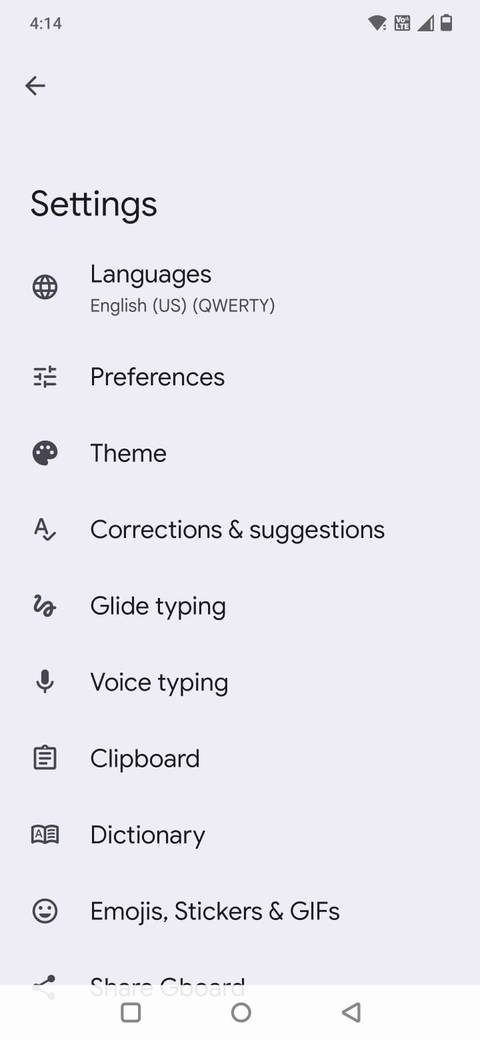
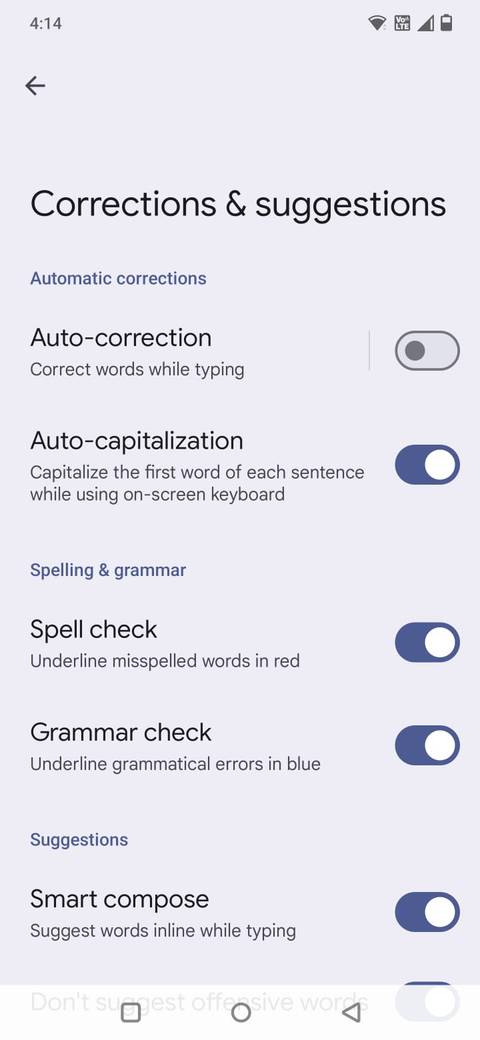
Turning it off was straightforward. Open the Gboard app on any text editor or messaging app and tap the . Go to Corrections and suggestions and toggle off.
The change was immediate. Typos still happen. But I make fewer of them because I'm no longer battling forced corrections. Typing feels less frustrating now.
Next-word suggestions were more distracting than helpful
My keyboard shouldn't have a crystal ball
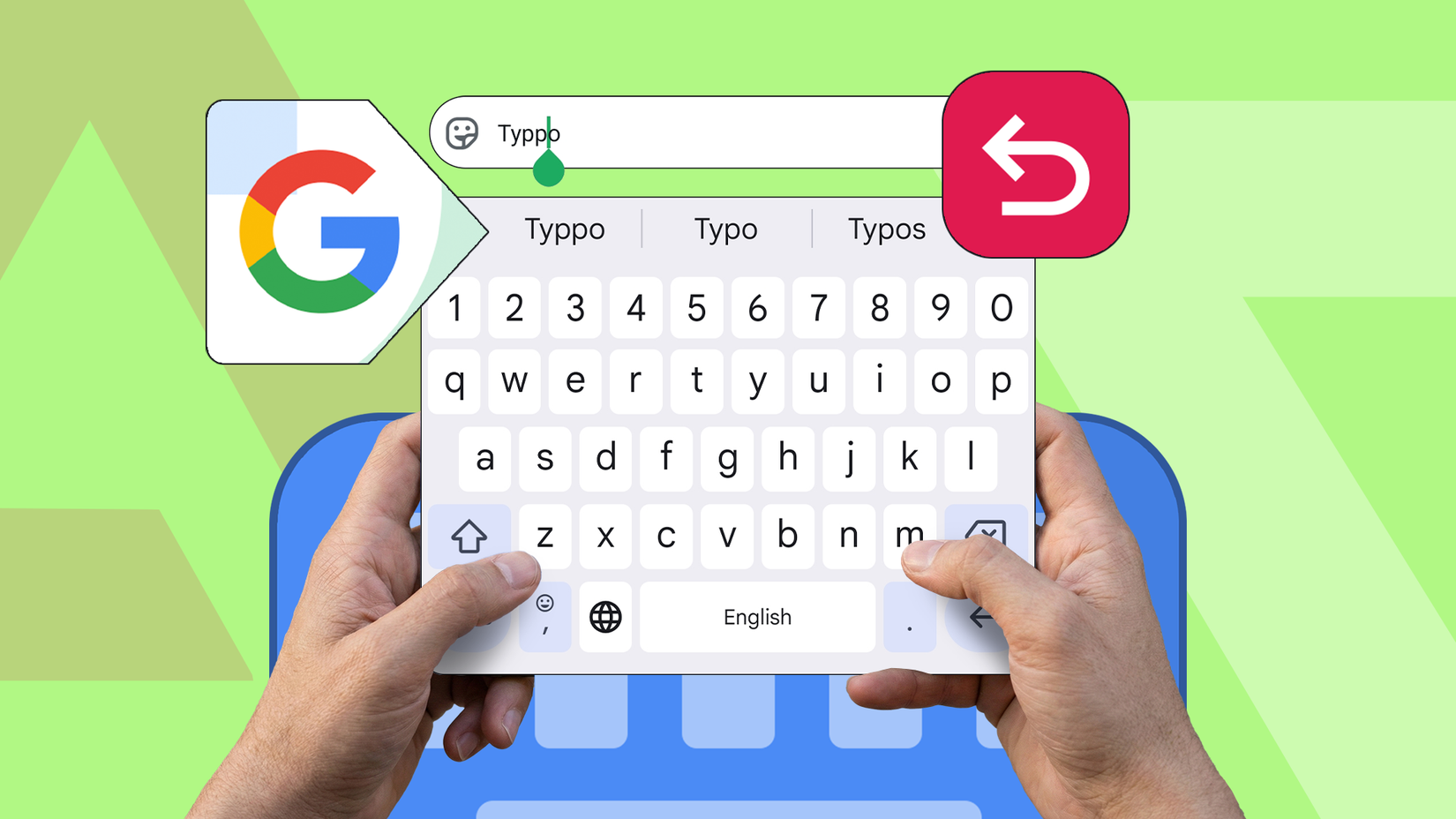
The suggestion strip above the keyboard constantly predicts the next word you might want to type. Sometimes it's accurate, while other times it's just noise.
I realized I wasn't using it much. Instead, I'd glance at the suggestions mid-sentence, be distracted by a slightly different phrasing, and either tap the wrong word or lose my train of thought.
That moving strip of text also feels mentally cluttered. As you type, it updates with new predictions every second. It doesn't seem like a big deal until you turn it off and notice how much better the keyboard feels.
To turn it off, tap the in Gboard, tap Corrections and suggestions, and toggle off Next-word suggestions.
What I didn't expect was a practical bonus. After I turned off next-word suggestions, the suggestion bar switched to showing punctuation shortcuts like ?, , and . That means I no longer have to tap the ?123 key to add a question mark or exclamation point.
Glide typing slowed me down
Sometimes the fix took longer than typing it myself
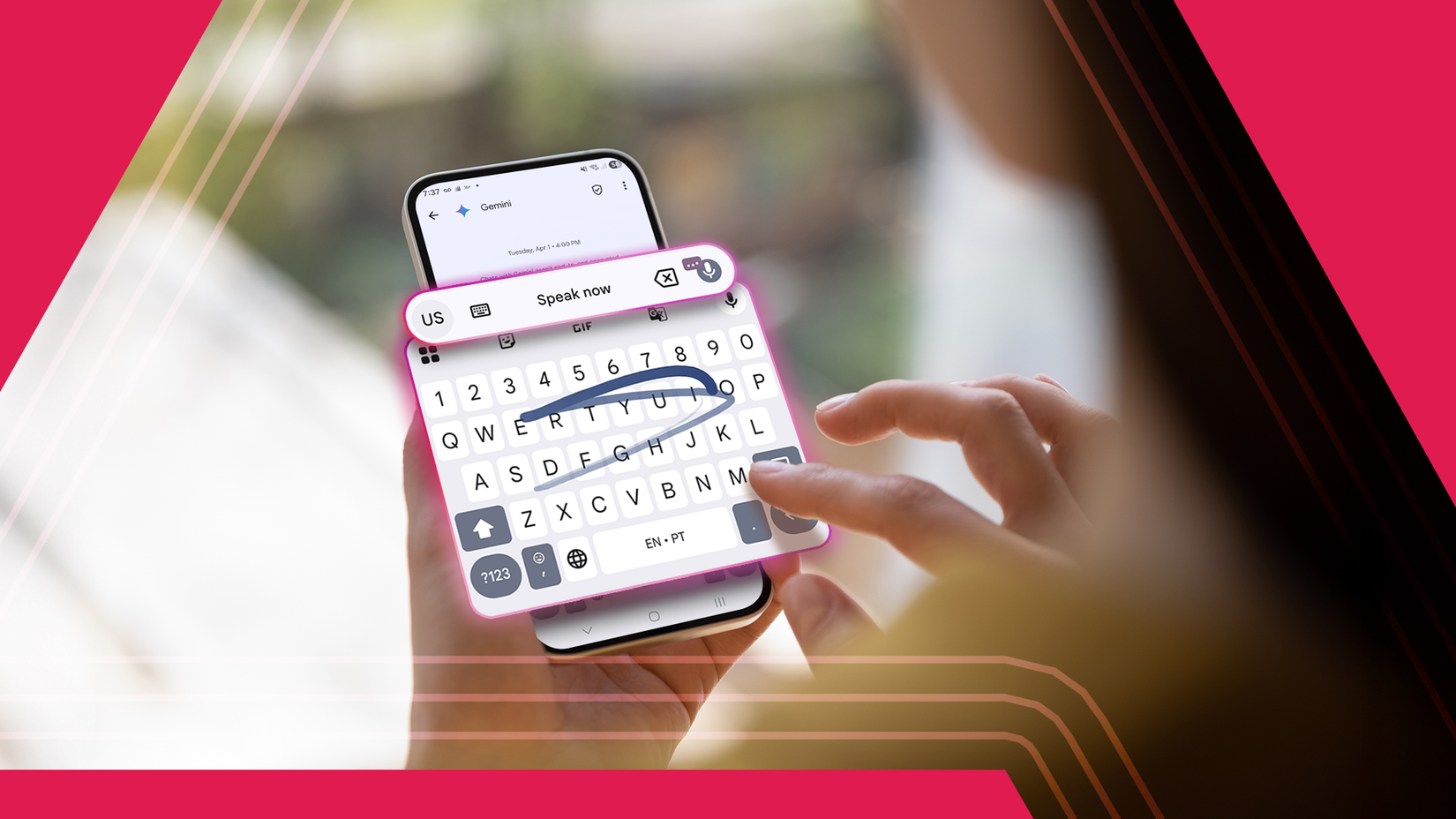
Glide typing (also called swipe typing) is one of those features that feels incredibly fast. Instead of tapping each letter, you slide your finger across the keyboard and Gboard figures out the word.
For me, it introduced enough inaccuracies to become annoying.
If the prediction was wrong, fixing it often took longer than typing the word. Short words were fine, but longer ones, especially names or anything slightly uncommon, were hit or miss.
Accidental swipes were another issue. When moving my thumb across the keyboard, I'd sometimes trigger a glide input unintentionally. Instead of a single letter, I'd get a full (wrong) word inserted into the sentence.
To turn it off, tap the on Gboard and toggle off Glide typing.
When I switched back to tapping, typing felt more controlled and predictable. If you're comfortable typing quickly with your thumbs, turning it off can make everything feel more precise.
Emoji suggestions were cluttering the keyboard
I don't need an emoji to go along with every word I type
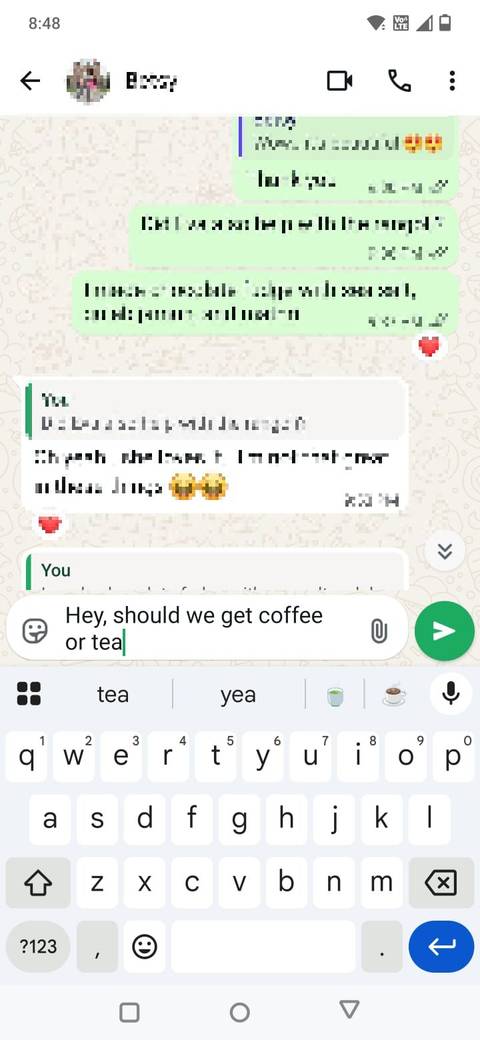
I like emojis, but I don't need them suggested after every other word.
On Gboard, emoji suggestions appear in the suggestion bar as you type certain words. Type , and you'll see a smiling face. Type , and you'll get a cup.
Most of the time, I know whether I want to use an emoji. If I do, I'll tap the emoji key. The suggestions take up space in the bar and add another moving element competing for attention while I'm trying to focus on what I'm writing.
There's also the risk of accidental taps. When you're typing quickly, it's easy to brush the suggestion strip and insert an emoji you didn't mean to send. That might be fine in casual chats, but less ideal in work messages.
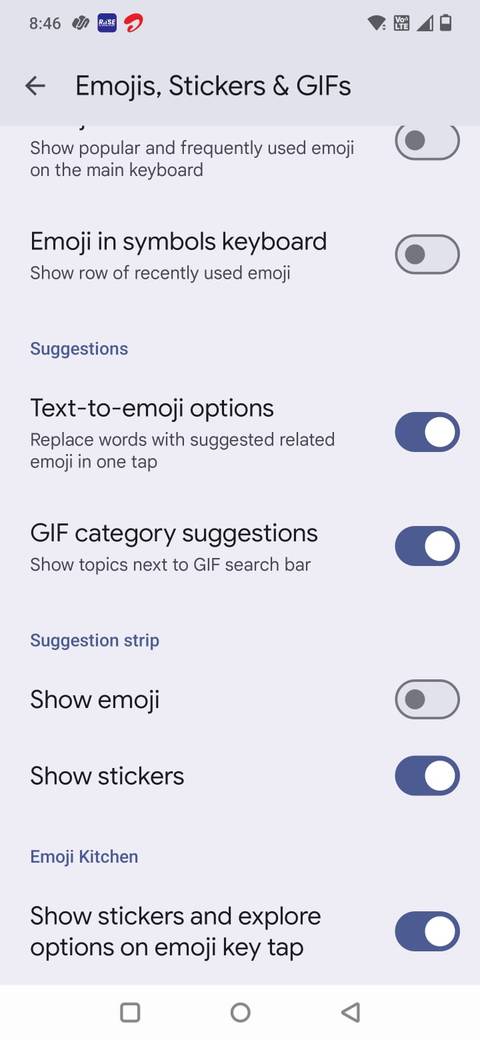
To turn it off, tap the , select , and toggle off the Show emoji option. After switching it off, the suggestion bar stays focused on text or punctuation instead of mixing in graphics.
Key pop-ups were visually noisy
My muscle memory does a better job
Every time you press a key on Gboard, a larger version of that letter briefly pops up above your finger. It helps confirm what you typed. In reality, I realized I wasn't relying on it.
After years of typing on smartphones, I have developed trust in my muscle memory. The enlarged letter flashing on every tap added more visual movement to the interface.
When you type quickly, those pop-ups flicker rapidly across the screen. After I noticed them, they started to feel distracting.
To deactivate it, tap the , select , and turn off Key pop-up.
Without the pop-ups, the keyboard feels more refined. The typing experience looks cleaner, especially in dark mode.
Turning off haptic feedback made typing feel lighter
The constant tapping noise was distracting
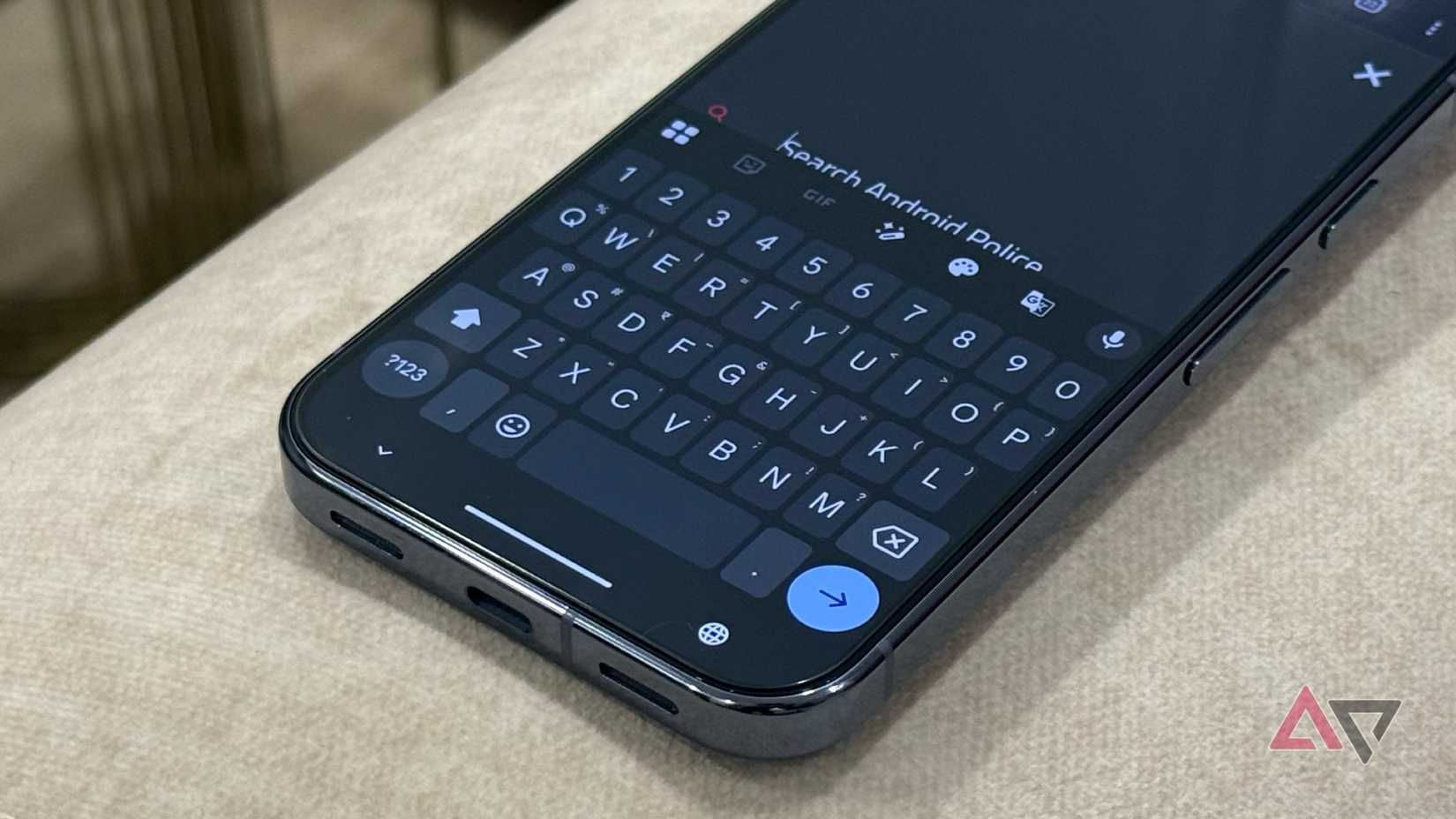
Haptic feedback on Gboard provides a slight vibration when you press a key. This feature tries to simulate the sensation of a physical keyboard, confirming that it has registered your tap.
Initially, I appreciated the responsiveness it brought to the keyboard. However, I realized the continuous vibrations detracted from the experience rather than enhancing it.
When you type quickly, that's dozens of micro-vibrations per sentence. It creates a subtle buzzing sensation that you don't consciously think about, but you definitely feel. More importantly, it made typing feel slower and slightly more mechanical.
To turn it off, tap the , select , and toggle off Keyboard vibration.
After I switched it off, typing felt lighter and smoother.
A simpler keyboard works better for me
Turning off , next-word suggestions, emoji suggestions, glide typing, key pop-ups, and haptic feedback reduced the small irritations that add up over time.
There's less on-screen movement, fewer unintended words, and no constant buzzing with every tap. The suggestion bar feels more useful. I also spend less time fixing changes that the keyboard made on my behalf.