I've used Google Maps for years, but for most of that time, it was just a utility. I opened it when I needed directions, followed the route, and closed it when I reached my destination.
It was reliable and predictable, which is why I never explored much beyond the obvious.
But buried in plain sight are features that subtly change how the app behaves. After I started paying attention to them, Google Maps felt noticeably different, and it made my daily commute less stressful.
Check traffic patterns before you leave
You may need to adjust your commute
For years, I only looked at traffic after entering a destination. It never occurred to me that I could see what the roads looked like before committing to a route.
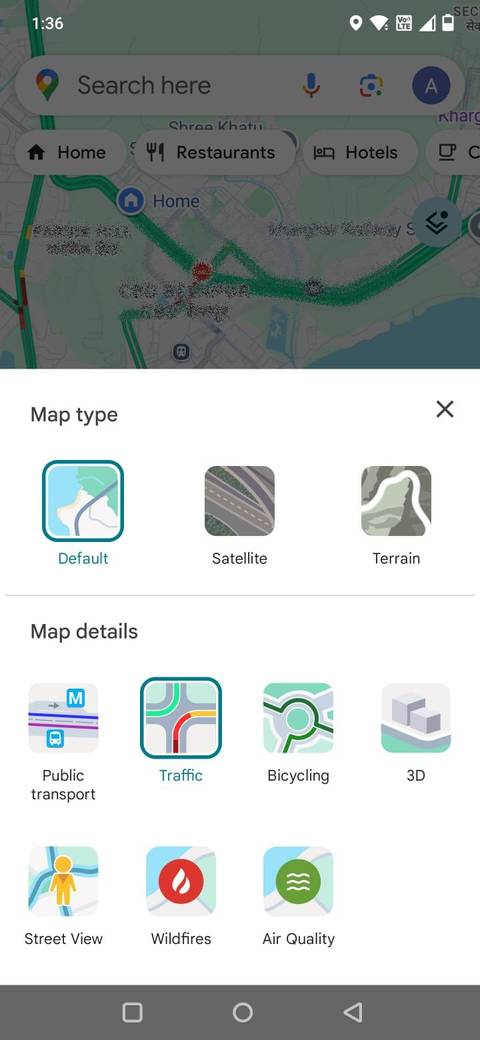
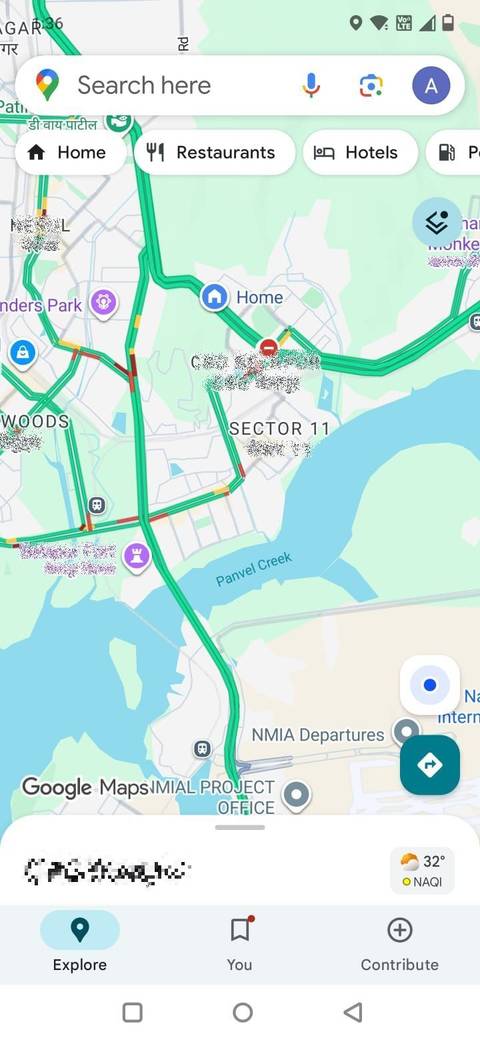
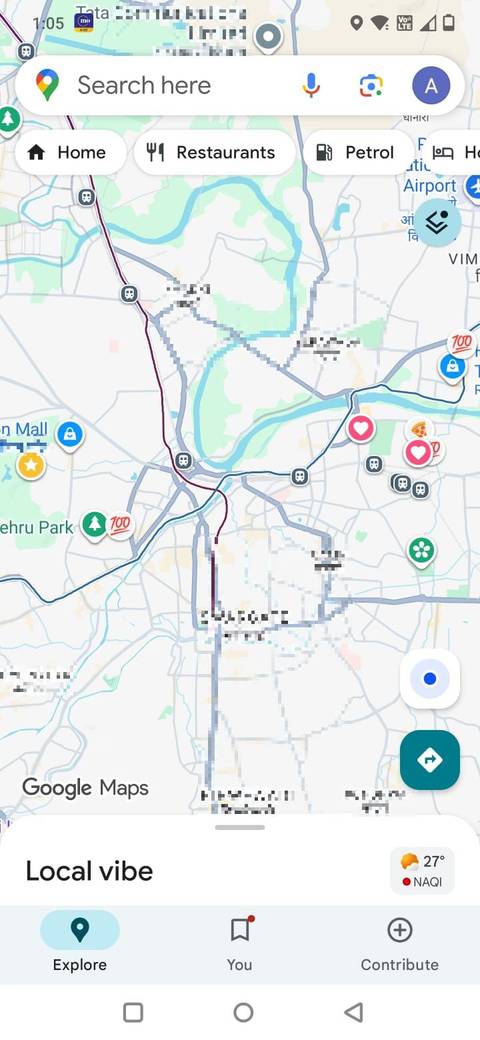
The first thing I do before heading out is open Google Maps and turn on the Traffic layer. On the main map screen, tap the (the stacked squares in the upper-right corner) and select .
Instantly, the roads in your area appear in green, orange, and red, showing real-time congestion.
You can zoom out to get a broader sense of traffic buildup or zoom in to inspect specific intersections.
I do this before I decide whether to leave. Sometimes I spot congestion forming in one direction and adjust my plan entirely.
Navigation gestures that make Maps feel effortless
It makes viewing the entire map as easy as pie
Most of us tap our way through Google Maps. We pinch to zoom, drag the map around, and tap buttons. It works, but it's not always smooth, especially when you're walking or holding a bag.
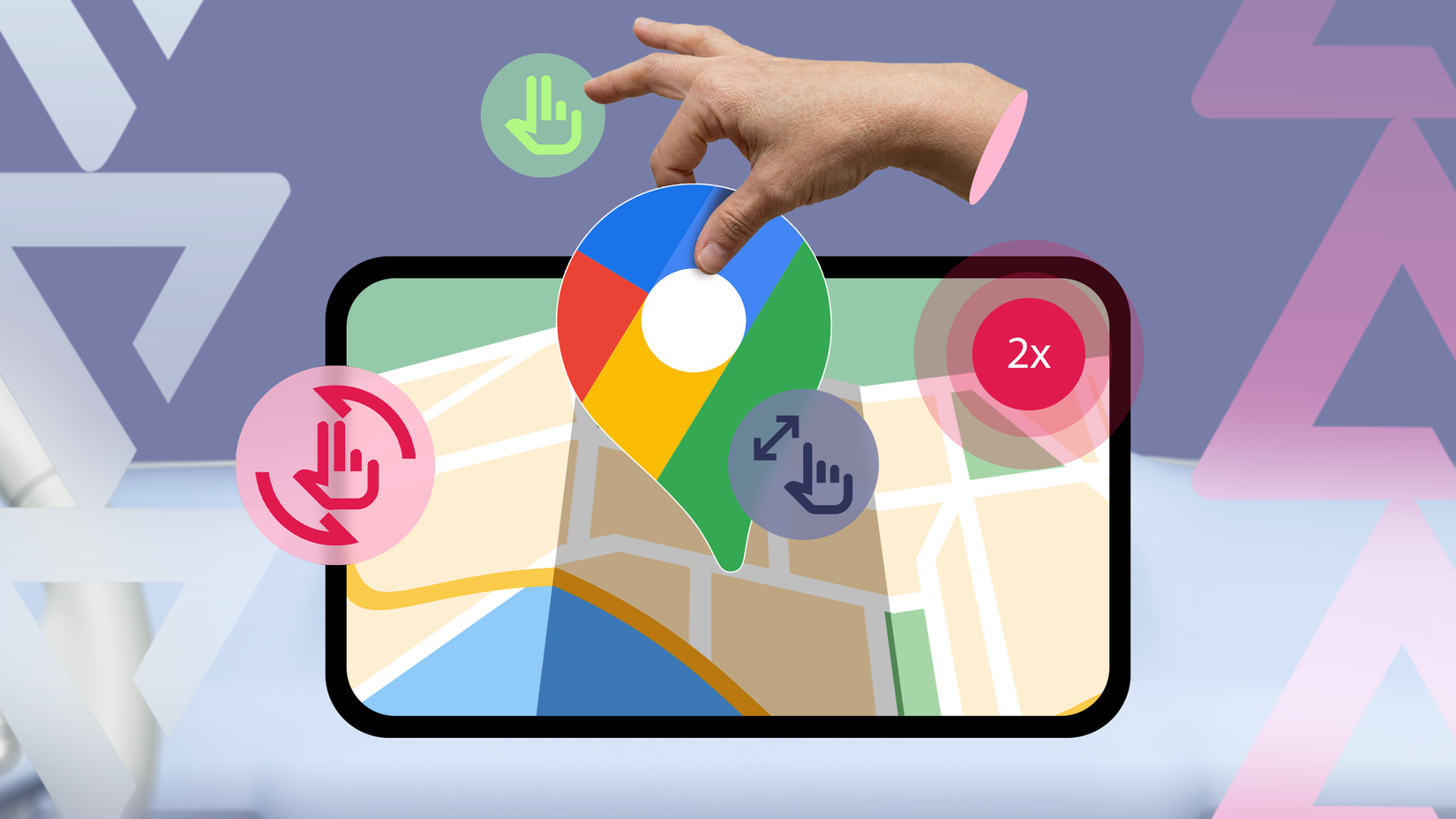
What changed my experience was that make interacting with the map feel more fluid.
The first is double-tap to zoom. Instead of pinching with two fingers, double-tap on the area you want to zoom into. It's useful when you're using the phone one-handed.
Even better is one-finger zoom. Double-tap the map, but instead of lifting your finger after the second tap, keep it pressed down and slide up or down. Sliding up zooms out; sliding down zooms in.
This gesture changes how usable the app feels when you're holding your phone in one hand, which is most of the time.
There are other small touches. You can tap the compass to reorient the map to the north, or tilt the map with two fingers to change perspective.
Use Incognito mode for one-off trips
When you don't want a trip to show up in your history
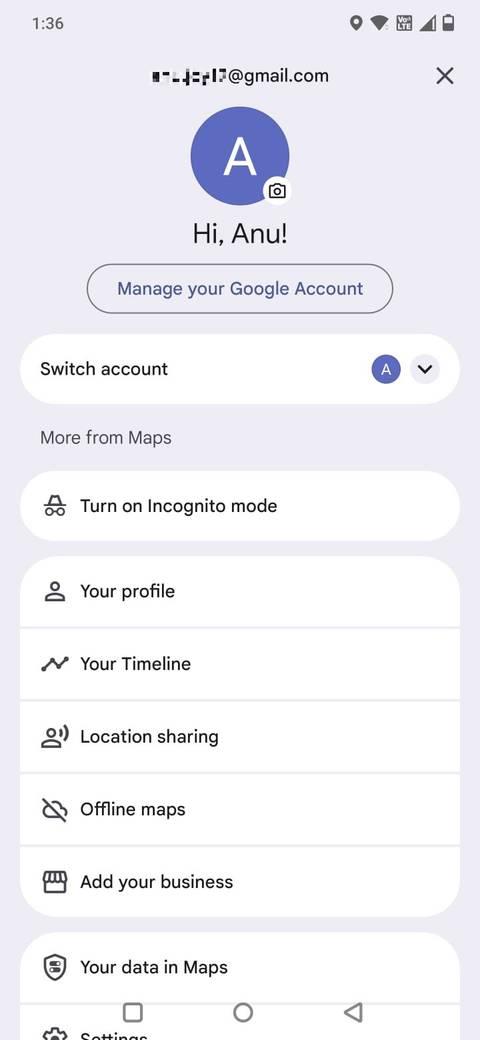
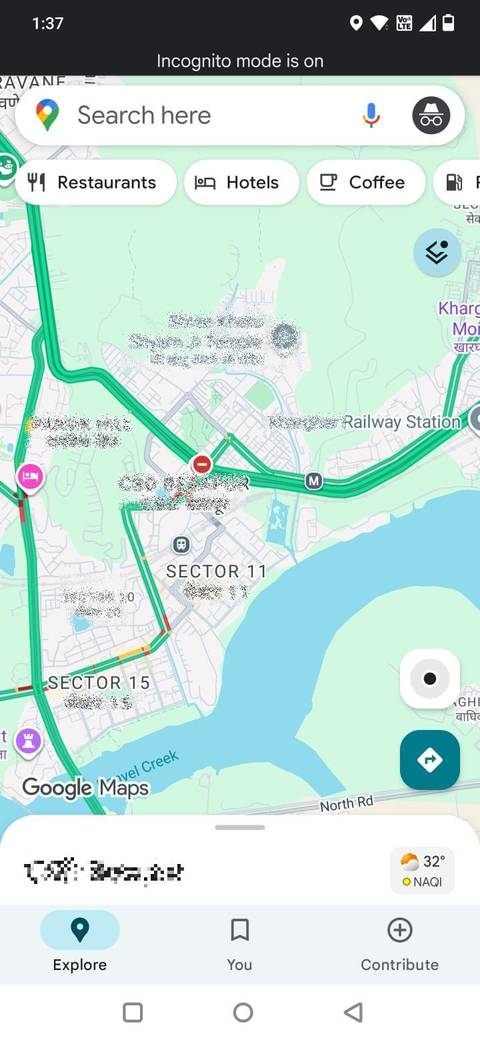
One feature I had overlooked is Incognito mode. It lets you search and navigate without saving that activity to your account history.
At first, I didn't think I needed it. However, I've started using it for one-off searches: places I'm researching casually or trips I don't want to influence future recommendations.
To turn it on, tap your in the upper-right corner of Google Maps and select Turn on Incognito mode. The interface darkens slightly, and you'll see a small Incognito icon at the top of the screen.
When I started using Incognito mode, I noticed my suggestions stayed more relevant. Random searches weren't shaping the places Maps recommended later.
Long-press to drop a pin instantly
It is one of those gestures that is easy to forget. You can drop a pin anywhere on the map by long-pressing on the spot.
Press and hold for a second, and a red pin appears. From there, you can save it, share it, or start navigation to that location.
Before, I would waste time trying to approximate an address or describe landmarks.
Now I use it to share precise meeting points in large public spaces, mark locations that don't show up clearly in search, and send someone my exact spot when directions are confusing to explain.
Saved lists that turn Maps into your personal guide
Don't start from scratch when you need directions
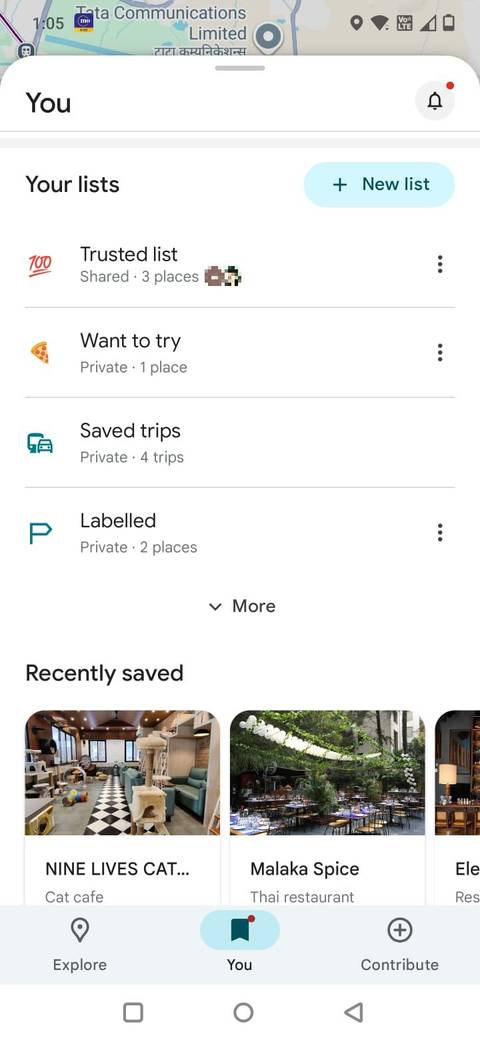
The Save button in Maps only started to make sense when I began organizing my lists.
When you open a place in Google Maps, you'll see the option. Tap it to add the location to an existing list, like , or create your own custom list.
The real shift occurs when you create categories like weekend brunch spots, quick errands, places to try, or out-of-town recommendations.
After I set that up, I no longer had to start from scratch in Maps every time I needed directions.
If someone asks for dinner ideas, I open my saved list and pick from places I vetted or been curious about.
If I have a free hour nearby, I can glance at what I saved in that area instead of defaulting to whatever showed up first in search results.
There's also something surprisingly satisfying about seeing your saved places appear on the map as small icons.
Offline maps make navigation reliable anywhere
Be prepared for internet dead zones
For the most part, Google Maps works seamlessly with mobile data, and it's easy to forget signal strength isn't guaranteed. But the first time navigation lagged in a low-network area, I realized how dependent I'd been on a stable connection.
Since then, I have for places I know I'll visit, especially if I'm traveling outside the city.
To download one, tap your in the upper-right corner of Google Maps and select Offline maps. From there, tap Select your own map and adjust the highlighted area to cover the region you want.
When downloaded, that section of the map stays available even without mobile data.
Now, if I know I'll be driving through areas with unpredictable network coverage, I download the map ahead of time. It takes a few minutes and saves a lot of frustration.
A few tweaks resulted in a noticeably better app
Google Maps gets you from point A to point B without much effort, and for most of us, that's where our interaction with the app ends.
But Google Maps can do more than guide you after you've decided to leave. Built into that familiar interface are features that help you better.
For instance, pinning frequent routes so they're always one tap away or downloading offline maps before I need them.
After you start exploring its features, you may find there's little reason to look elsewhere.