With last year's Pixel 10, Google finally pushed the screen saver feature ahead and made it useful. A weather option was introduced as well as Google Photos support, on top of the existing clock and smart Google Home controls.
I tried to adopt all of the screen savers and loved them, but when I tried to adopt them in my every day life, I was faced with a dilemma: I wanted all of them, not just one. But the Pixel 10 was forcing me to only choose one of the options and stick with it.
When I switched to the Pixel 11 Pro XL, I went digging into all the options and found that Google had fixed my one issue with the screen saver feature, and made it possible for me to use it exactly like I want.
Why have one screen saver when you can have them all?
One feature changed everything for me
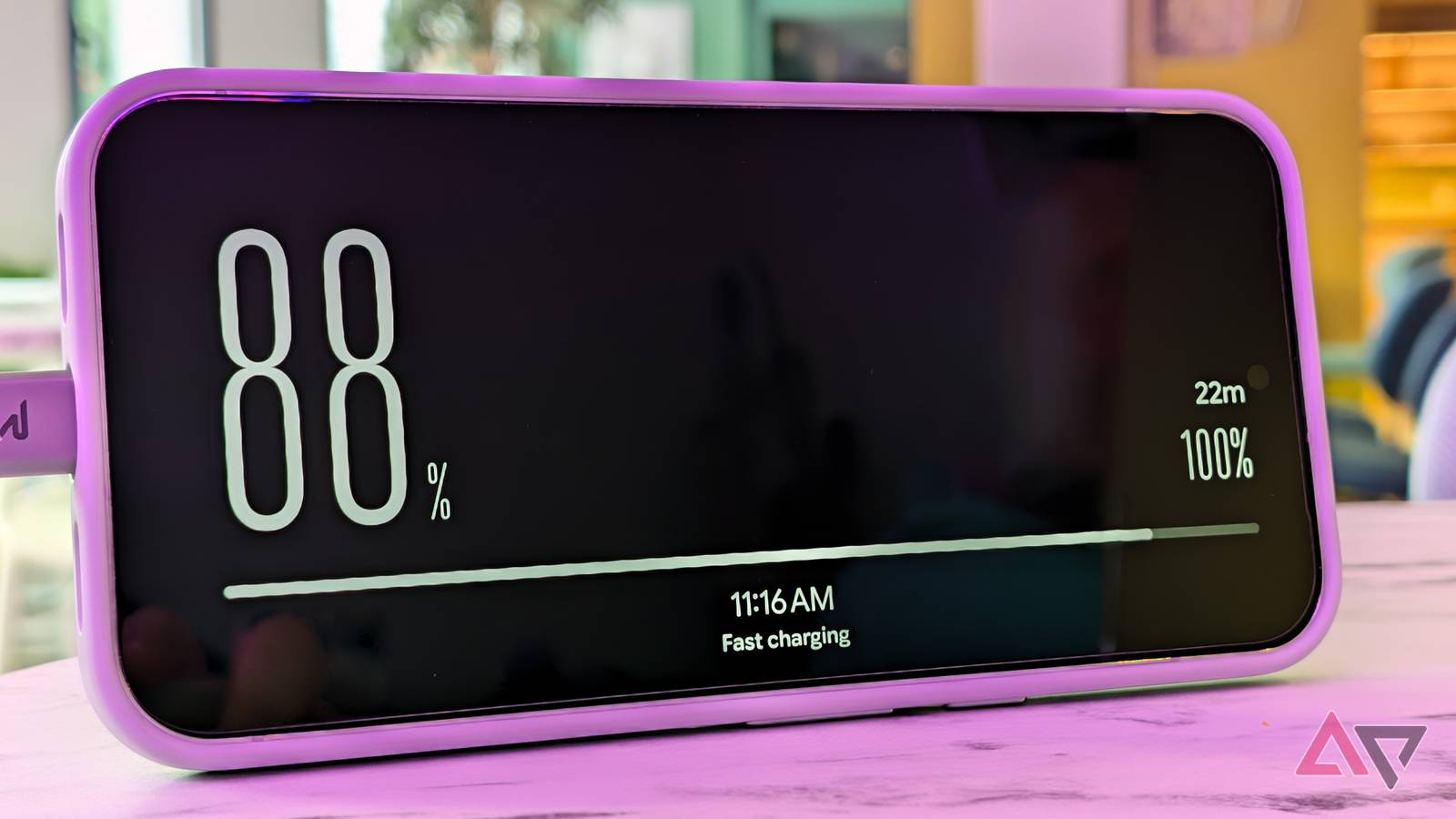
While setting up screen savers on my Pixel 11 Pro XL, I noticed that Google was showing the number "1" next to the screen saver I was choosing — the cool new Charge option that you can see at the top of this article.
"1" meant there could be a "2" and a "3" and more, so I decided to tap the other options to see what happens, and lo-and-behold, I could now pick multiple screen savers. I could even rearrange them in the order I wanted.
That's exactly what I've wanted from the feature since it became more function on the Pixel 10: a way to select multiple options and switch between them depending on what I need at the moment.
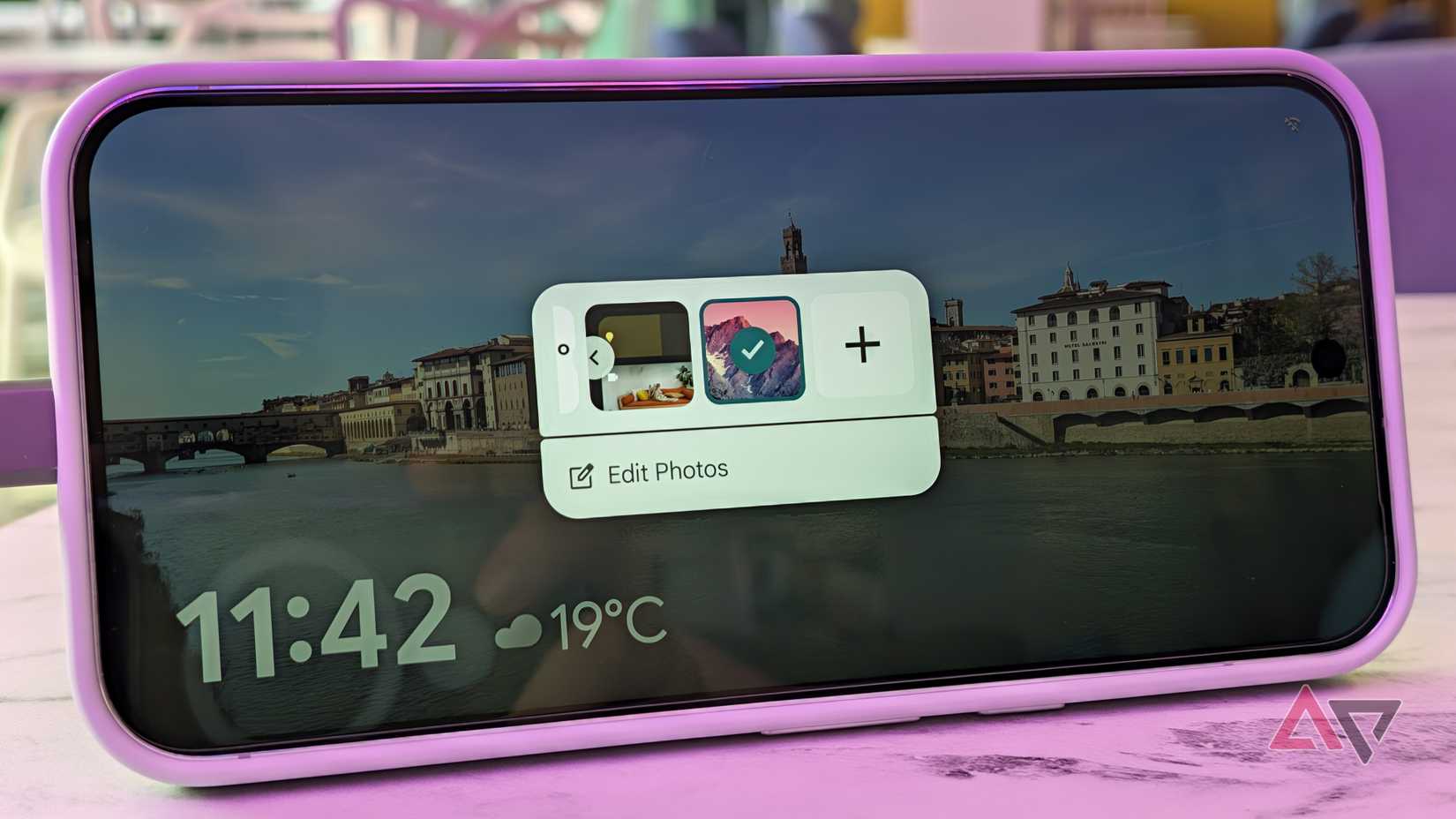
I then discovered that once the screen saver is triggered, it would always show option number one, but I could tap and hold the display to reveal the switch menu to pick another saver.
I like the simplicity of the Charge screen saver. Its black screen keeps battery consumption low, and its minimal design is not distracting. I love that it shows me what I need: the current battery level, the time remaining to go to 100%, and the date and time. This has become my default saver.
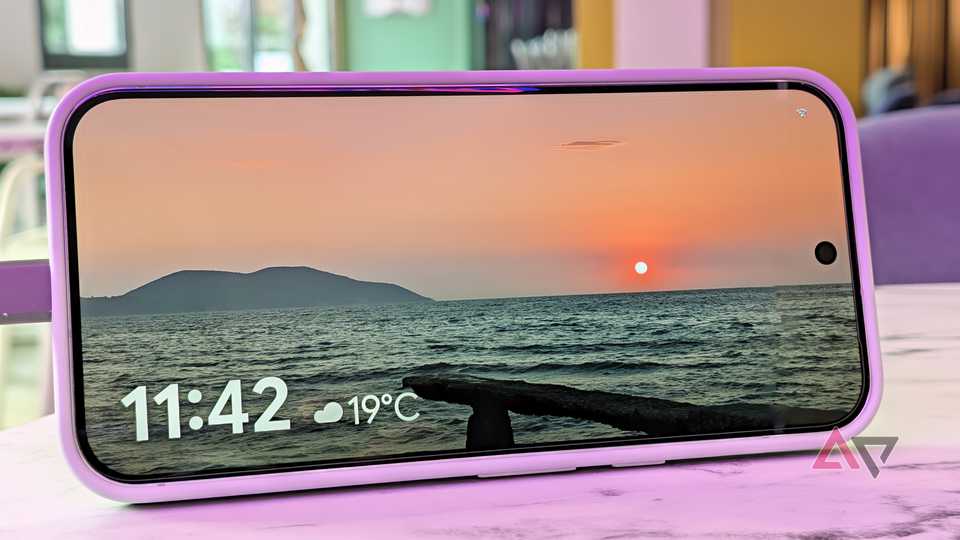
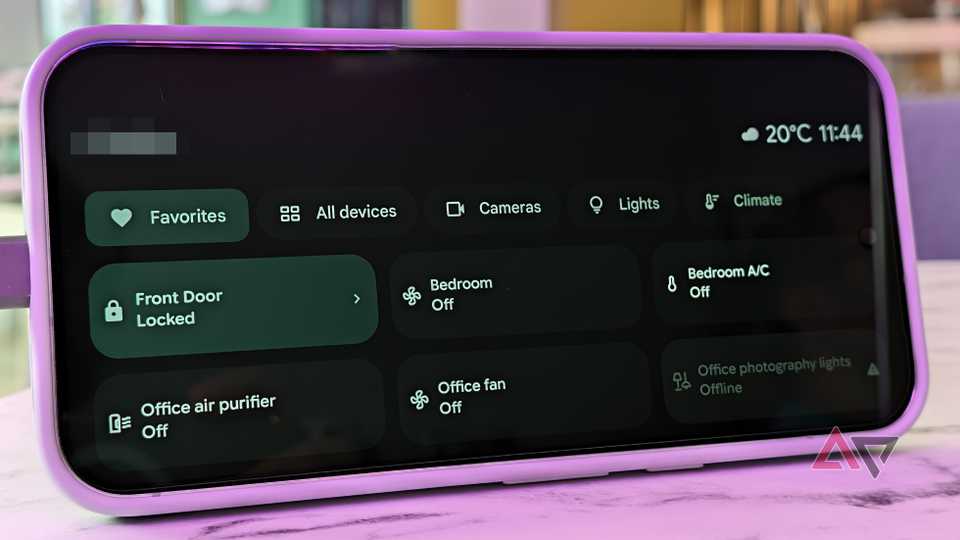
But there are times when I want more than this, and that's when I switch to the other options. Home Controls lets me toggle some smart home devices without unlocking my Pixel and Google Photos cycles through my favorited photos, transforming my phone into a photo frame.
I've selected Weather, too, but I haven't used it much recently because the weather is still relatively stable and hot in Paris. But once it starts getting capricious with rain and cold, I'll probably use it more.
Those are the four screen savers I can cycle through. The only option I have not selected is the basic Clock screen saver because it doesn't provide much more than the basic Charge saver for me. It's my default low-light (read night-time) saver, though.
How to enable the Pixel 11's screen saver
And how to choose your favorites
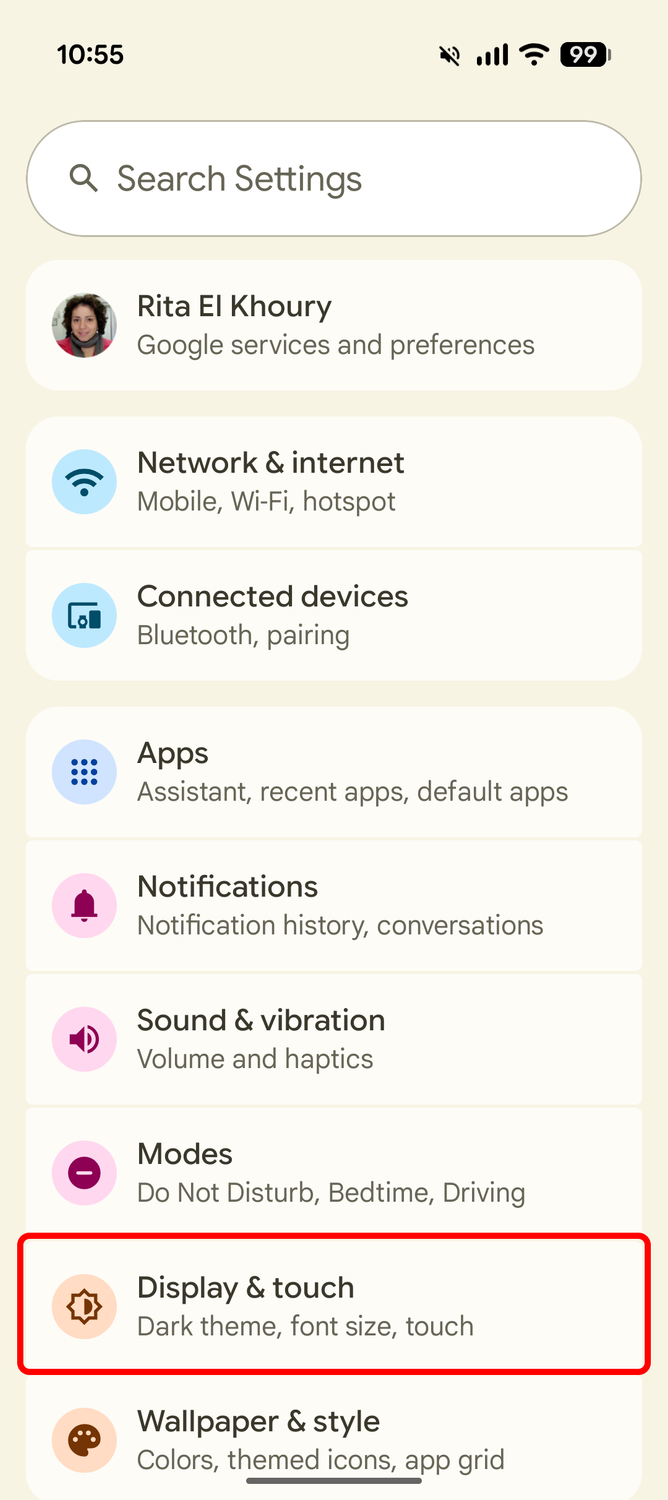
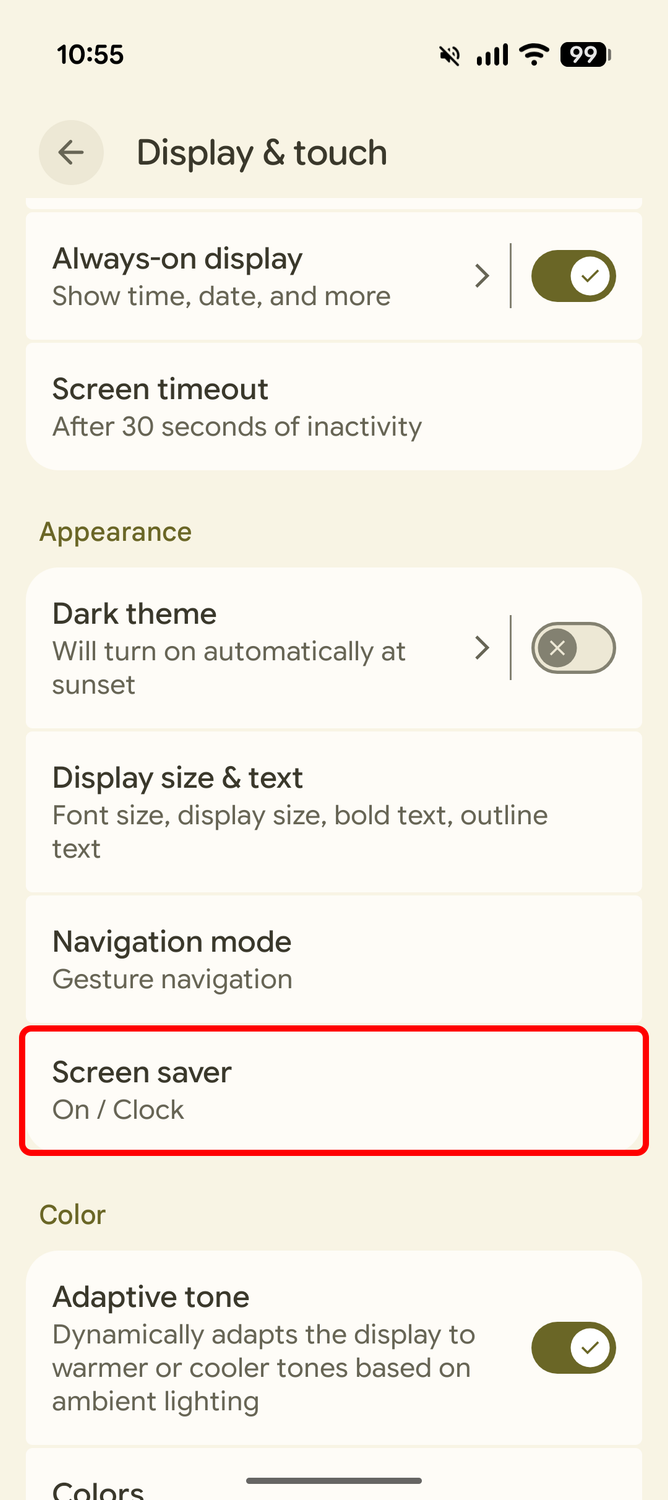
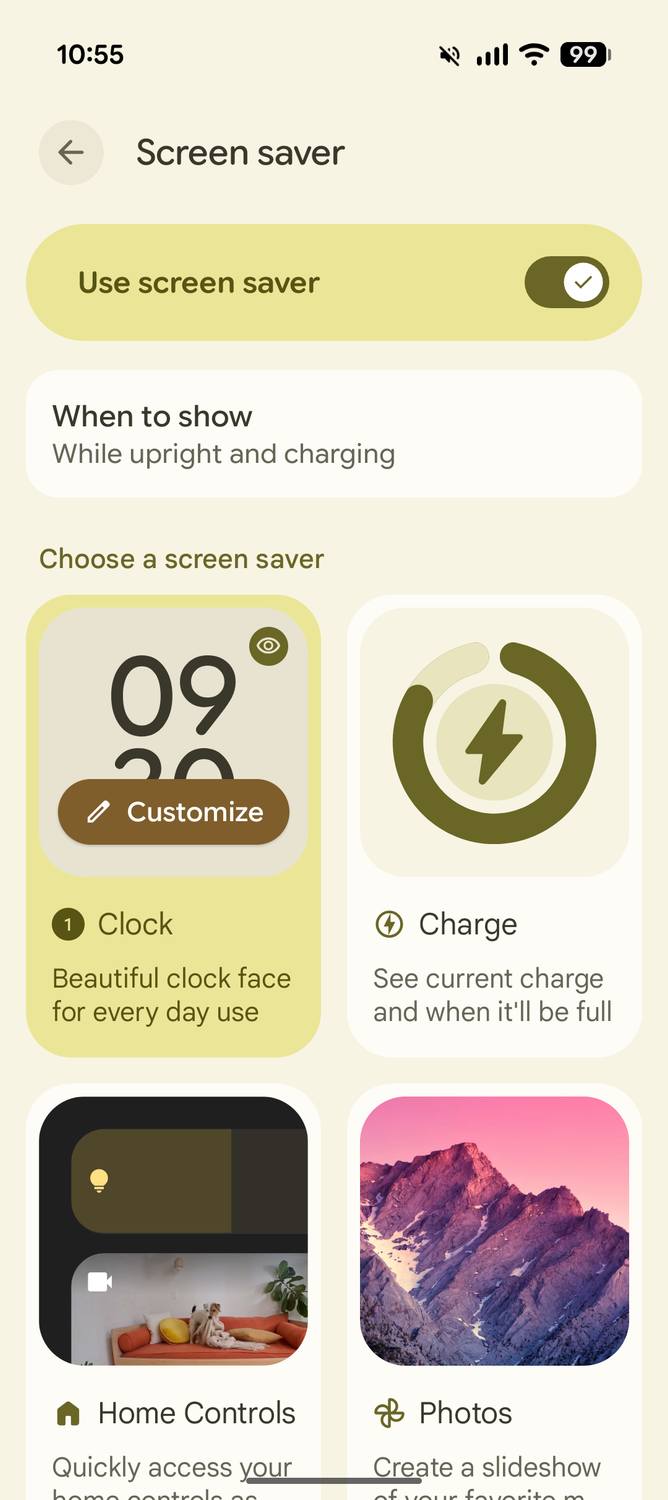
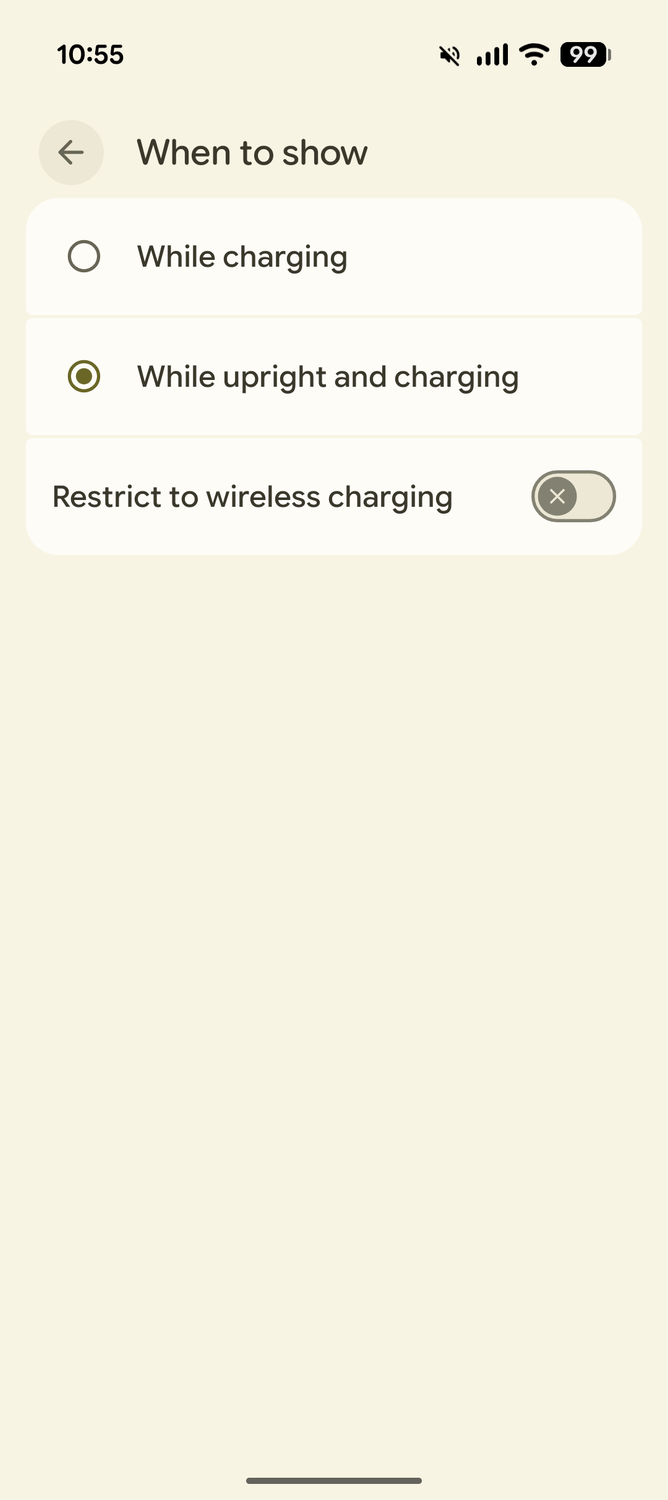
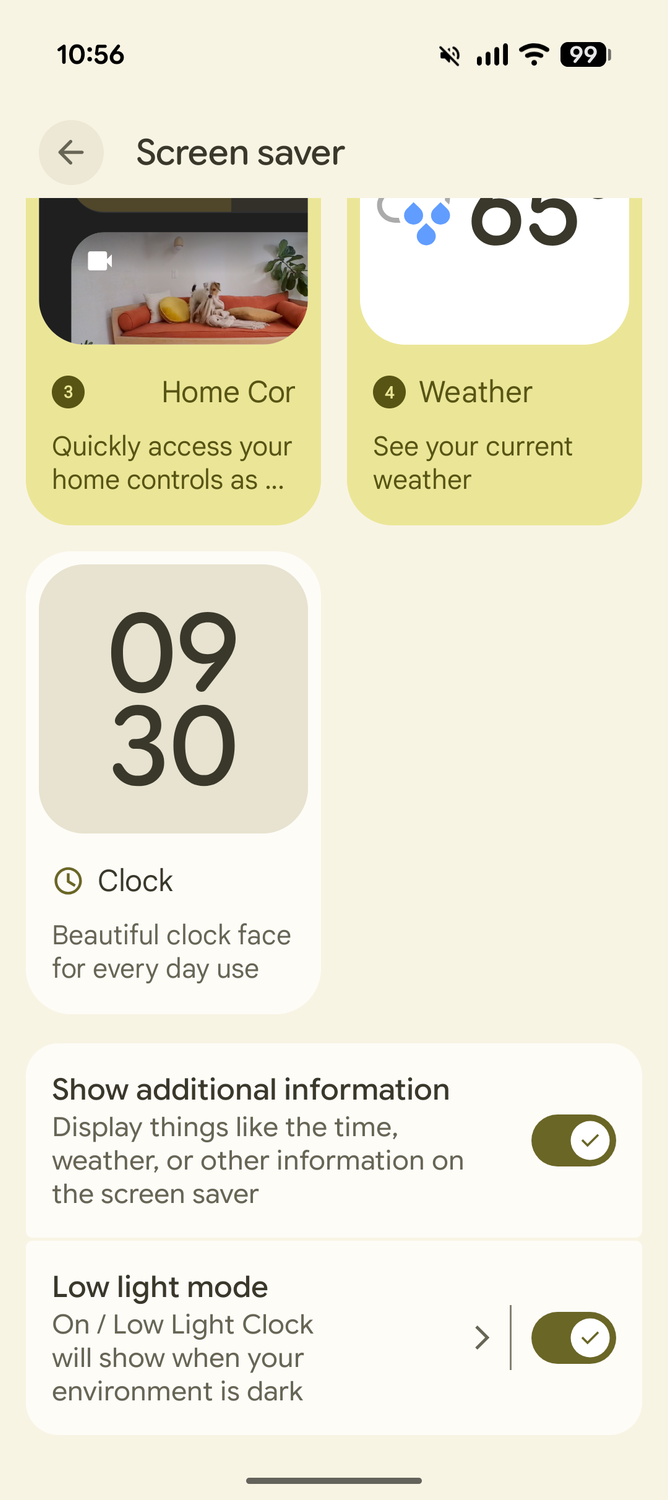
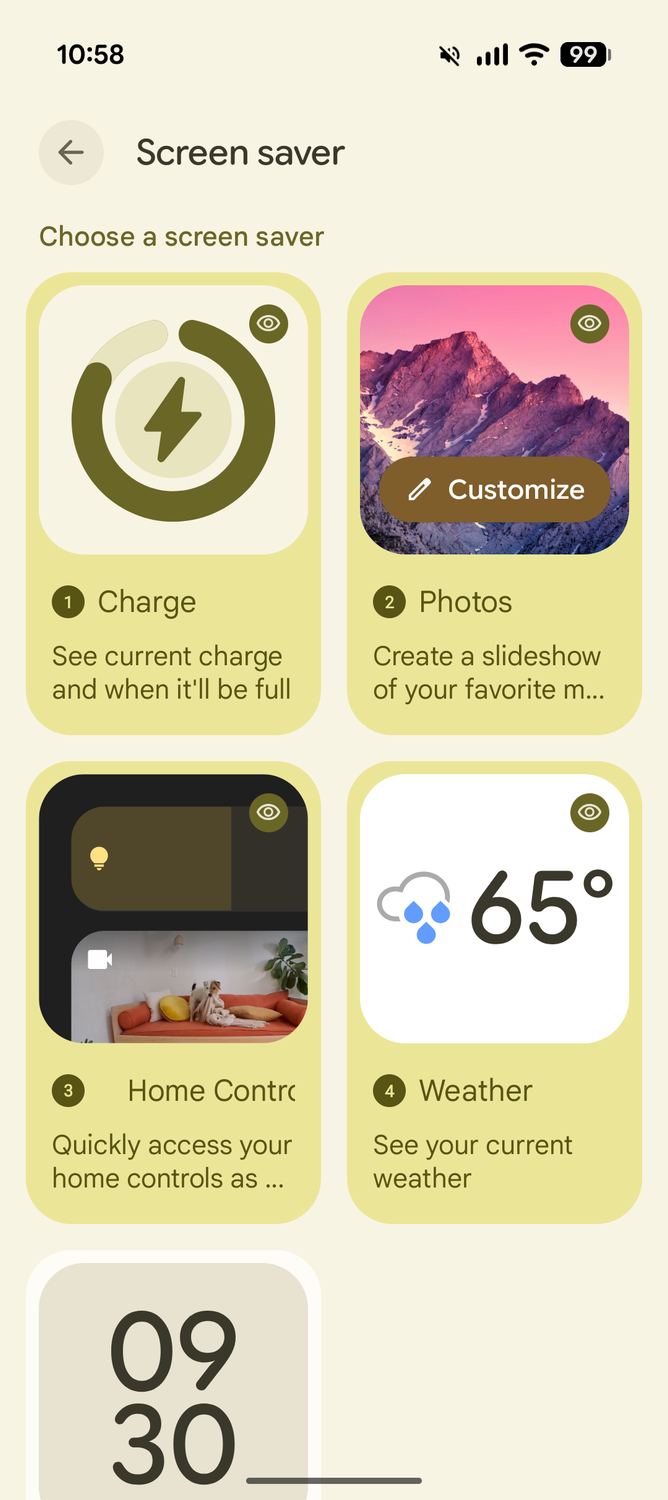
To turn on the screen saver feature on your Google Pixel 11, 11 Pro, 11 Pro XL, or 11 Pro Fold, follow these very simple steps:
- Go to > and scroll down to find the Screen saver menu.
- Make sure the Use screen saver option is turned on.
That's it. Just tap to select any and all screen saver options you prefer. Most of them don't offer extra options, but the Clock and the Photos ones will let you customize them. This involves picking clock styles, info, and themes, as well as choosing the Photos albums that the digital frame will cycle through (same to a Google TV or Nest Hub if you've ever used those).
When you pick multiple screen savers, you can tap and hold to drag them and reorder them. I suggest picking the one you'll most likely use and need as the main one, then adding a couple you think you will need. And if you notice you don't use those all that much, remove them.
Beyond this, you can customize When to show by telling your Pixel to trigger the saver when the phone is charging or specifically when it's charging and upright. This disables it, for example, when your phone is charging while lying down on a desk or table. You can also limit it to wireless charging only or let it trigger over USB-C too.
Beyond this, you can allow other info to show on the screen saver, like the time and weather, as well as force it to switch to a low-light option in the dark. So if you charge your phone at night, the screen saver won't show bright photos but a dim clock.
I want more screen saver options, Google!
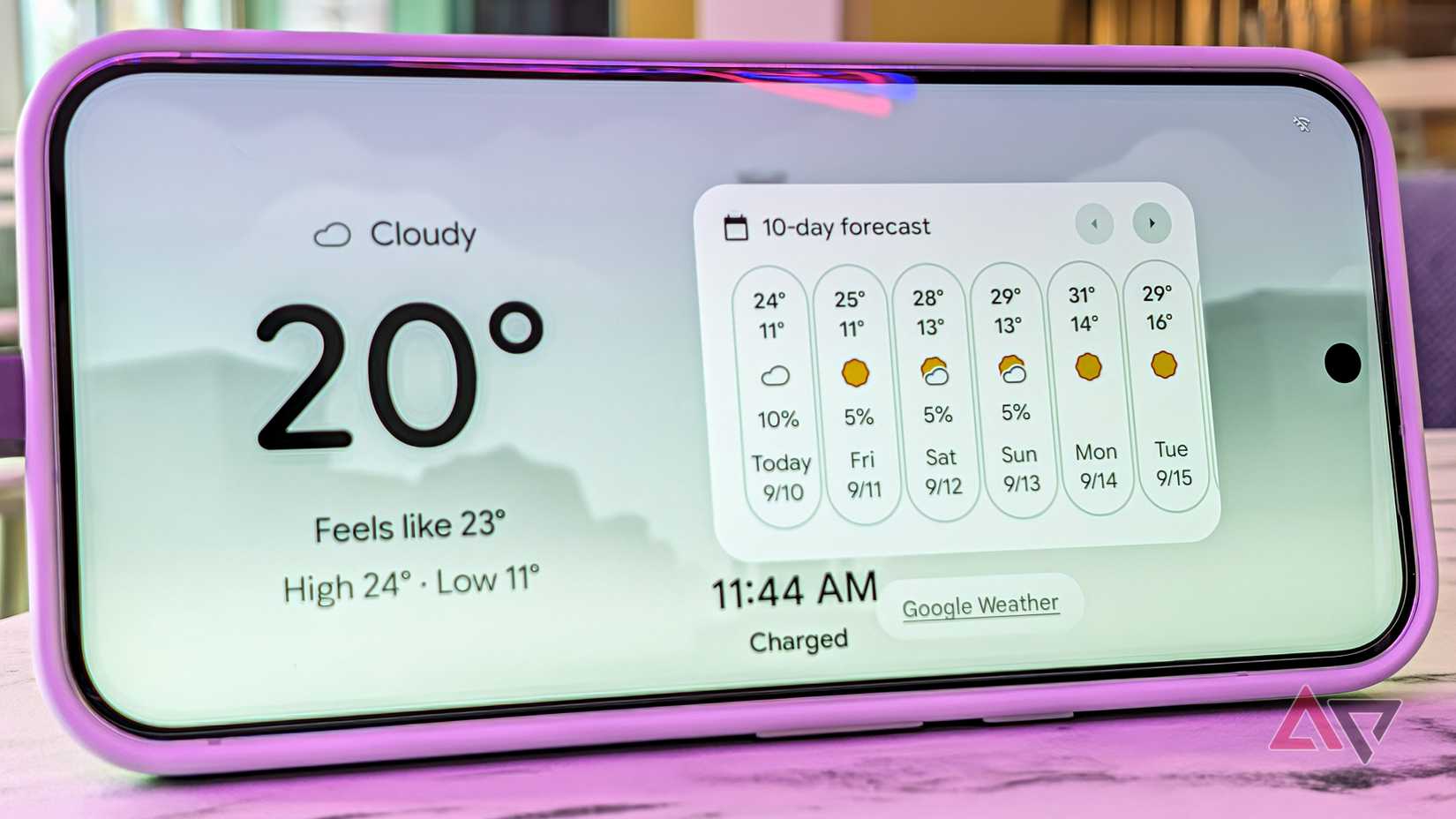
These screen savers have quickly become one of my favorite Google Pixel features. I don't know why Google isn't making them available on all Android phones, but there's a way to build equivalent screen savers on Samsung Galaxy phones if you want.
What I find myself missing, though, when I use them, is more options and more context awareness. A music player screen saver would be cool, for example, especially if it could do lyrics too. So would a Calendar option or a Google Keep or Tasks one for productivity.
I'd also love to specify when and where a specific screen saver option takes precedence. If I haven't touched my phone in a while, default back to Charge or Clock. If I'm not home, don't show Photos while I'm charging. If I have an event in a different location in an hour or two, show me the Weather, and so on.
Google has the smarts to be able to pull this off and make this much more adapted to every one of us, so while it's nice that I can now pick multiple screen savers and switch between them, I'd love it more if my phone understood where and when I use each of the options, so I wouldn't have to manually pick and swtich.