And several possible fixes.
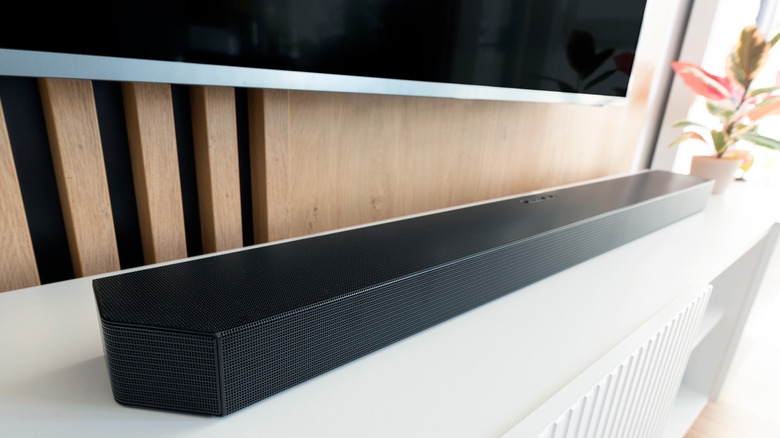
One of the more frustrating experiences you can have while watching TV comes when the audio is out of sync with the video. You've probably noticed it while viewing a show or a movie where the characters' mouth movements don't match the dialogue. Or when you're watching a sporting event and the play-by-play announcer calls a game-winning basket, touchdown or home run before you even see it.
Audio delay is a fairly common occurrence with soundbars connected to TVs, and there are a few reasons why this happens. Fortunately, audio delays can often be fixed pretty easily by simply adjusting some settings on your smart TV.

Understanding the source of the audio delay between your smart TV and soundbar can help you determine how to fix it. For example, if you notice the audio delay while watching TV through your cable or a streaming service, try watching something from another source, like a Blu-ray player. If the audio from the Blu-ray syncs just fine, the issue could be with the actual cable broadcast or streaming service.
But if the audio delay occurs regardless of what you're watching, then the culprit is likely either your TV or soundbar, or a combination of both. First, check the connection between your TV and soundbar. If the digital optical cable or HDMI cable is loose, tighten it or connect a new one and try again. It may seem obvious, but a bad connection is often the issue.
The problem could also be the result of audio processing delays. Here's why. When you're only using your TV's speakers for audio, the TV is doing all the work behind the screen as it sends the video and audio only when the processing of both signals is complete. That results in completely synced audio and video. When you introduce a soundbar or other home theater system component to the process, an extra layer of processing happens. Your TV decodes the video, and your soundbar decodes the audio. If those decoding processes are off by even a fraction of a second, it's enough to delay the audio while the video has already been decoded and processed. That's when you get really annoying, out-of-sync dialogue and sound.
Of course, other factors can contribute to audio delay as well. The TV, the soundbar, a streaming device, a gaming console, and even poor Wi-Fi or Bluetooth wireless connections can also cause lag.
How to fix soundbar audio delay issues
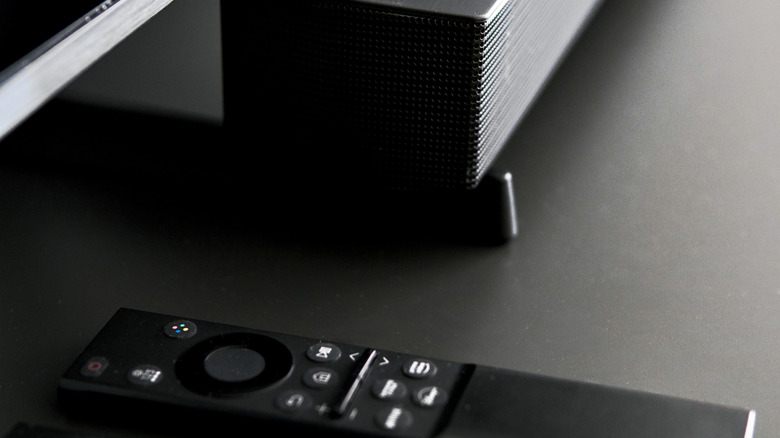
Obviously, different brands of soundbars will have slightly different settings and controls. For Samsung soundbars, you can use the Sound Control button on the remote to adjust the audio until it aligns correctly. The remote also features an Audio Sync button, which allows you to use the Skip Forward/Backward buttons to adjust the sound until it's right. Also try the Audio Sync +/- feature for sync adjustments.
Similarly, LG soundbars have an AV Sync feature that can help you resync the audio to line up with the video. If you have a Sonos soundbar, you can go into the Sonos app on your phone and navigate to System > [select your soundbar] > Home Theater > TV Dialog Sync and adjust the slider until the audio syncs to the video.
There's also a handy way to completely bypass the TV, called direct routing. This is accomplished by plugging your cable box, streaming device or gaming console right into your soundbar's HDMI input. Then connect the other end of the HDMI cable to an HDMI output on your TV, and the audio decoding skips the TV and the processing delays it can cause by going directly into the soundbar.
Adjust your TV settings to solve audio delay problems
Oftentimes, a simple adjustment of your TV's settings can do the trick. One easy fix is to disable the extra audio and video modes and processing that the manufacturer of your TV advertises as high-end features. You've probably noticed these in your settings menu — features like digital noise reduction, dynamic contrast, game mode, movie/cinema mode, virtual surround sound, dialogue enhancers and 3D audio. Yes, these features can help with audio/visual quality, but they also require extra processing time, which leads to audio lag. Disabling or turning those features off can reduce the delay enough to ensure your soundbar's audio syncs with the TV's video.
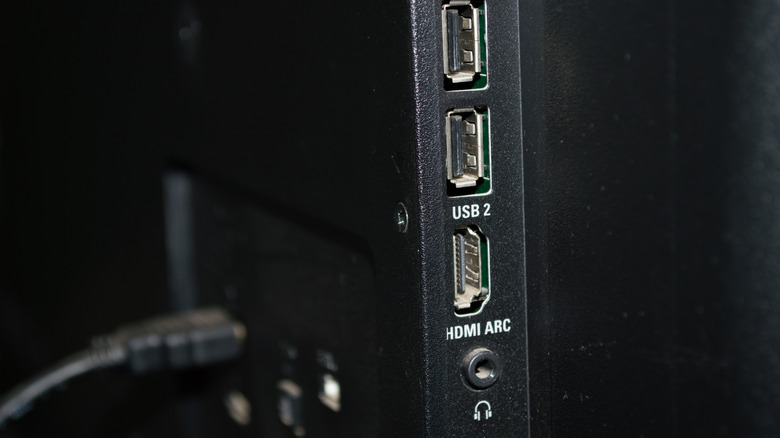
HDMI ARC (Audio Return Channel) hardware in the TV and soundbar is also a common cause of audio delay because it doesn't have the bandwidth to pass high-end, uncompressed audio like Dolby TrueHD, DTS-HD Master Audio or 5.1 surround sound through the HDMI cable to the soundbar without taking extra time to turn those signals into lower-quality, passable audio. Upgrading to eARC solves this problem. If your TV and your soundbar both have HDMI eARC ports, all you need is an ultra-high-speed HDMI cable to connect them. If neither your TV nor your soundbar has an HDMI eARC port, direct routing is probably the best way to go.
You could also change your TV's audio format or source device to PCM or stereo to cut down on processing time. But that eliminates surround sound audio, which is probably one of the reasons you bought a soundbar in the first place. A better solution is to search your TV's settings for features like Lip Sync, AV Sync, Audio Delay or Audio Sync within the TV's audio or sound menu. Any of these allow you to adjust the audio delay setting until you get it just right. And if all else fails, try to reboot or reset all your home theater components by unplugging them for about a minute, then plug them back in one at a time and see if there's a difference. It's also a good idea to update your devices' firmware to ensure any bugs are being fixed.